
How to Audit Mobile Software: 9 App Safety Checks for Parents

App safety checks for parents shown through a mother guiding her child on a tablet, helping viewers understand safe and supervised app use at home.

Downloading a new game or learning tool takes seconds, but unvetted software can expose children to privacy violations, inappropriate content, or unexpected financial charges. Running systematic app safety checks for parents before clicking install ensures your child’s digital footprint remains secure, private, and age-appropriate.

Safety Check Potential Risk What to Look For Immediate Action
Store Age Ratings Exposure to mature themes PEGI / ESRB badges Match rating to child’s maturity level
Device Permissions Unnecessary data access Requests for GPS, Contacts, Camera Deny non-essential access
In-App Purchases Accidental financial charges Unlocked one-click buying Require PIN/Biometrics for all transactions
In-Game Chat Rooms Unmonitored adult contact Open global text/voice chat Disable direct messaging or restrict to friends
Curation Badges Poor quality or predatory ads “Teacher Approved” or “Kids” tags Favor verified educational badges
Data Privacy Policy Commercial ad tracking Data selling to 3rd-party ad networks Opt out of targeted tracking
Social Login Requests Over-sharing personal info Mandatory Facebook/Google sign-in Use guest accounts or alias emails
Parental Dashboard Uncontrolled screen time Lack of time limits or filters Enable native screen time boundaries
Developer Reputation Malicious software / malware Unknown publishers with zero history Stick to established, audited developers

9 App Safety Checks for Parents

1. Verify Store Age Ratings and Content Descriptors

Check the official age ratings provided by the Apple App Store (e.g., 4+, 9+, 12+) or Google Play Store (ESRB/PEGI ratings). Look beyond the numerical age to read the specific content descriptors, such as mild cartoon violence, simulated gambling, or user-generated content warnings.

2. Audit Excessive Device Permission Requests

Inspect what hardware features the application requests upon installation. A simple offline puzzle game does not need access to your device’s precise GPS location, contacts, or microphone. Review these settings through your phone’s privacy menu and toggle off any permissions that are not strictly necessary for core functionality.

3. Lock Down In-App Purchases and Microtransactions

Many “free-to-play” titles rely on microtransactions, loot boxes, or virtual currency packs that encourage impulse buying. Configure your device settings to require a password, PIN, or biometric check (Face ID/Fingerprint) for every single transaction to prevent surprise charges on your linked credit card.

4. Inspect In-App Communication and Open Chat Features

Unmonitored text, voice, and video chat channels in multiplayer games represent one of the highest safety risks for young users. Determine whether the application features open global chat. If it does, navigate to the internal settings to disable direct messaging, turn off voice chat, or restrict communication strictly to approved real-life friends.
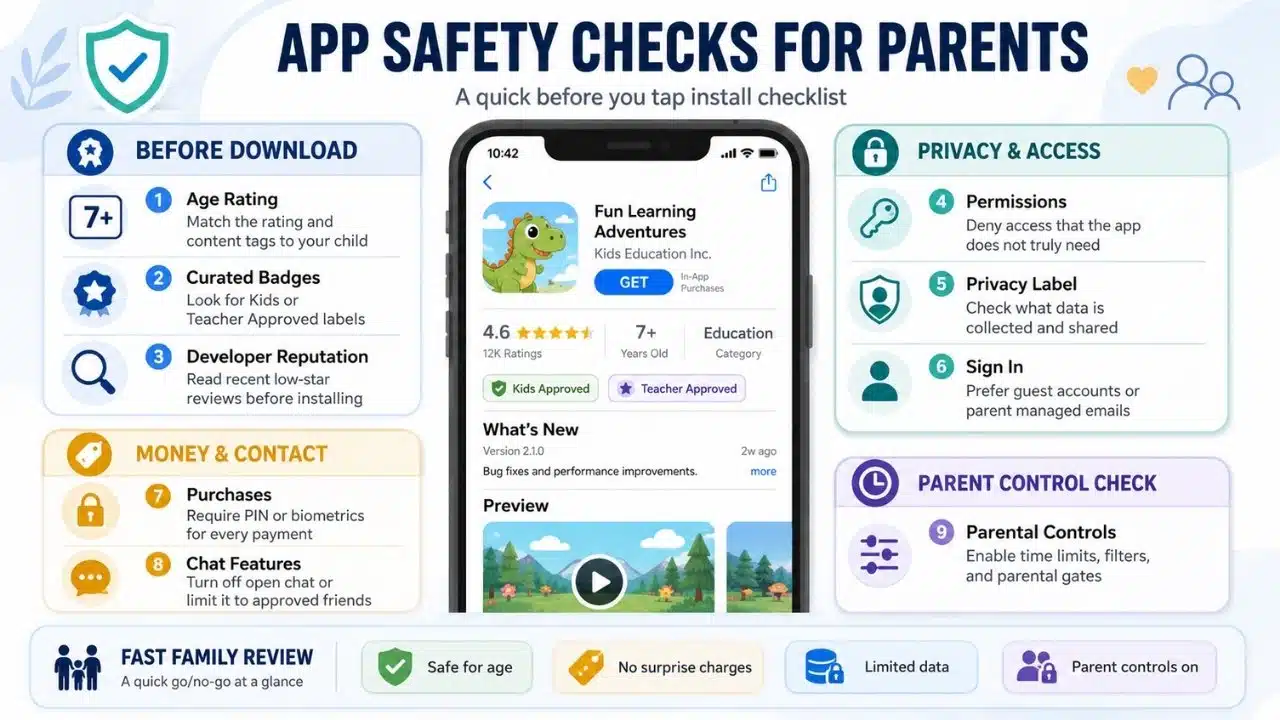
Infographic showing app safety checks for parents, including privacy, permissions, purchases, chat settings, and parental controls for safer app choices.
A parent supervises a child using a tablet, highlighting the importance of checking app safety before download and use.

5. Look for Teacher Approved or Curated Kids Badges

Platforms often highlight vetted software through dedicated verification programs. Look for Google Play’s “Teacher Approved” badge or Apple’s “Kids” category. These badges indicate that the app complies with strict educational standards, age-appropriate design guidelines, and transparent data practices.

6. Review Data Collection and Ad Tracking Policies

Under Federal Trade Commission guidelines and laws like COPPA compliance standards, apps designed for children under 13 must restrict commercial behavioral tracking. Review the app store’s “App Privacy” label to see if the developer collects personal identifiers, usage data, or diagnostic info for third-party advertising.

7. Check Account Creation Requirements

Avoid software that requires young children to link personal social media accounts or submit their full real name, birthdate, and personal email address. Whenever possible, sign up using a guest profile, an alias, or an account managed directly by a parent.

8. Test Built-In Parental Controls and Content Filters

Open the application before handing the device to your child to explore its internal settings. Reliable youth-oriented software should provide a password-protected parental gate, customizable screen-time limits, and options to disable external links or web browsers embedded within the app.

9. Research Developer Reputation and Review History

Take a minute to read recent user reviews, specifically filtering for 1-star and 2-star feedback. Look out for complaints regarding sudden pop-up ads, hidden subscription traps, or frequent glitches. Choosing software built by established, transparent development teams significantly reduces security risks.

What to Do Next

Take ten minutes today to review the active applications installed on your child’s primary device. Run through these nine safety checks, disable unnecessary hardware permissions, and lock down payment credentials to ensure a safe, distraction-free digital workspace.

Frequently Asked Questions (FAQs) on App Safety Checks for Parents

How often should I re-check app permissions on my child’s device?

Audit device permissions every few months or whenever an app receives a major software update. Developers occasionally add new features that request additional camera, microphone, or tracking permissions during updates.

Are free apps inherently less safe for children than paid apps?

Not always, but free apps are more likely to rely on pop-up advertisements, third-party data tracking, and aggressive in-app purchase prompts to generate revenue. Upfront paid apps often deliver a cleaner, ad-free environment.

How can I prevent my child from downloading new apps without permission?

Enable native system controls like Apple’s “Ask to Buy” feature or Google Family Link. These tools require children to send an instant permission request to a parent’s phone before any new app can be downloaded.

Subscribe to Our Newsletter

Related Articles

Top Trending

11 Best Productivity Apps for Mac to Cut Everyday Busywork
Top SaaS Ideas from Reddit Pain Points
10 SaaS Ideas Pulled Straight From Reddit Pain Points
Best Productivity Apps Without a Subscription
12 Best Productivity Apps Without a Subscription [Pay Once or Pay Nothing]
best Marketing reporting tools
10 Best Tools for Building Marketing Reports
Best Project Management Tools for Freelancers
10 Best Project Management Tools for Freelancers

Technology & AI

11 Best Productivity Apps for Mac to Cut Everyday Busywork
Top SaaS Ideas from Reddit Pain Points
10 SaaS Ideas Pulled Straight From Reddit Pain Points
Best Productivity Apps Without a Subscription
12 Best Productivity Apps Without a Subscription [Pay Once or Pay Nothing]
best Marketing reporting tools
10 Best Tools for Building Marketing Reports
Best Project Management Tools for Freelancers
10 Best Project Management Tools for Freelancers

GAMING

Complete Guide on Game Programgeeks
Game Programgeeks: A Complete Guide on PC, Game Dev, and Tech
Online Color Game Philippines
Online Color Game Philippines: What Every Beginner Should Know Before Playing
Ways to Reduce Game Development Costs
12 Ways Studios Cut Game Development Costs
NFT game development cost
How Much Does NFT Game Development Cost? A Realistic Budget Breakdown
Reasons Why You No Longer Need the Best Roblox AI Scripter
Forget Best Roblox AI Scripter: 10 Reasons Why You No Longer Need It

Business & Marketing

Choosing the Right Heat Sealer for Your Packaging Line
Container Hire in Melbourne A Practical Guide for Builders and Businesses
Container Hire in Melbourne: A Practical Guide for Builders and Businesses
Tie Down Straps 101 A Practical Guide to Securing Your Load
Tie Down Straps 101: A Practical Guide to Securing Your Load
Low Minimum Order Merchandise
Big Impact, Small Batch: The Strategic Power of Low Minimum Order Merchandise
A side-by-side illustration exposing link building myths by contrasting budget lost on spammy backlinks with long-term SEO growth to help marketers protect their investment.
Stop Wasting Money: 10 Link Building Myths Ruining Your ROI

EdTech & E-Learning

How EdTech Startups Make Money
How EdTech Startups Make Money: Business Models Explained
Teaching Alphabets to Children at Home
How to Teach the ABCs at Home Without a Classroom
What Is Number Sense
What Is Number Sense and How Do Kids Develop It?
Best VR and AR Apps for Education
9 Best VR and AR Apps for Education
Orthographic Mapping
What Is Orthographic Mapping? Why Words Stick: A Practical Guide

Software & Apps

11 Best Productivity Apps for Mac to Cut Everyday Busywork
Best Productivity Apps Without a Subscription
12 Best Productivity Apps Without a Subscription [Pay Once or Pay Nothing]
best Marketing reporting tools
10 Best Tools for Building Marketing Reports
Best Project Management Tools for Freelancers
10 Best Project Management Tools for Freelancers
Payment Gateways for SaaS Startups in South Asia
10 Best Payment Gateways for SaaS Startups in South Asia