
You are halfway through a project when your browser freezes. It closes, and the next window opens without the research tabs you spent all morning collecting. Can a tab manager bring them back?
Sometimes. The answer depends on whether the tool saved your tabs before the crash. Some browser tab managers record open sessions automatically. Others restore only the groups you chose to save. A backup outside your browser can offer another recovery route if the browser profile itself is lost.
There is one more limit to understand: reopening a tab is not the same as recovering unsaved work inside it. A restored page may still have an empty form, an older document draft, or a sign-in screen.
This guide compares eight browser tab managers by what they save, how they restore it, and what you should check before trusting them with important tabs.
Can Browser Tab Managers Restore Tabs After a Crash?
Yes, if they captured the tabs before the crash and their saved data is still available. The type of recovery varies:
- Automatic session managers record open tabs as you work or at set intervals.
- Manual tab savers keep the tabs you explicitly save as a list or collection.
- Backup and sync features can make saved sessions available after a browser-profile problem or on another device.
The table shows the key difference. “Automatic” refers to recording open tabs; it does not mean every document or draft inside those tabs is saved.
| Browser tab manager | Records open tabs without a manual save? | Recovery option beyond local browser data |
|---|---|---|
| Workona | Yes, for tabs in its spaces | Workona account and plan-dependent backups |
| Session Buddy | Yes, through its session timeline | A separate backup you create |
| Tab Session Manager | Yes, when automatic saving is enabled | Export or optional Google Drive sync |
| Tablerone | Yes, through its session archive | Export or opt-in Google Drive backup |
| OneTab | No; you send tabs to OneTab | Export or optional paid backup and sync |
| Tabox | For an active collection with Auto-Update enabled | Export or optional Google Drive sync |
| Toby | No; you save a session | Toby account or export |
| Tab Stash | No; you stash tabs | Firefox bookmarks, with Firefox Sync if enabled |
Check Your Browser Before Installing an Extension
If your tabs have already disappeared, start with the recovery tools you have. A new extension cannot reconstruct an earlier session it never recorded.
- Chrome: Look for the restore prompt when it opens. You can also press Ctrl + Shift + T on Windows or Command + Shift + T on Mac, then check History → Recently closed. For future launches, Settings → On startup → Continue where you left off can reopen the pages you had open when you quit.
- Firefox: Check History → Restore Previous Session, followed by Recently Closed Windows or Recently Closed Tabs.
- Microsoft Edge: Check recently closed tabs and set Settings → Start, home, and new tab page → Open tabs from the previous session for future launches.
- Safari on Mac: Open History → Reopen All Windows from Last Session.
If those options fail, search your browser history for the pages you remember. History may help you find individual links, although rebuilding the original windows and tab order can take more work.
8 Browser Tab Managers for Crash Recovery
Each tool below solves a slightly different problem. Pay particular attention to whether it saves a live session automatically or waits for you to click a button.
1. Workona: Automatically Saves Tabs in Project Spaces
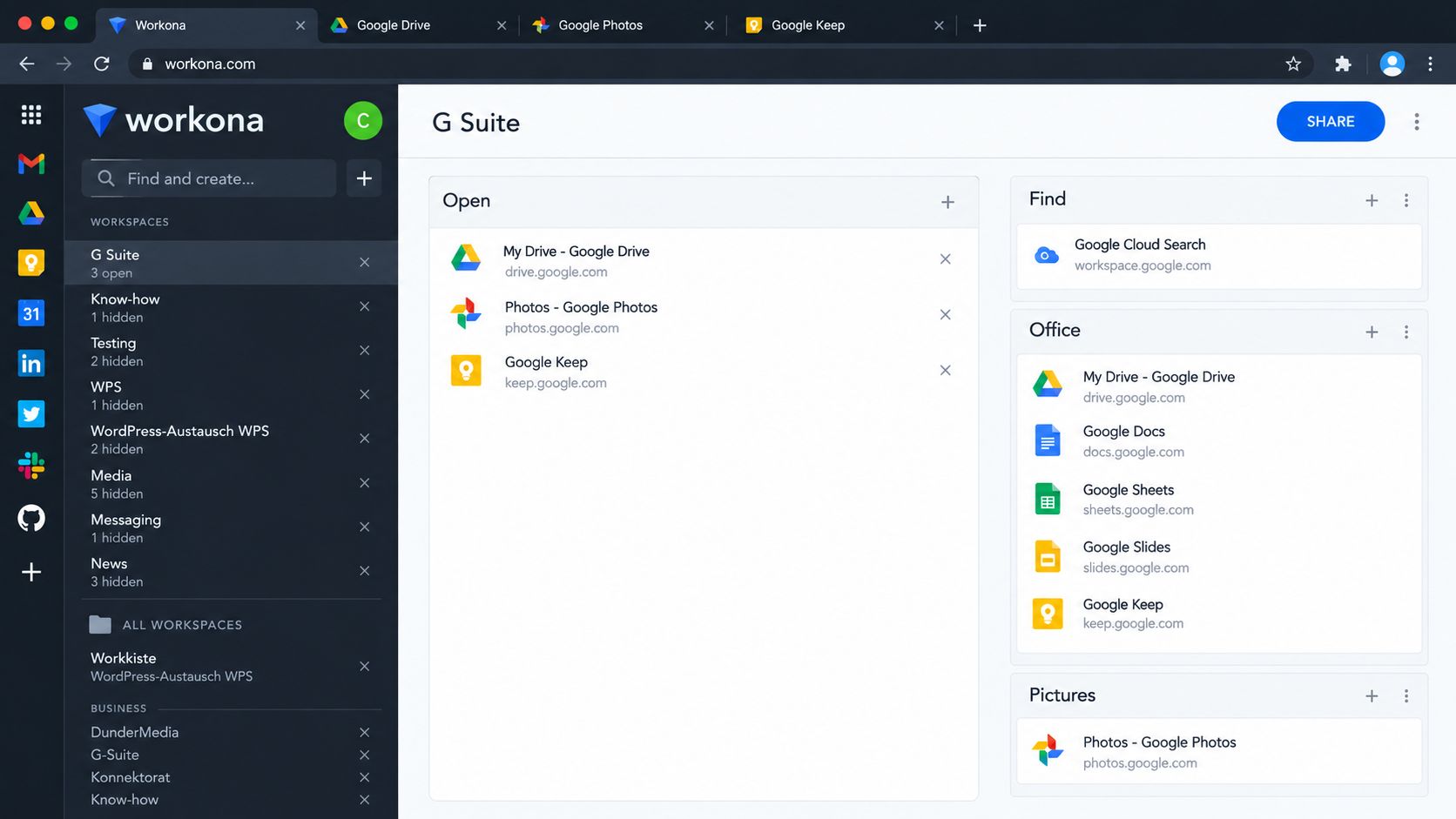
Workona puts tabs into spaces for different projects. Tabs in a space are saved automatically, so you can close the space and reopen its recent session later. Signing in also gives you access to your work from another computer.
Its backup snapshots are useful if you need more than the latest set of tabs. For example, you might want to return to a version of a project space from before you closed or replaced several pages.
The limit: Workona lists 90-day session backups under its Pro plan, and free accounts have space limits. Check your plan before assuming you can retrieve an older session. Workona restores the tabs it saved, while the websites you reopen determine whether drafts and edits are still there.
Best for: People who move between projects and want their tabs saved without remembering to make a new collection each time.
2. Session Buddy: Find Tabs in an Earlier Session
Session Buddy keeps a timeline of browser sessions. If the browser’s recently closed list does not show the window you need, its history may let you locate the tabs that were open at an earlier point. You can also save selected sessions as collections.
That makes it useful for a common problem: you remember seeing a page, but cannot remember its title or which window held it.
The limit: Session Buddy’s main data is stored locally. It has an automated backup feature, but that backup can lag behind recent changes by up to 24 hours and is still affected by browser storage problems. Make a separate backup of important collections and history, especially before changing or reinstalling your browser. Chrome is its officially supported browser.
Best for: People who want to search past tab sessions, including tabs they did not think to save manually.
3. Tab Session Manager: Save at Regular Intervals
Tab Session Manager can save sessions manually, when a window closes, or at regular intervals. It supports tab groups, session exports, and optional Google Drive sync.
For crash recovery, regular interval saving is the setting to look at. A normal window close and an abrupt browser crash are different events. If you rely only on saving when a window closes, your latest open tabs may not be captured when the browser stops unexpectedly.
The limit: The recovered session may be slightly older than the moment of the crash. Check that automatic saving is enabled and choose an interval that suits your work. Its saved session data includes details such as page titles and URLs, so consider your workplace’s rules before syncing work tabs to a Google account.
Best for: People who want control over automatic saves and the option to keep exported or synced copies.
4. Tablerone: Look Back Through an Archive
Tablerone automatically records sessions containing open tabs. If Chrome does not restore the window you expected, you can look through Tablerone’s Archive for the missing session and reopen it. You can also save and organize sessions manually.
The archive is especially helpful when you need to recognize an older group of tabs rather than search for every page separately.
The limit: Data kept only in a browser can disappear if its local storage is damaged or removed. Tablerone added an optional Google Drive backup in April 2026, but you must opt in and authenticate your Google account. It also offers manual exports. Check that your chosen backup is working before relying on it.
Best for: Chrome users who want an automatic session archive with an optional backup outside the browser.
5. OneTab: Restore the Tabs You Chose to Store
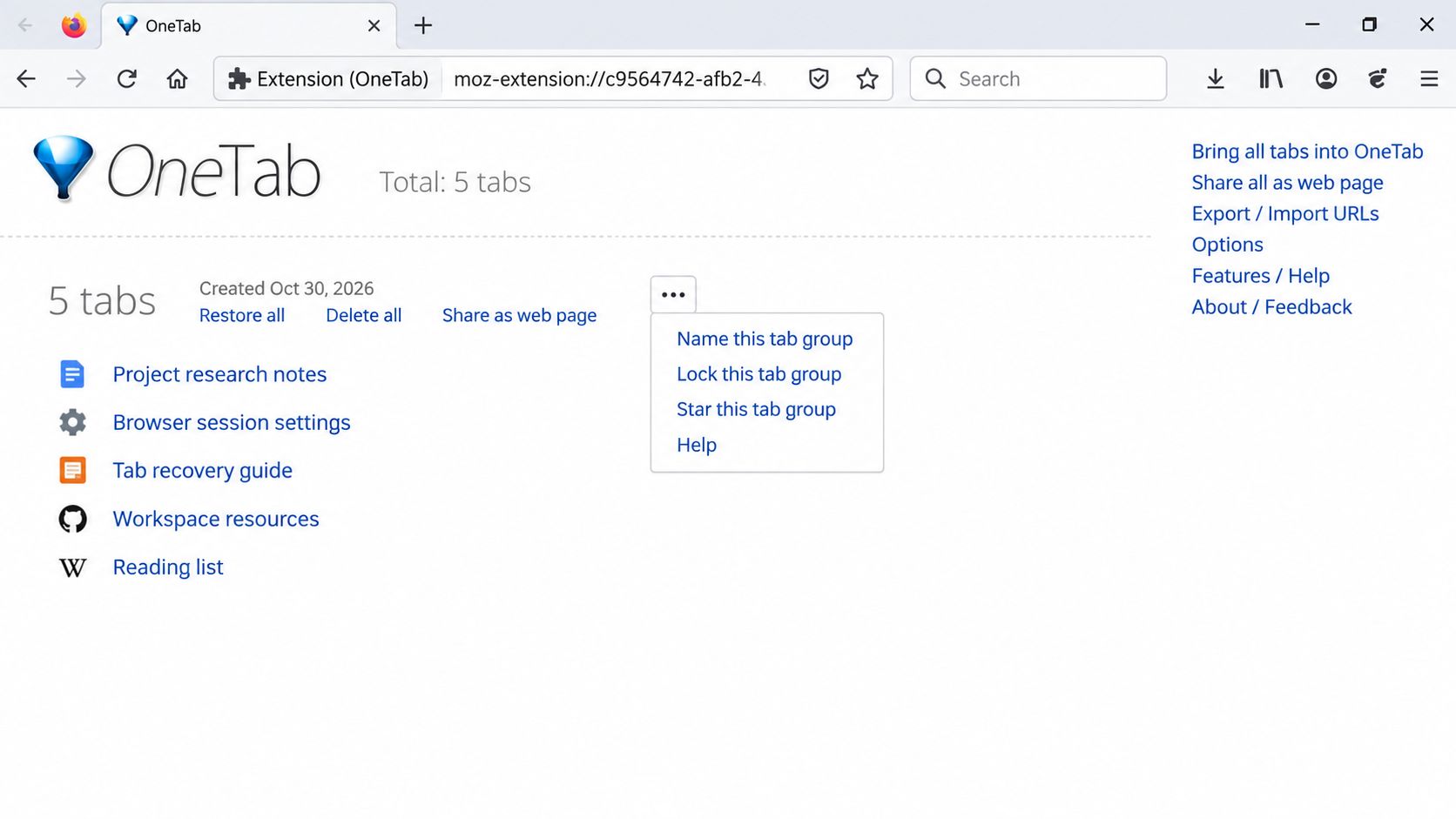
Clicking OneTab moves the tabs in your current window into a saved list. You can later restore a single page or the full group. It is a straightforward way to close a crowded window while keeping its links within reach.
OneTab is most useful when saving tabs is already part of your routine. A saved research group can be reopened after a crash even if the original browser window is gone.
The limit: OneTab does not automatically back up every tab that remains open in your browser. Its optional paid encrypted backup and sync covers saved OneTab tabs and settings, not open tabs or browsing history. Uninstalling OneTab deletes its local data, so export your lists or confirm that you have a recoverable backup before removing it.
Best for: People who deliberately save and clear groups of tabs as they work.
6. Tabox: Keep a Saved Collection Updated
Tabox saves tabs as named collections. It can preserve their titles, URLs, order, and supported tab group details. You can reopen a collection when it is time to return to that project.
Its Auto-Update setting adds another option. When you open a collection as an active window with tracking enabled, Tabox can update that collection as you add, remove, or rearrange tabs. Collections can also be exported or optionally synced through Google Drive.
The limit: You must first create or open the collection you want to track. Auto-Update does not automatically protect every unrelated window in your browser. Because a tracked collection changes with its window, export or duplicate an important set of tabs when you want to keep that particular version.
Best for: People who prefer named project collections but want an active collection to follow changes in its window.
7. Toby: Save a Named Session Before You Step Away
Toby lets you save open tabs as a named session or collection. Later, you can reopen the group rather than rebuild your workspace one tab at a time. Saved sessions are available across devices when you sign in.
This fits a deliberate routine: finish a research block, save the session, then return to it tomorrow.
The limit: Toby needs you to choose Save Session. Tabs opened after your last save are not automatically added to that saved session. The free Starter plan allows up to 60 saved tabs per workspace, which may matter if you keep large research collections.
Best for: People who pause and resume work in clearly named sessions.
8. Tab Stash: Save Firefox Tabs as Bookmarks
Tab Stash saves batches of Firefox tabs as bookmarks. You can restore one tab or a whole group when you need it. If Firefox Sync is set up for bookmarks, the saved links can follow you to your other devices.
Its bookmark-based approach is useful if you want saved tabs to remain accessible through Firefox’s ordinary bookmark system.
The limit: Tab Stash saves the tabs you actually stash. It is not a running history of every tab you leave open. If Firefox crashes before you stash a new set of pages, try Firefox’s own previous-session recovery.
Best for: Firefox users who want to save tab groups without depending on a separate session database.
A Browser Crash and Browser-Profile Loss Are Different
This is the distinction most tab-manager comparisons miss.
After an ordinary crash, the browser’s restore feature or a tool’s recent session history may bring back your tabs. The saved data can still be present on your computer.
After browser-profile loss or corruption, a tool that stores everything in that profile may lose its saved sessions too. An export, account-based copy, synced bookmarks, or enabled cloud backup gives you another place to recover them from. Check what each service actually backs up: some sync saved collections without syncing every live tab.
Finally, unsaved work inside a page is a separate problem. A tab manager may return you to an online document, email form, or work dashboard. It cannot promise that the text you had not saved will return. That depends on the site’s own autosave and recovery features.
Explore the best password managers here.
How to Protect Important Tabs Before Something Goes Wrong
A simple setup is more useful than installing several extensions and hoping one has the answer.
- Enable your browser’s previous-session setting: It gives you an immediate recovery option after many ordinary crashes.
- Match the tool to your habits: If you forget to save tabs, consider automatic session capture. If you regularly close projects on purpose, named collections may be enough.
- Check the backup location: Find out whether saved tabs live only in the browser profile, in an account, in bookmarks, or in a separate export.
- Keep a copy of critical research: Export important sessions before reinstalling a browser, removing an extension, or clearing browser data.
- Test with a few harmless tabs: Save or record a small session, close its window, and make sure you can find and reopen it.
If you are handling client or workplace tabs, also consider what their titles and URLs reveal before turning on sync to a personal account. And do not assume private or incognito windows will be restored; browser and extension behavior varies.
Commonly Asked Questions about Browser Tab Managers
How do I restore tabs after Chrome crashes?
Start with Chrome’s restore prompt. If it does not appear, try Ctrl + Shift + T on Windows or Command + Shift + T on Mac, then check History → Recently closed.
What if my browser does not restore the previous session?
Check recently closed windows, browsing history, and the session archive of any tab manager you had installed before the crash. Also confirm that you opened the correct browser profile.
Which tab managers save open tabs automatically?
Workona, Session Buddy, and Tablerone document automatic session capture. Tab Session Manager can save at intervals when enabled; Tabox can track an active collection with Auto-Update.
Can a tab manager recover unsaved writing in a form or document?
Do not rely on it. A tab manager may reopen the page, but recovering typed text depends on the website or app’s own saving behavior.
Will saved tabs disappear if I uninstall an extension?
They can if the only copy is stored with the extension. Export important sessions first or confirm that an account, bookmarks, or an external backup holds a recoverable copy.
Can private or incognito tabs come back after a crash?
Do not assume they will. Firefox excludes private windows from its normal session restore, and Edge does not restore InPrivate or Guest tabs on startup. Check an extension’s settings before expecting different behavior.
Save the Tabs Before You Need Them Back
The right browser tab manager depends on what you are trying to protect. Automatic session history helps when a crash happens without warning. Saved collections work well when you intentionally pause and resume projects. A backup outside the browser profile matters when the browser’s own data is the thing that fails.
Choose one system you will actually use, confirm that it saves the tabs you expect, and keep important documents saved in their original apps. That way, reopening your browser is a manageable interruption instead of a search for everything you lost.