
Google Search Console is a free tool from Google that shows how your site is discovered, crawled, indexed, and displayed in search results. While setting it up won’t automatically boost your rankings, it provides the exact data needed to diagnose traffic drops, fix indexing issues, and optimize visibility.
Google Search Console guide breaks down how to set up your account, interpret key performance reports, and resolve technical errors before they impact traffic. Whether you are troubleshooting missing pages or improving click-through rates, this hands-on workflow helps turn raw search data into practical, actionable SEO fixes.
What Google Search Console Can and Cannot Show
Search Console can reveal which queries and pages produce impressions and clicks, whether Google indexed important URLs, which canonical version it selected, and whether it detected security or policy problems.
It is not a replacement for Google Analytics. Search Console measures activity connected with Google Search; analytics software records what visitors do after reaching the site. It is also a poor fit for checking a single “true” ranking because average position blends different queries, locations, devices, and result layouts.
Google Search Console Guide: 7 Steps From Setup to Action
Google Search Console becomes useful when each report is tied to a clear task. These seven steps cover choosing the right property, verifying access, checking serious warnings, submitting a sitemap, reviewing indexing, inspecting individual URLs, and turning performance data into practical decisions for content, SEO, and technical teams managing websites.
1. Choose the Property That Matches the Site
For most websites, a Domain property is the sensible default. It combines subdomains and protocol variations, so example.com can include the www version, other subdomains, and both HTTP and HTTPS URLs. Verification requires access to DNS settings.
A URL-prefix property covers only the exact prefix entered. It suits a team managing one directory or anyone unable to edit DNS. The property https://example.com/blog/ does not cover another protocol, subdomain, or directory.
2. Verify Ownership Without Creating a Future Access Problem
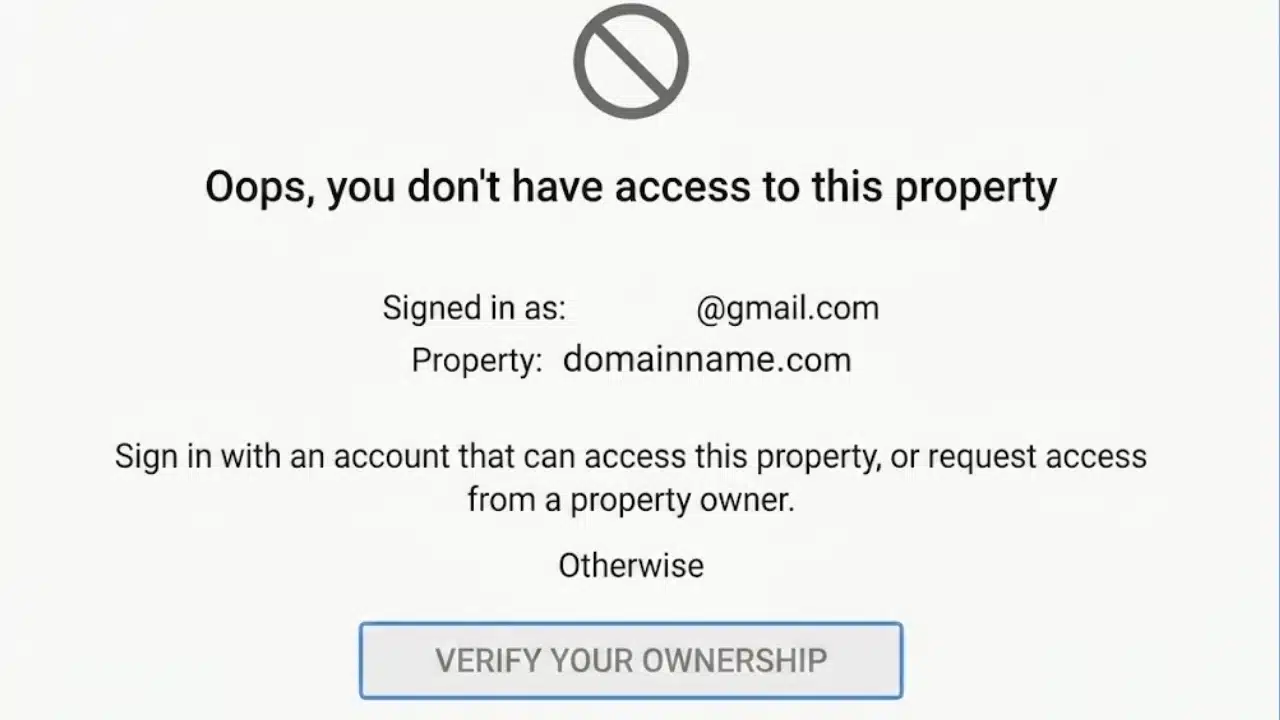
URL-prefix properties support HTML files, meta tags, Google Analytics, Google Tag Manager, and DNS. Choose a method unlikely to disappear during a redesign.
Do not remove the verification file, tag, or DNS record. Google checks it periodically. A second method can prevent a template change from locking the team out. Reserve ownership for property managers; full or restricted access is usually enough for writers, analysts, and consultants.
3. Deal With Serious Warnings First
The Overview page is a useful starting point, but two reports take priority. Manual Actions shows whether a human reviewer found a violation of Google’s spam policies. Security Issues covers signs of hacking, malware, phishing, harmful downloads, and related risks.
If either report contains a problem, deal with it before adjusting titles or chasing minor technical improvements. These issues can reduce visibility or put visitors at risk.
4. Submit a Sitemap, but Do Not Treat It as an Indexing Switch
The Sitemaps report tells Google where an XML sitemap is located; it does not upload the file. Many hosted platforms generate one automatically, so check before creating another. Submission through Search Console requires owner permission.
A sitemap should normally contain canonical, indexable URLs that return successful responses. Redirects, error pages, duplicate variations, and pages marked noindex do not belong there.
Submission helps discovery, especially on new or large sites, but it does not guarantee indexing. Important pages still need internal links. If a page is reachable only through the sitemap, the site structure needs attention.
5. Read the Page Indexing Report With Context
The Page Indexing report shows how many known URLs Google indexed and why others were excluded. Exclusion is not automatically an error. Redirects, parameter URLs, and deliberately non-indexed archives may be behaving as intended.
Investigate patterns affecting pages meant for search: template-wide server errors, accidental noindex directives, robots.txt blocks, redirect loops, soft 404s, or a sharp rise in “Crawled, currently not indexed.” Do not chase 100% indexing. Check whether the right canonical pages are accessible, linked, and indexed.
6. Use URL Inspection for Individual Pages
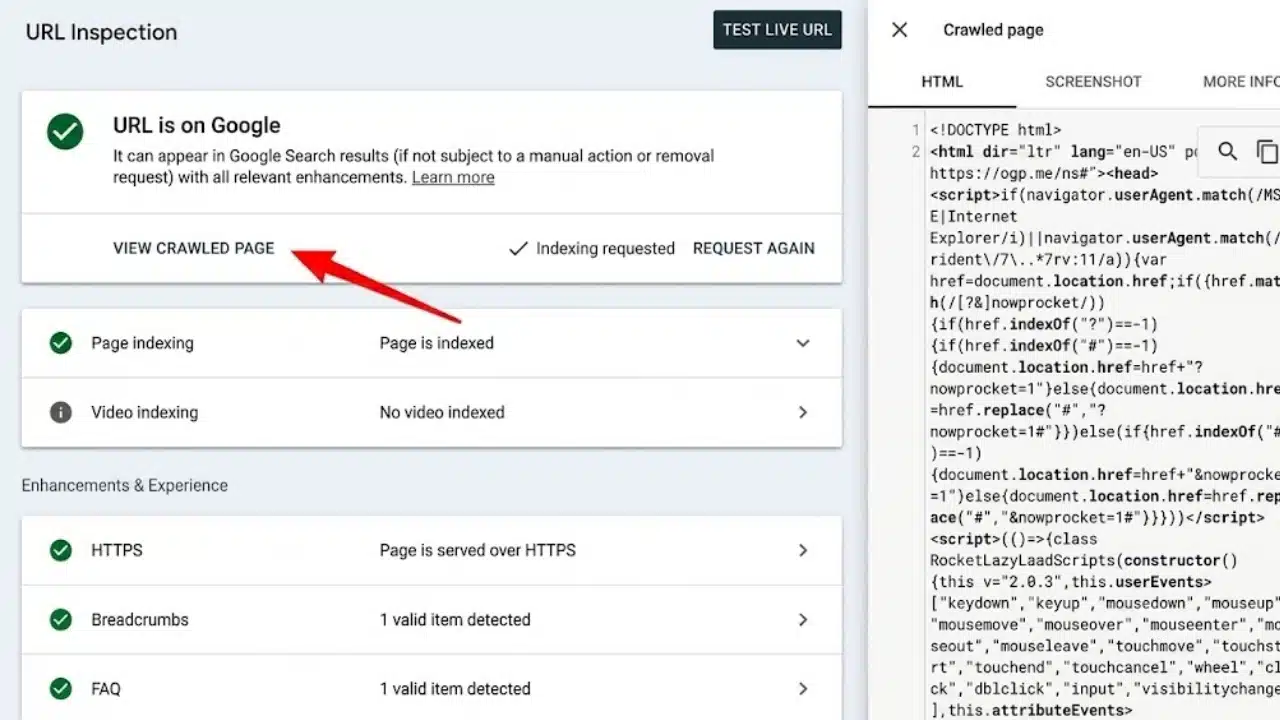
The indexing report shows patterns; URL Inspection explains one address. Check the last crawl, page fetch, indexing permission, declared canonical, and Google-selected canonical.
The indexed result shows what Google currently knows. The live test checks access now, but it cannot reproduce every indexing decision. After fixing an important URL, test it and request indexing. Requests are limited and do not guarantee inclusion, so do not submit an entire site one URL at a time.
7. Turn the Performance Report Into Decisions
The Performance report shows clicks, impressions, click-through rate, and average position. Filtering by query, page, country, device, date, or search appearance is where the report becomes useful.
A page gaining impressions without comparable click growth may need a better title or closer search-intent alignment. After a traffic decline, compare equivalent periods and determine whether it is limited to one directory, country, device, or query group. The Pages tab can also reveal that Google is showing an unexpected URL.
Treat average position as directional. It is an average of the topmost result associated with a property or page, not a permanent ranking slot. Click and impression trends usually deserve more weight than a small movement in position.
The newest figures may be preliminary. Use the 24-hour view for time-sensitive content and complete periods for larger decisions. That recent view follows the browser’s local time; other Performance dates use Pacific Time.
Detail Many Search Console Guides Miss
Search Console does not expose every underlying row. Some queries are hidden for privacy, and many reports provide examples rather than complete URL lists. The Page Indexing report supplies comprehensive totals, but its example lists can stop at 1,000 URLs. The Links report is also a sample, not a full backlink database.
Performance data is commonly assigned to a canonical URL, so a visitor may land on one address while the click is credited to another. Differences from Google Analytics are also normal because the products measure different parts of the visit.
Use Core Web Vitals and Link Data as Diagnostic Signals
Core Web Vitals report uses real-user data collected over a rolling 28-day period. It separates mobile and desktop results and groups URLs with similar experiences. That makes it useful for finding template-level trouble. If hundreds of article pages share poor Largest Contentful Paint, investigate common elements such as the layout, advertising setup, images, fonts, or scripts.
A PageSpeed Insights test is not interchangeable with this grouped field data. Valid structured data also creates eligibility for a rich result, not a guarantee.
The Links report can expose major referring domains and weak internal linking, but its tables stop at 1,000 rows and do not identify nofollow. Use a dedicated platform for a full backlink audit.
A Practical Search Console Routine
After publishing an important page, confirm its status code, link to it from a relevant established page, and make sure the canonical URL appears in the sitemap. Inspect it only when indexing is unusually important or delayed.
Each week, identify the pages or queries behind meaningful changes in clicks and impressions, then review account messages and unusual indexing movements. Each month, compare a longer period, review indexing by template, and check Core Web Vitals and structured-data reports. Daily checking is rarely useful outside time-sensitive publishing or a technical incident.
Final Thoughts
The most useful next step is simple: verify the correct property, submit or confirm the sitemap, and inspect one important page. From there, use this Google Search Console guide as a working routine rather than a checklist to repeat every day. Search Console cannot explain every ranking change, but it can show where Google’s view of a site differs from the owner’s intentions. That is usually the right place to begin.
Frequently Asked Questions
Does Google Search Console require Google Analytics?
No. Search Console can be used independently. Google Analytics is one optional verification method, but it is not required for Search Console reporting.
How long does it take for Search Console data to appear?
Data often begins appearing within a few days. A new site or newly added property may take up to about a week to produce meaningful reports, particularly if it has little search activity.
Why does Search Console show fewer queries than the total impressions suggest?
Google omits some query rows to protect user privacy, and report tables have data limits. Hidden queries can still contribute to chart totals, so the visible rows may not add up neatly.