A leaked password rarely produces an immediate warning. The breach may be discovered months later, the affected company may not know exactly which credentials were exposed, or criminals may hold the stolen information before testing it on email, financial, shopping, or work accounts.
Learning how to detect leaked passwords therefore requires more than searching an email address once. You need to check known breach databases, scan credentials stored in your browser or password manager, and review important accounts for signs of unauthorized access.
No tool can identify every stolen credential. A clean result only means no match was found in the records examined. It does not prove that the password has never been exposed.
What a Breach Result Can—and Cannot—Tell You
A data breach and an account takeover are not the same thing.
A data breach means information escaped from a company, website, device, cloud service, or another source. Depending on the incident, the exposed material may include:
- Email addresses and usernames
- Phone numbers and postal addresses
- Password hashes
- Plain-text passwords
- Dates of birth
- Security questions
- Account activity or payment-related data
Finding your email address in a breach does not automatically mean the password was included. Read the exposed-data categories for that incident before deciding how serious the result is.
An account takeover is more urgent. It means someone has successfully accessed the account or altered it. Warning signs include:
- A sign-in from a device you do not recognize
- A password-reset message you did not request
- Repeated authentication prompts you did not initiate
- New recovery details or authentication methods
- Email-forwarding rules you did not create
- Messages, purchases, or profile changes you cannot explain
An old breach listing calls for investigation. Evidence of active access calls for immediate recovery.
How to Check if Your Passwords Have Been Leaked
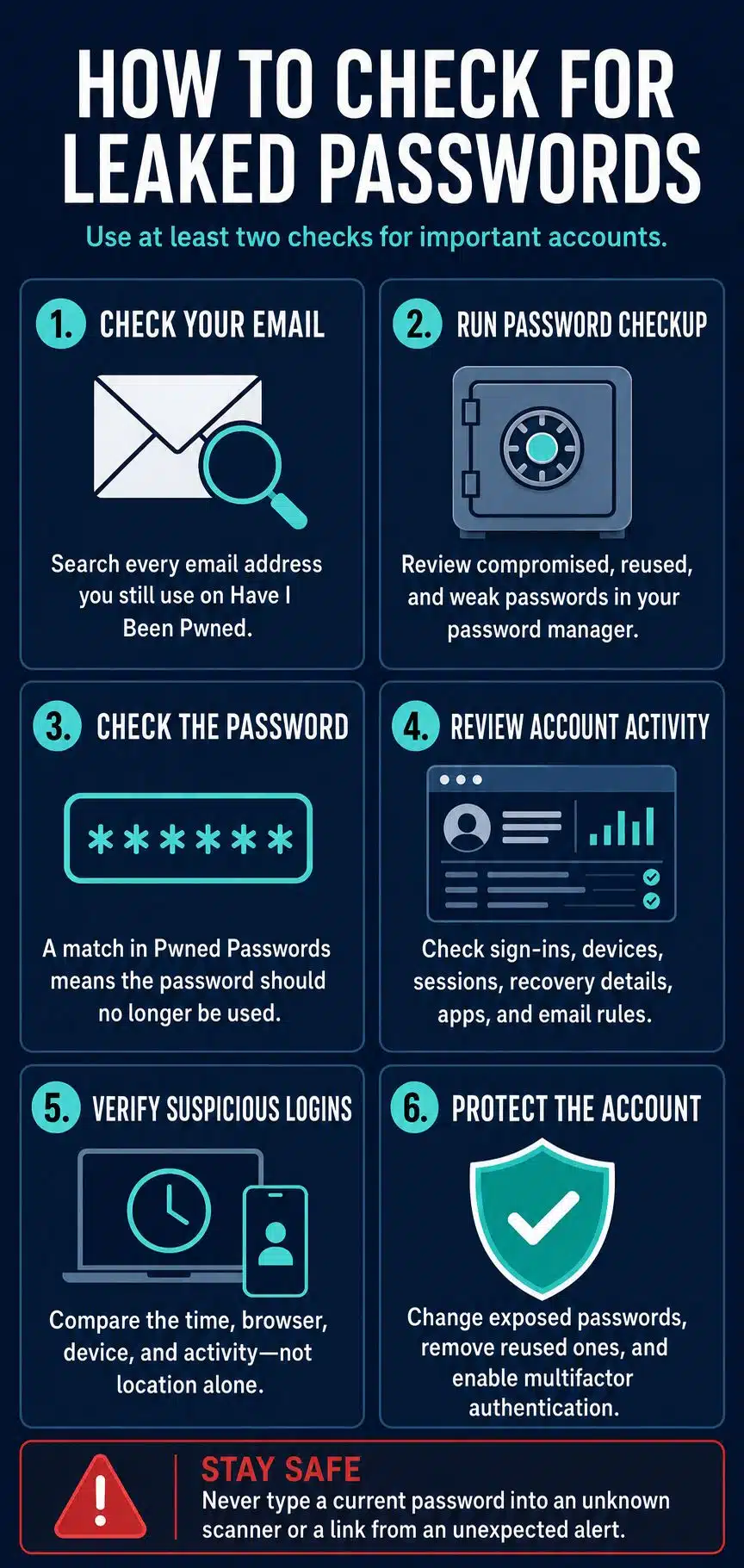
For your main email, financial services, cloud storage, social accounts, password manager, and work identity, use at least two of the checks below.
Start With Your Email Address on Have I Been Pwned
Have I Been Pwned, often shortened to HIBP, lets you search an email address against breach records in its database.
Check every address you still use, including older accounts that receive password-reset emails. An address you rarely open may still provide a route into current services.
For each result, look at the exposed-data list. One breach may contain only email addresses and names. Another may include passwords, phone numbers, dates of birth, or security questions. Those details matter more than the number of breaches alone.
HIBP does not use its public email search to reveal the actual password associated with a person. Its email breach records and Pwned Passwords database are separate. Some sensitive records also require verification that you control the searched address before the details become visible.
You can register an address for future notifications. Even then, avoid signing in through a surprising breach-alert email. Security warnings are easy to imitate. Open HIBP or the affected service directly through its app, bookmark, or known web address.
Let Your Password Manager Find the Affected Accounts
A breach search may tell you that an email address appeared in an incident. A password manager can often tell you which saved login needs attention.
It may also catch a broader problem: the same password stored against several websites.
Google Password Manager
On desktop Chrome, the current route is:
Chrome menu > Passwords and autofill > Google Password Manager > Checkup
Google Password Manager can flag saved credentials that are compromised, weak, or reused. You can also open Google Password Manager through a browser and run the check after signing in.
The limitation is straightforward: it only checks passwords stored in that Google account. A credential saved under another Chrome profile, another browser, or a separate password manager will not appear.
Apple Passwords
On current iPhone software:
- Open the Passwords app.
- Select Security.
- Review compromised, reused, or weak entries.
Compromised-password detection is controlled through Settings > Apps > Passwords on current versions of iOS. Older Apple software may place the same controls under a different Passwords or Security Recommendations menu.
Apple has moved password settings between system versions, so an old screenshot may no longer match the device in front of you. Use the Passwords app’s search and Security section rather than relying on a years-old menu guide.
Microsoft Edge
In a current version of Edge, open:
Settings > Passwords and autofill > Microsoft Password Manager > Password security check
Edge can scan saved credentials for known leaks and warn about unsafe passwords. Managed work or school accounts may have password features restricted by an administrator.
For most readers, the built-in check in the password manager they already use is more useful than installing another breach-monitoring application. It links the warning to an actual website entry and makes duplicate passwords easier to find.
Check the Password String Separately
HIBP’s Pwned Passwords service lets you check whether a password string has appeared in its collection of breached passwords.
The service is designed so that the complete password is not sent to its server. The browser hashes it locally and submits only a small part of that hash. The final comparison takes place on the user’s side.
A match does not prove that your account was breached. It means the same password has appeared in known breach data. That alone makes it unsuitable for continued use.
Do not enter a current password into a random “dark web scanner,” password-strength form, or security page reached through an unsolicited email. Use a reputable password manager’s built-in check or a service with a clearly documented privacy design.
Review the Account’s Own Security History
Breach databases show known exposure. The account’s security page may show what happened afterward.
Check:
- Recent sign-ins
- Active browser and app sessions
- Recognized devices
- Recovery email addresses and phone numbers
- Connected third-party applications
- App-specific passwords
- Multifactor authentication methods
- Email forwarding and filtering rules
- Recent purchases, transfers, or subscription changes
An unfamiliar city is not enough to prove someone broke in. Mobile carriers, office networks, internet providers, and VPNs can make a legitimate login appear far from your real location. Compare the time, browser, device type, and activity.
Work accounts deserve a different response. Report suspicious activity to the IT or security team rather than quietly changing the password and moving on. Administrators may need to revoke tokens, inspect audit records, remove mailbox rules, or investigate access to shared systems.
Decide How Urgent the Result Is
Not every warning means the same thing.
Your email appears in a breach:
Review the exposed-data categories. If passwords or recovery information were involved, change the affected credentials and check for reuse.
Your password manager reports a compromised login:
Treat this as an account-specific warning. Change that password promptly and look for duplicate or closely related versions elsewhere.
The password appears in Pwned Passwords:
Retire it. You do not need proof that your personal account was involved before replacing a known-breached password.
Nothing is found:
Keep the password unique and continue monitoring. Private criminal datasets, recent phishing theft, undisclosed incidents, and information-stealing malware may not appear in the databases you checked.
A password-manager alert also does not mean the browser or password manager caused the leak. It usually means the saved credentials matched data exposed through another service or incident.
What to Do After Finding a Leaked Password
Secure Email Before Less Important Accounts
Your main email account can reset many of your other passwords. If that mailbox is exposed or shows suspicious activity, deal with it first.
Change its password, inspect recovery details, review forwarding rules, and end sessions you do not recognize. Check sent, deleted, archived, and trash folders for activity you did not create.
Use the same priority for a work identity that controls company email, cloud applications, shared files, or single sign-on. Recovering a shopping account first will not help much if an attacker still controls the email address used to reset it.
Replace Reused Passwords, Not Just the Reported One
Credential stuffing is one of the most practical risks after a breach. Attackers take a stolen email-and-password combination and test it across other services.
Changing the password only on the breached website is not enough when the same credential appears elsewhere.
Search your password manager for exact duplicates, then look for predictable variations:
- Changing the final number
- Adding the current year
- Replacing one letter with a symbol
- Adding the website’s name
- Reusing the same phrase with slightly different punctuation
GardenTrain7 and GardenTrain8! may look different to a person, but they are part of the same predictable pattern.
Create a genuinely different password for every account. A password manager’s generator is better suited to this job than manually inventing dozens of variations.
Protect the Password Manager Itself
A password manager is the most practical way to maintain unique credentials, but its own security deserves attention.
Use:
- A unique master password that is not stored elsewhere
- Multifactor authentication
- Current recovery information
- Updated apps and browser extensions
- Recovery codes stored separately from the device
Be cautious when importing or exporting passwords. Browser and password-manager exports are often CSV files containing readable usernames and passwords. After a legitimate migration, remove the export from Downloads, desktop folders, cloud-sync locations, email attachments, and shared drives.
An export forgotten in a synced folder can undermine the security of the entire password vault.
Use the Strongest Sign-In Method Available
A second sign-in factor can block many attempts made with a stolen password.
Passkeys and FIDO security keys offer the strongest widely available protection because they are designed to resist phishing. A fraudulent website cannot reuse them in the same way it can capture a typed password or one-time code.
When those are unavailable, an authenticator app is generally preferable to SMS. Text-message codes still provide meaningful protection compared with password-only access, but phone-number theft, message interception, and phishing make them a weaker option.
Authentication prompts require judgment as well. Deny any request you did not initiate. Do not approve repeated prompts simply to stop the notifications.
Save recovery codes somewhere secure and separate from the phone or computer used for sign-in. Before removing an old authentication method, check how the provider handles account recovery.
End Sessions and Repair Recovery Settings
A password change may not terminate every existing session.
Use the account’s security settings to:
- Sign out other devices
- Remove unknown sessions
- Revoke unfamiliar applications
- Delete app passwords you do not recognize
- Remove unauthorized recovery addresses or phone numbers
- Replace compromised backup codes
- Inspect email forwarding and filtering rules
Email rules are easy to overlook. An attacker who had brief access may create a rule that silently forwards password-reset, banking, or billing messages.
Consider Whether the Device Is the Real Problem
One breach alert usually points to a credential problem. Several unrelated accounts becoming compromised close together may suggest phishing, a malicious browser extension, an exposed password export, or information-stealing malware.
Look beyond the password when:
- Newly changed credentials are stolen again
- Several unrelated services are affected
- Unknown browser extensions appear
- Security software has been disabled
- The device behaves unusually
- A breach notification specifically mentions malware or stealer logs
Update the operating system, browser, extensions, and security tools. Remove suspicious applications and run a trusted malware scan.
When compromise is plausible, change important passwords from another trusted and updated device. Entering a new password on an infected computer can expose it immediately.
Do not wipe or alter a managed work device without instructions from the security team. Logs and other evidence may be needed for an investigation.
Common Advice That Falls Short
“Just Change the Password”
That advice is incomplete. You also need to deal with reuse, active sessions, recovery methods, connected applications, and the account that controls password resets.
“Add a Number to the Old One”
A small edit is not a new security strategy. Password-cracking tools and account attackers test predictable variations.
“MFA Means the Password No Longer Matters”
Multifactor authentication reduces risk, but a leaked password still needs to be replaced. Attackers may target recovery systems, weaker forms of MFA, active sessions, or another account where no second factor is enabled.
“Change Every Password Every Month”
Routine forced changes often encourage people to create weak variations. Current NIST guidance does not support arbitrary periodic password changes when there is no sign of compromise.
Change a password when it is leaked, reused, weak, shared improperly, or connected to suspicious activity.
“No Match Means No Leak”
A breach search can only examine data available to that service. It cannot rule out private criminal records, undisclosed incidents, phishing, or malware.
A Practical Recovery Order
When a warning appears credible, work through it in this order:
- Move to another trusted device if malware is suspected.
- Secure the primary email or work identity.
- Replace the exposed password.
- Change every duplicate and closely related version.
- Add a passkey, security key, or another available form of MFA.
- Sign out other sessions and remove unknown devices.
- Review recovery details, forwarding rules, and connected applications.
- Check financial and account activity.
- Notify workplace security, financial providers, or affected contacts when necessary.
- Turn on breach and login notifications for the future.
This sequence closes the routes an attacker is most likely to use to reverse your changes.
Final Thoughts
Knowing how to detect leaked passwords is useful only when the result leads to a proper security cleanup.
Start with your primary email address. Run the security check in the password manager you already use, then review recent login activity on accounts that control money, private files, business information, or password recovery.
When a password appears in breach data, retire it everywhere. Do not add a number, change one symbol, or keep it on an account that seems unimportant. Give each service a unique credential, protect the password vault itself, and use passkeys or another strong authentication method where available.
If there are signs of active access, stop focusing only on the breach record. Secure your email, end unfamiliar sessions, repair recovery settings, and investigate the device when several unrelated accounts are affected.
The right response is a deliberate cleanup that prevents one stolen password from opening the rest of your digital life.