
The best tools for async video updates do more than record your screen. They make an update easy to share, understand, discuss, and turn into action.
That distinction matters. A polished recording is not useful if it gets buried in a chat, lacks captions, or forces viewers to search elsewhere for the related task. The right tool depends on where your team already works and what should happen after someone watches.
The eight options below cover quick status reports, project walkthroughs, company announcements, customer support, training, and polished presentations.
Product features and free-plan limits were checked against official information in September 2026. Vendors may change their plans over time.
1. Loom: Best Overall for Most Teams
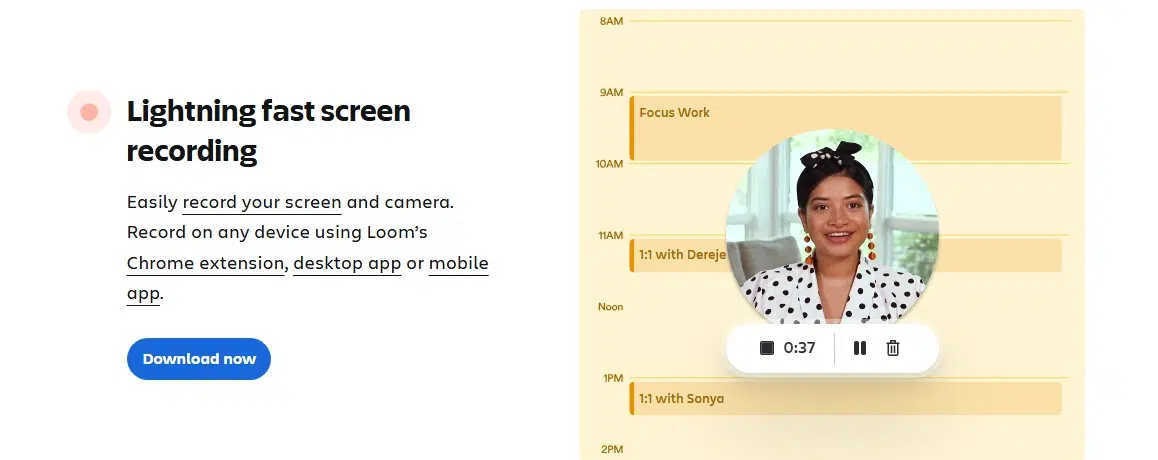
Loom remains the most versatile choice for recording a screen, camera, or both and sharing the result through a simple link. It fits naturally into email, chat, project-management tools, documentation, and customer communication.
Viewers can use captions, transcripts, comments, and emoji reactions. That makes a Loom recording easier to scan and discuss without arranging a follow-up call.
The free Starter plan allows 25 videos per person, with each screen recording limited to five minutes and 720p. Paid plans add unlimited recordings, up to 4K quality, stronger editing, password protection, and deeper engagement data.
Choose Loom when recordings need to move easily between different platforms rather than remain inside one workspace.
2. ClickUp Clips: Best for Task-Based Updates
ClickUp Clips keeps the explanation beside the work it concerns. Users can record from a task comment, the Quick Action menu, or the dedicated Clips Hub. A recording can then be attached to a task, embedded in a ClickUp Doc, or shared through a link.
Its timestamped comments are especially useful for reviews. A colleague can respond at the exact moment where a design issue, question, or requested change appears. A Clip can also be used to create a new task, reducing the risk of an update being watched but never acted upon.
Automatic transcripts are available when ClickUp Brain AI is enabled. For teams already managing projects in ClickUp, this connection between video, discussion, and ownership is more valuable than a separate recording library.
3. Slack Clips: Best for Quick Team Conversations
Slack Clips brings short audio and video messages directly into channels and direct messages. Users can record their camera, share a screen, or upload an existing video. Each clip can run for up to five minutes.
Viewers can turn on closed captions, generate a transcript, and respond in the message thread. Clips are available across Slack subscriptions, so teams can adopt them without buying a separate video product.
Slack Clips works particularly well for daily check-ins, quick demonstrations, shift handovers, and informal announcements. However, important recordings can disappear into busy channels. Clips also follow the workspace’s file-retention rules, so Slack is less suitable for building a permanent training library.
4. Zoom Clips: Best for Teams Already Using Zoom
Zoom Clips extends the familiar Zoom recording experience beyond live meetings. It can capture a screen, camera, or both at resolutions up to 1080p. Recording tools include annotation, noise suppression, virtual backgrounds, pause, and restart controls.
Finished clips can be trimmed, downloaded, shared with access controls, or organized into playlists. Viewers can leave reactions and timestamped comments.
The Basic version allows five clips per user, with a two-minute limit on each. Clips Plus, available with eligible paid Zoom Workplace plans, provides unlimited clips and recording duration while adding analytics and translated captions.
It is a practical choice for Zoom-centered organizations, although external viewers must sign in before commenting.
Vidcast, from Webex, is designed to make workplace videos easier to organize and revisit. Teams can arrange recordings into collaborative pages and playlists instead of leaving useful updates scattered across messages.
The platform supports comments, reactions, editing, analytics, AI-assisted search, chapters, and video highlights. This makes it suitable for leadership messages, onboarding, internal training, product demonstrations, and company knowledge that should remain discoverable.
Vidcast’s free Basic plan supports recordings of up to 15 minutes at 720p. Its strength is organization rather than visual production quality. Teams wanting a searchable home for workplace video may find that trade-off worthwhile.
6. Tella: Best for Polished Video Updates
Tella is built for recordings that need to look more considered than a typical screen capture. Creators can combine screen and camera footage, record in separate clips, change layouts, add backgrounds, use transitions, and include visual overlays.
Its editing tools can remove filler words and silences, create editable transcripts, and trim footage through text. Tella also provides comments, viewing analytics, branded sharing options, and 4K exports.
These features suit executive presentations, product announcements, training videos, and client-facing walkthroughs. For a routine 60-second update, however, Tella may provide more production control than the message needs.
7. Zight: Best for Technical Support and Troubleshooting
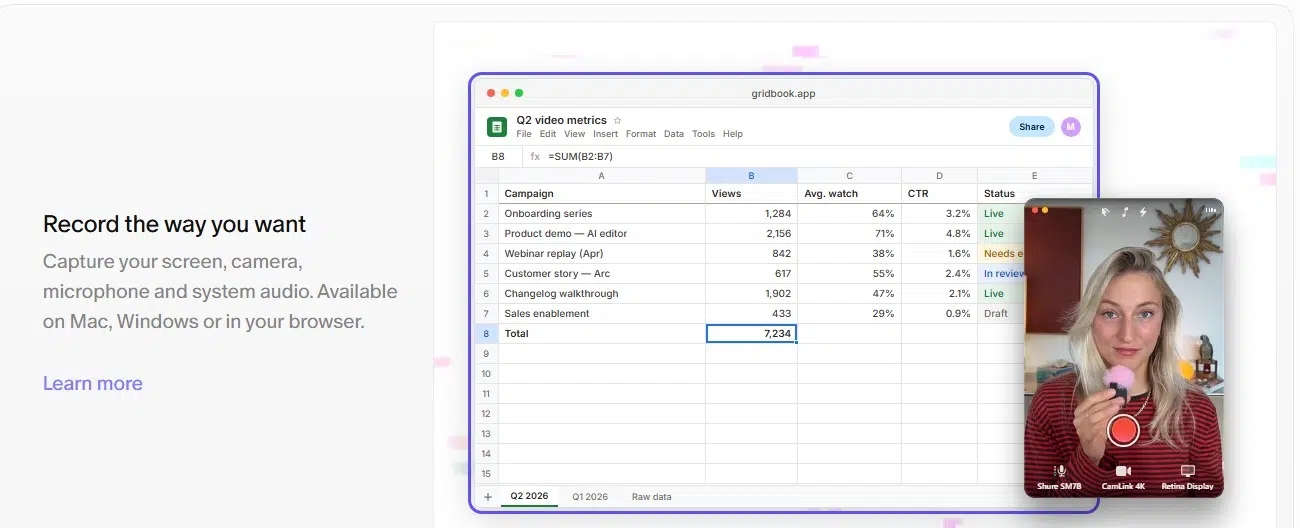
Zight combines screen recording with screenshots, annotations, GIFs, and video-request links. Instead of asking a customer to describe a problem, a support agent can send a link that lets the customer record and return what happened. The recipient does not need an account or installation.
The free plan supports recordings of up to five minutes, 720p quality, 1GB of storage, access to the latest 50 captures, and five video requests per month. Paid plans add longer recordings, higher quality, transcripts, summaries, analytics, and other AI-assisted features.
Zight is particularly useful for support, engineering, quality assurance, and IT teams. Its most advanced diagnostic collection, security, and administrative controls are reserved for higher plans.
8. Microsoft Teams Clips: Best for Very Short Updates
Microsoft Teams lets users record a camera video, screen recording, or audio message inside a one-to-one chat, group chat, or channel discussion.
Recordings can be paused, resumed, reviewed, and trimmed before sending. Teams creates captions automatically, while viewers can download the video or its transcript.
The strict one-minute limit defines how this feature should be used. It works for reminders, quick progress reports, short demonstrations, and personal responses. It does not replace a full screen-recording tool for training or detailed project explanations.
Choose the Workflow, Not Just the Recorder
Async video should reduce communication work, not create another content library nobody checks. A concise recording with captions, context, and a clear next action is usually more valuable than a highly produced video without an obvious purpose.
Loom offers the strongest general balance. ClickUp, Slack, Zoom, and Teams are better when keeping the update inside an existing workflow matters most. Vidcast suits lasting company knowledge, Tella handles polished presentations, and Zight stands out for troubleshooting.
Choose the tool that places the message where the next decision or action will happen.
Frequently Asked Questions on the Best Tools for Async Video Updates
1. What is an async video update?
It is a recorded screen, camera, or audio message that people can watch and answer on their own schedule. Unlike a live meeting, it does not require everyone to be available at once.
2. How long should an async video update be?
Most updates should stay between two and five minutes. A routine status report may need only 60 to 90 seconds. Longer recordings should include a summary, chapters, or timestamps.
3. Can async video replace team meetings?
It can replace meetings used mainly for status reports, demonstrations, reviews, and handovers. Live discussion remains better for sensitive conversations, complex decisions, negotiations, and urgent problem-solving.
4. Is async video better than a written update?
Video is better for demonstrations, visual feedback, and explanations where tone matters. Text is easier to scan, quote, and search. For important updates, combine a short video with a written summary and clear next step.
5. What is the best free tool for async video updates?
Loom is a strong general option, while Slack and Microsoft Teams are convenient for teams already using those platforms. The best free choice depends on recording length, storage needs, and where the conversation should continue.