
A digital whiteboard should make teaching easier, not give the class another complicated app to learn. The best digital whiteboards for classrooms let students join quickly, give teachers enough control, and suit the activity taking place.
That last point matters. A teacher checking 30 individual answers needs a different tool from a university group planning a semester-long project. Some platforms specialize in private student responses, while others are designed for shared brainstorming, recorded explanations, or front-of-class instruction.
Here are 12 strong options, each chosen for a specific classroom need.
1. Whiteboard.fi: Best for Formative Assessment
Whiteboard.fi gives every student an individual board while the teacher views all responses from one dashboard. Students join with a room code, making it useful for equations, spelling, diagrams, short answers, and exit tickets.
The free version suits quick classroom checks. Premium access adds permanent rooms and more ways for teachers to interact with student boards. It is excellent for seeing individual understanding but not designed for open group brainstorming.
2. Explain Everything: Best for Recorded Explanations
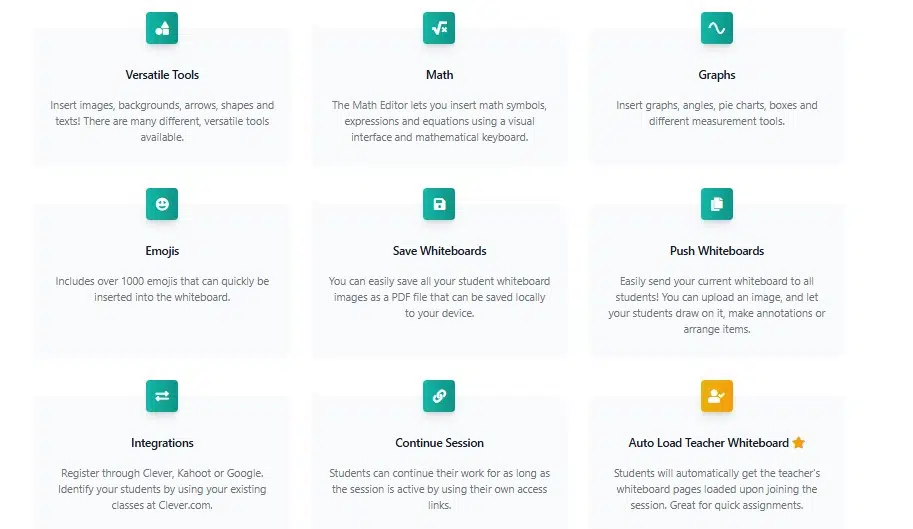
Explain Everything combines an infinite canvas with annotation, narration, screen recording, media importing, and live collaboration. Teachers can work through a calculation, annotate a reading, or explain a scientific process and save the lesson for revision or asynchronous learning.
Its free plan has restrictive limits on projects, slides, recordings, and collaboration. It is best for teachers who need reusable recorded instruction and have access to an appropriate education plan.
3. FigJam: Best for Collaborative Brainstorming
FigJam provides a shared space for sticky notes, diagrams, voting, comments, stamps, media, cursor chat, and audio conversation. It works especially well for brainstorming, design thinking, peer feedback, project planning, and organizing ideas into themes.
Verified teachers and students can use Figma’s education offering for free. Because the interface is playful and feature-rich, younger learners may need a prepared template and clearly marked working areas.
4. Microsoft Whiteboard: Best for Microsoft 365 Schools
Microsoft Whiteboard fits naturally into classrooms already using Teams and Microsoft 365. Teachers and students can add handwriting, text, sticky notes, images, shapes, and templates through Teams, web browsers, Windows, iOS, and Android.
Boards remain available after a lesson, making it easy to revisit earlier work. However, guest participation and external sharing may depend on the school’s Microsoft administrator settings. Its strongest advantage is its connection with tools the school already uses.
5. Canva Whiteboards: Best for Visual Projects
Canva Whiteboards combine an infinite canvas with templates, diagrams, images, video, comments, reactions, sticky notes, and timers. Students can also turn their work into a presentation or document.
It is a good choice for timelines, story planning, visual research, campaign projects, and mood boards. Canva Education is free for eligible verified K–12 teachers and students. Clear instructions are important, as students can easily spend more time decorating than developing their ideas.
6. Lumio by SMART: Best for Interactive Lessons
Lumio brings presentations, PDFs, handouts, games, assessments, and collaborative workspaces into one browser-based lesson. Students can join with a code, link, or QR code from their own devices. A SMART Board is not required.
Teachers can also import existing PowerPoint, Google Slides, PDF, and SMART Notebook materials. Lumio is more structured than a simple whiteboard, which makes it useful for guided lessons but unnecessarily heavy for a quick sketch or discussion.
7. Miro: Best for Complex Projects
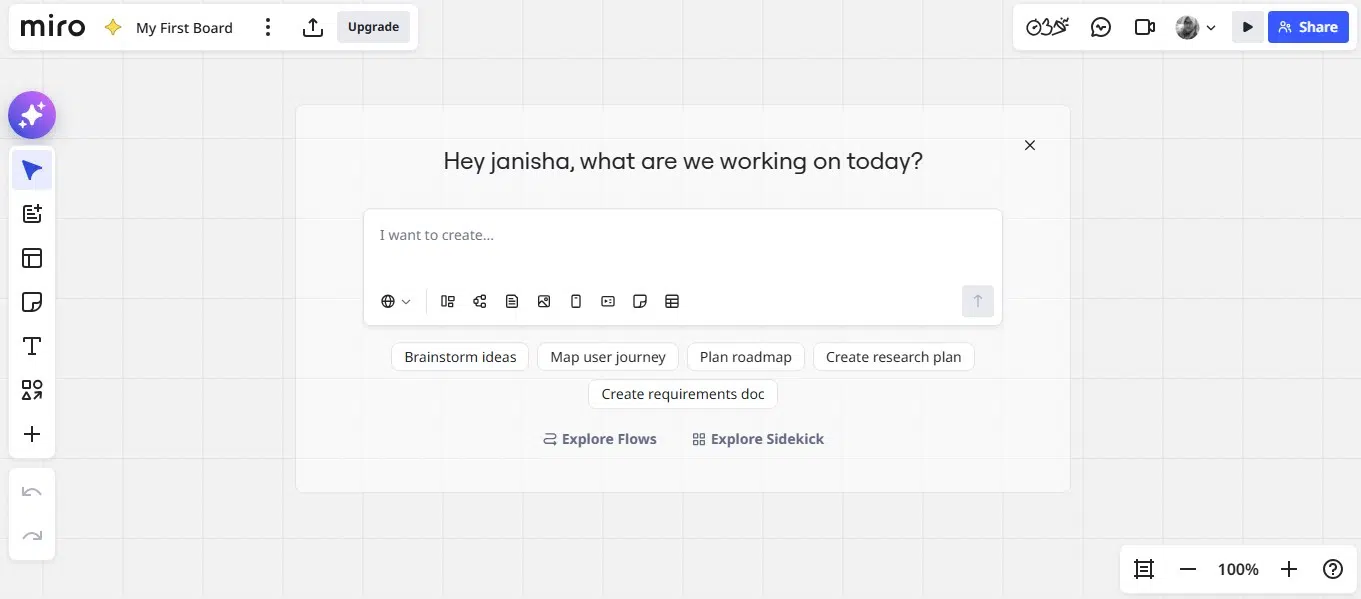
Miro offers a large collaborative canvas with templates, voting, timers, document embedding, presentation tools, and controls for leading group sessions. It suits project-based learning, university seminars, research work, and assignments that continue over several classes.
Verified students and educators can apply for education plans, which differ from Miro’s ordinary free plan. Its depth can overwhelm younger students, so teachers should prepare the board, lock fixed content, and clearly identify where each group should work.
8. Lucidspark: Best for Concept Mapping
Lucidspark helps students move from scattered ideas to an organized result. Sticky notes, frames, paths, breakout boards, voting, and facilitator controls support concept maps, cause-and-effect analysis, debate preparation, and group planning.
It also connects with services such as Google Classroom, Canvas, Microsoft Teams, and Google Drive. Some advanced storage, administration, integration, and classroom-management capabilities require upgraded access, so confirm the available features before planning a lesson around them.
9. Padlet Sandbox: Best for Multimedia Activities
Padlet Sandbox lets teachers combine drawing, text, links, media, polls, and recorded explanations on one canvas. It can support KWL charts, visual timelines, sorting exercises, maps, quizzes, and interactive stories.
Its approachable style works well when students need to contribute more than handwritten marks. Padlet Sandbox and Padlet Boards are separate experiences, however, so a feature available on a Board may not work identically in Sandbox. Free-plan limits should also be checked before wider adoption.
10. Classroomscreen: Best for Classroom Routines
Classroomscreen combines a whiteboard with practical teaching widgets, including timers, polls, work symbols, randomizers, group makers, and sound-level indicators. It can display instructions, group arrangements, expected noise levels, and remaining work time in one place.
This is mainly a teacher-facing classroom display, not a shared canvas for extensive student collaboration. It is most useful for running daily routines and keeping students focused during independent or group work.
11. OpenBoard: Best Free Offline Whiteboard
OpenBoard is a free, open-source desktop whiteboard created primarily for education. Teachers can write, annotate materials, present lessons, and use it with an interactive classroom display without paying for a subscription or relying on a cloud account.
It is particularly useful where internet access is unreliable or cloud platforms are restricted. The trade-off is limited online collaboration: students cannot simply open a link and contribute from their own devices.
12. Ziteboard: Best for Tutoring and Mathematics
Ziteboard is a lightweight browser-based whiteboard suited to remote tutoring and small-group instruction. Its tools include freehand drawing, shape recognition, formulas, graph plotting, PDF and image importing, and file export.
It works well for solving equations, marking worksheets, and sketching diagrams without opening a large project platform. The free plan limits owned boards and several features, while private boards require paid access. Public boards should never contain identifiable student information.
Choose the Board That Removes Friction
The right digital whiteboard should shorten the distance between a teacher’s question and a student’s response. It should not require ten minutes of setup for a five-minute activity.
Choose one primary platform for routine work and introduce another only when it serves a clearly different purpose. When the technology feels familiar, students spend less time learning the tool, and more time learning the lesson
Frequently Asked Questions on the Best Digital Whiteboards for Classrooms
1. What is the easiest digital whiteboard for students?
Whiteboard.fi is one of the simplest options for quick responses because students join with a room code and receive individual boards. For shared activities, FigJam becomes approachable when the teacher supplies a prepared template.
2. What is the best free digital whiteboard for teachers?
FigJam is a strong free collaboration tool for verified education users. OpenBoard is better for completely free offline teaching, while Microsoft Whiteboard offers convenient value to schools already using Microsoft 365.
3. What is the best replacement for Google Jamboard?
Since Google retired Jamboard, FigJam has become a practical alternative for informal collaboration. Lucidspark works well for organized concept mapping, while Miro is better suited to complex, long-running projects.
4. Do students need accounts to use a digital whiteboard?
Not always. Whiteboard.fi and Lumio support code- or link-based entry for common classroom activities. Requirements can vary by feature and school configuration, so teachers should test the complete joining process before class.
5. Are digital whiteboards safe for student information?
They can be when the platform’s settings match the school’s privacy requirements. Teachers should avoid placing personal information on public boards and confirm sharing, data retention, moderation, and AI-use policies before adoption.