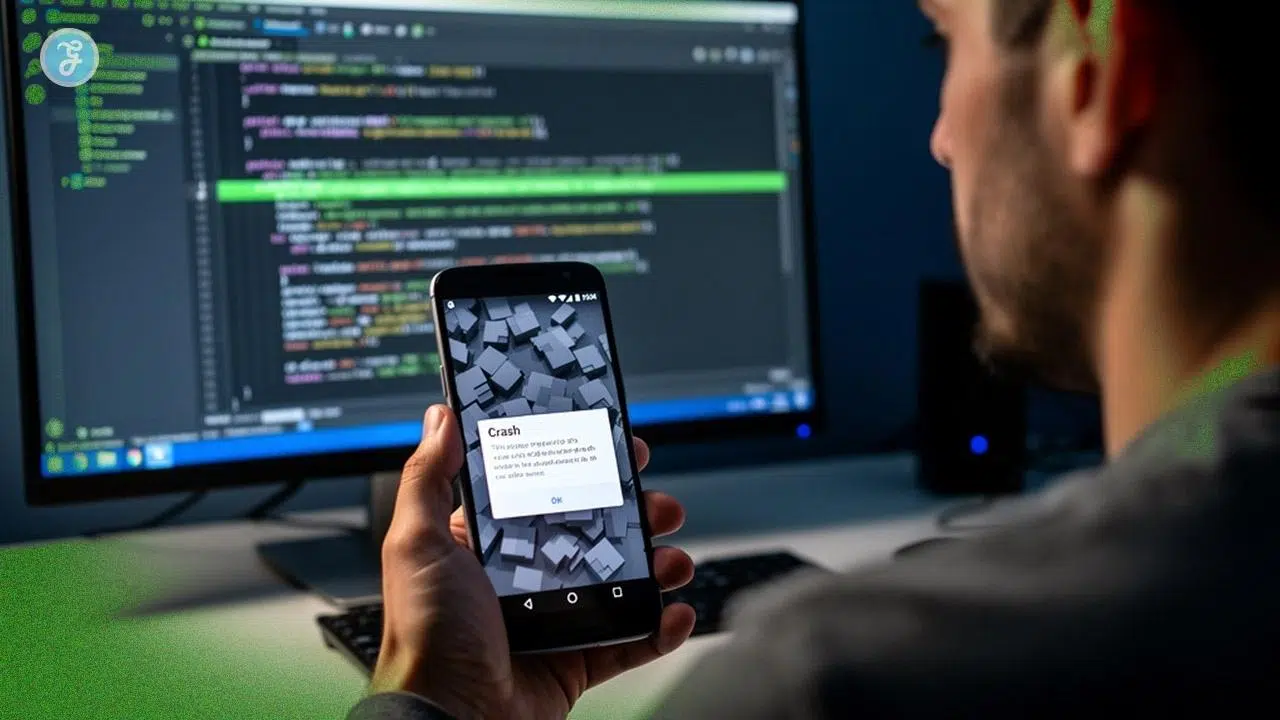
Have you ever tapped an app, only to watch it vanish back to your home screen? It is a terrible feeling. I have also deleted an app or two just because it would not stay open. In fact, a 2026 report by Luciq found that 15.4% of U.S. users uninstall an app after a single crash. One bad crash can cost you thousands of users.
The stakes are high, but the solutions are within your reach. With the Android App Crashes Diagnose and Fix guide, we can make it simple. I will walk you through exactly what to do when things break.
We will find the bugs, squash them, and keep your users happy. So grab a cup of coffee, and let’s go through it together. I will show you everything you need to know.
Common Causes of Android App Crashes
Your app crashes happen for real reasons, and most of them fall into just a few categories. Learning what breaks your app helps you fix problems faster and keep your users happy.
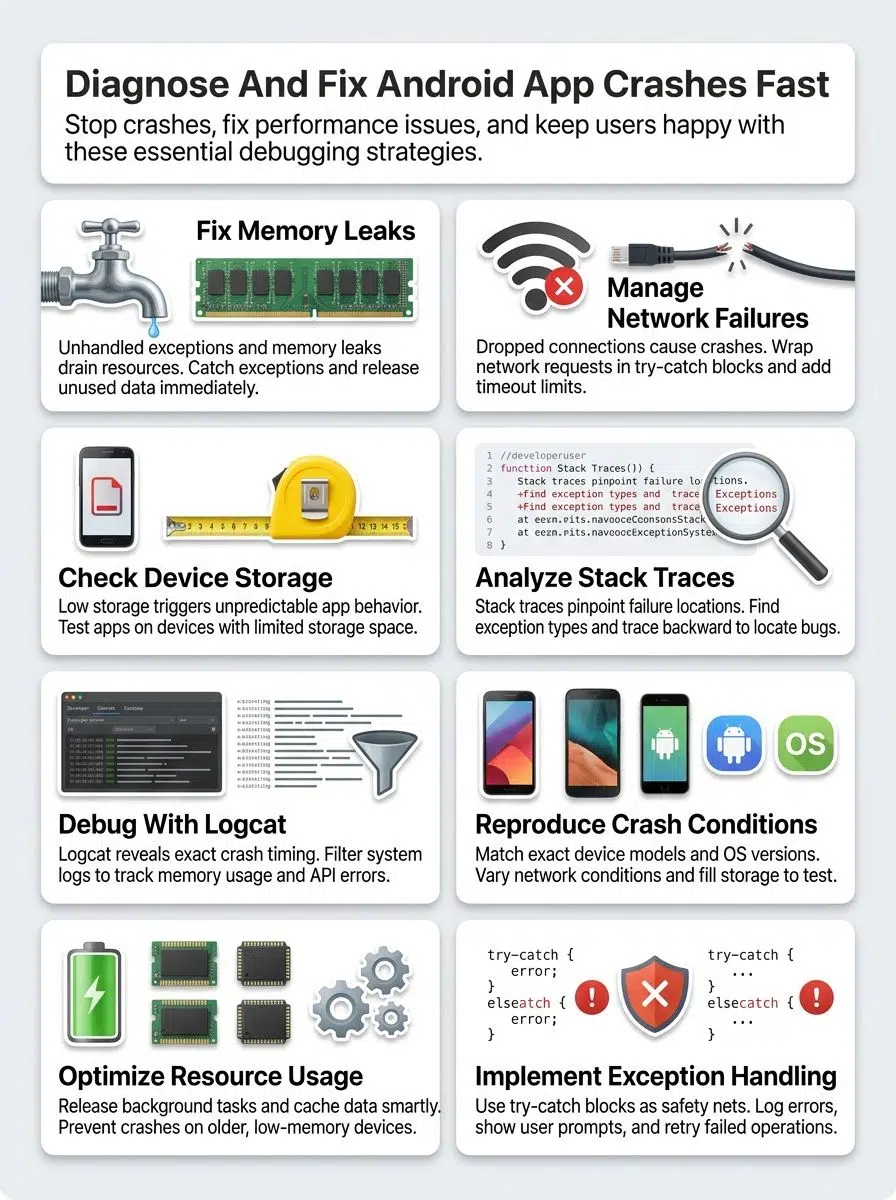
Memory leaks and unhandled exceptions
Memory leaks happen when your app holds onto data it no longer needs. Think of it like leaving the fridge door open. Your app keeps using energy and memory for something it forgot about.
Unhandled exceptions occur when your code hits a problem and crashes instead of dealing with it gracefully. These two issues work together to tank app stability and frustrate your users.
How do you catch them? Many developers swear by LeakCanary, a powerful tool created by Square. Running LeakCanary in your debug builds will find memory leaks that the standard Android Profiler might miss.
Here are a few common culprits I always look out for:
- Unregistered listeners or callbacks holding onto an Activity.
- Images loaded without optimization tools like Glide or Coil.
- Kotlin Coroutines that are not properly scoped to the lifecycle.
Memory leaks sneak up on you over time, slowly draining resources until performance tanks completely. Addressing these problems requires solid error handling and careful code review to catch issues early.
Performance suffers badly when memory leaks pile up, causing lag and freezes that drive users away. Testing thoroughly helps you spot these problems during development, long before users encounter them in production.
Network connectivity issues and API failures
Your app crashes when the network drops out or API calls fail. These problems happen more often than you would think, and they trip up many developers.
Your app tries to fetch data from a server, but the connection cuts out halfway through. The app does not know what to do, so it crashes hard.
API failures occur when the server sends back an error code instead of the data your app expects. Your code was not ready for that response, so the whole thing falls apart.
Network issues and API failures go hand in hand, creating a perfect storm for app stability problems. Fixing these crashes means handling network problems like a pro. You need to check if the device has internet before making API calls.
If you use popular libraries like Retrofit and OkHttp, keep in mind that the default connection timeout is 10 seconds.
A pro-tip I always share is to adjust your timeout limits based on the network connection type. A 10-second wait might be too long for a quick UI update.
Wrap your network requests in try-catch blocks to catch exceptions when things go wrong. Add timeout limits so your app does not hang forever waiting for a response. Test your app on slow networks and with no connection at all.
Your crash reports will show you exactly where the network code fails. Stack traces reveal the line of code that breaks when the API does not respond. Good error handling turns a crash into a simple message that tells users what went wrong.
Device storage and performance limitations
A full phone storage is like a cluttered desk; nothing works as it should.
Your device’s storage space directly impacts app stability. Apps need room to write temporary files, cache data, and store logs. When storage fills up to 90 percent or more, your phone slows down, and apps crash more often.
The operating system itself needs free space to function properly. Low storage triggers performance issues that make apps behave unpredictably. Developers should test their apps on devices with limited storage to catch these crashes early.
Performance limitations go hand in hand with hardware constraints. Older phones have less RAM and slower processors, making them struggle with memory-intensive apps.
Apps that work fine on new flagship devices might crash constantly on budget phones. Stack trace analysis often reveals OutOfMemoryError exceptions on low-end hardware.
Performance optimization becomes essential when you want your app to work across different device types. Testing on various devices with different performance levels helps you identify crashes before users experience them.
Software compatibility and OS updates
Beyond storage troubles, your app faces another major threat. In mobile development, software compatibility problems are a huge factor.
Android devices run different operating system versions, and your app must work across all of them. Developers often skip testing on older OS versions, which causes crashes when users with those devices try to run the app.
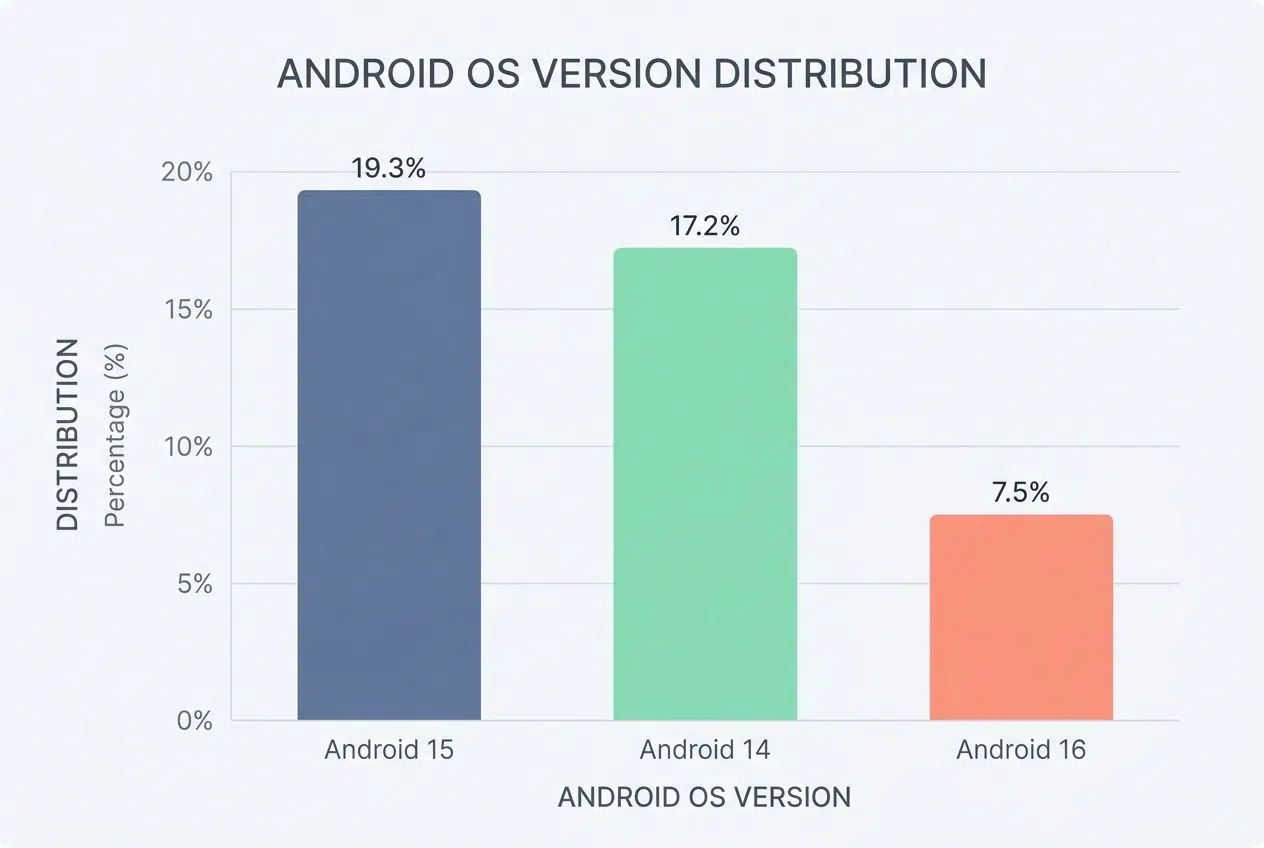
New Android updates introduce changes to how apps access files, handle permissions, and use system resources. Here is a look at the top Android OS versions by market share in early 2026, according to Android distribution data:
| Android Version | 2026 Market Share | Why It Matters |
|---|---|---|
| Android 15 | 19.3% | Currently, the most popular version requires updated API checks. |
| Android 14 | 17.2% | Still widely used and requires strict backwards compatibility testing. |
| Android 16 | 7.5% | Growing fast, bringing new background service restrictions. |
Your app’s code might work fine on Android 14 but fail completely on Android 16. Stack traces reveal these compatibility problems quickly, showing exactly which system calls your app tried to make and where things went wrong.
OS updates also change how exceptions get handled and how the system manages memory. Your app might leak memory on one version but run smoothly on another.
Testing across multiple Android versions catches these issues before they reach users and tank your crash reports. Developers should test their apps on at least three different OS versions to spot compatibility gaps.
Code review sessions help teams identify areas where their app depends too heavily on specific Android features. Performance optimization improves stability across all versions, while proper error handling prevents crashes from compatibility mismatches.
How to Diagnose Android App Crashes
Diagnosing Android app crashes requires you to master reading stack traces, using logcat tools, and reproducing problems so you can fix them fast. Let’s explore these methods together.
Reading stack traces
Stack traces look like gibberish at first, but they tell you exactly what went wrong in your app. Learning to read them transforms you from confused to confident when debugging crashes.
- Identify the Core Error: Find the exception type (like NullPointerException) and the error message at the top of the stack trace to understand the category of the crash. Search for keywords like “caused by” to find the root issue.
- Locate Your Code: Scan the trace from top to bottom to find the exact line number and method name where your app failed. Pay attention to package names to distinguish your code from third-party libraries.
- Trace the Execution Path: Trace backward through the stack to see which methods called the failing method. Check for repeated method names, as they often indicate infinite loops that drain memory.
- Check the Context: Note the timestamps and thread information. Crashes on background threads behave differently from those on the main thread.
- Cross-Reference Your Data: Compare multiple stack traces from the same crash to spot patterns. Use tools like Firebase Crashlytics to group similar crashes automatically, and combine this data with logcat output for full context.
Using logcat for debugging
Stack traces show you what went wrong, but logcat reveals exactly where and when your app crashed. This powerful tool captures system logs and helps you track down the root cause of app failures.
- Set Up Your Environment: Open Android Studio, connect your physical device via USB, or launch an emulator. In the newer Android Studio Ladybug release, the Logcat window offers powerful formatting options to make logs easier to read.
- Filter the Noise: Filter logs by your app’s package name and set up keyword filters for terms like “crash,” “error,” or “exception.” This removes system noise and highlights critical issues in red text.
- Capture the Action: Run your app and perform the exact steps that trigger the crash. Use the verbose log level setting to capture detailed behavior, including API failures and memory allocation messages.
- Analyze the Timeline: Look closely at the timestamps and process ID information next to each entry. This helps you match the exact moment of failure with specific user actions or background network requests.
- Export and Collaborate: Copy the full log output into a text editor for deeper analysis. You can also export your crash reports to share with your development team for collaborative troubleshooting.
Reproducing crashes effectively
Reproducing crashes effectively helps you find the root cause of your app’s problems. You will catch bugs before your users do, which keeps your app stable and your reputation solid.
- Match the Environment: Start with the exact same device model and Android version. Testing on a physical device is ideal, but if you do not have the right phone, cloud services like Firebase Test Lab let you run your app across hundreds of real device configurations.
- Start Fresh: Install your app from scratch rather than updating an existing version. Leftover data can sometimes mask the real issue. Disable interfering background apps during your test.
- Recreate the Scenario: Follow the exact steps that led to the crash. Watch your system logs flow in real time on your development machine as you trigger the failure.
- Stress Test the Variables: Vary your network conditions by testing on WiFi, cellular data, or Airplane mode. Fill your device storage to different levels to see if space limitations spark the crash.
- Confirm the Pattern: Trigger the crash multiple times in a row to ensure it is not a random glitch. Capture screenshots or screen recordings so you have visual proof for your team.
- Document Everything: Check your analytics tools to spot patterns across users. Note the exception details, device specs, and the exact sequence of actions that caused the break.
Tips to Fix and Prevent Crashes
You can stop crashes before they start by fixing memory problems, handling errors properly, and testing your code on different devices. Smart developers catch these issues early, so your app runs smoothly and keeps users happy.

Optimize memory usage and resource management
Your app crashes when it runs out of memory, and that is a problem you can fix. Apps leak memory when they hold onto data they no longer need, like old images or closed database connections.
Your code should release resources as soon as you finish using them. Check your app’s memory usage in the Android Studio Memory Profiler. This visual tool shows you exactly where your app wastes memory and tracks allocations in real-time.
Listeners, timers, and background tasks often cause memory leaks if you do not stop them properly. Developers who optimize memory usage see fewer crashes and happier users.
Performance optimization starts with smart resource management. Limit the number of objects your app creates at once, especially large ones like bitmaps or high-resolution videos.
Here are my top tricks for better memory management:
- Always unregister listeners and receivers in your onDestroy() method.
- Use image caching libraries like Glide or Coil to handle large graphics efficiently.
- Test your app on an older device with less RAM to catch memory hogs early.
Cache data smartly so your app does not reload the same information repeatedly. This simple step saves both battery life and memory.
Stack traces and crash reports show you which parts of your code use too many resources. Apps that handle memory well stay stable, run smoothly, and keep users coming back.
Address software compatibility issues
Software compatibility problems cause many app crashes today. Different Android devices run different OS versions, and your app might not work well on all of them.
Test your app on multiple Android versions to catch compatibility bugs early. Old devices might lack features that newer phones have, so your code needs to handle these gaps.
Stack traces often reveal compatibility errors, showing exactly where your app breaks on specific OS versions. Outdated libraries and dependencies create serious stability issues, too.
Third-party code sometimes conflicts with newer Android updates, triggering exceptions and unexpected crashes. Update your dependencies regularly, but test each change carefully before releasing to users.
Here are a few ways to stay ahead of compatibility problems:
- Review the official Android documentation frequently for deprecated APIs.
- Run automated tests on virtual devices with older operating systems.
- Use the Google Play Console Pre-launch reports to automatically test your app on real devices before publishing.
Code review sessions help catch compatibility problems before they reach real people. Performance optimization goes hand-in-hand with compatibility work, since older devices have less processing power and memory to spare.
Implement proper exception handling
Proper exception handling acts like a safety net for your app. Wrap your code in try-catch blocks to catch errors before they crash your entire application.
This technique stops unhandled exceptions from taking down your app and lets you respond to problems gracefully. Your app can log the error, show a helpful message to users, or retry the failed operation instead of just freezing and closing.
If you are using modern development practices, you should also look into specific error handlers. For instance, if you write asynchronous code with Kotlin, using a CoroutineExceptionHandler allows you to catch background errors without crashing the main thread.
In my experience, catching exceptions is not just about preventing a crash; it is about keeping the user informed so they do not just stare at a frozen screen.
Test your error handling code regularly, just like you would test any other feature. Throw test exceptions into your app to see how it responds, and make sure your crash reports capture the right information when things go wrong.
Stack traces from these tests reveal exactly where problems start, so you can fix them before real users encounter them. Good exception handling keeps your app stable and gives users a much better experience when something unexpected happens.
Final Notes: Android App Crashes Diagnose and Fixes
App crashes hurt your users, and they hurt your reputation. Developers who take debugging seriously catch problems before they reach real people. Stack traces tell you exactly where things went wrong, logcat shows you the full story, and crash reports give you the data you need to act fast.
Your app’s stability depends on how well you handle exceptions, manage memory, and test across different devices. Performance optimization is not a one-time job; it is something you do over and over as your app grows.
The best developers stay ahead of crashes by building good habits now. Test your code on real phones, not just in simulators. Watch your logs closely, fix memory leaks the moment you spot them, and handle network issues gracefully.
Software testing catches bugs early, error handling prevents surprises, and code review keeps your team sharp. By keeping these tips on Android App Crashes in mind, your users will stick with apps that work smoothly.
Frequently Asked Questions (FAQs) on Android App Crashes
1. Why does my Android app keep crashing?
Apps crash for lots of reasons, like buggy code, memory leaks, or libraries that don’t play nice together. Your phone’s storage might be full, or the app can’t handle it when you tap buttons super fast. Google’s Android Vitals shows that memory issues and unhandled exceptions are the biggest culprits.
2. How do I figure out why my Android app crashed?
Start with the crash logs in Android Studio – they show you exactly where things went wrong. Look for errors like “NullPointerException” in there, and you’ll usually spot the problem right away.
3. What are some quick fixes for common Android crashes?
Restart your device and clear the app’s cache by going to Settings > Apps. Update your Android OS and all apps regularly, since outdated software is one of the top causes of crashes.
4. Can bad network connections cause crashes in mobile applications?
Yep! Spotty Wi-Fi or weak cell signals can definitely crash apps that aren’t ready for dropped connections. Build in proper timeout handling so your app waits patiently instead of freaking out and shutting down.