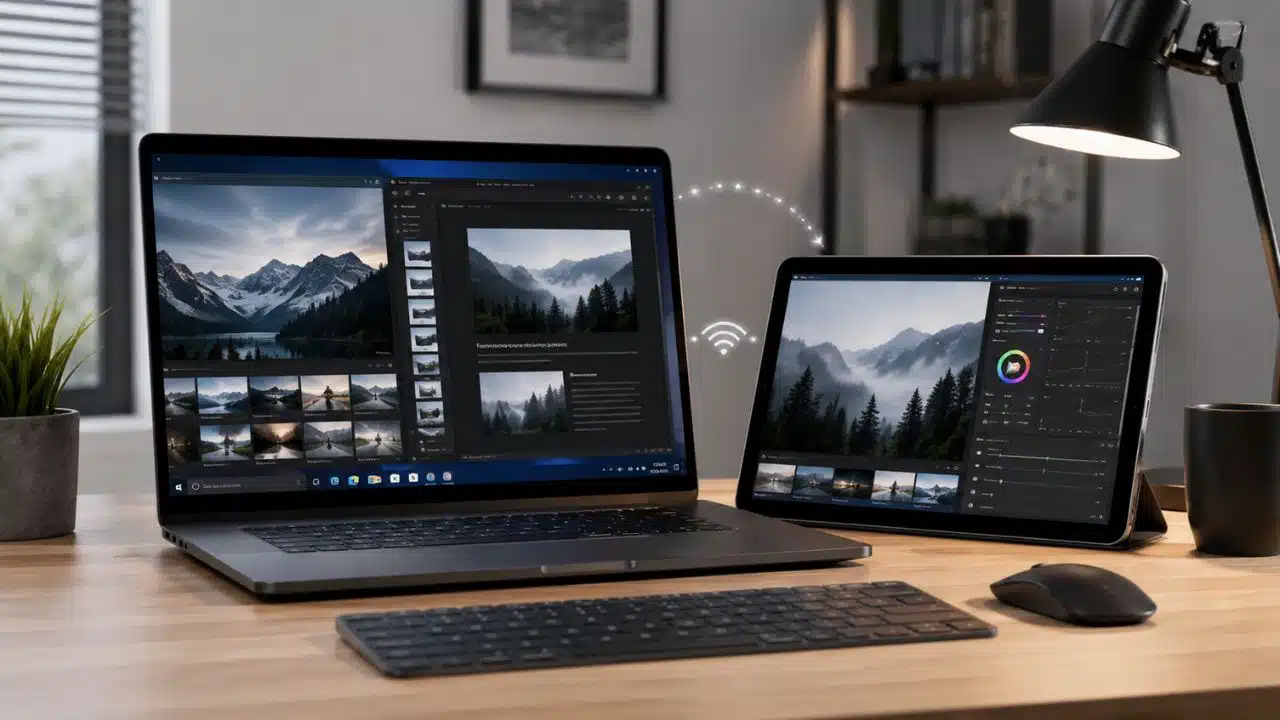
Windows does not care that your iPad has a beautiful screen sitting beside your laptop. That is the problem. A Mac can use Sidecar. A Windows PC cannot just reach across the Apple fence and borrow the iPad as a monitor. You need a workaround. Usually an app. Sometimes a cable. Sometimes a little hardware dongle that costs enough to make you ask whether a cheap portable monitor would have been smarter.
Still, the idea works.
Using an iPad as a second monitor for a Windows PC makes sense when you need a small side screen for notes, Slack, email, docs, logs, dashboards, music controls, or a browser tab you keep checking every three minutes. It makes less sense when you expect the iPad to behave like a proper 24-inch monitor with zero lag and perfect sharpness.
That expectation kills this setup faster than bad Wi-Fi.
The Blunt Truth: This Is a Workaround, Not Magic
Apple built Sidecar for Mac users. Windows users get no built-in “turn my iPad into a display” button. So every Windows-to-iPad second-screen setup has to fake the monitor connection in some way.
The app on your PC creates a virtual display. Then it sends that display feed to the iPad. The iPad app receives it and shows it. That sounds neat until you look closer. Your screen image must be captured, compressed, transmitted, decoded, and drawn on another device.
That chain adds delay.
Sometimes the delay feels tiny. Sometimes it feels like dragging your cursor through wet cement. The difference usually comes down to four things:
- Wi-Fi quality
- Cable quality
- App design
- Windows driver behavior
A real monitor plugged into HDMI or USB-C beats this setup for daily desk work. No contest. But if you already own an iPad and need a portable second screen for hotel work, a small apartment desk, a coworking table, or a quick coding session, this trick can save you from window-switching misery.
Start With the Job, Not the App
Do not install three apps and hope one feels good. That is how people waste an afternoon.
First decide what the iPad will actually show.
Good uses:
- API docs while coding
- Terminal logs while debugging
- Email beside a Word doc
- A Notion page beside a browser
- Slack during a meeting
- A monitoring dashboard
- YouTube tutorial controls while following steps on the main screen
Bad uses? Plenty.
Do not use this setup for serious video editing. Do not expect it to feel great for gaming. Do not put Photoshop panels there and then complain that the cursor feels off. Scratch that — people will complain anyway. But the problem is the expectation, not always the app.
The iPad works best when you glance at it more than you touch it.
That is the trick.
Wired or Wireless: Pick Your Pain
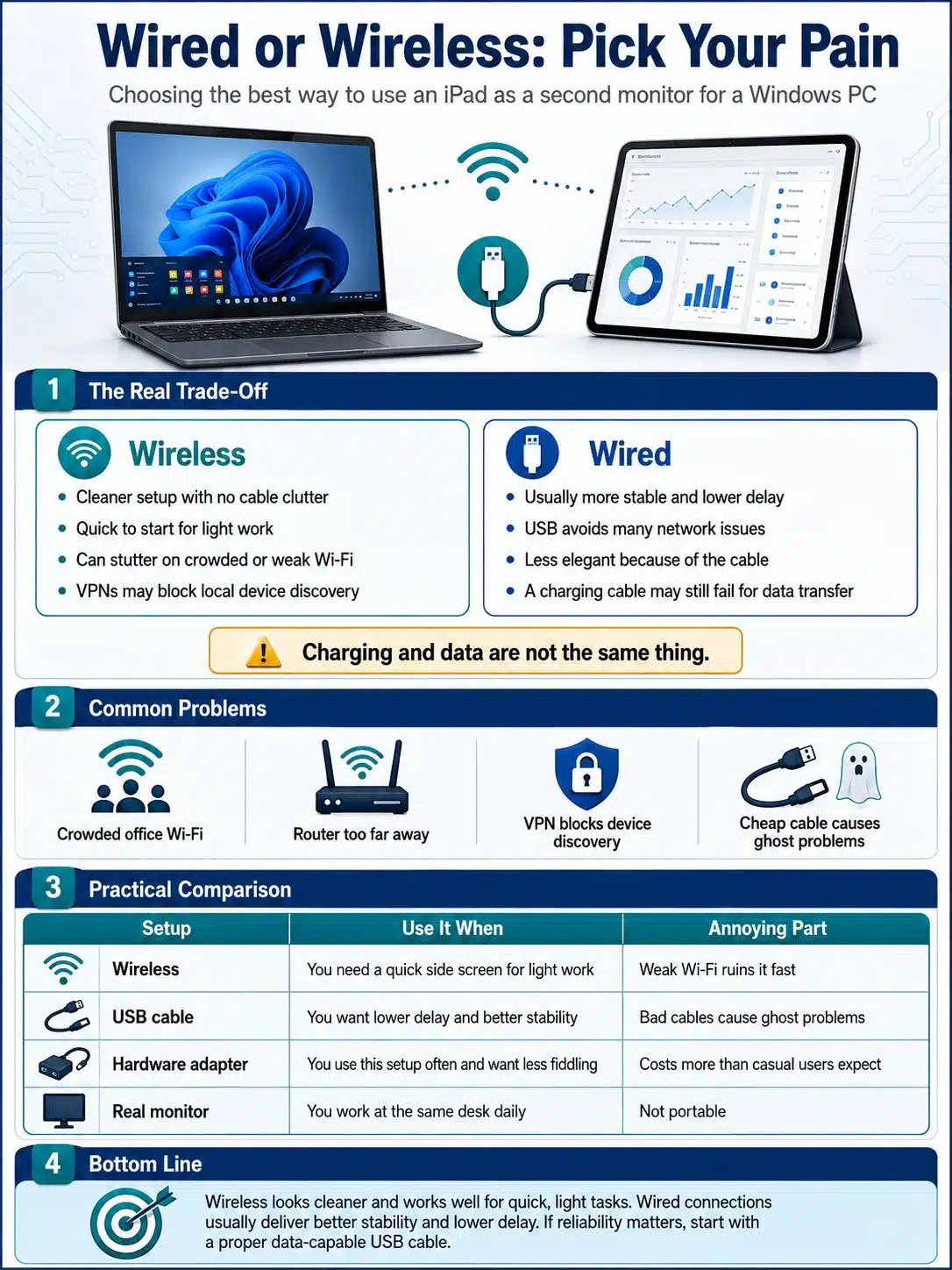
Wireless feels cleaner. No cable. No desk mess. You put the iPad on a stand, open the app, and pretend your Windows laptop and iPad are friends.
Then office Wi-Fi gets crowded. Or your router sits two rooms away. Or your VPN blocks local device discovery. Suddenly the screen stutters and the cursor jumps.
Wired setups feel less elegant, but they usually behave better. A USB connection avoids many network problems. The ugly part is the cable. That cheap gas-station cable you found in your junk drawer may charge the iPad just fine and still fail at data transfer. Charging and data are not the same thing.
Here is the practical version:
| Setup | Use It When | Annoying Part |
|---|---|---|
| Wireless | You need a quick side screen for light work | Weak Wi-Fi ruins it fast |
| USB cable | You want lower delay and better stability | Bad cables cause ghost problems |
| Hardware adapter | You use this setup often and want less fiddling | Costs more than casual users expect |
| Real monitor | You work at the same desk daily | Not portable |
Honestly, if you work from one desk every day, buy a monitor. If you move around a lot, the iPad workaround starts to look smarter.
Duet Display: The Polished Paid Option
Duet Display is the app many people check first because it has been around for years and supports Windows, Mac, iPad, iPhone, and Android setups.
It feels like a product built for this job, not a random screen-sharing hack. That matters. The setup usually follows a familiar pattern: install Duet on Windows, install the iPad app, sign in, connect the devices, then adjust display settings.
The catch is cost.
Duet has used paid plans and in-app purchases, and pricing can shift by region or subscription tier. So do not trust an old YouTube video that says “just pay once.” Check the current App Store listing and Duet’s own pricing page before you decide.
Duet makes sense if you use the iPad second screen often enough to care about polish. Writers, students, remote workers, developers, and consultants may find it worth comparing. But if you only need an extra screen twice a month, try a free route first.
No shame in being cheap here. This category rewards testing before paying.
spacedesk: Free, Useful, and a Bit Rough Around the Edges
spacedesk turns a Windows desktop into an extended display that other devices can view. It supports iOS viewer apps, and it lists free use for non-commercial private users. Commercial use needs paid licensing.
That makes spacedesk the obvious first stop for many people.
The good part: it can work well enough for simple second-screen jobs. Notes, chat, dashboards, docs — all fine.
The less charming part: it feels more technical. Not impossible. Just less friendly.
You may need to deal with:
- Windows driver installation
- Firewall prompts
- Same-network issues
- VPN conflicts
- Viewer discovery problems
If the iPad cannot see the PC, do not instantly blame the iPad. Check the boring stuff first. Same Wi-Fi network. No guest network isolation. No active VPN blocking local traffic. spacedesk driver running on Windows. Firewall permission allowed.
spacedesk is not the prettiest option. It does not need to be. It is the “try this first and see if the workflow even helps you” option.
That is valuable.
Luna Display: Better for People Who Already Know They Need This
Luna Display takes a different route. It uses a small hardware adapter plus companion apps. Astropad sells versions for Mac or PC, and the setup can turn an iPad into a second display.
This is not the first thing a curious beginner should buy.
Luna makes sense after you already know you like using an iPad as a travel display. Maybe you work from airports, hotels, cafés, or client offices. Maybe your backpack has no room for a portable monitor. Maybe you hate spending the first 10 minutes of every work session fighting software discovery.
Then Luna starts to look reasonable.
For everyone else, slow down. Test Duet or spacedesk first. If the second-screen habit sticks, then look at hardware.
Buying hardware before testing your workflow is how drawers fill up with “almost useful” gadgets.
Splashtop Wired XDisplay: Old-School, But Still Worth a Look
Splashtop Wired XDisplay focuses on using a tablet or phone as a wired second screen. Its official page promotes second-display use at 1080p and 60fps.
Wired sounds good because it avoids Wi-Fi nonsense. And sometimes it is good. But Splashtop’s Windows/iPad setup can still feel old-school.
The Windows PC may need to recognize the iPad properly first. Splashtop’s support material points users toward iTunes-related device recognition on Windows, the XDisplay Agent, cable checks, and Windows display extension settings.
That is not elegant. But it is real.
Use this route if you like wired stability and do not mind doing dull setup work. Skip it if you want the cleanest modern app experience.
The honest verdict: Splashtop Wired XDisplay can still help, but it feels like the kind of tool that asks for patience before it gives you value.
The Windows Setting People Miss
After the iPad connects, Windows may mirror your screen instead of extending it.
That is useless for most people. You do not need the same screen twice. You need more space.
Press Windows + P and choose Extend.
Then go to:
Settings → System → Display
Drag the display boxes so the iPad sits where it physically sits on your desk. If the iPad is on the left, drag the second display to the left. If you skip this, your mouse will “leave” the wrong side of the screen, and you will think the app is broken.
It is not broken. Windows just thinks your desk looks different.
Also check scaling. iPads have sharp screens, but Windows apps were not built around your exact iPad size. Text may look tiny. Or soft. Or weirdly spaced. Try 125% or 150% scaling if the default feels painful.
A second screen that makes you squint is not a productivity upgrade. It is a neck problem with Wi-Fi.
Lag Fixes That Actually Matter
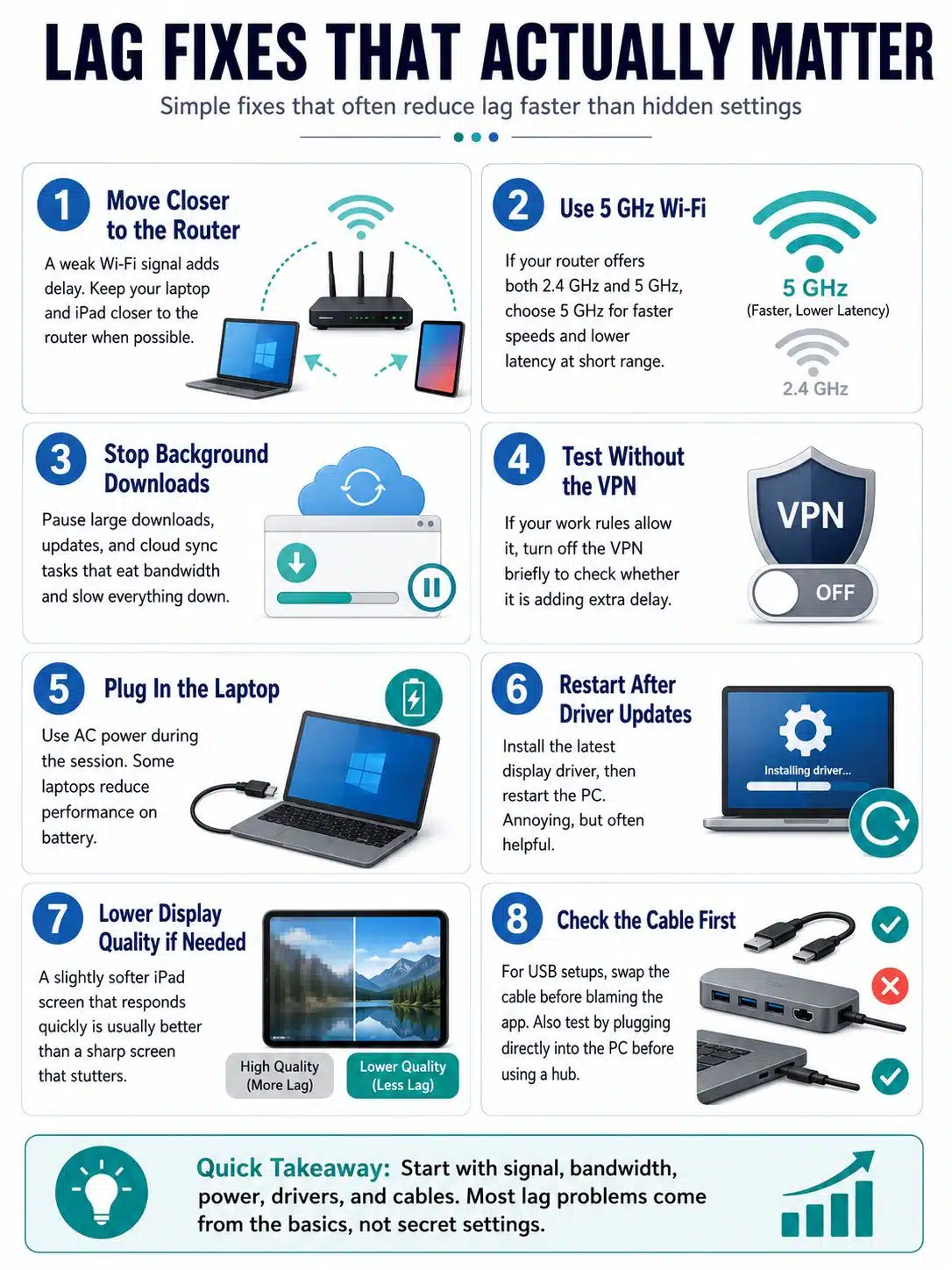
People love hunting for secret settings. Most of the time, the fix is less glamorous.
Move closer to the router.
Use 5GHz Wi-Fi instead of 2.4GHz if your router gives you both. Close the giant download running in the background. Turn off the VPN for testing if your work rules allow it. Plug in the laptop. Restart after installing the display driver.
Yes, restart. Annoying. Still useful.
If the app lets you lower display quality, try it. A slightly softer iPad screen that responds quickly beats a sharp one that lags every time you move the mouse.
For USB setups, change the cable before you change the app. Many people waste hours uninstalling software when the real villain is a pathetic cable from the bottom of a drawer.
Also avoid cheap hubs when testing. Plug directly into the PC first. Add the hub later if everything works.
A Better Way to Use the iPad Screen
Do not drag your main work onto the iPad.
Put the supporting stuff there.
For a back-end developer, the iPad can hold logs, API docs, Postman notes, deployment output, database reference pages, or a small monitoring dashboard. Keep the IDE on the laptop. Keep the side screen for things you read or check.
For regular office work, put Teams, Slack, Gmail, Google Calendar, or task lists on the iPad. Keep the spreadsheet, document, or browser-heavy work on the PC.
For students, put lecture notes or a PDF on the iPad and write on the laptop. For writers, keep the outline or source notes there.
The iPad should reduce tab-switching. That is the win.
If you use it as a tiny main monitor, you will hate it by lunch.
Small Setup Mistakes That Cause Big Problems
A few dumb mistakes keep showing up.
One: people connect both devices to Wi-Fi, but one sits on the guest network. Guest networks often block device-to-device communication. Your PC and iPad can both browse the web and still fail to see each other.
Two: people leave a VPN running. VPNs can block local discovery. Great for privacy. Bad for finding a nearby display receiver.
Three: people use mirror mode and call the app useless. Switch to Extend.
Four: people ignore driver restarts. Display drivers do not always wake up cleanly right after installation.
Five: people use the iPad flat on the table. Bad angle. Bad posture. Get a stand. Even a cheap folding stand helps.
One more: do not run the iPad on 8% battery and expect a smooth work session. Plug it in if you plan to use it for hours.
Privacy and Work Laptop Warnings
Second-screen apps need serious access. They capture your Windows display and send it to another device. That does not make them shady by default, but you should not install random display drivers from sketchy download sites.
Get apps from official websites or the App Store.
On a company laptop, ask before installing anything that creates a virtual display driver. IT teams may block these tools for a reason. Screen capture, remote display, and driver-level software can clash with security policies.
Also think about what appears on the iPad. If you handle client dashboards, private documents, banking pages, admin panels, or medical records, do not casually throw them onto a second screen in a café.
Small screen. Big leak.
When a Portable Monitor Beats the iPad
Let’s be real. A proper portable monitor often beats the iPad for serious work.
It gives you a direct display input. It needs no display app. It usually works with HDMI or USB-C. It has a wider screen shape for desktop apps. It does not depend on iPadOS behavior or app subscriptions.
So why bother with the iPad?
Because you already own it. Because it is already in your bag. Because it has a great screen. Because you only need a second display sometimes, not every day.
That is the sweet spot.
If you travel weekly and work long hours from a laptop, compare the iPad setup against a real portable monitor. If you only need extra space for quick tasks, the iPad wins by being already paid for.
Best Setup Path for Most People
Start cheap.
Try spacedesk first if this is for personal, non-commercial use. See whether the second-screen habit actually helps. Use it for simple work only: notes, docs, chat, dashboards. Do not judge it by gaming or video editing.
If you like the workflow but want a cleaner experience, compare Duet Display next. Check the current pricing before you commit.
If you use the setup often and hate software fiddling, look at Luna Display. Not before.
If you prefer cable-first work and can tolerate a slightly older setup flow, test Splashtop Wired XDisplay.
That order saves money and frustration.
Final Thoughts
Using an iPad as second monitor for Windows PC works best when you stop expecting a miracle and start using it for the right jobs.
Use it for reference material, chat, logs, notes, dashboards, and small windows that do not deserve your main screen. Use USB when latency bothers you. Use wireless when convenience matters more than perfection. Press Windows + P and choose Extend before you start blaming the app.
For daily desk work, buy a real monitor. For portable work, travel setups, cramped rooms, and quick productivity gains, the iPad can absolutely earn its place beside a Windows laptop.
Just do not trust the junk cable.