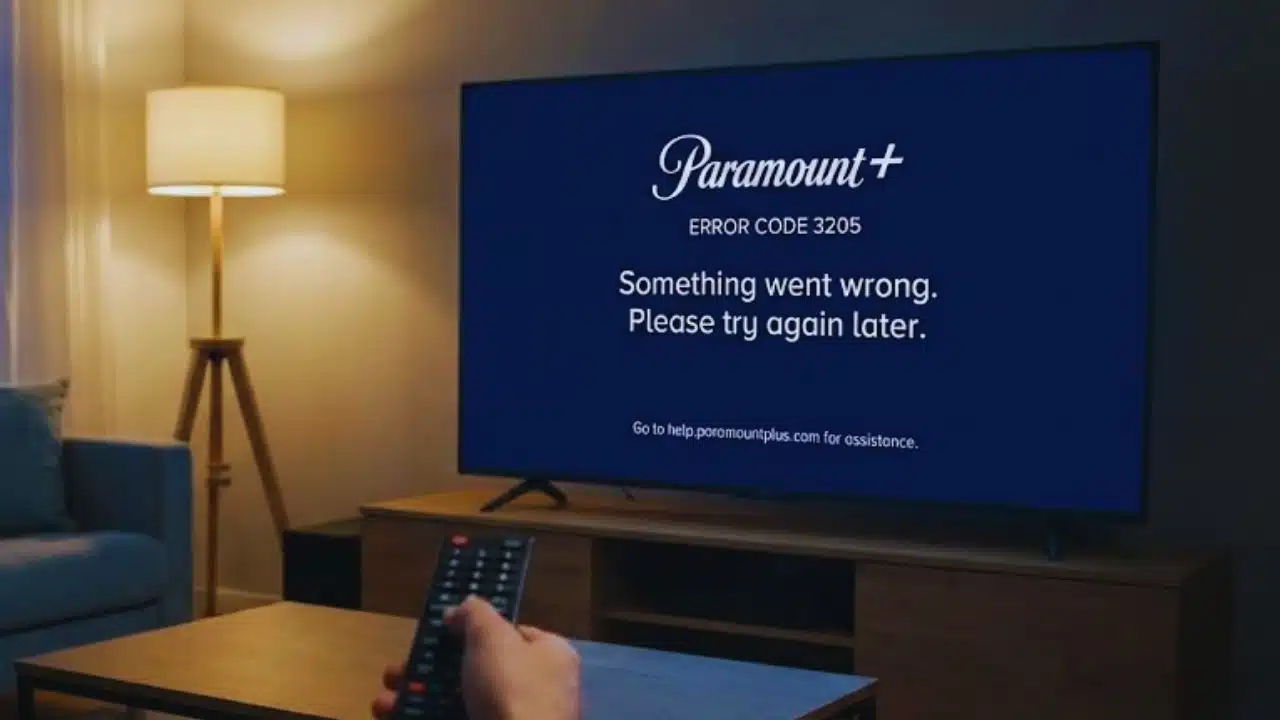
Is your Paramount+ app showing error code 3205 when you try to watch your favorite shows? This pesky error can stop your streaming fun and leave you stuck staring at an error message instead of enjoying “Tulsa King” or “Yellowjackets.” Many users face this same problem, often due to internet problems, outdated apps, or device issues.
The error code 3205 on Paramount+ is most often linked to connection problems or app glitches. Users report that some shows trigger this error while others play just fine. This makes fixing the problem even more tricky!
In this guide, we’ll walk through simple steps to fix Paramount error code 3205. You’ll learn how to check your internet, update your app, clear cache, and more. We’ll cover fixes for all devices from smart TVs to web browsers.
These easy fixes will get you back to streaming fast.
Key Takeaways
- Error 3205 on Paramount+ often happens due to poor internet, outdated apps, or corrupted cache data.
- You need at least 5 Mbps internet speed for smooth streaming without errors.
- Restarting your device and router is a quick fix that works for many users.
- Xfinity box users face unique challenges since they can’t update or delete the Paramount+ app.
- The error became more common after August 12, 2025, with shows like “Tulsa King” and “Yellowjackets” most affected.
What Does Paramount Error Code 3205 Mean?
Error code 3205 pops up when Paramount+ can’t play your show or movie. This error hits most often with popular shows like “Tulsa King,” “Mayor of Kingstown,” “Lioness,” and “Yellowjackets,” while other content may stream just fine.
Users first spotted this problem around August 12, 2025, and it got worse by September 25, 2025. You’ll know you have error 3205 when your screen freezes, goes black, shows a spinning loader, or the app crashes after buffering.
Many users report that Paramount+ works on devices not linked to Xfinity, which points to a platform-specific issue rather than your internet connection.
Common Causes of Error Code 3205
Error 3205 on Paramount+ often pops up due to a few common problems. Let’s look at what causes this error and how to fix it fast.
How Does an Unstable Internet Connection Cause Error 3205?
Unstable internet connections often trigger Error 3205 on Paramount+ because streaming needs a steady flow of data. Your connection must reach at least 5 Mbps for videos to play without problems.
If your internet speed drops or cuts out, even for a second, the stream breaks and shows this error code. Loose or damaged cables, like HDMI or ethernet cords, can make your network unstable and cause this error to pop up on your screen.
Too many people using your home network can also lead to Error 3205. When family members stream shows, play online games, or download files at the same time, they use up your bandwidth.
This leaves less speed for Paramount+, making errors more likely. Many users get confused because other streaming services still work fine, but Paramount+ needs more stable internet than some other apps.
Restarting your router often helps fix these connection issues quickly.
Can an Outdated App or Firmware Trigger Error 3205?
Yes, old app versions often cause Error 3205 on Paramount Plus. Many users report having very old versions like 4.17.3 when the latest is version 8. This big gap creates problems. On some devices like Xfinity boxes, users can’t update or delete the app because those options don’t exist in the interface.
Paramount’s own customer service team admits that errors like APP-04036 happen because of outdated apps. Old versions also make the app run slower. Users like USER_PLHMLU notice the app loads much faster on Roku than on their Xfinity box.
While fixing this usually means updating or reinstalling the app, some devices simply don’t allow these changes.
How Does Corrupted App Cache or Data Lead to Error 3205?
App cache stores data to help Paramount+ run faster. Over time, this data can get broken or mixed up, causing Error 3205. You might see the app crash, freeze, or show error messages when this happens.
Many users find that clearing the cache fixes these problems right away.
For stubborn cases, you may need to uninstall and reinstall the app completely. This gives the app a fresh start with clean data. Sadly, Xfinity cable box users can’t always do this step.
Both Paramount+ and device support teams often suggest this fix first because corrupted data is such a common cause of Error 3205.
Do VPNs, Ad Blockers, or Unsupported Browsers Cause Error 3205?
Yes, VPNs often trigger error 3205 on Paramount+ by messing with content delivery and location rules. The service checks where you’re watching from, and VPNs can block this check. Ad blockers can also cause this error, mainly when watching on web browsers.
They stop parts of the site from loading right.
Your browser choice matters too. Paramount+ works best with Chrome, Firefox, Edge, and Safari. Other browsers might not work well with the streaming service. If you keep seeing error 3205, try turning off your VPN and ad blockers first.
This simple fix works for many users without needing more complex steps.
Quick Fixes for Error Code 3205
Quick fixes for Error Code 3205 can save you time and frustration. Try these simple steps to get back to watching your favorite shows fast.
How Do I Restart My Device, Router, and Modem to Fix Error 3205?
Restarting your devices often fixes Paramount+ Error 3205 fast. This simple step clears temporary glitches that block your streaming connection.
- Turn off your streaming device completely and unplug it from the power outlet for at least 30 seconds.
- Unplug your internet router from the power source and wait for one full minute.
- Unplug your modem too (if separate from your router) and wait another minute to clear all network settings.
- Plug your modem back in first and wait until all lights return to their normal state.
- Connect your router to power next and give it 2-3 minutes to fully restart and connect.
- Plug your streaming device back in and turn it on once your internet is working again.
- Open the Paramount+ app and check if Error 3205 is gone.
- Try restarting your Xfinity Box specifically if you use one, as both users and Xfinity staff suggest this works well.
- Check if your internet speed is stable after restarting by running a quick speed test on another device.
- Contact Paramount+ support if the error continues after a complete power cycle of all devices.
How Can I Check Internet Speed and Stability to Resolve Error 3205?
Internet speed problems often cause Error 3205 on Paramount+. You need at least 5 Mbps for smooth streaming without errors.
- Visit speedtest.net or fast.com to check your current internet speed.
- Run the test at different times of day to spot patterns in your connection quality.
- Make sure your speed meets the 5 Mbps minimum needed for Paramount+ streaming.
- Check all cables connected to your modem and router for damage or loose connections.
- Move your device closer to your router if using WiFi to improve signal strength.
- Disconnect other devices from your network during testing to free up bandwidth.
- Try streaming on a different device to see if the problem follows your connection or device.
- Contact your internet service provider if speeds stay below 5 Mbps after these steps.
- Test your connection with other streaming apps to confirm if the issue affects only Paramount+.
- Restart your router and modem if speed tests show inconsistent results.
- Replace damaged Ethernet or HDMI cables that might cause connection problems.
- Turn off VPNs during testing as they can slow down your connection speed.
How Do I Update the Paramount+ App and Device Firmware?
Keeping your Paramount+ app and device firmware updated helps fix error code 3205. Many users face this error because they run outdated versions, like version 4.17.3 on Xfinity boxes compared to the latest version 8.
- Check your current app version in the Paramount+ settings or app info section to see if you need an update.
- Visit your device’s app store (Google Play Store, Apple App Store, Amazon Appstore) to find and install Paramount+ updates.
- Open your app store and search for “Paramount+” to find the latest version.
- Look for an “Update” button next to the app if a newer version exists.
- Set your apps to update automatically in your device settings to prevent future errors.
- Update your device firmware through the settings menu, usually under “System” or “About Device.”
- Look for “Software Update” or “System Update” options on your smart TV or streaming device.
- Restart your device after updates to make sure changes take effect properly.
- Contact your device manufacturer if you can’t find update options, especially for Xfinity boxes that may restrict app management.
- Try using Paramount+ on a different device if your current platform doesn’t support updates.
- Clear the app cache before updating to remove corrupted data that might interfere with the update process.
- Check that you have enough storage space for the update to download and install correctly.
How Do I Clear App Cache/Data or Reinstall the App to Fix Error 3205?
Corrupted app data often causes Error 3205 on Paramount+. Clearing your cache or reinstalling the app can fix freezing, crashing, and those annoying spinning loaders.
- Close the Paramount+ app completely on your device.
- Find your device settings menu, which varies based on what you’re using.
- Look for “Apps” or “Applications” in your settings menu.
- Scroll through the list and tap on “Paramount+” to open app info.
- Tap “Storage” or “Storage & Cache” option.
- Select “Clear Cache” to remove temporary files without losing your login info.
- If clearing cache doesn’t work, tap “Clear Data” which removes all app data including login details.
- Restart your device after clearing cache or data for best results.
- Open Paramount+ again and check if Error 3205 is gone.
- Try uninstalling the app if the error continues (note: this isn’t possible on some Xfinity cable boxes).
- Go to your device’s app store to download a fresh copy of Paramount+.
- Sign in with your account details after reinstalling.
- Test the app to see if the error is fixed.
- Contact Paramount+ support if you still see Error 3205 after trying these steps.
Device-Specific Troubleshooting
Different devices need specific fixes for Error 3205, so let’s look at how to fix this error on web browsers, smart TVs, and streaming devices like Xfinity.
How Do I Fix Error 3205 on Web Browsers?
Error 3205 on web browsers often happens because of browser issues or settings that clash with Paramount+. You can fix this problem with some simple steps that work for most people.
- Use a supported browser like Chrome, Firefox, Edge, or Safari to avoid error 3205.
- Turn off your VPN if you have one running, as VPNs can block Paramount+ from working right.
- Disable ad-blocking extensions that might stop Paramount+ content from loading.
- Clear your browser cache to remove old data that might cause errors.
- Delete cookies from your browser to fix any login or data problems.
- Try using a private or incognito window to see if the error still happens.
- Check if your browser needs updates and install them if it does.
- Remove unused web extensions that might clash with the streaming service.
- Make sure your internet speed is fast enough for streaming video.
- Try a different supported browser if you keep seeing the error.
- Restart your computer after trying these fixes to clear any leftover issues.
- Check the Paramount+ help page to see if they list any current browser problems.
What Are the Steps to Troubleshoot Error 3205 on Smart TVs?
Smart TVs often need special steps to fix Paramount+ error 3205. You can solve most streaming problems with these simple fixes for your TV.
- Check if your smart TV model works with Paramount+.
- Turn off your smart TV and unplug it for 30 seconds, then plug it back in.
- Sign out of your Paramount+ account on your TV, then sign back in to refresh your session.
- Make sure your TV has the latest software update installed.
- Clear the app cache through your TV’s settings menu.
- Delete and reinstall the Paramount+ app on your smart TV.
- Reset your network settings if you still have streaming issues.
- Test your internet speed to make sure it’s fast enough for streaming.
- Look at your HDMI cables for damage and replace them if needed.
- Try watching Paramount+ on a different device to see if the error happens there too.
- Connect your TV to a different internet network if possible.
- Contact your TV maker’s support team if none of these steps fix error 3205.
How Can I Resolve Error 3205 on Xfinity or Other Streaming Devices?
Fixing Error 3205 on Xfinity devices needs some special steps. Many users face this problem and can’t update or delete the Paramount+ app on their Xfinity boxes.
- Restart your Xfinity Box by unplugging it from power for 30 seconds, then plug it back in. This fix is often suggested by Xfinity forum staff like XFINITYMARCUS and XFINITYJOHNG.
- Check if there’s a Paramount+ service outage by visiting the Xfinity Community Forum where codes 3105, 2103, 04036, and APP-04036 are often reported with error 3205.
- Contact Paramount customer service directly since they have confirmed that APP-04036 errors come from their end, not Xfinity’s fault.
- Ask Paramount for a case number and possible free month of service, which they have given to other affected users.
- Try using the Paramount+ app on other devices like a smart TV or Roku as suggested by Paramount support.
- Message Xfinity Support through their direct messaging system if the problem continues, as many staff members actively help with this error.
- Explain to support that you cannot uninstall or reinstall the app on your Xfinity box, which limits your troubleshooting options.
- Join discussions on the Xfinity Community Forum where staff like XFINITYMATTHEW and CCKRYSTAL often provide help.
- Note that both error 3205 and APP-04036 are related issues that might need support from both Paramount and Xfinity to fix.
How Can I Tell If There Is a Paramount Plus Service Outage?
You can spot a Paramount Plus outage in several ways. Check if many users report the same error at once, which often points to a service problem rather than your device. This happened in August 2025 when issues started, and got worse by September 25, 2025.
Paramount has stated that some error codes like APP-04036 come from their end, not from providers like Xfinity.
If you can’t stream, try using the service on a different device such as a Roku or smart TV. Paramount often suggests this fix during known outages. Many users who faced long service breaks received a case number and a free month of service as a make-up gift.
The support team can confirm if the problem affects all users or just your account.
When Should I Contact Support for Error Code 3205?
If you’ve tried all the steps above and still face error 3205, it’s time to reach out for help. Contact Paramount+ support when your streaming issues last more than a day or happen across multiple devices.
What Information Should I Collect Before Contacting Paramount+ or Device Support?
Getting help for Paramount+ error 3205 works better when you have the right details ready. Support teams can fix your problem faster if you give them complete information about your issue.
- Write down all error codes you see, like 3205, 3105, 2103, or APPS 04036.
- Note your device type such as Xfinity X1 box, Roku, Fire Stick, or Samsung TV.
- Check your app version number (for example, version 4.17.3 on Xfinity).
- Record the exact date and time when you first noticed the error.
- List all the steps you’ve already tried, like restarting, updating, or clearing cache.
- Make note of other streaming apps that work or don’t work on your device.
- Save any case numbers from past support contacts about this issue.
- Keep track of names of support staff you’ve talked with, like XFINITYMARCUS.
- Note how the error has changed over time (for example, if it started on August 12 but got worse by September 25).
- Take screenshots of error messages to show the exact problem.
- Have your account details ready, including email address and subscription type.
- Keep records of any free service or compensation offered for your troubles.
Takeaways
Fixing error code 3205 on Paramount Plus doesn’t have to be hard. Try the simple steps we shared first, like checking your internet and updating your app. Most people solve the problem with these quick fixes.
If you still see the error, reach out to Paramount Plus support with details about your device and what you’ve tried. They can help you get back to watching your shows fast. Don’t let tech troubles stop your streaming fun!
FAQs
1. What causes Paramount Error Code 3205?
Paramount Error Code 3205 often happens when there’s a problem with your internet connection. It can also show up when the Paramount servers are down or when your app needs to be updated. Sometimes, cached data on your device causes this error too.
2. How can I fix Paramount Error Code 3205?
First, check your internet connection and try restarting your router. If that doesn’t work, clear the app cache or reinstall the Paramount app. Many users find that simply logging out and logging back in solves the problem.
3. Does Paramount Error Code 3205 mean my account has a problem?
No, this error code rarely relates to account issues. It’s mostly about connection problems or app glitches. Your account is likely fine.
4. Will restarting my device fix Error Code 3205?
Restarting your device often fixes Error Code 3205. This simple step clears temporary memory issues and refreshes your connection to Paramount servers. If the error continues after a restart, try the other troubleshooting steps like clearing cache or checking for app updates.