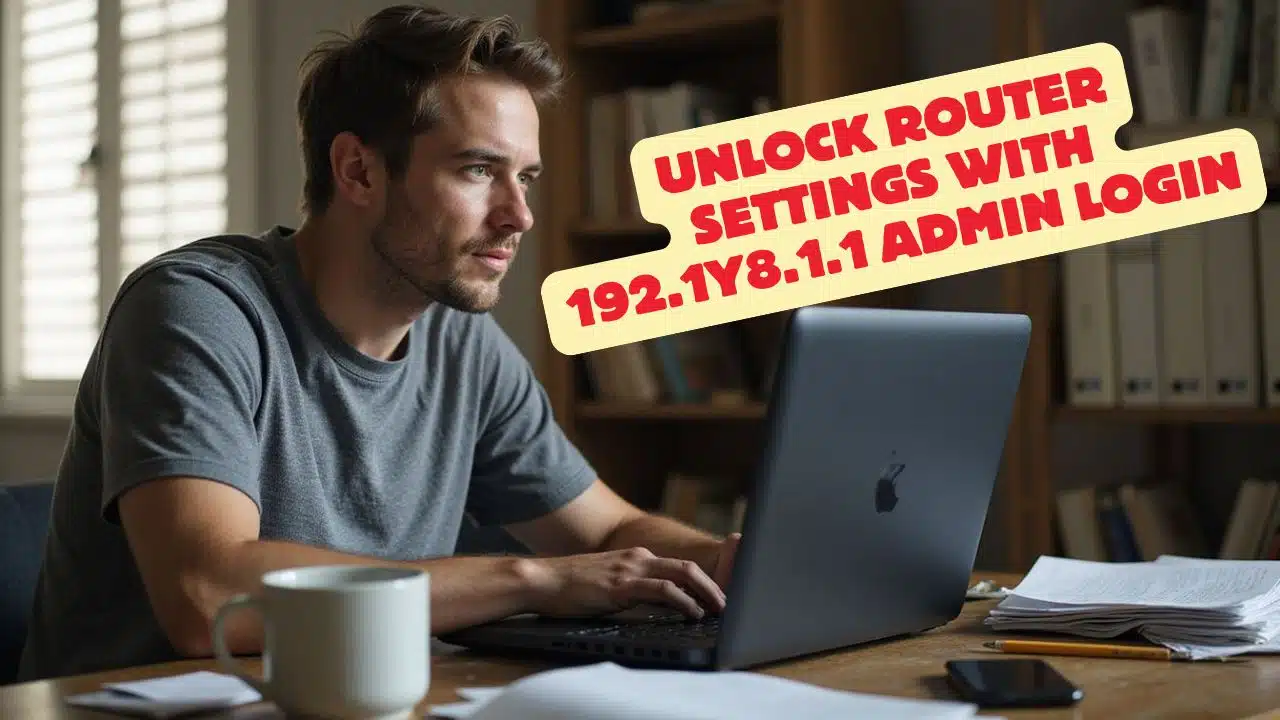
Having trouble logging in to your router admin page? You are not the only one. Many people type 192.1y8.1.1 instead of 192.168.1.1, the correct private IP address for most routers.
That tiny letter turns a valid IP into nonsense. It looks close, but close does not open the door. This guide shows you quick fixes, from finding the right address to resetting a forgotten password, plus simple tips to avoid fake links that mimic real IPs.
Key Takeaways
- Only number-only IPs like 192.168.1.1 work for router logins. Typing 192.1y8.1.1 will fail.
- Many routers ship with default logins such as admin. Change them right away for safety.
- If you cannot log in, use the reset button for 10 to 15 seconds to restore factory settings.
- Type the IP in your web browser’s address bar, not a search box, and check for typos.
- Update your Wi‑Fi password often and turn off WPS to block easy break‑ins.
Exploring 192.1y8.1.1

Typos sneak in like stealthy gremlins. A string such as 192.1y8.1.1 looks like an IP address, yet it is not. One stray letter can waste your time and hide the real fix.
Explaining Why 192.1y8.1.1 is Not a Valid IP Address
An IPv4 address uses four blocks of numbers, each between 0 and 255, separated by dots. No letters allowed. The y in 192.1y8.1.1 breaks the format, so the address is invalid.
Browsers and network tools reject malformed addresses on sight. If you try 192.1y8.1.1 in the address bar, nothing will load. Security filters often flag odd strings like this because scammers sometimes hide bad links using fake IP formats.
How to Correct the Error and Access 192.168.1.1
Use numbers only. Type 192.168.1.1 in your browser’s address bar to open the router admin page. Do not use a search engine. Your device must be connected to the router by Wi‑Fi or cable.
If that page does not appear, find your default gateway. On Windows, open Command Prompt and type ipconfig. On Mac or Linux, open Terminal and run ifconfig or ip route. Look for Default Gateway and use that exact IP.
If someone changed the router IP earlier, the default 192.168.1.1 might not work anymore. In that case, the gateway result from your device will point you to the right address.
Accessing Router Settings via 192.1y8.1.1
Think of this page as the front door to your network controls.
Logging into the Admin Panel
Follow these steps to reach the dashboard and adjust settings safely.
- Connect your computer or phone to the router’s Wi‑Fi, or use a LAN cable.
- Enter 192.168.1.1 in the browser’s address bar. Do not use 192.1y8.1.1 or 192.168.l.l.
- When the login box appears, enter the username and password. Check the label on the router or its manual if unsure.
- NETGEAR often uses ADMIN for the username and PASSWORD for the password. TP‑LINK commonly uses admin for both. D‑LINK may use admin and a blank password, or admin again.
- Type the credentials carefully. Too many wrong tries can trigger a temporary lockout.
- After logging in, the admin dashboard appears. Here you can change Wi‑Fi details, update firmware, or tweak firewall rules.
- Log out when done to keep others from changing your settings.
Modifying Router Configurations
Small changes here can improve security and keep unwanted devices off your network.
- Open 192.168.1.1 in a browser to reach the admin page. Avoid the typo 192.1y8.1.1.
- Change the default username and password right away to block easy break-ins.
- Enable WPA2 or WPA3, which are Wi‑Fi security standards. They protect data sent over your network.
- Create a strong Wi‑Fi password with upper and lowercase letters, numbers, and symbols.
- Update the firmware on a regular schedule. Updates fix bugs and close security holes.
- Turn off WPS, a push‑button connect feature that attackers often target.
- Use MAC filtering if you want to allow only specific devices. Treat it as a guest list, not your only lock.
- Adjust firewall settings to block suspicious traffic and reduce risk from malware.
- To change the LAN IP address, look under advanced settings > network > LAN on TP‑LINK. On D‑LINK, open setup > network settings. On NETGEAR, check advanced > setup > LAN setup.
- Restart the router after major changes, such as a new IP or wireless mode. Some models reboot automatically.
- Store new logins and settings in a safe place. You will need them when adding devices or after a reset.
Addressing Login Issues
If login fails, do not panic. These fixes solve most issues fast.
Resetting Router to Default Settings
A full reset clears custom settings and restores the factory defaults. Use it if you cannot log in or the router behaves oddly.
- Press and hold the RESET button for 10 to 15 seconds with a paper clip. Watch for blinking lights.
- If needed, power cycle the router. Unplug it for 30 seconds, then plug it back in.
- After a reset, your Wi‑Fi name, password, and custom IP go back to original defaults.
- Use the default admin username and password from the router label or manual to sign in.
- A reset can clear failed updates or DNS spoofing issues so you can reach the admin page again.
- Locked out after a change? A quick reset lets you use the 192.168.1.1 login admin steps again.
- Think of it as a clean slate that removes broken settings and glitches.
Retrieving Username and Password
Lost credentials are common. Try the simplest options first.
- Check the router box, manual, or sticker on the bottom. Default logins are usually printed there.
- TP‑LINK often uses admin for both fields. D‑LINK might use “admin” and leave the password blank, or “admin” again.
- Many NETGEAR units ship with ADMIN as the user and PASSWORD as the password.
- If someone changed the password and you cannot find it, hold the reset button for about 10 seconds to restore factory settings.
- Use only trusted sites if you look up default logins online. Random lists can contain malware.
- Change default credentials right after your first login at 192.168.1.1 or 192.168.0.1.
- Some routers can recover access through an email link if you set it up earlier.
- Write your new credentials in a safe place so this headache does not repeat.
- Check the IP again for typos. A string like 192.1y8.1.1 will never load a login page.
Takeaways
Use the correct IP, usually 192.168.1.1, to reach your router settings fast. That odd 192.1y8.1.1 is just a typo that blocks access.
Once inside the admin panel, change the default username and password, update firmware, and tighten Wi‑Fi security. If you get stuck, a reset restores factory settings so you can start clean. If this is a business network, check with your internet service provider or an IT pro before resetting equipment.
Keep this guide handy the next time you need to log in. Type the numbers carefully, 192 dot 168 dot 1 dot 1, and you will be back in control in minutes.
FAQs on 192.1y8.1.1
1. What is the correct IP address for accessing my router settings, and why does 192.1y8.1.1 look odd?
The right address to access your router admin page is usually 192.168.1.1, not 192.1y8.1.1; that ‘y’ in there makes it an unusual ip-like format and won’t work for login or configuration.
2. Why do people use placeholders like 192.1y8.1.1 instead of the real default IP address?
Sometimes folks use a placeholder name or obfuscation when talking about private addresses online, but if you need to log into your router, always type the actual default ip address: 192.168.1.1.
3. How can I troubleshoot if I cannot access my router with 192.168.1.1?
If typing 192 dot one six eight dot one dot one doesn’t open your admin panel, check your firewall settings or see if URL redirection is at play; sometimes resetting your device helps too.
4. What should I do after logging in with the correct IP address?
Once inside using the proper communication protocol, you can change wifi passwords, configure Domain Name System details, reset your router to factory settings, or update other configurations as needed.
5. Can IPv6 addresses be used instead of IPv4 like 192 dot one six eight dot one dot one?
Most home routers still rely on IPv4, such as this private IP; while IPv6 exists and uses a different string structure from computer science basics, stick with what matches your device’s manual unless told otherwise.
6. How does resetting affect my ability to access their router again later?
Resetting wipes out changes, so all goes back to default login info; next time you want to change the settings and configurations, just use that same standard private IP address—it will allow a fresh setup every time.