
Does your WordPress site feel slow? A bloated WordPress database can slow your site on every page view. It fills up with post revisions, spam comments, and unused data.
We offer 7 simple steps to clear old post revisions. We show how to delete spam comments and trim your wp_options table. We share how to run database optimization with a database panel or a command line tool.
Keep reading.
Key Takeaways
- Clean old post revisions. Run
DELETE FROM wp_posts WHERE post_type = ‘revision’;
Then set define(‘WP_POST_REVISIONS’, 3); or false in wp-config.php. Or install the WP-Optimize plugin. - Delete spam, trash, and unapproved comments. Run
DELETE FROM wp_comments WHERE comment_approved = ‘spam’;
DELETE FROM wp_comments WHERE comment_approved = ‘trash’;
DELETE FROM wp_comments WHERE comment_approved = ‘0’;
Add define(‘EMPTY_TRASH_DAYS’, 7); in wp-config.php or use WP-Optimize. - Remove orphaned plugin tables. Back up your database in phpMyAdmin or via a backup plugin. Find tables with old prefixes like wppluginold. Then run DROP TABLE table_name; Repeat this audit monthly with the InstaWP Database Editor.
- Optimize database tables. In phpMyAdmin, select all tables and choose Optimize table. Or run wp db optimize in WP-CLI. Schedule weekly cleanups with a cron job or WP-Optimize’s scheduler.
- Delete expired transients from wp_options. Run
DELETE FROM wp_options WHERE option_name LIKE ‘%transient%’;
Or use wp transient delete-expired in WP-CLI. Automate via a cron job or a transients manager plugin.
How do I clean up old post revisions in WordPress?

Post revisions can stack up in the wp_posts table on content-heavy sites. Cleaning them cuts bloat and speeds up database queries.
- Access phpMyAdmin or a MySQL client to open the wp_posts table where revisions store.
- Run this SQL query, DELETE FROM wp_posts WHERE posttype = ‘revision’;, and swap wp for your database prefix.
- Add define(‘WP_POST_REVISIONS’, false); to wp-config.php to stop future saves, or set define(‘WP_POST_REVISIONS’, 3); to cap revisions.
- Install WP-Optimize plugin and pick the clean up post revisions option to speed up database tables.
- Verify that key database tables show less overhead and enjoy improved WordPress database performance.
How can I delete spam, trash, and unapproved comments?
Spam comments and trash can bulk up your WordPress database fast. You need to clear them often to keep database tables lean.
- Open your WordPress dashboard and go to Comments, then click Spam comments. Select all comments and click Delete permanently to clear wp_comments and wp_commentmeta.
- Access Trash in your dashboard, select all posts within that folder, then hit Delete permanently. You can set define(‘EMPTY_TRASH_DAYS’, 7); in wp-config.php to auto-delete trashed items after X days.
- Run these SQL queries in phpMyAdmin or via WP-CLI: DELETE FROM wp_comments WHERE comment_approved = ‘spam’; DELETE FROM wp_comments WHERE comment_approved = ‘trash’; DELETE FROM wp_comments WHERE comment_approved = ‘0’; Each query trims database tables and cuts bloat fast.
- Install WP-Optimize plugin, open Database cleanup and click Clean all redundant comments. Schedule the plugin to run each month and boost website performance.
How do I remove auto-drafts and trash posts or pages?
Auto-drafts and trashed pages swell the wp_posts table and harm database performance. You can prune these items to boost wordpress database health.
- Run “DELETE FROM wp_posts WHERE post_status = ‘auto-draft’;” in phpMyAdmin to bulk remove auto-drafts from your database tables.
- Open the WordPress admin dashboard, go to Posts > All Posts and Pages > All Pages, then click Trash and hit Empty Trash to clear out old items.
- Adjust the autosave interval in wp-config.php with define(‘AUTOSAVE_INTERVAL’, 86400); or disable autosaves entirely to cut down on draft buildup.
- Schedule regular database cleanup tasks in your hosting control panel or use the WP-Optimize plugin for ongoing wordpress database optimization and reduced bloat.
What are orphaned plugin tables and how do I delete them?
Orphaned plugin tables hide in your WordPress database after you delete a plugin. They bloat storage, they slow query performance.
- Define leftover plugin tables as tables that remain after you uninstall a plugin and carry orphaned plugin data, a common cause of large databases.
- Open the InstaWP Database Editor or phpMyAdmin to list all tables and spot names that start with old plugin prefixes, like wppluginold.
- Create a full database backup via a backup plugin or phpMyAdmin export to protect against data loss.
- Run a DROP TABLE command for each orphaned table, such as DROP TABLE wp_pluginold_data, only after your backup completes.
- Repeat this audit monthly for proactive database cleanup, especially if an agency manages multiple WordPress sites.
How do I optimize database tables to reduce overhead?
Your WordPress database picks up extra bytes over time. You must trim tables to speed backups and queries.
- Open the DB Editor plugin or a database manager interface such as phpMyAdmin and pick all tables, then run the OPTIMIZE TABLE command. This step compacts tables and clears overhead left by updates and deletes.
- Run wp db optimize in a command line tool called WP-CLI to fix all tables in seconds. That method works well on managed WordPress hosting and in scripts.
- Install the WP-Optimize plugin on your site, hit its clean button or set a weekly schedule. The plugin defrags tables and keeps them tight.
- Launch MySQL Workbench or a similar desktop database manager to view table sizes and trigger manual optimizations. Advanced users can tweak each table by hand.
- Add a cron job in wp-config.php or use the plugin scheduler to run table cleanups on a set day each week. Automating reduces manual work and keeps your database lean.
- Watch your backup jobs finish faster, sometimes with as much as 50 percent time saved. A lean database boosts performance and recovery speed.
How can I delete expired transients from wp_options?
Expired transients clog the wp_options table. They slow the admin dashboard and hurt database performance.
- In phpMyAdmin, open your hosting control panel, select the WordPress database, and run
DELETE FROM wp_options WHERE option_name LIKE ‘%transient%’;
This removes all expired transient options. - In a shell, launch WP-CLI and run
wp transient delete-expired
to use core functions that drop stale entries in wp_options. - Install a transients manager plugin to view all transient options by status and size. You can bulk delete expired keys in seconds.
- Activate the wp-optimize plugin and run its database cleanup tool to remove expired transient data and reduce table overhead.
- Create a cron job in your hosting dashboard that runs the SQL delete query or the WP-CLI command on a schedule. This automates routine database cleaning.
- Add a PHP snippet to wp-config.php or your theme’s functions file. Hook into admin_init and call delete_expired_transients(); This clears old data every time the dashboard loads.
- Run
OPTIMIZE TABLE wp_options
in phpMyAdmin or via MySQL. This defragments pages, shrinks the table, and improves database performance.
How do I remove unused post meta keys from wp_postmeta?
Unused meta keys build up in the wp_postmeta table over time. Removing them cuts overhead and speeds database queries.
- Run a SELECT query in the admin panel to list all meta_key entries by frequency. This audit spots high volume keys that extensions may leave behind.
- Launch a sandbox environment on your managed WordPress hosting or a test install to trial SQL cleanup safely.
- Execute the SQL statements such as DELETE FROM wp_postmeta WHERE meta_key = ‘_edit_lock’; to wipe out unused system locks.
- Remove edit tracker data with DELETE FROM wp_postmeta WHERE meta_key = ‘_edit_last’; to clear prior author edits.
- Check extension documentation for custom keys and adjust DELETE statements to avoid removing essential data.
- Compare row counts before and after cleaning to confirm the number of removed entries and observe performance gains.
- Consider WP-Optimize plugin to scan and delete orphaned data via its interface if you prefer a graphical tool.
- Scan for leftover keys with a SQL pattern like DELETE FROM wp_postmeta WHERE metakey LIKE ‘plugin%’; after deactivating the related extension.
Should I use a WordPress database optimization plugin?
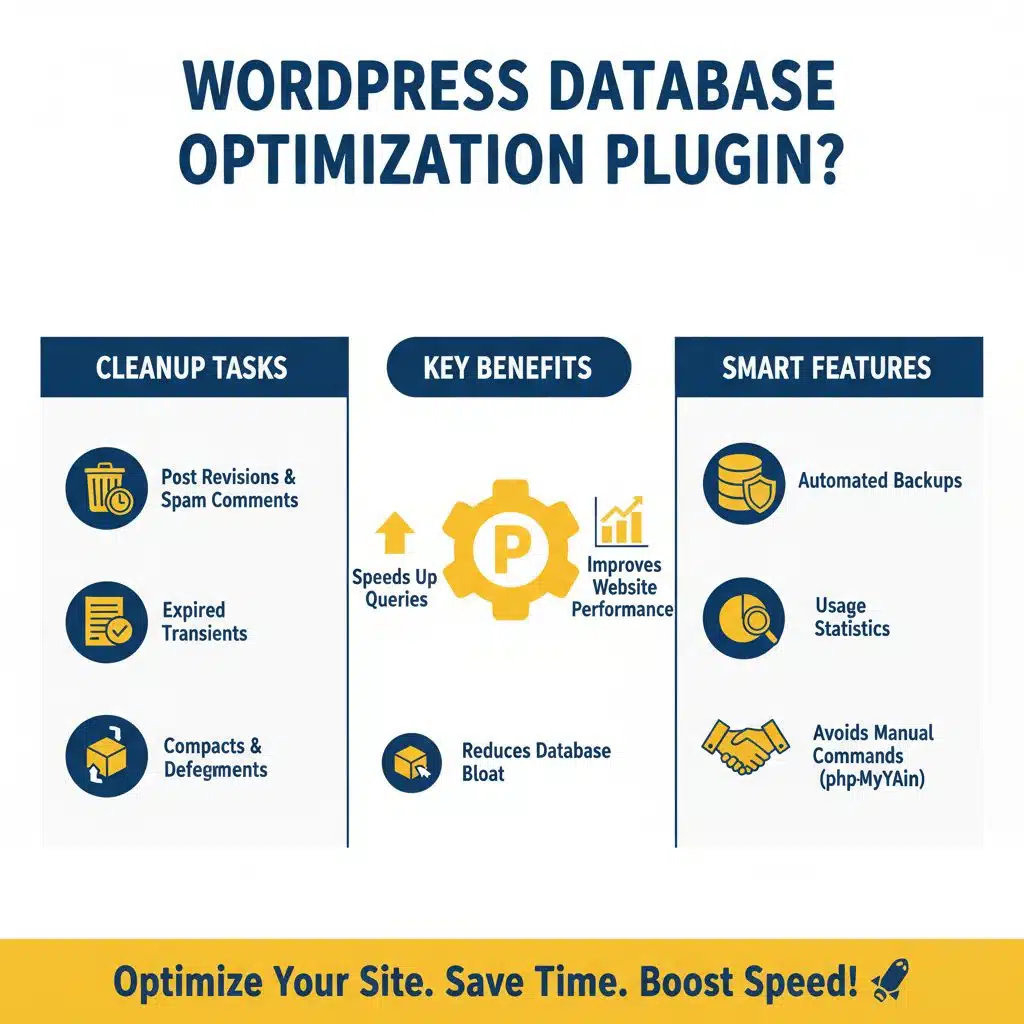
A tool like WP-Optimize optimizes WordPress database and runs cleanup tasks on schedule. It deletes post revisions, spam comments, and expired transients. It compacts tables and defragments storage.
It backs up data before cleaning. It shows usage stats. Sites on managed WordPress hosting often link these tasks to a performance boost.
WP-Sweep adds cleanup features for the wp_options table and orphaned plugin data. Site owners can save time and avoid manual commands in phpMyAdmin. The add-on reduces database bloat in wp_postmeta and wp_posts tables.
It speeds database queries. It improves website performance.
How do I manually optimize database tables using phpMyAdmin?
Manual optimization in phpMyAdmin gives you full control. It can speed up your WordPress database.
- Back up your database with the export feature in phpMyAdmin.
- Log into your hosting panel and open phpMyAdmin.
- Choose your WordPress database to list all database tables.
- Sort tables by clicking the Size column header.
- Tick the database tables with the largest data sheets.
- Select Optimize table from the With selected drop-down.
- Hit Go to run the OPTIMIZE TABLE command.
- Watch the overhead drop to zero for each table.
- Review indexes and storage engine stats after the tune.
- Note that this database optimization method gives fine control over query performance and storage engine tuning, unlike some plugins.
Why should I back up my database before cleanup?
Backing up your database protects you from accidental data loss in a cleanup. A bad SQL query can delete your wp_posts table or wipe custom post meta fields. Use phpMyAdmin, a managed WordPress host, or a backup plugin that stores snapshots in the cloud.
InstaWP offers a staging site for testing a restore before you run cleanup scripts. A quick restore saves hours of work, and keeps user experience smooth.
Sites with daily posts merit daily backups. Static blogs can run weekly or bi-weekly backups. Automated backups cut manual steps and guard against human error. This routine also boosts database performance and cuts database errors.
That way you delete old post revisions or expired transients from wp_options with zero worries.
How do I schedule regular database maintenance?
Most sites need a cleanup once a month. High-volume blogs or agencies may pick weekly sessions.
- WP-Optimize plugin lets you set monthly or weekly cleanups for post revisions, spam comments, and trash posts. It runs auto-clean tasks and optimizes database tables to boost website performance.
- Set up a cron task with WP-CLI to clear auto-drafts, orphaned plugin tables, and old post metadata. Scheduled commands cut database bloat and speed up query performance.
- Create a SQL event in phpMyAdmin to optimize wp_posts and wp_users tables overnight. This job shrinks table overhead and defragments indexes.
- Check managed WordPress hosting dashboards for built-in database cleanup tools and time slots. Your host may offer one-click tasks that trim unused tags and shortcodes.
- Ask your hosting provider to run backups before each cleanup to protect your wp-config.php file and database dump. A quick snapshot speeds up recovery and guards against errors.
- Link a Bash script to prune expired transients in the wp_options table at set intervals. This removes stale entries and frees space in your options list.
- Run the Transients Manager plugin to clear expired transients and orphaned data in wp_postmeta. Removing unused post meta keys cuts bloat and improves database health.
- Trim unused post tags, unattached media files, and leftover shortcodes during each run. A lean wp_terms table and clean media library boost site operation.
Takeaways
Feed your site a diet of data spring cleaning. Think of your database like a closet, toss the junk, keep the treasures. You saw how to clear old draft posts, zap spam comments, and prune expired transients.
Launching commands in the command line interface and scanning the options table made it easy to spot fat tables. Backups give peace of mind before each trim.
FAQs on Ways to Reduce WordPress Database Bloat
1. How do I clear post revisions in WordPress to cut database bloat?
You can edit wp-config.php to set a limit on post revisions, for example define(‘WP_POST_REVISIONS’, 5). Then run an SQL query or a plugin to delete old rows in the wp_post_revisions table. Always take a database backup first so you have a safety net. This trims database tables and boosts your database optimization.
2. How do I remove spam comments and orphaned data from my tables?
Use a plugin or SQL commands to delete spam comments in the wp_comments table. Next, hunt orphaned data in wp_postmeta and wp_users tables. A neat purge speeds up database queries and slashes database errors. It’s like clearing junk mail from your inbox, but for your site.
3. How can I optimize wp_options, wp_posts, wp_postmeta, and wp_users tables?
First, repair and optimize each table with your hosting tool or phpMyAdmin. Next, check wp_options for large rows and clear expired transients. Then run cleanup scripts to defrag your tables. This keeps database health strong and boosts WordPress performance.
4. What plugins should I use for database cleanup and performance?
The wp-optimize plugin cleans post revisions, spam comments, and transient options in one go. The wp-sweep plugin digs deeper, removing unused tags and orphaned data from wp_posts and wp_postmeta tables. Both are user-friendly and improve website performance by lifting query performance and reducing bottlenecks.
Use a cache tool to find expired transients. Next, run tag cleanup in your dashboard to remove unused post tags. Then delete unattached media files via FTP or a plugin. If you have a CDN, this syncs your media and cuts HTTP requests. You free space and speed up web performance.
6. What hosting and backup strategies keep your database healthy?
Choose managed WordPress hosting with database replication and automated backups. Look for support for database sharding or PostgreSQL if you need to scale. Use file transfer protocol to grab copies now and then. Keep security patches current to close vulnerabilities. A solid plan preserves database performance and boosts user experience.