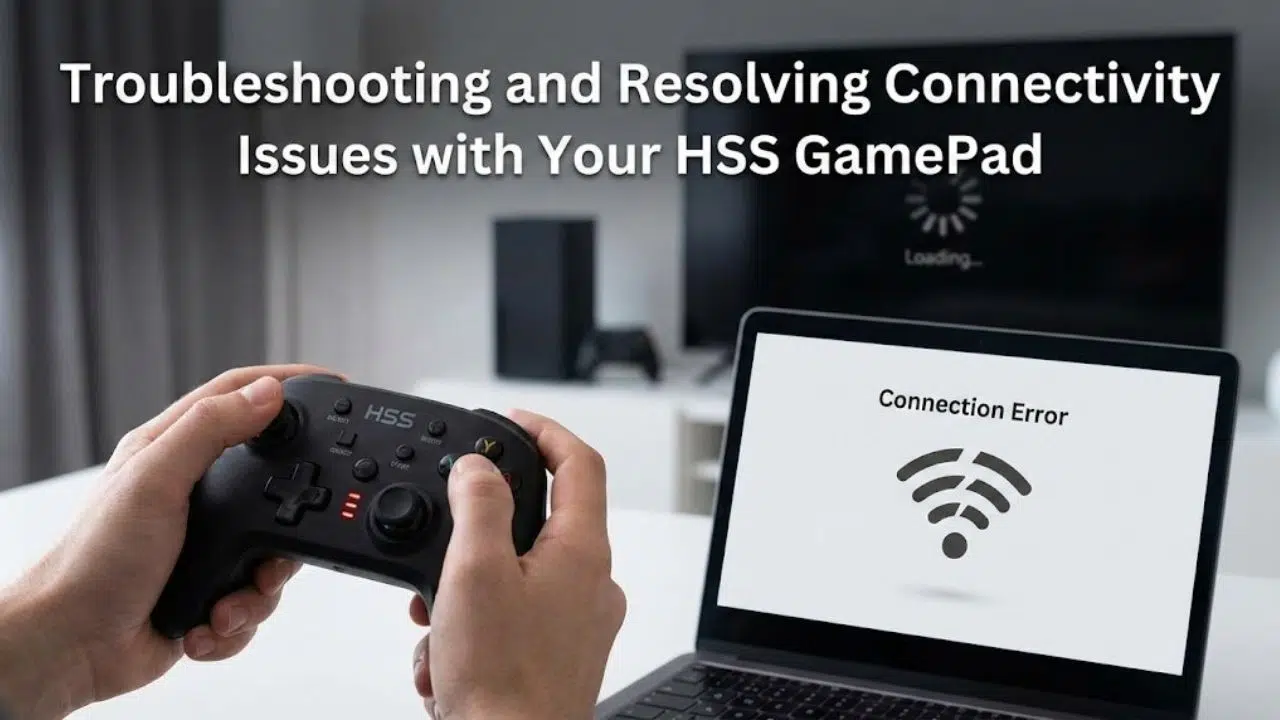
In the world of mobile and PC gaming, the HSS GamePad has carved out a niche as a reliable controller for gamers who prefer tactile precision over touchscreen controls. Whether you are deep into a competitive battle royale or exploring an expansive open-world title, a stable connection between your gamepad and device is non-negotiable.
However, even the most reliable hardware can occasionally suffer from technical hiccups. When your button inputs lag, the controller disconnects randomly, or it simply refuses to pair, the frustration can cut a gaming session short. This guide is designed to help you navigate the most common connectivity issues affecting the HSS GamePad. We will walk you through diagnostic steps, platform-specific fixes, and long-term maintenance tips to ensure your controller remains a seamless extension of your gameplay.
Understanding the Root Causes of HSS GamePad Connection Failures
Before diving into fixes, it is important to understand why connectivity issues occur. The HSS GamePad primarily relies on Bluetooth technology to communicate with your smartphone, tablet, or PC. Connection problems generally stem from one of three categories: software conflicts, hardware interference, or power management errors.
Identifying which category your problem falls into is the first step toward a permanent solution. Often, the issue is not a sign of a broken device but rather a minor setting that needs adjustment or a temporary glitch in the communication protocol.
Common Symptoms of Connection Problems
- Intermittent Disconnection: The gamepad connects but drops the signal every few minutes.
- Input Lag: There is a noticeable delay between pressing a button and the action appearing on screen.
- Pairing Failure: The device is discoverable but will not complete the pairing process.
- Driver Errors (PC): The computer recognizes the controller but marks it as malfunctioning in the Device Manager.
Step-by-Step Troubleshooting Guide
When faced with connectivity issues involving your HSS GamePad, a methodical approach is best. Jumping to complex solutions can sometimes make the problem worse. Follow these steps in order to isolate and resolve the issue efficiently.
1. The Basics: Power Cycling and Re-Pairing
It may sound simple, but power cycling is the most effective fix for a vast majority of Bluetooth glitches. This process clears the temporary memory cache on both devices and forces them to establish a new handshake.
- Disconnect: Open your device’s Bluetooth settings and select “Forget” or “Unpair” the HSS GamePad.
- Power Off: Turn the gamepad off.
- Restart: Reboot your smartphone, tablet, or PC.
- Reset the GamePad: If your HSS model has a reset pinhole (usually located near the L2 button), use a paperclip to press the button inside for 3-5 seconds.
- Repair: Put the controller in pairing mode (usually by holding the “Home” or “Power” button until the LED flashes rapidly) and reconnect it to your device.
2. Addressing Bluetooth Interference and Signal Clutter
Bluetooth operates on the 2.4 GHz frequency, which is the same band used by Wi-Fi routers, wireless mice, and even microwaves. In environments with multiple active signals, interference can cause significant connectivity issues.
- Distance Matters: Ensure your HSS GamePad is within a reasonable range (ideally less than 3 feet) of the host device. Walls and physical obstructions degrade the signal.
- Wi-Fi Congestion: If you are gaming near a dual-band router, try switching your network to the 5 GHz band if available. This frees up the 2.4 GHz spectrum for your controller.
- USB 3.0 Interference: On PCs, USB 3.0 ports are known to emit radio interference that can disrupt Bluetooth dongles. If you are using a Bluetooth dongle, plug it into a USB 2.0 port or use a USB extension cable to move the dongle away from the computer case.
3. Platform-Specific Fixes
The way your HSS GamePad interacts with an operating system can vary. Here are tailored solutions for the most common platforms.
For Android and iOS Devices
- Battery Optimization: Modern smartphones aggressively manage battery life. Sometimes, the OS will put the Bluetooth stack to sleep to save power, which disconnects the gamepad. Go to your Bluetooth settings, find the HSS GamePad in your device list, and turn off “Battery Optimization” for that specific device.
- Background App Refresh: Close any apps running in the background that might be trying to access the controller simultaneously, such as mapping apps or other game launchers.
For Windows PC
- Driver Verification: Right-click the Start button and open Device Manager. Expand “Human Interface Devices” and “Bluetooth.” Look for any devices with a yellow exclamation mark. If you see one related to the HSS GamePad, right-click and select “Update driver.”
- Power Management: In Device Manager, find your Bluetooth adapter (often listed under Intel or Realtek). Right-click, go to Properties, and navigate to the Power Management tab. Uncheck the box that says “Allow the computer to turn off this device to save power.” This is a common culprit for random disconnections during gameplay.
Advanced Troubleshooting and Maintenance

If the standard steps haven’t resolved your connectivity issues, we need to look at the hardware’s health and deeper system conflicts.
Checking Battery Health and Charging Cycles
A low or failing battery is a frequent cause of disconnection. When a lithium-ion battery drops below a certain voltage threshold, the Bluetooth transmitter may not have enough power to maintain a stable signal.
- Use the Correct Charger: Always charge your HSS GamePad with a low-output charger (typically 5V/1A). Fast chargers designed for phones can damage the gamepad’s battery controller over time.
- Test During Charge: If the controller only works while plugged in but disconnects when wireless, the internal battery likely needs replacement.
Updating Firmware
Manufacturers often release firmware updates to improve Bluetooth compatibility with new devices and operating system updates. Check the official HSS website or the app store for any companion apps that allow you to update the gamepad’s internal software. Keeping the firmware current ensures the controller speaks the latest version of the Bluetooth language.
Frequently Asked Questions
To provide immediate answers for users and search engines, here are concise responses to the most common queries regarding HSS GamePad connectivity.
Q: Why does my HSS GamePad keep disconnecting from my phone?
A: This is often caused by the phone’s battery saver feature shutting down the Bluetooth radio to conserve power. Go to your Bluetooth settings, find the paired gamepad, and disable battery optimization for that specific device. Interference from other 2.4 GHz devices can also be a factor.
Q: My HSS GamePad is not showing up as discoverable. What should I do?
A: First, ensure the gamepad is charged. Then, turn it off and on again. Enter pairing mode by holding the designated button (usually the Home button) until the LED indicator starts flashing rapidly, not just glowing steadily. If it still doesn’t appear, perform a reset using the small pinhole button on the back of the controller.
Q: Can I use my HSS GamePad on a PC without Bluetooth?
A: Yes. If your PC lacks built-in Bluetooth, you can purchase an external Bluetooth 4.0 (or higher) USB dongle. Plug it in, allow the drivers to install, and then pair the gamepad as you would with any other Bluetooth device.
Q: How do I fix input lag on my HSS GamePad?
A: Input lag is usually related to signal interference. Move closer to your device. On a PC, ensure the Bluetooth dongle is not plugged into a USB 3.0 port, as these emit interference. Closing other apps and browser tabs can also free up system resources and reduce latency.
Maintaining a Stable Connection Worldwide
Gaming is a global pastime, and the solutions to hardware issues should be universally applicable. The principles of Bluetooth connectivity are standardized, meaning that whether you are in Tokyo, Berlin, or Toronto, the technical fixes remain the same. However, local network conditions can vary.
In regions with dense housing (like many urban centers), Wi-Fi congestion on the 2.4 GHz band is more severe. If you live in an apartment complex, investing in a 5 GHz home network or using a wired Ethernet connection for your PC can dramatically improve the stability of your HSS GamePad by reducing the background noise your Bluetooth signal has to compete with.
Furthermore, electrical standards differ. Ensure that the power adapter you use to charge your controller is certified for your local voltage and provides a stable current, as inconsistent power delivery can degrade the battery and affect performance over time.
Getting Back in the Game
Connectivity issues with your HSS GamePad, while annoying, are almost always solvable. By starting with simple fixes like re-pairing and restarting, and moving methodically toward checking for interference and power management settings, you can identify the root cause without needing to be a tech expert.
A stable connection is the foundation of a great gaming experience. Maintaining your hardware from updating firmware to using the correct charger will ensure it remains reliable for countless sessions to come. If you have tried the steps above and are still experiencing problems, it may be time to consult the official HSS support team for hardware-specific assistance.