
Does your WordPress site load like molasses on a cold day? Visitors click, wait, and quickly bounce away. Slow speeds damage user experience, hurt SEO rankings, and reduce conversions.
Losing customers due to long load times is a common challenge for site owners. Even a one-second delay can significantly impact performance—reducing load time by just one second can increase conversions by up to 17%.
To speed up WordPress website, focus on practical steps like optimizing images, enabling caching, and choosing reliable hosting. Tools such as WP Rocket, managed hosting from WP Engine, and CDN services like Cloudflare help improve performance.
Fix oversized images, enable lazy loading, and improve Core Web Vitals to boost speed, rankings, and user satisfaction. Ready to make your site faster?
Why Is Your WordPress Website Slow?
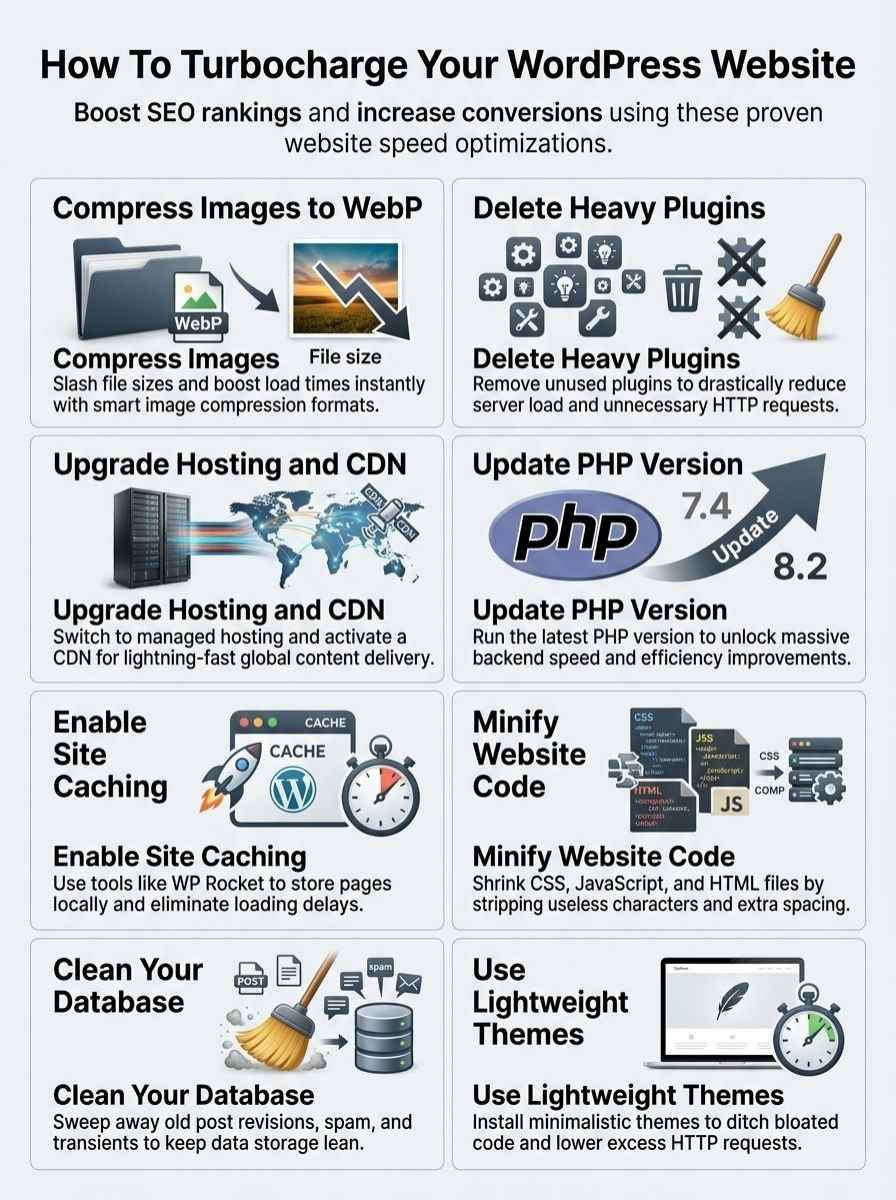
Picture your WordPress site as a sluggish runner, huffing and puffing because of common culprits like bulky pictures and clunky add-ons. Dig into these speed thieves, and you’ll boost your site’s zip, making visitors stick around longer.
Bloated or unoptimized images
Large file sizes in unoptimized images drag down your WordPress site’s performance, hitting metrics like Largest Contentful Paint (LCP) hard. These bloated pictures cause excessive HTTP requests, which delay First Contentful Paint (FCP) and LCP, frustrating visitors who expect snappy loads.
Images play a key role in user engagement, yet they slow things if you skip image compression or ignore tools like WP Smush for shrinking them. Switch to WebP format, add alt text and titles, and build an image sitemap to boost website speed and user experience (UX).
Oh, and let’s not forget, compressing images cuts load times big time, keeping folks hooked without the wait.
Lazy loading helps by holding off on off-screen images until users scroll, speeding up initial page renders. Grab the Lazy Load by WP Rocket plugin for easy setup, or check out Perfmatters for more tweaks.
Review your media settings to match image sizes with your theme’s needs, and dodge uploading giant files that bloat your setup. Clean your media library with plugins like Media Cleaner, or just delete unattached files manually to maintain performance optimization.
WordPress plugins make this a breeze, turning a sluggish site into a speed demon.
Optimizing images isn’t just about speed; it’s about keeping your audience engaged without the frustration of endless loading circles, says a web performance expert from Elegant Themes.
Heavy or excessive plugins
Heavy plugins bog down your WordPress site, folks. They spike server processing time and pile on database queries. Poorly coded ones make this mess even worse. Each plugin adds HTTP requests, which slow load times to a crawl.
Outdated plugins drag performance with their inefficient code, like old cars chugging along a highway.
Audit plugins often to keep things lean. Remove unnecessary ones right away. Delete unused plugins and themes to cut security risks and speed hits. Grab WP Rocket for caching and optimization; it slashes resource load from plugins.
Tools like W3 Total Cache, WP Super Cache, and Hummingbird boost speed too. Perfmatters lets you disable unused WordPress options, easing plugin overhead. Try Autoptimize to minify CSS, JavaScript, and HTML for quicker results.
Outdated themes or plugins
Outdated themes and plugins drag down your WordPress site’s speed like an old car chugging up a hill. They often carry inefficient code that bogs everything down. You know, that bloated theme with extra features you never use? It loads unnecessary stuff, slowing your pages to a crawl.
Updates fix this mess. They bring performance boosts, bug fixes, and better compatibility. Keep your WordPress core, themes, and plugins current to stay zippy.
Test those updates in a staging environment first, folks, to spot any hiccups. Enable automatic updates for minor core releases, but handle major ones with care. WP Engine gives you premium WordPress themes at no extra charge, a real perk.
Pick minimalistic themes with less code; they load faster than heavy ones like Divi or Elementor. Bloated options just add drag. Update your PHP version too, as newer ones speed things up.
Tools like Google PageSpeed Insights help you check the difference.
Inefficient hosting setup
Inefficient hosting setup drags down your WordPress site’s speed, like a rusty engine in a sleek car. Inadequate or slow web hosting spikes Time to First Byte (TTFB), which delays rendering and frustrates visitors.
Shared hosting often causes these issues, much like sharing water in an apartment complex where everyone fights for flow. Switch to managed WordPress hosting from providers like SiteGround, Hostinger, or Kinsta, and you might see big gains.
WP Engine offers managed hosting that boosts average site speed by 68%, using Cloudflare and EverCache for multi-tier caching. This setup handles high traffic without a hitch. For busy sites, dedicated servers from Cloudways or WPX provide exclusive resources, cutting slowdown risks from shared setups.
Poor hosting slows your WordPress admin too, especially on Apache servers. Go with LiteSpeed servers from Namehero or Quic.cloud, and slash CPU and memory use by up to 75%. Godaddy shared plans might work for starters, but upgrade for real zip.
How to Check Your Website’s Speed
If your WordPress site drags like a turtle in mud, fire up free tools like Google PageSpeed Insights or GTmetrix to test its load time, pinpoint those speed hogs, and stick around for tips that rev it up fast.
Tools like Google PageSpeed Insights and GTmetrix
Google PageSpeed Insights helps you analyze Core Web Vitals, those key metrics that show how your site performs for users. You enter the full URL of your page, like your homepage or a product landing spot, and it spits out a score.
Pages load in three seconds or less to keep visitors happy, Google says, or bounce rates climb if they hit five seconds. GTmetrix lets you run speed tests and mimic different devices, from desktops to mobiles, plus various connection speeds.
It flags issues, such as unoptimized images or render-blocking resources, with handy links to fix them. Tools like Pingdom add more insights, simulating real-world mobile performance to spot bottlenecks fast.
WebPageTest gives detailed waterfall charts, mapping out every load step for sharp diagnosis. Adjust settings to test desktop or mobile views, and review those recommendations right away.
Aim for average load times under three seconds, folks, to retain your crowd and boost engagement. Search Console ties in here too, tracking core topic keywords and general site health in your content management system.
Pair this with gzip compression tips from the reports, and you’re set to tackle slow spots head-on.
Identifying performance bottlenecks
Spot TTFB right away, folks. This metric shows how fast your server responds. A high TTFB points to hosting troubles or server glitches. First Contentful Paint tracks when the first bit of content pops up on screen.
Largest Contentful Paint clocks the load time for your page’s biggest visible item, a top Core Web Vital. Cumulative Layout Shift checks if elements jump around during load, messing with visual stability, another Core Web Vital.
Interaction to Next Paint steps in for First Input Delay, gauging site responsiveness as a fresh Core Web Vital. These clues help you nail down slow spots, like unoptimized images or render-blocking resources.
Grab tools such as Pingdom tools or Speedlab to dig deeper. They spotlight bottlenecks with ease. Check out browser developer tools next. Inspect HTTP response headers for cache-control details.
Peek at page source code for cache notes too. After tweaks, test your site’s speed and function. This catches any fresh snags. Mix in a CDN for broader reach, or try WP Fastest Cache for quick wins.
Database optimization via WP-Optimize keeps things tidy, while Nitropack handles heavy lifting.
Optimize Your Hosting and Infrastructure
If your site’s dragging like a turtle in molasses, switch to a speedy managed host like Rocket.net, fire up a content delivery network to zap pages worldwide, and bump your PHP to the newest version for that extra kick—stick around to uncover even more ways to turbocharge your WordPress setup.
Upgrade to a managed hosting solution
Switch to managed WordPress hosting, and watch your site’s speed soar. Providers like WP Engine deliver an average speed boost of 68%, thanks to their reliable setup. They build a tech stack just for WordPress, complete with expert help that cuts load times.
Think of shared hosting as splitting water in a crowded apartment; it often drags you down with others’ demands. Managed options avoid that mess, giving your site the steady flow it needs.
For busy sites, grab dedicated servers to lock in resources and dodge slowdowns from shared setups. WP Engine’s powerful platform and developer tools make this easy, speeding up your WordPress space.
Their EverCache system, a multi-tier caching beast, dishes out pages fast and handles traffic spikes like a pro. Keep an eye on CPU usage too; aim to stay under 50% by taming things like the Heartbeat API, bot swarms, and database clutter.
Pair this with a CDN for even quicker delivery, and tools like UpdraftPlus for database cleanup keep everything humming. Check out rocket.net for top-notch managed vibes, or explore rocket insights for more tips on plugins like WP Super Minify.
Use a Content Delivery Network (CDN)
A CDN, or content delivery network, acts like a fast lane for your site’s files. It serves content from the nearest data center to the user. This cuts loading times a lot. Think of it as a global team of helpers, each ready to hand over images and scripts without delay.
CDNs decrease HTTP requests and boost speed. Popular choices for WordPress include MaxCDN, Cloudflare, and CacheFly. WP Engine uses Cloudflare for its customers. High-growth publishers gain from a unified infrastructure that drops latency.
You set this up, and visitors notice the zip.
Proper HTTPS headers set caching expiration. Browsers store site elements locally. This slashes repeated network requests and quickens page loads. Newsroom taps features like Live News and Editor Tabs to cut database queries and errors.
Pair your CDN with tools like rocketcare for that extra edge. Attend events such as decode 2026 to learn more tips. Your site flies now, right? Keep tweaking, and watch the magic happen.
Update to the latest PHP version
Outdated PHP versions drag down your site’s backend performance like an old engine sputtering on the highway. Switch to the newest ones, and you get big speed boosts that make everything run smoother.
Grab the WP Engine PHP Compatibility Checker plugin to check if your setup is ready for the upgrade. Head to the WP Engine user portal, and update your PHP version right there. Test for compatibility first to avoid any hiccups.
LiteSpeed offers a free LiteSpeed Cache plugin that works great with fresh PHP versions, giving your site an extra kick. Turn on OPcache to amp up the speed even more when you use the latest PHP.
Try out various cache plugins and CDN (content delivery network) options after the upgrade; they can push your performance further. At events like de{code} 2026, experts share tips on these tweaks, so keep an eye out for fresh ideas.
Optimize Images and Media
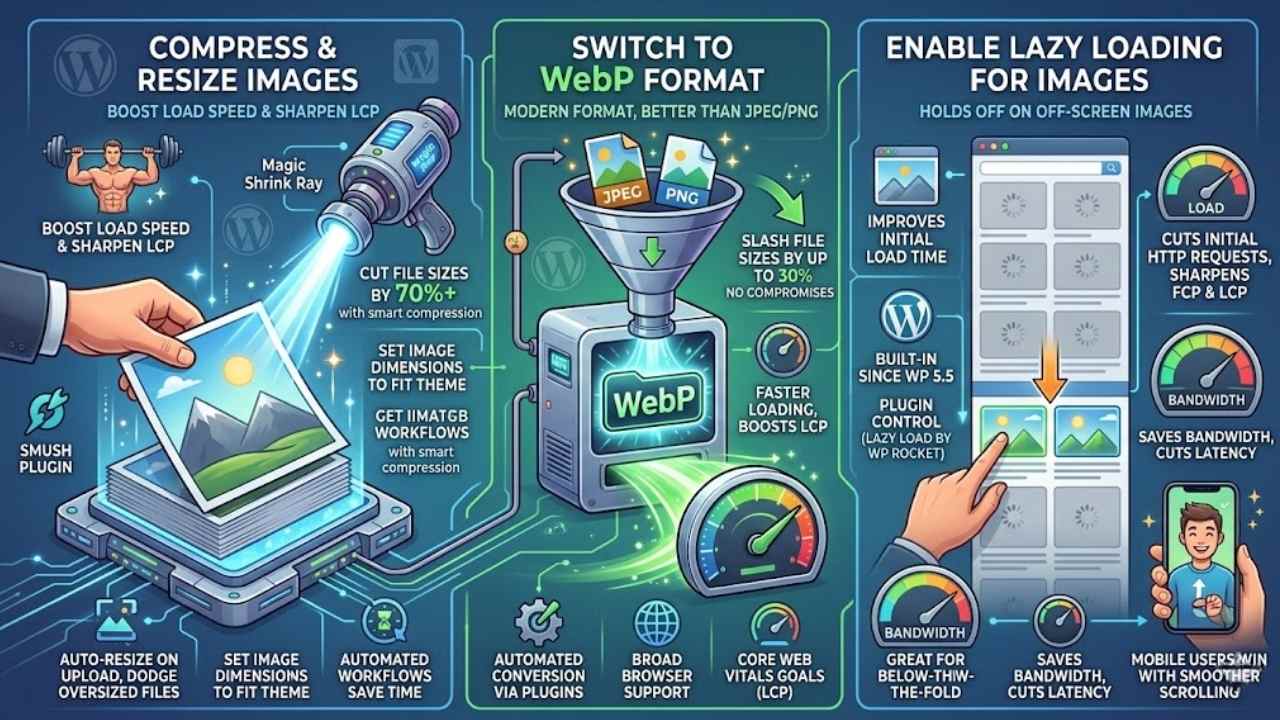
You know how big photos can drag your WordPress site down, like carrying extra weight on a long run? Let’s fix that by shrinking those files and using smarter formats, so your pages load fast and keep visitors happy.
Compress and resize images
Compressing images cuts file sizes, which boosts load speed and sharpens LCP. Plugins like Smush handle this task, stopping pages from dragging. WP Engine’s Page Speed Boost packs image tweaks that lift Core Web Vitals scores.
You cut file sizes by 70% or more with smart compression, like a magic shrink ray for your photos.
Set image dimensions to fit theme needs, slashing load times fast. Automatically resize images on upload to dodge oversized files that bog down sites. Automated workflows for optimization save time and cut errors, like a trusty sidekick.
Make regular image tweaks part of monthly speed checks to keep things zippy.
Switch to WebP format
Switch your images to WebP format for a real speed kick. This modern setup beats JPEG and PNG with top-notch compression. You slash file sizes by up to 30%, and quality stays sharp, no compromises.
WebP loads images faster, which boosts LCP and your whole site’s pace. Google pushes next-gen formats like WebP to nail optimal performance.
Many WordPress image optimization plugins convert files to WebP automatically, making the switch a breeze. WP Engine’s Page Speed Boost steps in to deliver these formats smoothly. All major modern browsers back WebP, so no worries there.
This move gets you closer to Core Web Vitals goals for LCP, like hitting that sweet spot in a race.
Enable lazy loading for images
Lazy loading holds off on pulling in images that sit off-screen until folks scroll down to see them. This trick boosts your site’s initial load time, making pages pop up faster for everyone.
WordPress has built this in since version 5.5, so you can flip it on without much fuss. It cuts down those first HTTP requests, which sharpens up metrics like FCP and LCP, you know, the ones that track how quick your content feels.
Grab a plugin like Lazy Load by WP Rocket if you need more control, especially for iframes alongside images. This setup shines for below-the-fold stuff, easing the load on bandwidth and cutting latency for busy sites.
Mobile users with spotty connections get a real win here, scrolling smoother without the drag. Fold lazy loading into your routine tweaks, and watch high-traffic spots hum along better.
Implement Caching and Minification
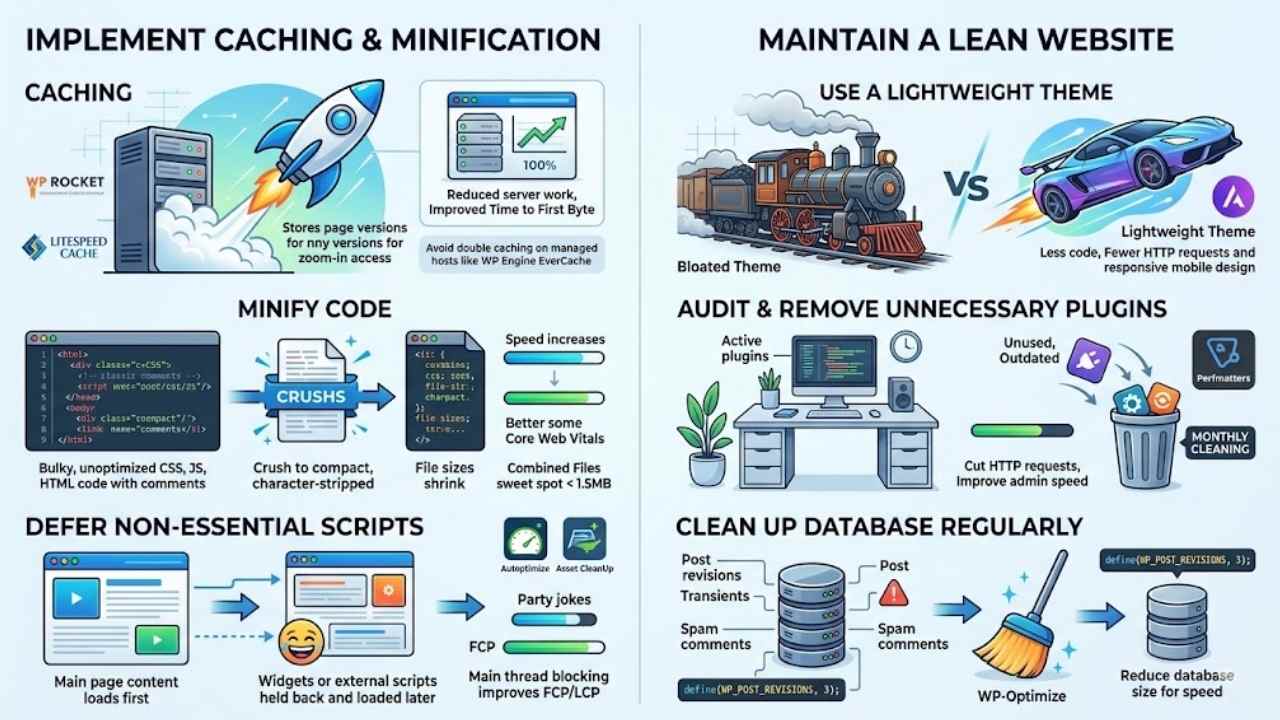
You know that feeling when your site loads like molasses in winter? Kick things into high gear by adding a caching tool, say WP Rocket or LiteSpeed Cache, which stores page versions so visitors zoom right in without waiting.
Then, trim the fat from your code—minify those CSS, JavaScript, and HTML files, and push off non-essential scripts to load later, like saving the best jokes for the end of the party.
Use a caching plugin like WP Rocket or LiteSpeed Cache
Pick a top caching plugin to boost your site’s speed. WP Rocket and LiteSpeed Cache lead the pack for WordPress optimization. They cut down on server work, hey, it’s like giving your site a quick coffee break to load faster.
LiteSpeed offers a free version of their cache plugin. It shines on LiteSpeed servers. Start by installing the plugin. Enable page caching right away. Set up options like cache preloading for that extra kick.
These tools pack features such as minification, deferred loading, and database tweaks. They improve time to first byte and slash server processing time. Caching even speeds up your WordPress admin area, making backend tasks a breeze.
Watch out for double caching though. Managed hosts like WP Engine often have their own setups. EverCache from WP Engine handles high-traffic sites with multi-tier caching. Skip the overlap to keep things smooth.
Minify CSS, JavaScript, and HTML
You know that feeling when your website loads like molasses in January? Minification fixes that by shrinking file sizes of HTML, JavaScript, and CSS. It strips out unnecessary characters, like extra spaces and comments.
This simple step leads to faster loading times and boosts Core Web Vitals scores. Plugins make it easy. WP Super Minify combines and compresses files for quicker loads. Popular choices include WP Rocket and CSS Compressor.
They handle the heavy lifting. WP Engine’s Page Speed Boost packs in minification too. Aim for combined file sizes under 1.5MB. That sweet spot amps up performance.
Go ahead, minify both inline and external CSS and JS. You get full optimization that way. Minified files cut down HTTP requests. Page load times drop as a result. Imagine your site zipping along, smooth as butter on hot toast.
Users stick around longer. Search engines notice the speed. Your traffic climbs. Tools like these turn a sluggish site into a speed demon. Pick one that fits your setup. Test it out, see the difference right away.
Defer loading of non-essential scripts
Defer non-essential scripts to boost your WordPress site’s speed. This step removes render-blocking JavaScript and CSS, loading them only after the page fully appears. You improve First Contentful Paint (FCP) and Largest Contentful Paint (LCP) this way, like giving your site a quick caffeine shot to wake up faster.
Plugins such as Autoptimize and Asset CleanUp make it easy to defer and manage script loading. They often include options for script deferral, helping you inline critical CSS and defer non-critical CSS/JS for better above-the-fold render speed.
Defer loading of widgets and external scripts to enhance speed even more. This reduces main thread blocking and Total Blocking Time (TBT), keeping visitors happy without long waits.
Optimization plugins handle these tasks well, but always test changes in a staging environment. That avoids breaking site functionality, so your tweaks stay smooth and effective.
Maintain a Lean Website
Imagine your WordPress site as a sleek sports car, not a clunky old truck loaded with junk – so grab a fast template like Astra, scan and toss out those pesky extra add-ons that weigh it down, and sweep your data storage clean with a tool like WP-Optimize to keep everything zipping along smoothly, ready to explore more speed hacks below?
Use a lightweight theme
Pick a lightweight theme to boost your WordPress site’s speed. Different themes affect loading times, so go for minimalistic ones with less code. They cut down on HTTP requests and CSS/JS files.
Bloated themes pack in unnecessary features, which drag down performance. Steer clear of those bundled with extra plugins or demo content.
WP Engine provides premium WordPress themes for free. Lightweight options work well with optimization plugins. Choose themes that follow responsive design for better mobile speed. Update your theme often to keep things running fast.
Audit and remove unnecessary plugins
Delete those unused plugins and themes right away. They create security vulnerabilities and drag down your site’s performance. Outdated plugins slow things down with their inefficient code.
Heavy or poorly coded plugins boost server processing time and database queries, like adding extra weight to a runner’s backpack. Each plugin adds HTTP requests, which hurt load times.
You improve both front-end and admin speed by removing unnecessary plugins. Avoid multiple plugins with overlapping functionality; that just piles on the problems.
Audit all plugins monthly as part of your regular speed check. Think of it as spring cleaning for your WordPress site, keeping things tidy and quick. Use Perfmatters to disable unused WordPress default options.
This tool acts like a smart broom, sweeping away the clutter without much effort from you. Your readers notice the difference when pages load faster, making their visits smoother and more enjoyable.
Clean up your database regularly
Your WordPress database can bloat from post revisions, transients, and spam comments. This bloat slows down your site, like a cluttered closet that hides your favorite shirt. Clean it up to boost speed.
Add `define(WP_POST_REVISIONS, 3);` to your wp-config.php file. That limits post revisions, keeping things tidy. You reduce database size by cleaning old post revisions, spam, and unapproved comments.
Deleting transients from the database enhances speed, too.
Grab plugins like WP-Sweep or Advanced Database Cleaner for the job. They make cleanup easy, almost like hiring a helpful neighbor. Manage the Heartbeat API by limiting its frequency, which cuts server load.
Try WP-Optimize for one-click database cleaning and optimization. Make database optimization part of your monthly maintenance routine, and watch your site zip along faster.
Additional Speed Optimization Tips
You’ve got the basics down, but a few extra tweaks can make your WordPress site zoom like a race car on an open track. Start limiting those endless drafts, cutting down on sneaky redirects, and shutting off outdated pings to keep things snappy, and you’ll see real speed gains that keep visitors hooked—check out the full guide for more.
Limit post revisions
Post revisions pile up like old junk in your garage, and they drag down your WordPress site’s speed. Add this line to your wp-config.php file: define(WP_POST_REVISIONS, 4);. That simple tweak saves just four revisions per post, cuts database clutter, and boosts performance.
Set it to 0, and you disable revisions completely, which stops excessive buildup from increasing server processing time.
Grab plugins such as WP-Sweep or Advanced Database Cleaner to wipe out old revisions fast. They make regular database cleanup a breeze, prevent performance drops, and keep things running smooth.
While you’re at it, head to Settings > General to pick the right timezone; that way, your scheduled posts hit publish without a hitch.
Reduce redirects and external scripts
Unnecessary redirects, like those pesky 301 ones, drag down your WordPress site’s speed. They pile on extra HTTP requests and boost load times, you know? Aim to cut the number of redirect requests right away.
Grab browser developer tools, say Chrome’s version, to spot those needless redirects. Audit your redirect chains, keep them super short. Each one you trim helps visitors zip through pages faster, like clearing traffic jams on a busy road.
Remove or consolidate external scripts whenever you can. Ditch any that aren’t key to the user’s fun. Defer loading for non-essential third-party scripts, so they don’t hog the spotlight early on.
This tweak lightens the load, makes your site feel snappier. Picture it as packing light for a trip, you leave the heavy stuff behind and move quicker.
Disable pingbacks and trackbacks
Pingbacks and trackbacks often slow down your WordPress site, folks. They create extra server requests that bog things down, like uninvited guests at a party. These features generate spam and pointless notifications, which add to the load.
Modern sites rarely see real user engagement from them anyway. Disable them to cut the clutter and boost speed. Head to your WordPress dashboard, click Settings, then Discussion. Uncheck the box for “Allow link notifications from other blogs.” Most sites benefit from this simple tweak; it trims spam and eases server strain.
If left on, they can drag your page speed into the mud.
Final Thoughts
You’ve learned key ways to speed up your WordPress site, from fixing bloated images and heavy plugins to using tools like Google PageSpeed Insights and GTmetrix for checks. These steps are simple and quick, so you can apply them without much hassle and see real boosts in load times.
Faster sites mean better SEO rankings on Google, higher conversions, and happier users who stick around instead of bouncing away. Check out resources like WP Engine for managed hosting or plugins such as WP Rocket to dive deeper.
Go ahead, tweak your site today, and watch it zoom like a rocket, turning slowpoke pages into speedy winners that keep visitors coming back.
Frequently Asked Questions (FAQs) on Speeding Up a WordPress Website
1. Why does my WordPress site load like a snail on vacation?
Your site might drag because of big images, too many plugins, or weak hosting. Start by checking those culprits, and you’ll feel the speed boost right away.
2. How can I optimize images to make my site faster?
Compress those photos with tools like Smush or Imagify. It cuts file sizes without losing quality, turning your heavy pages into speedy sprinters.
3. What’s a quick way to use caching for better performance?
Install a caching plugin like WP Rocket; it stores page versions so visitors get them fast. No more waiting around like at a slow coffee shop. Plus, it works with your theme for seamless results.
4. Should I clean my database to speed things up?
Yes, clear out old revisions and spam with a plugin like WP-Optimize.