A new device feels exciting for a child. For parents, it often feels like opening several problems at once. Apps. Games. YouTube. Browser access. Purchases. Group chats. Location sharing. Late-night scrolling. School accounts. Random pop-ups. Passwords. Social media pressure. And somewhere in the middle of it all, parents are expected to “just set parental controls” as if every device makes that easy. It does not.
A proper parental controls setup is not one button. It is a system. Parents need child accounts, app approval, purchase limits, content filters, browser rules, screen schedules, bedtime downtime, privacy settings, and a clear family agreement. They also need to know the limits of the tools, because parental controls can reduce risk, but they cannot replace conversations, supervision, trust, and healthy routines.
This guide explains how to set up family device controls in a practical way. It covers what to do before handing over a device, which settings matter most, how to think about Apple, Android, Chromebook, Windows, Xbox, YouTube, game consoles, routers, and smart TVs, and how to keep controls useful as children grow. The goal is not to spy on children.
The goal is to create safer, calmer, age-appropriate digital spaces where children can learn, communicate, play, and build judgment without being handed the full internet all at once.
What Parental Controls Actually Do
Parental controls are settings that help parents manage what children can access, download, buy, watch, share, and use on digital devices.
They usually cover:
- Screen-time limits
- Bedtime downtime
- App approval
- Purchase approval
- Content ratings
- Website filtering
- Safe search
- Location sharing
- Contact limits
- Privacy settings
- Activity reports
- Game spending limits
- YouTube or video restrictions
- Social and communication controls
- Device locking schedules
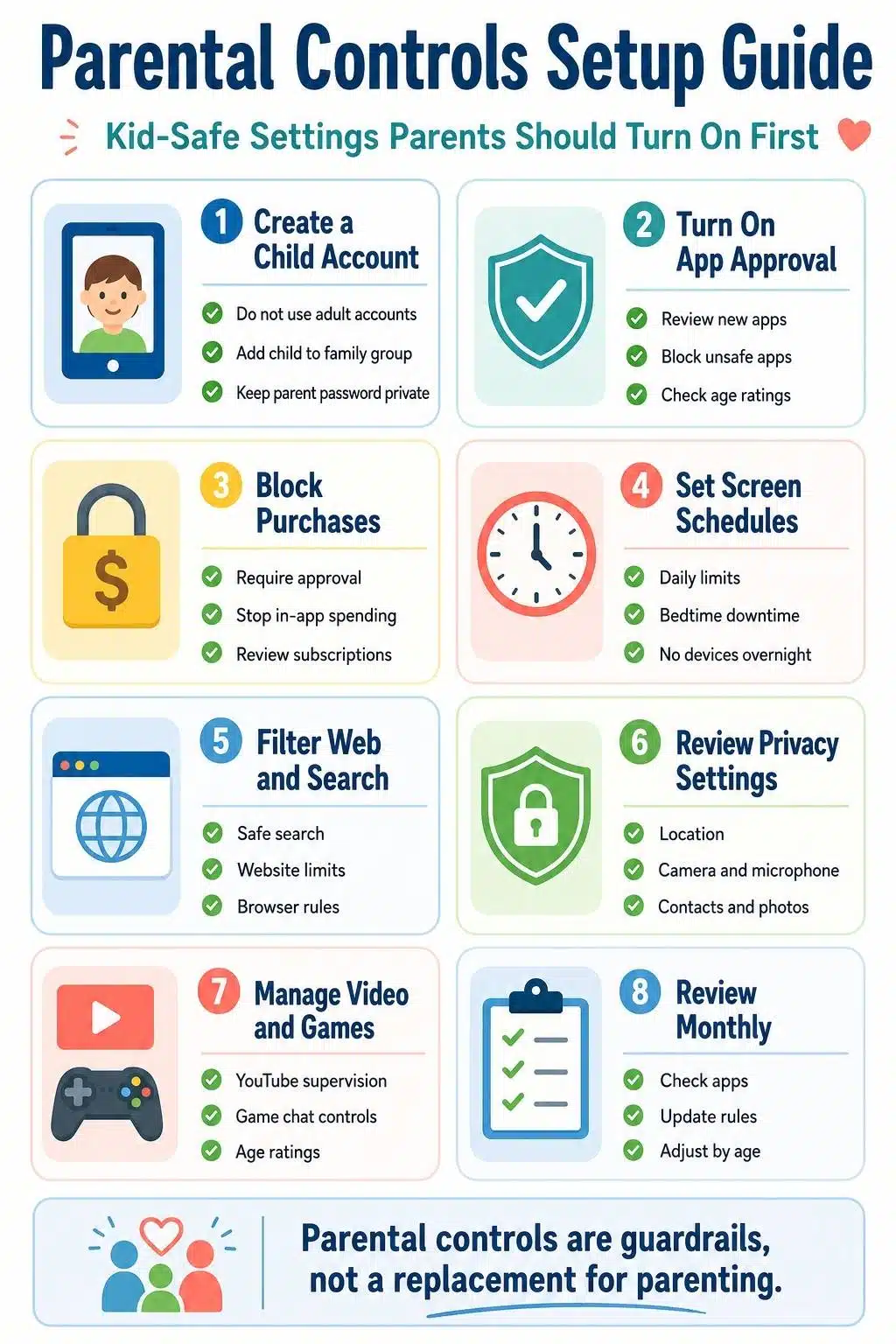
That sounds powerful, but parents should be realistic. Parental controls are guardrails. They are not parenting on autopilot.
A smart child may find workarounds. A platform may miss harmful content. A school device may have settings parents cannot fully change. A friend’s phone may have no restrictions. A YouTube filter may block some videos and still allow others parents dislike. A browser filter may help, but it will not teach judgment by itself.
That is why a good parental control guide should begin with the family plan, not the settings menu. The tech setup matters. The home rules matter more.
Start With a Family Device Plan Before Touching Settings
Many parents start in the wrong place. They open the device settings, tap random restrictions, create a passcode, and hope the problem is solved.
A better setup starts with simple family decisions:
- What is this device for?
- Where can it be used?
- When can it be used?
- Which apps are allowed?
- Who approves downloads?
- Are purchases blocked?
- Are chats allowed?
- Is location sharing needed?
- Where does the device charge overnight?
- What happens if rules are broken?
- When will settings be reviewed?
This does not need to become a legal document. Children need clear, repeatable rules.
For example:
- Devices charge in the kitchen at night.
- New apps need parent approval.
- No screens during meals.
- School apps are allowed during homework.
- Entertainment apps are blocked during bedtime.
- Purchases need approval.
- If something online feels wrong, tell an adult.
The rule should be explained before the child starts using the device. Controls work better when children understand the reason behind them.
The Parent Setup Checklist Before Giving a Device to a Child
Before a child uses a new phone, tablet, laptop, Chromebook, console, or smart TV profile, parents should complete the basic setup.
| Setup Area | What to Do |
| Account type | Create a child account, not an adult account |
| Passwords | Keep parent passwords private |
| App access | Turn on app approval or install-only-by-parent rules |
| Purchases | Require approval or block purchases |
| Screen schedule | Set daily limits and bedtime downtime |
| Browser | Turn on safe search and website restrictions |
| Content ratings | Set age-appropriate limits for apps, games, movies, and shows |
| Privacy | Review location, camera, microphone, contacts, and ad settings |
| YouTube/video | Use supervised accounts or safer viewing settings |
| Charging | Choose a device charging location outside the bedrooms |
| Review date | Set a monthly or school-term review |
This setup should happen before the device feels like the child’s personal territory. Trying to add rules after unlimited access often creates bigger conflicts.
Use Child Accounts, Not Adult Accounts
This is one of the most important steps in any parental controls setup. Many device problems begin because a child uses an adult’s account. An adult account may allow unrestricted app downloads, purchases, web access, mature content, location sharing, ads, and account changes. Once a child gets used to that freedom, moving backward becomes harder.
A child account helps parents manage:
- Age-based content
- App approvals
- Purchase requests
- Screen time
- Family sharing
- Location features
- Privacy settings
- Device activity
- Web restrictions
Major ecosystems support child or family-managed accounts. Apple uses Family Sharing and Screen Time. Google uses Family Link for child supervision across Android and Chromebooks. Microsoft uses Family Safety for Windows, Xbox, Edge, and other supported devices.
The exact setup changes by device and country, so parents should check the latest official setup pages. But the principle stays the same: Do not give a child adult-level access by default.
Set App Approval Before App Limits
Most parents think first about screen time. App approval should come first. If children can install anything they want, parents will spend the next year chasing problems one app at a time.
App approval helps parents control:
- Games
- Social apps
- Chat apps
- Video apps
- Browsers
- Shopping apps
- AI tools
- Apps with ads
- Apps with public profiles
- Apps with in-app purchases
- Apps that collect unnecessary data
A child should not be able to download a new app without review.
Before approving an app, check:
- Age rating
- Privacy policy
- In-app purchases
- Ads
- Chat or social features
- Location use
- Camera and microphone permissions
- Reviews from trusted sources
- Whether the app fits a real need
For younger children, fewer apps are better. A device with five well-chosen apps is easier to manage than a device with thirty random ones.
Block Purchases and In-App Spending
Purchase controls are not optional. Children can accidentally or intentionally spend money through games, subscriptions, coins, skins, boosts, apps, movies, books, cloud storage, and premium upgrades.
Parents should:
- Require purchase approval
- Disable one-click buying
- Remove saved payment methods where possible
- Set console spending limits
- Turn off in-app purchases for younger children
- Review subscriptions monthly
- Use gift cards or prepaid balances when appropriate
- Keep parent passwords private
- Teach children that digital items still cost real money
This matters especially with games and free apps. “Free” often means the app makes money elsewhere: ads, upgrades, subscriptions, coins, cosmetic items, or data collection.
A good family rule is simple: No purchase without asking. Even if the price looks small.
Set Screen-Time Limits by Routine, Not Just Minutes
Daily screen limits can help, but they work better when connected to family routines. Instead of only saying “one hour per day,” parents should decide when screens are allowed and when they are not.
Useful screen-time rules include:
- No entertainment screens before school
- No screens during meals
- No devices during homework unless needed
- Learning apps only during planned times
- Entertainment after responsibilities
- Downtime before bed
- Devices charge outside bedrooms overnight
- Longer limits on weekends only if sleep and responsibilities stay healthy
Parental control tools can support this through app limits, downtime, schedules, and device locks. But the schedule should match the child.
A seven-year-old may need shorter sessions and more parent help. A teen may need flexibility for school projects but still need bedtime protection. A child with poor sleep may need stronger evening restrictions. A child who handles transitions well may need less strict timing but clear app rules.
The goal is not perfect math. The goal is healthier rhythm.
Create Bedtime Downtime and Bedroom Rules
If parents set only one rule, this is one of the strongest. Devices should usually stay out of children’s bedrooms overnight. Late-night device use can affect sleep, mood, school focus, and honesty. Even a child with good intentions may check one message, one video, one game, or one notification.
Bedtime controls should include:
- Downtime schedule
- Device charging outside bedrooms
- Notification limits
- App blocking after bedtime
- Alarm clock separate from the phone if needed
- No tablets or gaming devices in bed
- Parent-controlled passcodes
- Exceptions only for necessary communication
For teens, parents can discuss this more collaboratively. But sleep still matters. A teenager may need a phone for transport or communication. That does not mean the phone needs to sleep beside them.
Set Browser and Search Rules
A child’s browser is often the weakest part of the setup. Many parents lock apps but leave a browser open. That can give children access to almost anything.
Browser rules may include:
- Safe search enabled
- Website restrictions
- Approved websites only for younger kids
- Blocking adult content
- Blocking unknown downloads
- Limiting private browsing where possible
- Using child profiles
- Reviewing browser history for younger children
- Using school-safe search tools when needed
For young children, approved websites only may be better than broad browsing. For older children, full blocking may be less realistic. They need research skills, source checking, and digital literacy. But they still need boundaries around adult content, unsafe downloads, scams, and inappropriate sites.
The setup should match the child’s age and school needs. A child doing research for homework needs more access than a preschooler using a phonics app.
Communication Controls: Contacts, Chats, and Strangers
Communication settings deserve special attention. Many apps and games include chat, friend requests, comments, voice chat, messaging, video calls, multiplayer rooms, or user-generated content.
Parents should decide:
- Who can contact the child?
- Can the child contact strangers?
- Are group chats allowed?
- Is voice chat allowed in games?
- Are video calls allowed?
- Can the child add friends without approval?
- Can the child share photos?
- Are comments enabled?
- Can strangers see the child’s profile?
Younger children should have tighter restrictions. For preteens and teens, the goal shifts toward responsible communication, but limits still matter.
Teach children:
- Do not share personal information
- Do not send photos without permission
- Do not move conversations to private apps with strangers
- Tell an adult if someone asks for secrecy
- Block and report uncomfortable contact
- Online friends are still people who need judgment
Controls can reduce stranger access. Conversations teach what to do when something slips through.
Apple Screen Time Setup Basics
For iPhone, iPad, and Mac households, Apple Screen Time is the main family control system.
Parents can use it to manage:
- Downtime
- App limits
- Communication limits
- Content and privacy restrictions
- App Store purchases
- Explicit content
- Web content
- Location sharing
- Screen Time passcode
- Ask to Buy through Family Sharing
- Allowed apps and contacts
A practical Apple setup looks like this:
- Create or use the child’s Apple Account through Family Sharing.
- Turn on Screen Time for the child.
- Set a Screen Time passcode the child does not know.
- Turn on downtime for bedtime or school routines.
- Set app limits for games, entertainment, and social apps.
- Use Content & Privacy Restrictions.
- Require approval for purchases and downloads.
- Restrict web content based on age.
- Review location sharing and communication settings.
- Recheck settings after major iOS, iPadOS, or macOS updates.
Do not use the parent’s Apple ID on the child’s device. That creates privacy, purchase, messaging, and content-control problems.
Google Family Link Setup Basics
For Android phones, Android tablets, and Chromebooks, Google Family Link is the main parental control tool.
It can help parents manage:
- Daily limits
- Downtime
- App approvals
- App blocking
- App time limits
- Content restrictions
- Google Play purchases
- Location features
- Chrome website settings
- YouTube supervision options
- School time or focus-style schedules are available
A practical Google setup looks like this:
- Create a Google Account for the child.
- Link it to the parent account through Family Link.
- Set daily device limits.
- Add downtime for bedtime and school routines.
- Require parent approval for app downloads.
- Set Google Play content restrictions.
- Review Chrome and search settings.
- Set YouTube supervision based on age.
- Review location sharing.
- Check the device list regularly.
Chromebooks are useful for school, but they still need supervision. If the child uses both a Chromebook and an Android phone, parents should review settings across both devices.
Microsoft Family Safety Setup Basics
For Windows PCs, Xbox, Microsoft Edge, and supported mobile experiences, Microsoft Family Safety helps parents manage family device controls.
It can support:
- Screen-time limits
- App and game limits
- Content filters
- Web filtering in Microsoft Edge
- Activity reporting
- Location sharing
- Spending controls
- Xbox privacy and online safety settings
A practical Microsoft setup looks like this:
- Create a Microsoft child account.
- Add the child to the Microsoft family group.
- Connect the child’s Windows or Xbox device.
- Set screen-time limits.
- Turn on web and search filters where appropriate.
- Block or limit apps and games.
- Review Xbox privacy and online communication settings.
- Set purchase and spending limits.
- Review activity reports.
- Keep parent account passwords private.
For Windows, settings work best when the child uses their own Microsoft account and Microsoft Edge for filtered browsing. If the child uses other browsers, parents may need additional settings or router-level filtering.
YouTube and Video Platform Controls
Video platforms need special attention because autoplay, recommendations, comments, thumbnails, shorts, and user uploads can pull children into content parents did not choose.
For YouTube, parents can use supervised experiences and account settings depending on age and region. They can also block specific channels under supervised settings.
For younger children, YouTube Kids may be more appropriate than standard YouTube, but parents should still set content levels and review viewing activity.
Parents should consider:
- Supervised account settings
- Content level
- Search on or off
- Autoplay off
- Blocked channels
- Watch history review
- Shorts limits where available
- Comment exposure
- No unsupervised late-night viewing
- Shared-space viewing for younger kids
No video platform is perfect. Children should know what to do if a video feels scary, confusing, inappropriate, or uncomfortable.
The rule should be:
Pause it and tell an adult. Not hide it.
Game Console Controls: Xbox, PlayStation, and Nintendo
Game consoles are often overlooked because parents think of them as “just games.” Modern consoles include stores, purchases, subscriptions, online multiplayer, voice chat, messages, friends, user-generated content, and live services.
Parents should set:
- Age ratings
- Playtime limits
- Spending limits
- Friend request controls
- Chat and voice communication settings
- Online multiplayer permissions
- User-generated content restrictions
- Streaming or sharing settings
- Password-protected purchases
- Separate child profiles
Xbox settings can be managed through Microsoft Family Tools and Xbox privacy and online safety settings. PlayStation offers family management, playtime controls, spending limits, and communication controls. Nintendo Switch has parental controls through console settings and a mobile app.
The main mistake is allowing online chat before the child is ready. A game may be age-appropriate, but online communication may not be. Treat game content and game communication as separate decisions.
Smart TVs, Streaming Apps, and Home Internet Controls
Parental controls should not stop at phones and tablets.
Children may access content through:
- Smart TVs
- Streaming apps
- Gaming consoles
- Browsers on TVs
- Family computers
- Guest devices
- Friends’ devices
- Wi-Fi-connected tablets
- Voice assistants
Parents should set profiles and PINs on streaming services where available. They should avoid letting children use adult profiles. They should also set age ratings and block purchases when possible.
Router-level or network-level controls can help families manage internet access across devices.
They may allow:
- Bedtime internet pauses
- Device-level schedules
- Website categories
- Guest network separation
- Blocking unknown devices
- Safer DNS filtering
- Time windows by device
Router controls are useful, but they do not replace device-level controls. A phone with mobile data can bypass home Wi-Fi rules. A school device may have its own restrictions. A friend’s hotspot may ignore household settings. Use router controls as one layer, not the whole plan.
Age-Based Parental Controls Setup
A strong setup changes as children grow.
Under 5: Parent-Led and Minimal
For young children:
- Use parent-owned shared devices
- No personal device
- No open browsing
- No app store access
- No purchases
- No bedroom use
- Use short, shared sessions
- Choose high-quality content only
At this age, parental controls should be strict because children are not ready to manage digital choices independently.
Ages 5-8: Guided Access and Clear Limits
For early school-age children:
- Use child profiles
- Require app approval
- Block purchases
- Set short screen sessions
- Use shared spaces
- Keep devices out of bedrooms
- Use safe search
- Review video history
- Pair screen learning with offline activities
This is the stage where children learn that digital access comes with routines.
Ages 9-12: More School Access, Strong Supervision
For preteens:
- Allow school tools and project work
- Keep entertainment separate from homework
- Set downtime
- Review app downloads
- Teach privacy and scam basics
- Limit chat and social features
- Keep bedroom charging rules
- Use browser filters
- Discuss online mistakes without panic
Preteens need more digital skills, but not unlimited privacy.
Ages 13-15: Coaching Plus Boundaries
For younger teens:
- Keep sleep rules strong
- Discuss social media carefully
- Review app permissions
- Set communication expectations
- Teach digital footprints
- Use spending limits
- Agree on phone-free times
- Review location sharing
- Talk about AI, privacy, scams, and group chats
Teen controls should not feel like silent surveillance. The best setup combines boundaries with honest conversation.
Ages 16+: More Independence With Accountability
For older teens:
- Gradually reduce restrictions where earned
- Keep safety and sleep conversations active
- Review financial and privacy risks
- Discuss online reputation
- Teach password management
- Talk about scams and harmful content
- Encourage self-set limits
- Shift from control to accountability
The goal is not to control an eighteen-year-old like a child.
The goal is to prepare them for adult digital life.
Common Parental Controls Mistakes to Avoid
Most problems come from predictable setup mistakes.
1. Using Parent Accounts on Child Devices
This gives children adult access and creates privacy and purchase problems.
2. Setting Time Limits but Ignoring App Approval
A child with access to unsafe apps can still run into problems within allowed time.
3. Forgetting Purchases
In-app purchases, subscriptions, and game spending need controls from day one.
4. Allowing Bedroom Charging
This weakens sleep routines and makes secretive use easier.
5. Trusting Filters Too Much
Filters help, but they miss things. Children still need guidance.
6. Ignoring Game Chat
A game may be fine. The chat attached to it may not be.
7. Never Reviewing Settings
Children grow. Apps update. Devices change. Settings need review.
8. Using Controls Without Explaining Them
Rules work better when children understand the purpose.
Frequently Asked Questions About Parental Controls Setup
1. What Is the Best Parental Controls Setup for Kids?
The best parental controls setup uses a child account, app approval, purchase blocking, content filters, downtime, bedtime charging rules, browser restrictions, privacy review, and regular family check-ins. It should match the child’s age and maturity.
2. What Should a Parental Control Guide Include?
A good parental control guide should include child accounts, screen-time limits, app approvals, safe search, purchase controls, privacy settings, video platform controls, game chat settings, and a review plan.
3. What Are Kid Safe Settings Parents Should Turn On First?
Start with app approval, purchase approval, age-based content limits, safe search, bedtime downtime, device charging outside bedrooms, and privacy restrictions for location, camera, microphone, contacts, and ad tracking.
4. Do Parental Controls Work on All Devices?
No. Controls vary by device, platform, app, account type, and country. Apple, Google, Microsoft, YouTube, Xbox, PlayStation, Nintendo, routers, and streaming apps all have different settings. Parents should check each official setup guide.
5. Can Children Bypass Parental Controls?
Some children can find workarounds, especially as they get older. That is why controls should be combined with clear rules, parent passwords, device reviews, conversations, and trust-building.
6. Should Parents Monitor Everything Children Do Online?
Younger children need closer supervision. Older children need more privacy and coaching. The goal should be safety and guidance, not constant secret surveillance.
Set the Controls, Then Keep Parenting
Parental controls can make family technology safer. They can block purchases, limit apps, reduce adult content, pause devices at bedtime, restrict game chat, filter websites, and help parents manage a device before problems grow. But they cannot do the whole job.
That is the real lesson of a complete parental controls setup. The settings matter, but the family culture matters too. Children need rules they understand, adults who model better habits, conversations about safety, space for mistakes, and routines that protect sleep, schoolwork, offline play, and family connection.
Do the technical setup before handing over the device. Create the child account. Set the passcode. Approve the apps. Block purchases. Check privacy permissions. Set downtime. Manage video platforms. Review game chat. Keep devices out of bedrooms at night. Revisit the rules as the child grows.
Then keep talking. A safe digital childhood is not created by one setting. It is built through clear limits, better tools, honest conversations, and steady review. That is how parental controls become useful. Not as a wall. As guardrails, while children learn how to use technology well.