


Losing cellular service or facing expensive roaming fees in a foreign country can instantly disrupt a trip. The most effective solution is to download reliable offline travel tools before departure. These applications provide uninterrupted access to GPS navigation, language translation, itinerary management, and safety resources without requiring an internet connection.
By configuring these essential apps on home Wi-Fi, international travelers can navigate confidently and avoid costly data charges. This guide details 10 crucial offline apps, their setup requirements, and practical limitations to ensure a seamless travel experience anywhere in the world.
Essential Offline Travel Tools at a Glance
| Tool | Purpose | Set up online first | Main limit offline |
| 1. Google Maps | Navigation | Download a map of each area | No transit, bike, or walk directions; no traffic or alternate routes |
| 2. Maps.me | Navigation | Download the country or region | Map data comes from users, so details vary |
| 3. Galileo Offline Maps | Hiking maps | Pick and store your regions | Only the regions you saved |
| 4. Google Translate | Translation | Download language files | Only languages with a “Download” option |
| 5. Microsoft Translator | Translation | Download language packs | Language list can change |
| 6. TripIt | Trip organizer | Forward confirmation emails | New emails and changes need a connection |
| 7. Evernote | Notes and documents | Add notes, then let them sync | Offline edits sync later |
| 8. Spotify | Music and podcasts | Download playlists on Wi-Fi | Music needs Premium; go online every 30 days |
| 9. Survival Kit Offline Tools | First aid | Install and fill in your health card | Not a replacement for a doctor |
| 10. HAVEN | Weather and emergency | Load your destinations | Shows saved data, not live alerts |
Maps are the first thing to download. Your phone’s GPS works without data, so a saved map can still show where you are. Good maps also help keep you safe in a new place.
Three apps cover most needs. Know the limits of each before you rely on them.
1. Google Maps Offline Maps
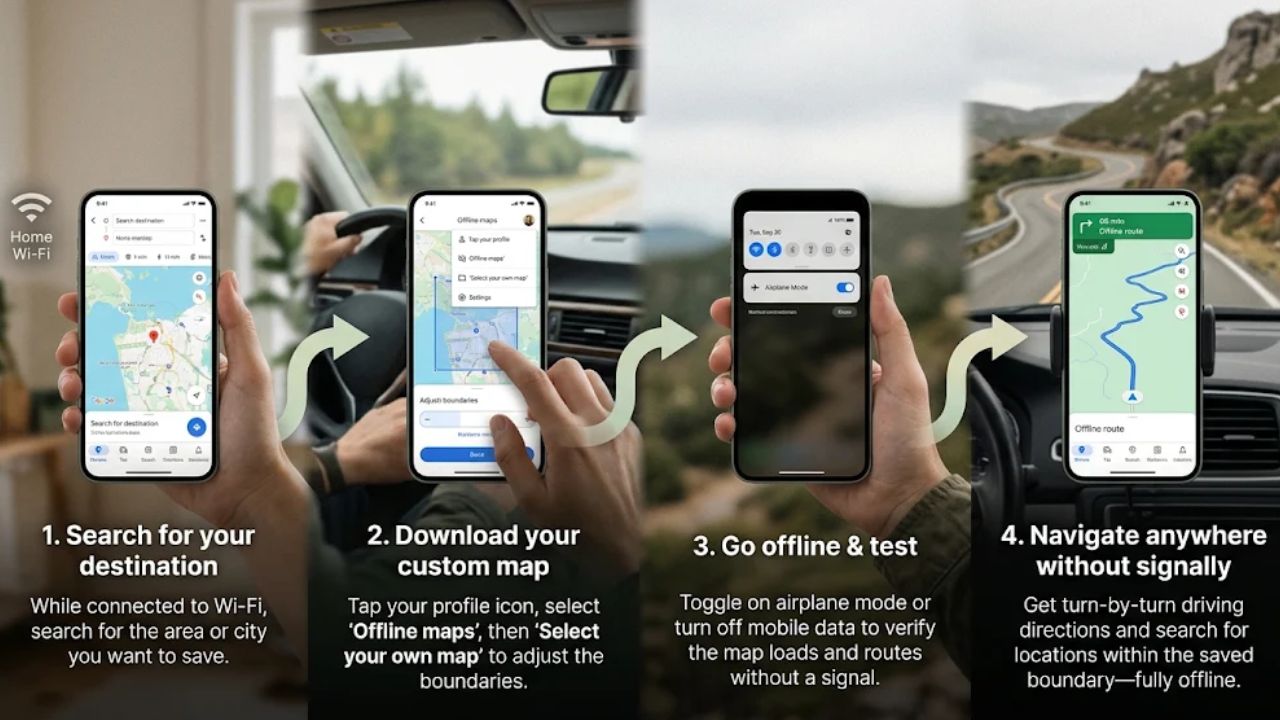
Google Maps lets you save a map of an area to your phone. You search for your destination, then download the map. Offline, the app can guide you to a place as long as your whole route sits inside the saved map. Plan the area with care. A trip from the airport to a hotel outside the box will not work.
Here is what does not work. Transit, bicycling, and walking directions are unavailable offline. Driving still works, but you get no traffic info and no alternate routes.
Another catch: you can’t download offline maps in some countries or regions. Reasons include contract limits, language support, and address formats. Check your destination at home, not at the airport.
Do this at home: On Wi-Fi, tap your profile picture in the app and look for the offline maps option. Choose an area that covers the airport, your hotel, and the streets between them.
Save your hotel as a pin too. Google Maps tries to update a map on Wi-Fi when it has 15 days or less left. Open the app on Wi-Fi once more the week before you leave.
2. Maps.me
Maps.me is built on user-generated content. You can use its maps offline, and it can show different types of public transport options. That makes it a useful second map next to Google Maps.
Seeing transit options on a map is not the same as getting a full trip plan or live times. Do not assume every bus line is on the map. Because people build the data, a small town may have fewer details than a big city.
Do this at home: Download the country or region on Wi-Fi. Turn on airplane mode, then look up your hotel.
Next, try a full trip you plan to take, such as the airport to your hotel. Note whether it gives you a route and what transit details it shows. If it falls short, save a screenshot of the official transit map for that city.
3. Galileo Offline Maps
Galileo is made for outdoor trips. It shows hiking routes and trails, and it uses your phone’s GPS to place you on the map. You pick the regions you need and store them on your device.
The app supports English, Spanish, French, German, Portuguese, Turkish, and Arabic. It also has a Low Battery Mode to stretch your phone’s power on long days. It only shows the regions you saved. If you skip a region, you will have no map there.
Do this at home: Download the regions for your hikes. Then open each one in airplane mode and zoom in on the trailhead.
Which Offline Translation Tools Work Without Internet?
Language packs are small, and they are worth the few minutes they take. Download them before you go, and menus and signs stop being a guessing game.
4. Google Translate Offline Mode
Google Translate lets you download languages to your device. You can then translate without an internet connection. The app covers around 133 languages, and many of them have language files you can download.
The files are small. If Wi-Fi isn’t available, you can download them on mobile data, but carrier charges may apply. Do this at home or in a cafe, not on a roaming plan.
Not every language can be used offline. If you don’t see a “Download” option for a language, offline use isn’t possible for it. Check this early so you can plan a backup, such as a phrasebook or a screenshot of key phrases.
Do this at home: Open the app’s language list on Wi-Fi and download every language you might need. Include the ones for layover countries.
Then switch to airplane mode and translate a typed sentence. If you plan to use the camera or voice, test those too.
5. Microsoft Translator Offline Mode
Microsoft Translator also lets you download language packs for use without a connection. It is a good second option if you want to compare results. Two translators can catch each other’s mistakes.
Language lists and features change over time, and they can differ by phone type. Check the app’s current list for your destination language before you count on it.
Do this at home: Open the app’s language settings on Wi-Fi and download your packs. Then test a short phrase in airplane mode.
If it fails, fix it before the trip. Try another pack or lean on your first translator.
Which Offline Tools Keep Your Trip Plans and Documents Handy?
Few things feel worse than hunting for a booking number with no signal. Gone are the days of hoping for internet to open your email for booking confirmations. Store the key details on your phone first.
6. TripIt
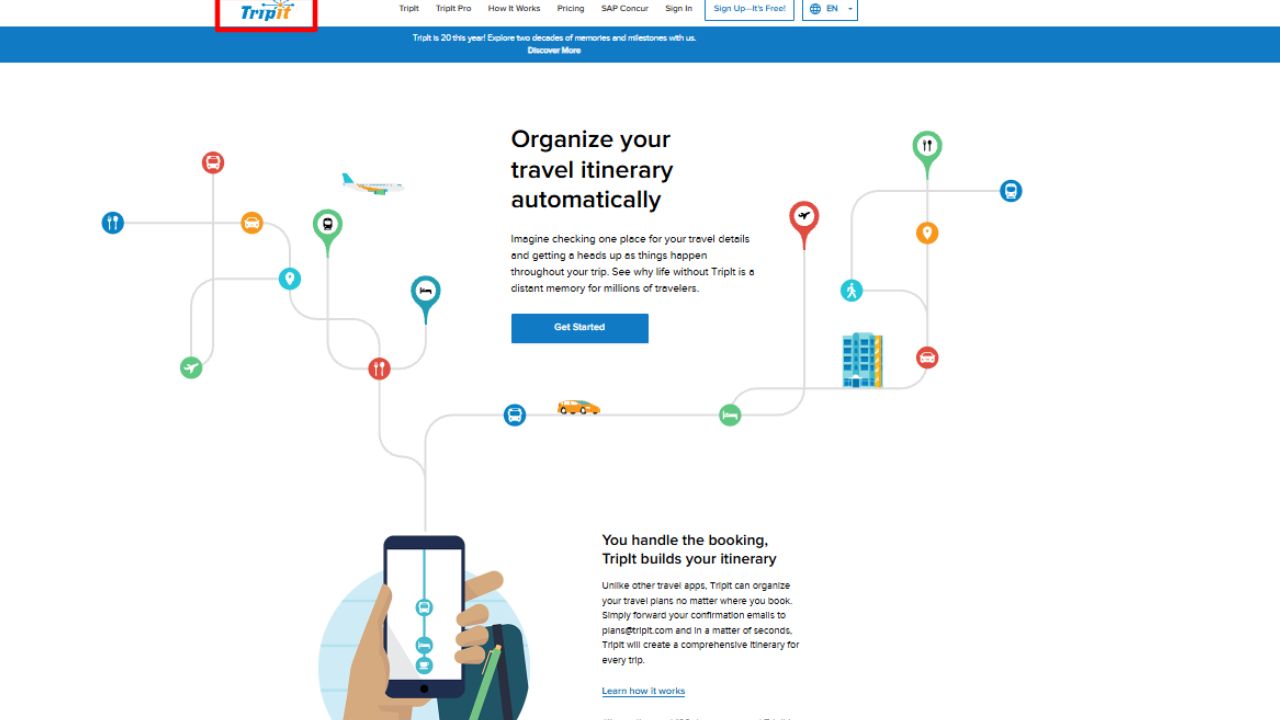
TripIt builds a master itinerary when you forward it your confirmation emails. It pulls out flight times, hotel addresses, and rental car details and puts them in one place. You can view your itinerary offline. Changes and new emails need a connection, though. Real-time flight alerts are a feature that only works when you are online.
Do this at home: Forward your confirmations a few days before you leave. Open each trip once on Wi-Fi.
Then check it in airplane mode. Look for the flight times, hotel address, and confirmation numbers.
7. Evernote
Evernote is a note app that also works offline. You can keep working on your notes even when you have no access. That makes it handy for checklists, day plans, and photos of documents.
Notes you edit offline need a connection later to sync to your other devices. Do not count on a note being on your laptop until you have signal again. Offline access can depend on your plan and phone, so check what yours allows.
Do this at home: Make one notebook for the trip. Add your booking numbers, addresses, and any document photos you need.
Let it sync on Wi-Fi. Then turn on airplane mode and open a note and each attachment. If a photo won’t open, fix it now.
Back up your documents twice
Apps can fail, and phones can break or get lost. We’d recommend a second copy of key papers. Save your booking confirmations and insurance card as PDFs on your phone’s files app.
Cloud and email copies need a connection to open. Download them to your phone, then open each PDF with Wi-Fi and mobile data off.
Passport pages are sensitive. Lock your phone, and keep any cloud account behind a strong password. Carry a paper note with your first hotel address and emergency contacts.
Which Offline Entertainment Tools Make Long Trips Easier?
You never know when you’ll be stuck in an internet dead zone. A delayed train or a long flight is easier with something to play.
8. Spotify Offline Mode
Spotify lets Premium subscribers download music to listen without a connection. Free-tier users can download podcasts instead. You add songs to a playlist first, then download that playlist.
Wi-Fi is the default for downloads. You can switch to mobile data in settings, but that can cost you on a roaming plan, so leave it on Wi-Fi. Downloads stay active as long as you go online at least once every 30 days. Large libraries also fill up your storage fast.
Do this at home: Download a few playlists and a podcast or two. Turn on Offline Mode in the app.
Then press play in airplane mode. If your trip runs long, plan a Wi-Fi stop to reconnect.
A reading and video backup
If you read on your phone, save articles and guides as PDFs or in your notes app before you go. The same goes for episodes or movies in a streaming app that allows downloads. Each app has its own rules, so check them before the trip.
Which Offline Safety and Emergency Tools Should You Pack?
Safety tools matter most when you can’t search the web. Set them up before you need them. Do the downloads on a network you trust.
9. Survival Kit Offline Tools (First Aid)
The Survival Kit Offline Tools app is free and has a First Aid module. It has guides for burns, cuts, and fractures, plus a CPR timer for chest compressions.
Its Emergency module puts contacts, a flashlight, your health card, quick notes, and outage tips on one screen. It supports Portuguese, German, Spanish, French, English, Turkish, and Arabic. It does not replace a doctor or a local emergency number. Treat it as a quick guide while you wait for help.
Do this at home: Install it, fill in your health card, and add your emergency contacts. Add the local emergency number for each country on your route.
Then open it in airplane mode. Tap into the First Aid guides to confirm they load.
10. HAVEN for Weather and Emergencies
HAVEN is an all-in-one emergency app that works offline. You can check temperature, wind speed, and precipitation chances on your phone. Weather can change a hike fast, so this helps.
An offline app can only show data it saved while you had a connection. So the forecast you see may be hours or days old. Treat it as a guide, not a live alert.
Do this at home: Find it in your phone’s app store and check that it supports your phone and what it costs. Install it and load your destinations on Wi-Fi.
Then open it in airplane mode. Look for a time or date on the forecast so you know how old it is. If nothing stays on screen, tell yourself to pick another weather app before you fly.
Stay safe on Wi-Fi while you download
You will often download on hotel or airport Wi-Fi. Connecting through a public Wi-Fi network is usually safe. Still, a few habits lower the risk.
Look for a lock symbol or https in the address bar before you sign in anywhere. Know that a lock is not a guarantee. If you visit a scammer’s site, your data may be encrypted on its way there, but it won’t be safe from the scammers running it.
Watch for fake hotspots, and turn off auto-connect to unknown networks. Keep your software updated, use caution on free hotspots, and think about a VPN. Better still, do your big downloads at home on your own Wi-Fi.
Your Offline Travel Checklist: Test Before You Go
Downloading is not the same as working. Airplane mode is also called offline mode, and with it on, your phone likely can’t get online. That makes it the best test you have.
Do this a few days before you leave, so you have time to fix problems:
- Download on trusted Wi-Fi. Maps, language packs, playlists, and notes all go on your phone first. If Wi-Fi isn’t an option, keep in mind that language files are small enough for mobile data, but carrier charges may apply.
- Check your map areas. Make sure every route you plan sits inside a saved map, because offline guidance needs the whole route inside it. Confirm your country allows downloads.
- Refresh anything close to expiring. Google Maps updates maps with 15 days or less left when you’re on Wi-Fi. Open the app one more time before you leave.
- Turn on airplane mode. Also switch off Wi-Fi and mobile data.
- Try each tool. Look up your hotel on the map, run one full route, translate one sentence, open your itinerary and an attachment, play a song, and open the first aid screen.
- Note what fails. Download it again, or pick another app.
- Know the gaps. Offline Google Maps has no transit, walking, or bike directions, and no traffic. Keep a screenshot of the official transit map as a backup, and check what Maps.me shows for your city.
- Pack your backups. Save document copies as PDFs on your phone and open them with data off. An eSIM from a provider such as Airalo is an optional extra for getting online, not an offline tool. It needs a compatible, unlocked phone and network coverage where you are, so check both before you rely on it.
- Bring power. Offline apps still drain the battery, so pack a charger and a small power bank.
When every tool passes the test, your kit is ready. If one fails in airplane mode, it will fail in a dead zone too. Fix it at home, where it costs you nothing. Offline travel tools only help if you set them up first. Download them, test them, and pack your backups, and a lost signal will not stop your trip.
Final Thoughts
Frequently Asked Questions About Offline Travel Tools
1. Can I still use trip planning tools without internet?
Yes, save your plans in Google Drive (you get 15 GB free) and enable offline access before you leave. Then you can open your trip notes, tickets, and PDFs anywhere.
Maps.me works offline once you download a map and covers over 195 countries. Google Maps and Apple Maps also let you save areas, so you can navigate with no signal.
3. How can I talk with locals when I have no signal?
Use Google Translate with offline language packs, which supports 59 languages without internet. Duolingo also helps you learn key phrases before you go.
4. How do I keep my bookings and passwords safe and handy offline?
Download your Airbnb, Booking.com, and Turo confirmations before you fly. NordPass stores unlimited passwords securely on your phone, and you can save key PDFs in Smallpdf too.
5. What should I do before I leave to stay connected?
Buy an eSIM so you get data instantly in over 190 countries. Save flight details from Google Flights or Skyscanner, and download WhatsApp, Viber, or Skype chats if you need them later.
6. Where can I find offline travel ideas and tips?
Save guides from Matador, TripAdvisor, and Nomad List while you have Wi-Fi. TripAdvisor’s Save feature lets you access lists and maps offline, and you can pin ideas on Pinterest or read Explore with Erin on the plane.