
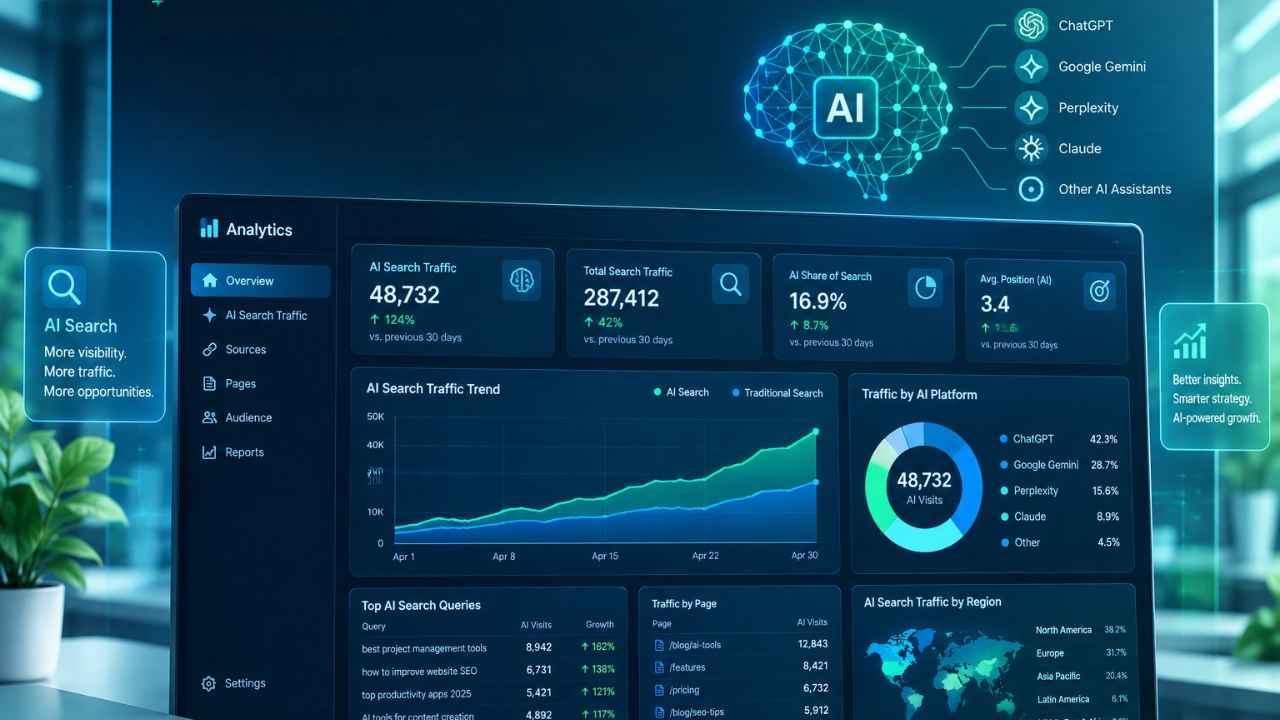
People now click through to websites from ChatGPT, Perplexity, and Gemini. Most analytics setups still hide those visits. Some land in referral, some in direct, and clicks from Google’s AI Overviews sit inside normal organic traffic. If you want to know how to track search traffic in analytics when it comes from AI tools, you need three things: GA4’s AI Assistant channel, a custom regex channel, and Search Console’s generative AI report.
I have worked in SEO and content writing for more than 10 years, and I have been the acting editor at Editorialge for the last four. I track AI visits to our site in GA4 and Search Console, using a custom regex channel for AI referrers. Below is that setup, plus the gaps no tool fills yet.
How to Track Search Traffic in Analytics From AI Tools: The Short Answer
- Open GA4 and check the AI Assistant row in the traffic acquisition report.
- Create a custom channel group that matches AI tools by source with a regex. This catches the tools GA4 misses.
- Open the Generative AI report in Search Console to see AI Overviews and AI Mode impressions.
- Compare engagement and key events for AI visitors against organic search visitors.
Each step covers a different blind spot. Skip one and you leave a hole in your data.
Where AI Visits Land When You Track Search Traffic in Analytics
Before you build anything, know where GA4 puts AI visits by default. This is where most people go wrong. They open the AI Assistant channel, see a small number, and assume that is all of it.
| AI source | Where it usually lands in GA4 |
|---|---|
| ChatGPT, Gemini, Copilot, DeepSeek, and Grok (from May 13, 2026) | AI Assistant |
| The same tools before May 13, 2026 | Referral |
| Perplexity, Claude, and tools not on Google’s list | Usually Referral |
| Google AI Overviews and AI Mode | Organic Search |
| AI mobile apps and copied links with no referrer | Direct |
| ChatGPT links tagged with a source but no medium | Can show as Unassigned |
So AI visits end up spread across four or five channels. The next two steps pull them back into one view.
Step 1: Use GA4’s AI Assistant Channel to Track Search Traffic in Analytics
Google added an AI Assistant channel to GA4’s default channel group on May 13, 2026. It needs no setup. When a visit comes from a referrer on Google’s list of AI assistants, GA4 sets the medium to “ai-assistant,” sets the campaign to “(ai-assistant),” and puts the session in the AI Assistant channel.
To see it, go to Reports > Acquisition > Traffic acquisition and keep “Session default channel group” as the main dimension.
Google’s help page names ChatGPT, Gemini, DeepSeek, Copilot, and Grok as example sources. It also says the channel leaves out AI Overviews and AI Mode. Those still count as organic search.
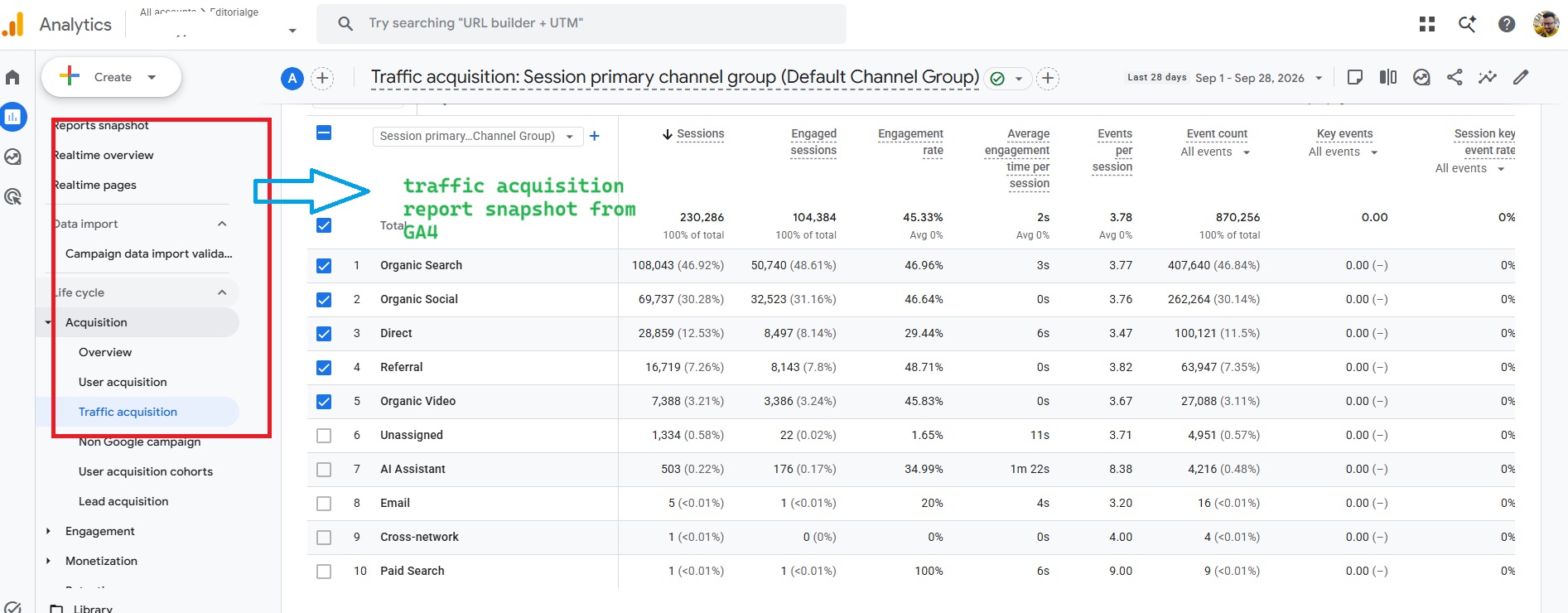
The channel is a good start, but I treat it as the minimum count, not the real total. It only labels visits from launch day forward, so it can’t show a trend before mid-May 2026. And Perplexity and Claude, which both send visits to our site, are not among the named sources.
Step 2: Build a Custom Regex Channel to Track AI Search Traffic in Analytics
I built a custom regex channel for AI referrers on our GA4 property. It gives a fuller count than the native channel for two reasons. It catches tools Google doesn’t list, and custom channel groups apply to past data too.
Here is how to set it up:
- Go to Admin > Data display > Channel groups.
- Click Create new channel group. GA4 starts you with a copy of the default group.
- Give the group a clear name, such as “Channels with AI.”
- Click Add new channel and name it “AI Search.”
- Add a condition: Source matches regex. Paste the pattern below.
- Click Save channel.
- Click Reorder and drag “AI Search” above “AI Assistant” and “Referral.” GA4 puts each visit in the first channel it matches, so order matters.
- Click Save group.
.*(chatgpt|openai|perplexity|gemini\.google|copilot\.microsoft|claude\.ai|deepseek|grok\.com|meta\.ai).*Match on Source, not Medium. The same ChatGPT visit can carry the medium “ai-assistant,” “referral,” or nothing, depending on how it arrived. Matching the source merges all of them into one row.
To view the data, open the Traffic Acquisition Report, click the main dimension dropdown, and pick your new group.
Two limits to know. You need editor access or higher. And a standard GA4 property allows only two custom channel groups, so don’t burn one on a test.
If you use Matomo, Plausible, or another tool from our list of Google Analytics alternatives, the same idea works. Filter or segment referrers by the same list of domains.
A Regex Mistake to Avoid When You Track Search Traffic in Analytics
Google’s own help page offers a sample regex for AI assistants. It starts with “ai,” which matches any source that contains the letters “ai.” That includes “mail,” “gmail,” and “mailchimp.” Paste it as is, and some email traffic can show up as AI traffic.
Keep the pattern tight. List real domains. Then check the session source report once a month for new AI tools, because a regex only catches what you told it to catch.
Step 3: Track Google’s AI Search Traffic in Analytics With Search Console
GA4 can’t separate AI Overviews and AI Mode clicks from normal Google clicks. Search Console gets you partway there.
Google launched a generative AI performance report in Search Console in June 2026. As of August 31, 2026, it is available to all websites. You’ll find it under Performance.
What it shows:
- Impressions from AI Overviews and AI Mode
- A breakdown by page, country, device, and date
- A filter for text searches versus searches that used an image
What it doesn’t show is clicks. The report counts impressions, meaning how often a link to your site appeared in an AI feature. Clicks from those features still sit inside your regular performance report and inside GA4’s Organic Search channel.
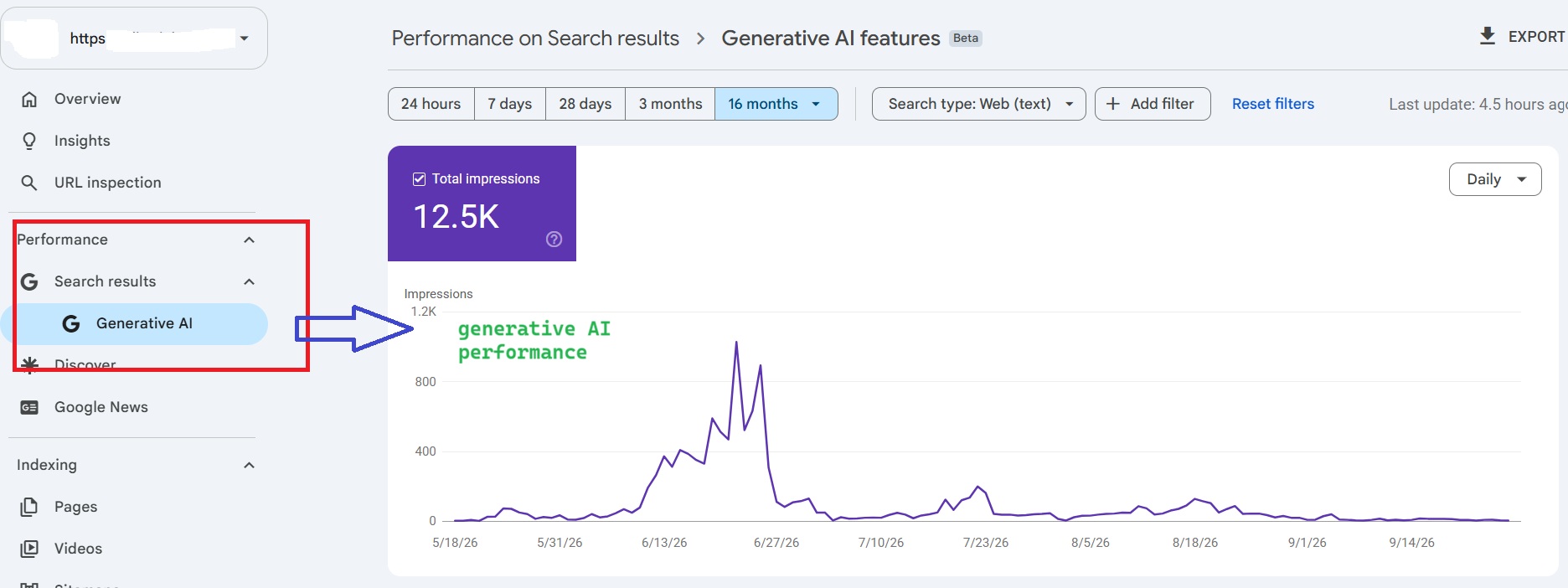
A practical way to use it: export the pages with the most AI impressions. Then check the same pages in GA4’s landing page report, filtered to Organic Search. If AI impressions climb while clicks on that page stay flat, the AI answer may be doing the job your page used to do.
For Copilot, Bing Webmaster Tools has its own AI performance report. It launched in public preview in February 2026 and focuses on how often your content gets cited.
What I See When I Track AI Search Traffic in Analytics
Five AI tools send visitors to our site: ChatGPT, Perplexity, Gemini, Copilot, and Claude. Two patterns became clear once AI visits had their own row.
First, AI visitors stay longer than visitors from Google. That makes sense. By the time someone clicks a link inside a ChatGPT or Perplexity answer, they have already read a summary. They click because they want the full steps or the actual tool, not a quick skim.
Second, AI traffic goes to certain page types. Our how-to guides and tool pages get the most AI visits.
To check this on your own site, build a free-form exploration in GA4:
- Rows: Landing page
- Columns: Your custom channel group
- Metrics: Sessions, average engagement time, Engaged sessions, key events
If you are not sure which of these to trust for content decisions, our guide to analytics metrics for SEO content explains what each one tells you.
What You Still Can’t See When You Track Search Traffic in Analytics
Some AI traffic stays hidden, no matter how good your setup is.
Visits with no referrer: AI mobile apps and in-app browsers often pass no referrer, so GA4 files those visits under Direct. One 2026 industry analysis of about 446,000 visits found that roughly 70% of AI visits arrived without a referrer. That is one study, not a rule, but it shows how big the gap can be.
A rough signal to watch is direct traffic landing on deep how-to pages. People rarely type a long guide URL by hand. If direct visits to those pages rise while other channels stay steady, AI apps are a likely cause. It’s not proof, but it’s worth a note in your report.
Mentions without clicks: An AI tool can name your brand or summarize your page without sending anyone to it. Analytics can’t see that. For this, you need separate tools for tracking AI search mentions.
Should You Track AI Search Traffic in Analytics as Its Own Channel?
Yes. I think AI search traffic is worth tracking as a separate channel now, not later.
Lumped into Referral, it looks like a handful of odd websites. Split out, it shows a group of visitors who behave differently from Google visitors and land on different content. That changes real decisions: which pages to update first, which formats to write more of, and how to report growth to a team or client.
The numbers may be small on your site today. Tracking them from now on gives you a clean baseline if they grow.
Final Thoughts
Learning how to track search traffic in analytics from AI tools comes down to not trusting a single report. GA4’s AI Assistant channel is the floor. A custom regex channel on Source gets you closer to the real number. Search Console shows how often Google’s AI features show your pages. Some traffic will still hide in Direct.
If you do one thing this week, build the regex channel. It takes a few minutes and works on your past data too. Then review your list of AI sources every quarter, because new tools keep showing up.