Learning how to homeschool with apps is not mainly about finding the biggest learning platform or downloading more educational games. It is about building a curriculum first, then giving each app a clear and limited job.
A strong digital homeschool curriculum combines defined learning goals, direct teaching, carefully chosen apps, books, writing, discussion, projects, movement, and regular assessment. One app may explain a concept. Another may provide practice. A third may help with planning or recordkeeping. None should control the entire education simply because its dashboard looks complete.
The goal is not to make homeschooling fully digital. It is to use technology where it improves instruction, access, feedback, practice, or creativity, and put it away when another method will teach the lesson better.
What Is a Digital Homeschool Curriculum?
A digital homeschool curriculum is an organized learning plan that uses apps and online resources as part of instruction. It is not a collection of educational games, and it is not the same as giving a child unrestricted access to a learning platform.
A complete curriculum should answer six questions:
- What should the child learn?
- In what order should those skills and ideas be taught?
- How will each lesson be explained?
- Where will the child practice?
- How will the learning be applied beyond the lesson?
- What evidence will show that the child understands and remembers it?
Most educational apps answer only one or two of these questions. That does not make them useless. It means they are curriculum resources rather than complete curricula.
This distinction matters because app completion is not the same as education. A child may finish every level, collect every reward, and still struggle to use the same skill in a book, on paper, or in conversation.
Check Your Homeschool Requirements First
Before choosing apps, check the homeschool rules that apply where you live. Requirements can differ by country, state, province, or local authority.
Depending on your location, you may need to:
- submit a homeschool notice;
- teach specified subjects;
- maintain attendance records;
- complete assessments;
- preserve samples of work;
- document instructional days or hours; or
- submit progress reports.
Use an official government or education authority as your primary source. Advice from parent groups can be helpful, but it may be outdated or may not apply to your location.
A polished progress report from an app is not automatically a legally acceptable homeschool record. Create a simple compliance folder for notices, attendance, assessments, work samples, reports, and important dates.
Recheck the requirements before each academic year.
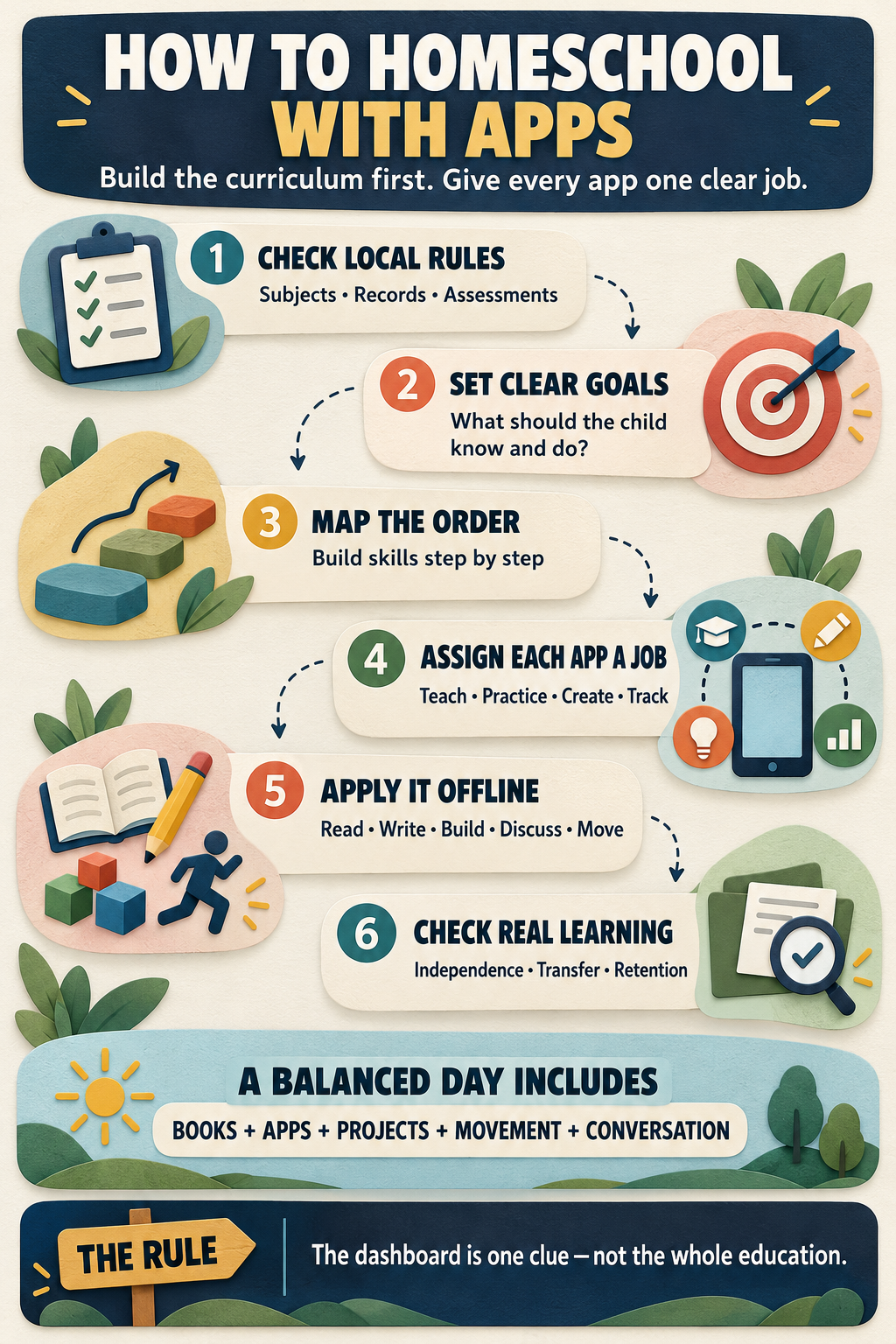
Begin With Learning Outcomes, Not Subscriptions
Start by writing down what your child should know or be able to do by the end of the term or year. “Improve math” is too broad. “Add and subtract two-digit numbers with regrouping, explain the method, and solve related word problems” gives you something you can teach and assess.
Do this across the whole curriculum, including subjects that are not easy to place inside an app:
- reading and literature;
- writing, spelling, and handwriting;
- mathematics;
- science;
- history and social studies;
- art and music;
- physical education and health;
- digital literacy;
- languages; and
- electives or religious studies your family includes.
Next, take a light baseline. Ask your child to read, write, solve a few representative problems, and explain what they already know.
This is not about assigning an early grade. It helps you find the right starting point and prevents you from purchasing lessons that are either repetitive or frustratingly advanced.
Build a Simple Scope and Sequence
A scope describes what will be covered. A sequence determines the order in which it will be taught. You do not need to build an elaborate curriculum spreadsheet. A one-page map for each subject is enough to begin. Divide the year into terms or units. Arrange the skills so that new lessons build on what the child has already learned.
An elementary math sequence, for example, may move from place value to addition and subtraction, multiplication, division, fractions, measurement, and geometry. A writing sequence may move from complete sentences to paragraphs, revision, and longer compositions.
Only after creating that map should you place apps into it. Do not allow an app’s lesson menu to become your curriculum automatically. First check whether its sequence is complete, coherent, appropriately challenging, and aligned with your goals.
| Curriculum layer | Question to answer | Possible app role | Evidence beyond the app |
| Learning outcome | What must the child know or do? | Display goals or assigned lessons | Child explains or demonstrates the skill |
| Instruction | How will the idea be taught? | Video, animation, worked example, or read-aloud | Discussion, notes, or parent-led modeling |
| Practice | How will fluency develop? | Questions, retrieval activities, or immediate feedback | Oral recall, paperwork, or physical objects |
| Application | Can the child use the learning? | Simulation, research, or creation tool | Experiment, project, writing, or real task |
| Assessment | What will count as mastery? | Quiz results and error patterns | Independent and delayed performance |
| Records | What must be preserved? | Assignment history or progress export | Portfolio, attendance, and parent notes |
Give Every App One Clear Job
My rule is simple: if I cannot explain what learning problem an app solves, it does not belong in the curriculum.
An app may provide:
- structured instruction in a subject;
- targeted practice in phonics, math, vocabulary, or spelling;
- e-books, reference material, or educational videos;
- science or math simulations;
- writing, coding, drawing, audio, or video creation;
- quizzes and diagnostic checks;
- captions, text-to-speech, or other accessibility support; or
- scheduling, attendance, portfolios, and recordkeeping.
The best digital curriculum is usually a small system of well-chosen tools, not a crowded screen full of subscriptions.
Resources such as Khan Academy can support instruction and practice. CK-12 can provide digital texts, practice activities, and simulations. PhET can help children explore science and math concepts interactively. Scratch can support coding and creative projects, although parents should review its community and public-sharing features before allowing independent use.
These are examples of possible roles, not a universal list of the best homeschool apps. Features, access conditions, and privacy practices can change. Always check the current version before building it into your curriculum.
How to Evaluate Homeschool Curriculum Apps
App-store ratings can show whether users enjoyed an app. They cannot prove that the app fits your curriculum or produces lasting learning.
Research offers a balanced picture. A 2021 meta-analysis of 36 intervention studies found a modest positive average effect from educational apps on early literacy and math skills. However, the results varied considerably, and effects were smaller when measured using broader, standardized outcomes.
Another analysis of 124 popular children’s educational apps found that many scored poorly on active learning, meaningful engagement, real-world relevance, and social interaction. In other words, apps can help. The word “educational” on an app-store page is not enough.
Look for Active Thinking
The child should have to make decisions, retrieve information, solve problems, or create something.
Be cautious when an activity mainly asks the child to tap highlighted objects, copy prompts without thinking, or keep guessing until the app accepts an answer. Animation is not instruction. Interactivity is not automatically active learning.
Check Whether Rewards Support the Lesson
Badges, sounds, stars, and animations can keep a child engaged. They can also become the main attraction.
Ask the child what they learned after the session. If they remember the coins and characters but cannot explain the lesson, the rewards may be competing with the educational goal.
Useful feedback should do more than announce “correct” or “incorrect.” It should help the child understand the error or try a better strategy.
Look for Evidence Beyond the Screen
The strongest test is whether the child can use the skill somewhere else. Can they read the same type of word in a book? Solve a similar problem on paper? Explain the idea aloud? Use it while cooking, building, shopping, writing, or conducting an experiment?
I have seen the importance of this distinction while observing my nephew Fariz use Alphabet Magic Trace, one of our in-house early-learning apps.
He started at around age three with adult guidance and later used the app independently. During roughly a year and a half of use, I observed improvement in lowercase recognition, letter sounds, tracing, simple spelling, uppercase and lowercase differentiation, and recognition outside the app.
However, at six, and occasionally at seven, he still mixed up b and d when writing from memory. The confusion did not appear in the same way during reading or tracing, and it became less frequent over time.
This is a family observation involving an app connected to our own work. It is not an independent trial or proof of efficacy. I also cannot separate the role of the app from his age, adult guidance, videos, books, and other learning experiences.
What the observation does show is that performance can depend on the task. Recognizing, tracing, reading, and writing from memory are related skills, but they are not identical. A dashboard may show progress while an independent task reveals a gap that still needs attention.
Examine Parent Reporting Carefully
A useful parent dashboard should show more than time spent, levels completed, or points collected.
Look for:
- specific skills practiced;
- repeated errors;
- concepts requiring support;
- independent versus prompted responses;
- progress over time; and
- options for exporting or recording results.
Treat dashboard information as one source of evidence. It measures performance inside that particular system, using that system’s prompts and conditions.
Review Privacy and Safety
Before creating a child account, check:
- what personal information the app collects;
- whether it contains advertising or third-party tracking;
- whether children can post, message, or create public profiles;
- who can view the child’s work;
- how long information is retained;
- whether the account and its data can be deleted;
- which device permissions are requested; and
- whether a parent can control communication and sharing.
App-store privacy labels are a useful starting point, not final proof. Read the privacy policy and inspect the settings yourself.
For younger children, favor parent-managed accounts, private workspaces, minimal data collection, and no open chat.
Check Accessibility and Practical Fit
Look for captions, readable text, audio controls, screen-reader support, adjustable pacing, keyboard navigation, and more than one way to respond.
Accessibility is not only relevant after a formal diagnosis. Children vary in how they process instructions, express ideas, maintain attention, and interact with a device.
Also check the ordinary details:
- device compatibility;
- cost after a free trial;
- sibling profiles;
- offline access;
- printing requirements;
- parent controls;
- data export options; and
- cancellation terms.
An impressive app that does not work reliably on your available device is not a practical curriculum choice.
Use a Six-Step Digital Lesson Loop
Apps work best inside a lesson, not in place of one. A reliable digital lesson can follow this sequence:
- Set the goal: Explain what the child is learning and why it matters.
- Model the idea: Use conversation, examples, a book, objects, or a short digital explanation.
- Practice together: Complete the first examples and listen for misunderstandings.
- Use the app independently: Let the app provide focused practice, feedback, or exploration.
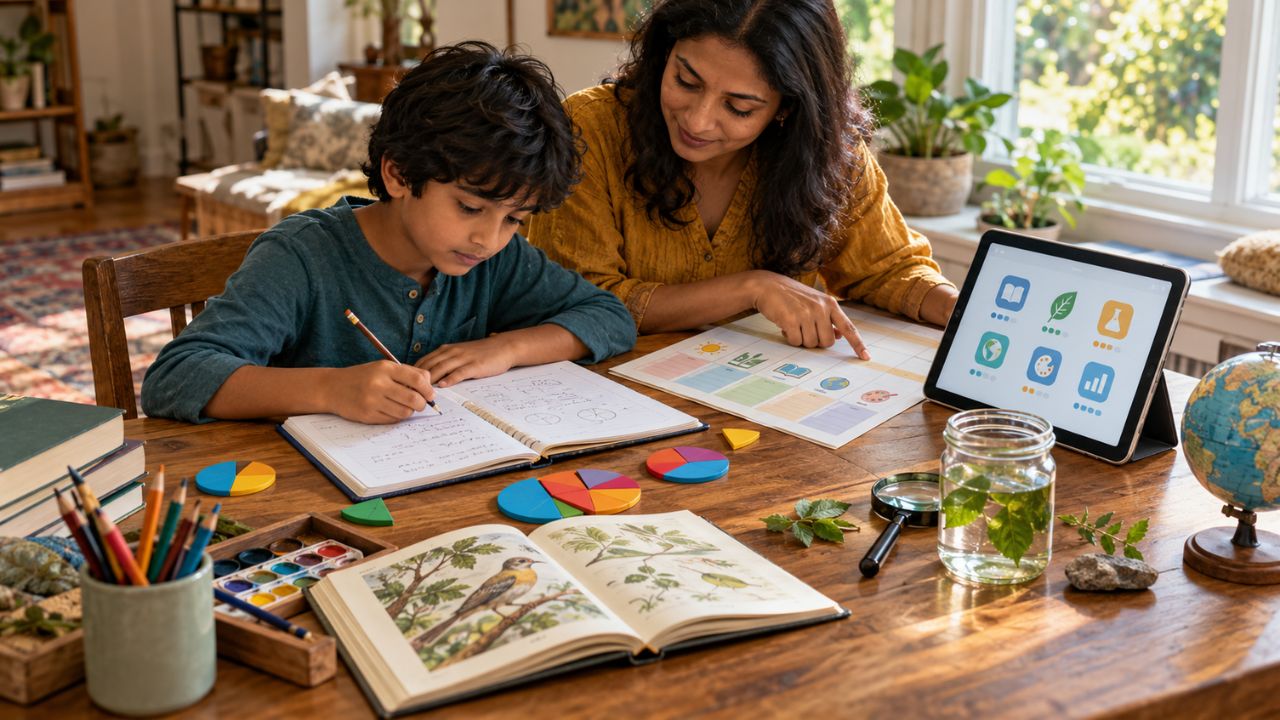
- Apply the learning offline: Use paper, manipulatives, an experiment, a project, or a real task.
- Retrieve and record: Revisit the skill later without hints and note the result.
The final step is easy to overlook. A child may perform well immediately after a lesson and struggle to remember the same idea several days later.
For a fractions lesson, you could model halves and quarters with paper or food, use an app for visual practice, ask the child to adjust a recipe, and return to the concept later with a new problem. The app performs one job. The complete lesson creates the learning.
What a Balanced Digital Curriculum Can Look Like
A useful curriculum does not require an app for every subject. It requires the right relationship between digital instruction and real-world application.
| Subject | Digital role | Offline application | Evidence of learning |
| Reading | Phonics practice, e-book, or read-aloud support | Printed book, discussion, word hunt | Read unfamiliar words in a new text |
| Writing | Planning, spelling support, or typing | Handwriting, paragraph drafting, revision | Produce an independent written response |
| Math | Explanation, visual model, or targeted practice | Manipulatives, paper problems, shopping, or cooking | Solve and explain a new problem |
| Science | Animation, research, or simulation | Observation, experiment, model, or nature study | Predict, record, and explain a result |
| Social studies | Map, archive, timeline, or virtual visit | Biography, local history, debate, or project | Compare sources and explain significance |
| Coding and creativity | Programming, drawing, music, or video creation | Storyboarding, planning, building, or presentation | Create and explain an original project |
This framework also makes it easier to decide when an app is unnecessary. If a conversation, book, field visit, physical model, or sheet of paper teaches the lesson more clearly, use it.
Balance Screen Learning With the Rest of Childhood
A single number cannot tell you whether educational screen use is healthy or effective. Age-specific pediatric guidance still matters, particularly for younger children, but time is only one part of the decision.
The American Academy of Pediatrics’ 5 Cs offers a useful way to think about media use:
- Child: Does this content fit this particular child’s age, needs, and temperament?
- Content: Is the material useful, safe, and developmentally appropriate?
- Calm: Is the screen becoming the child’s only way to handle boredom or difficult feelings?
- Crowding Out: Is it replacing sleep, movement, play, conversation, books, or family life?
- Communication: Are adults discussing the content and maintaining clear rules?
A video call with a tutor, a phonics exercise, a coding project, and passive entertainment are not equivalent simply because they all happen on a screen.
A balanced elementary learning block might include direct teaching, 15 to 25 minutes of focused app practice, an offline task, movement, wider reading, and a short review. The exact timing should reflect the child and the lesson.
Watch the behavior around the screen. Rushing for rewards, guessing repeatedly, becoming irritable, or resisting all non-screen work can indicate that the routine needs to change.
The answer may be a shorter session, more adult involvement, a different resource, or no app for that lesson.
Set Clear Boundaries for AI Tools
AI can explain a difficult idea in another way, generate practice questions, help organize a project, or offer feedback on a draft.
It can also provide incorrect information and complete the thinking a student needs to practice. Set a clear rule: the student thinks first and must be able to explain the final work.
Require notes, drafts, calculations, or source checks when appropriate. Do not enter a child’s personal information, private records, or identifiable work into an AI service without understanding how the information will be handled.
If AI produces the answer and the child simply submits it, task completion may improve while learning does not. That is not efficiency. It is a missed lesson.
Final Thoughts
The most effective way to homeschool with apps is to remain the curriculum designer. Set the goals. Choose the sequence. Teach, observe, and discuss. Let apps handle the jobs they perform well: focused practice, clear modeling, immediate feedback, simulation, accessibility, or creative production.
Then ask the child to use that learning somewhere the app cannot provide the answer. That is the standard every digital tool should meet, not whether it keeps a child busy, but whether it helps build knowledge, skill, independence, and curiosity that remain after the screen is closed.
Frequently Asked Questions on How to Homeschool with Apps
Can You Homeschool Using Only Apps?
Apps can deliver a large part of the instruction, but they rarely provide a complete and balanced education by themselves. Children still need discussion, books, writing, hands-on work, movement, social experiences, assessment, and any records required under local homeschool rules.
What Are the Best Apps for Homeschooling?
The best app is one that matches a defined learning outcome, suits the child, protects their privacy, and produces progress you can verify. Choose apps by role, such as instruction, practice, simulation, creation, accessibility, or recordkeeping, rather than popularity alone.
How Many Homeschool Apps Should I Use?
Use the fewest tools that cover your plan well. One main instructional resource supported by a small number of subject-specific or creative tools is usually easier to manage than a large collection of overlapping apps.
How Much Screen Time Is Appropriate for Digital Homeschooling?
There is no single number that can evaluate every child and activity. Consider the child’s age, current pediatric guidance, content quality, adult involvement, behavior, and what the screen is replacing. Break up digital work with conversation, movement, print, handwriting, outdoor time, and hands-on learning.
How Do I Track Homeschool Progress When Using Apps?
Combine app reports with dated work samples, short quizzes, oral explanations, projects, photographs, parent notes, and delayed review. Record what the child can do independently, not only what the app marks as complete.