The best drawing and creativity apps for kids give them room to explore an idea and make it their own. I love painting, drawing, and crafting, and I teach my nephew to draw, use colors, and experiment. When I suggest an app to another parent, I think about what their child might enjoy making: a first colorful picture, a character, or a story.
These 12 picks cover different ages and kinds of creativity. I checked their current developer and app store descriptions, including devices and payment options. My firsthand perspective comes from making art with my nephew; I have not tested every app on this list with him.
For a quick starting point, consider Bimi Boo and Aqua for early coloring, Sketchbook for open drawing, FlipaClip for cartoons, or Book Creator for stories. The right choice depends on what interests the child now.
For First Drawings and Playful Color
I like letting young children explore color before asking them to draw something recognizable. These apps make it easy to begin, with simple tools, pictures to color, and playful activities that still leave room for their own choices.
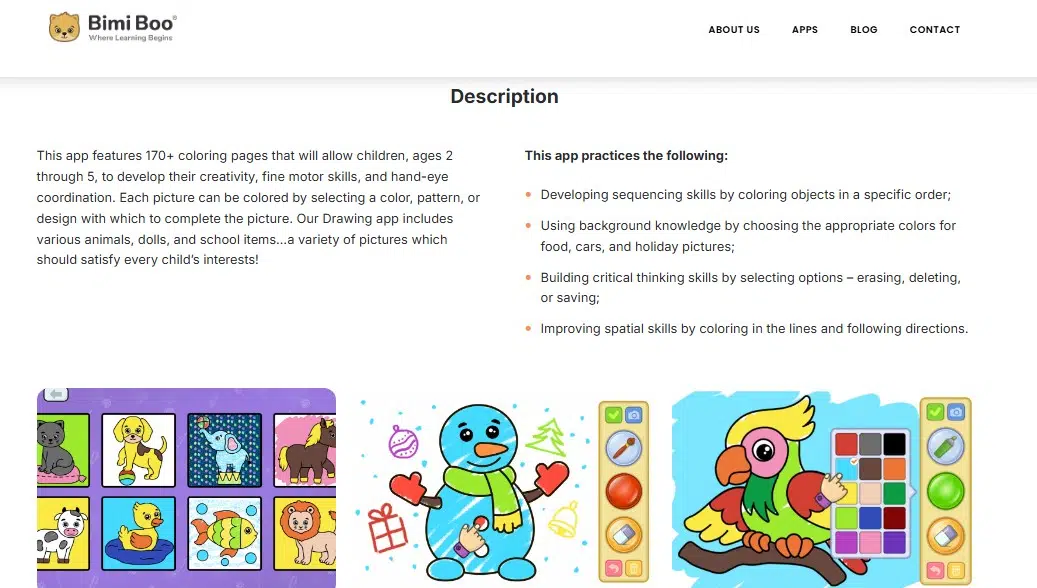
1. Drawing for Kids – Baby Games by Bimi Boo
A blank canvas can feel like a lot to take on. Bimi Boo gives toddlers and preschoolers themed pictures to color, with tools such as crayons, brushes, and chalk. The controls are simple, making it a reasonable first app for a child who wants to choose colors and see what happens.
It is available on iPhone, iPad, and Android; the Android listing may use the name Kids Color Games: Baby Drawing. The app is ad-free, but only a small selection of pictures is free. More themes require purchases.
2. Pok Pok
Pok Pok is a digital playroom with drawing among its many activities. Children can also arrange shapes, build, and explore pretend-play scenes. There are no levels to beat, so it suits a child who likes moving from one idea to another.
It is designed for roughly ages 2–8 and is available on iOS and Android. The children’s activities have no ads, but full access requires a subscription after the trial. Choose it if your child would enjoy the wider playroom as well as its drawing activity.
3. Crayola Create & Play
Crayola Create & Play offers digital crayons and markers alongside coloring, crafts, and creative games. Its variety may appeal to a child who wants a different activity each time they open the app. Crayola describes it as suitable for ages 3–8.
It requires a subscription for full access. Google Play also labels the Android version as containing ads, so I would look through that version myself before giving it to a young child.
For Children Who Want to Make Their Own Pictures
As children grow more confident, they may want to decide what goes on the page. These apps give them more control, from arranging shapes and trying new brushes to starting with a blank canvas.
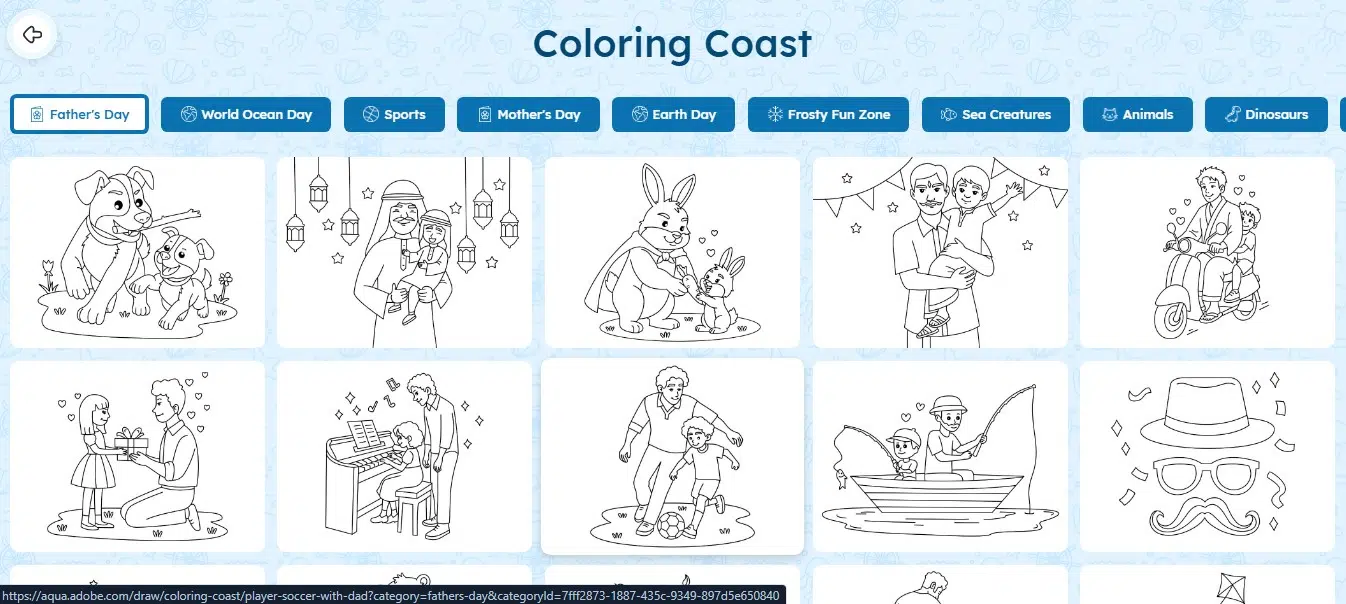
4. Aqua by Adobe
Aqua is my personal favorite on this list, partly because I’ve shared it with my nephew. He can choose a figure to color or make a drawing of his own, and I like that he has room to follow his imagination. When I let him use it, we could get straight to drawing without a sign-up step.
It offers several starting points: drawing, coloring, guided lessons, design activities, and comics. A child can follow an idea on the screen, then change it into something personal. Adobe designed the app for ages 5–12.
Aqua is free and ad-free, though a parent must create the account. Some AI effects and 3D activities use daily credits that refill. Availability is limited to selected countries, so check your local app store first.
5. Kids Draw with Shapes Lite
Drawing can begin with arranging pieces. Kids Draw with Shapes Lite lets children make pictures using basic shapes and colors, either freely or with a template. I would suggest it to a child who enjoys building a picture one part at a time.
The Lite version is available on Android. Its template selection is small; the fuller version is tied to an Intellijoy subscription. Try the free-form mode before deciding whether the extra templates are worthwhile.
6. Sketchbook
Sketchbook is for the child who wants a blank canvas and more control over the result. It offers a broad range of brushes, along with layers and other tools they can discover gradually. The drawing area stays relatively clear while they work.
The app is available on iOS and Android, with free tools and an optional premium bundle. It was made for artists of all ages rather than specifically for children. I would introduce an older child to a few brushes first and let them explore from there.
7. Procreate
If an older child draws often and wants to learn digital illustration, Procreate gives them plenty of room to grow. Brushes, layers, and animation tools can take an idea from a quick sketch to a more detailed piece of work.
Procreate is a paid iPad app. Its large toolkit could overwhelm a first-time digital artist, but it may suit a child who is eager to spend time learning the tools.
When Pictures Become Stories
A drawing can become a character, a scene, or the start of an adventure. These apps help children give their pictures a voice, make them move, and turn their ideas into films or books they can revisit.
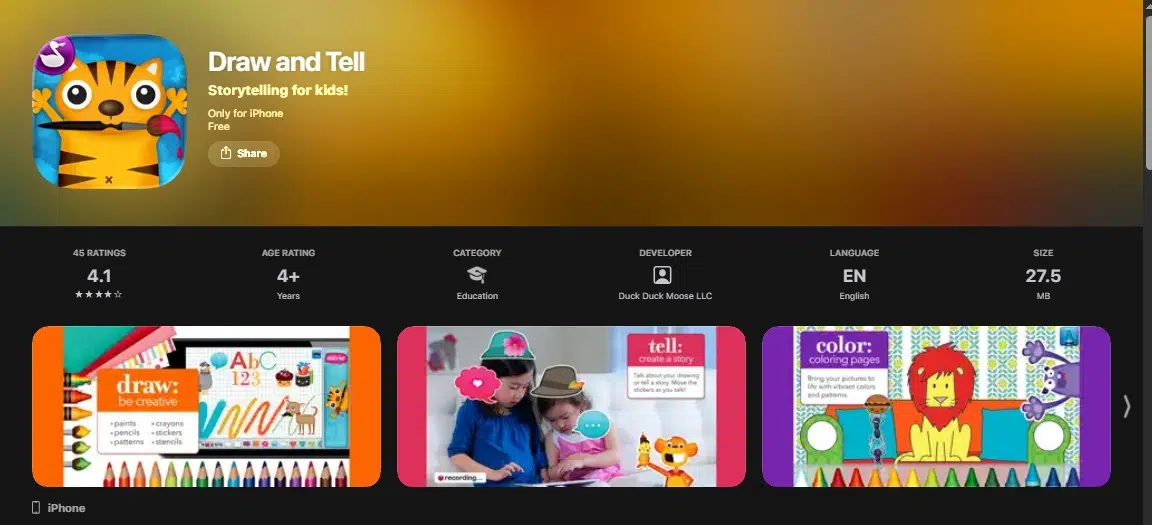
8. Draw and Tell
Draw and Tell lets children make a picture, add stickers, and record a story about it. I like that the finished drawing becomes the beginning of a conversation. A child can explain who is in it, what is happening, or what comes next.
The app is free, with separate iPhone and iPad editions. It is still listed in the App Store, although its last listed update was in 2020. Check how it works on your device before making it a regular activity.
9. FlipaClip
A child who likes cartoons may enjoy seeing their own drawings move. In FlipaClip, they draw a series of frames and play them back like a flipbook. Even a simple waving hand can show them how animation works.
FlipaClip is available on iOS and Android. It is free to start, with paid features, and Google Play lists ads in the Android version. Certain account and contest features are unavailable to children under 13.
10. Stop Motion Studio
Stop Motion Studio can turn a paper cutout, clay figure, toy, or drawing into a short film. The child moves it slightly between photographs, then watches the frames play together. It gives a craft project another life after it leaves the table.
There is a free version for iOS and Android, with paid tools or a Pro version. Younger children may need help setting up a steady camera and taking the first few pictures.
11. ScratchJr
ScratchJr is mainly a beginner coding app, but it belongs here for its creative possibilities. Children can use the paint editor to change or make characters, then give those characters actions in an interactive story.
It is free and aimed at children around ages 5–7. An iPad or compatible Android tablet gives them space to work. Pick ScratchJr for a child who wants to make a scene happen; pick a dedicated art app when drawing itself is the main attraction.
12. Book Creator for iPad
Book Creator gives a child a place to gather their pictures into a story. They can draw on pages, add photos and words, and record narration. A younger child can tell a story aloud while an adult helps put the book together.
The iPad app is a one-time purchase and works offline without a login. Book Creator’s online classroom product is separate, with different pricing, so check that you are looking at the iPad app if that is the one you want.
How I Choose an App for a Child
I start with the child’s interests rather than the longest feature list. Guided pictures can make the first step easy. A child already filling paper with original characters may want a blank canvas or an animation tool.
Before suggesting an app, I check:
- What is free: Some downloads include only a handful of pictures or tools.
- What needs an adult: Accounts, purchases, ads, and sharing deserve a look before a child opens the app.
- What they can make afterward: A digital character might inspire a paper drawing, a clay model, or a new story.
I still keep crayons, paper, paint, and craft supplies close by when making art with my nephew. An idea can move between them and the screen.
Follow the Child’s Idea
When I draw with my nephew, I want him to feel free to choose a color, change his mind, and see where an idea leads. That is what I look for in a creative app, too. Start with one that fits the child in front of you, make something together, and leave room for their next idea.
Frequently Asked Questions on the Best Drawing and Creativity Apps for Kids
1. Which drawing app should I try with a three- or four-year-old?
Bimi Boo is a simple place to begin with coloring. Pok Pok offers drawing within open-ended play, while Crayola Create & Play has more varied activities. Sit together for the first session and see which controls the child enjoys using.
2. Are there free, ad-free drawing apps for children?
Aqua by Adobe is free and ad-free where available, though it needs a parent account. Bimi Boo has an ad-free, limited free selection. Draw and Tell is free, but its older update history makes a device check sensible.
3. Do drawing apps help children learn to draw?
They give children chances to try colors, shapes, marks, and ideas. Progress will differ from child to child. Making art together, talking about their pictures, and offering physical materials can give them more ways to practice and express themselves.
4. Which app is best for making cartoons?
Choose FlipaClip for hand-drawn frame-by-frame animation. Stop Motion Studio works well for moving paper art, clay, or toys. ScratchJr is better for an interactive story with characters a child can create or change.
5. Is Procreate a good choice for young children?
I would begin with a simpler app for a young beginner. Procreate is better suited to an older child who already enjoys drawing, has access to an iPad, and wants to learn a deeper set of tools.
6. Are there free, ad-free drawing apps for children?
Yes. Aqua’s browser drawing tool is free and ad-free, and children can start without an account. If you choose the mobile app, an adult needs to set up an account for a child profile.