

An AI workflow can summarize a request, draft a response, or prepare a record change quickly. The risky moment comes when it is ready to send, approve, delete, or update something. No-code tools for human approval give teams a way to pause that step, show a person what will happen, and continue only after a decision. The right choice depends on where your workflows already run, who must approve them, and how much control you need over timeouts, rejected requests, and audit records.
What this comparison covers
This is a documentation-based comparison of seven visual workflow platforms, checked on November 20, 2026. I reviewed how each product describes approval gates, where it can pause a workflow, and the setup or plan limits a buyer should check. I did not run paid accounts or test live workflows, so this is not a hands-on performance review. Some products are no-code for ordinary flows but still require an administrator, an integration owner, or technical help for secure production deployment.
“Human approval” should mean more than sending a notification. The protected action must remain blocked while the request is pending, the approver must see the exact action and relevant data, and a rejection or timeout must not accidentally continue the workflow. NIST’s voluntary AI Risk Management Framework Playbook also emphasizes clear human roles and documented oversight; a button in an automation builder does not replace those operating rules.
At a glance: no-code tools for human approval
| Tool | Approval approach | Strongest fit | Check before choosing |
|---|---|---|---|
| Zapier | Built-in Human in the Loop step | Teams already using Zaps | Paid-plan and reviewer access requirements |
| Relay.app | Approval, input, task, or path-choice steps | Small teams that want a readable review queue | Workspace roles and overdue behavior |
| Gumloop | Agent pauses for approval before selected actions | Teams building AI agents visually | Per-tool rules and available app controls |
| Microsoft Power Automate | Start and wait for an approval action | Microsoft 365 and business-process workflows | Licensing, environment, and Dataverse setup |
| n8n | Human review for selected AI tool calls | Teams needing control or self-hosting | Technical setup and complete tool coverage |
| Make | Human in the Loop app for scenarios | Enterprise teams invited to the feature | Enterprise plan and closed-beta access |
| Workato | Human approval steps and workflow apps | Enterprise integrations with governed handoffs | Current feature path and implementation effort |
1. Zapier: the most direct fit for existing Zaps
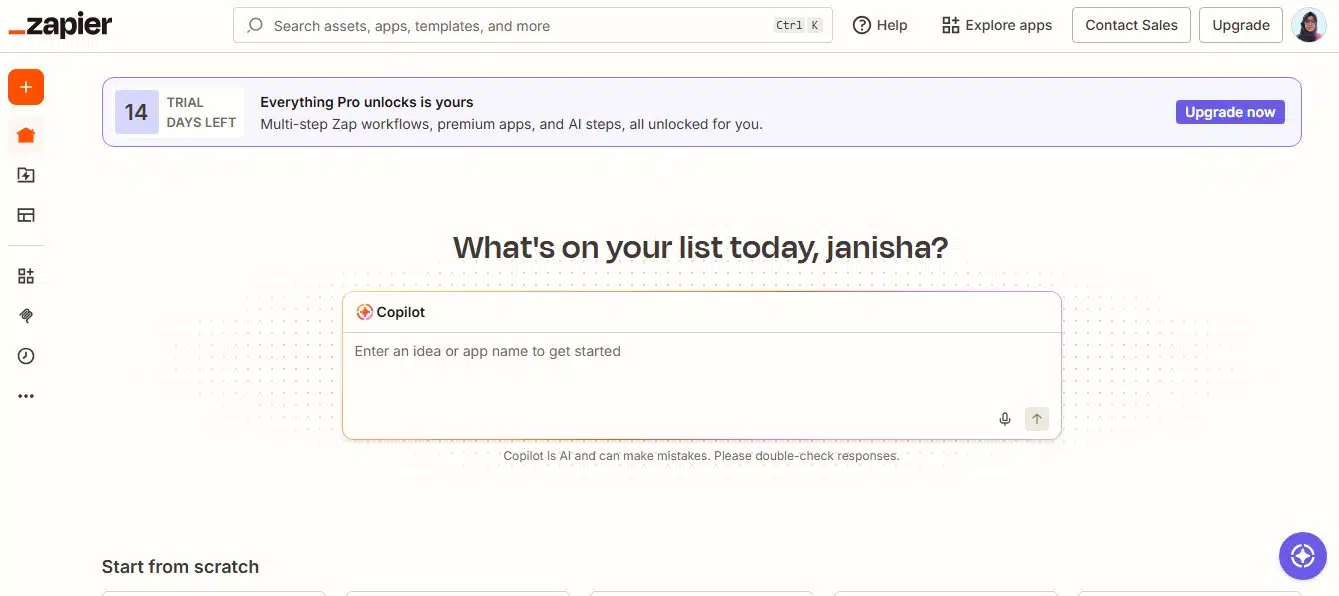
Zapier’s Human in the Loop app can pause a Zap for an approval or for additional information, then expose the decision to later steps. The approval request can include AI-generated material for a person to correct before it is used. That makes it a practical option for a marketing team that wants a draft reply reviewed before sending or a support team that wants a suggested classification confirmed before changing a ticket.
The main advantage is placement: the review step sits inside a familiar Zap rather than requiring a separate approval system. But plan eligibility matters. Zapier’s current help pages describe Human in the Loop as a paid feature, and designated reviewers need access to the Zap. Also decide what happens when someone rejects or ignores a request; downstream steps should be filtered unless the decision is explicitly approved. For multi-person sign-off, check whether the product’s approval behavior matches your policy instead of assuming one request equals several independent approvals.
2. Relay.app: flexible human steps without designing a separate queue
Relay.app offers several human-in-the-loop steps: approval, data input, task completion, and path selection. A workflow can pause until an assigned person approves, fills in a missing value, completes a real-world task, or chooses which route should run. Notifications can go through email or Slack, and teams can set instructions, due dates, reminders, and escalation behavior.
This flexibility is useful when a person must do more than click yes or no. For example, an AI agent could prepare a supplier record update, ask a buyer to confirm the vendor ID, then send the approved change to the purchasing system. The trade-off is that approval design still needs a clear owner: define what overdue means, who can reassign a request, and whether a workflow stops or escalates when no one responds.
3. Gumloop: action-level checks for visual AI agents
Gumloop is positioned as a no-code AI agent builder, and its documentation describes approval requests before selected agent actions. A reviewer can allow or reject a proposed action, with notifications through Gumloop and, where configured, Slack. Its approval rules can be set per connected tool, so a team might allow an agent to read a support ticket but require approval before it sends a reply or changes a customer record.
That distinction—read access versus write access—is more useful than asking for approval before every step. However, the rule must cover every route that could produce the same side effect. If an agent has two tools that can send messages, protecting only one leaves a gap. Buyers should also check the detail shown to reviewers: the recipient, message body, record ID, and proposed change should be visible enough to catch a wrong target, not just a short AI-written summary.
4. Microsoft Power Automate: approval actions for structured business processes
Power Automate provides the “Start and wait for an approval” action that can hold a cloud flow until an approver responds. Microsoft’s documentation covers approval types such as first response, everyone must approve, and sequential approval. That can suit expense review, document sign-off, or a workflow in which AI extracts information but a staff member authorizes the next business step.
Power Automate is strongest when the surrounding records and permissions already live in Microsoft 365 or connected enterprise systems. The workflow designer is visual, though connector choices, expressions, environment configuration, and administrative controls can make a production flow more technical than a simple drag-and-drop demo. Approval flows also have organizational prerequisites; check the tenant’s licensing and environment setup before selecting it as a low-cost add-on.
5. n8n: granular review for AI agent tools
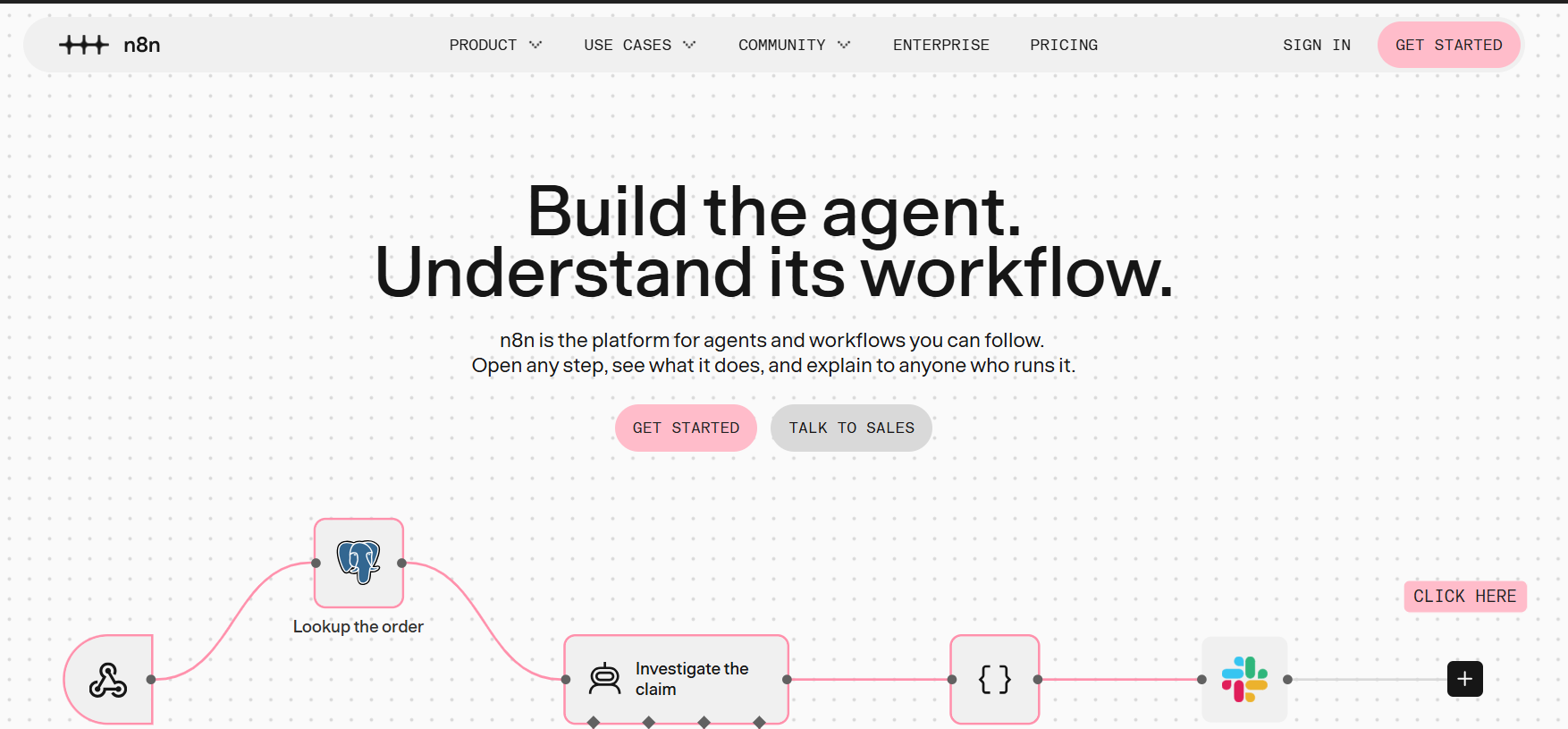
n8n’s visual workflows can include a human review step for AI agent tool calls. A team can require a person to approve a specific connected action before the agent executes it, while allowing lower-risk reads or preparation steps to run. The platform can be self-hosted or used through its cloud service, giving technical teams more control over deployment and data handling.
The flexibility has a learning curve. n8n is often described as low-code rather than strictly no-code, and connecting an approval channel, configuring credentials, and handling retries may need an automation owner. Pay attention to coverage: every tool capable of sending, deleting, purchasing, or changing records should be governed consistently. If one action is rejected, the workflow should not quietly reach the same outcome through another node.
6. Make: promising native approvals, with a narrow access window
Make’s Human in the Loop app is designed to create review requests inside scenarios and watch for completed reviews. That is a closer fit than building a custom approval mechanism from webhooks and a database. The limitation is substantial: Make’s current documentation says the app is available on the Enterprise plan and is in closed beta for invited customers.
That status makes Make a conditional option, not a safe assumption for every buyer. Confirm that the feature is enabled for your organization before designing around it. If it is unavailable, a custom two-scenario design can work, but it needs durable storage, authenticated approval links, expiry, a way to bind the approval to the exact proposed action, and duplicate-request protection. Those controls make a custom approach more involved than the phrase “add an approval step” suggests.
7. Workato: governed approvals in enterprise workflows
Workato’s workflow tools support human approval steps inside business automations, including human-facing tasks and workflow apps. That can suit a company routing AI-prepared requests through finance, IT, or operations roles before a system update runs. The platform is built for integrations across enterprise applications, where approval identity, handoff, and process ownership may matter as much as the AI step itself.
Workato is generally a more substantial enterprise platform than a lightweight personal automation tool. Its older People Task path is being superseded by Workflow apps, so buyers should confirm which current feature their account should use and how licensing applies. A visual recipe is not automatically a complete governance design: document roles, approval thresholds, evidence retained, and the behavior when a task times out.
How to choose an approval gate that actually holds
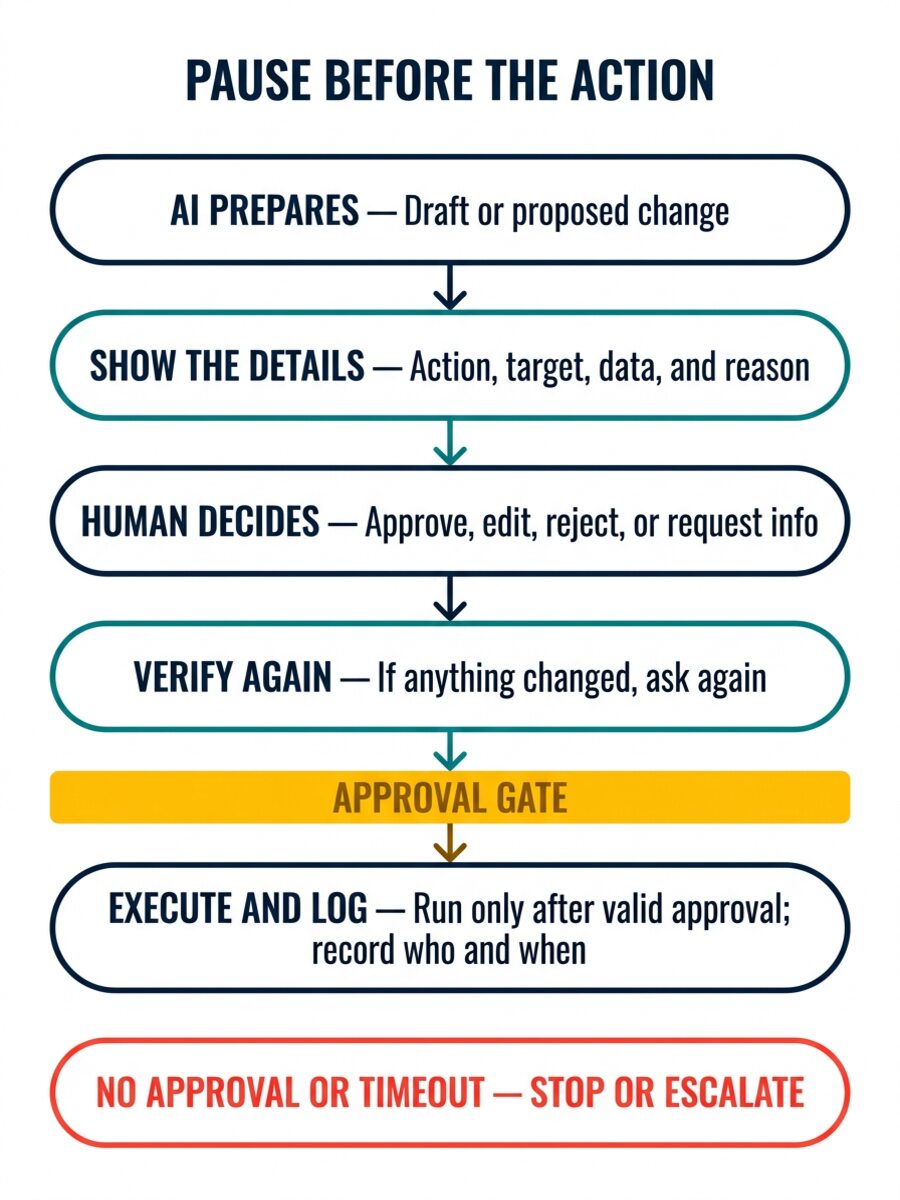
Start by naming the action that must wait: send a message, change a record, issue a refund, grant access, or publish content. Then build the workflow so the AI can prepare a proposal but cannot perform that action through another path. Give the reviewer the exact payload and target, show what data informed the recommendation, and make rejection a terminal or safely routed outcome.
- Bind approval to the proposal: if the amount, recipient, text, or record changes after approval, ask again.
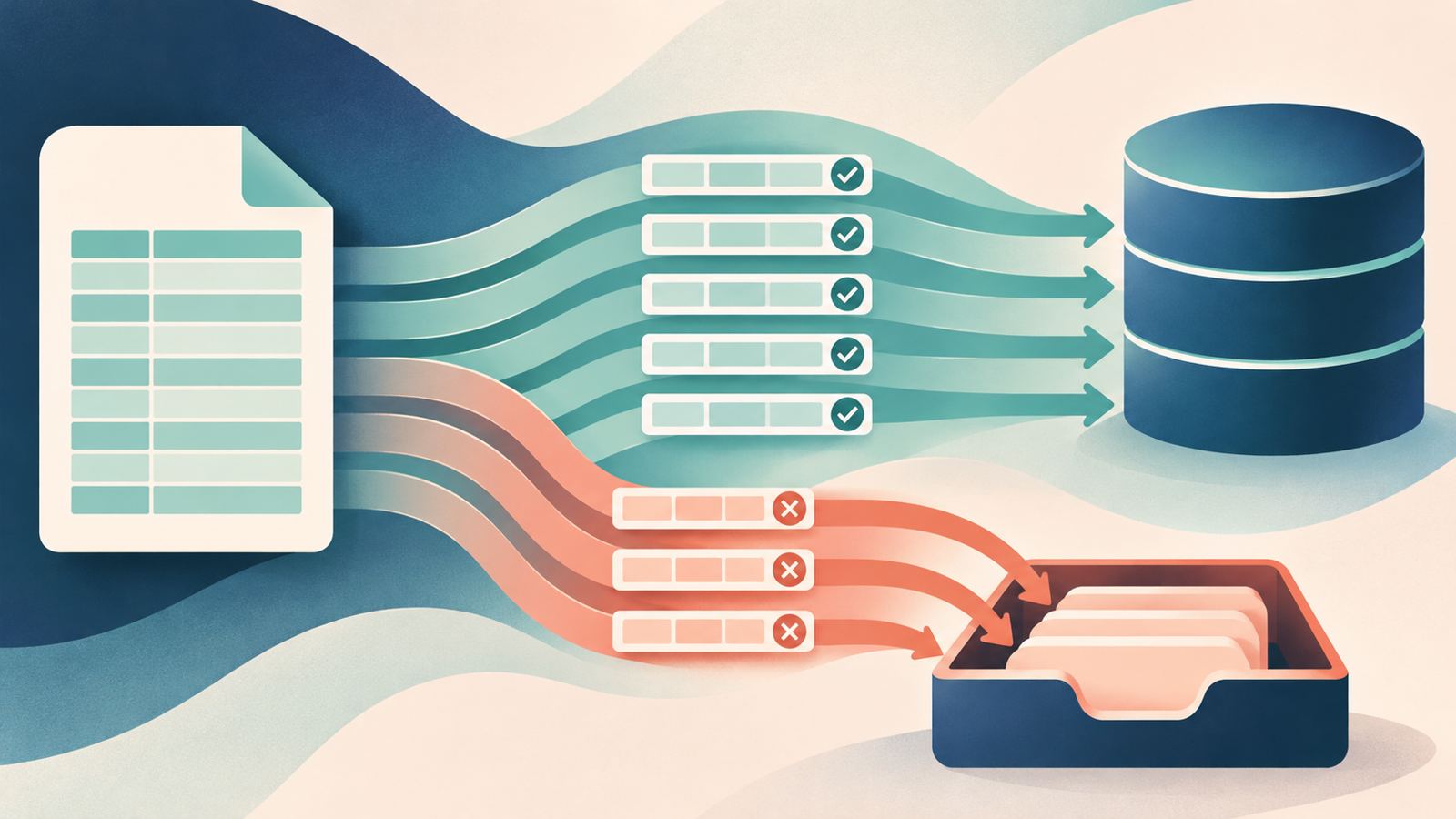
- Fail closed: a missing response, expired request, or unavailable approval service must not count as consent for a consequential action.
- Record the decision: keep who approved, what they saw, when they acted, and which version of the proposed action continued.
- Use risk-based review: reserve human time for irreversible, external, financial, privacy-sensitive, or high-impact actions. Routine read-only steps may not need a pause.
- Test reject, timeout, retry, and duplicate cases: a successful approval path does not show what happens when the process fails.
For a broader comparison of workflow platforms, see Editorialge’s business process automation software guide. Its overview of autonomous AI agents explains where agent behavior differs from a fixed workflow. Teams designing a safe handoff can also use the practical checklist in AI task failure handoff records.
Final Thoughts
No-code tools for human approval can keep an AI-assisted workflow from taking a consequential step too soon, but the label alone does not make a process safe. Zapier, Relay.app, Gumloop, Power Automate, n8n, Make, and Workato each offer a different balance of setup effort, workflow control, and enterprise fit. Choose the product that fits your current stack, then verify that the approval is tied to the exact action, rejection and timeout stop the run, and the decision leaves a useful record. For business actions with meaningful consequences, a well-designed gate matters more than the number of AI features in the platform.
Frequently asked questions
What are no-code tools for human approval?
They are visual workflow or AI-agent platforms that let a business pause an automated process so a person can approve, reject, edit, or supply information before the next action.
Does human approval make an AI workflow safe?
No. Approval helps only when the right action is actually blocked, the approver sees enough detail, permissions are limited, and rejection or timeout cannot bypass the control.
Which tool is easiest for a small team?
If the team already uses Zapier, its built-in review step may be the simplest start. Relay.app is another option when the process needs input, task assignment, or path selection. Check plan eligibility and reviewer access before building around either one.