

You arrive at iCloud’s sign-in page, but there is nothing to sign in with yet. The missing piece is an Apple Account—the login that gives you access to Apple’s services. You do not need to begin by buying storage or choosing a new email provider.
This guide explains the setup process, what happens afterward, and why a browser-only account can look different from iCloud on an iPhone. It is based on Apple’s published instructions; no account was created or authenticated to prepare it.
Before You Begin: Check Whether You Already Have an Account
An old Apple ID still counts. Apple renamed it Apple Account, so the name change does not require a new registration.
If you are unsure, check a device where you may already be signed in. On an iPhone or iPad, look under your name in Settings, then Sign-In & Security. On a Mac, check your name in System Settings and the same security section. You can also search your inbox for earlier Apple receipts or support messages. Apple’s account identification guide explains the checks.
This matters if your goal is recovering old photos: starting over with another account will not reconnect you to the account that holds them.
How to Create an iCloud Account in a Browser
The browser route is useful when you are starting on Windows or Android. Following Apple’s account creation instructions:
Step 1: Visit account.apple.com and select Create Your Apple Account.
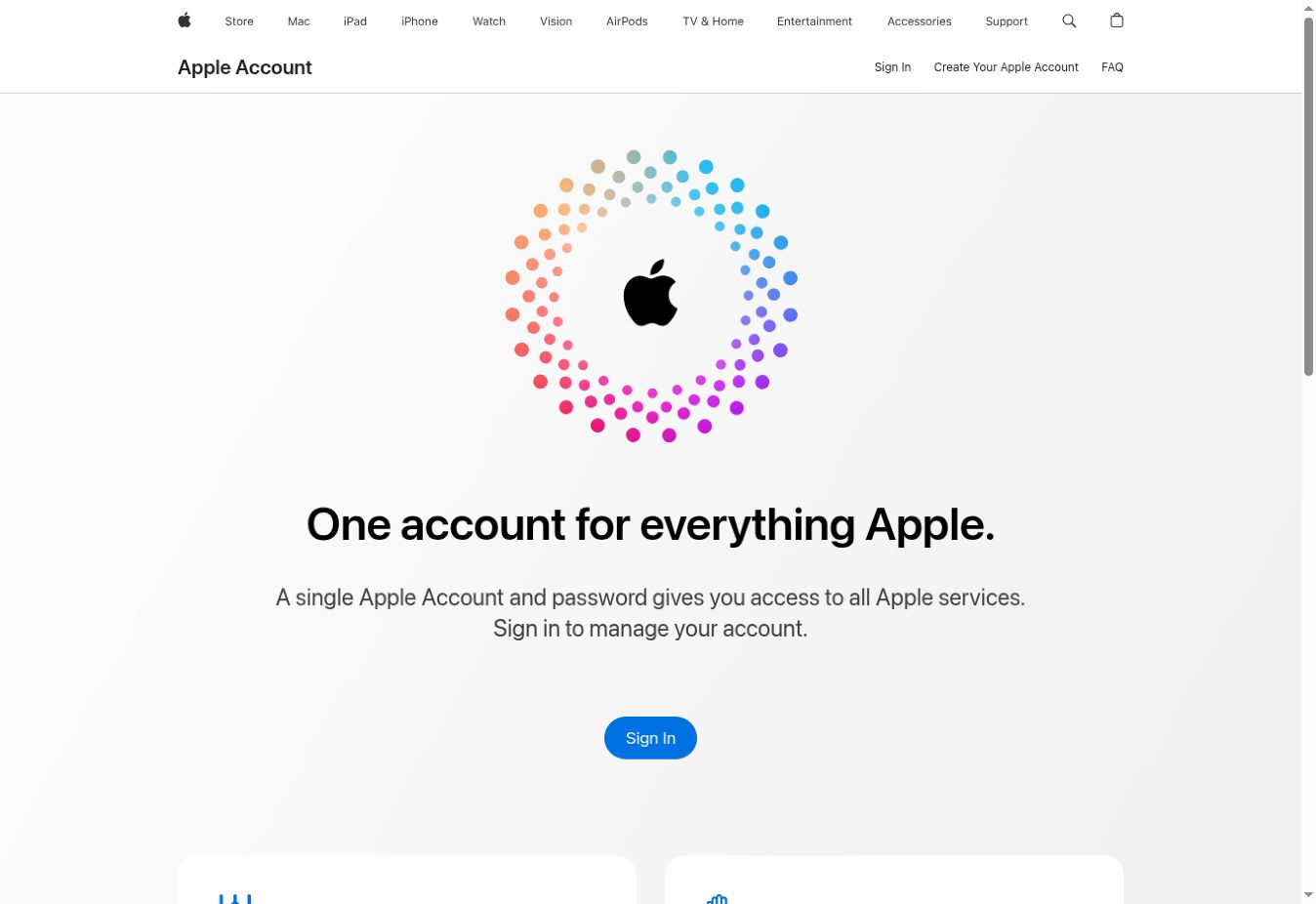
Step 2: Complete the requested personal details, country or region, and birthday. Provide an email address and choose a strong password.
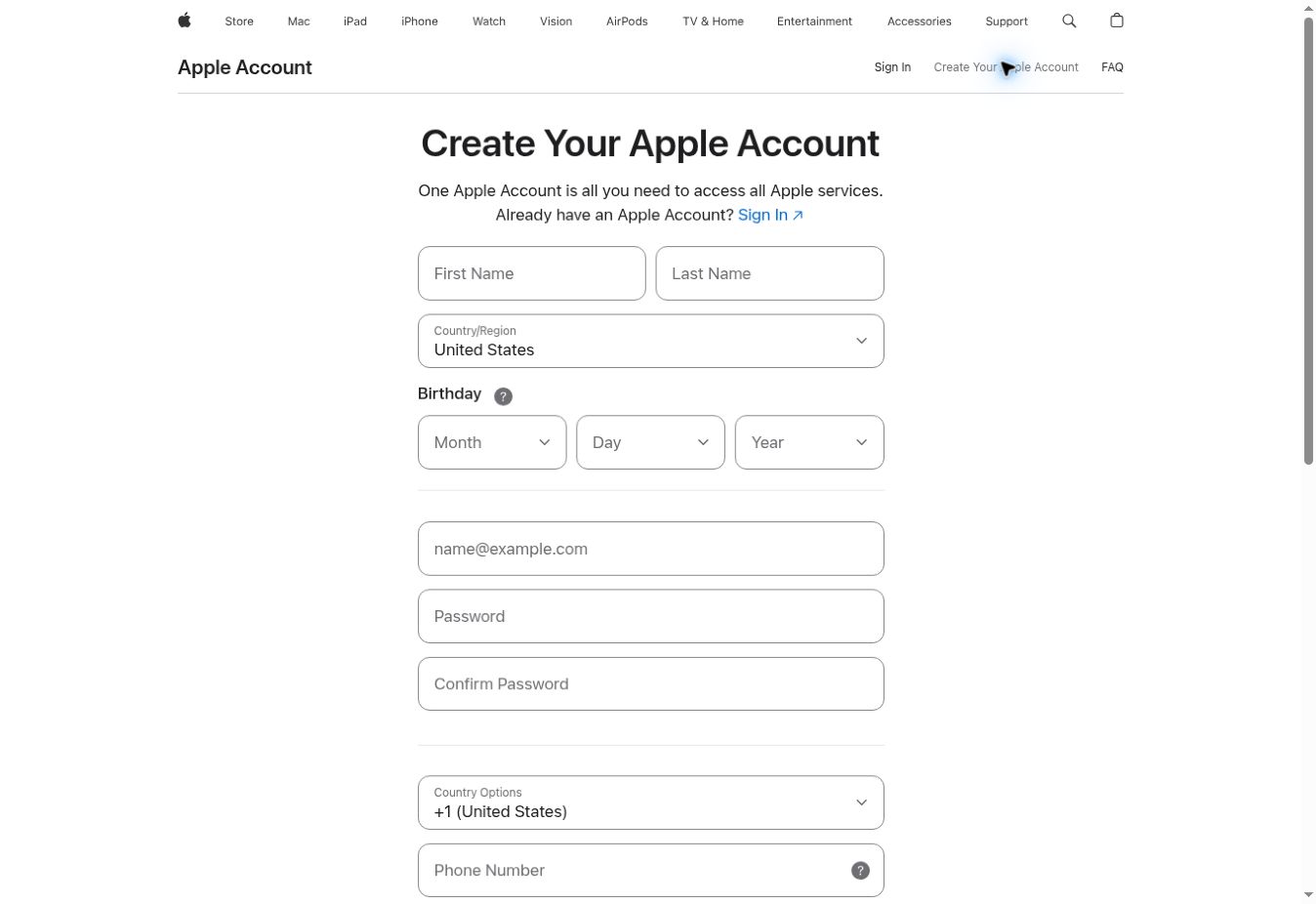
Step 3: Enter a phone number you can continue accessing.
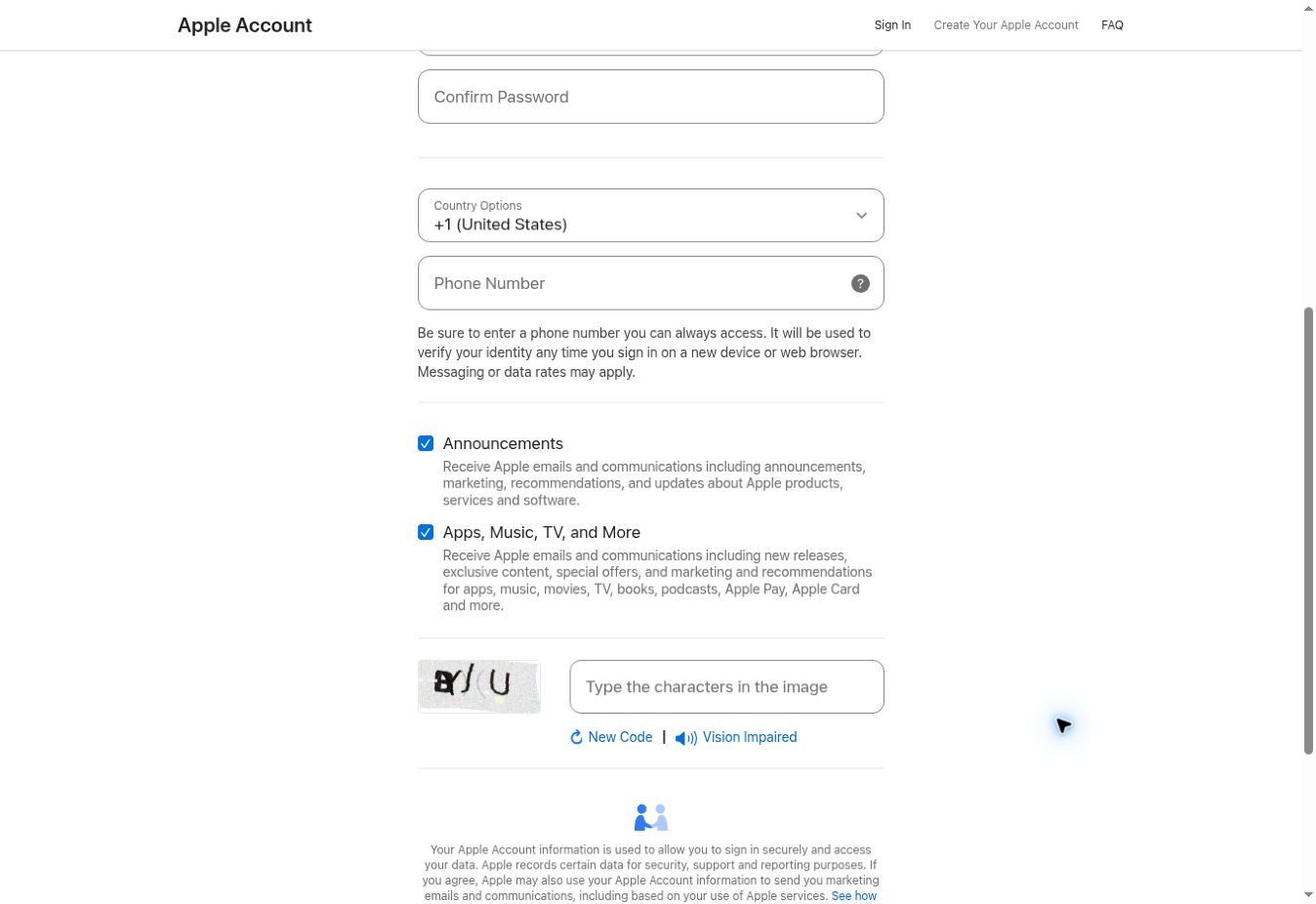
Step 4: Choose whether you want Apple’s optional updates, then continue.
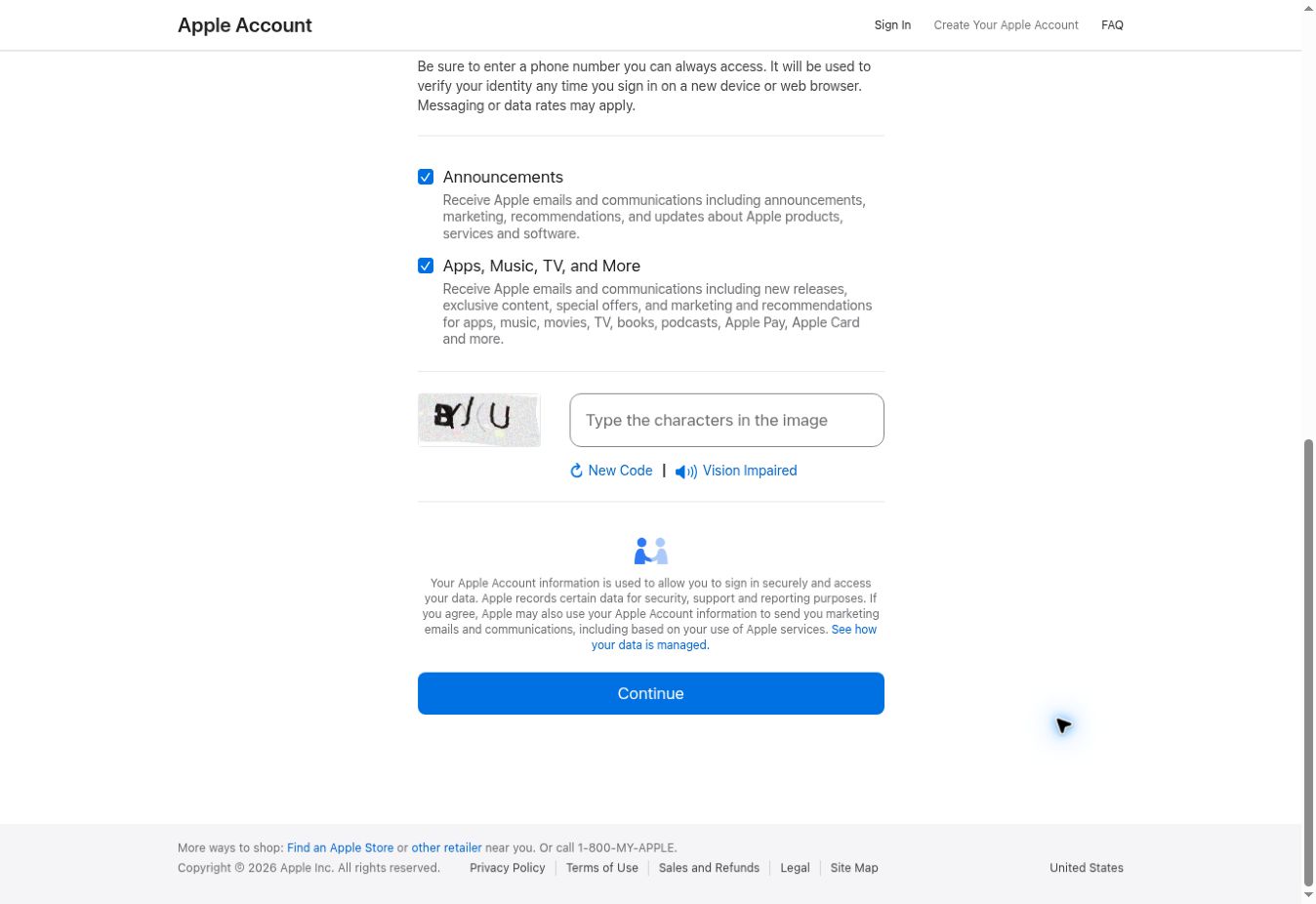
Step 5: Complete the email and phone verification prompts.
Step 6: Keep your email inbox and phone nearby before beginning. Enter verification information only into the Apple flow you started, and save the password securely.
Starting on an iPhone, iPad, or Mac Instead
During iPhone or iPad setup, choose Forgot password or don’t have an account?, and then Create a Free Apple Account. Follow the identity and verification prompts.
On a Mac, open System Settings, select Sign in, and choose Don’t Have an Account?. Complete the displayed registration steps. Menu wording can vary with software version.
How to Sign In to iCloud After Registration
Go to iCloud.com and select Sign In. Use the Apple Account you just registered and complete any Apple verification requests.
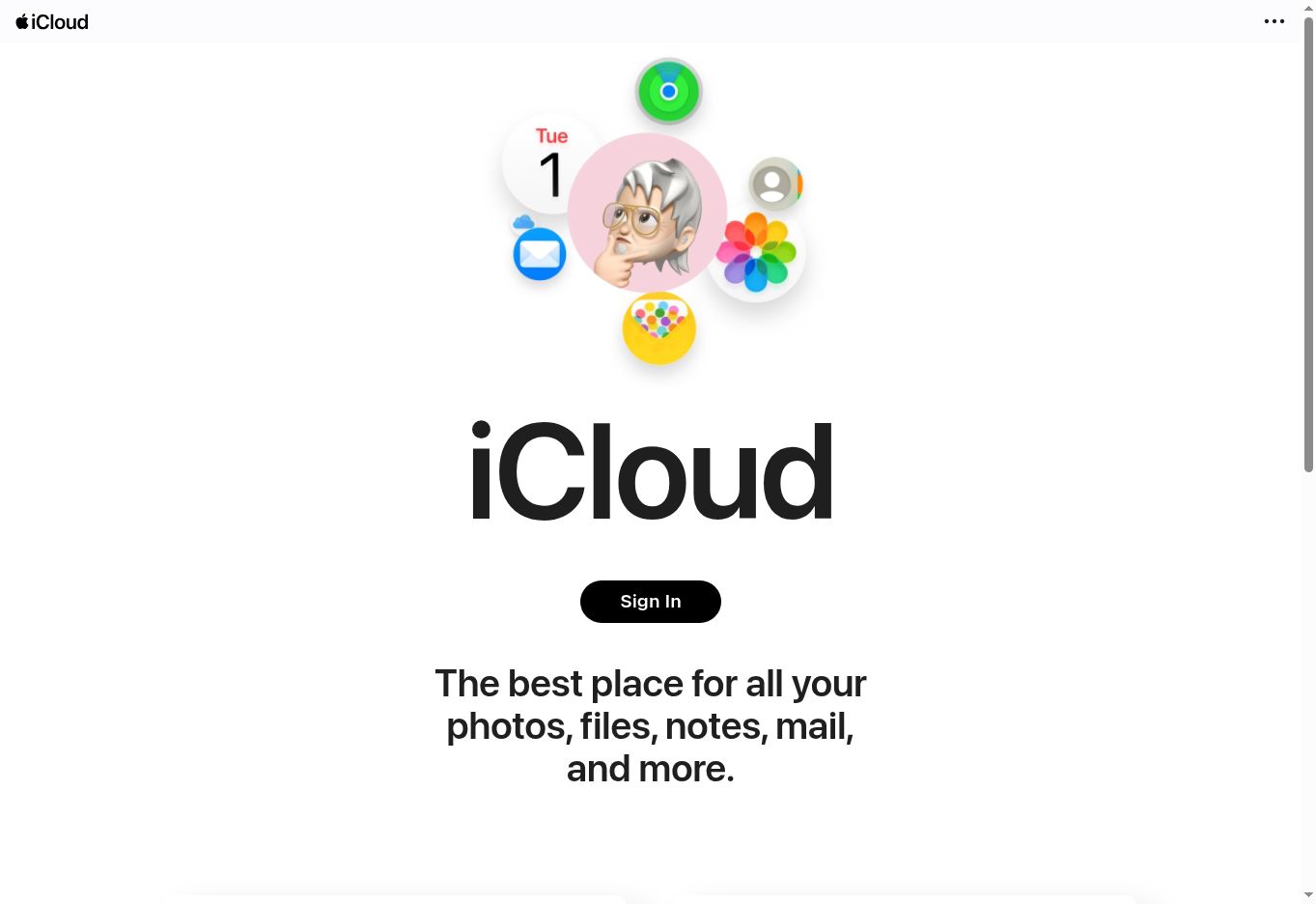
Treat the appearance of your account’s available apps as the useful checkpoint. Entering credentials alone does not establish that sign-in succeeded; an unfinished verification prompt still needs attention.
On a shared computer, decline options to remain signed in and sign out when finished. Do not leave your account open for the next person. Apple’s iCloud sign-in guide covers web access.
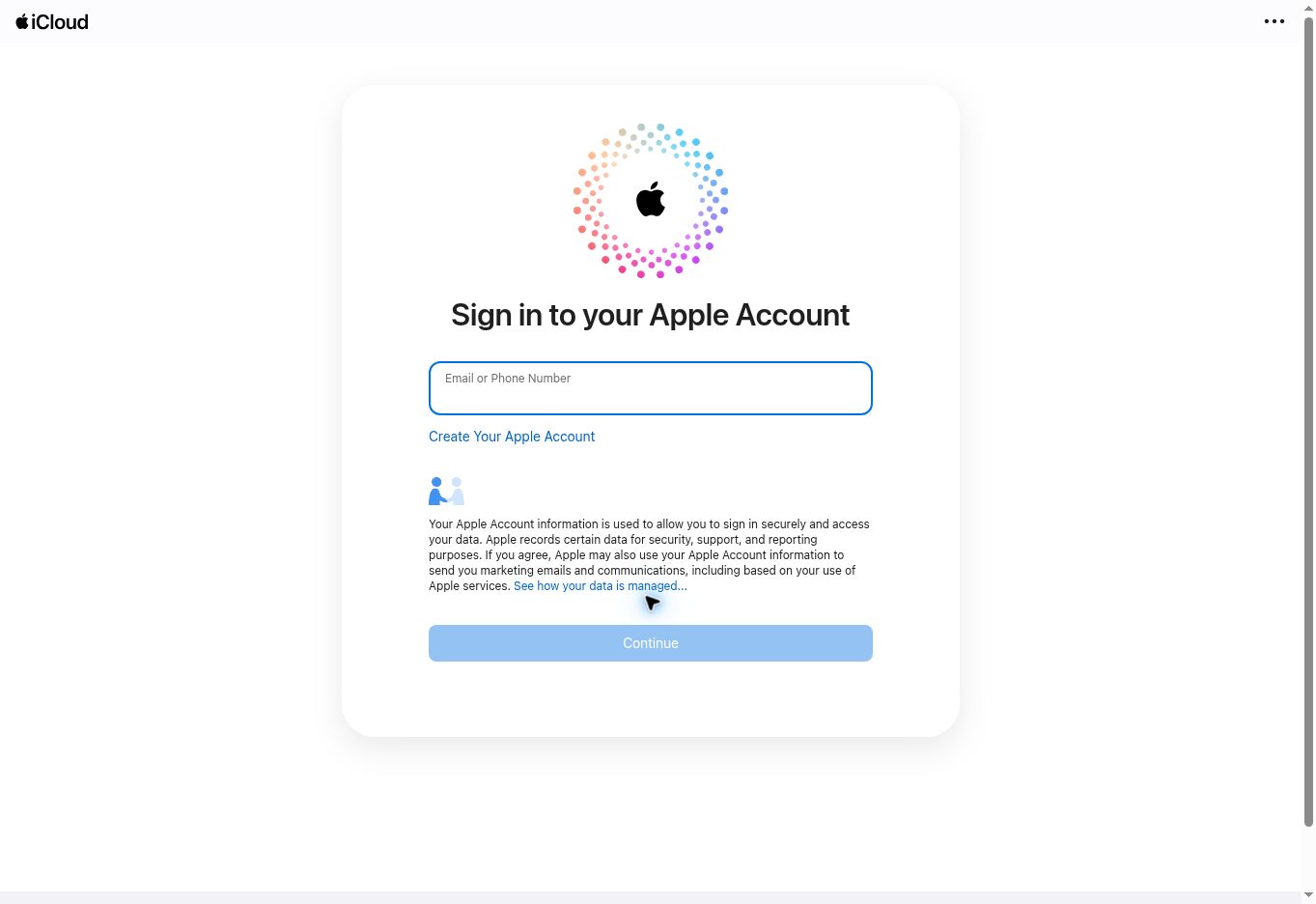
If this is a completely new account, do not expect a library of existing photos or documents to appear. Decide what you want to use first, rather than treating an empty dashboard as a failed registration.
Why a Web-Only Account Has Different Features
Creating a login on a computer does not automatically give you the same iCloud setup as signing in on an Apple device.
| Your setup | What Apple documents |
|---|---|
| Web-only iCloud access | 1 GB of free storage, with tools including Drive, Pages, Numbers, Keynote, Contacts, Notes, and Shared Albums |
| iCloud activated on a supported Apple device | The full set of iCloud features and 5 GB of free storage |
Apple’s web-only access guide says signing in to iCloud on an iPhone, iPad, Mac, or Apple Vision Pro enables the fuller experience. Feature availability can vary by region.
For example, someone who only wants to collaborate on a document may find browser access sufficient. Someone planning to use iCloud across an iPhone and Mac should finish setup on those devices. The decision depends on the work you want iCloud to do.
How to Get an @icloud.com Email Address
Your Apple Account sign-in address and an iCloud Mail address are separate setup choices. Registering with an existing email does not itself mean you have created an @icloud.com mailbox.
Apple’s iCloud Mail setup guide documents these routes:
- iPhone or iPad: Open Settings, select your name, open iCloud, then select iCloud Mail or Mail and follow the prompts.
- Mac: Open System Settings, select your name, then iCloud and Mail or iCloud Mail. Enable the service and follow the instructions.
- Web: Sign in at iCloud Mail. If Create Email Address appears, select it and follow the prompts. An inbox instead means an address already exists.
The web route depends on what your account offers; do not assume every web-only account will show Mail. Choose the address carefully. Apple’s guide says the primary iCloud Mail address cannot be renamed later, although email aliases are an option.
What to Do If Account Creation Fails
A registration error calls for troubleshooting, not repeated attempts with invented details. Apple’s account creation troubleshooting page suggests checking connectivity, updating software, and trying again later or through another supported method.
| Problem | Next step |
|---|---|
| Email addresses or phone numbers cannot be used | Check whether it already belongs to an Apple account. Recover that account if it is yours. |
| The account cannot be created at this time | Confirm your connection, update the relevant software, and try later. Contact Apple Support if the problem continues. |
| Verification has not completed | Check the email address and phone number you supplied and follow the options shown in the verification prompt. |
| You need an account for a child | Use Apple’s child-account process through Family Sharing rather than entering an adult birthday. |
Keep a note of the exact error message, but avoid sharing screenshots that expose verification codes or personal information.
What to Check Before You Start Using iCloud
Check that you can sign in, recognize the account identifier, and access the email and phone number attached to it. Then choose the apps you actually need.
Start with a harmless note or sample document. Confirm where it appears before relying on the account for important files. If your next goal is working between devices, see our guide to syncing tasks, notes, and calendars across devices.
Frequently Asked Questions (FAQs)
Can I use iCloud without an Apple Account?
You need an Apple Account to sign in to your own iCloud workspace. If you already have one, use it instead of registering again.
Do I need an iPhone to begin?
No. You can begin in a browser. The web-only feature and storage limits above are the important distinction.
Does a Gmail address become an iCloud email address?
No. Using an existing email as your login does not change that email address into an @icloud.com mailbox. Mail setup is a separate step.
Should I create another account if I forget my password?
Recover the existing account first, especially if you need its stored information. A new registration is not a shortcut to recovering old data.