
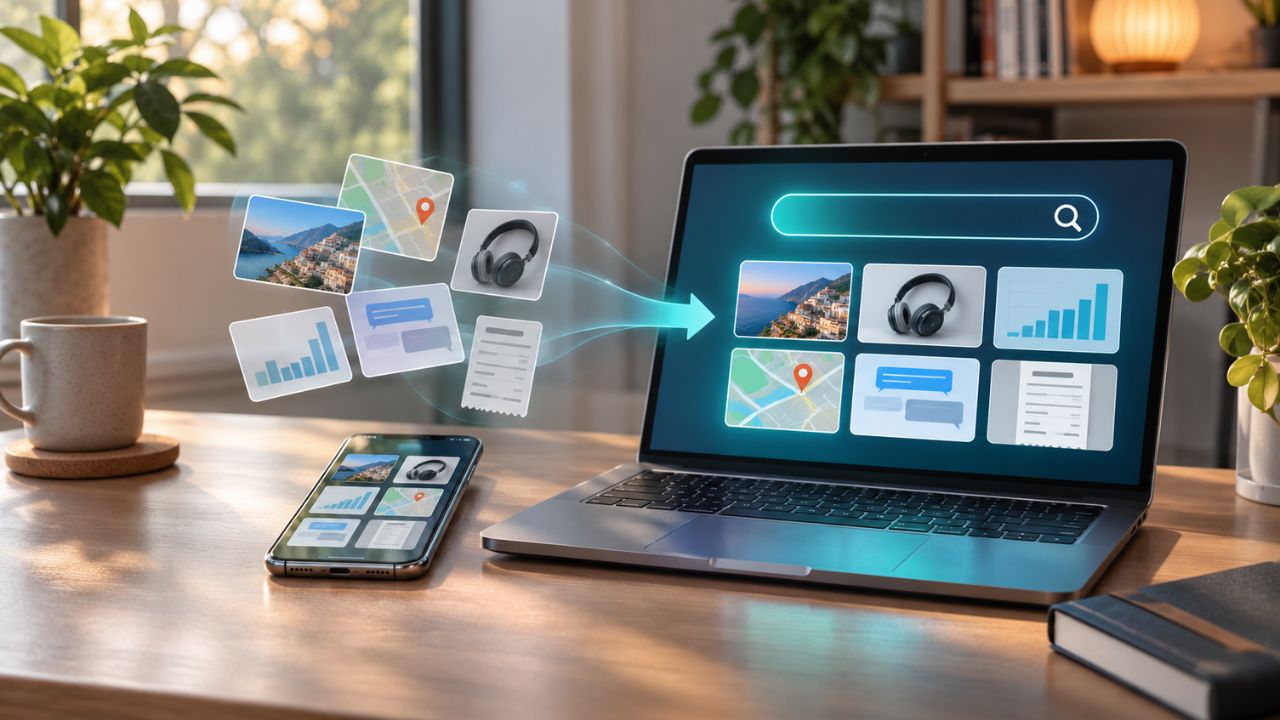
A screenshot is useful for about five minutes. After that, it often disappears into a camera roll filled with receipts, messages, product pages, maps, charts, and ideas saved for later. Searchable screenshot archive apps recover that lost value by helping you find an image without remembering its date or filename.
They solve the retrieval problem in different ways. Some recognize the words inside an image with optical character recognition, or OCR. Others use visual or semantic search to find a screenshot from a description such as “blue chair from a shopping site” or “invoice with the October total.” A few continuously capture what appears on a computer screen and turn it into a private, searchable timeline.
The right choice depends on where the screenshots come from, what they contain, and whether they can be stored in the cloud. This research-based comparison was checked against official product documentation on November 6, 2026. It is not a hands-on OCR benchmark, and features may vary by device, language, country, and subscription plan.
Searchable Screenshot Archive Apps at a Glance
| App | Platforms | How It Finds Screenshots | Best Fit | Main Limitation |
|---|---|---|---|---|
| Pixel Screenshots | Selected Pixel phones | Natural-language search, recognized text, AI summaries | Purpose-built mobile screenshot archive | Limited devices, languages, and markets |
| Google Photos | Android, iOS, web | Text, objects, people, places, and conversational search where available | Existing photo libraries | Cloud-based and not screenshot-first |
| Apple Photos | iPhone, iPad, macOS | Live Text and Spotlight search | Apple users who want a built-in option | Apple ecosystem and language limits |
| mymind | iOS, Android, macOS, web | OCR, image tags, themes, objects, and screenshot classification | Low-maintenance visual research | Advanced features depend on the plan |
| Evernote | Android, iOS, Windows, macOS, web | OCR, handwriting recognition, keywords, and semantic search | Screenshots that need notes and context | Can become another cluttered inbox |
| OneNote | Android, iOS, Windows, macOS, web | OCR and notebook search | Microsoft 365 users and structured notebooks | OCR indexing may take time |
| Dropbox | Android, iOS, Windows, macOS, web | File search, image-content search, and plan-dependent OCR | Folder-based archives | OCR is restricted to eligible paid plans |
| Keep It | iPhone, iPad, macOS | Background text recognition and indexed file search | Apple-based research libraries | No Android or Windows version |
| screenpipe | Windows, macOS, Linux | Accessibility text, OCR, app filters, and timeline search | Searchable desktop activity history | Requires careful privacy and storage management |
| Windows Recall | Windows 11 Copilot+ PCs | OCR, semantic search, and screen snapshots | Returning to content seen on a PC | Preview feature with strict hardware requirements |
1. Pixel Screenshots: A Purpose-Built Screenshot Archive
Pixel Screenshots is the closest match to the title. It indexes screenshots stored on a supported Pixel phone, generates titles and summaries, suggests actions, and supports natural-language search. Notes, collections, and reminders help turn a saved image into something actionable.
Availability is its main limitation. As of November 2026, Google’s Pixel Screenshots support page lists selected Pixel models, countries, and languages. Deleting the original image from the phone’s file system also removes it from Pixel Screenshots. The app is an intelligent view of the screenshot library, not an independent backup.
Choose it if: You have an eligible Pixel and want a dedicated screenshot app with minimal setup.

2. Google Photos: The Easiest Starting Point for Many Phones
Google Photos can make an existing screenshot collection searchable without moving every file into another service. Classic search can find people, objects, places, documents, filenames, captions, and recognized text. Quotation marks help narrow a query to an exact phrase, while the Screenshots collection separates captures from camera photos.
Ask Photos adds conversational search for eligible accounts that opt in, but Google describes it as experimental. Exact keywords remain safer for order numbers, product names, and short phrases.
Check which device folders are backed up before assuming every screenshot is in the cloud. If the library is crowded, these digital decluttering tools explain the difference between cleaning a device and reducing cloud storage.
Choose it if: Google Photos already holds your images and you want the lowest-friction option.
3. Apple Photos: Built-In Search Through Spotlight
Apple users may not need another screenshot organizer. Photos collects screenshots as a media type, Live Text recognizes words inside supported images, and Spotlight can use that text to lead back to a picture. Live Text can also copy a tracking number, address, or event title into Notes or Reminders.
The limitation is structure. Photos can retrieve an image, but it does not turn a large collection into a carefully labeled knowledge base. Live Text support also varies by device, language, and region. Screenshots that need project notes or tags fit better in Keep It, Evernote, or mymind.
Choose it if: You use Apple devices and need occasional retrieval rather than a separate research system.
4. mymind: Visual Search Without Heavy Manual Filing
mymind is built for people who save images, links, notes, and screenshots without wanting a deep folder hierarchy. It uses OCR and image analysis to identify text, objects, colors, and themes. Its screenshot card type separates captures from other saved images, while Smart Spaces can group related material around a search or tag.
Automated tags are useful but imperfect, and the company has described screenshot classification as a beta feature. Advanced image-search functions can also depend on the subscription tier. Add a short note when the reason for saving an image is not obvious from the pixels alone.
Choose it if: You want visual discovery and light organization across mixed research material.
5. Evernote: Screenshots With Notes, Tags, and Context
Evernote treats a screenshot as part of a note rather than an isolated image. Search can recognize typed and handwritten text inside attached images and can also cover PDFs, documents, tags, notebook names, and semantic matches where available.
That context is its advantage. A chart can sit beside its source URL and an explanation. A product screenshot can carry a price-check date. Still, sending every temporary capture into one notebook creates a searchable pile, not a useful archive. Use a small set of notebooks or tags.
For receipts or forms, a scanner may create a cleaner file. This comparison of document scanner apps with OCR explains the difference between searchable PDFs and editable documents.
Choose it if: Screenshots need to stay connected to notes, links, and project records.
6. OneNote: A Practical Choice Inside the Microsoft Ecosystem
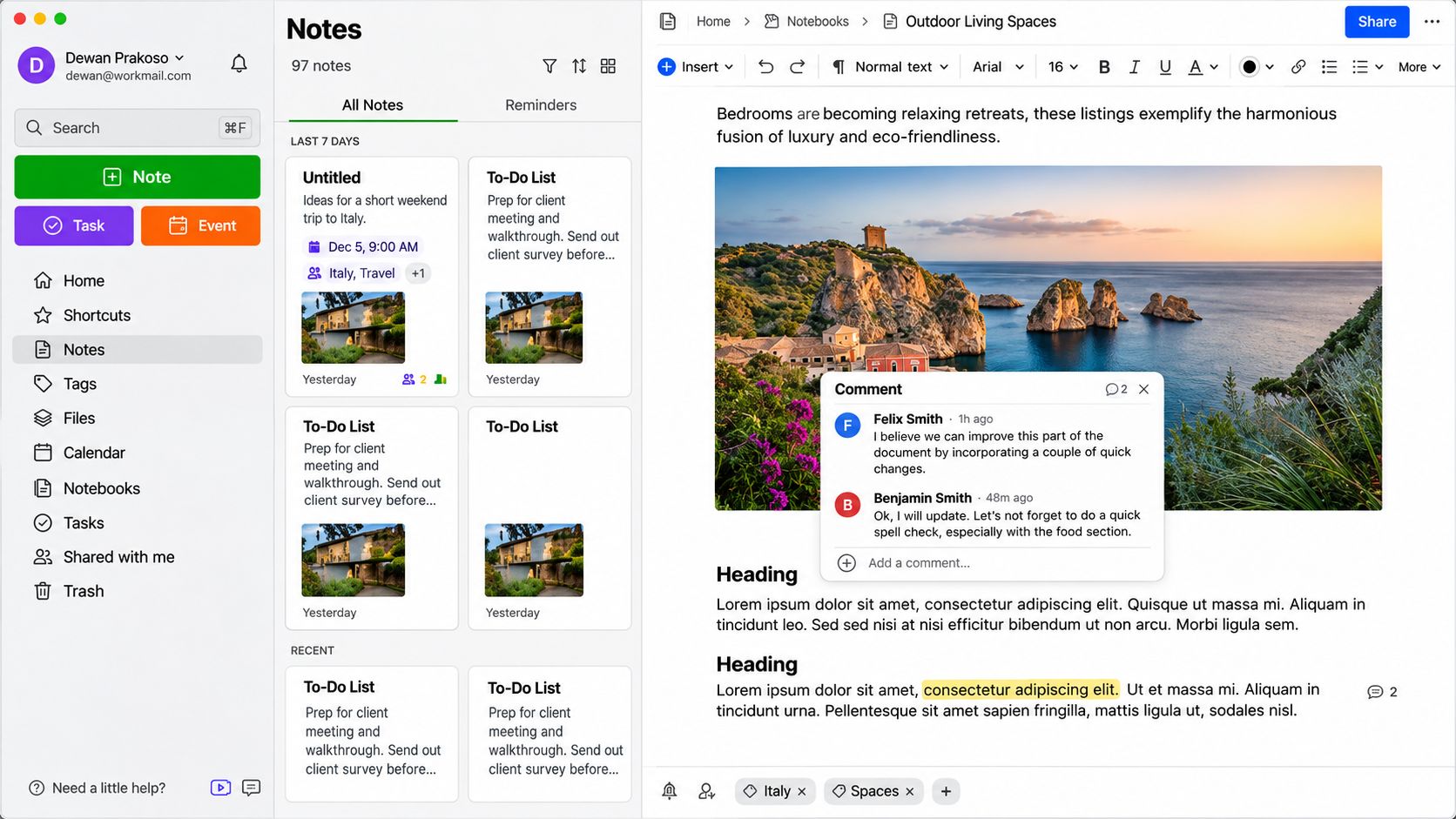
OneNote stores screenshots on notebook pages and uses OCR to recognize their text. With picture text recognition enabled, words inside an image can become findable through notebook search or be copied into another Microsoft app.
Its notebook, section, and page structure works well for classes, meetings, client research, and product comparisons. Recognition is not always immediate. Microsoft says some images may require 24 to 48 hours, and results depend on text clarity. OneNote is better for an organized reference library than instant retrieval.
Choose it if: Your existing work already lives in Microsoft 365 notebooks.
7. Dropbox: Searchable Screenshots in a Familiar Folder System
Dropbox suits people who want screenshots to remain ordinary files in familiar folders. Search can inspect filenames, metadata, and, on eligible plans, image contents. OCR for text inside images is an opt-in feature on specified Professional and business plans, so free users should not assume that every word in a PNG will be indexed.
The folder model is easier to export than a closed note database. It still needs a separate recovery plan. The distinction between cloud sync and backup matters if one deletion or account problem could remove the only useful copy.
Choose it if: You value conventional files, cross-device access, and folder-based organization.
8. Keep It: A Focused Apple Research Library
Keep It is a macOS, iPhone, and iPad research library for images, PDFs, web pages, notes, and mail messages. It recognizes text in the background and indexes it without converting the original screenshot into another file. Items can be placed in folders and bundles, labeled, linked, and included in saved searches.
Large, high-contrast text is easier to recognize than small type on a busy interface. OCR data can sync through iCloud when enabled, but the app remains an Apple-only commitment.
Choose it if: You want a structured research archive and expect to remain within Apple’s ecosystem.
9. screenpipe: A Searchable History of Desktop Activity
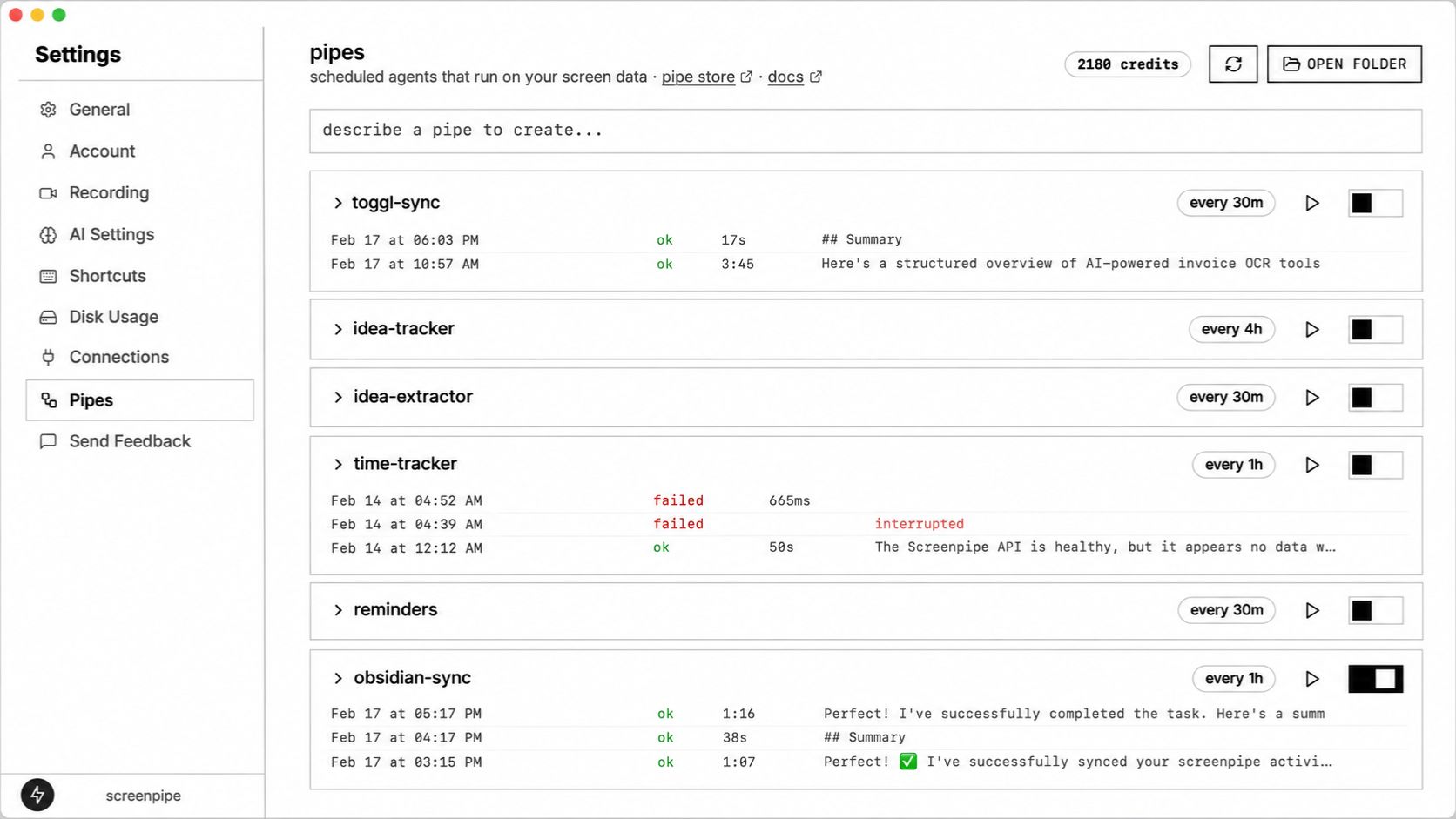
screenpipe records desktop activity and builds a searchable local history on Windows, macOS, and Linux. It extracts text from accessibility data when available and uses OCR for visual-only content. Search can be filtered by keyword, app, window, browser address, and time range.
This can recover a page or code snippet that was seen but never saved. It can also capture private messages, client material, dashboards, and account details. Although its core searchable database is local, users still need to configure ignored windows, optional cloud connections, retention, disk use, and device access.
Choose it if: You need local screen history and are prepared to manage exclusions carefully.
10. Windows Recall: Searchable Snapshots on Copilot+ PCs
Windows Recall periodically saves screen snapshots on a compatible Copilot+ PC after the user opts in. OCR and semantic search can find text, images, links, apps, and documents, then return the user to that point in the visual timeline.
Microsoft says processing and storage are local, access requires Windows Hello, and users can pause capture, delete snapshots, or filter apps and websites. Sensitive-information filtering is enabled by default, but it cannot guarantee that every password, financial detail, or private message will be excluded.
As of November 2026, Recall remains a preview feature with strict Windows 11 hardware requirements. It is searchable activity history, not a portable image archive. Windows users who prefer selective capture can build screenshot workflows with ShareX and send only useful images to their chosen archive.
Choose it if: You own a Copilot+ PC and want to rediscover content without manually saving every screen.
Common Questions About Searchable Screenshot Archive Apps
Can an iPhone search for text inside screenshots?
Yes, on supported devices and languages. Live Text recognizes words inside images, and Spotlight can use text from the photo library in search results. If a phrase is not found, try a shorter distinctive word or copy the text into a note with a clear title.
Can Google Photos find words shown in a screenshot?
Google Photos can search text recognized within photos. Quotation marks can help with an exact phrase. Results still depend on image quality, language support, account settings, and whether the screenshot was backed up to the library.
Are Searchable Screenshot Archive Apps Private?
Privacy varies by app and configuration. Keep It, screenpipe, and Windows Recall emphasize local processing or storage for key functions, while services such as Google Photos, Dropbox, Evernote, and mymind rely more heavily on accounts and cloud infrastructure. Local storage also needs device encryption, access controls, and backups.
Is OCR Reliable Enough for Receipts and Account Numbers?
OCR is useful for finding an image, but it should not be trusted to reproduce every digit correctly. Small type, low contrast, compression, unusual fonts, and overlapping interface elements can cause errors. Verify totals, dates, reference numbers, and legal or financial information against the original image or document.
Should Every Screenshot Go Into a Personal Archive?
No. Archive screenshots that have a continuing purpose. Delete temporary codes, duplicate captures, expired offers, and images kept only as short reminders. Selective saving improves search quality and reduces privacy risk.
Make Every Saved Screenshot Findable
The best choice among these searchable screenshot archive apps is the one that fits an existing habit. Google Photos and Apple Photos offer the lowest-friction start. Pixel Screenshots and mymind add stronger screenshot intelligence. Evernote, OneNote, Dropbox, and Keep It provide more structure. Screenpipe and Windows Recall solve the broader problem of recovering things seen on a computer.
Start with a small test archive, search it the way you naturally remember information, and inspect the privacy settings before importing years of captures. A screenshot becomes useful again when it can be found, understood, and exported when needed.