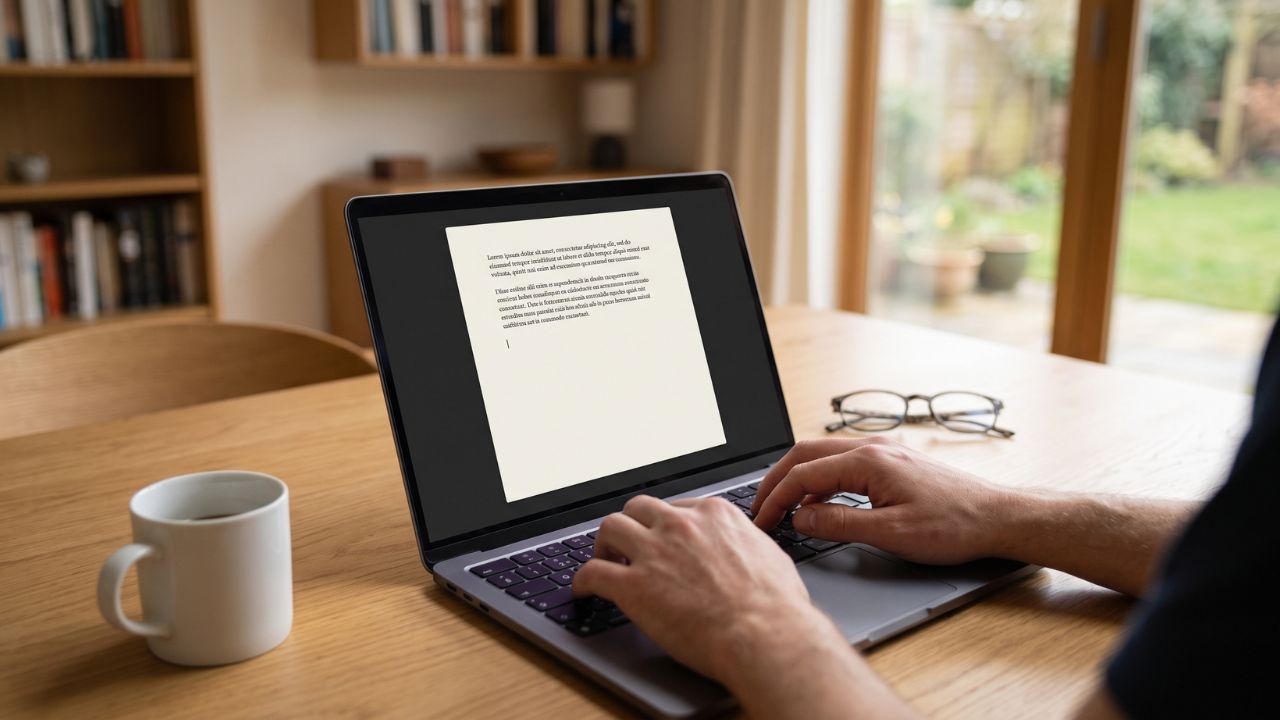
If you have ever sat down to write a chapter and suddenly found yourself two hours deep into a Wikipedia rabbit hole about the history of cheese, your word processor is actively working against you.
Modern writing software is a bloated mess. Microsoft Word and Google Docs are packed with formatting ribbons, comment sidebars, and email notifications that practically beg you to look away from the blank page. For those of us with ADHD, or just a heavy tendency to procrastinate, writing on a standard computer feels like trying to meditate in a casino.
The cure is a distraction-free writing app. These tools operate on a ruthless philosophy: strip away the interface, kill the noise, and leave you entirely alone with your words.
I’ve tested the major players to see which ones actually help you hit a flow state and which ones just add more friction. Here are the ten best distraction-free writing apps to keep you relentlessly focused.
1. iA Writer: The Minimalist Standard
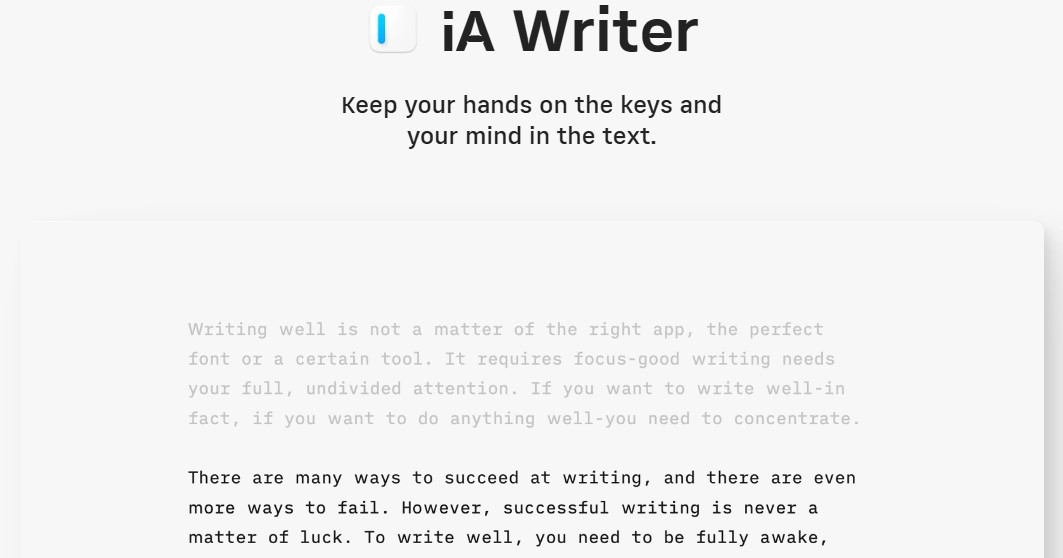
iA Writer didn’t just adopt the minimalist aesthetic; it practically invented it. Opening this app feels like stepping into a sterile, quiet room. There are no formatting buttons. You write in standard Markdown, and the app’s legendary “Focus Mode” grays out everything on your screen except the exact sentence or paragraph you are currently typing.
The real-world feel: It forces you to keep moving forward. Because the surrounding text fades away, you physically cannot obsess over the paragraph you just wrote. You have to write the next one.
What I loved: The typography is objectively beautiful. It makes even a messy first draft look like a published manuscript.
Where it falls short: The folder management is a bit basic. If you are building a massive fantasy bible with hundreds of interconnected notes, you might outgrow it.
Pricing: Around $50 one-time purchase for Mac/Windows, slightly less for mobile platforms.
2. Ulysses: The Apple Power User’s Dream
If iA Writer is a quiet room, Ulysses is a beautifully organized modern office. It gives you a pristine, distraction-free writing canvas, but behind the scenes, it houses a powerhouse of organizational tools. You can set daily word count goals (with a satisfying visual ring that fills up as you type), stitch multiple scenes together, and export directly to standard manuscript formats.
The real-world feel: This is the holy grail for iPad and Mac users writing long-form projects. The iCloud sync is so fast that you can stop typing on your MacBook and immediately pick up the exact sentence on your iPhone while standing in line for coffee.
What I loved: The goal-tracking feature is incredibly motivating for NaNoWriMo or thesis deadlines.
Where it falls short: It is strictly locked to the Apple ecosystem. PC and Android users are entirely out of luck.
Pricing: Subscription-based at $39.99 per year.
3. Cold Turkey Writer: The Unforgiving Enforcer
Sometimes, aesthetic minimalism isn’t enough. Sometimes, your willpower is zero, and you need a software bouncer. Cold Turkey Writer turns your computer into a glorified 1990s typewriter. You set a goal (e.g., 1,000 words or 60 minutes). Once you hit “Start,” the app locks you out of your entire operating system. You cannot open a browser. You cannot check Spotify. You cannot force-quit the app. You literally have to write your way out.
The real-world feel: It induces a mild panic for the first five minutes, followed by the most productive hour of your week.
What I loved: It solves internet addiction with brute force. It is the ultimate cure for writer’s block.
Where it falls short: If you genuinely need to research a fact mid-sentence, you are out of luck. You have to leave a placeholder (like “TK”) and keep typing.
Pricing: Free basic version, or roughly $10 for a lifetime Pro license.
4. JustWrite: The Anti-Editing Lockbox
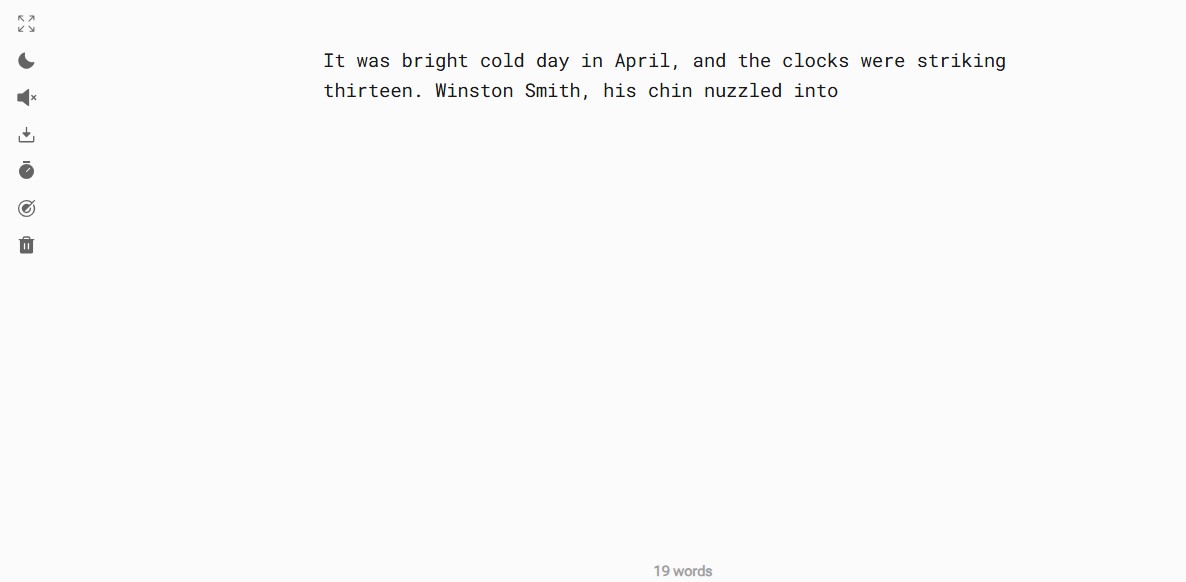
Many of us don’t just get distracted by the internet; we get distracted by our own bad sentences. We write ten words, delete eight, and spend an hour perfecting a single paragraph. JustWrite is built around a terrifying but brilliant concept: “forward-only” writing. Depending on the version you use, it disables your backspace key and editing tools entirely. You literally cannot delete or fix what you just typed until the session is over.
The real-world feel: It is incredibly uncomfortable for the first ten minutes. You will make a typo and stare at it in agony. But once you let go of perfectionism, your word count will explode.
What I loved: It violently breaks the habit of “editing while drafting,” which is the number one bottleneck for over-thinkers.
Where it falls short: Your final export will be a chaotic, typo-ridden mess that requires heavy revision later.
Pricing: Ranges from $4.99 (for the cross-platform desktop version) to $29 (for the hardcore macOS kiosk-mode version).
5. FocusWriter: Immersive and Gamified
FocusWriter looks a bit different than the stark white apps on this list. It hides all the menus at the edges of the screen (they only appear when you mouse over them), but it allows you to deeply customize your background. Want to write to the sound of a clacking mechanical typewriter while looking at a rainy forest background? This is your app.
The real-world feel: It feels remarkably cozy. The visual momentum of the daily goal trackers at the bottom of the screen gives you a little dopamine hit every time you cross a threshold.
What I loved: The customizable typewriter sound effects. It sounds silly, but the auditory feedback actually creates a rhythm that keeps your fingers moving.
Where it falls short: The interface menus, when you do reveal them, look a bit dated compared to slick modern apps.
Pricing: Free (Donationware for Windows/Linux).
6. Typora: Seamless WYSIWYG Markdown
Most Markdown editors have a major flaw: they require a split screen. You type your code on the left, and a preview of your formatted text sits on the right. Typora fixes this. As soon as you finish typing a Markdown command, Typora instantly renders it on the page. The coding symbols vanish, leaving behind a perfectly clean, continuous canvas.
The real-world feel: It is incredibly fluid. You get the speed of keeping your hands on the keyboard without ever having to look at ugly coding brackets.
What I loved: The “Focus Mode” combined with the “Typewriter Mode” (which keeps your active line dead-center on the screen) makes for a flawless drafting environment.
Where it falls short: It’s purely an editor, not a project manager. Managing a 40-chapter novel through your computer’s native file explorer can get messy.
Pricing: $14.99 one-time payment (available for Mac, Windows, Linux).
7. Calmly Writer: Cloud-Based Zen
Calmly Writer strips writing down to the absolute bare minimum. When you open it, you are greeted with a stark white (or dark) page and a single, tiny menu icon in the corner. Formatting options only appear as a subtle pop-up when you highlight text.
The real-world feel: It is the digital equivalent of a blank sheet of paper. It is incredibly lightweight and launches instantly.
What I loved: Because it runs beautifully in a browser and saves to Google Drive, it is arguably the best distraction-free app for Chromebook users or people constantly switching computers.
Where it falls short: If you rely heavily on the browser version, a sudden internet outage can interrupt your cloud-saving peace of mind (though offline mode does work).
Pricing: Free on the web, with cheap one-time desktop apps available.
8. ZenPen: Zero-Install Web Sprints
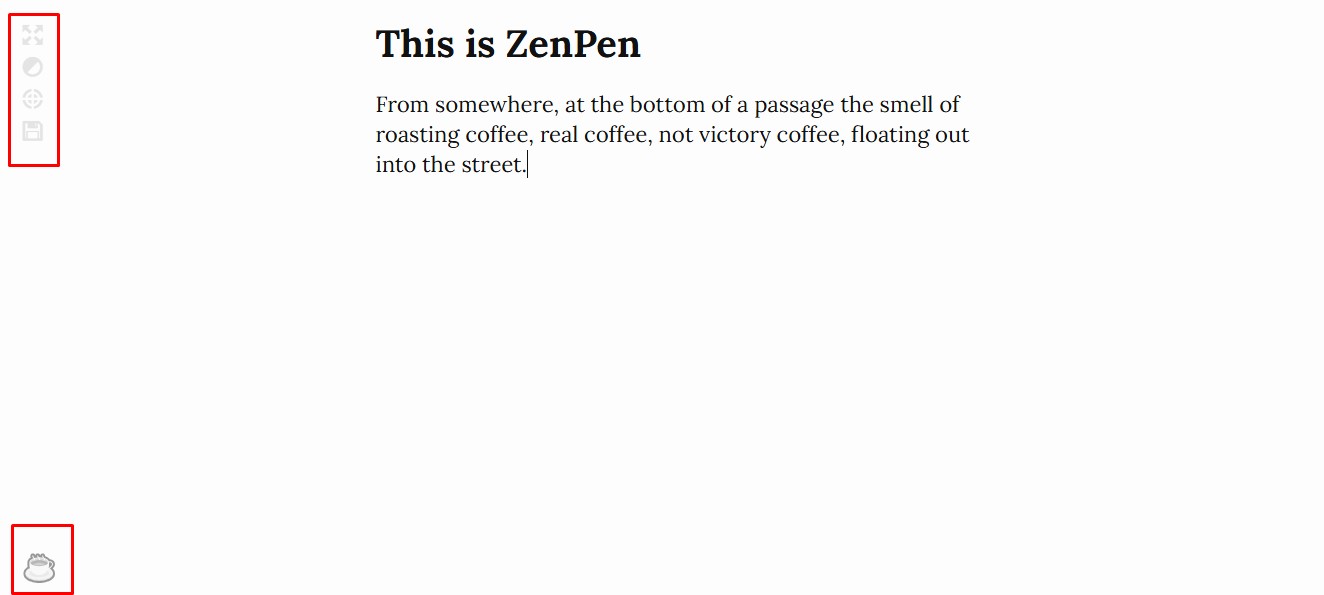
Imagine you are at a library computer, or using a friend’s laptop, and an idea strikes. You don’t have time to download software or log into an account. You just go to the ZenPen website, delete the placeholder text, click the full-screen button, and start typing.
The real-world feel: Fast, disposable, and fiercely focused.
What I loved: The barrier to entry is literally zero. It saves your text locally in your browser cache as you type.
Where it falls short: It relies entirely on your browser cache. If you accidentally clear your web history before copying your text to a permanent document, your brilliant draft is gone forever.
Pricing: Completely free.
9. Byword: Direct to Publishing
Byword is an old-school staple for Mac and iOS users. It offers a beautiful, simplified environment for writing in standard Markdown, but its superpower is what happens after you finish drafting. You can publish directly from the Byword app to WordPress, Medium, Blogger, and Tumblr.
The real-world feel: It feels incredibly efficient for bloggers. It removes the step of copy-pasting your draft into a clunky web CMS, which is usually exactly when the internet distracts you.
What I loved: The publishing integration works flawlessly and respects your Markdown formatting perfectly.
Where it falls short: The app hasn’t seen a massive feature update in years. It does what it does perfectly, but don’t expect cutting-edge AI integrations.
Pricing: Around $6 one-time payment.
10. Writemonkey: Keyboard-Centric Drafting
Designed specifically for Windows (with Mac support available), Writemonkey is a heavily stripped-down, text-only environment built for purists. It relies heavily on keyboard shortcuts and features a unique “jump mask” and structural index sidebar.
The real-world feel: It feels a bit like hacking the mainframe in a 90s movie. You never have to touch your mouse.
What I loved: The structural index allows you to navigate massive, sprawling documents (like a thesis) without ever opening a cluttered folder menu or breaking your visual focus.
Where it falls short: The learning curve is steep. You have to memorize a lot of shortcuts to get the most out of it.
Pricing: Free base version, premium features available via donation.
11. Hemingway App: Real-Time Polish
Hemingway is the odd one out on this list. While the other apps want you to write your first draft as fast as possible, Hemingway wants you to edit. It gives you a clean interface, but actively highlights overly complex sentences, passive voice, and weak adverbs in neon colors as you type.
The real-world feel: It feels like having a strict, slightly impatient editor peering over your shoulder.
What I loved: It forces you to write bold, clear, punchy prose. It is unmatched for tightening up messy blog posts or articles.
Where it falls short: Do not use this for a first draft. The constant colorful highlighting of your “mistakes” will completely destroy your creative flow. Save it for the second draft.
Pricing: Free on the web, around $20 for the desktop app.
Reclaiming Your Attention
Finding the right writing app is less about features and more about figuring out what kind of procrastinator you are.
If you just need a quiet aesthetic to feel like a professional, iA Writer or Ulysses are well worth the money. If your ADHD requires you to see formatting happen instantly, get Typora. But if you know, deep down, that you simply cannot be trusted with a Wi-Fi connection, download Cold Turkey Writer and lock yourself in.
Your brilliant ideas deserve better than competing with a browser tab. Pick your weapon, go full-screen, and get to work.
Frequently Asked Questions About Distraction-Free Writing Apps
1. Do distraction-free writing apps actually work for ADHD?
Absolutely. Writers with ADHD often struggle with “visual noise” and task-switching. By removing toolbars and locking the software into full-screen mode, these apps eliminate the visual triggers that tell your brain to click away. When the only thing on the screen is a blinking cursor, your brain is forced to hyper-focus on the task at hand.
2. Are Markdown editors hard for non-techy writers to learn?
Not at all. “Markdown” sounds like coding, but it’s just using standard keyboard keys to format. For instance, putting asterisks around a word makes it bold. It takes roughly five minutes to memorize the basics. Once you do, you’ll realize how much time you used to waste reaching for your mouse just to hit the italics button.
3. What’s the difference between a writing app and a website blocker?
A distraction-free writing app (like iA Writer) gives you a clean, beautiful interface, but relies on the honor system—you can still minimize the window to check Reddit. A website blocker (or a hybrid like Cold Turkey Writer) actively hacks your computer’s permissions to physically prevent you from opening a browser until you finish your work.
4. Can I use these minimalist apps for massive projects like a novel?
It depends on the app. Ulysses is widely considered one of the best novel-writing apps on the market because it hides a massive folder management system behind a clean screen. However, simple apps like ZenPen or Calmly Writer will fall apart if you try to organize a 300-page manuscript in them. Use those for drafting single chapters.
5. Do I need to be connected to the internet to use them?
No, and that is their secret weapon. Desktop apps like Typora, iA Writer, and Writemonkey save files directly to your hard drive. If you are serious about focusing, turn off your computer’s Wi-Fi entirely, open your app in full screen, and enjoy the most peaceful writing session of your life.