Ever found a GIF on Twitter that made you laugh, and you knew you had to keep it? You try right-clicking. Nothing. You look for a download button, and it’s just not there. Here’s a quick secret: Twitter converts all uploaded GIFs to MP4 format automatically. Any free Twitter GIF downloader can grab your file in seconds. You copy the link, paste it into a tool, and click download. No login required. No registration needed.
This guide covers the best ways to save GIFs from Twitter, which tools work best on your phone or computer, and how to fix the most common problems people run into. Whether you’re a content creator, a social media manager, or just someone who loves collecting GIFs, you’ll find exactly what you need here. You’ll be downloading your first GIF in just a few minutes.
Best Tools to Download GIFs from Twitter
You can save GIFs from Twitter using online tools or mobile apps that do the heavy lifting for you. According to 2026 reviews by tech publications like BitBrowser and Movavi, a few standout options rise above the rest. Picking a vetted tool also keeps you safe from spam or adware that can pop up when you search blindly.
Online GIF Downloaders
Online GIF downloaders let you grab animated content straight from Twitter without installing anything. These web-based tools work fast and keep your files in original quality.
Two of the top-rated options right now are TWDownload and SSS Twitter. Both work in any web browser, support x.com and twitter.com links, and need no sign-up to get started.
Here’s how to use any online downloader:
- Copy the tweet URL from the post that has the GIF you want to save.
- Visit the downloader’s website and paste the link into the search box.
- Click the download button and wait a few seconds for the process to finish.
- Save the file as MP4 or use the built-in converter to switch it back to GIF format.
- If you download multiple images at once, they bundle into a ZIP archive automatically.
No account creation needed. Your downloaded content stays in original quality, preserving all the animation details from the source tweet.
Mobile Apps for Saving Twitter GIFs
Mobile apps make saving Twitter GIFs fast and simple. You can grab any GIF from Twitter without waiting or signing up.
For Android users, Tweeload is one of the highest-rated options available. If you’re on iOS, GIFwrapped is a popular pick that lets you save and manage GIFs directly on your iPhone. Both are available through their respective app stores.
- Copy the tweet link that has the GIF you want, then paste it into the app’s search box.
- Tap the download button to save your GIF in MP4 or another format your phone accepts.
- Access your saved GIFs instantly from your phone’s gallery after the download finishes.
- Most Android downloader apps work with x.com and x posts, so you can grab content from the latest platform updates.
- Some apps let you convert GIFs to JPEG, PNG, or WebP formats if you need different image types for sharing.
Check the app’s settings to choose where files are saved on your Android or iOS phone. Being organized now saves you time later, especially once your collection starts to grow.
Steps to Download GIFs from Twitter
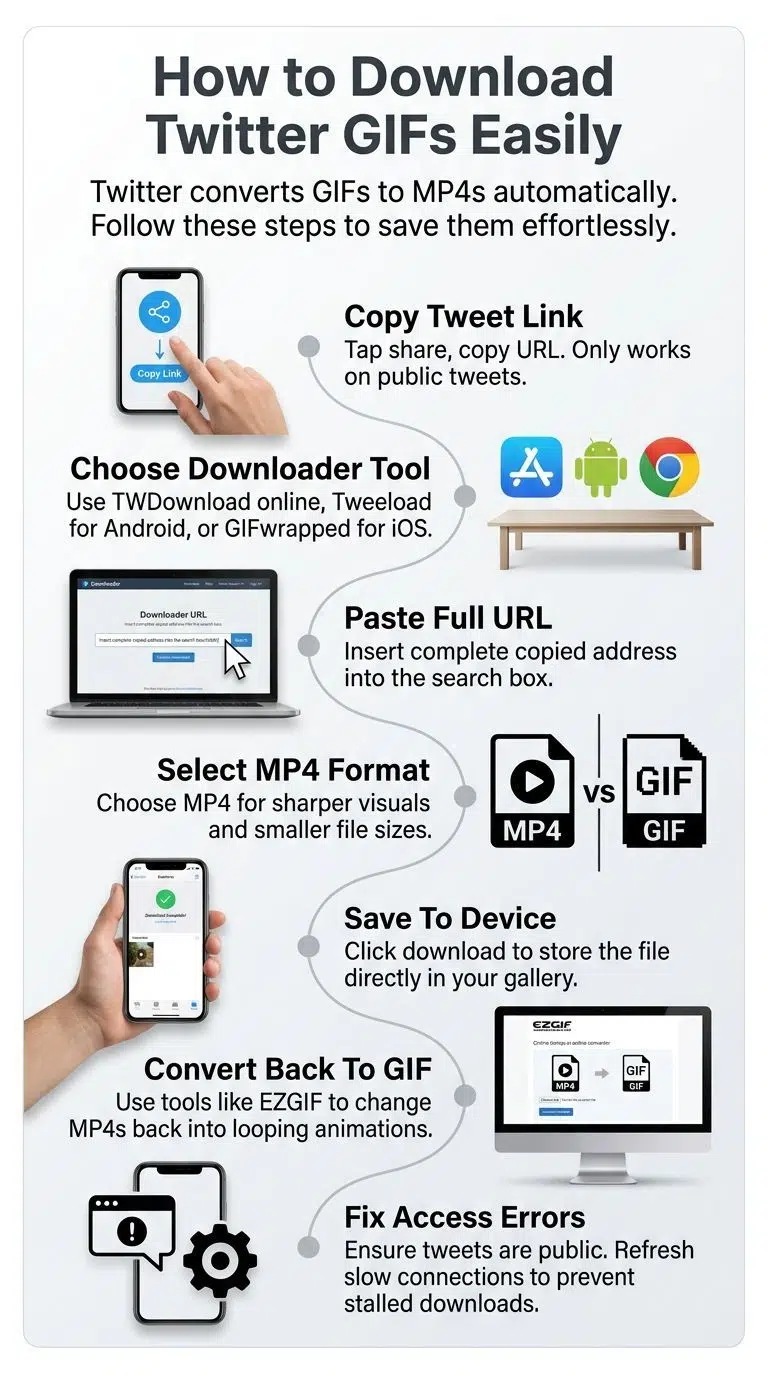
Downloading a GIF from Twitter takes just a few clicks. You copy the tweet link, paste it into a downloader tool, and your file is ready in seconds.
Copying the Tweet Link
Start by finding the tweet that has the GIF you want to save. Look at the top right corner of the tweet and tap the share button. A small menu will pop up.
Select “Copy link to Tweet” from the menu. This copies the full tweet URL to your clipboard, and you’re ready to paste it into any downloader tool.
A few things to keep in mind:
- Only public tweets work with GIF downloader tools. Private tweets won’t go through.
- Both x.com and mobile.twitter.com links are supported, so either format works fine.
- If you’re on a browser, copy the full URL from the address bar to avoid any errors.
Once you have the link copied, head over to your chosen GIF downloader and paste it into the search box. The tool will find the GIF and get it ready to save.
Using a Downloader Tool
Online GIF downloaders make saving Twitter content fast and simple. You’ll find many free tools that work right in your web browser.
Before you choose your file format, here’s something worth knowing. Based on technical comparisons by multimedia experts, the standard GIF format is limited to a 256-color palette (8-bit), while Twitter’s native MP4 format supports millions of colors. If you want sharp, vibrant visuals without any blurriness or pixelation, sticking with the MP4 download is the smarter move.
Follow these steps to get your file:
- Copy your tweet link and paste it into the downloader’s search box.
- Click the “Download GIF” button after you paste the URL.
- Check the dimensions shown (width x height) so you know the file size before saving.
- Pick your preferred format. MP4 files are up to 10 times smaller than GIFs while keeping quality high.
- Click the download icon to save the file directly to your device.
- Play the file to confirm it downloaded correctly before sharing or embedding it anywhere.
Use the GIF resizer or GIF compressor if you need a smaller file for sharing on social media. These built-in tools are a quick way to shrink your download without losing too much quality.
Common Issues and Solutions
Downloading GIFs from Twitter sounds simple, but you’ll hit some speed bumps along the way. Here’s a quick breakdown of the most common problems and exactly how to fix them.
| Problem | Why It Happens | How to Fix It |
|---|---|---|
| You get an MP4 file instead of a GIF | Twitter converts all GIFs to MP4 format behind the scenes. Your downloader pulls what Twitter actually stores, not the original file type. | Use the MP4 to GIF conversion feature built into most downloader tools. If your downloader lacks a built-in converter, a free browser tool called EZGIF, recommended by digital tech guides like Mashable, lets you crop, trim, and convert the video into a looping GIF in seconds. |
| Access denied message appears | Twitter’s security rules block access to private tweets and restricted posts. Downloader tools only work with public tweets. No authentication means no access to locked content. | Check that the tweet is public, not protected by privacy settings. Ask the tweet owner to make it public if you need it. Try downloading a different public GIF instead. |
| Download fails or stalls midway | Connection problems, slow internet, or server issues interrupt the transfer. Large file sizes can cause timeouts on slower networks. | Refresh your internet connection and try again. Switch to a faster network if available. Copy the tweet link fresh and paste it into the downloader tool once more. |
| The downloaded file won’t open | Your device lacks the right software to read the file format. Some older media players don’t support GIF files properly. | Download a GIF viewer app or use a modern browser to open it. Windows Photos, Preview on Mac, or free apps like VLC play most formats. Check your file extension to confirm it saved correctly. |
| Tool doesn’t recognize the tweet link | You copied an incomplete link or used a shortened URL. Downloader tools need the full tweet address to locate the GIF. | Copy the complete tweet link from your browser’s address bar. Make sure it starts with “twitter.com” or “x.com” and includes the full path. Paste the entire URL into the downloader tool. |
| No quality options available | Some downloader tools offer only basic features without resolution choices. Premium versions unlock more settings and quality selections. | Switch to a more advanced downloader tool with quality settings. Many free options let you pick the resolution before downloading. Check the tool’s menu for output quality preferences. |
Most of these fixes take under a minute. A little troubleshooting is usually all it takes to get your GIF saved and ready to share.
Final Words
Saving GIFs from Twitter takes just minutes with the right tools. You copy a tweet link, paste it into a free Twitter GIF downloader, and grab your file without fussing over logins or ads.
Whether you’re a content creator collecting material or just someone who loves sharing funny clips, these downloaders make the job simple. Tools like Circleboom, an official X Enterprise Developer, give you peace of mind that your downloads stay safe and high quality.
Stop wrestling with screenshots and clunky methods. Start using a Twitter video downloader today and keep your favorite GIFs forever.
FAQs on Twitter GIF Downloader
1. Can I download GIFs from Twitter for free?
Yes! Free Twitter downloader tools work right in your browser and let you save any GIF without spending anything.
2. Does Twitter have a built-in way to download GIFs?
No, Twitter (now called X) doesn’t offer a built-in download option. You’ll need to use a third-party downloader tool.
3. How do I find the tweet with the GIF I want to save?
Just scroll your feed until you spot a GIF you like, then tap the share button and copy the tweet link. Paste that link into a Twitter GIF downloader, and you’re all set!
4. Can I download Twitter videos the same way I download GIFs?
Yes! Most Twitter downloader tools work for both GIFs and regular videos with the same simple process.
5. Will the GIF lose quality after I download it?
Not at all! Good downloader tools save your GIF in its original quality, so it looks just as crisp as it did on Twitter.