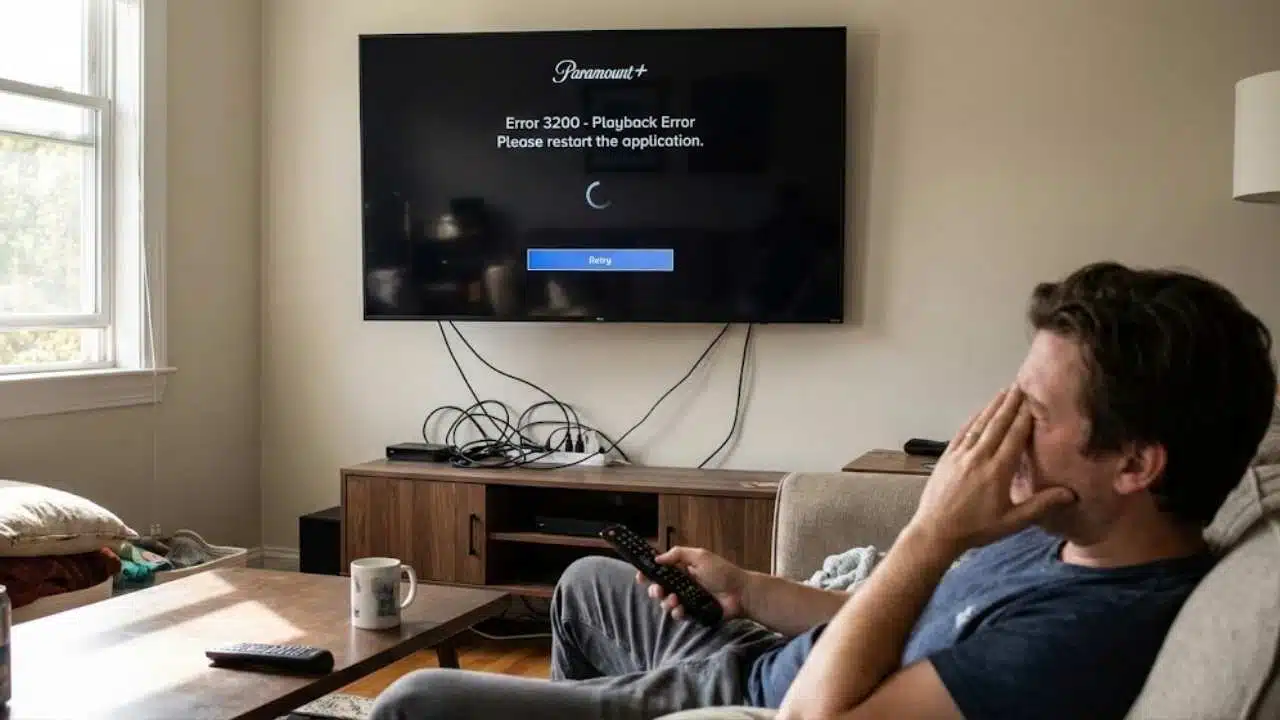
Is your Paramount app giving you trouble on your TV? Many viewers face problems with Paramount not working on TV, from loading errors to freezing screens. You’re not alone in this frustrating situation.
Most Paramount issues can be fixed with simple steps like restarting your device or checking your internet connection. Power cycling your TV and router often refreshes connections and solves many streaming problems.
Our guide will walk you through common Paramount Plus errors and their fixes, from basic troubleshooting to advanced solutions for specific TV brands. Keep reading to get your shows back.
Key Takeaways
- Most Paramount+ issues can be fixed by restarting your TV or streaming device, which clears temporary glitches.
- Weak internet connections often cause streaming problems, so try moving closer to your router or restarting it.
- Clearing the app cache or reinstalling Paramount+ removes corrupted data that might be blocking normal function.
- Samsung Smart TV users may need to change DNS settings to fix streaming issues (try Google’s 8.8.8.8 and 8.8.4.4).
- Keeping both your TV system and Paramount+ app updated helps prevent crashes and loading errors.
Common Issues with Paramount Not Working on TV
Paramount+ users face many issues that stop them from enjoying their favorite shows and movies. These problems range from app crashes to error codes, but most can be fixed with simple steps.
Why does the Paramount app not load or keep crashing?
The Paramount app might not load or crash often due to outdated software or corrupted data. Many users fix this by simply restarting their TV or streaming device, which refreshes connections and clears temporary glitches.
Your internet connection could also cause problems, as weak signals make streaming apps unstable and prone to freezing.
App cache buildup is another common culprit behind Paramount crashes. Clearing the cache or completely reinstalling the app removes corrupted files that block normal function. Make sure your app and device have the latest updates too, as older versions may contain bugs that cause loading failures or sudden crashes during playback.
What should I do if streaming content won’t play on Paramount?
Streaming issues with Paramount+ can be fixed with a few simple steps. First, try restarting both the app and your TV to refresh all connections. This quick fix solves many common problems right away.
If that doesn’t work, check your internet speed, as weak signals often cause playback troubles. You might need to move closer to your router or restart it by unplugging for 30 seconds.
App problems can also stop your shows from playing. Make sure your Paramount+ app has the latest update installed. For stubborn issues, clearing the app cache helps remove corrupted data that blocks streaming.
On Samsung TVs, you might need to adjust DNS settings if shows still won’t play. Power cycling your whole system, including your TV and router, refreshes all connections at once and fixes many streaming problems.
What does Paramount error code 6015 mean and how to fix it?
Error code 6015 on Paramount+ often points to a problem with your app data or connection issues. This error stops you from watching your favorite shows. To fix it, try restarting both the app and your TV first.
Many users find that a simple power cycle of their TV and router clears up this error right away. If that doesn’t work, clearing the app cache can help remove corrupted data that might be causing trouble.
For Samsung TV users, checking your DNS settings might be needed as these can block proper streaming. Make sure your internet connection is stable too, as weak signals often trigger this error code during streaming.
Are there compatibility problems with certain TV brands?
Some TV brands have trouble working with Paramount+. Samsung Smart TVs might need special DNS settings fixed to make the app work right. The app might not load or crash on older TV models that don’t get updates anymore.
Roku and Fire TV devices often need their own fixes too. If your TV brand is having issues, try power cycling both your TV and router to refresh all connections. This simple step fixes many streaming problems across different brands.
You can also check if your TV’s software needs an update, as outdated systems can stop apps from working correctly.
Quick Fixes for General Streaming Issues
Quick fixes for general streaming issues can save you time and stress when your Paramount+ app stops working on your TV. Try these simple steps to get back to watching your shows fast.
How do I restart the Paramount app or my TV properly?
Restarting your Paramount app or TV can fix many common streaming problems. This simple step often clears up issues that stop you from watching your favorite shows.
- Close the Paramount+ app completely by pressing the home button on your remote.
- Wait about 30 seconds before reopening the app to give it time to shut down fully.
- If the app still has problems, restart your TV by turning it off and unplugging it from the wall outlet.
- Leave your TV unplugged for at least one minute to clear its memory.
- Plug your TV back in and turn it on to see if the Paramount app works better.
- For Roku devices, go to the home screen, find the Paramount+ channel, press the star button, and select “Restart Channel.”
- On Fire TV devices, press and hold the home button, then select “Apps” and force stop the Paramount+ app.
- Check that your internet connection is stable, as a weak signal can cause streaming issues.
- Power cycle your router by unplugging it for one minute if you suspect network problems.
- Make sure your app and TV software are updated to the latest versions for best performance.
How can I check if my internet connection is causing streaming issues?
Internet problems often cause Paramount+ to stop working on your TV. A weak or unstable connection makes streaming hard and leads to buffering or error messages.
- Run a speed test on your phone or computer to check if your internet is fast enough for streaming.
- Make sure your TV is close to your router or use a wired connection for better stability.
- Try streaming on another device like your phone to see if the problem is with your TV or the internet.
- Power cycle your router by unplugging it for 30 seconds and then plugging it back in.
- Check if other devices in your home are using too much bandwidth while you’re trying to stream.
- Contact your internet provider if you notice slow speeds or frequent disconnections.
- Test other streaming apps on your TV to see if they work better than Paramount+.
- Move your router away from walls, metal objects, or other electronics that might block the signal.
- Try changing your DNS settings on your TV, which can fix some streaming connection issues.
- Use your mobile data as a hotspot temporarily to test if your home internet is causing the problem.
How do I update the Paramount+ app on my TV?
Keeping your Paramount+ app updated helps fix many streaming issues and gives you access to new features. Your TV needs the latest app version to stream shows without problems.
- Go to your TV’s app store or marketplace where you first downloaded Paramount+.
- Search for “Paramount+” in the search bar of your app store.
- Select the Paramount+ app from the search results to open its details page.
- Look for an “Update” button next to the app. If you see “Open” instead, your app is already up to date.
- Click the “Update” button and wait for the download to finish.
- Restart your TV after the update completes for the changes to take effect.
- Open the Paramount+ app to check if it works properly now.
- Check for system updates on your TV too, as outdated TV software can affect app performance.
- Set your TV to auto-update apps in settings to avoid future streaming problems.
- Contact Paramount+ support if updating doesn’t fix your issue with the app.
Advanced Troubleshooting Solutions
If your Paramount+ issues persist, you might need to try some deeper fixes. These steps can fix problems that basic troubleshooting can’t solve.
How do I clear the app cache and data on Paramount+?
Clearing the cache on Paramount+ can fix many streaming problems fast. App data can get corrupted over time, causing crashes and loading issues that stop your shows from playing.
- Go to your TV’s settings menu by pressing the home button on your remote.
- Find the “Apps” or “Applications” section in your settings menu.
- Look for “Paramount+” in your list of installed apps.
- Select “Storage” or “Storage & cache” option for the Paramount+ app.
- Choose “Clear cache” first to remove temporary files without deleting your login info.
- Try the app again to see if clearing the cache fixed your problem.
- If issues continue, go back to the same menu and select “Clear data” or “Clear storage.”
- Be aware that clearing data will remove your login information, so keep your username and password handy.
- Restart your TV after clearing cache and data for the changes to take effect.
- Power cycle your router by unplugging it for 30 seconds to refresh your network connection.
- Open Paramount+ again and log back in with your account details.
- Check if your streaming works properly now with fresh app data.
What is the process to reinstall the Paramount+ app on my TV?
Reinstalling Paramount+ can fix many app problems on your TV. This simple fix often helps when the app crashes or won’t load content properly.
- Find the Paramount+ app on your TV’s home screen or app menu.
- Press and hold the app icon until a menu appears with options.
- Select “Delete,” “Uninstall,” or “Remove” from the menu choices.
- Wait for the app to be fully removed from your TV system.
- Restart your TV by unplugging it from power for about 30 seconds.
- Go to your TV’s app store (like Samsung App Store, Roku Channel Store, or Amazon Appstore).
- Search for “Paramount+” in the store search bar.
- Select the official Paramount+ app from the search results.
- Click “Download,” “Install,” or “Get” to add the app back to your TV.
- Open the newly installed app and sign in with your account details.
- Check if your TV system needs updates, as outdated software can cause streaming issues.
- Test the app by playing a short video to make sure everything works right.
How can I adjust DNS settings on my TV to fix streaming problems?
DNS settings on your TV can cause Paramount+ streaming issues, especially on Samsung TVs. Changing these settings often fixes problems that keep your shows from playing correctly.
- Open your TV’s settings menu by pressing the settings button on your remote.
- Look for “Network” or “Internet” settings in the main menu.
- Find the option for “Network Status” or “Network Setup” and select it.
- Choose “IP Settings” or “DNS Settings” from the network options.
- Change the DNS setting from “Automatic” to “Manual” mode.
- Enter Google’s public DNS servers: 8.8.8.8 as the primary DNS and 8.8.4.4 as the secondary DNS.
- Save your new settings and exit the menu.
- Restart your TV completely by unplugging it for about 30 seconds.
- Launch the Paramount+ app again to check if the streaming issues are fixed.
- Try other public DNS options like Cloudflare (1.1.1.1) if Google DNS doesn’t work.
- Check that your internet connection is stable before testing the app again.
- Contact your internet service provider if problems continue after DNS changes.
Device-Specific Solutions
Different TVs and streaming devices need specific fixes for Paramount+ problems. Samsung TVs might need different solutions than Roku or Fire TV devices.
What fixes work for Paramount+ on Samsung Smart TVs?
Samsung Smart TVs often need special fixes when Paramount+ stops working. These simple steps can get your streaming back on track fast.
- Restart your Samsung TV by unplugging it for 60 seconds, then plug it back in to refresh all connections.
- Check your internet speed using your TV’s built-in speed test or a phone app to make sure it’s fast enough for streaming.
- Update your Samsung TV software through the Settings menu to fix bugs that might affect Paramount+.
- Clear the Paramount+ app cache on your Samsung TV to remove corrupted data that causes crashes.
- Adjust your DNS settings on your Samsung TV, as this can fix streaming issues with Paramount+.
- Delete and reinstall the Paramount+ app from the Samsung app store to start fresh with no corrupted files.
- Power cycle both your TV and router at the same time to reset all network connections.
- Make sure your Samsung TV model is on the list of supported devices for Paramount+.
- Try watching Paramount+ content at off-peak hours when fewer people are streaming.
- Contact Samsung support if the TV hardware might be causing Paramount+ streaming problems.
How do I resolve Paramount+ issues on Roku and Fire TV devices?
Paramount+ problems can stop your TV fun in its tracks. These fixes will get you back to watching your shows fast.
- Restart your Roku or Fire TV device by unplugging it for 30 seconds, then plugging it back in.
- Check your internet speed to make sure it’s fast enough for streaming. Slow or spotty connections often cause Paramount+ to freeze.
- Update your Roku or Fire TV software to the newest version through the settings menu.
- Power cycle your TV and router by turning them off for one minute, then turning them back on.
- Clear the app cache on your Fire TV by going to Settings > Applications > Manage Installed Applications > Paramount+ > Clear Cache.
- Reinstall the Paramount+ app by deleting it first, then downloading it again from your device’s app store.
- Try watching Paramount+ on a different HDMI port if you’re using a streaming stick.
- Contact Paramount+ customer support if none of these steps fix your problem.
- Check for known Paramount+ outages online before trying complex fixes.
- Update the Paramount+ app to its latest version through your device’s app store.
Why Are People Cancelling Paramount Plus?
Many users cancel Paramount Plus due to app problems that make watching shows hard. The app often crashes or won’t load at all on smart TVs. People get tired of seeing error code 6015 and other issues that stop their favorite shows from playing.
Some users report that after trying fixes like clearing cache, restarting their TV, or checking internet speed, they still face problems. These ongoing troubles push them to switch to more stable streaming services.
Internet connection problems also lead to cancellations. Weak or unstable connections make streaming on Paramount Plus nearly impossible. Users feel frustrated when they pay for a service they can’t use properly.
Some Samsung TV owners face special DNS problems with the app. Many people don’t want to spend time fixing these issues month after month. They would rather pay for a service that works right away without needing constant troubleshooting or calls to customer support.
Takeaways
Fixing Paramount+ on your TV doesn’t have to be hard. Start with simple steps like restarting your TV or checking your internet. If problems continue, try clearing the app cache or reinstalling Paramount+.
Each TV brand might need its own fix, so follow the right steps for your device. Remember that updates help keep the app running well. With these tips, you can get back to watching your shows without stress.
FAQs
1. Why won’t Paramount load on my TV?
Paramount might not work due to internet problems, app glitches, or outdated software. Check your internet connection first, as slow speeds often cause streaming issues. Try restarting your TV or device to clear temporary bugs that might block the app from loading properly.
2. How do I fix buffering issues with Paramount?
Close other apps running in the background to free up memory. If that doesn’t work, try lowering the video quality in the app settings. Your internet speed might not be fast enough for HD streaming.
3. What should I do if my Paramount app keeps crashing?
Update the app to the newest version since outdated apps often have bugs. If updating doesn’t help, uninstall and reinstall the app to fix corrupt files. Contact customer support if problems continue after these steps.
4. Why does Paramount show an error code on my smart TV?
Error codes usually point to specific problems like account issues or service outages. Look up the exact error number on Paramount’s help center for targeted fixes. Sometimes simply waiting a few hours solves the problem if it’s a temporary server issue.