Maintaining an optimized system configuration is very important for the smooth functioning of your Windows device, and drivers play a pivotal role in this process. However, sometimes you may encounter situations when drivers get inadvertently deleted, leading to various hardware or software issues on Windows 11. In such scenarios, you must know some best methods to recover deleted drivers. Here, in this comprehensive guide, we will explore various best ways to recover deleted drivers on Windows 11, ensuring seamless system functionality.
Common Causes for Deletion of Drivers on Windows 11
Before you apply any Windows data recovery method to restore lost or deleted drivers on Windows PCs, it’s important to understand the exact cause of the same. Here are some common reasons for the deletion of drivers on Windows 11:
- System Updates: While installing the latest Windows updates, outdated or incompatible drivers may get deleted or replaced with newer versions, leading to potential issues.
- Uninstallation of Software: Removing certain software/apps from Windows 11 devices may inadvertently delete associated drivers, especially if they were installed with the software package.
- Malware or Virus Infections: Malicious software can target and delete drivers as part of its destructive activities, resulting in system instability or hardware malfunction.
- User Error: Drivers may get accidentally deleted while cleaning or optimizing your device, particularly when uninstalling unnecessary programs or files.
- Hardware Changes: When upgrading or replacing hardware components like graphics cards, network adapters, or printers, existing drivers may be deleted or become incompatible with the new hardware.
- Corrupted System Files: Corruption of system files due to disk errors, power failures, or software bugs can cause deletion or corruption of drivers.
- Hardware Failure: In some cases, hardware failure or malfunction may cause the deletion or corruption of drivers stored on the affected hardware device or its associated storage media.
Quick Methods to Recover Deleted Drivers on Windows 11
In this part of the blog, we will discuss different ways to recover drivers that are accidentally deleted or lost from Windows 11 devices. Just go with these methods one by one to get the deleted drivers back:
Method 01: Use Device Manager
Windows in-built Device Manager utility allows you to manage hardware devices and their respective drivers. To recover deleted drivers on WIndows 11 using Device Manager, you need to:
- Press the Win + X keys simultaneously and select “Device Manager” from the menu.
- Now, double-click on the device category to open its Properties window.
- Go to the Driver tab and click the “Roll Back Driver” button to revert to the previously installed version of the driver.
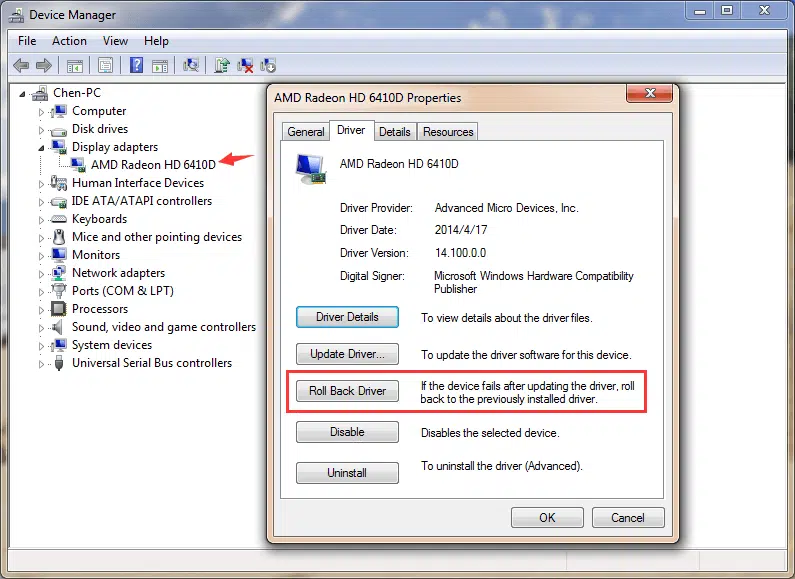
Wait till Windows reinstall the missing driver automatically; otherwise, download that driver from the manufacturer’s official website. After that, check if you can access your deleted drivers.
Method 02: Recover Deleted Drivers via System Restore
Another feature to recover deleted drivers on Windows 11 devices is via System Restore. It allows you to revert your device to a previous state, including driver configurations. Follow the below-given steps to recover deleted drivers using System Restore:
- Click the Start button in Windows, and go to Windows Settings.
- Now, search for Recovery in Windows Settings, then click Recovery Options in the search results.
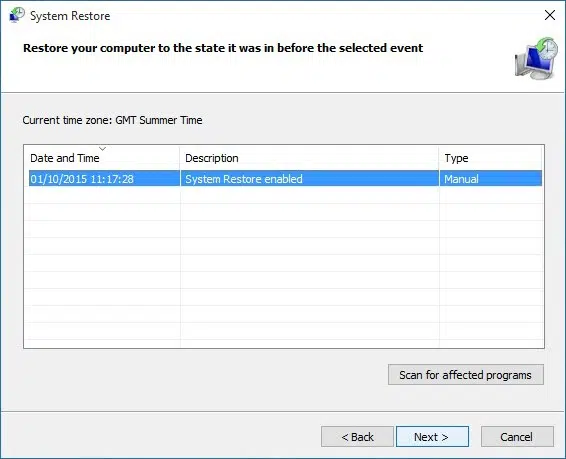
- Run System Restore and then click the Next button. Choose the correct system restore point and tap the Next button to perform.
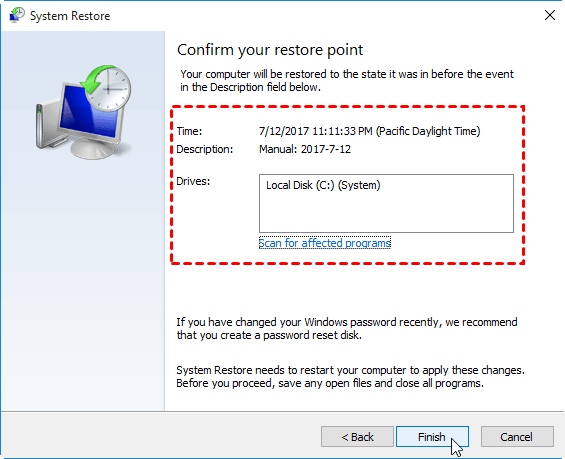
- After confirming the restore point of the system, click the Finish button to complete the process.
Method 03: Recover Deleted Drivers with Stellar Data Recovery Standard
If the above methods fail to recover deleted drivers on Windows 11 devices, try using a third-party Windows data recovery software. Stellar Data Recovery Standard is an all-in-one data recovery tool which supports recovery of data deleted due to multiple reasons, including power outages, physical damage, virus attacks, etc.
Key Features of Stellar Data Recovery Standard Tool
- Recover deleted data from multiple storage devices, including SSD/USB/HDD/SD cards, and more.
- The software is compatible with both Windows and Mac OS.
- Recover data from formatted, corrupted, encrypted drives.
- Allows you to preview the recoverable data before saving it to Windows device.
- Support recovery from NTFS, exFAT, and FAT formatted drives.
Here’s how to recover deleted drivers on Windows 11 devices using the Stellar Data Recovery Standard tool:
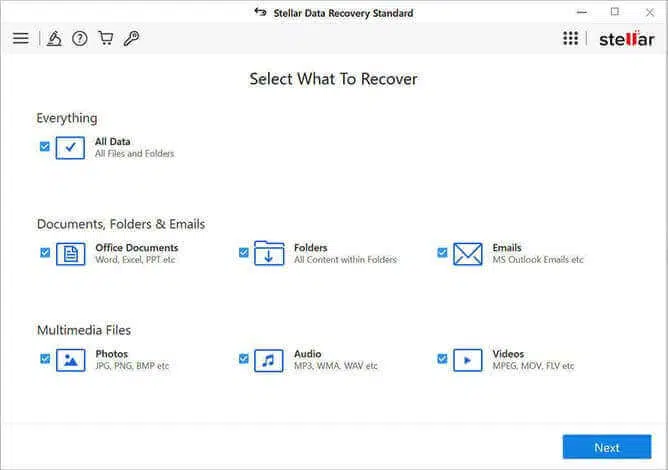
Step 1: Download and install the Stellar Data Recovery Standard tool on your Windows device. Launch the software and from the Select What to Recover window, choose the file type you need to restore and click Next.
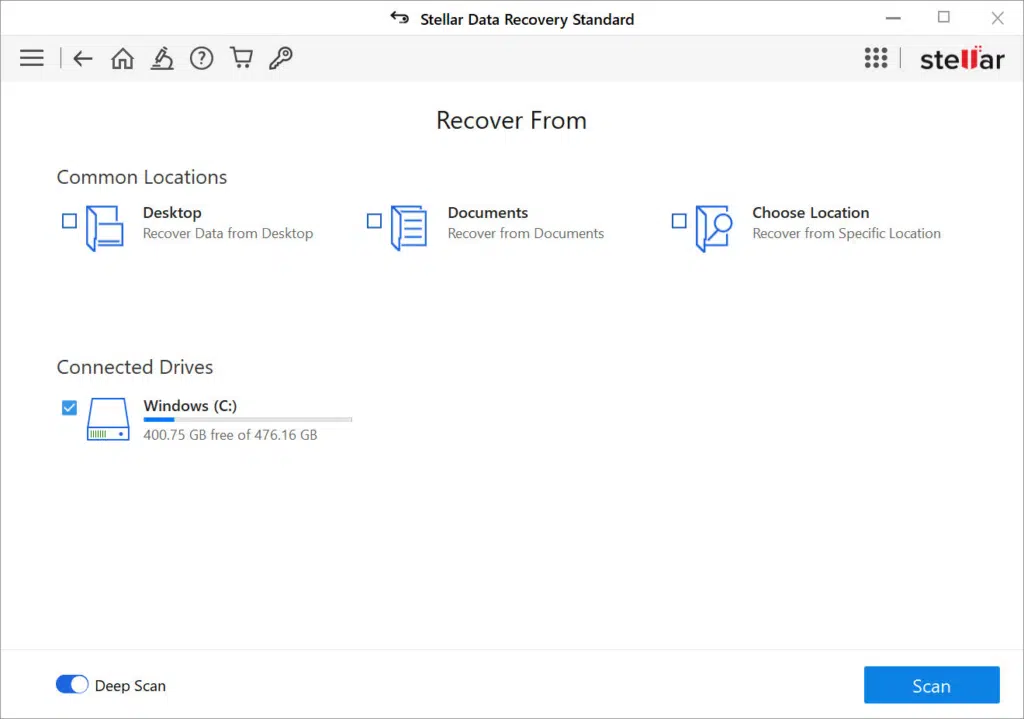
Step 2: Now, choose the storage location where your deleted data was earlier stored and click the Scan button to start scanning.
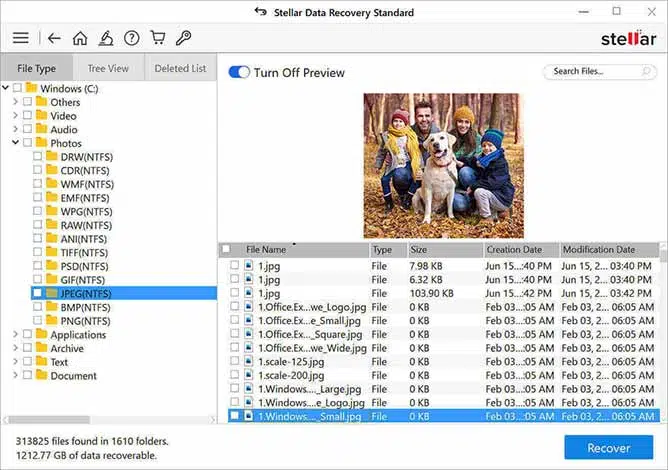
Step 3: After successful completion of the scanning process, preview the recoverable files. Choose the files you need to restore and click the Recover button to save selected files at the desired storage location.
Preventive Measures to Avoid Future Deletion of Drivers on Windows 11
Though the above best ways to recover deleted drivers on Windows 11 are helpful, taking preventive measures to avoid such situations is also important. Here are some tips to prevent driver deletion on Windows 11:
- Regularly update drivers using official sources or trusted third-party programs.
- Avoid using driver updater or optimization tools of dubious origin, as they may lead to deletion or corruption of drivers.
- Make a habit of creating system backups regularly using tools like System Restore or third-party backup software.
- Be cautious while uninstalling software or performing system maintenance to prevent accidental driver deletions.
- Turn ON system protection features like Windows Update and driver backup utilities to maintain a stable and up-to-date driver configuration.
Wrapping Up
Losing important drivers on Windows 11 can be a distressful experience, but by applying the above best ways to recover deleted drivers on Windows 11, you can restore your missing drivers. Start by using Windows built-in utilities, like Device Manager and System Restore, as well as third-party Windows data recovery tools for effective recovery of deleted drivers. Additionally, you can implement these preventive measures to mitigate the risk of future driver deletion, ensuring a smoother computing experience on Windows 11.