Are you a PlayStation enthusiast looking to bridge the gap between your console and PC gaming experiences? Perhaps you’ve heard of PlayStation Party Chat but are puzzled about how to enjoy this feature from the comfort of your Windows computer.
You’re not alone! As multiplayer games continue to dominate, staying connected with friends through voice chat has become an essential part of the online gaming experience.
Good news is within reach—enter PS Remote Play! It’s a handy tool that allows you to bring PlayStation Party Chat right onto your PC, ensuring you never skip a beat in collaboration or banter with your fellow gamers.
In this guide, we’ll discuss about how to join PlayStation Party Chat on PC. Son, keep on reading
Understanding PlayStation Party Chat
[Video Credit: @TutorialsExpert]
PlayStation Party Chat lets you talk to friends while you play games. You can hang out in a private chat room with just your buddies, no matter what game everyone is playing. It’s like having a pleasant phone conversation, but with an added bonus: you’re all playing PlayStation together!
You need a PlayStation Network account to use Party Chat. Then, using your PS4 or PS5 controller, press the button and find the ‘Party’ option. Here, you can start a new party or join one that’s already going on.
If you’re on a PC, don’t worry! With remote play, you can still be part of the party.
Ready for some gaming with friends? Next up: What is PlayStation Remote Play?
What is PlayStation Remote Play?
PlayStation Remote Play is a cool tool that lets you play your PS4 or PS5 games on different devices. Think about it like having your PlayStation’s screen sent right to your laptop, Mac, smartphone, or even tablet.
You don’t have to be in the same room as your console! With an internet connection, you can keep playing pretty much anywhere.
First things first, you need some things to make remote play work. Your computer should have Windows 10 or 11. You’ll also want either a PS4 or a PS5 and their controllers—that’s the DualShock 4 for the PS4 and the DualSense for the PS5.
Don’t forget a USB cable to connect your controller to your PC! Plus, sign into your PlayStation Network account and check if you’ve got good Wi-Fi speed—at least 5 MB per second.
After setting everything up on both ends—PC and console—launch remote play on the computer; it connects with the PlayStation back home wirelessly through the internet. Once linked up, it’s like sitting in front of the TV gaming, but via laptop or desktop instead.
And with this setup done correctly, hopping into Party Chat while playing becomes super easy—just one more step within a remote play session without needing any extra apps! If you’re interested also read on PS5 accessories.
Steps to Join the PlayStation Party Chat on PC
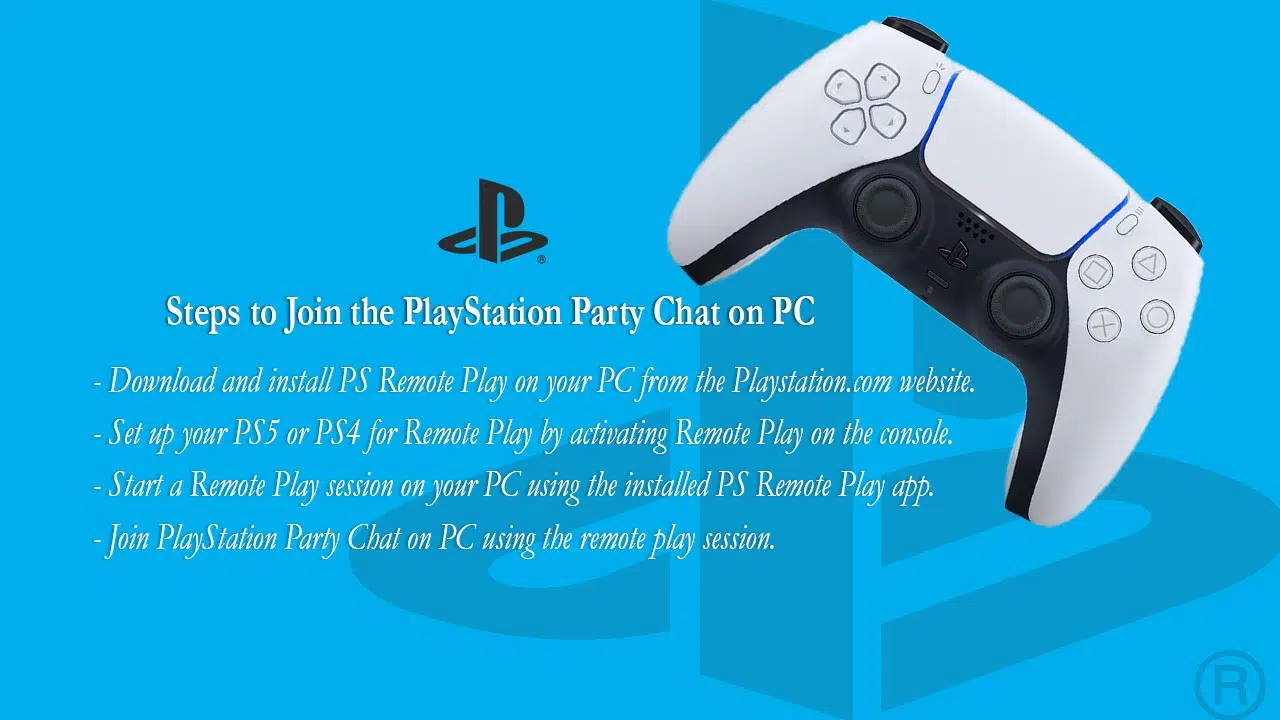
To join a PlayStation Party Chat on your PC, you need to download and install the PS Remote Play app, set up your PS5 or PS4 for remote play, start a remote play session on your PC, and then join the PlayStation Party Chat.
Ready to learn how? Keep reading for the ultimate guide!
Download and Install PS Remote Play on PC.
Joining a PlayStation party chat on your PC is fun and easy. You just need to download and install PS Remote Play first. Here’s how you do it:
- Head over to the PlayStation.com website on your PC. Look for the PS Remote Play download.
- Click the download link for Windows 10 or 11. This will start downloading the setup file to your computer.
- Once the download finishes, open the file to begin installation. It should be called something like ‘PSRemotePlayInstaller.exe’.
- Follow the steps in the installer. It will guide you through setting up PS Remote Play on your PC.
- After installing, open PS Remote Play from your desktop or start menu.
- The app will ask you to sign in with your PlayStation Network (PSN) account. Enter your details here.
- Check that you have a controller ready—a DualSense or DualShock 4 works best. Connect it to your PC with a USB cable.
Set up Your PS5 or PS4 for Remote Play
Getting your PS5 or PS4 ready for remote play is easy. Just follow these steps, and you’ll be all set to join a PlayStation Party chat from your PC.
- Turn on your PlayStation console.
- Go to the ‘Settings’ menu at the top of the main dashboard.
- Scroll down and select ‘Remote Play Connection Settings’.
- Make sure to check the box that says ‘Enable Remote Play’.
- Head back to the main ‘Settings’ menu.
- This time, choose ‘Account Management’.
- You must now sign in with your PlayStation Network (PSN) account. If you don’t have an account, create one.
- After signing in, select ‘Activate as Your Primary PS4’ or ‘Activate as Your Primary PS5’.
- Click ‘Activate’ to make sure your console is set up for sharing games and downloads.
- Return once more to ‘Settings’, then pick ‘Power Save Settings’.
- Inside this menu, find ‘Features Available in Rest Mode’.
- Check both options: ‘Stay Connected to the Internet’ and ‘Enable Turning On PS4 from Network’ or ‘Enable Turning On PS5 from Network’.
- Connect a DualSense or DualShock 4 wireless controller using a USB cable or pair it through Bluetooth if you want to play games during Remote Play.
Start a Remote Play Session on Your PC
To start a Remote Play session on your PC, you need to have Windows 10 or 11, a PS5 or PS4 console, a DualSense or DualShock 4 controller, a USB cable, a PSN account, and an internet speed of at least 5 MB. Follow these steps:
- Download and install PS Remote Play on your PC from the Playstation.com website.
- Set up your PS5 or PS4 for Remote Play by activating Remote Play on the console.
- Start a Remote Play session on your PC using the installed PS Remote Play app.
- Join PlayStation Party Chat on PC using the remote play session.
Join PlayStation Party Chat on PC
To join PlayStation Party Chat on your PC, you need to use the PS Remote Play app. This allows you to connect with friends and chat while playing games or just hanging out. Follow these steps to start chatting:
- Download and install PS Remote Play on your PC. Visit the Playstation.com website to download and install the PS Remote Play app on your PC. This app enables you to stream games from your PS5 or PS4 to your computer.
- Set Up Your PS5 or PS4 for Remote Play: On your console, go to Settings > Remote Play Connection Settings and enable Remote Play.
- Start a Remote Play session on your PC: Launch the PS Remote Play app on your PC, sign in with your PlayStation Network (PSN) account, and follow the on-screen instructions to pair your console with the app.
- Join PlayStation Party Chat on PC: Once you’re in a game through the remote play session, open the quick menu by pressing the ‘PS’ button on your controller and selecting “PlayStation Party.” Choose or create a party, invite friends, and start voice chatting.
Benefits of Joining a PlayStation Party on PC
Joining a PlayStation Party on PC through PS Remote Play offers the advantage of seamless communication with friends while playing games, enhancing the overall gaming experience. This enables players to enjoy multiplayer functions and voice chat features previously restricted to PlayStation consoles.
By expanding the platform to include PCs, gamers have greater flexibility in utilizing their preferred devices for socializing and gaming simultaneously.
Additionally, joining a PlayStation Party on PC provides accessibility across different devices and operating systems, fostering inclusivity among diverse users. This empowers individuals who may not have direct access to a console but still desire to partake in group activities or maintain connections within the gaming community.
The ability to engage in cross-platform interactions amplifies the sense of community and shared experiences, ultimately enriching the collective enjoyment of gaming.
Ultimately, embracing PlayStation Party Chat on PC widens opportunities for collaboration and connection within gaming communities by breaking down barriers associated with hardware limitations and enabling seamless communication across varied platforms.
Alternatives to PlayStation Party Chat
If you’re looking for alternatives to PlayStation Party Chat, there are several options available, such as TeamSpeak, Mumble, and Discord. Each platform offers unique features and benefits that cater to different preferences and needs.
Want to learn more about these alternatives? Keep reading to explore your options!
TeamSpeak
TeamSpeak is a popular choice for voice communication in online gaming, offering top-notch sound quality and an array of add-ons, voice packs, and skins. It’s known for its crystal-clear sound and military-grade security measures to keep conversations private.
Plus, it works seamlessly across different platforms, making it easy for gamers on various devices to connect and chat without any compatibility issues.
Whether you’re strategizing with your squad or simply catching up with friends while gaming, TeamSpeak provides the tools you need for efficient and reliable voice communication. With over 100 add-ons available, users can customize their experience to suit their preferences and needs.
Mumble
Mumble is a voice chat software that provides clear and high-quality voice communication. What sets Mumble apart is its low-latency feature, which ensures minimal delays during conversations.
It also offers positional sound capabilities, allowing users to perceive the spatial location of other participants in the chat. This can enhance the overall immersive experience during gaming or collaborative activities.
Additionally, Mumble is available across various platforms, including Android, iOS, Mac, Windows, and Linux, making it accessible to a wide range of users.
Discord
Now, let’s delve into Discord. Discord stands out as a popular and free instant messaging platform known for its customizable servers and the capability to integrate bots. It provides an excellent alternative to PlayStation Party Chat for joining friends across different consoles, like PC and Xbox.
With its user-friendly interface and robust features, Discord has become a go-to choice for gamers looking for seamless communication while playing their favorite games on various platforms.
If you’re ready to explore new ways of connecting with your gaming buddies beyond the limitations of console-specific chats, Discord offers a versatile solution that can elevate your multiplayer gaming experience.
Frequently Asked Questions (FAQs)
Now here are some FAQs on how to join PlayStation Party Chat on PC
Can I join a PS4 party chat on my PC?
Yes, you can. The process of joining a PS4 party chat on a PC is straightforward. Simply download and install the PlayStation Remote Play desktop client, connect the controller to the PC, and begin your gaming experience.
Can you party chat with PS5 and PC?
Fortunately, Sony’s provision of remote play on PlayStation consoles enables you to establish PS Remote Play on your PC, allowing you to quickly initiate a PlayStation Party Chat.
Can I join a party on the PS app?
s it possible to join a party using the PS app? You can also join a party from your PS5™ console or through the PlayStation App. Parties cannot be joined by a child under parental controls. If you are the owner, you have the authority to modify the party name, establish a party limit, and alter the party type.
Takeaway
That’s all we have on how to join PlayStation Party Chat on PC. In conclusion, joining PlayStation Party Chat on PC opens up new possibilities for a seamless gaming experience. The practical steps outlined here make it easy to set up and join the chat, enhancing efficiency and enjoyment.
Have you considered how this could revolutionize your gaming interactions? With this ultimate guide, you are ready to embark on an exciting journey into the world of PlayStation Party Chat on PC.
Take action today and elevate your gaming experience with these simple yet impactful strategies!