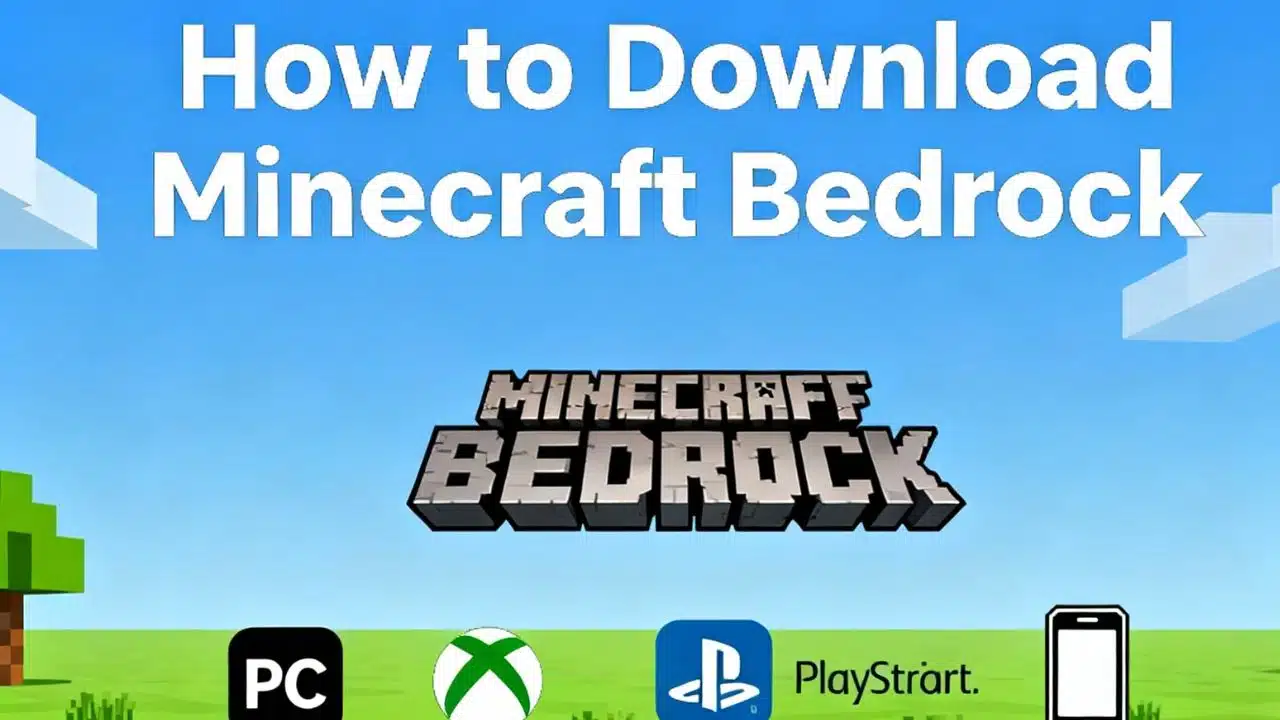
Minecraft has always been more than just a video game—it is a digital universe where creativity knows no boundaries. With millions of players building, exploring, and surviving every day, Minecraft remains one of the most influential games in the world. Among its different editions, the Bedrock Edition is widely popular because of its cross-platform compatibility and performance stability.
One of the unique advantages of Minecraft Bedrock is the opportunity for players to experience beta and preview versions. These test builds allow gamers to access upcoming features before they are officially released in stable updates. Mojang uses feedback from these testers to fix bugs and improve the overall gaming experience.
Recently, Mojang rolled out the Minecraft Bedrock 1.21.120.23 beta and preview version, which brings fresh improvements, experimental content, and performance enhancements. For many players, this is an exciting chance to explore new features early. However, downloading and installing the beta/preview varies across platforms like Xbox, Windows, Android, iOS, and PlayStation.
This article serves as a step-by-step guide on how to download Minecraft Bedrock 1.21.120.23 beta and preview, along with useful tips, troubleshooting advice, and key differences between preview builds and the stable release.
What is Minecraft Bedrock Beta and Preview?
Before diving into the installation process, it is important to understand what beta and preview builds are and how they differ from the main game.
-
Bedrock Edition vs. Java Edition: Minecraft has two major versions—Java Edition and Bedrock Edition. Java is available on PC only, while Bedrock runs across multiple platforms such as consoles, mobile devices, and Windows 10/11.
-
Minecraft Beta: This program is primarily available on Android, Windows, and Xbox. Players who join the beta gain access to new features and fixes, but their worlds may not be compatible with the stable version once updated.
-
Minecraft Preview: Unlike the beta, the preview is a separate app available for Xbox, Windows, and PlayStation. This makes it easier to test upcoming updates without interfering with the stable game installation.
-
Why it matters: These versions are vital for Mojang’s development process. By letting the community test updates early, Mojang collects bug reports and suggestions that shape the final release. Players get the thrill of early access while helping improve the game.
In short, the beta/preview editions are experimental test versions—perfect for players who love exploring new features ahead of time, even if that means dealing with occasional bugs and crashes.
Why Update to Minecraft Bedrock 1.21.120.23?
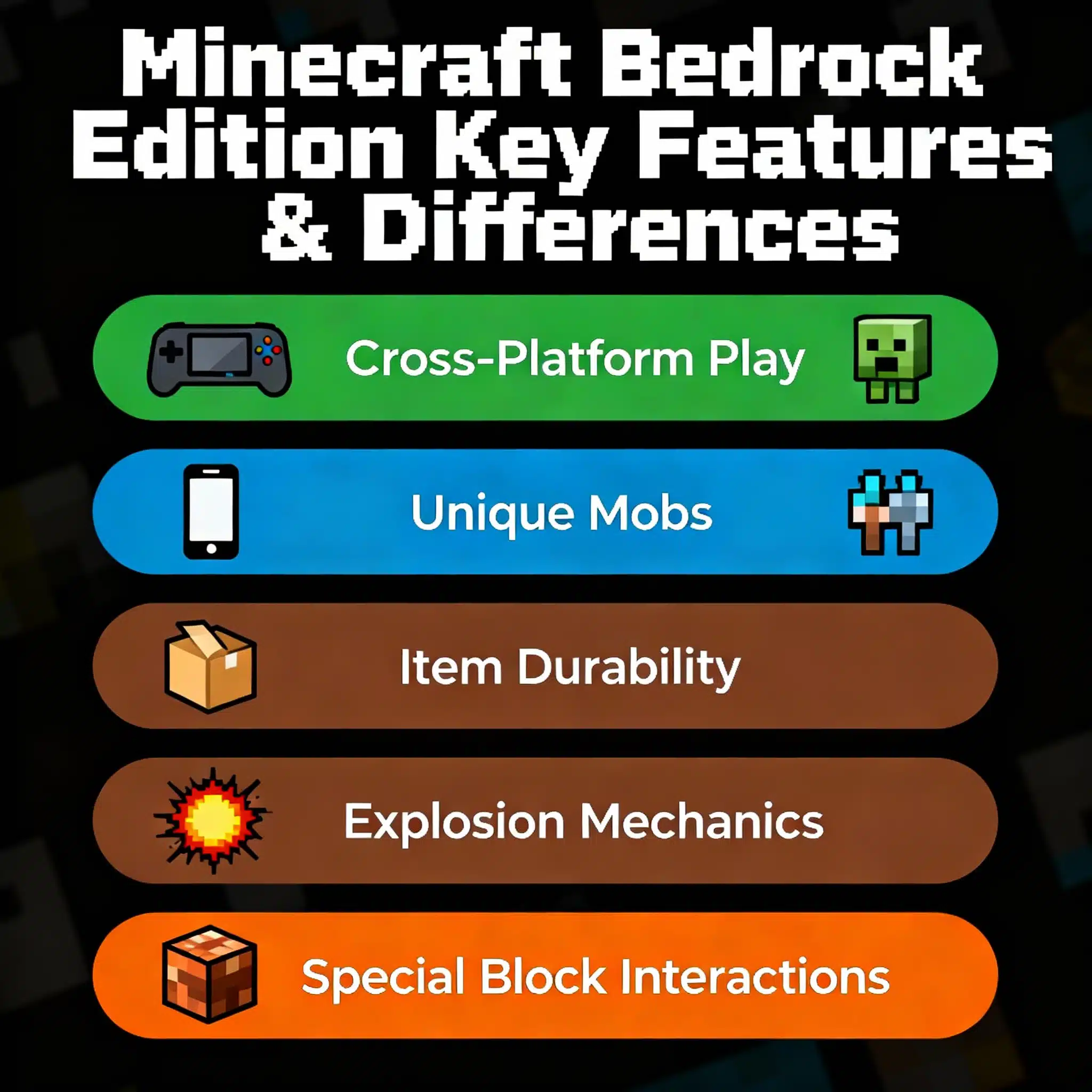
Each new beta or preview build introduces refinements that improve the game. The 1.21.120.23 version is no exception. While Mojang does not always publish a long list of changes in preview announcements, here’s why updating to this version matters:
-
Early Access to New Features: Players can try experimental blocks, mobs, or mechanics before they are added to the official version.
-
Performance Improvements: Beta versions often include performance tweaks that make the game smoother on supported devices.
-
Bug Fixes: Many crashes and glitches found in earlier versions get resolved in these preview builds.
-
Influence the Final Release: By reporting bugs through feedback hubs or community forums, players directly contribute to shaping the final stable version.
For dedicated Minecraft fans, the 1.21.120.23 beta/preview offers both fun and responsibility—an opportunity to enjoy new features early while helping the developers fine-tune the game.
How to Download Minecraft Bedrock 1.21.120.23 on Different Platforms
Installing the beta or preview version depends on the platform you’re using. Mojang has made the process fairly straightforward, but each device has its own method. Below are detailed step-by-step guides for Xbox, Windows, Android, iOS, and PlayStation.
Xbox One and Xbox Series X|S
For Xbox players, Minecraft Preview is the easiest way to access the new 1.21.120.23 build.
Steps:
-
Ensure Game Ownership: You need a licensed copy of Minecraft: Bedrock Edition. If you’re subscribed to Xbox Game Pass, the game is already included in your plan.
-
Open Your Game Library: From the Xbox dashboard, head to “My Games & Apps” → “Full Library.”
-
Search for Minecraft Preview: In the search bar, type Minecraft Preview. This is a standalone app that provides access to test builds.
-
Download and Install: Select Minecraft Preview and click Install. Once installed, launch it to start playing version 1.21.120.23.
Troubleshooting Tips:
-
If you cannot find Minecraft Preview, ensure your console is updated to the latest firmware.
-
Some regions may have delayed availability; wait a few hours or check again.
-
Joining the Xbox Insider Hub can also provide beta access.
Windows 10 / Windows 11
Windows users can download the new beta/preview in two different ways: fresh installation or updating the existing Preview app.
Method 1: Fresh Installation
-
Install the Minecraft Launcher from the Microsoft Store.
-
Open the launcher and locate Minecraft for Windows (Bedrock Edition).
-
Next to the Play button, click the dropdown menu.
-
Choose Latest Preview instead of Latest Release.
-
Click Install to begin downloading version 1.21.120.23.
Method 2: Updating Existing Preview
-
Open the Microsoft Store on your PC.
-
Go to Library and locate Minecraft Preview.
-
If you see an Update button, click it to install the new version.
-
If no update appears, select Get Updates from the top-right corner to refresh.
Extra Tip: Make sure your Windows operating system is updated. Outdated OS builds may cause installation issues or crashes when running the preview.
Android Devices
Android users access beta builds directly through the Google Play Store.
Steps:
-
Open the Google Play Store on your device.
-
Search for Minecraft.
-
Scroll down the page until you see the option to join the beta.
-
Tap Join, then wait for a confirmation message.
-
After joining, uninstall and reinstall Minecraft if the update doesn’t appear immediately.
Notes:
-
Beta rollouts on Android sometimes take a few hours before showing up.
-
Make sure you have enough storage space, as beta builds can be larger than regular updates.
-
You may leave the beta at any time, but you might need to reinstall the game to return to stable.
iOS Devices (iPhone / iPad)
Unlike Android, iOS uses TestFlight for beta versions.
Steps:
-
Download and install the TestFlight app from the App Store.
-
Sign up for the Minecraft Preview program (links are usually shared via Mojang’s official website or community pages).
-
Once approved, you’ll receive an email invitation.
-
Open the email → click the TestFlight link → accept the invite.
-
Download Minecraft Preview from within the TestFlight app.
Important Notes:
-
iOS previews are limited to a specific number of testers, so slots may fill quickly.
-
If slots are full, you will have to wait until Mojang opens more spaces.
-
Make sure to keep TestFlight installed—updates are distributed directly through it.
PlayStation 4 / PlayStation 5
PlayStation players can also access Minecraft Preview directly.
Steps:
-
Launch Minecraft on your PS4 or PS5.
-
From the main menu, navigate to the sidebar menu.
-
Select the option for Minecraft Preview.
-
Choose “Get PlayStation Preview” based on your console type (PS4 or PS5).
-
Click Download, and the 1.21.120.23 preview will begin installing.
Troubleshooting Tips:
-
If the Preview option is missing, restart your console and check for system updates.
-
Sometimes the update rolls out gradually by region—wait a few hours if you don’t see it right away.
Tips Before Installing the Beta/Preview
While jumping straight into the new version sounds exciting, there are some precautions you should take:
-
Backup Your Worlds: Beta and preview versions are experimental. They may corrupt or permanently alter saved worlds. Always back up your creations before joining the program.
-
Ensure Enough Storage Space: Preview versions can be large. Keep extra storage on your console, PC, or mobile to avoid failed installations.
-
Stable Internet Connection: Since the download size is significant, a strong and stable connection is necessary. Interrupted downloads may cause incomplete installs.
-
Expect Bugs and Crashes: Beta versions are meant for testing. Don’t be surprised if your game freezes, crashes, or displays glitches.
-
Join Minecraft Community Forums: Report bugs and follow updates. Mojang relies on testers to improve stability before official releases.
Key Differences Between Beta/Preview and Stable Release
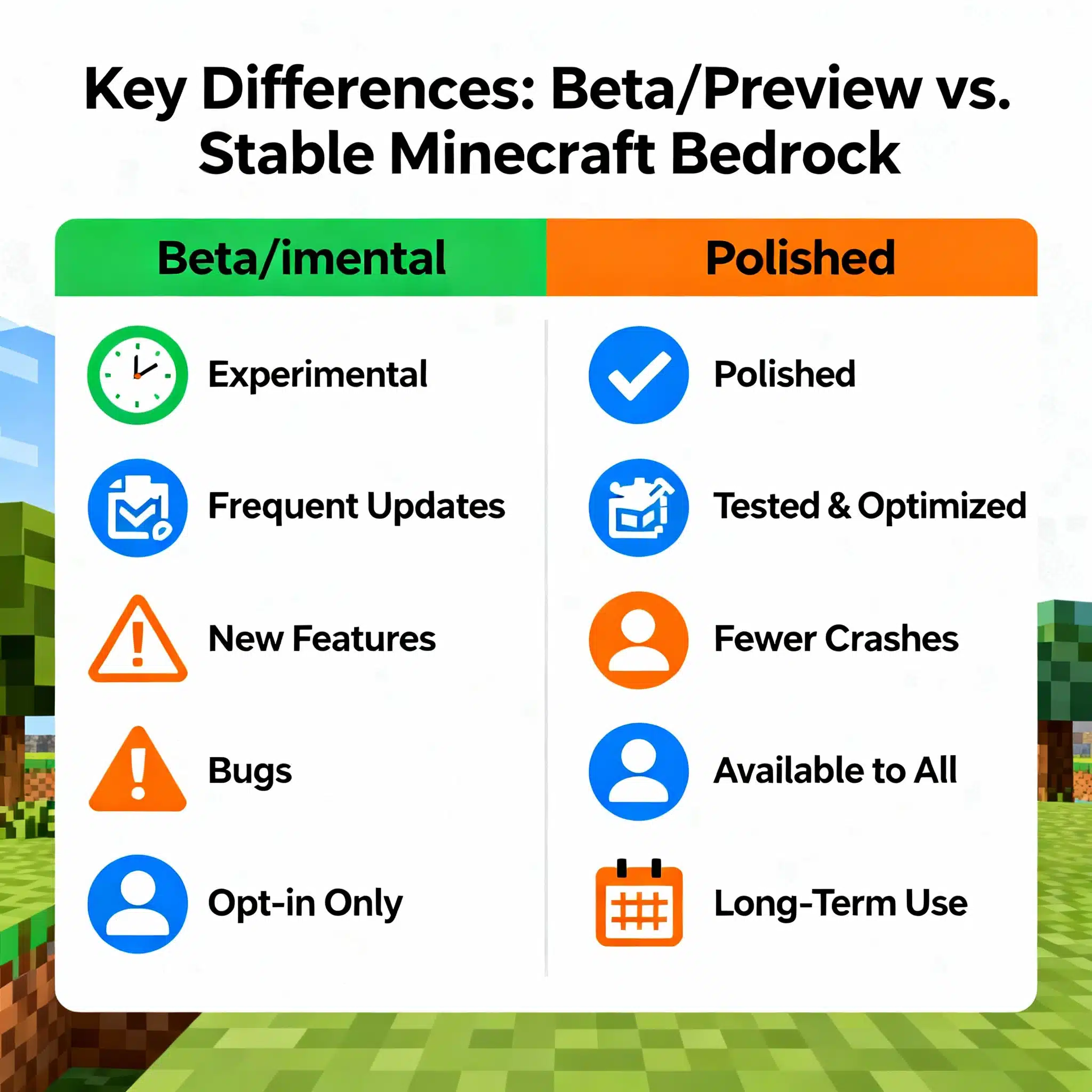
Understanding the distinction between preview builds and stable releases is essential:
-
Beta/Preview Versions
-
Experimental and updated frequently.
-
Contain new blocks, mobs, mechanics, or gameplay tweaks.
-
May have serious bugs and performance issues.
-
Available only to those who opt in.
-
-
Stable Versions
-
Officially polished and tested builds.
-
Optimized for performance and fewer crashes.
-
Available to all players automatically.
-
Used for long-term world building.
-
Bottom line: Beta/preview is for explorers and testers, while stable is for players who prefer a smooth, predictable game.
How to Switch Back to Stable Version
If you encounter too many issues or just want to return to the official release, here’s how:
-
Xbox: Uninstall Minecraft Preview → Reinstall the main Minecraft Bedrock Edition.
-
Windows: In the launcher, switch from Latest Preview back to Latest Release.
-
Android: Go to Play Store → Leave the beta program → Uninstall and reinstall Minecraft.
-
iOS: Uninstall the TestFlight version → Reinstall Minecraft from the App Store.
-
PlayStation: Remove Minecraft Preview → Launch the standard Minecraft edition.
Common Errors and Fixes
-
Preview Not Showing in Store
-
Restart your device and check your account region. Sometimes the rollout is delayed.
-
-
iOS Beta Slots Full
-
Unfortunately, iOS TestFlight has limited capacity. You may need to wait until Mojang opens more slots.
-
-
Game Crashes After Update
-
Try reinstalling Minecraft Preview. Also, ensure your device OS is updated.
-
-
Missing Update Button (Windows)
-
In Microsoft Store, click Library → Get Updates. This refreshes pending updates.
-
-
Lag or Performance Drops
-
Lower your graphics settings in the preview build. Performance optimizations often come later.
-
Takeaways
The Minecraft Bedrock 1.21.120.23 beta and preview version is an exciting opportunity for players who love exploring new features before anyone else. By joining, you not only enjoy early access to experimental blocks, mechanics, and gameplay changes, but you also help Mojang improve the game by reporting bugs and sharing feedback.
Whether you’re on Xbox, Windows, Android, iOS, or PlayStation, the process is simple once you follow the right steps. Just remember to back up your worlds, keep enough storage ready, and expect occasional bugs since this is not a polished release.
For dedicated fans, being part of the beta and preview is more than just playing—it’s contributing to Minecraft’s future. Install the update, dive into the new content, and experience firsthand how the world’s most popular sandbox game keeps evolving.