

A team workspace migration can look successful while the files people need are missing. Tasks, pages, and messages may appear in the new system, yet a design brief opens an old URL, an archived contract has no attachment, or a guest can suddenly see a private document. Before the move, test the attachments as well as the records that describe them.
The useful unit of inspection is not just a file count. It is a file, the task or conversation it belongs to, its usable version, and the people who should be able to open it. The seven checks below turn that into a reviewable migration plan for project tools, knowledge bases, chat workspaces, and shared drives. The exact export and import options depend on your products and plans.
7 Team Workspace Migration Checks for Attachments
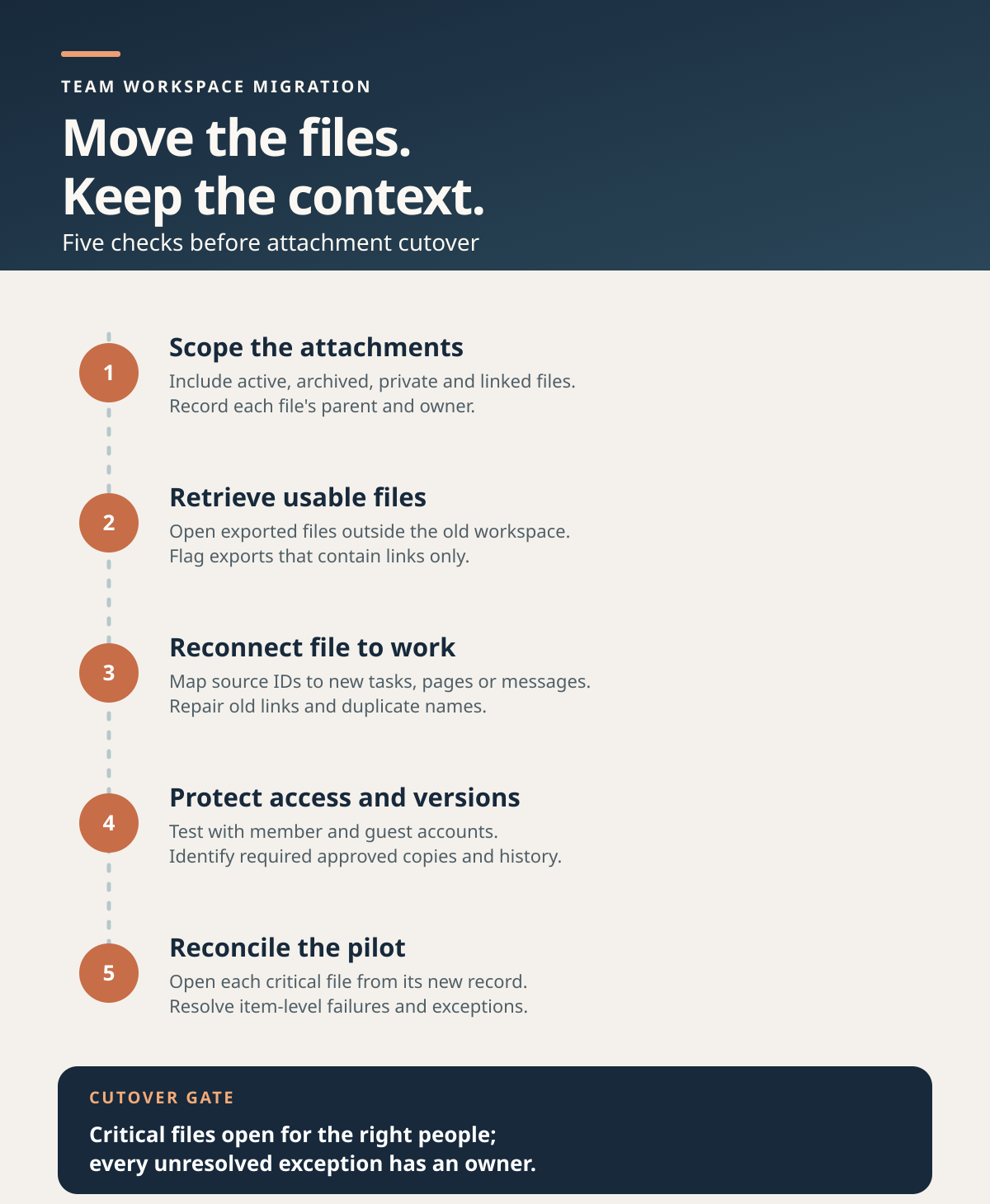
1. Inventory attachments across the whole workspace
Start with a scoped inventory: active and archived projects, pages, messages, comments, private spaces, shared channels, and records owned by former employees. An administrator’s view may differ from a project member’s. Record the source location, parent record ID or URL, filename, file type, size, owner, last modified date, and whether the item is an uploaded file or a link to an external file. Note which locations the authorized export account cannot inspect; do not label an incomplete inventory “all files.”
This first pass also identifies priorities. A draft thumbnail may be replaceable; a signed agreement, approved design, or source dataset may not be. Mark the files required for daily work and any records subject to your organization’s retention rules. For a project management move, the distinction matters because a basic record export may omit attachments and other relationships. Editorialge’s guide to choosing project management software recommends inspecting a sample export for exactly this reason.
Use the inventory as the baseline for the pilot and final reconciliation. If a source cannot supply a reliable count, state the known scope and sample manually rather than inventing a percentage complete.
2. Find out whether the export contains files or only pointers
Download a small, authorized export and inspect it outside the old platform. Open the archive, locate a few known attachments, and check whether it contains usable file bytes or only names, IDs, and URLs. A link may still depend on the old account, its permissions, or its retention period. A shortcut can point to a file stored elsewhere, so copying the shortcut is not the same as moving the underlying file.
For example, Slack’s export guide says its standard workspace exports include links to files, not the files themselves; export scope varies by plan and permissions. Treat that as a Slack-specific warning, then verify the behavior of your own source tool. If files must be downloaded separately, assign an authorized owner, a secure storage location, and a method for connecting each downloaded file back to its record.
Test at least an uploaded PDF, an image, an externally hosted document, and a file from an archived area. Do not assume that one successful download proves every attachment type can be recovered.
3. Preserve the relationship between each file and its work
A folder full of exported files is difficult to use if no one knows which task, decision, or page each file supports. Build a mapping from source record ID and attachment ID to the destination record ID and file location. Preserve useful context such as a caption, comment, approval state, or description when the destination supports it. Where it does not, agree on a documented alternative, such as a linked migration note.
Check duplicate filenames carefully. Two projects may each contain final.pdf, and a single task may have both a draft and approved file. Renaming everything by filename alone can overwrite or misassociate them. Give each migrated file a stable identifier in the working register and retain its original name as metadata. If the importer creates new IDs or URLs, record the old-to-new mapping so the team can repair bookmarks, embedded links, automations, and cross-references.
For knowledge bases, this is especially important with nested pages and embedded documents. Editorialge’s knowledge-base evaluation questions suggest testing a representative sample with attachments and internal links, then recording what requires manual rebuilding.
4. Check format, size, path, and import failures item by item
Create a pilot set that reflects the awkward files, not just easy PDFs: a large video, a filename with unusual characters, a deeply nested path, an embedded image, a native cloud document, and a file the destination may convert. Compare the source and destination’s documented limits for the exact migration route and configuration. Decide whether a converted file is acceptable before the transfer, especially if editability or layout matters.
Do not rely on a green job status as proof that every attachment moved. Microsoft’s Migration Manager documentation notes that unsupported items can fail individually even when a task is marked “Completed”; it also identifies large files and long destination paths among its limits. Other tools have different rules, so retain the scan or item-level error report for your actual route.
For each exception, choose an outcome: fix the name or path and retry; move the file through an approved alternate method; preserve it in a controlled archive with a new link; or document why it will not move. Assign an owner and a deadline. “Skipped” without a disposition is a future broken link.
5. Test access with the people who should and should not see the files
Permissions can change when a file moves into a new folder, project, or workspace. Map source roles to destination roles, including guests, contractors, former staff, and people who used individually shared links. Check both inherited and file-specific access. A successful import does not prove that a private attachment stayed private or that the intended collaborator can open it.
Use separate test accounts representing an administrator, ordinary member, guest, and person outside a restricted project. Try opening a sensitive sample from its parent record, search results, and a direct link. Also test removal of access. For externally hosted files, verify permissions on the original document as well as the link in the new workspace; a visible shortcut does not grant access to its target, as Google’s Drive shortcut guidance explains.
Keep the pilot sanitized where possible. For real confidential material, use authorized reviewers and the organization’s access and retention process. Record any permission mismatch as a release blocker for that group of files.
6. Decide which versions and metadata must survive
The latest binary may be enough for a disposable working draft. It may be inadequate for an approved policy, a client deliverable, or a file with a meaningful revision trail. List the files for which you need previous versions, authorship, timestamps, comments, approval context, or a specific approved copy. Then check what the export and importer actually preserve. A renamed file that opens correctly can still have lost the history that explains why it was approved.
Choose an authoritative version for each important attachment before the move. Keep the source history accessible under a documented retention plan if the destination cannot carry it, and make the approved version easy to identify in the new location. Editorialge’s guide to version control for non-code projects explains why the current working file and the latest approved file are sometimes different.
Do not call a sync folder or an import log a complete backup. Confirm a recoverable copy and an owner for restoration before changing or deleting the original workspace.
7. Reconcile a pilot before setting the cutover date
Move a representative, authorized sample and compare source and destination at the attachment level. Open the imported file from its new parent record using the intended user’s account. Check that the right content, version, context, and access arrived. If a file format is unchanged, size and a cryptographic checksum can help compare the bytes; if it was intentionally converted, compare the content and usability instead. Review item-level failures and repair them before expanding the run.
Use a simple register like this for the pilot. The rows are illustrative, not results from a real migration.
| Source record | Attachment | Destination check | Disposition |
|---|---|---|---|
| Project A, task 41 | Approved brief.pdf | Opens from task 118 for member and approved guest | Pass |
| Project B, archived page 9 | Budget.xlsx | File present, but guest has access | Fix permissions; retest |
| Project C, message 27 | Design link | Old URL points to a file unavailable after cutover | Copy authorized file and repair link |
Set acceptance rules before the full move: which critical files must open, which permission mismatches stop cutover, and who signs off each exception. Freeze or coordinate edits during the final transfer, run a delta migration if the tools support it, and keep the original workspace accessible in a controlled state until the team verifies the destination. Record who can roll back and how long the source will remain available. A small pilot reveals the repair effort; it does not certify the rest of the archive without a final reconciliation.
Move the Files With Their Context
The team workspace migration is ready to cut over when important attachments can be found from the work they belong to, opened by the right people, and accounted for in the exception register. Keep the source inventory, old-to-new mapping, failure reports, and recovery copy until the responsible owners have checked the final transfer. That evidence makes a missing file a specific repair task instead of a surprise after the old workspace closes.