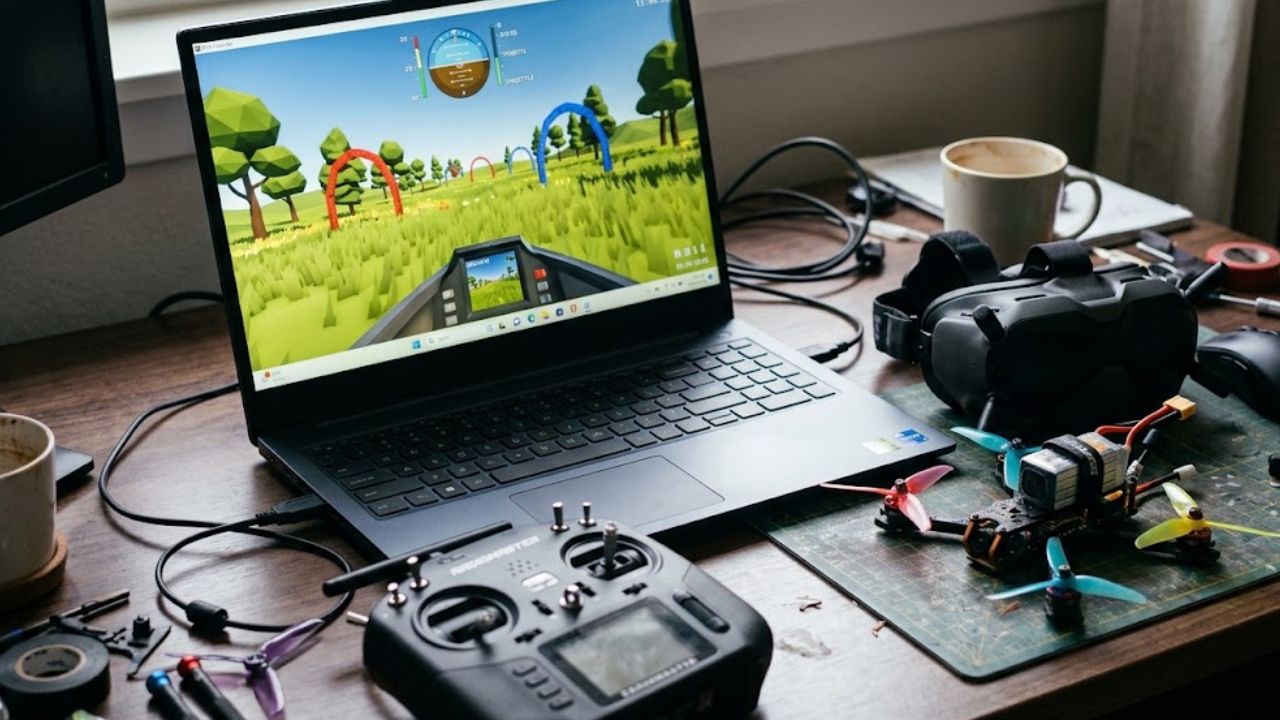
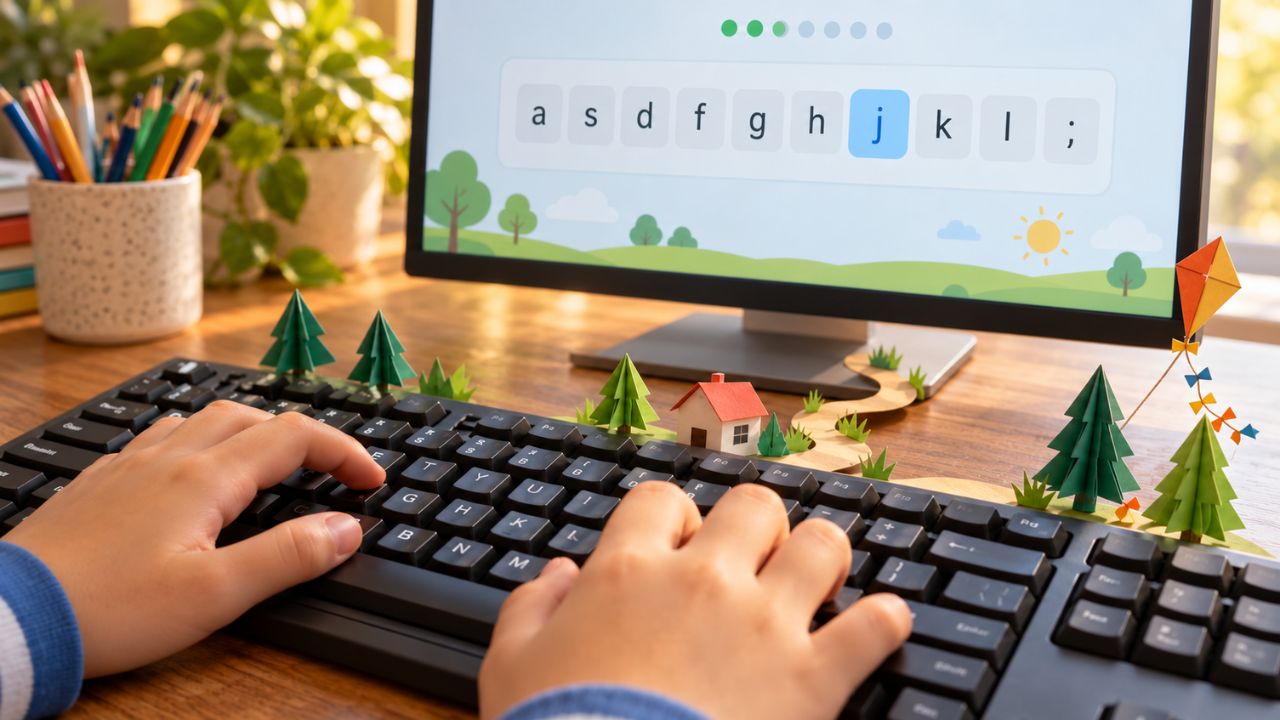
The best typing programs for kids help children find the right keys, use the right fingers, and type accurately before they worry about speed. A racing game can make practice fun. A child who has never learned finger placement needs guided lessons first.
For a free starting point, TypingClub offers a clear lesson path. TypeTastic works especially well for children who are still getting comfortable with the keyboard. Typing.com combines lessons with tests and games. Once a child knows the basics, Nitro Type can make extra practice more exciting. Families who want closer progress tracking or typing practice tied to spelling have other worthwhile choices below.
The right program depends less on a child’s age than on what they can do now. Can they find letters without help? Do they know where their fingers belong? Can they type a short sentence without constantly looking down? This list considers the lesson sequence, age fit, free access, progress tracking, and the role of games. No program can promise to make every child fast in a week.
The best typing programs for kids at a glance
| Program | Best for | Access | Keep in mind |
| TypingClub | A free, structured path from beginner lessons onward | Free core lessons; optional paid editions | Choose the younger Jungle Junior course for a new learner |
| Typing.com | A broad curriculum for home or school | Free core lessons; optional paid plans | Most free lessons have ads, but its K–1 lessons do not |
| TypeTastic | Visual keyboard exploration and beginner games | Free public lessons without ads or login | Individual progress reports require its School Edition |
| KidzType | Quick lessons followed by varied games | Free browser access | Its site may display ads |
| Typing Pal | Families who want separate profiles and progress details | Limited free trial; paid plans | Home Edition is a subscription |
| Touch-type Read and Spell | Typing with spelling and phonics practice | Free trial; paid subscription | Best suited to children ready to work with words |
| Nessy Fingers | Typing and school spelling lists together | Paid subscription | Check the current price for your region |
| Typing Tournament | A full course with a game-like quest | Free trial; paid access afterward | The fantasy theme will appeal to some children more than others |
| Keyboarding Without Tears | Grade-based instruction in elementary schools | School and district licensing | Home access is less straightforward |
| Nitro Type | Motivating practice after basic technique | Free to play; optional upgrade | Racing does not replace instruction |
1. TypingClub: Best free course for learning the basics
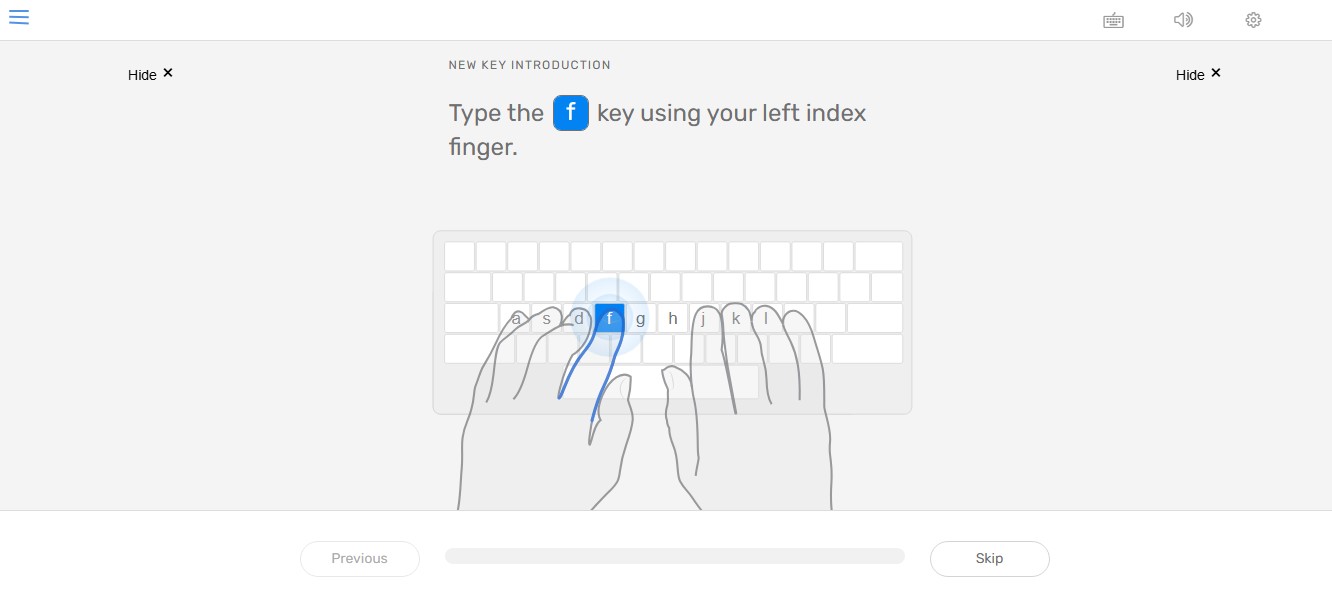
TypingClub gives children a sequence of lessons instead of dropping them into random typing challenges. It shows hand positions as they learn new keys and uses short activities, games, and rewards to keep them moving. Children can start without creating an account; a profile is available if they want to save progress.
The course choice matters. Jungle Junior is designed for younger children who are still connecting letters with the keyboard. An older beginner can move into Typing Jungle for a longer touch-typing sequence that reaches beyond the alphabet to numbers and punctuation.
For a family looking for one free place to begin, TypingClub is an easy recommendation. Sit with a young beginner for the first few lessons so the hand prompts become a habit rather than something they click past.
2. Typing.com: Best broad curriculum for home and classroom use
Typing.com combines guided lessons, typing tests, and games. Teachers can assign work and review student activity, while children have a clear route from finding keys to typing longer text. It is a useful choice when a school already uses the platform and a family wants to continue practice at home.
Its newer kindergarten and first grade lessons deserve particular attention. They include spoken instructions, simpler screens, and guided finger placement for children who cannot yet read every prompt. Those lessons are free and ad-free, even on free accounts. The wider free curriculum is supported by ads; a paid plan removes them and adds more school features.
Typing.com makes particular sense when a school already uses it or a family wants lessons that continue beyond the first keys. An adult should handle account setup for a child under 13.
3. TypeTastic: Best for children exploring the keyboard
TypeTastic begins with activities that help children understand where keys are before demanding fluent typing. Its colorful games and visible keyboard make the first steps less intimidating. From there, children can move into finger practice, touch typing, numbers, punctuation, and longer challenges. The keyboarding curriculum spans kindergarten through high school.
The public site changed in 2026: its lessons are now free, ad-free, and available without a login. That makes it particularly easy to try at home. Schools that need student accounts, assignments, and progress reports can use the separate School Edition.
Start here if your child needs time to explore the keyboard before a conventional drill feels manageable. If you need a lasting record of their progress, check the School Edition; the open lessons do not provide individual reports.
4. KidzType: Best for short lessons and varied games
KidzType has a practical lesson path covering the home row, top and bottom rows, numbers, symbols, and Shift. A child can practice a small set of keys and then try games that use those skills. Its browser games are quick to open, with no account needed for basic play.
That convenience is its strength. It also makes it easy for a child to skip straight to whichever game looks most exciting. If you want KidzType to teach technique, guide them through the lessons first and use the games afterward.
It suits a child who resists long lessons but will return for a short practice session. The site’s privacy policy allows advertising, so parents should look at the game pages their child will use.
5. Typing Pal: Best for family progress tracking
Typing Pal’s Home Edition is built around supervised learning. It includes three profiles, so a parent can manage the subscription and family members can work at their own pace. Its reports show more than a final words-per-minute score: families can examine accuracy, difficult keys, and changes over time.
The training includes exercises for using all fingers, practice texts tailored to different ages, and activities that return to weak keys. Children aged 6–11 have an age-appropriate practice environment. The limited trial is useful for seeing whether the interface suits your family, but the full Home Edition requires a paid subscription.
Typing Pal is worth comparing if more than one family member will practice or you want to see which keys need work. Check the price shown in your region before subscribing.
6. Touch-type Read and Spell: Best for typing alongside literacy practice
Touch-type Read and Spell, often called TTRS, teaches typing through short modules that bring together sounds, letters, and spelling patterns. Children see and hear material as they type. The course places early emphasis on completing work accurately rather than racing through it, and families can review progress from an administrator account.
The main course is intended for ages 7 and up. Its design may appeal to a child who finds ordinary strings of practice letters frustrating, or to a family that wants typing time to reinforce spelling. There are home plans and a trial, followed by a subscription.
The spoken prompts and predictable, word-based sequence may suit a child who struggles with ordinary typing drills. It is a learning tool, not a guaranteed fix for reading or spelling difficulties.
7. Nessy Fingers: Best for practicing school spelling words
Nessy Fingers introduces keys alphabetically and moves children into real words. That is a different route from the home-row-first sequence used by many typing tutors. Families can also add words from a child’s school spelling list, giving practice a direct connection to work they already need to do.
The program is intended for children aged 7 and up. It includes typing games that adjust to a learner’s level and rewards for continued work. Nessy also presents it as an option for children with learning differences, but a child’s response to any program will vary.
Nessy Fingers has a clear use for a child who wants meaningful words early or needs to practice their own spelling lists. It is a paid product, so compare its current local price with what your family will actually use.
8. Typing Tournament: Best complete course for children who like a quest
Typing Tournament wraps a structured typing course in a medieval adventure. Across 16 levels, children encounter new keys, practice them through lessons and drills, play games, and complete tests. The sequence gives a child a visible sense of progress without leaving the teaching entirely to the games.
It is designed for learners aged 6 through adulthood, with a starting point that can reflect existing ability. New home users can try it for 30 days. Access after the trial is paid.
For a child who likes levels and rewards, this offers a genuine lesson sequence within the adventure. Watch whether they learn comfortable finger placement and improve accuracy. The publisher’s promotional claims about speed and school results should not be treated as a promise for your child.
9. Keyboarding Without Tears: Best for an elementary school program
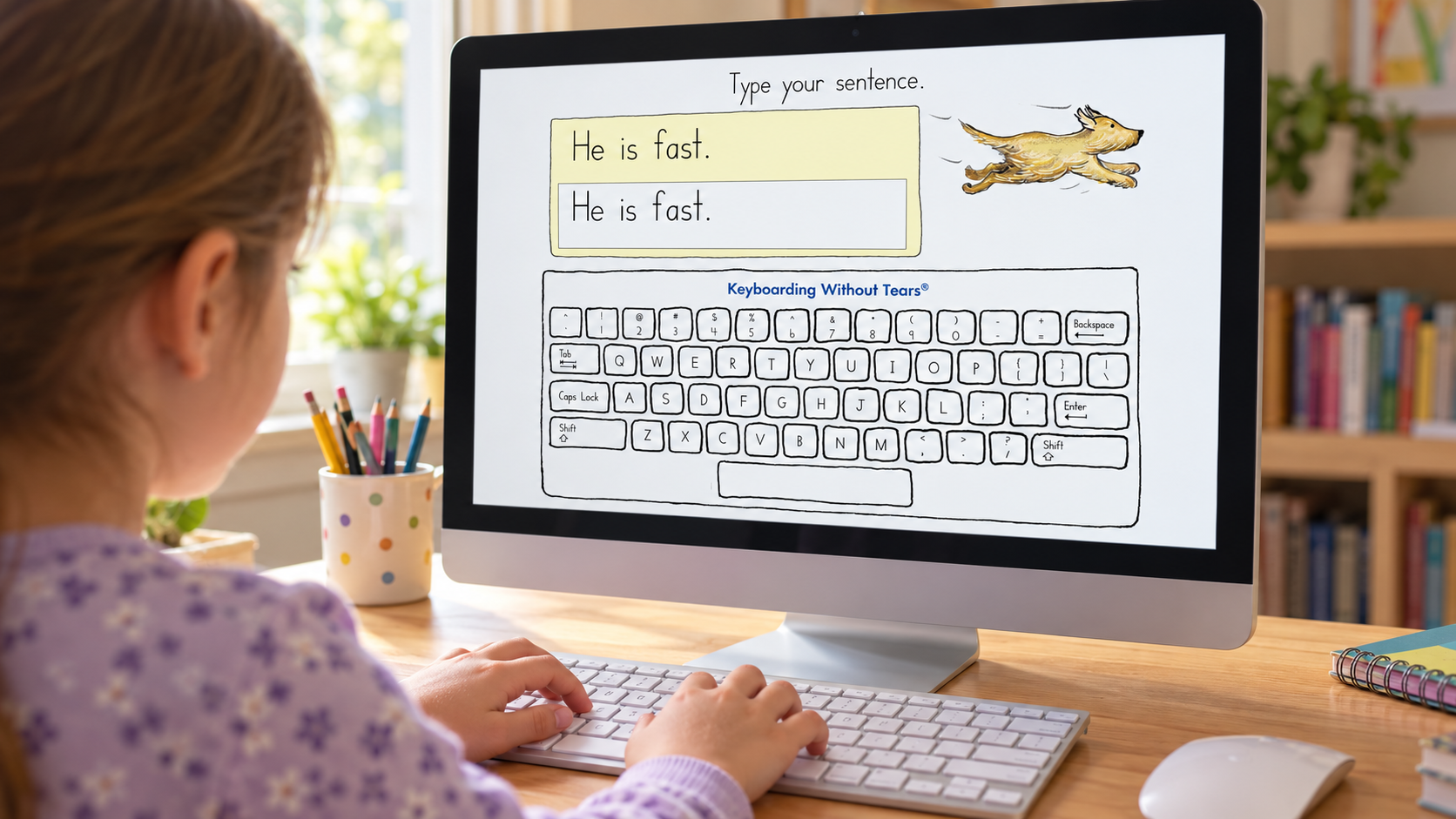
Keyboarding Without Tears is a K–5 digital curriculum from Learning Without Tears. It uses color-coded keys and a row-based approach to help children connect fingers with key positions. Lessons also address broader computer readiness, which can be valuable when a school is teaching several digital skills together.
This is the most school-focused choice here. The publisher offers grade-level licensing and directs schools or districts to request a quote. Families may encounter it through their child’s school rather than buying a simple individual plan.
This belongs on a teacher’s shortlist for an elementary classroom. If your child’s school already provides access, ask which grade-level lessons the child should follow at home.
10. Nitro Type: Best reward for children who already know how to type
Nitro Type turns typing practice into car races against other players. Repeating races can give an older child a reason to type full passages and notice when mistakes slow them down. The basic game is free, with an optional paid membership.
It belongs near the end of this list for a reason. Nitro Type’s competitive format is practice for a child who has begun learning the keyboard, not a substitute for lessons on which finger goes where. The platform says it has no player chat, but parents should still look at the account and competitive features before a child uses it independently.
Give it a place after your child can work through basic typing lessons. If their technique still needs attention, keep a structured course in the routine alongside the races.
How to choose a typing program your child will actually use
Start by watching your child type a few familiar words. If they spend most of the time hunting for letters, choose keyboard exploration or gentle beginner lessons. If they can find keys but use only two fingers, choose a course with visible hand guidance. If they already know finger positions, games and longer passages become more useful.
I have watched my nephew grow more confident with letter sounds and begin recognizing letters beyond the learning app. That experience reminds me how many small steps sit between knowing a letter and using it automatically. I would begin his typing practice with finding keys and moving his fingers comfortably. Timed games could come later.
A physical keyboard is the sensible starting point for learning touch typing. Some programs also run on tablets, but tapping an on-screen keyboard does not give a child the same practice with finger positions. Check the keyboard layout and lesson language too, particularly if your child uses a layout other than English QWERTY or needs to type in Bengali.
Keep practice manageable. A child who is accurate, relaxed, and willing to return to the lesson is making progress, even if the speed number is small. Typing should also sit alongside handwriting, spelling, and actual writing. Knowing where the keys are matters most when a child can use that skill to put their own ideas into words.
From finding keys to finding words
A good typing program gives a child a skill they can carry into schoolwork, stories, and everyday writing. Begin with a lesson they can complete comfortably. When they can find keys and use their fingers with growing confidence, give them longer words and sentences to type. Games can help them enjoy the repetition along the way.
At first, every key demands attention. Gradually, fingers find their way, and a child can spend more of that attention on the sentence they are trying to write. That is the skill worth giving them time to build.
Questions parents often ask about the best typing programs for kids
What age should a child start learning to type?
There is no single age that fits every child. Some kindergarten programs begin with recognizing keys and using a mouse or trackpad; more demanding touch-typing courses expect children to read and follow word-based instructions. Choose the starting lesson by readiness and comfort, then move forward when the child has the basics.
Are free typing programs good enough for kids?
Yes, a child can learn the fundamentals through free structured lessons. TypingClub, Typing.com, and TypeTastic all offer substantial free starting points. A paid option may make sense when a family wants more detailed reports, multiple supervised profiles, or a particular typing-and-spelling approach.
Are typing games enough on their own?
Usually not for a beginner. A game can give children valuable repetition, but many games do not teach finger placement in a clear sequence. Begin with lessons and add games to practice what the child has learned.
Which programs may suit a child who struggles with spelling?
Touch-type Read and Spell and Nessy Fingers both connect typing with words and spelling practice. Their features are worth exploring, but no typing program can promise the same result for every child or replace appropriate help for a learning difficulty.