
Navigating Instagram’s constantly evolving features can leave you puzzled, especially when it comes to its display settings like switching to light mode. As of 2023, some users have reported that Instagram changes from dark to light mode on its own, creating confusion and frustration. So, how to change to light mode on Instagram 2023.
Our comprehensive guide will provide easy-to-follow steps on how to manually switch your Instagram theme to light mode and what actions you can take should these steps not work. Ready? Let’s illuminate your Instagram experience!
- To switch Instagram to light mode on your iPhone, tap your profile picture, click on the three lines at the top, go to “Switch appearance” in settings, and select light mode. For Android users, tap your profile picture, click the hamburger icon, go to “Settings and theme”, and pick light mode.
- Some users may experience glitches where Instagram switches between dark and light mode randomly. If the steps provided don’t work, try force quitting the app or clearing its cache. You can also reach out to Instagram’s support team for further assistance.
- Switching to light mode on Instagram has benefits such as a brighter appearance on screens, improved readability of content, reduced eye strain compared to dark mode, and saved battery power on smartphones.
- Alternative solutions include turning on dark mode for Instagram for a more comfortable viewing experience or repurposing YouTube videos with editing tools like trimming clips or adding captions before posting them on Instagram. You can also add special effects to your messages or use other tips and tricks for effective use of light mode.
How to Change Instagram to Light Mode in 2023?
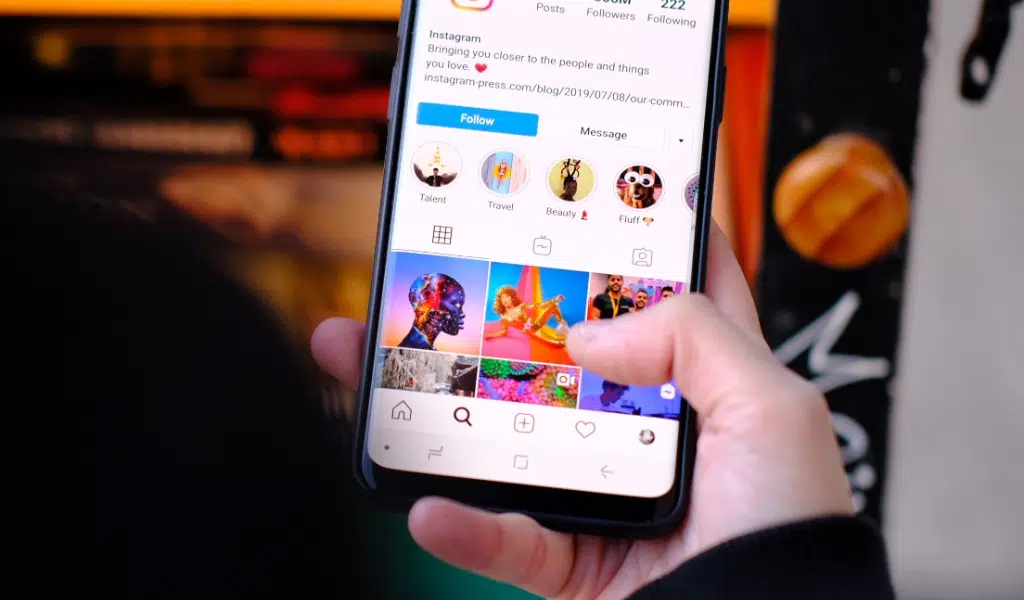
To change Instagram to light mode in 2023, follow these steps for iPhone and Android users.
For iPhone
To switch Instagram to light mode on your iPhone, you need to follow simple steps.
- First, tap your profile picture in the right corner.
- After that click on the three lines at the top.
- Then, look for “Switch appearance” in the settings menu and tap it.
- This will change your Instagram to light mode.
- If you want dark mode later, go to your iPhone settings. Click on “Display & Brightness.” Here you can choose “Dark” and Instagram will mimic that setting.
For Android
Switching Instagram to light mode on Android in 2023 is simple.
- First, tap your profile picture at the bottom right of your screen.
- Then click the hamburger icon at the top right corner.
- Next, find and select “Settings and Theme”. Pick “Light mode” from the list.
- If you want to use dark mode, follow similar steps. Tap your profile picture again.
- Then select the menu icon at the top right corner.
- Finally, tap on “Dark Mode” to turn it on.
What Does Instagram Have to Say?
Instagram has shared some interesting facts about the light mode.
- They state that users can switch from dark to light mode easily.
- The team at Instagram is always working hard to improve their app.
- They have added new features, like stickers in Stories, for fun edits.
- A setting exists on Instagram.com where you can change your view too.
- Some users feel upset because their Instagram switches from dark to light mode without them doing it.
- To give you a break, there’s a way to set times when the app won’t work for you.
Benefits of Changing to Light Mode
Switching to light mode on Instagram can provide several benefits, including:
- A brighter appearance on screens.
- Improved readability of content.
- Reduced eye strain compared to dark mode.
- Saved battery power on smartphones.
Challenges in Changing to Light Mode
Changing to Light Mode on Instagram may not always be smooth sailing. Some users have encountered challenges while trying to switch to Light Mode. One common challenge is a glitch that causes the app to randomly switch between Dark and Light modes.
This can be frustrating, especially if you prefer one mode over the other.
Another issue some users face is that even after following the steps provided by Instagram, certain sections of the app still remain in Dark Mode while others switch to Light Mode.
For example, your home page might appear in Light Mode, but when you navigate to your profile or explore section, it reverts back to Dark Mode.
These challenges can make it difficult for users who want a consistent experience with their preferred mode. It’s important for Instagram to address these glitches and provide solutions so that all users can enjoy a seamless transition into Light Mode if they choose to do so.
What Can Be Done if the Steps Don’t Work?
If the steps provided to change Instagram to Light Mode don’t work, you can try the following:
- Force quit the Instagram app and reopen it.
- Clear the app’s cache or reinstall the app.
- Check for any pending updates for the Instagram app and install them.
- Reach out to Instagram’s support team for further assistance.
Alternative Solutions
To address the challenges of changing to Light Mode on Instagram, users can try alternative solutions such as turning on Dark Mode for Instagram, learning how to make a photo cut out, repurposing YouTube videos for Instagram, or adding special effects to Instagram messages.
Turning On Dark Mode for Instagram
To turn on dark mode for Instagram, follow these simple steps:
- Open your phone’s Settings menu.
- Look for the Display option and tap on it.
- Scroll down until you see the Dark theme toggle.
- Activate the Dark theme toggle by tapping on it.
How to Make a Photo Cut Out
To make a photo cut out on Instagram, follow these steps:
- Open the Instagram app on your phone.
- Tap on the “+” button at the bottom of the screen to create a new post.
- Select the photo you want to edit from your gallery or take a new photo.
- Tap on the “Edit” option located at the bottom of the screen.
- Choose the “Crop” tool from the editing options.
- Adjust the crop boundaries by dragging and resizing them to select the area you want to keep in your photo.
- Once you have finalized the crop, tap on “Done” or “Apply” to save your changes.
- You can further enhance your cut-out photo by applying filters, adjusting brightness, or adding text before posting it.
How to Repurpose YouTube Videos for Instagram
You can repurpose YouTube videos for Instagram in the following ways:
- Trim and Edit: Use video editing software to cut out the most relevant parts of your YouTube video for Instagram. This helps keep the content concise and engaging.
- Add Captions: Since Instagram videos autoplay without sound, adding captions is essential. You can manually add captions or use online tools to generate them automatically.
- Optimize Video Length: Instagram has a maximum video length of 60 seconds, so you may need to condense your YouTube video or create shorter clips that highlight key moments.
- Create Teasers: Take snippets from your YouTube videos and create teasers or trailers to promote the full-length video on Instagram. This builds anticipation and encourages viewers to watch the entire video.
- Customize Thumbnail: Design an eye-catching thumbnail specifically for Instagram since thumbnails on YouTube may not be optimized for the Instagram platform.
- Add Subtitles: If your YouTube video is in a different language, consider adding subtitles in English or translating it into other languages to reach a wider audience on Instagram.
- Use IGTV: If your YouTube video exceeds one minute, consider uploading it as an IGTV (Instagram TV) video instead. IGTV allows you to share longer videos with your followers.
- Share Behind-the-Scenes Clips: Extract behind-the-scenes footage from your YouTube videos and share them as exclusive content on Instagram Stories or Reels.
- Repost Highlights: If you have popular or highly informative sections within your YouTube videos, repost them separately on Instagram as bite-sized content for easier consumption.
- Engage with Audience Feedback: Encourage viewers who engage with your repurposed YouTube content on Instagram to leave comments or send direct messages for further engagement opportunities.
Read Also: Instagram Alternative Apps
How to Add Special Effects to Instagram Messages
- Tap on the messaging/DM icon in the top-right corner of the app and open a chat.
- Once in the chat, tap on the magnifier icon to display four special effects options.
- Choose the special effect you want to add to your message.
- Send the message with a special effect to enhance its visual appeal.
- The special effects feature allows you to be more creative and make your messages more engaging.
- It adds a fun and personalized touch to your conversations on Instagram.
Tips and Tricks for Effective Light Mode Use
Learn how to add a rainbow filter to your photos, create content faster with an online video editor, see hidden mentions on Instagram Stories, and post GoFundMe campaigns on Instagram to reach a larger audience.
Celebrate Pride: How to Add a Rainbow Filter to a Photo
To celebrate Pride, you can add a rainbow filter to your photo. Here’s how:
- Use the website Kapwing.
- Click on the “Upload” button to select the photo you want to edit.
- On the right-hand side, you’ll see buttons for adjusting the size of the filter.
- Choose the rainbow filter from the options available.
- Apply the filter to your photo by clicking on it.
- Save and download your edited photo.
Create Content Faster with Kapwing’s Online Video Editor
Creating content for social media platforms is now easier and faster with Kapwing’s online video editor.
- Kapwing’s online video editor is designed to help you create content quickly for platforms like Instagram, TikTok, and YouTube.
- With this tool, you can edit videos directly in your web browser, eliminating the need for complex software or downloads.
- Kapwing’s online video editor is one of the top picks for online video editors in 2023, making it a reliable choice for content creators.
- Whether you need to trim videos, add captions or subtitles, or apply filters and effects, Kapwing’s online video editor has you covered.
- You can easily upload your videos to the editor, make edits using the intuitive interface, and then download the edited version without any hassle.
How to See Hidden Mentions on Instagram Story
To see hidden mentions on Instagram Stories, follow these simple steps:
- Go to your profile.
- Tap on the menu icon.
- Click on “Settings.”
- Select “Privacy.”
- Choose “Hidden words.”
How to Post GoFundMe on Instagram to Reach Larger Audience
To reach a larger audience with your GoFundMe campaign, you can post it on Instagram. Here are some simple steps to follow:
- Create an eye-catching image: Use impactful visuals that represent your cause and will grab people’s attention as they scroll through their Instagram feed.
- Write a compelling caption: In the caption, explain why you’re fundraising and how people can contribute. Be clear and concise, using language that resonates with your audience.
- Include relevant hashtags: Research popular hashtags related to your cause or fundraiser and include them in your post. This will help more people discover your campaign when they search for related content.
- Tag relevant accounts: If there are organizations or individuals who support or are knowledgeable about your cause, tag them in your post. This increases the chances of them sharing it with their followers, expanding your reach even further.
- Utilize Instagram Stories: In addition to a regular post, create engaging Instagram Stories about your fundraiser. You can share behind-the-scenes footage, personal stories, or updates on the progress of your campaign.
- Engage with your followers: Respond to comments and direct messages from people who express interest or ask questions about your fundraiser. This shows that you value their support and encourage others to get involved too.
User Reaction to the Change
Users have had mixed reactions to the change of Instagram to light mode in 2023. Some users have expressed their excitement about the new feature, appreciating the clean and bright appearance it provides.
They find it visually appealing and refreshing compared to dark mode. On the other hand, some users have voiced their disappointment or resistance to the change. They were comfortable with dark mode and found it easier on their eyes, especially during nighttime use.
Regardless of these varying opinions, it’s important to note that user reaction is subjective and dependent on personal preferences. While some may embrace the change enthusiastically, others might take time to adjust or prefer sticking with dark mode for various reasons, such as eyestrain reduction or aesthetic choices.
It will be interesting to see how the more widespread adoption of light mode on Instagram unfolds and whether further updates will address any concerns raised by users who are not in favor of this change.
Ultimately, user feedback plays a vital role in shaping future updates and features on platforms like Instagram. Additionally, you can also read on – How to add music to Instagram stories
Frequently Asked Questions (FAQs)
1. How do I change to light mode on Instagram?
To change to light mode on Instagram, go to the “Settings” menu within the app, find the “Display” or “Appearance” option, and select “Light Mode” from the available options.
2. Can I change to light mode on Instagram without updating the app?
No, changing to light mode on Instagram may require you to update the app if the feature is not currently available in your version. Make sure you have installed the latest updates from your device’s app store.
3. What are the benefits of using light mode on Instagram?
Using light mode on Instagram can make it easier to read text and see images in bright conditions or for individuals with visual sensitivities. It also offers a different aesthetic look compared to dark mode.
4. Will changing to light mode affect my battery life?
Changing to light mode should not significantly impact your device’s battery life as it primarily affects how colors are displayed on the screen rather than consuming additional power like some other features or functions of an app might do.
Takeaway
In conclusion, changing to light mode on Instagram in 2023 is a simple process. Just tap your profile picture, go to Settings and Theme, and select light mode. If you’re having issues with dark mode switching randomly, manually changing the theme can help.
Overall, staying updated with the latest Instagram updates will ensure you have all the information you need to make the most out of light mode. So go ahead and enjoy your Instagram experience in a brighter way!