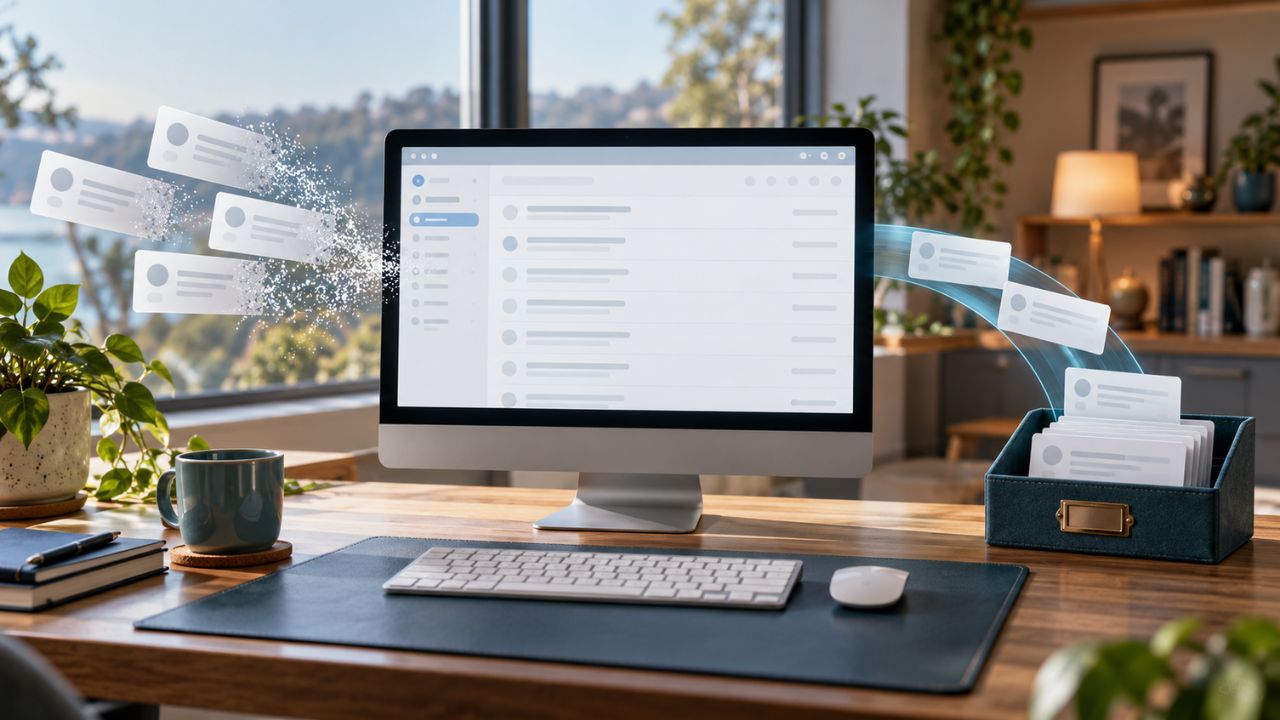
Unsubscribe tools can do two different things. Some ask a mailing list to remove your email address. Others let the messages arrive, then move them to Spam, Trash, another folder, or a digest. A quieter inbox does not always mean the sender has stopped emailing you.
I’ve used Gmail’s Manage subscriptions feature and Outlook.com’s Subscriptions view. Both offer a useful starting point, but they also show why the wording matters: Unsubscribe and Block are different actions.
This guide compares 10 unsubscribe tools by what happens after you click, what they cost to try, and what access they need to your inbox.
Unsubscribing, Blocking, and Rolling Up Emails
When you unsubscribe, you ask the sender to take your address off a marketing list. The request may take a few days to process, and one company may have several lists.
When you block or filter, the sender may continue emailing you. Your email provider or cleanup tool moves the messages somewhere you are less likely to see them.
A rollup keeps the subscription active but collects its messages into a digest. It is useful for newsletters you enjoy but do not need throughout the day.
Some tools combine these actions. They request an unsubscribe and also filter messages that arrive afterward. That protects your inbox if a sender is slow to act, but it makes it harder to tell whether the sender actually removed you.
10 Unsubscribe Tools Compared
The comparison below reflects the tools’ published features as of October 2026. An opt-out request is not a guarantee that every sender will honor it.
| Tool | Does it request removal? | What else happens? |
| Gmail Manage subscriptions | Yes, for eligible mailing lists | Messages sent afterward may go to Spam |
| Outlook.com Subscriptions | Yes, when Unsubscribe is available | Block is a separate action |
| Yahoo Mail Unsubscribe view | Yes, for identified lists | Suspected spam should be reported separately |
| iCloud Mail Cleanup | Offers unsubscribe recommendations | Can move future messages to Trash |
| Clean Email | Yes, through its Unsubscribe action | Continued mail goes to Trash; Pause only filters |
| Leave Me Alone | Yes, where it can send an opt-out | Rollup keeps subscriptions; filters can handle exceptions |
| Mailstrom | Sends a request or opens the sender’s opt-out page | Its separate Block action filters mail |
| SaneBox | Only if its optional unsubscribe setting applies | SaneBlackHole primarily diverts messages |
| Unroll.Me | Its Block action does not establish removal | Mail goes to an “Unsubscribed” folder |
| Cleanfox | May vary by newsletter | Can automatically move unwanted mail to Trash |
The first four options are built into email services. The remaining tools require a separate connection to your mailbox.
1. Gmail Manage Subscriptions
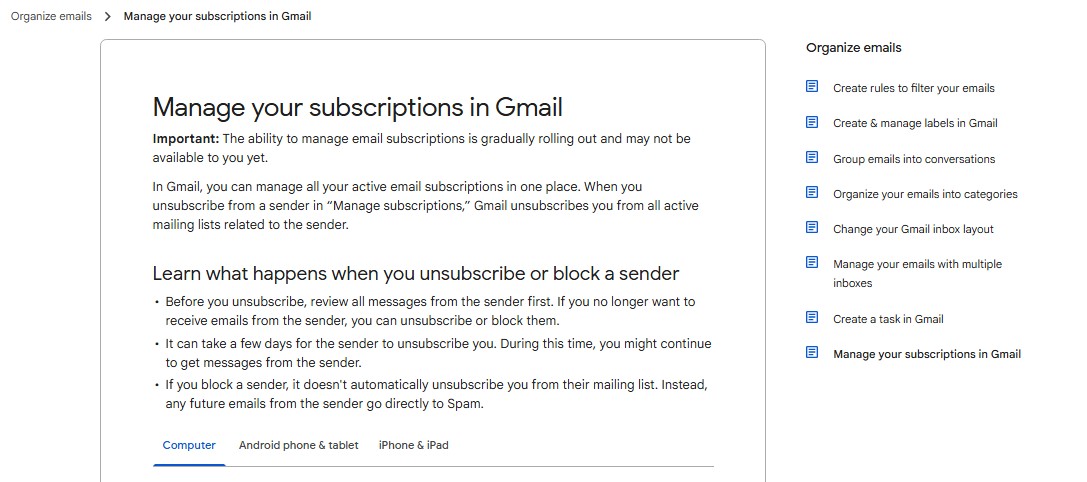
Gmail is the first place I would check for a Gmail inbox full of newsletters. Its Manage subscriptions view brings identified senders together, so you can look at their messages before deciding what to stop.
Google says choosing Unsubscribe in this view removes you from active mailing lists associated with that sender. Using Unsubscribe on one individual email may affect only that particular list. Gmail can also send later messages from an unsubscribed sender to Spam.
Block does something else. It sends future messages to Spam without unsubscribing you.
I’ve used Gmail’s built-in option, and its appeal is simple: there is no additional service to connect. The limitation is that Google still describes Manage subscriptions as a gradual rollout, so some readers may not see it. Certain senders also require you to finish the process on their website.
2. Outlook.com Subscriptions
Outlook.com has a similar built-in view under Settings → Mail → Subscriptions. It identifies recurring subscription senders and offers Unsubscribe. A separate Block option lets you keep a sender’s messages out of your inbox without treating that as a mailing-list opt-out.
Having used Outlook.com’s subscription controls, I would make that choice deliberately. If I want to leave a legitimate newsletter, I select Unsubscribe. If the problem is a persistent sender whose mail I do not want to see, Block serves a different purpose.
The published instructions apply to Outlook.com. An Outlook app connected to a work or school account may show different controls. Microsoft also notes that some messages, including certain emails already treated as junk, will not offer an unsubscribe option.
3. Yahoo Mail Unsubscribe View
In the Yahoo Mail app, you can open an eligible mailing-list message and choose Unsubscribe. The app also has an Unsubscribe view where you can review identified lists.
This is a practical choice if you already read Yahoo Mail on your phone and want to handle recognizable newsletters without connecting another tool. It will not necessarily identify every sender. If a message appears suspicious or has no legitimate unsubscribe option, use Yahoo’s spam-reporting control instead of searching its contents for a link.
4. iCloud Mail Cleanup
iCloud Mail Cleanup can recommend promotional and update senders for bulk unsubscribing. It can also move later messages from selected senders to Trash, so it combines an opt-out action with ongoing inbox cleanup.
The account distinction matters. iCloud Mail Cleanup manages iCloud Mail; it is not a bulk cleanup tool for every account you might read in Apple’s Mail app. Apple says the feature may not be available in all languages, and an inbox may not have any recommendations yet.
Apple Mail on Mac also has a simpler message-level Unsubscribe banner for recognized mailing lists. That button and iCloud Mail Cleanup are related features, but they are not the same workflow.
5. Clean Email
Clean Email is designed for a larger cleanup job. Its Unsubscriber gathers identified mailing lists and can act on multiple selections. When you choose Unsubscribe, the company says it attempts an opt-out through available methods, including mailing-list headers, email requests, and forms. It also routes later messages from that list to Trash if the sender keeps mailing.
Check which action you choose. Clean Email’s Pause feature sends future messages to Trash without requesting removal from the list. That can be useful when you want a temporary break, but it will not stop the sender at the source.
The free account covers a limited amount of basic cleanup. Unsubscriber is a premium feature available during a trial with a limited number of unsubscribe actions. Clean Email says it uses email headers and metadata rather than downloading message bodies to its systems. As with any connected inbox tool, review the permissions before signing in.
6. Leave Me Alone
Leave Me Alone presents recurring subscriptions with three practical choices: keep them, unsubscribe, or add them to a Rollup.
For its unsubscribe action, the service says it follows an available opt-out link or sends a request email. When it cannot unsubscribe from certain messages, it can use filters to move them out of your inbox. That fallback helps with clutter, but it should be understood as filtering.
Rollup serves another purpose. It collects newsletters you still want to receive and presents them in a scheduled digest. Adding a sender to Rollup does not remove you from its mailing list.
Leave Me Alone offers 10 free unsubscribes, followed by paid options. It publishes the mailbox permissions it requests and says it does not sell users’ email data. It is worth considering if you want to review several accounts but prefer a tool centered on subscription decisions.
7. Mailstrom
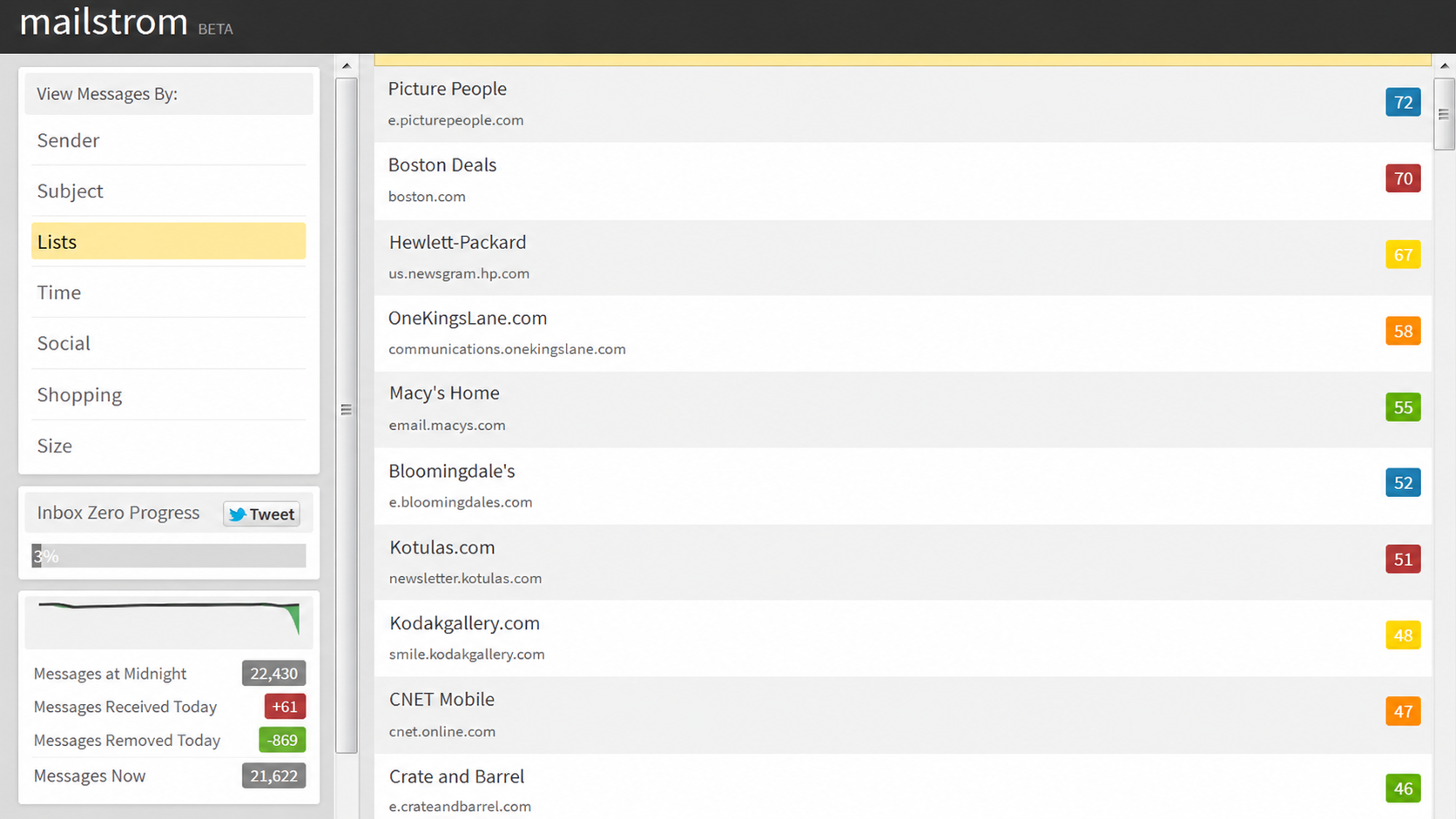
Mailstrom groups messages by sender and other characteristics so you can deal with a crowded inbox in batches. In its Mailing Lists view, its Unsubscribe action sends a request email when possible. If it cannot do that, it opens the sender’s opt-out page for you to complete the process.
Its Block button is separate: it creates a rule to filter future matching mail. Mailstrom also offers bulk delete, archive, and move actions, making it more useful for an old inbox backlog than for a couple of newsletters.
The free trial has limits, and ongoing features require a paid plan. Its privacy description deserves careful reading. Mailstrom says it stores subject lines and metadata on its servers, while its FAQ also says the service can access message contents when displaying emails. Readers with a sensitive inbox should weigh that access against the convenience of bulk cleanup.
Check out how to reduce email unsubscribe rates here.
8. SaneBox
SaneBox’s SaneBlackHole is primarily a way to stop seeing an unwanted sender. Move a message into that folder, and SaneBox learns to put future messages from the sender there. Those messages normally move to Trash after seven days. The sender may still be emailing you throughout that time.
SaneBox also documents an optional unsubscribe setting that can attempt to remove you from mailing lists trained to SaneBlackHole. Check that setting before assuming moving a message to the folder sent an opt-out request.
SaneBox offers a short free trial and then paid plans. Its broader inbox-sorting features may justify it for someone who wants fewer interruptions across their email account. If your only task is leaving a few newsletters, a built-in unsubscribe control is simpler.
9. Unroll.Me
Unroll.Me offers Keep, Block, and Rollup actions. The name of the folder used for blocked mail can be misleading: according to its support documentation, messages from a blocked subscription continue arriving in an Unroll.Me/Unsubscribed folder.
That means Block can clean up what you see without establishing that the sender removed your address. Rollup likewise keeps the subscription active and gathers messages into a digest.
There is a privacy trade-off to consider. Unroll.Me says it uses information derived from commercial and transactional emails for NielsenIQ measurement products. It provides controls for opting out of its measurement panel. Read those terms closely before connecting an inbox containing purchases, reservations, or work correspondence.
10. Cleanfox
Cleanfox helps you review recurring newsletters, remove old messages, and automatically divert unwanted future mail. It is free, but its unsubscribe claim needs more qualification than a simple yes or no.
An older Cleanfox help page describes sending an opt-out request to a list owner. Its newer guidance explains that, for some newsletters requiring account access to unsubscribe, it automatically deletes future messages instead. You can rely on it to manage visible clutter as described, but you should not treat every cleared newsletter as proof of sender-side removal.
Cleanfox’s privacy notice says it collects information from commercial emails, including some transactional messages, for its business purposes and describes panel opt-out choices. That is part of the cost of choosing a free connected tool.
How to Tell Whether Unsubscribing Worked
An empty inbox is only the beginning of the check. Use these steps when it matters whether your address was actually removed:
- Check the action you selected: Look for Unsubscribe or an opt-out confirmation. Block, Pause, and Rollup can leave the mailing-list subscription active.
- Check other folders: A new message in Spam, Trash, or a tool’s “Unsubscribed” folder shows that mail is still arriving.
- Allow processing time: Legitimate senders may need a few days. Under U.S. law, businesses covered by the CAN-SPAM Act have up to 10 business days to honor a commercial-email opt-out.
- Check the sender’s account preferences if needed: Some companies have separate lists for offers, product updates, and newsletters. A message from another list does not always mean the first request failed.
- Review access when you finish using a third-party tool: Disconnect it if you no longer need it, and check whether it created filters in your email account that you want to keep.
A sender confirmation or updated preference page is stronger evidence than a quiet inbox. Even then, keep an eye on what arrives later.
Commonly Asked Questions about Unsubscribe Tools
Do unsubscribe tools remove my email address from every mailing list?
No. Some send an opt-out request for a recognized list; others filter messages. A sender may also operate several separate lists.
Why am I still receiving emails after unsubscribing?
The sender may still be processing your request, another list may be active, or the tool may have moved messages rather than stopped them.
Can I bulk unsubscribe in Gmail?
Gmail’s Manage subscriptions view gathers senders in one place, but you select Unsubscribe for each sender. The feature may not appear in every account yet.
Is it safe to connect an unsubscribe app to my inbox?
Review its requested permissions, data-use policy, and account-disconnection options first. A built-in email-provider feature is a sensible starting point if you only need to remove a few subscriptions.
Should I click Unsubscribe in a suspicious email?
No. Avoid its links and use your email provider’s spam or phishing report option.
Does unsubscribing from emails cancel a paid subscription?
No. Leaving a marketing list changes the emails you receive. Cancel a paid service through its account or billing settings.
A Clean Inbox Should Mean What You Think It Means
The right unsubscribe tools depend on your goal. If you want a company to stop sending marketing mail, choose an action that requests removal. If you want to keep a newsletter but read it later, use a digest. If a sender will not cooperate, a filter can keep its messages out of your way.
Before deciding the job is done, check where later emails go. A message you cannot see may still be a message you receive.