A shared document can save a team from chasing email attachments, but only if everyone can find the right file, leave useful feedback, and understand who can make changes. The best document collaboration tools solve those everyday problems in different ways. Some are familiar word processors; others connect documents to team notes, project tracking, or customer records.
This is a category-based shortlist, not a universal ranking. The right fit depends on the work your team does and the tools people already know. Product features and plans can change, so check current details before choosing.
How to Choose a Document Collaboration Tool
Start with the documents your team produces. A meeting note has different needs from a formal report, a classroom assignment, or an internal policy guide. Think about how people will review the work: live editing, comments, tracked changes, or a mix.
Then check sharing and organization. Can an outside reviewer comment without getting edit access? Will the team be able to find the document months later? Does it work with your existing apps and storage? The best document collaboration tools should reduce handoffs and confusion, not create a new system that only one person knows how to manage.
Google Docs is a straightforward place to start when a team wants to write together in a browser. Collaborators can edit or comment according to their access, and version history lets the team revisit earlier drafts. People can also see who is working in a document.
That combination suits meeting notes, briefs, class projects, and drafts that need quick feedback. Sharing one document is simpler than asking everyone to edit separate copies and merge them later. For many teams, Docs is the best document collaboration tool to try first when the main need is shared writing.
The trade-off is fit. If your work depends on complex Word formatting or Microsoft-specific processes, Word may be a better home for the final file. Before sending a link, check whether each person should have view, comment, or edit access.
How We Plan the Editorial Calendar
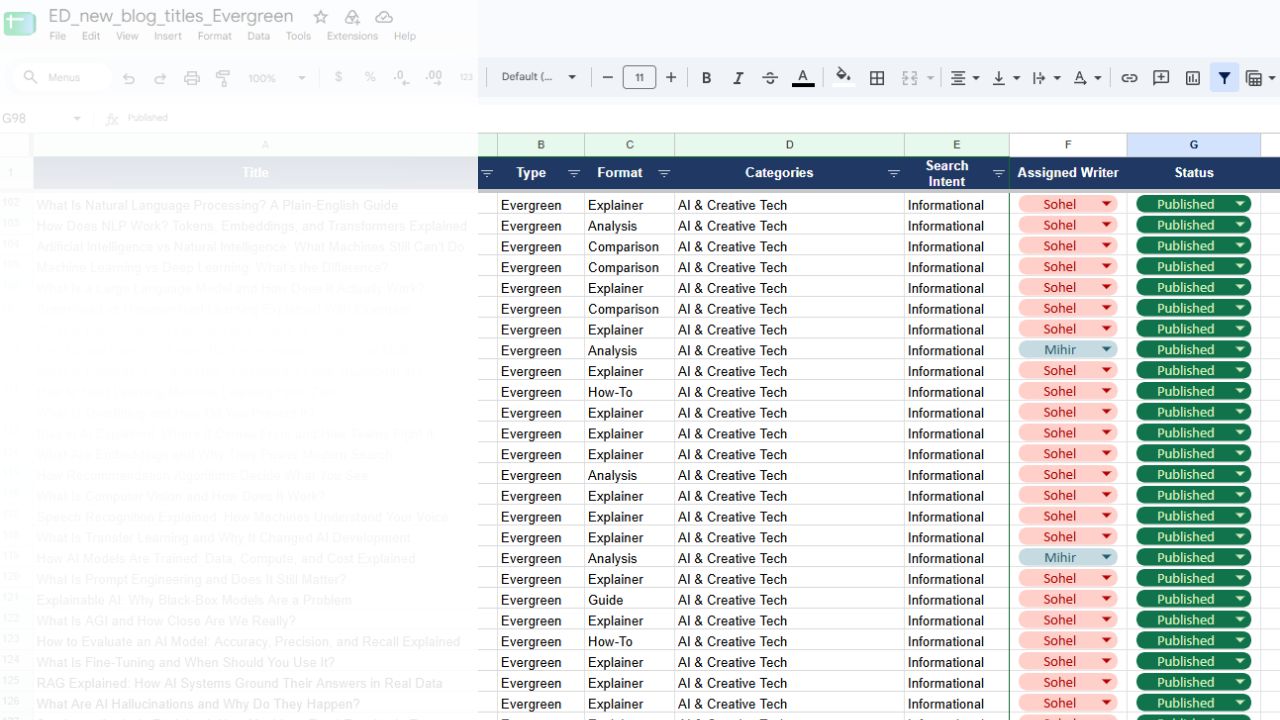
Our content calendar lives in Google Docs. It gives the team one shared place to check upcoming topics, assigned writers, deadlines, publishing dates, and each article’s progress. When someone needs to know what is due next or where a draft stands, the calendar provides that overview without a separate status message for every assignment.
The plan starts with a topic and an owner. From there, the calendar keeps the deadline and publishing schedule visible as the article moves through the work. It does not replace editorial judgment or conversation; it gives both a common reference point.
2. Notion: Best for Connected Team Knowledge
Notion is useful when documents need to sit beside plans, research, and reference material. Teams can comment on selected text, mention colleagues, and share pages with different access levels. Its workspace supports real-time collaboration.
A product team, for example, could keep a project brief near the research and decisions that shaped it. That makes Notion more than a place to draft prose: the document can become part of a larger, searchable record of the work.
It may not suit every formal document workflow. If clients expect carefully formatted Word files, test the handoff before moving important documents into Notion. The best document collaboration tools for internal knowledge are not automatically the best for polished external documents.
3. Dropbox Paper: Best for Lightweight Drafts
Dropbox Paper is suited to shared notes, outlines, brainstorming, and early drafts. Collaborators can work in a Paper document and discuss the work there. Dropbox’s help documentation also notes that a Paper doc can have up to 50 editors at one time.
Paper may be convenient for a team that already uses Dropbox to store and share files. Its focus on a shared document can keep a planning discussion from spreading across email and chat.
Before settling on it, check whether it meets your formatting and review needs. If your work depends on detailed layout or formal document controls, compare it with Word or Zoho Writer.
4. Zoho Writer: Best for Document Review
Zoho Writer combines co-authoring with comments, change tracking, and version control. It also offers controls such as content locking and masking selected text.
Those features are useful when a document needs more than a quick read-through. A team can discuss edits and protect sections that should not be changed casually. Writer is especially worth considering if your organization already uses Zoho products.
If collaborators are used to Google Docs or Word, test a real document first. Formatting and review habits can differ between platforms, and a small trial will show whether the move is worth the adjustment.
5. ONLYOFFICE Docs: Best for Co-Editing Choices
ONLYOFFICE Docs gives teams two ways to co-edit: fast mode shows changes in real time, while strict mode holds back other editors’ changes until updates are saved.
That distinction is useful when some people prefer live visibility and others want to work through a section before accepting changes. It is also worth considering for teams evaluating different deployment arrangements.
There is more to decide than the editor itself. If you plan to connect it to existing storage or manage a self-hosted setup, account for the setup and administration work before choosing it.
6. Confluence: Best for Internal Documentation
Confluence is built for team knowledge and project documentation. Teams can edit pages together, leave inline or page comments, and organize material in spaces. Its live docs save changes and show them to collaborators in real time.
It fits internal guides, onboarding information, and project decisions that people need to find later. Teams that use Jira may also value keeping project documentation in the Atlassian environment.
Confluence needs a little structure. Set conventions for spaces, page titles, and ownership early; otherwise, a growing collection of pages can become hard to browse. It is a knowledge hub, not simply a substitute for a blank document.
7. Coda: Best for Documents with Workflows
Coda combines documents with tables and app-like features. Teams can use comments and suggested changes to discuss content inside a doc.
That can help with a launch tracker, decision log, or meeting document that includes follow-up actions. A team can keep reference information and ongoing work together instead of updating separate files.
Coda’s flexibility is most useful when a process repeats. For a one-off memo, building a custom workflow may be more work than the document needs. Agree on how the shared doc should operate before making it central to the team’s routine.
Word makes sense for teams that produce formal reports, proposals, or documents with established layouts. Microsoft supports co-authoring when files are stored in OneDrive or SharePoint, and Word for the web is designed to show collaborators’ changes in real time. The experience can depend on the app version and file location.
This is a natural choice for organizations already using Microsoft 365. People can keep working in familiar Word apps, while OneDrive or SharePoint provides a shared location. A common source of confusion is the file itself: a copy on one person’s computer is not the same as the team’s shared cloud document. Agree on where active files belong, and make sure collaborators can access that location.
How Our Team Moves an Article to Publication
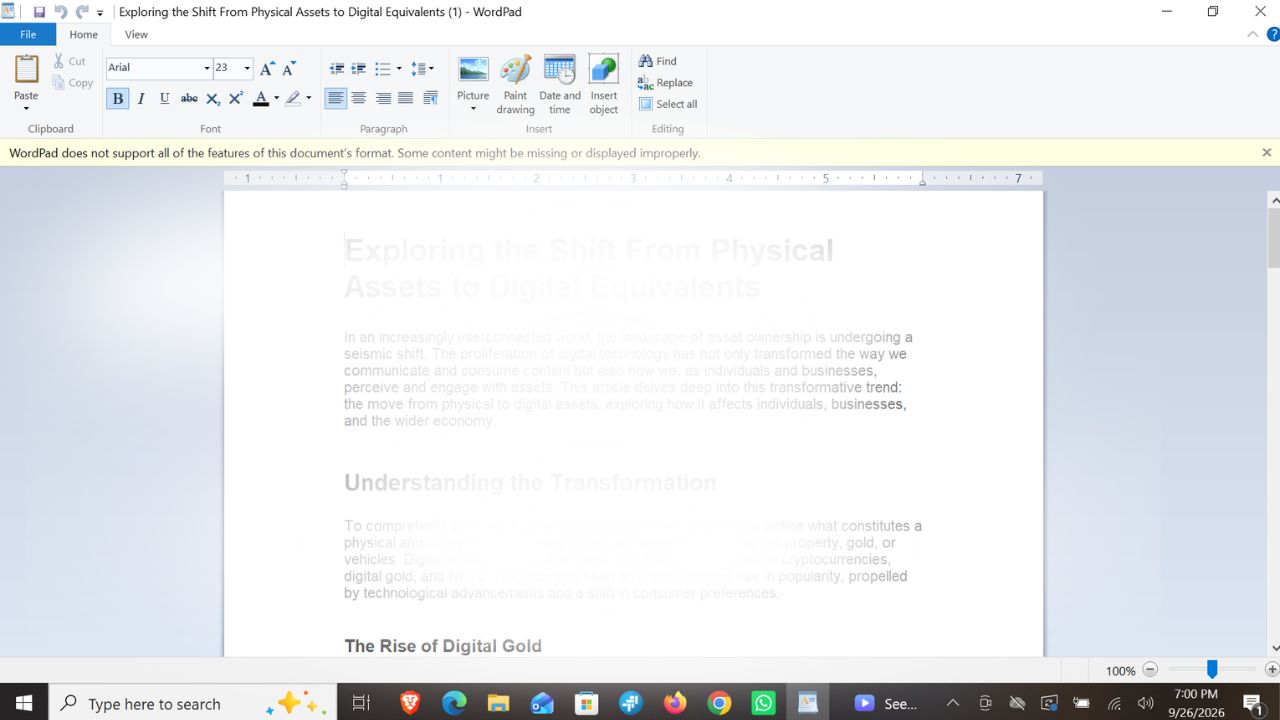
On our team, we use Microsoft Word when a draft needs shared editing and review. We save it to OneDrive or SharePoint so editors can work through the same document. Our calendar and coordination details still live in Google Docs and Discord; we use Word as the editor when that fits the workflow.
9. Quip: Best for Salesforce Teams
Quip combines documents, spreadsheets, and chat. Salesforce documentation describes collaborative documents and the ability to work with Quip content from Salesforce records.
That connection is the main reason sales or service teams might shortlist Quip: planning notes can sit close to the customer or account information they support.
Teams outside the Salesforce environment should compare Quip with a general-purpose editor. Its integration may not justify adding another platform if your work does not depend on Salesforce.
10. Etherpad: Best for Simple Live Text Editing
Etherpad focuses on real-time text editing. Multiple people can contribute to a pad at once, and its documentation describes plugins and real-time chat. It can suit workshops, shared notes, or quick writing sessions where participants need to see contributions as they appear. Teams considering their own instance can review Etherpad’s deployment documentation before setting it up.
Etherpad is a focused editor, not a full office suite. If you need extensive formatting, detailed review controls, or a searchable knowledge base, one of the broader platforms will likely fit better.
Final Thoughts
If your team mainly needs to write together, begin with Google Docs or Word, especially if one of those is already part of your daily workflow. Choose Notion or Confluence when documents need to become part of a larger knowledge base. Look at Zoho Writer or ONLYOFFICE when review controls or co-editing modes matter; Coda suits repeatable workflows, while Quip is a more specific choice for Salesforce teams.
The best document collaboration tools are the ones your team can use consistently. Before migrating a library of files, run one real project through the tool. Invite an internal editor and an outside reviewer, test permissions, and check how the final document can be shared or exported. That will expose practical friction before it becomes everyone’s problem.
Frequently Asked Questions (FAQs)
What is a document collaboration tool?
It is software that lets multiple people create, edit, comment on, or review shared documents. Some focus on word processing; others connect documents to tasks, databases, or team knowledge.
Which tools support real-time editing?
Google Docs and Word for the web are familiar options. Zoho Writer, ONLYOFFICE, and Etherpad also support collaborative editing, though their workflows and setup choices differ.
Can I collaborate with people outside my organization?
Many platforms support external sharing, but guest access and sign-in requirements vary. Check whether outside collaborators can view, comment, or edit before sharing a link. The best document collaboration tools make it straightforward to grant only the access a reviewer needs.