Google Chrome extensions are meant to make work easier. Install too many, though, and the browser becomes another crowded workspace filled with overlapping tools, permission requests, background activity, and subscriptions you barely use.
That is why I wouldn’t treat the best Google Chrome extensions for productivity as a collection to install all at once. A useful extension should solve a repeated problem. It might help you capture tasks before you forget them, clear a crowded tab bar, restrict a distracting website, stop rewriting the same response, or document a process more efficiently.
The 12 extensions below address different kinds of browser friction. They were available in the Chrome Web Store. Pricing and free-plan limits were checked against official product pages, but these details can change.
Start with the part of your workflow that regularly wastes time. One well-chosen extension is usually more useful than ten tools competing for space beside the address bar.
Before Installing Another Chrome Extension
Chrome already has several features that may be enough for basic needs. Memory Saver reduces the resources used by inactive tabs. Chrome also provides saved and synced tab groups, a Reading List, tab search, and Google Password Manager.
Try the built-in option first when your need is straightforward. An extension makes more sense when it adds a capability that Chrome does not provide or removes enough repeated friction to justify another tool.
Permissions deserve the same consideration. A website blocker needs to recognize the page you are visiting. A writing assistant must interact with text fields, while a workflow-capture tool may need to observe browser activity and take screenshots. That access can be necessary, but it should still be reviewed before installation.
I selected these tools based on current availability, usefulness in an identifiable workflow, free-plan value, official documentation, pricing, and practical limitations. The recommendations do not claim personal hands-on testing where none occurred.
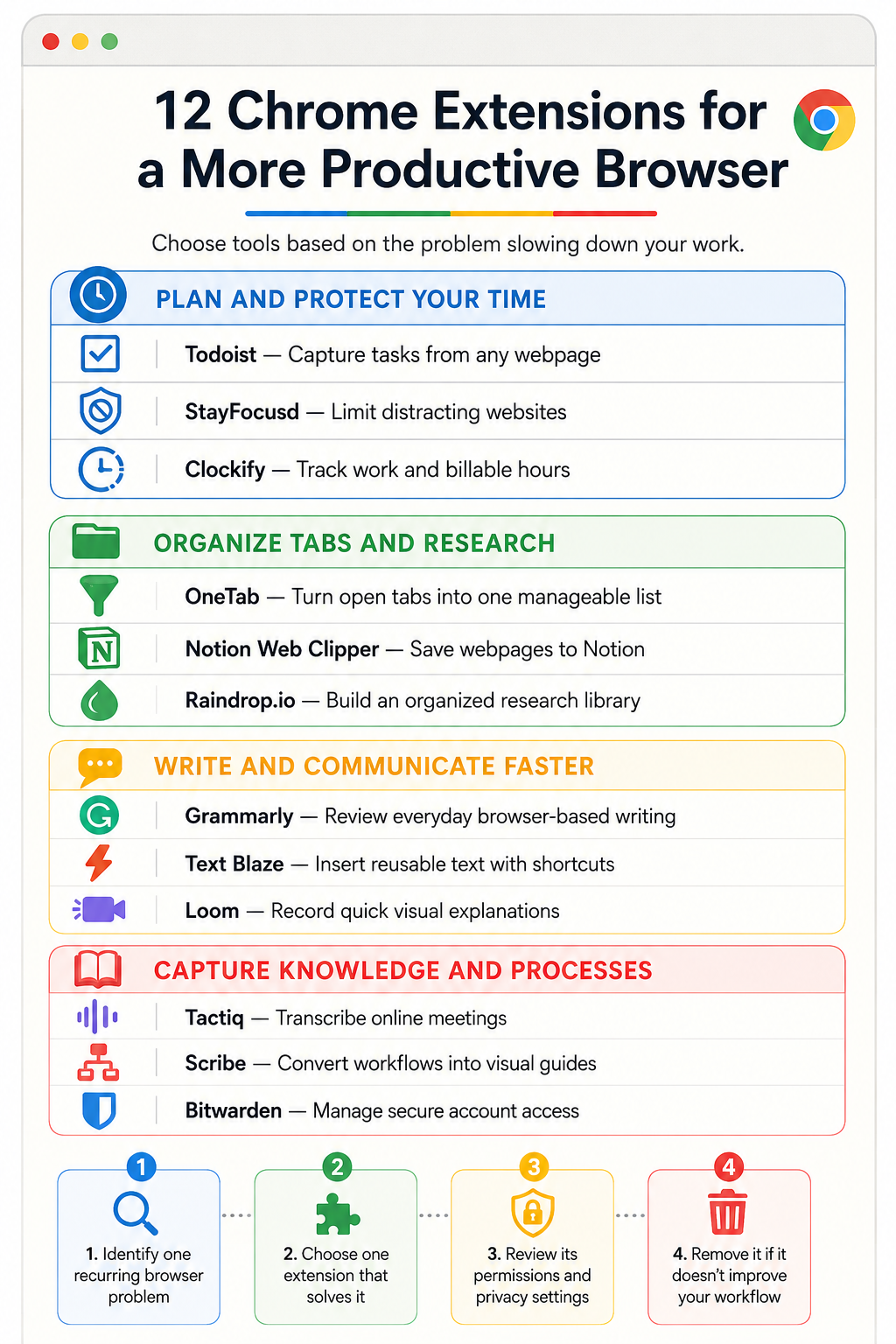
12 Best Google Chrome Extensions for Productivity
The best Chrome extensions for productivity solve specific problems rather than adding more clutter to your browser. The 12 options below can help with tasks, focus, tab management, writing, research, time tracking, meetings, documentation, and secure account access.
1. Todoist: Best for Capturing Tasks While Browsing
A task often appears while you are doing something else. You find an article that needs reviewing, a product page worth revisiting, or a message that requires a follow-up next week. Todoist lets you turn the current webpage or selected text into a task without leaving the browser.
It is especially useful for people who already organize their work in Todoist. The extension provides access to existing tasks, and saved webpages retain their links, making them easier to revisit later.
The risk is effortless over-collection. If every interesting page becomes a vague task, the Todoist inbox soon resembles the crowded browser it was supposed to replace. Captured items still need clear actions and regular review.
The Beginner plan covers basic personal task management. At the time of writing, Todoist Pro costs $5 per month with annual billing or $7 when paid monthly.
Anyone already satisfied with Google Tasks, Microsoft To Do, Apple Reminders, or another task system can safely skip this one.
2. StayFocusd: Best for Limiting Distracting Websites
Most people do not need to block the entire internet. They need a little resistance between the impulse to open a distracting site and the decision to spend time there.
StayFocusd can restrict entire websites, individual pages, sections of sites, or selected types of content. Limits can apply during chosen hours, while the stricter Nuclear Option is designed for periods when ordinary reminders are too easy to dismiss.
The settings need to reflect real work. A marketer, journalist, or customer-support professional may need access to platforms that are distracting in other contexts. Narrow limits, such as restricting a news site or hiding short-form videos during writing hours, are often more practical than blocking everything.
StayFocusd is free. It requests permission to read and change website data because it cannot enforce blocking rules without recognizing and modifying the pages being visited. The developer explains this on the store listing, but users should still decide whether the access is acceptable.
3. OneTab: Best for Clearing Tab Overload Quickly
OneTab converts the open tabs in a browser window into a single list. Pages can then be restored individually or all at once.
This solves a different problem from Chrome’s Memory Saver. Memory Saver reduces the resources used by inactive tabs while leaving them visible. OneTab removes them from the tab bar, which can make a cluttered browser easier to navigate.
I see it as a temporary cleanup tool rather than a permanent research library. It works well after a busy research session, a long comparison process, or any task that has left dozens of pages open. If the saved list keeps growing for months, however, it becomes another pile to sort through.
OneTab is free. Its Chrome Web Store listing states that tab URLs are not transmitted to the developer unless the user deliberately creates a shared webpage from a list.
For structured, long-term research, Raindrop.io is the stronger option. Use OneTab when the immediate problem is visual tab overload.
4. Clockify: Best for Tracking Work and Billable Time
Time tracking becomes irritating when starting a timer requires another application or browser tab. Clockify places that function inside Chrome and can integrate with a wide range of web-based work platforms.
Freelancers can separate billable work from administration, while teams may use the recorded data for timesheets, cost analysis, budgets, payroll, or project reporting. The extension also supports features such as reminders, idle detection, shortcuts, and a Pomodoro timer.
Convenient access does not guarantee reliable records. Forgotten timers, unclear descriptions, and incorrect project assignments still produce poor reports. Tracking every small action may also create more administration than useful insight.
Clockify offers a free time-tracking plan. Its paid Basic plan currently starts at $3.99 per seat per month with annual billing.
This is most valuable when time data affects invoices or business decisions. If you only want to know roughly how long a task took, a basic timer may be sufficient.
5. Grammarly: Best for Improving Everyday Browser-Based Writing
Grammarly checks spelling, punctuation, grammar, clarity, and tone in supported text fields. Its greatest value often appears in the smaller pieces of writing that do not receive a formal editorial review: emails, forms, client messages, social posts, and internal documents.
The extension can catch an omitted word or confusing sentence while it is still being written. It is less reliable as a substitute for judgment. Automated suggestions can flatten an intentional voice, alter technical meaning, or make different writers sound surprisingly similar.
Because Grammarly operates wherever supported browser writing occurs, people working with confidential, legal, financial, medical, or sensitive company information should review organizational policies and the extension’s current data practices before using it.
The free plan includes core writing assistance. Grammarly Pro currently costs $144 annually, equivalent to $12 per month, or $30 on a monthly subscription.
The most useful habit here is also the simplest: review each suggestion instead of accepting changes automatically.
6. Notion Web Clipper: Best for Existing Notion Users
Notion Web Clipper saves webpages directly to a chosen Notion page or database. Research can go into an editorial calendar, project workspace, reading list, inspiration gallery, or shared team resource without manually copying every URL.
Its usefulness depends heavily on what happens after the page is saved. If the destination database already contains meaningful fields for topics, projects, sources, or publication status, the clip can enter an established workflow. Without that structure, the extension makes it very easy to build a large collection that nobody revisits.
Recent store reviews are worth checking before relying on it for an important workflow, as user experiences can change with updates.
The extension itself is free, although a Notion account is required. It is a sensible addition for active Notion users, but not a strong reason to adopt the entire platform. People who simply need a better bookmark manager will probably find Raindrop.io more direct.
7. Raindrop.io: Best for Organizing Bookmarks and Research
Ordinary browser bookmarks work until the collection becomes large enough that finding an old page is harder than searching for it again.
Raindrop.io provides a more deliberate research library with collections, tags, highlights, annotations, filters, cross-platform applications, and collaboration features. Its free plan supports unlimited bookmarks, collections, and devices.
This makes it better suited to long-term research than OneTab. OneTab clears an active browser session; Raindrop.io organizes material that should remain useful months later.
The Pro plan adds features such as full-text search, permanent copies of saved pages, additional upload space, backups, and tools for finding duplicate or broken links. Raindrop states that its free plan can be used indefinitely, so casual users can build a substantial library without paying.
Avoid designing an elaborate tagging system before you need one. A few clear collections usually make retrieval easier than dozens of overlapping categories.
8. Text Blaze: Best for Repetitive Typing
Text Blaze turns short commands into reusable text. A snippet can insert an email response, meeting link, customer-support instruction, product explanation, grading comment, signature, or form template.
It can also handle changing information through editable fields, dates, dropdowns, calculations, and conditional content. That is useful when the foundation of a response stays the same but some details need to be personalized.
Templates should remove repetition without making communication feel careless. A support response may contain a standard troubleshooting sequence, but the context and final recommendation still need to address the person’s actual problem.
The free plan provides limited snippets and sharing. Text Blaze Pro currently starts at $2.99 per month with annual billing.
Do not store passwords or confidential client, financial, medical, or internal information in reusable snippets without checking company policy and the provider’s security arrangements.
9. Loom: Best for Quick Visual Explanations
Some explanations become longer and less clear when forced into an email. Loom can record a browser tab, screen, camera, microphone, or a combination of them, then provide a link to the video.
It is useful for software demonstrations, design feedback, bug reports, project updates, and situations where movement or visual context matters. Showing a setting can be much clearer than describing its location across several paragraphs.
Video is not automatically the most efficient format. Recipients cannot scan a recording as quickly as a written message, and instructions may be difficult to reference later. A simple answer should remain a simple answer.
Loom’s free Starter plan currently allows up to 25 videos per person, with a five-minute limit on each screen recording.
Before recording, close private tabs and check the screen for visible notifications, credentials, customer records, or unrelated company information.
10. Tactiq: Best for Online Meeting Notes
Tactiq provides live transcription for Google Meet, Zoom, and Microsoft Teams without adding a visible meeting bot. It can also generate summaries, identify action items, save chat messages, and export transcripts to other tools.
This can help people participate in a conversation without trying to record every sentence manually. Searchable transcripts are also useful when a decision disappears inside a long meeting.
They should not be treated as flawless records. Accents, names, specialist terminology, poor audio, and overlapping speakers can create errors. AI summaries may miss a qualification or assign an action to the wrong person. Deadlines, figures, decisions, and commitments need checking before they are circulated.
Participants should know when transcription is active, and its use must follow workplace policies and applicable consent rules.
The free plan includes 10 transcripts and five AI credits per month. Pro costs $8 per user per month with annual billing and includes unlimited transcripts, although its AI credits remain limited.
11. Scribe: Best for Creating Process Documentation
Scribe records a browser workflow and converts the actions into written steps with screenshots. It is designed for employee onboarding, software instructions, internal procedures, and standard operating documentation.
Unlike Loom, which shows the process as a video, Scribe produces instructions that readers can scan and follow one step at a time.
The generated guide is a starting point. Unnecessary clicks may need removing, vague instructions need rewriting, and screenshots should be checked for email addresses, account details, customer records, internal URLs, and other information that should not be shared. Documentation also needs updating when the software interface changes.
Scribe’s Basic plan is free for browser-based capture and shareable guides. The Pro Personal plan currently costs $25 per month with annual billing or $35 when paid monthly. It adds desktop and mobile capture, screenshot editing and redaction, branding, and exports to PDF, HTML, and Markdown.
Manual screenshots may be quicker for a simple one-off guide. Scribe makes more sense when documentation is created repeatedly.
12. Bitwarden: Best for Faster, Safer Account Access
Password management may not appear to be a productivity category, but forgotten credentials, repeated resets, and unsafe password reuse waste time while creating security risks.
Bitwarden stores passwords, passkeys, identities, payment information, and secure notes in an encrypted vault. The Chrome extension can generate credentials and fill them on recognized websites. Because Bitwarden works across major browsers, operating systems, and mobile devices, it is particularly useful for people who do not stay entirely within Chrome.
The free personal plan supports basic password management across unlimited devices. Bitwarden Premium costs $19.80 per year and adds an integrated authenticator, file attachments, emergency access, and security reports.
Google Password Manager already provides password generation, passkey support, autofill, and compromised-password checks. People who work mainly in Chrome and are satisfied with Google’s ecosystem may not need an alternative.
Whichever password manager you choose, protect it with a strong master password, multifactor authentication, and securely stored recovery information.
Build a Smaller Productivity Extension Stack
A useful setup does not need all 12 tools. Choose extensions according to problems that regularly interrupt your work.
A writer or researcher might combine Grammarly with either Raindrop.io or Notion Web Clipper. Installing both research tools only makes sense if they serve different destinations, for example, Raindrop.io for a personal source library and Notion for material connected to active projects.
A freelancer may get more value from Clockify, Text Blaze, and Bitwarden. That combination covers time records, repeated communication, and account access without adding several tools for the same purpose.
Remote teams should distinguish between Loom, Scribe, and Tactiq. Loom works well for a deliberate visual explanation. Scribe produces repeatable written instructions. Tactiq records what happened during a meeting. Their functions overlap slightly, but they do not solve the same communication problem.
For students, StayFocusd, Todoist, and one research-capture tool may be more useful than a large collection of AI assistants and new-tab dashboards.
Safety should remain part of the decision. Google allows users to change compatible extensions from access on all sites to access only on selected sites or when clicked. A permission warning does not prove that an extension is dangerous, but it does show what the tool could access.
Final Thoughts
The best Chrome extensions for productivity solve narrow problems that appear often enough to matter. The right choice depends on where your own workflow keeps slowing down.
Before installing anything, check whether Chrome already offers a suitable feature. If it does not, choose one extension for the problem, use it during normal work, and notice whether it saves time or adds another routine to maintain.
If you keep forgetting that an extension exists, it probably does not belong in your browser.
Frequently Asked Questions on The Best Google Chrome Extension for Productivity
1. Are Chrome productivity extensions safe to use?
Many reputable extensions are safe, but no extension should be installed without checking its publisher, permissions, privacy disclosure, recent reviews, and update history. Limit its access to selected websites when possible and remove it when you no longer use it. Broad permissions may be necessary for certain functions, but they still deserve careful review.
2. Do Chrome extensions slow down the browser?
Some extensions can use memory, processing power, or network resources, especially when they run continuously across multiple websites. The impact depends on how the extension works and how many are active. If Chrome becomes noticeably slower, disable extensions individually to identify the cause and remove unnecessary tools.
3. How many Chrome extensions should I install?
There is no ideal number that works for everyone. A better rule is to keep only the extensions you use regularly and avoid installing several tools that perform the same task. Review your extension list every few months and remove anything that no longer saves time or improves your workflow.
4. Which Chrome productivity extensions are best for students?
A practical student setup could include StayFocusd for reducing online distractions, Todoist for managing assignments, and either Raindrop.io or Notion Web Clipper for saving research. Students rarely need a large collection. Two or three extensions tied to genuine study problems are usually more helpful than a crowded productivity stack.