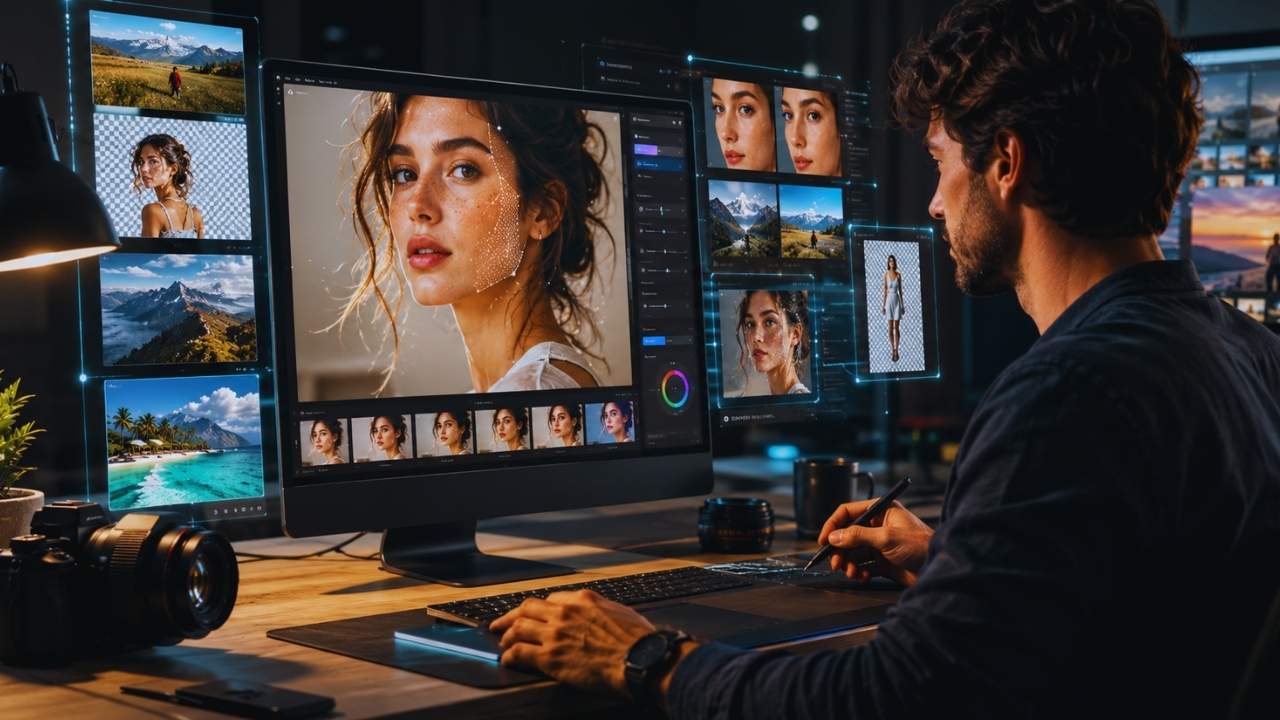
Most editors do not need artificial intelligence to choose a crop or decide whether a portrait feels too warm. They need help with the dull work around those decisions. Cutting out dozens of products, selecting the same subject across a photo set, clearing distracting objects, reducing noise, extending a background, and resizing campaign assets can consume hours without improving the underlying idea.
Good AI photo editing tools reduce that repetitive work. Poor ones create a different problem: strange fingers, false facial details, plastic skin, broken reflections, and backgrounds that look convincing until someone zooms in. The tools below are not ranked by how many AI features they advertise. The order reflects how useful they are in a real workflow, how much control they leave with the editor, and how clearly they solve a particular problem.
Photoshop and Lightroom remain the strongest professional choices. Canva and Photoroom are more practical for many marketing teams and online sellers. Other tools earn a place because they handle one narrow task unusually well. For a broader selection covering writing, design, video, audio, and productivity, see our guide to best AI tools for creators.
A Quick Way to Narrow the List
Start with the type of work that takes up most of your week:
- Detailed commercial or editorial editing: Adobe Photoshop
- Large batches of photographs: Adobe Lightroom
- Social media and branded content: Canva
- Product listings and marketplace images: Photoroom
- Simplified creative photography: Luminar Neo
- Noise, blur, focus, and upscaling problems: Topaz Photo
- Mobile-first social editing: Picsart
- Occasional browser-based edits: Pixlr
- Portrait or old-photo enhancement: Remini
- One-off background, cleanup, or expansion jobs: Clipdrop
Do not subscribe to three products that all remove backgrounds. Choose the main workspace first, then add a specialist tool only when it solves a recurring problem the main editor handles poorly.
Before Choosing an AI Photo Editor
The phrase “AI enhancement” covers several very different processes. Some tools analyze the pixels already in a photograph and adjust noise, sharpness, color, or subject masks. Others generate new visual information. Generative removal, face recovery, image expansion, and background replacement can all add pixels that never existed in the original scene.
That distinction matters. Generating a cleaner setting behind a product may be perfectly reasonable. Reconstructing a face in a historical photograph and presenting it as an accurate restoration is far more questionable. Newsrooms, archives, researchers, legal teams, and documentary photographers need stricter rules than a social media manager preparing a promotional post.
A few checks prevent most expensive mistakes:
- Export a full-resolution sample before paying.
- Inspect hair, jewelry, fingers, lettering, shadows, and reflections.
- Check whether free-plan exports include size or watermark restrictions.
- Review privacy terms before uploading private client photographs.
- Confirm that the software runs properly on the computer or phone being used.
- Keep the original file when an edit generates or reconstructs details.
AI can make the first pass faster. It does not remove the need for a final inspection.
1. Adobe Photoshop
Photoshop remains the most capable option when an automatic edit needs to survive professional scrutiny. Generative Fill can remove, replace, or add content inside a selection. Generative Expand creates additional space beyond the original frame, which is useful when an image has been shot in the wrong orientation for its eventual placement. An editor can turn a tight landscape photograph into a taller social graphic without immediately cropping away the subject.
The important advantage is not that Photoshop can generate an object or background. Many cheaper tools can do that. Photoshop places the result inside a mature system of layers, masks, selections, blending controls, color tools, and manual retouching options.
That makes errors repairable. A generated wall may repeat a window. A removed person may leave a warped shadow. A replacement object may have the wrong perspective. In Photoshop, the editor can refine the mask, clone a clean area, rebuild an edge, or discard the generated layer without damaging the source.
This level of control matters for advertising, publishing, high-value product work, composites, and campaign images that may be reused across several formats. Photoshop is less convincing as a recommendation for someone who only needs to remove backgrounds twice a month. The interface is demanding, the subscription adds an ongoing cost, and generative features may use plan-based credits. It is the best all-round professional editor here, but it is not the most efficient purchase for every reader.
2. Adobe Lightroom
Lightroom solves a different problem: too many photographs and too little time. Its AI-assisted masking can identify subjects, backgrounds, skies, people, facial features, and other image areas that once required slower manual selections. Denoise helps with high-ISO files. Generative Remove clears unwanted objects. Lens blur, sharpening, upscaling, and other enhancement features reduce the need to open every image in a separate editor.
The gain becomes obvious across a large set. A wedding photographer may need to correct lighting and color across several hundred photographs while keeping skin tones consistent. A property photographer may need similar window, sky, and interior adjustments across every room. A publisher may have dozens of event images that need fast, coherent treatment before a deadline.
Lightroom handles that type of repetition better than most AI-first editing apps because cataloguing, adjustment, copying settings, selection, and export all happen within the same workflow. It does not replace Photoshop for complex composites or detailed object rebuilding. Moving every photograph from Lightroom into Photoshop also defeats much of the efficiency. Reserve Photoshop for the small number of frames that genuinely need deeper work.
Performance is another consideration. AI denoising, generative removal, and advanced enhancement can feel slow on older computers, particularly with large raw files. Anyone working on an aging laptop should check current hardware recommendations before assuming the software will run comfortably. For photographers managing volume, Lightroom is usually the more valuable starting point than a flashy one-click editor.
3. Canva
Canva ranks this high because most content teams do not deliver edited photographs. They deliver finished posts, thumbnails, banners, presentations, advertisements, and campaign variations. Its photo tools include background removal, object cleanup, generative replacement, image expansion, and the ability to separate or reposition elements. Those functions are not as precise as Photoshop’s controls, but they sit next to templates, type, brand assets, resizing tools, approval features, and export options.
That changes the calculation. A social media manager can remove a distracting object from a staff photograph, extend the frame to create space for copy, apply brand colors, resize the design for several platforms, and hand it to a colleague without moving between several programs.
For ordinary content production, that convenience may save more time than a technically superior retouching feature. Canva becomes less reliable when the image itself must withstand close inspection. Fine hair, translucent materials, product reflections, exact colors, and complicated edges may require more control than it provides. AI-generated additions can also look generic, especially when users accept the first result without checking the details.
Many of its stronger AI features depend on the selected plan and may have usage limits. Teams should check current access before promising a workflow built around a feature available only to certain accounts. Canva is the best choice on this list for many social and marketing teams, not because it is the best photo editor, but because photo editing is only one part of their job.
4. Photoroom
Photoroom is built around a problem that general design software often treats as an extra feature: turning ordinary product photographs into clean listing images at scale. Background removal sits at the center of the experience. Users can place products on plain backgrounds, create alternative scenes, clean unwanted elements, resize images, and process groups of files more consistently.
For an online seller adding 60 new items to a catalog, that is more useful than a broad editor containing hundreds of tools the business will never touch.
Photoroom is particularly relevant for:
- Marketplace and resale listings
- Small product catalogues
- Social commerce
- Food and packaged-goods images
- Businesses that need consistent backgrounds across many products
Its limitations are easy to miss because the first result often looks polished. Generated surfaces and shadows can change how a product appears to sit in the scene. Thin straps, glass, metal, fur, and transparent packaging can confuse automatic cutouts. A convincing synthetic background may also make a modest product appear larger or more premium than it is.
That is an editing issue and, in some cases, a customer-trust issue. Photoroom is one of the strongest specialist recommendations in the list, but mainly for product-led workflows. Photographers developing raw files or designers building complex layouts should look elsewhere.
5. Luminar Neo
Luminar Neo is aimed at photographers who want visible results without learning the deepest parts of Photoshop. It combines ordinary image adjustments with tools for sky replacement, portrait enhancement, object removal, sharpening, noise reduction, lighting changes, image expansion, and generated replacement. It can work as a standalone editor and can fit into some plugin-based workflows.
Landscape and travel photographers are the obvious audience. Replacing an empty sky, changing the atmosphere, or balancing difficult light takes far less time than it would through older manual methods. Portrait tools can also speed up repetitive facial adjustments. The software’s greatest strength is also its main risk: it makes dramatic edits easy.
A few strong sliders can turn an ordinary frame into something colorful and polished. Push them slightly further and skin becomes waxy, clouds become theatrical, edges glow, and the photograph begins to resemble a preset demonstration. Luminar Neo is useful for photographers who already know what a believable edit looks like. It is more dangerous in the hands of someone who assumes that a stronger effect is automatically a better one.
Its membership and license arrangements have changed over time, and access to some generative tools may depend on the current plan. Check the latest terms rather than relying on an old tutorial or review.
6. Topaz Photo
Topaz Photo belongs in a different category from Canva, Photoshop, and Photoroom. It is primarily a repair and enhancement tool. Its strengths include reducing noise, improving sharpness, recovering focus, enlarging images, and attempting to improve small or unclear faces. It can be used as a standalone application or alongside a broader editing program.
This is useful when the source file has a technical weakness that normal adjustments cannot fully address:
- A wildlife photograph has heavy, high-ISO noise.
- An event image contains slight motion blur.
- A useful photograph was captured at too low a resolution.
- A scanned family picture needs careful cleanup.
- The main subject is close to sharp but not quite there.
Topaz Photo does not turn every failed image into a usable one. Heavy sharpening can produce halos, brittle texture, and unnatural detail. Face recovery deserves particular caution because it may construct plausible facial information rather than reveal exactly what the camera recorded. That may be acceptable for a small personal print. It is not acceptable as unquestioned historical or documentary evidence.
The software also needs stronger hardware than a lightweight browser editor. Current requirements call for substantial memory, storage, and graphics capability. Owners of older computers should check compatibility before purchasing. Topaz Photo is valuable when rescue work is a recurring part of the job. For someone editing clean smartphone photographs for social media, it is unnecessary.
7. Picsart
Picsart is designed for people who create and publish from the same device, often a phone. Its tools cover background removal, object replacement, enhancement, generative backgrounds, effects, resizing, templates, text, stickers, and video. A creator can clean a portrait, change the setting, add graphic elements, and export a finished post without opening a desktop editor.
That convenience explains its popularity. The interface also reveals its weakness. Picsart tries to serve casual editors, social creators, marketers, designers, and AI-image users at once. The number of options can make a simple job feel more complicated than expected. Some generative actions use credits, and those allowances may depend on the subscription plan.
Before paying, estimate how many AI edits the workflow will actually require each month. A plan that looks inexpensive can become restrictive if a team repeatedly regenerates backgrounds or replacement elements. Picsart works well for quick social graphics, profile images, thumbnails, and mobile campaign variations. It is not a serious replacement for Lightroom’s raw workflow or Photoshop’s detailed control.
8. Pixlr

Pixlr is a useful middle ground between a basic one-click website and a full desktop suite. It runs through the browser and includes familiar image-editing controls alongside background removal, object cleanup, generative fill, expansion, replacement, and enhancement features. Mobile and desktop options are also available.
Its strongest use case is occasional editing on a device where installing a larger program is inconvenient. A blogger can remove an object, adjust the crop, resize an image, and export a web version without setting up a catalogue or learning a professional suite. The free version is suitable for trying the workflow, but users may encounter advertisements, export restrictions, credits, or premium prompts around stronger tools. Current plan limits should be checked before relying on it for regular commercial work.
Pixlr is underrated for light web production. It is overrated when described as a complete Photoshop replacement. Large layered projects, color-critical work, extensive raw processing, and asset management remain outside its real strength.
9. Remini
Remini can make a weak portrait look noticeably clearer in seconds. That immediate difference is impressive and easy to misuse. The tool focuses on enhancement, including facial detail, sharpening, denoising, enlargement, old-photo improvement, and related corrections. It is available through mobile apps and a web service.
For a small personal photograph or low-resolution social image, that may be enough. The result often looks cleaner, brighter, and more defined. The software cannot know exactly what an unclear eye, strand of hair, tooth, or skin texture originally looked like. It generates a plausible interpretation. On some images, the person may begin to look subtly different.
This makes Remini a poor choice for journalism, archives, identification images, evidence, or any work where visual fidelity is more important than apparent sharpness. Use it conservatively. Keep the original. Compare faces at full size. Check text, jewelry, clothing patterns, and background details before publication. Remini is a specialist convenience tool, not a dependable reconstruction system.
10. Clipdrop
Clipdrop is useful precisely because it does not demand that every quick job become a full editing session. Its browser tools handle focused tasks such as background removal, object cleanup, image expansion, relighting, upscaling, text removal, and resizing. Open the relevant tool, upload the file, make the adjustment, and move on.
That is enough for a marketer who needs extra space around a portrait or a designer who wants to clear one distracting object from a stock photograph. Free access usually comes with limits involving resolution, daily use, queue priority, or the number of available operations. A paid plan may make sense for repeated work, but Clipdrop is less attractive as the center of a large production workflow.
It has no deep raw-development system, extensive layer controls, or serious image catalog. That is not necessarily a flaw. It is a box of useful utilities, and sometimes that is all the job requires. More creative software covering other parts of production can be found in best AI tools for creators.
Common Mistakes That Waste More Time
Buying the wrong tool is only one source of wasted time. Poor workflow decisions can erase much of the speed AI promises.
Accepting the First Generation
Generative edits often look credible at normal screen size. Zoom in before approving them. Repeated objects, malformed hands, false lettering, broken patterns, and inconsistent shadows are common failure points.
Using Maximum Enhancement
Noise reduction, sharpening, skin smoothing, and face recovery are easy to overapply. Increase the effect until the problem improves, not until every texture disappears.
Editing the Only Copy
Keep the untouched original, especially when using face reconstruction, object replacement, or image expansion. Generated detail cannot always be reversed after export.
Paying Before Testing Real Files
A polished demonstration image proves very little. Test the tool with the files that regularly cause problems: fine hair, reflective products, crowded backgrounds, dark raw photographs, or low-resolution client images.
Ignoring Privacy
Online editors require image uploads. Review how a service handles stored files, training data, and account deletion before using confidential client work, private family images, unpublished products, or sensitive documents.
Final Thought
The best starting point is the tool closest to the final output. Photographers working with large shoots should begin with Lightroom. Add Photoshop when a small number of images need deeper repair or compositing. Topaz Photo is worth considering only when noise, blur, missed focus, or low resolution is a regular problem.
Social and marketing teams will usually get more value from Canva than from buying a complex professional editor. Product sellers should test Photoroom with a difficult batch before looking at broader software. Pixlr and Clipdrop make sense for occasional browser work. Picsart is stronger for mobile publishing. Remini should remain a cautious, limited choice for personal enhancement rather than accuracy-sensitive editing.
Do not judge AI photo editing tools by the most dramatic before-and-after example on a sales page. Judge them by how many routine steps they remove, how often their output needs repair, and whether the finished image remains under the editor’s control. Choose one recurring task, test two or three tools on the same files, and inspect the exports carefully. The tool that creates the least correction work is usually the one worth keeping.
Frequently Asked Questions (FAQs) About AI Photo Editing Tools
Can AI Photo Editors Replace Photoshop?
For simple background removal, cleanup, resizing, and enhancement, many users no longer need Photoshop. Complex commercial retouching, compositing, color work, masking, and detailed corrections still benefit from Photoshop’s deeper controls.
Are Free AI Photo Editing Tools Safe for Client Work?
Not automatically. A free tool may be technically capable while having unsuitable storage, privacy, export, or data-use terms. Read the current policy before uploading confidential photographs, unreleased products, private documents, or identifiable client material.
Does AI Enhancement Recover the Original Detail?
Sometimes enhancement reveals information already present but obscured by noise or weak contrast. Generative face recovery, upscaling, and restoration can also invent plausible detail. The result may look realistic without being historically or photographically exact.
Should a Team Pay for Several AI Editors?
Usually not. Start with one main workspace that covers most production needs. Add a specialist product only when a recurring task, such as bulk product cutouts or high-ISO noise reduction, remains slow or unreliable.