
Losing a multi-hour save file is a specific, quiet kind of heartbreak. It’s not just a missing .dat file; it’s the 80-hour Baldur’s Gate 3 character you meticulously built, the flawless Cyberpunk 2077 ending route you paved, or the massive Minecraft survival world you spent months excavating.
Treating your progress like an afterthought is a massive gamble. Establishing a reliable game save file and backup routine shouldn’t be treated like a boring technical chore—it is basic gaming hygiene.
Most PC players learn this lesson the hard way. We trust autosaves blindly, assume Steam Cloud always has our back, and take for granted that launchers know what they are doing. Then, a single game crash, a broken mod script, or a bad cloud sync wipeout forces a harsh reality check. You don’t need a massive enterprise setup to protect your data, just a few smart, manual habits.
The Chaotic Reality of PC Save Directories
The biggest hurdle to a clean game save file and backup strategy is that game developers cannot agree on where files should live. Instead of a single, universal folder, your data gets scattered across a dozen different directories based on the engine, the launcher, and sheer developer whim.
Windows file directories are a historical patchwork of fragmented preferences. One game might drop its saves cleanly into your user Documents folder, while the next hides them deep inside the invisible AppData folder, or buries them directly within its Steam installation directory.
To help you track down your files without losing your mind, here is a quick reference map of where the vast majority of PC games hide your data:
| Common Directory Path | Typical Use Case / Examples |
C:\Users\[Username]\Documents\My Games\ |
Classic Western RPGs (Skyrim, Fallout) and older titles. |
C:\Users\[Username]\AppData\Local\ |
Modern indie games, Unreal Engine titles, and Palworld. |
C:\Users\[Username]\AppData\Roaming\ |
Elden Ring, FromSoftware games, and many Unity projects. |
C:\Program Files (x86)\Steam\userdata\ |
Steam-specific user profiles and localized cloud mirror caches. |
C:\Users\[Username]\Saved Games\ |
Microsoft ecosystem titles and select modern shooters. |
Pro-Tip: If you are dealing with an incredibly obscure indie game or an older PC port, skip the manual digging and look it up on the PCGamingWiki. It is the absolute gold standard for tracking down hidden save file pathways.
Why You Can’t Blindly Trust Cloud Storage
Cloud saving is easily one of the best quality-of-life upgrades in modern gaming, but it is far from bulletproof. Proprietary launchers—especially when dealing with the clunky overlays of the EA App, Ubisoft Connect, or Xbox App—are notorious for silent sync failures.
The nightmare scenario goes like this: your game crashes, corrupting your local file. When you restart the launcher, it interprets the newly broken, modified file as the “latest version” and immediately overwrites your pristine cloud backup with the corrupted one. Alternatively, if you play across a desktop and a handheld like a Steam Deck, a single misclicked “Cloud Sync Conflict” prompt can completely roll back a weekend’s worth of progress.
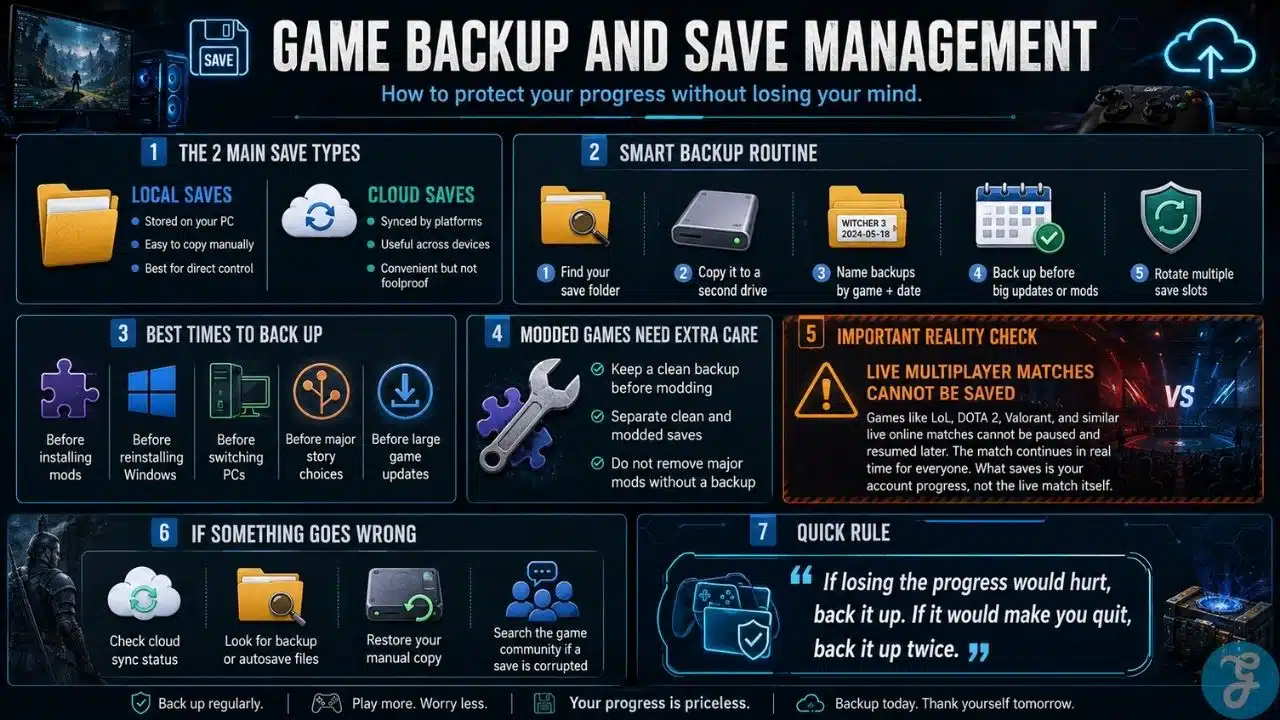
The safest strategy requires a slight shift in mindset: Use cloud saves for daily convenience, but maintain manual local backups for actual insurance.
Building a Bulletproof (Lazy) Backup Habit
You do not need to spend twenty minutes copying files every time you close a game. A sustainable game save file and backup routine is one you will actually stick to because it requires minimal effort.
-
Target the Milestones: Create a manual backup before major, irreversible events. This means copying your files before installing major game patches, shifting over to a brand-new PC, or crossing a point-of-return in a massive RPG campaign.
-
Embrace the “Save Slot Rotation”: Stop overwriting a single manual save slot for fifty straight hours. Keep a rolling cycle of at least three or four distinct slots: one right before a major narrative choice, one at the start of your current play session, and one active slot for ongoing incremental saves.
-
Isolate Sandbox Worlds: For games like Valheim, Terraria, or RimWorld, always copy the entire world folder rather than just your character file. These games often generate world geometry and player data completely independently; a corrupted world file will instantly erase a massive base build, even if your character’s inventory remains intact.
The Golden Rule for Modded Playthroughs
Mods make PC gaming incredible, but they also turn save management into a house of cards. A heavy mod list injects scripts, custom item IDs, and complex asset dependencies directly into your save files. If you update or remove a mod halfway through a playthrough, the save file will keep looking for data that no longer exists, frequently resulting in an unlaunchable game or immediate desktop crashes.
Before you touch a mod manager, update a collection, or experiment with a new total conversion pack, drag a clean copy of your save directory to your desktop. Treat your modded saves as fragile, experimental branches. If an update breaks the game’s internal logic, simply disabling the mod rarely fixes the underlying issue. The damage is already baked into the save file. Having a clean fallback point is your only real safety net.
Emergency Triage: When a Save Disappears
If you launch a game and your characters are completely gone, do not panic, and do not keep restarting the game. Every time you boot the game, you risk triggering an auto-save cycle that could permanently overwrite background recovery files.
First, minimize the game and navigate directly to the local save folder. Many modern games are quietly programmed to keep a secret backup file in the exact same directory, usually appended with an extension like .bak, .old, or _backup. If you spot one of these files paired with a recent timestamp, you can often fix the issue by moving your corrupted main save out of the folder and renaming the backup file to match the original filename exactly.
Additionally, check your launcher’s cloud synchronization history online. Steam, for instance, allows you to view and manually download historical cloud saves directly through your web browser via the “View Steam Cloud” account page, bypassing the launcher entirely to let you pull down an uncorrupted version from yesterday.
Respect Your Time
The equation for save management is simple: If losing your progress would mildly annoy you, back it up. If losing it would make you uninstall the game and never play it again, back it up twice.
Modern video games are massive investments of focus, creativity, and sheer time. A single save file represents weeks of personal milestones and tactical experimentation. Taking five seconds to secure your game save file and backup directory to an external drive or a secondary internal SSD isn’t paranoia—it’s just respecting the time you spend enjoying your hobby.