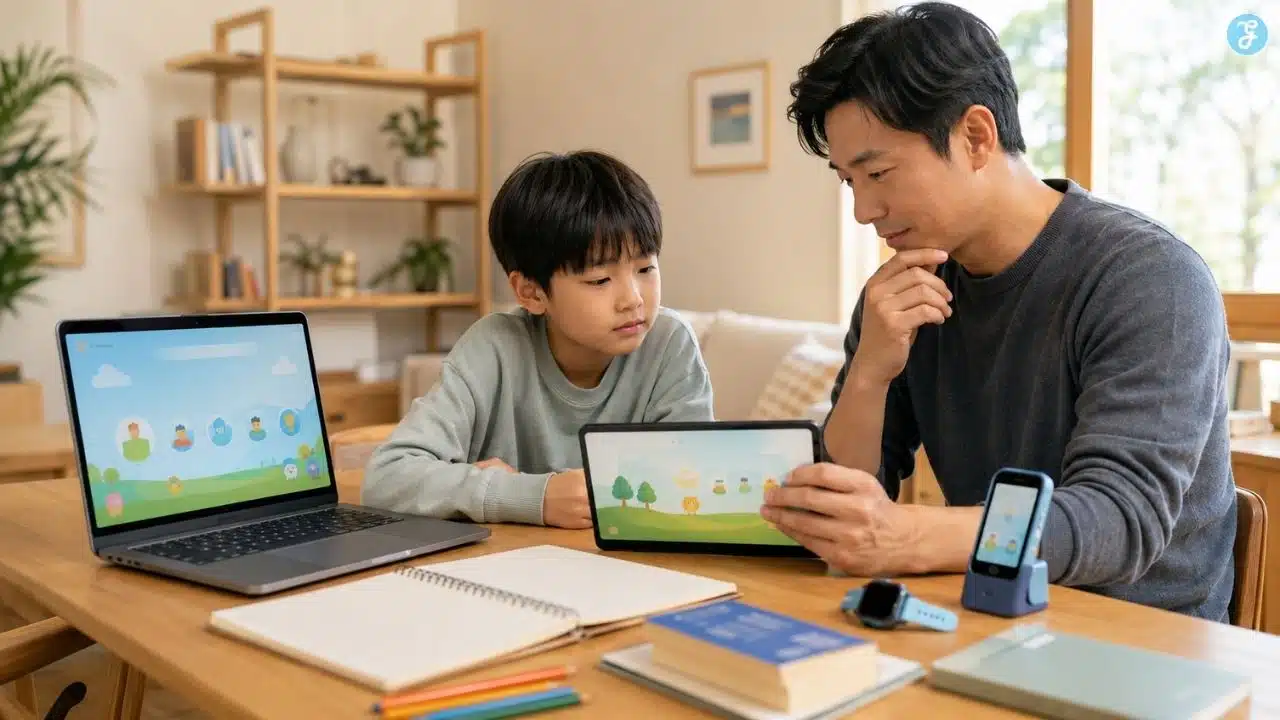
Buying a device for a child sounds simple until the real questions start. Should a five-year-old have a tablet? Is a Chromebook better than an iPad for schoolwork? When is a child ready for a first phone? Should younger kids use shared family devices instead of personal devices? Are kids’ tablets safer, or just cheaper tablets with colorful cases? And how much should parents care about parental controls before buying? That is why choosing devices for kids by age group matters.
A child’s device should match their maturity, learning needs, school requirements, privacy risks, and ability to follow family rules. A toddler using a shared tablet beside a parent is not the same as a twelve-year-old carrying a phone to school. A teenager using a laptop for projects is not the same as a seven-year-old watching videos in bed.
The wrong device can create more conflict than convenience. The right device does not solve parenting, but it makes healthy routines easier. It supports learning, creativity, communication, and independence without giving a child more access than they are ready to manage.
This guide explains how to choose family devices by age, what to consider before buying, when a child may be ready for a first phone, and how parents can compare tablets, laptops, Chromebooks, smartwatches, and phones without falling for marketing hype.
What Choosing Devices by Age Really Means
Choosing a device by age does not mean every child of the same age needs the same technology. Age is only the starting point.
Parents also need to consider:
- Maturity
- School requirements
- Reading ability
- Ability to stop screen use
- Privacy awareness
- Sleep habits
- Social pressure
- Family budget
- Existing devices at home
- Parental-control options
- Whether the device is shared or personal
Two children can be the same age and need different rules. One ten-year-old may use a family laptop responsibly for homework and creative projects. Another may struggle with hidden video use, purchases, or emotional meltdowns when screen time ends. The device decision should follow the child’s real behavior, not only the grade level.
A useful rule is simple:
Buy for the child’s current maturity, not the child’s wish list.
Why Device Choice Matters More Than Parents Think
A device changes a child’s relationship with technology.
A shared tablet on the kitchen table feels different from a personal tablet in the bedroom. A laptop used for school projects feels different from a smartphone carried everywhere. A basic phone creates a different level of access than a full smartphone with social media, games, a camera, a browser, group chats, and app stores.
The device affects:
- Where the child uses technology
- How private the screen becomes
- How easy supervision is
- Whether the device follows the child everywhere
- What apps and content are available
- How hard it is to stop using
- Whether sleep gets disrupted
- How much social pressure enters the home
- How much data the child may share
That is why the cheapest device is not always the safest choice, and the most powerful device is not always the smartest one. The best children’s device is the one that fits the purpose.
The Parent Device Decision Framework
Before buying anything, parents should answer five questions.
| Question | Why It Matters |
| What will the device be used for? | Prevents buying more access than needed |
| Where will the child use it? | Affects supervision and sleep |
| Who controls downloads and purchases? | Reduces app clutter and spending problems |
| Can parental controls handle the child’s needs? | Supports safety and boundaries |
| Is the child ready for personal ownership? | Separates shared learning tools from private devices |
This framework helps parents avoid impulse purchases. A device should not enter the home without a plan.
That plan does not need to be complicated. It should cover when the device can be used, where it charges, who approves apps, what happens at bedtime, and what rules lead to temporary removal. The setup matters as much as the device.
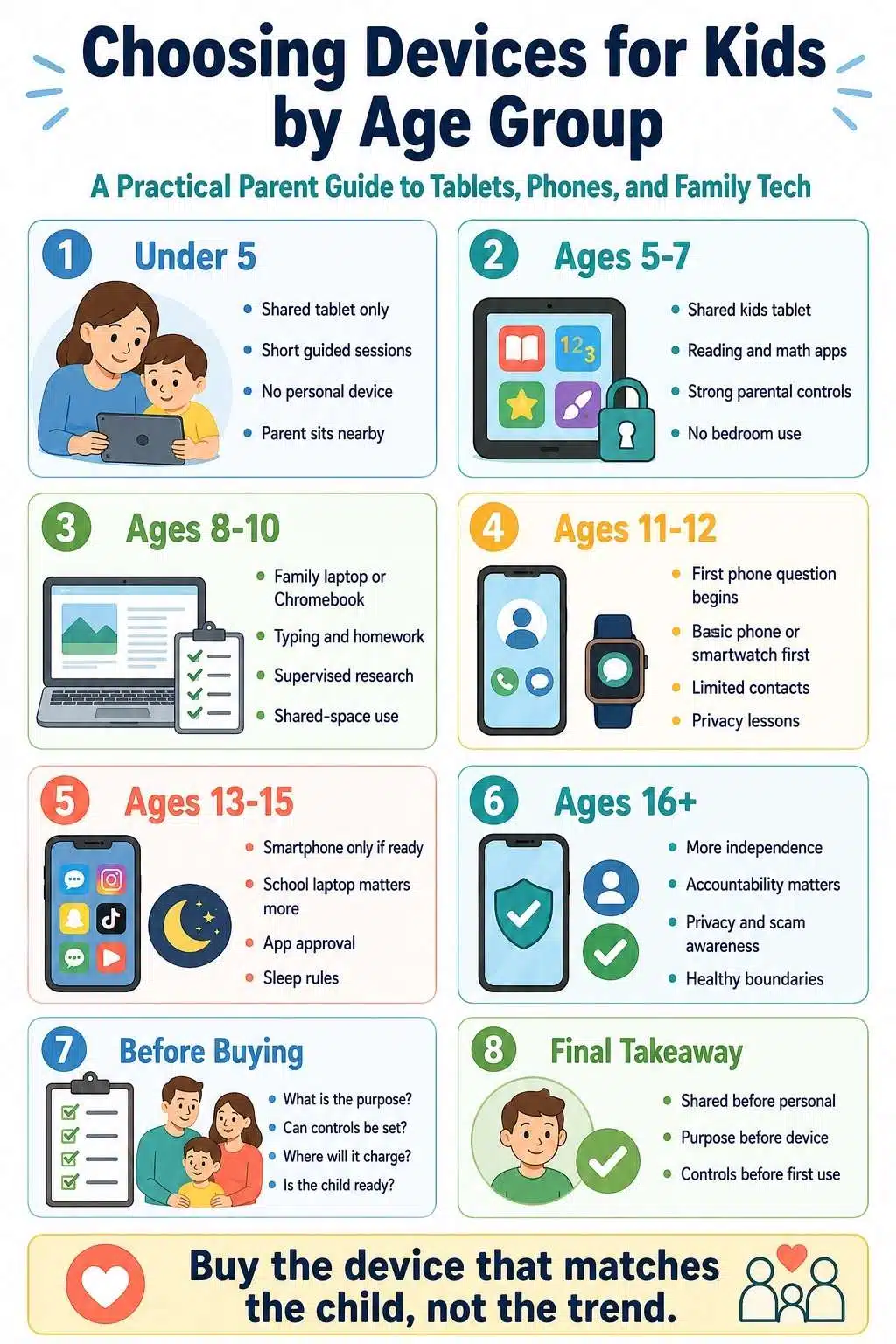
Best Devices by Age Group
The best device changes as children grow. Younger children usually need shared access and adult involvement. Older children may need more independent tools for school, communication, creativity, and digital literacy.
Here is a practical overview:
| Age Group | Best Device Type | Better Ownership Model |
| Under 5 | Shared tablet only when needed | Parent-owned |
| Ages 5-7 | Shared kids’ tablet or family tablet | Shared family device |
| Ages 8-10 | Shared tablet, Chromebook, or family laptop | Mostly shared, supervised |
| Ages 11-12 | School laptop, Chromebook, basic phone, or smartwatch | Limited personal access |
| Ages 13-15 | Laptop for school, basic phone or smartphone if ready | Personal with rules |
| Ages 16+ | Laptop and phone with increasing independence | Personal with accountability |
This is not a rigid rule. It is a starting map. The real question is not, “What device do kids this age have?” The better question is, “What device helps this child learn and function without creating avoidable problems?”
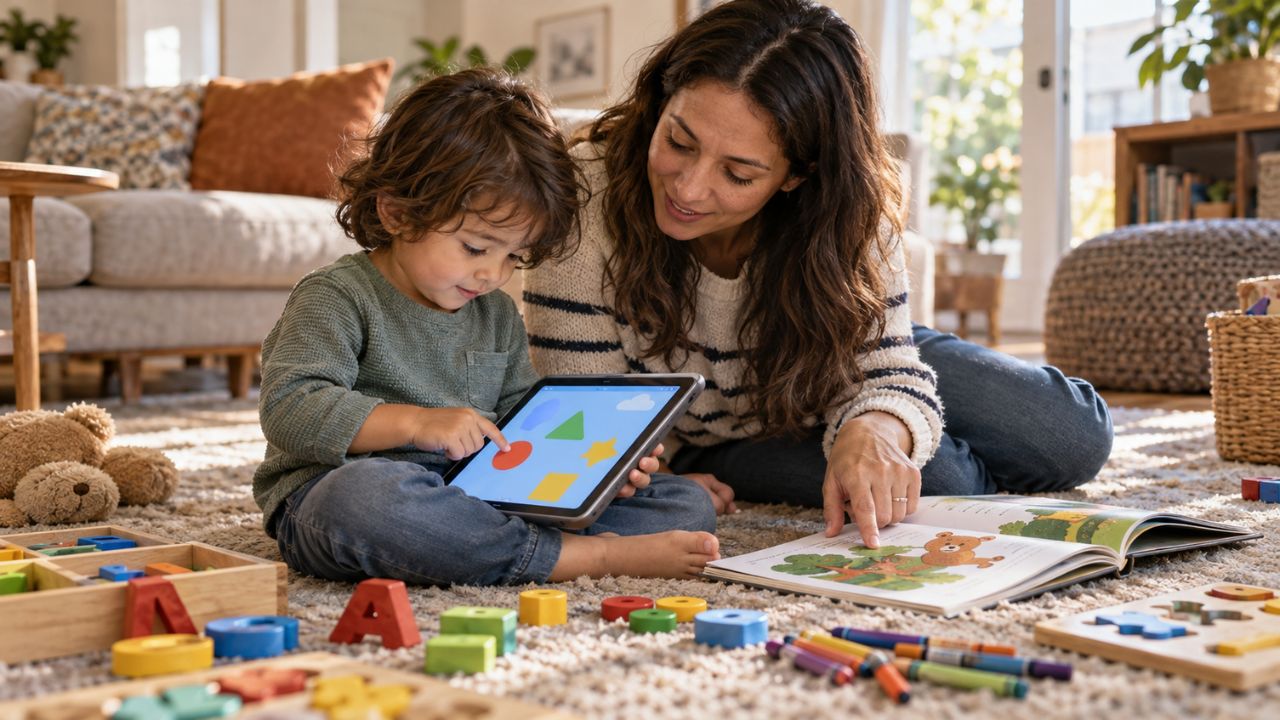
Children under five usually do not need a personal device. They may use a tablet for video calls, short learning apps, music, audiobooks, or a parent-guided activity. But the device should belong to the family, not the child.
At this age, the best device is usually:
- Shared tablet
- Durable case
- No open browser access
- No unsupervised app store access
- No device in the bedroom
- No personal phone
- No unrestricted video apps
The device should be used in short, shared sessions.
Good uses include:
- Video calls with family
- Short phonics or shape activities
- Music and movement
- Picture book apps
- Simple drawing
- Parent-guided learning games
What to avoid:
- Autoplay video loops
- Personal tablet ownership
- Apps with ads
- In-app purchases
- Long solo sessions
- Device use before bed
- Treating the tablet as a default babysitter
For this age, adult interaction matters more than the device. A tablet can show letters. A parent helps the child connect those letters to speech, books, and real life.
Children in this age range may benefit from a shared tablet for reading practice, math games, drawing, music, and school apps. This is where many parents start looking at the best kids tablets.
A good kids’ tablet is not just a tablet with a thick case. It should offer:
- Strong parental controls
- App approval
- Purchase blocking
- Durable case
- Age-based content settings
- Easy profile management
- Good battery life
- Clear screen
- Simple interface
- Warranty or repair protection, where possible
Popular options often include Amazon Fire Kids tablets, standard iPads with strong parental controls, Android tablets managed through Google Family Link, or Samsung-style family tablets. The best choice depends on budget, app needs, ecosystem, durability, and how much control parents want.
For many families, a dedicated kids tablet is enough for early learning. But parents should not buy only because a product says “kids.” The controls still need to be set up properly.
Best uses:
- Reading apps
- Math practice
- Drawing
- Audiobooks
- School learning platforms
- Video calls with family
- Short educational videos with supervision
Avoid:
- Private bedroom use
- Unlimited video apps
- Apps with aggressive rewards
- Child-controlled downloads
- Open web browsing
- Unchecked subscriptions
The best setup is a shared device used in a common room.
Ages 8-10: Family Laptop, Chromebook, or Tablet With More Structure
By ages eight to ten, children often need technology for homework, research, typing, slides, reading assignments, and school platforms. A tablet may still work for many activities, but a keyboard becomes more useful.
Good device options include:
- Chromebook for schoolwork
- Family laptop
- Tablet with keyboard case
- Shared desktop computer
- School-issued device if available
This is usually not the age for an unrestricted smartphone. A Chromebook or family laptop can be better than a phone because it supports schoolwork without requiring constant pocket access. It is easier to keep in a shared space and easier to connect with homework routines.
Best uses:
- Typing practice
- School assignments
- Research with supervision
- Presentations
- Reading platforms
- Coding basics
- Creative projects
- Video calls for school or tutoring
Important controls:
- Website restrictions
- App approval
- Search settings
- Time limits
- Shared-space use
- No device in the bedroom overnight
- Separate school account and entertainment access where possible
At this age, parents should start teaching online judgment. Children should learn that search results can be wrong, ads are not always obvious, and not every website is safe or accurate.
Ages 11-12: The First Phone Question Starts Getting Real
This is the age when many families begin dealing with the kids first phone question. The pressure often comes from school logistics, group activities, safety concerns, divorced or traveling households, social pressure, or the child saying “everyone has one.” But a first phone does not have to mean a full smartphone.
Options include:
- Basic call-and-text phone
- Smartwatch with limited contacts
- Parent-managed smartphone with a few apps
- An old family phone is used only at home or for travel
- School-day communication device with no social apps
- Shared family phone for specific situations
A child may need communication before they are ready for full internet access. That distinction is important.
A first phone should depend on readiness signs, such as:
- Can the child keep track of belongings?
- Do they follow screen rules most of the time?
- Can they stop using devices without daily battles?
- Do they understand privacy basics?
- Can they handle group chats responsibly?
- Are they honest about online mistakes?
- Do they need the phone for safety or logistics?
- Can parents set up and enforce limits?
If the answer is mostly no, start with a simpler device. A basic phone or smartwatch can teach responsibility without opening the full smartphone world too early.
Ages 13-15: Smartphone Readiness, School Needs, and Strong Boundaries
Teenagers may need more digital access for school, friends, activities, transportation, part-time work, hobbies, and communication. But more access should come with more responsibility. A smartphone can be reasonable for some teens, but it should not be handed over as a private, unlimited device.
Parents should set expectations around:
- Bedtime charging outside the bedroom
- App approval
- Social media readiness
- Group chat behavior
- Location sharing
- Screen-free meals
- Schoolwork focus
- No phone during sleep hours
- Online safety
- Digital footprints
- AI tool use for school
- What happens if trust is broken
For this age group, a laptop is often more important than a phone for learning. A good school laptop or Chromebook supports writing, research, presentations, coding, design, and online classes.
A phone supports communication and mobility. It should not become the child’s main learning device. That difference matters.
Ages 16+: More Independence, Still Not No Rules
Older teens need more independence. They may use phones, laptops, tablets, productivity apps, AI tools, job platforms, banking apps, ride-sharing, college portals, and communication tools. The parents’ role shifts from direct control to coaching and accountability.
Good boundaries still matter:
- Sleep protection
- Financial safety
- Privacy awareness
- Scam awareness
- Responsible social media use
- Strong passwords
- Device care
- Screen-free driving
- Academic honesty
- Healthy communication habits
A sixteen-year-old may be ready for more app freedom than a twelve-year-old, but that does not mean every tool is harmless. This stage should prepare teens for adult digital life.
That means talking about:
- Phishing
- Data privacy
- AI misinformation
- Online reputation
- Subscription traps
- Digital payments
- Work and school boundaries
- When to disconnect
Older teens should gradually learn to manage technology without needing constant supervision. But independence should grow from demonstrated responsibility.
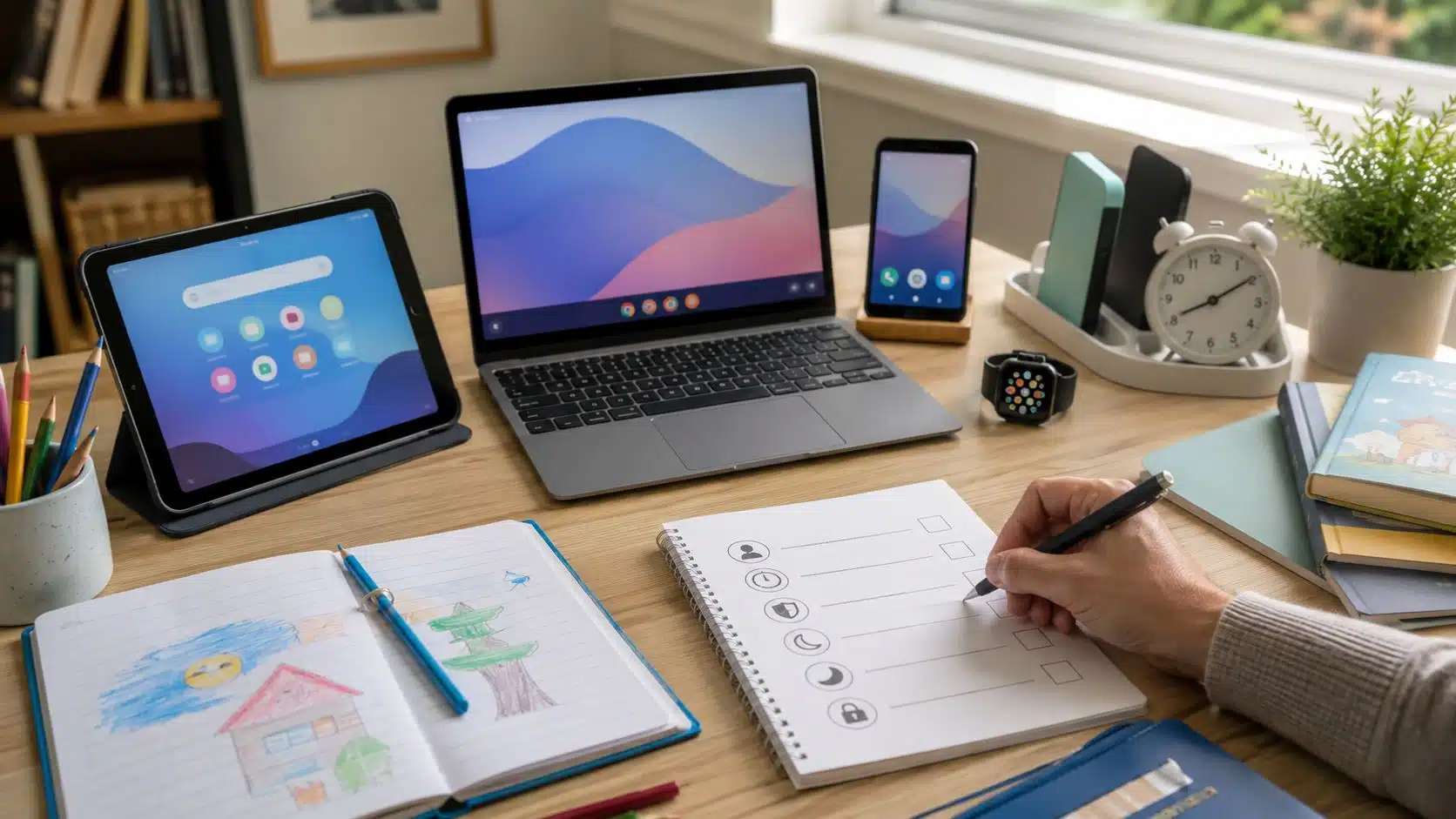
Tablet, Laptop, Chromebook, Phone, or Smartwatch: Which One Fits?
Different devices solve different problems:
| Device | Best For | Not Great For |
| Kids tablet | Younger children, reading apps, drawing, simple learning | Serious typing, long school projects |
| iPad or Android tablet | Family learning, creativity, apps, media | Unrestricted browsing if controls are weak |
| Chromebook | Schoolwork, typing, research, Google Classroom | Heavy creative software or gaming |
| Family laptop | Projects, writing, research, creative work | Younger unsupervised use |
| Basic phone | Calls, texts, simple safety communication | Apps, browsing, schoolwork |
| Smartwatch | Limited contact and location support | Deep learning, privacy-sensitive families |
| Smartphone | Teen communication, school logistics, and independence | Younger kids or children not ready for private access |
Parents should avoid buying a phone when the real need is homework. They should also avoid buying a powerful laptop when the real need is a controlled reading app. Match the tool to the job.
Best Kids Tablets: What Parents Should Look For
The phrase best kids tablets can be misleading because the best option depends on the family. Some families want affordability and durability. Others want strong educational apps. Others want a device that can grow with the child. Others need school compatibility.
Instead of chasing one perfect model, use this checklist.
A good kids’ tablet should have:
- Durable case
- Parent-controlled profiles
- App approval
- Purchase blocking
- Content filtering
- Strong screen-time settings
- Good battery life
- Easy account setup
- No unnecessary ads on the child’s profile
- Enough storage for school apps
- A clear privacy policy
- Repair, warranty, or replacement support
- Ability to remove or limit entertainment apps
- Easy transition to school tools if needed
A tablet is weak for kids if:
- The browser is open by default
- Downloads are child-controlled
- Purchases are easy
- Ads are everywhere
- Parental controls are confusing
- It encourages endless video watching
- It is too slow for learning apps
- It breaks easily
- It becomes the child’s default answer to boredom
The best tablet is not the one with the most features. It is the one that parents can manage consistently.
For younger children, shared devices are usually healthier than personal devices.
Shared devices help parents:
- Supervise more easily
- Limit bedroom use
- Control downloads
- Reduce ownership battles
- Connect the screen to learning goals
- Keep devices in common spaces
- Avoid the “my tablet, my rules” problem
Personal devices can come later, but they should come with responsibility.
A good progression might look like this:
| Stage | Device Access |
| Early childhood | Parent-owned shared tablet |
| Early primary school | Shared tablet with child profile |
| Upper primary school | Family Chromebook or laptop |
| Preteen years | School laptop plus a limited communication device if needed |
| Early teen years | Parent-managed smartphone if ready |
| Older teen years | More independent phone and laptop use with accountability |
This staged approach keeps technology connected to maturity. It also helps children learn responsibility before they get full access.
Parental Controls to Check Before Buying
Do not buy a child’s device and then hope controls will work later. Check controls first.
Important features include:
- Screen-time limits
- Downtime schedules
- App approval
- Purchase approval
- Website filtering
- Search settings
- Content ratings
- Location tools were appropriate
- Contact limits
- Activity reports
- Privacy settings
- Account recovery options
- Password protection
- Ability to block apps
- Separate child profiles
- Settings that sync across devices
For Apple devices, parents can use Screen Time and Family Sharing features. For Android tablets, Android phones, and Chromebooks, Google Family Link is the main system. For Windows PCs and Xbox, Microsoft Family Safety and Xbox Family Settings can help with limits and content controls.
No parental-control system is perfect. Controls are tools, not a substitute for rules, conversations, and supervision.
Device Setup Checklist Before Handing It to a Child
A device should be set up before the child receives it.
Use this checklist:
- Create a child account, not an adult account
- Set a parent-only passcode
- Turn on app approval
- Block purchases or require approval
- Set age-based content limits
- Review browser access
- Set safe search
- Turn off unnecessary notifications
- Disable autoplay where possible
- Remove apps the child does not need
- Set screen-time schedules
- Set bedtime downtime
- Choose where the device charges overnight
- Review privacy settings
- Add emergency contacts if needed
- Explain the rules before the first use
This avoids the common mistake of letting the child explore first and trying to add limits after conflict begins. Boundaries work better when they are part of the device from day one.
School Devices vs Home Devices
School-issued devices are convenient, but they are not the same as family devices. A school Chromebook or laptop may have school filters, apps, accounts, and management settings. That does not mean parents should stop paying attention.
Parents should ask:
- What can the child access?
- Are YouTube or video sites restricted?
- Can the child install extensions?
- Is browsing monitored?
- Can the device be used for entertainment?
- Does it come home?
- Are there time limits?
- What happens after school hours?
- Who handles repairs?
- Can parents see usage reports?
If a school device is already used heavily, parents may not need to buy another learning device immediately. The better choice may be offline support: books, writing tools, creative materials, outdoor time, or a family computer for shared projects. Do not duplicate devices unless there is a real need.
Privacy and Data Safety When Buying Kids Devices
Device choice is also a privacy decision. A device may collect location data, app usage, voice input, browsing activity, photos, contacts, purchase history, biometric data, or learning progress. Some of this may be useful. Some may be unnecessary.
Parents should review:
- Child account settings
- Location sharing
- App permissions
- Camera and microphone access
- Voice assistant settings
- Cloud backup
- Photos and sharing
- Browser history
- Ad personalization
- App privacy labels or disclosures
- School data policies
- Subscription privacy policies
For younger children, less data collection is better. Do not allow every app to access the camera, microphone, location, or contacts unless there is a clear reason. Privacy should not be treated as an advanced setting. It is part of child safety.
Common Mistakes Parents Should Avoid
Device decisions often go wrong in predictable ways.
1. Buying a Personal Device Too Early
A child may need access to technology without needing ownership. Shared access is often enough for younger children.
2. Choosing a Phone When a Tablet or Chromebook Would Work Better
A phone creates private, portable access. For schoolwork, a Chromebook or laptop may be safer and more useful.
3. Skipping Setup
Handing over a device before setting controls is one of the easiest ways to create problems.
4. Assuming Kids Mode Is Enough
Kids mode can help, but parents still need to review apps, settings, purchases, browser access, and privacy.
5. Letting Devices Charge in Bedrooms
Bedroom charging invites late-night use. A shared charging spot is better for most families.
6. Buying Based on Peer Pressure
“Everyone has one” is not a readiness test.
7. Ignoring Durability
Younger children need cases, screen protectors, and simple rules about carrying and charging devices.
8. Forgetting the Exit Plan
Parents should decide what happens if rules are broken before problems appear.
Frequently Asked Questions About Choosing Devices for Kids by Age
1. What Is the Best Age to Give a Child a Tablet?
Many families introduce shared tablet use during early childhood, but personal ownership can wait. Younger children usually do better with a shared, parent-managed tablet used in short sessions and common spaces.
2. What Are the Best Kids Tablets for Learning?
The best kids tablets are durable, easy to control, age-appropriate, and compatible with the child’s learning apps. Parents should look for strong parental controls, app approval, purchase blocking, content filters, and a simple child profile.
3. When Should Kids Get Their First Phone?
There is no perfect age for a kid’s first phone. Readiness matters more than age. Children should understand privacy, follow rules, keep track of belongings, and use the phone for real communication or safety reasons.
4. Should a First Phone Be a Smartphone?
Not always. A basic phone or smartwatch may be better for children who need communication but are not ready for full smartphone access.
5. Is a Chromebook Better Than a Tablet for Kids?
A Chromebook is often better for typing, schoolwork, research, and projects. A tablet is better for younger children, reading apps, drawing, and simple guided learning.
6. Should Kids Have Devices in Their Bedrooms?
For most children, devices should charge outside bedrooms overnight. This helps protect sleep and reduces secretive use.
Buy the Device That Matches the Child, Not the Trend
A child does not need the most popular device. They need the right amount of access for their age, maturity, school needs, and family routine.
That is the real point of choosing devices for kids by age group. The device should serve the child’s learning and communication needs without overwhelming their ability to manage technology responsibly.
For younger children, shared devices are usually enough. For primary school children, tablets and Chromebooks can support learning when parents keep control. For preteens, communication needs may begin, but a first phone does not have to be a full smartphone. For teens, independence should grow with accountability.
The best device decision is rarely the flashiest one. It is the one that makes healthy routines easier. Choose the purpose first. Choose the device second. Set up controls before the first use. Keep devices out of bedrooms at night. Review rules as the child grows. Watch behavior more than marketing claims.
Technology can support a child’s learning life. But only when the family stays in charge of the device, not the other way around.