WhatsApp has become an essential app for staying connected with friends and colleagues. Besides, losing important chats or files from it can feel stressful and confusing. Whether messages disappear for any possible reason, recovery usually seems impossible. Thankfully, there are practical methods to restore your WhatsApp data safely. From built-in backups to recovery tools, you can bring back deleted messages easily.
One reliable option, Dr.Fone Android Data Recovery, helps recover chats without causing new data loss. This guide explains every possible solution in simple steps so anyone can follow along. Apart from that, prevention includes regularly enabling and updating backups to avoid data loss.
Section 1: Why WhatsApp Data Gets Lost and Why It Matters
Many times, the platform data gets lost because of simple mistakes or phone issues, needing Android data recovery software. This loss can feel serious when important messages and multimedia suddenly disappear. Understanding why it happens and how Android data recovery software helps can prevent future data problems:
- App Deletion: Uninstalling WhatsApp deletes local data not backed up online. As a result, users lose messages without timely backups or exports.
- Device Switch: Migrating devices without a backup transfer causes WhatsApp chats to disappear. At this point, new devices need restored chat backups to recover data.
- Message Deletion: Migrating devices without a backup transfer causes WhatsApp chats to disappear. At this point, new devices need restored chat backups to recover data.
- Backup Failure: Incomplete or interrupted backups cause missing chat data when trying to restore. Network or storage issues usually disrupt the backup process and cause issues.
- External Apps: Many cleaning apps and antivirus apps remove WhatsApp cache or data, causing message loss. Therefore, permissions and app behaviors should be monitored carefully.
Section 2: How to Use WhatsApp’s Official Backup and Restore Feature
Users can back up their chats through either cloud storage or local device storage. These native features make it simple to recover chats after reinstalling the app. Users must reinstall the app and verify their phone number to restore data.
Still, the process depends on the timing of the last backup, meaning that recent chats may be lost. Thus, take guidance from the given steps to find out how you can restore chat using cloud backup:
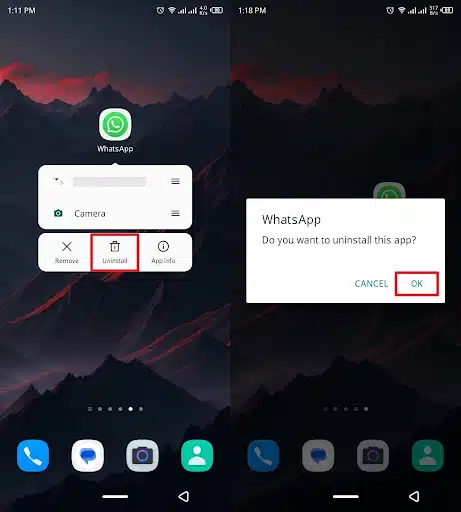
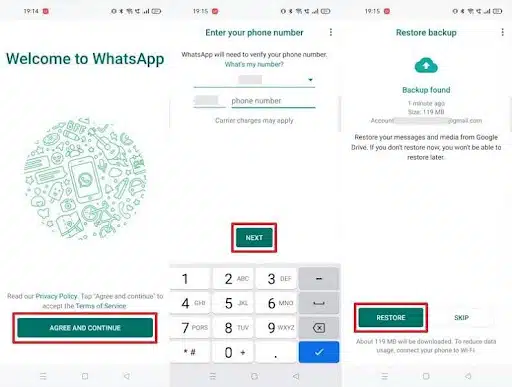
Step 1. Tap the “WhatsApp” app icon for a few seconds to choose the “Uninstall” option and then tap “OK.”
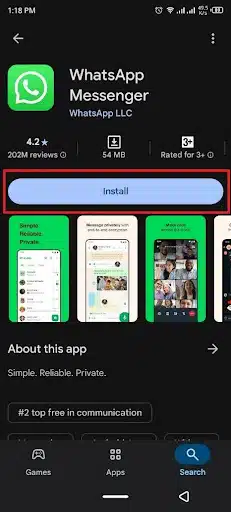
Step 2. Subsequently, access the “WhatsApp” app on your Play Store and press the “Install” button.
Step 3. Upon installing and launching, press the “Agree and Continue” button and enter the same phone number. After that, hit the “Next” button and tap “Restore” upon reaching the “Restore Backup” screen.
Limitations
- Backup must be enabled beforehand for message recovery to work.
- Restoring deletes any messages received after the last backup.
- Local backups can’t be restored if files are deleted or corrupted.
Section 3: When Native Backups Fail: Turning to Dedicated Recovery Tools
The native backups fail to restore messages due to missing or corrupted files. These issues usually occur when the last backup was too old or incomplete. Network interruptions or manually deleted backup files can also cause problems. When that happens, recovering your valuable chats through standard restoration methods becomes impossible. This is where WhatsApp message recovery software proves to be an effective alternative.
Such tools are specially designed to scan your Android device for deleted or hidden data. They can locate and restore messages that aren’t available through Google Drive or local backups. Most recovery programs offer selective retrieval, allowing users to recover only specific chats. Plus, they ensure no new data is overwritten during the recovery process. Therefore, when the native backup system fails, using a recovery tool becomes the most dependable solution.
Section 4: How to Use Dr.Fone – Data Recovery (Android) for WhatsApp Messages
As we discussed above, in case you don’t have a backup, you need an advanced recovery tool. For all of the needs, we highly recommend Dr.Fone Android Data Recovery to get your data back. This dedicated tool offers powerful features for restoring lost WhatsApp messages. It works on over 6000 Android devices and supports Android 5.0 to Android 16. Moreover, you can recover 18+ deleted WhatsApp data without needing root access.
Even with no Google Drive backup or root, you can recover messages easily. Besides, its flexible recovery and export options let you extract chats or export them to a PC. Furthermore, recovered messages can be saved in HTML or CSV formats for easy viewing. It also includes a WhatsApp media saver that keeps disappearing “View Once” media secure. This platform even helps retrieve data from broken Samsung phones or Google Drive backups.
Key Features
- Business Support: Fully supports WhatsApp Business data recovery for professional users.
- Multi Format: Supports exporting recovered files in multiple readable and shareable formats.
- Original Quality: Restored media files maintain original quality without compression or loss.
Guide to Use Dr.Fone – Data Recovery (Android) for Restoring WhatsApp Messages
This powerful tool offers a simple way to restore lost chats safely. It works as a reliable WhatsApp message recovery software that scans and retrieves deleted data. So, adhere to the following guide to understand how you can use it to retrieve deleted messages:
Step 1. Choose the Data Recovery Tool On your PC
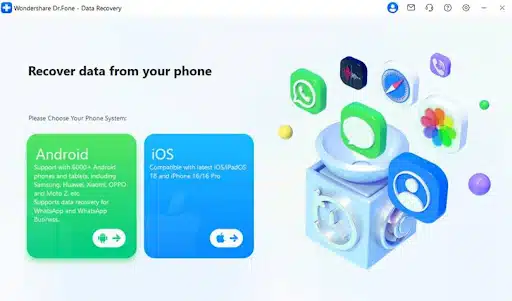
As you access the “Toolbox” tab, navigate to the “Data Recovery” feature and opt for “Android” as your device.
Step 2. Access the WhatsApp Data Recovery Feature
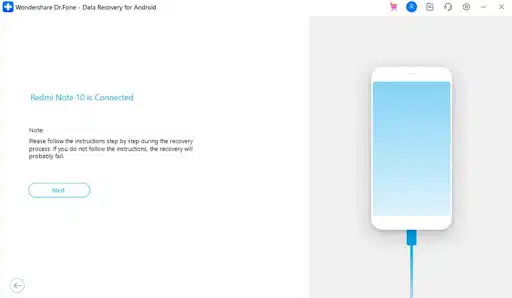
Upon seeing the next screen, choose the “Recover WhatsApp Data” feature and then link your mobile to the computer. When your phone is detected and shown, press the “Next” button.
Step 3. Choose Deleted Messages to Restore Them
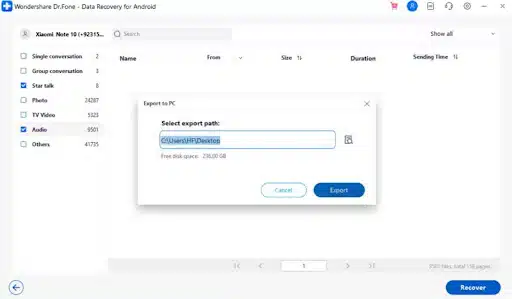
Afterward, you need to follow the displayed instructions to back up your WhatsApp. Following that, the tool starts showing all the deleted chats and data on your computer screen. Next, select the WhatsApp messages you want to retrieve and hit both “Recover” and “Export.”
Section 5: Tips to Protect and Back Up WhatsApp Data in the Future

Preventing future data loss is always better than struggling to recover deleted messages later. Alongside that, keeping your backups updated ensures you can easily restore messages when needed. Below, you will explore a few tips to help you protect data in the future:
- Cloud Backup: Turn on regular cloud backups to store chats securely on Google Drive. These backups make it easier to restore conversations if you change your phone.
- Export Chats: Export important chat threads manually for offline records or business chats’ safety. This feature saves messages as text files or emails outside the app.
- Check Storage: Ensure your device has enough space before making a backup of chats. Low storage can interrupt backup processes, causing incomplete saved data on your phone.
- Update App: Keep WhatsApp updated to benefit from new backup and safety improvements regularly. Old versions may have bugs that affect backup functions or delay data saving.
- Stable Internet: Always use a stable internet connection during backups to avoid interruption. Poor connectivity can cause partial backups, leaving recent messages missing from storage.
Takeaways
To sum up, losing WhatsApp messages can be recovered with the right steps. Regular backups and careful app use help prevent most data loss problems. Still, when native backups fail, a reliable recovery tool becomes essential for restoring chats. In such cases, Dr.Fone Android Data Recovery is highly recommended. It safely retrieves deleted WhatsApp messages without overwriting your existing phone data.