
Meeting recording tools can help you prepare a useful client recap without exposing every internal thought—provided you separate the recording, the working notes, and the final message. The seven options below offer different combinations of private notes, restricted recordings, and selective sharing. None should be treated as an automatic filter that knows which business information a client may see.
For an agency or customer-success team, the practical question is simple: can someone review the outgoing material before it leaves, while colleagues retain the context needed to do the work? A private note panel helps with that job. A recording link with a narrower audience helps with a different one. You may need both.
What We Checked
This comparison draws on official sharing, permissions, and recording documentation checked on November 20, 2026. Three public documentation checks were captured: Fathom’s auto-share options, Fellow’s private-note visibility rules, and Avoma’s private-note instructions. These were public-page inspections, not signed-in recording or client-account tests.
- Fathom’s guide separates summary-only delivery from sending a recording. Its newer capture documentation also says scratch-pad material can feed the generated summary, making review essential.
- Fellow’s privacy section identifies delegated access as an exception to personal visibility. A private panel should therefore be evaluated alongside account delegation.
- Avoma describes a private-note area alongside collaborative notes. Its separate meeting-sharing rules still determine who can open the meeting itself.
The list is grouped by workflow, not ranked by transcription accuracy. For a broader introduction to capture methods, see our AI meeting assistant comparison.
Meeting Recording Tools: Which Separation Do You Need?
| Tool | Useful separation | Best-fit workflow | Boundary to check |
|---|---|---|---|
| Fellow | Personal private notes beside collaborative notes | Recurring client meetings with internal preparation | Delegates and recording permissions are separate |
| Avoma | Private notes plus meeting audience controls | Customer teams keeping personal and shared context | A private meeting can still include participants |
| Fathom | Summary-only versus recording delivery | Reviewing a short recap before external release | Scratch-pad content may enter the AI summary |
| Fireflies | Owner-only, selected recipients, and team audiences | A controlled internal meeting library | Invited recipients may receive full transcript access |
| tl;dv | Named access and optional notes with copied links | Sharing a selected recording with context | Omitting pasted notes does not redact the recording |
| Otter | Restricted links, viewer roles, and export controls | Transcript-centered collaboration | Viewer access is not a separate client-safe summary |
| MeetGeek | Private meetings and selected highlights | Sharing focused excerpts instead of full calls | Default-sharing changes require Pro or higher |
There are two sensible shortlists. For private preparation within a meeting workspace, start with Fellow and Avoma. For controlled delivery from a recording library, examine the other five against the exact material you intend to send. A checked paragraph pasted into an email can be safer than a convenient link to a much larger record.
Fellow is a close match when your internal material consists of personal preparation: questions to ask, an unresolved concern, or reminders that should not appear in the collaborative agenda. Its documented private-note panel is separate from the shared meeting note. The privacy guide says ordinary attendees, managers, and administrators cannot see that panel; people given delegated account access are an important exception.
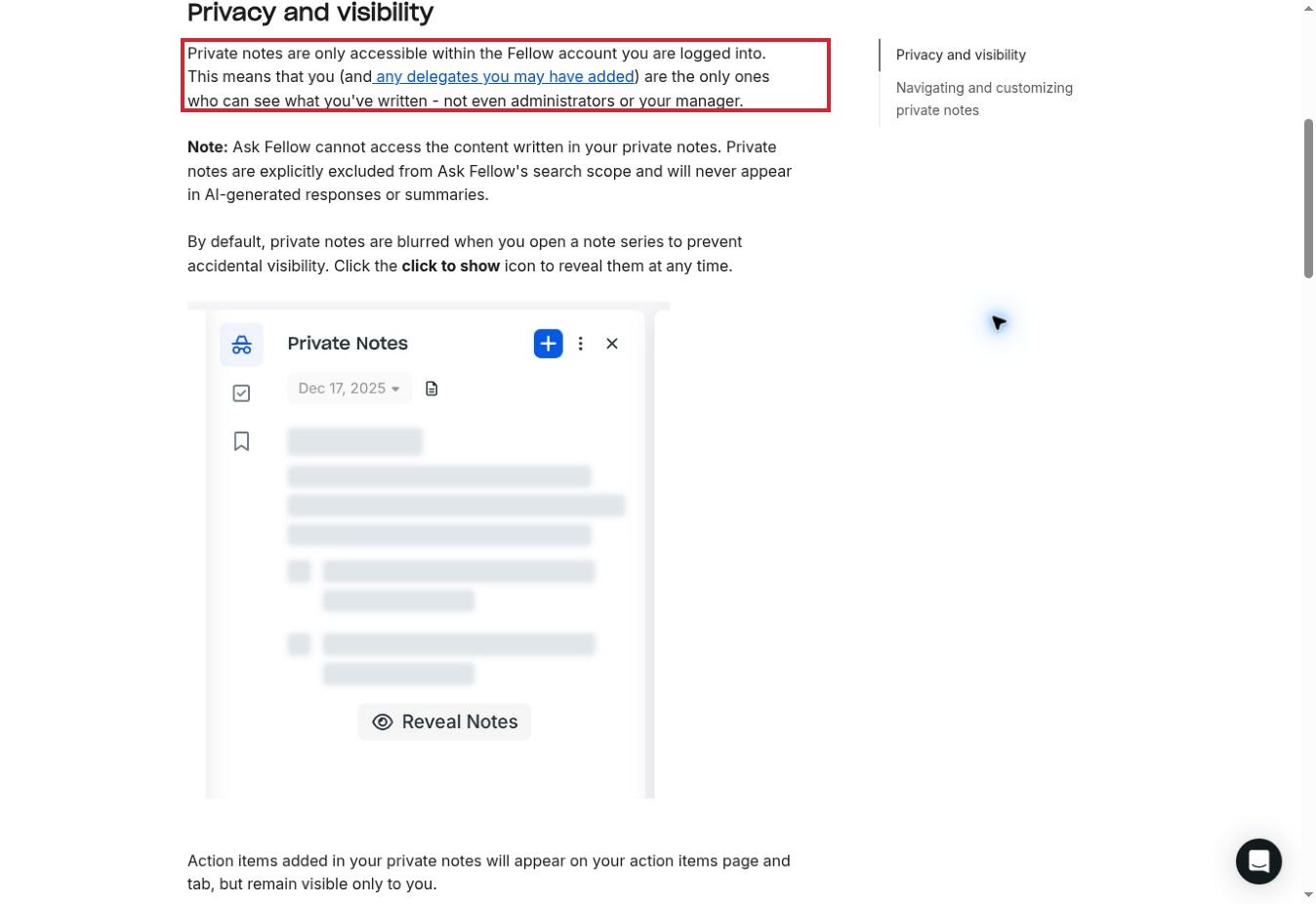
The public documentation check also found that private notes are excluded from Ask Fellow’s search and generated responses. That is a more specific boundary than merely labeling a meeting confidential. It gives a buyer a concrete question to reproduce in a trial: does a phrase entered only in the private panel stay out of the shared note, recap, and search results?
Recording access remains another decision. Fellow documents manual or automatic recap delivery and says sharing a recording with an external attendee who is not a guest does not itself grant collaboration access to the meeting note. Recording sharing is listed for its Solo, Team, Business, and Enterprise plans. Private notes alone do not establish that your subscription includes the recording workflow you need.
Choose this approach for individual preparation; use a separate restricted team space when several colleagues need to discuss the same internal issue. A personal panel is not a replacement for a shared internal decision log.
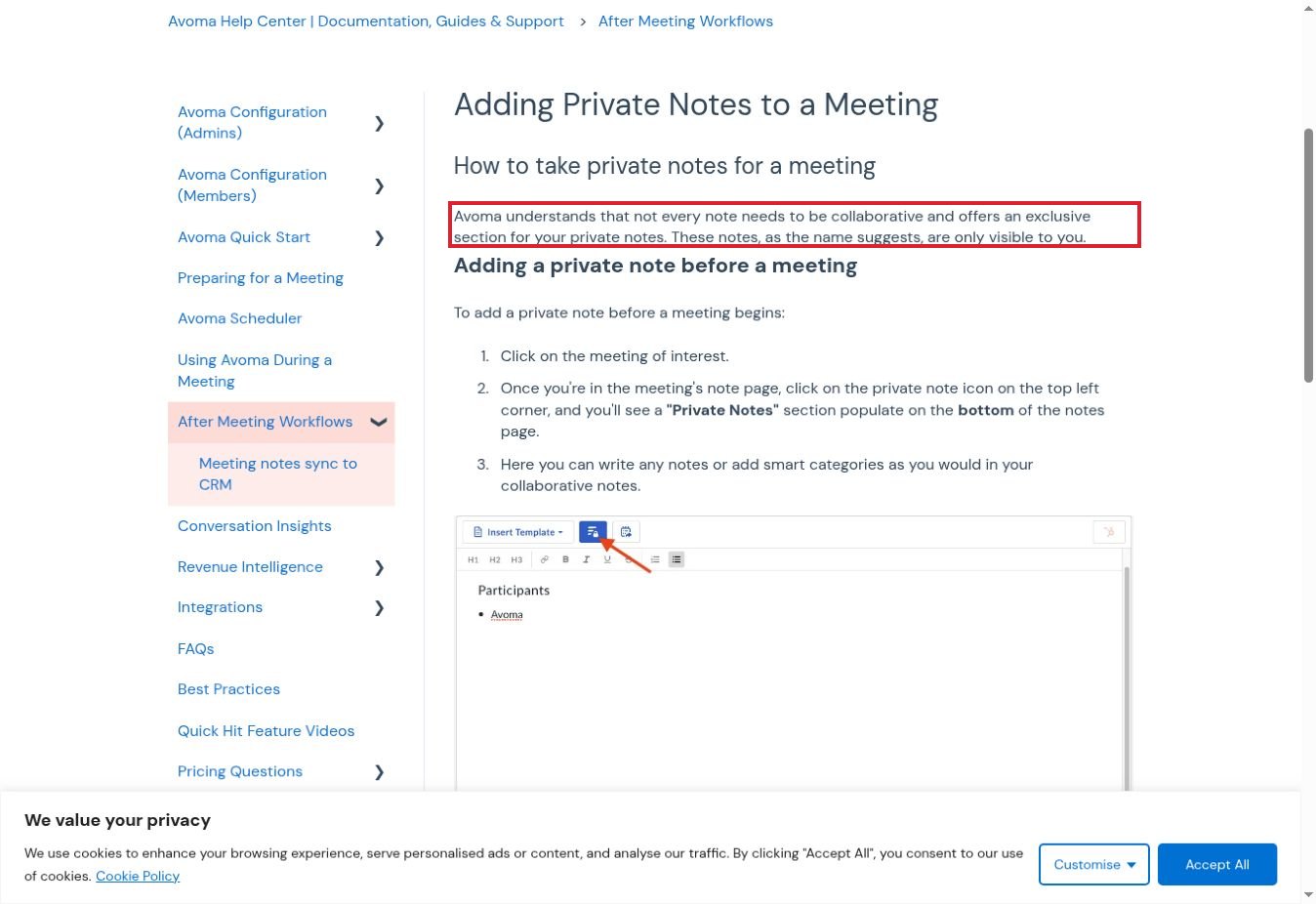
Avoma provides a private-note area before, during, and after a meeting. Its instructions describe opening the private-note control within the notes page and writing there rather than in the collaborative area. This suits account managers who want their own prompts close to the conversation without putting those prompts into shared working notes.
The distinction becomes more important when you share the meeting. Avoma’s meeting-sharing guide defines Private access as meeting participants plus manually added people, Organization access as the organization’s Avoma users, and Public access as anyone holding the link. “Private meeting” and “notes visible only to me” therefore describe different things.
A sensible workflow is to keep personal reflections in the private area, put agreed decisions in collaborative notes, and prepare the client recap from those agreed decisions. Do not assume that a client’s absence from one note view means the recording is inaccessible. Review the meeting’s recipient list independently.
Avoma’s pricing model distinguishes paid recorder seats from free users and optional add-ons. Build your estimate around the people capturing meetings, then evaluate the actual access needed by reviewers. The public inspection confirmed the documented note separation; it did not test exports, integrations, or whether a particular organization’s configuration preserves that boundary.
3. Fathom: Control Whether Attendees Receive a Summary or a Recording
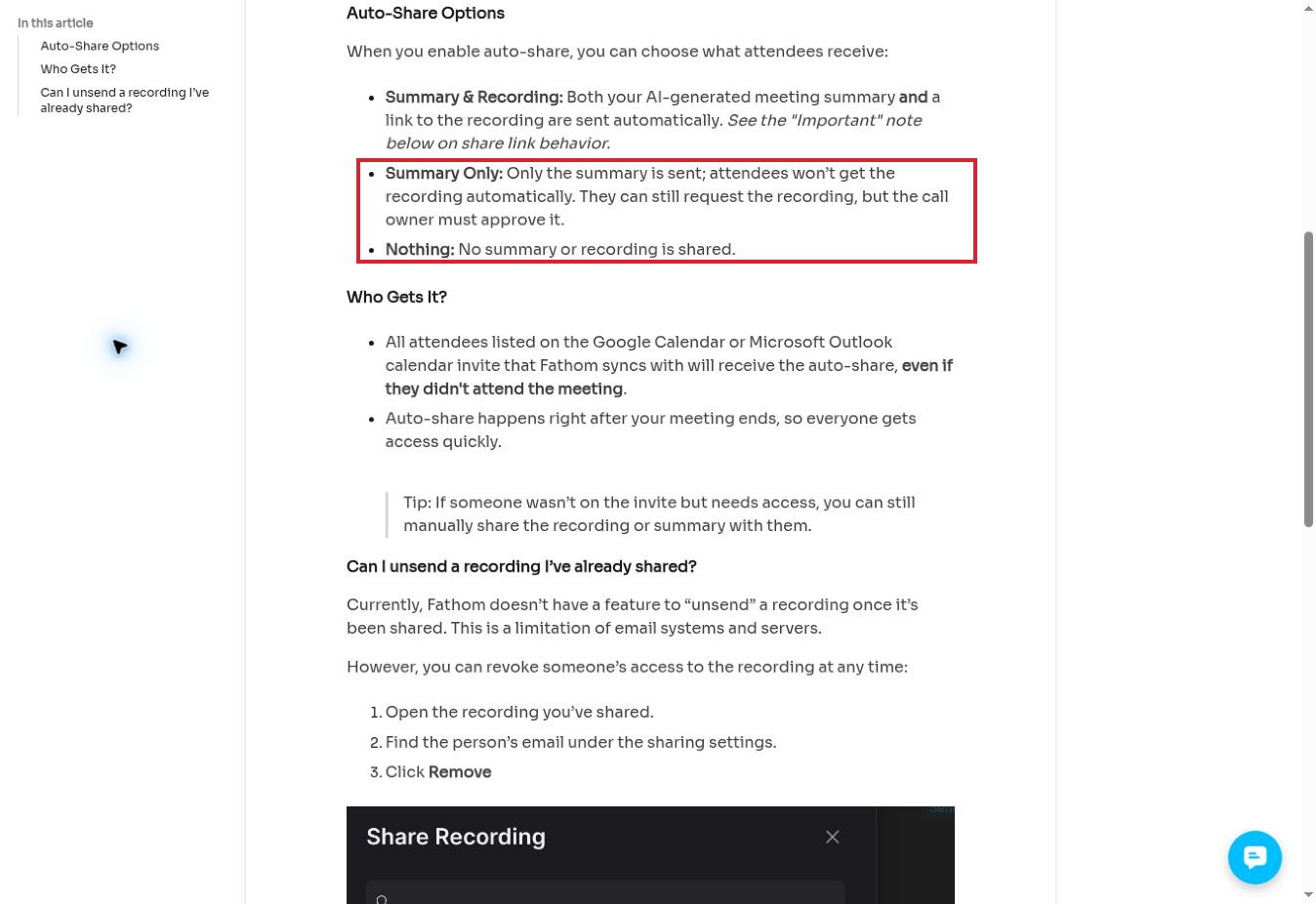
Fathom’s useful distinction is in outgoing delivery. Its auto-share guide offers a summary with the recording, a summary alone, or nothing. Summary-only delivery does not automatically give attendees the recording; a request for it requires the owner’s approval. Selecting nothing creates room for an editorial review before a manual follow-up.
That room matters because the Fathom 3.0+ guide describes a private scratch pad whose material can be incorporated into the generated summary. A private writing surface does not necessarily mean its ideas are excluded from everything the system produces. Avoid placing sensitive internal commentary there until you have checked the output behavior relevant to your account.
Fathom also documents restricted recording access and a Copy Summary route for an email or document. For client work, a reviewed copy lets you remove internal context without presenting an edited summary as an edited recording. Keep the two artifacts clearly distinguished.
Watch the audience as well as the content: the auto-share guide says calendar invitees can receive material even if they did not attend. It also describes broader default link behavior on individual/free plans. The practical fit is a team willing to own the release step, rather than one expecting the software to infer confidentiality from the wording of a note.
4. Fireflies: Choose the Meeting Audience Before Sending a Recap
Fireflies is useful when the main requirement is controlling which people can open an internal meeting record. Its documentation distinguishes owner-only access, teammates, participants, teammates plus participants, and a broader link-based audience. Starting with Only Owner and adding named recipients gives a clearer boundary than distributing a generally accessible link.
However, recipient selection is not note redaction. Fireflies’ private-sharing instructions explain that invited people can open the transcript and summary. If you invite a client to that record, do not expect an internal paragraph to disappear because the invitation was addressed specifically to them.
For an agency, the workable pattern is an internal record for the delivery team and a separate, reviewed external recap. If the client needs the actual recording, inspect the complete accessible content before granting access. Team-based sharing should also account for employees who work across several accounts.
Fireflies documents User Groups on Business and Enterprise plans, making that a relevant feature gate for larger organizations. Individual invitations may be adequate for a small group. The choice turns on maintaining access consistently as clients and staff change, not on whether the product can generate an attractive summary.
5. tl;dv: Combine Named Recording Access With Deliberate Context
tl;dv documents a sharing dialog with both audience selection and individual access levels. You can restrict a recording to selected people, remove access, and distinguish administrators, editors, and viewers. Its copying workflow also includes a toggle for including meeting notes alongside a pasted link.
That toggle is convenient for tailoring the message surrounding a recording. It should not be mistaken for a redaction control. A short client-facing message can still point to a recording containing material that the message leaves out. Evaluate what the recipient can open, not just what appears in the email preview.
Automatic sharing deserves a separate review. The documentation explains that participants may already appear in the access list when automatic meeting sharing is enabled. Adding a more restrictive-looking message afterward does not undo that earlier grant.
This option fits teams that want specific colleagues to review the record and then share it deliberately. If your real requirement is two independently maintained sets of notes, one internal and one external, plan those artifacts explicitly instead of relying on a link-copying preference. A proposed trial should include removing a recipient and reopening the original link from that recipient’s account.
6. Otter: Restrict Transcript Access and Review Export Rights
Otter’s sharing model is a useful match for teams whose working record is primarily a transcript. Its current permissions guide distinguishes collaborators, viewers, and no access. Advanced settings control whether collaborators can share onward and whether viewers can export conversation content.
These controls answer two different questions: who can open the record, and what those people may do once inside it. For a client who needs read-only access, a viewer role can reduce collaboration privileges, but it does not turn the full conversation into a carefully edited client recap.
Use restricted links when named access is required. Otter’s documentation warns that removing someone’s explicit permission is not sufficient if a broadly accessible link remains available. The relevant trial is therefore a combined one: remove the person, restrict the link, and test the saved URL from the recipient’s perspective.
Otter has Basic and paid Pro, Business, and Enterprise offerings. Compare the transcription and workspace capacity you need separately from the permissions design. Avoid selecting a larger plan on the assumption that it automatically creates a private internal commentary layer. For sensitive internal interpretation, a separate restricted document may be the clearer working arrangement.
MeetGeek supports private meetings, public links, named recipients, and highlights created from selected transcript text. A highlight is useful when a client needs a specific demonstration or decision rather than an entire conversation. The sharing guide also describes workflows that distribute summaries to other destinations.
The important purchase condition is its documented default behavior: meetings are shared with calendar invitees, including customers, unless the relevant settings are changed. The guide places changes to default sharing on Pro or higher. Check that condition before treating a free account as a controlled client-review workflow.
For a repeatable process, set the intended audience before the call, review the meeting afterward, and select only the excerpt required for the follow-up. Then inspect the recipient view. MeetGeek’s guide discusses video, transcript, and summary access in its sharing explanation, so a highlight label alone should not be your proof that all surrounding content is unavailable.
This makes MeetGeek a candidate for teams that routinely extract short, useful moments. If the client needs only a written next step, a reviewed message may still be simpler than managing recording access and downstream workflow copies.
A Practical Release Check for Internal and Client Notes
Use a short synthetic meeting before introducing any recorder to sensitive client work. The following is a proposed acceptance test, not a report of tests performed for this article.
- Create three harmless markers: one in the spoken discussion, one in private notes, and one in the intended client summary.
- Keep automatic external sharing off while preparing the record. Check calendar invitees, workspace rules, and connected destinations.
- Generate the recap and look for the private marker. If it appears, revise the process before using real information.
- Share only the intended artifact with an authorized test recipient. Inspect the email, link, transcript, recording, and download options from that account.
- Remove access and reopen the same saved link. Record what stops working and what remains in a previously delivered copy.
- Repeat after changing a template, integration, sharing rule, or subscription tier that affects the workflow.
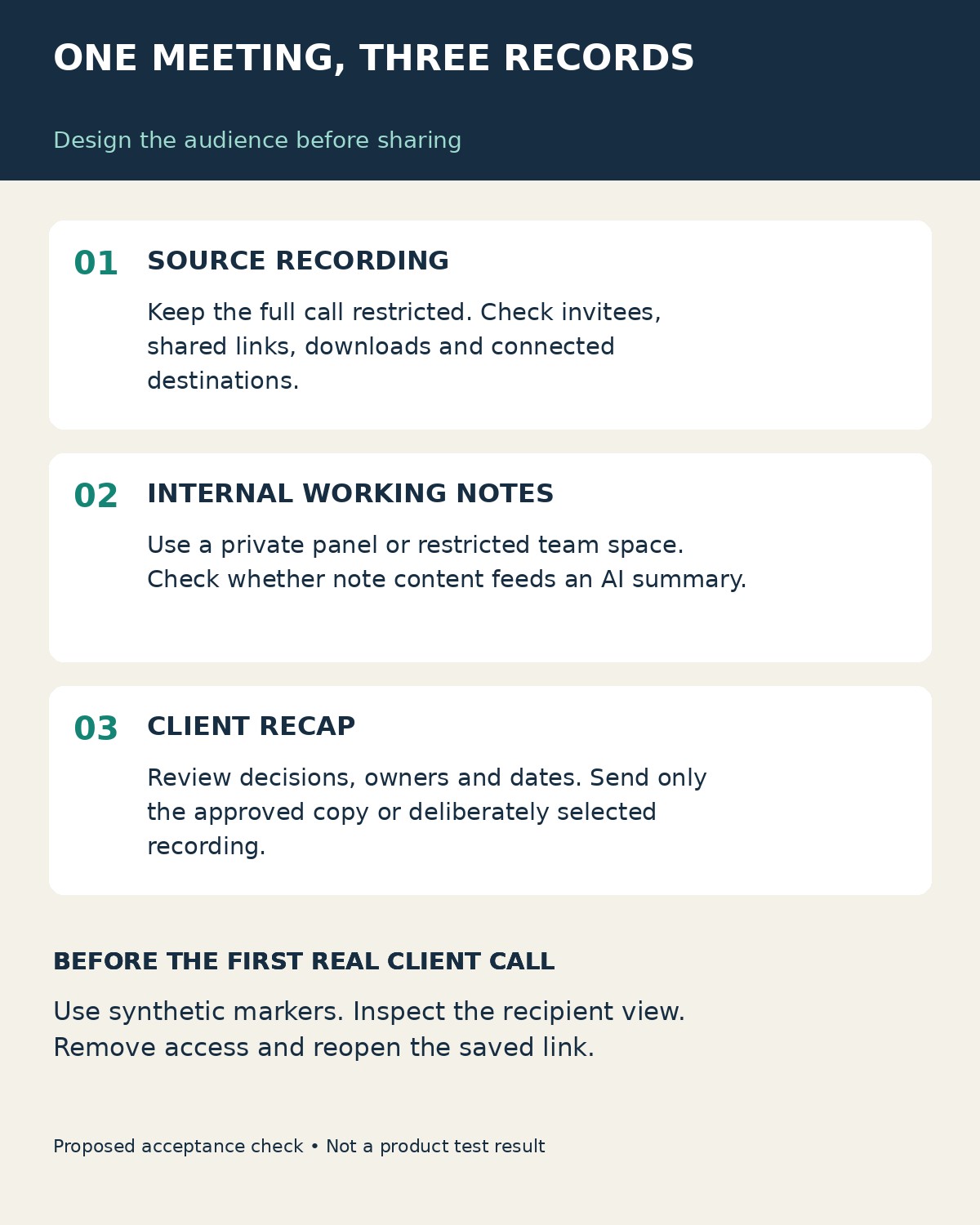
The acceptance standard should be written in plain language: the client can read the approved decisions and next steps; internal commentary stays in the restricted workspace; access to source recordings is intentional. This follows the broader need-to-know principle in the FTC’s small-business cybersecurity guidance. It is a process principle, not a certification of any listed product.
Content review is still necessary after permissions are correct. Check names, commitments, deadlines, and approval language using our guide to AI meeting-note phrases that need human review. A client-safe audience does not make an inaccurate summary safe to send.
Choose the Boundary You Can Actually Maintain
The right meeting recording tools depend on what you need to keep separate. Fellow and Avoma deserve a close look for personal notes beside collaborative work. Fathom offers a clear summary-versus-recording delivery choice. Fireflies, tl;dv, Otter, and MeetGeek provide different ways to restrict and distribute meeting records.
Shortlist two tools, reproduce your client follow-up with synthetic information, and inspect the recipient’s view. Choose the arrangement your team can maintain consistently—including the review step—rather than the one that sends the most material automatically.