Pre-installed tools fall short when managing multiple accounts, movable tasks, and international client calls. The Best Calendar Apps solve this by serving as smart planning engines that unify fragmented schedules, automate daily time-blocking, and shield focus time.
Whether you need AI-driven rescheduling or seamless cross-platform syncing, upgrading your software turns a passive agenda into an active productivity system. From automated task managers like Motion to sleek cross-platform upgrades like Fantastical, choosing the right tool transforms how you allocate your daily bandwidth. Discover the top tools designed to optimize your workflow and help you master time management with the Best Calendar Apps.
Best Calendar Apps for Different Ways of Working
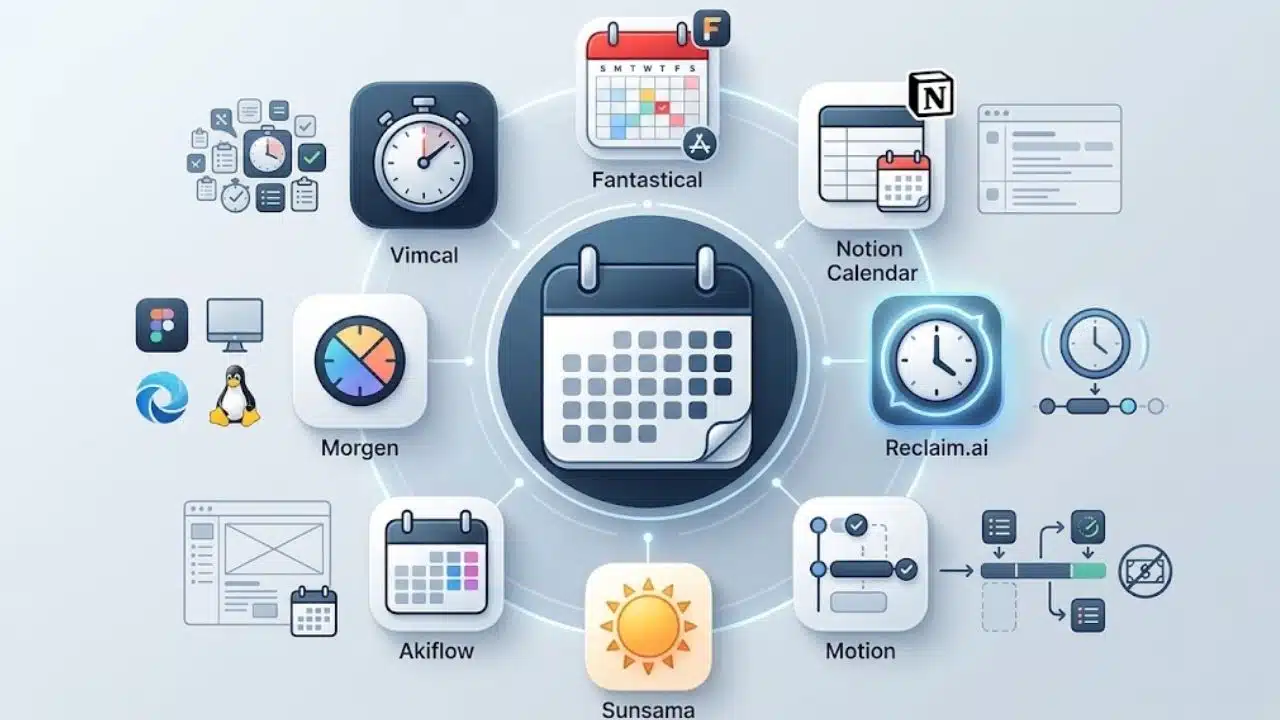
| App | Strongest Use | Important Limitation |
| Fantastical | Full calendar replacement | No Android app |
| Notion Calendar | Free multi-calendar management | Some Outlook mobile support remains limited |
| Reclaim.ai | Protecting focus time and routines | Works as a layer over another calendar |
| Motion | Automatic task scheduling | Expensive for basic calendar use |
| Sunsama | Deliberate daily planning | No permanent free plan |
| Akiflow | Capturing and time-blocking tasks | Narrower calendar-provider support |
| Morgen | Cross-platform planning, including Linux | Initial setup is better on desktop |
| Vimcal | Fast, meeting-heavy scheduling | Limited value for light calendar users |
Before Choosing: Check the Calendar Underneath
Many advanced calendar apps do not provide a new calendar account. They connect to Google Calendar, Microsoft Outlook, or iCloud and become the interface or planning layer above it.
That distinction affects syncing, permissions, and reliability. A company may block third-party calendar access. Tasks may sync differently from events. Mobile apps can also offer fewer controls than their desktop versions.
Before paying, connect every account you actually use and test four actions: create an event, edit it elsewhere, cancel it, and move a scheduled task. This short trial reveals more than a long feature list.
1. Fantastical: The Strongest All-Round Calendar Replacement
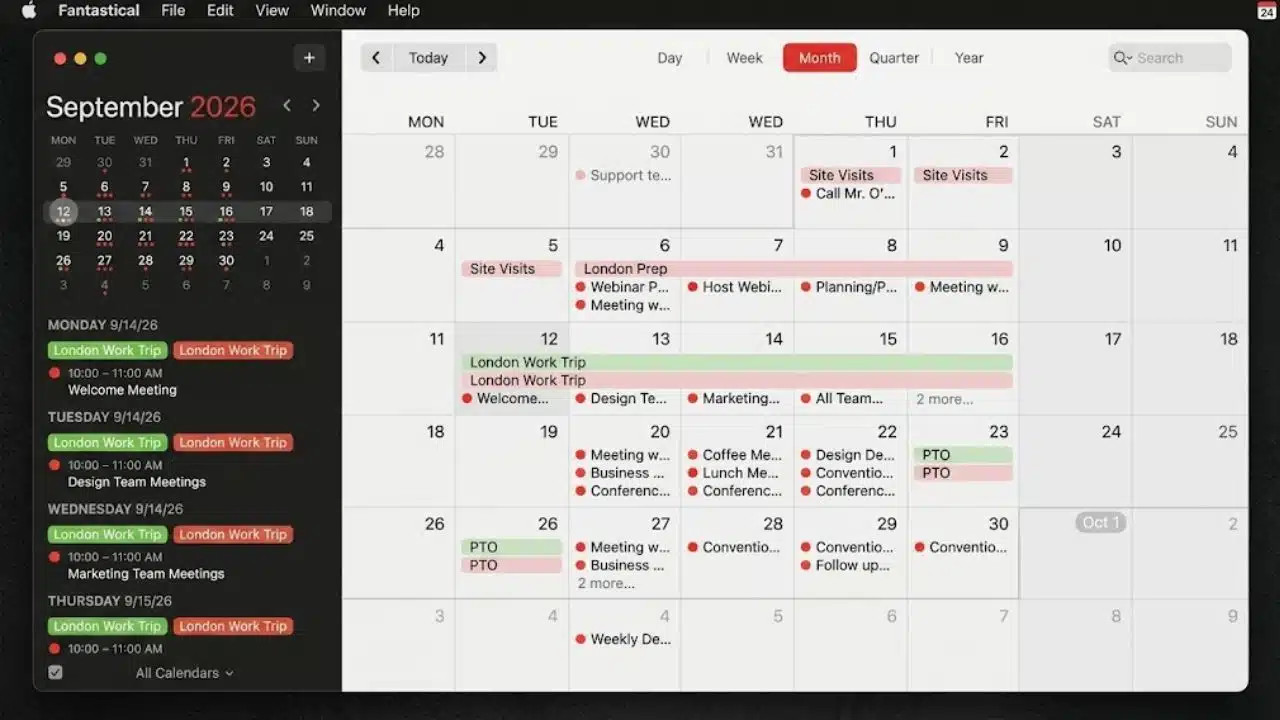
Fantastical earns the top position because it improves ordinary calendar work without forcing users into a completely new planning method. It connects with Google, Microsoft 365, Exchange, iCloud, Todoist, and CalDAV accounts, then presents them through cleaner views and faster controls.
Natural-language entry is particularly useful. A phrase such as “Project review Friday at 2 p.m.” can become an event without filling out several fields. Calendar Sets help separate client, personal, and internal schedules, while Openings and Proposals cover external booking and group scheduling.
Fantastical now supports Mac and Windows, as well as iPhone and iPad. Android remains the obvious gap. The free version covers basic calendar management, but advanced scheduling and customization sit behind Flexibits Premium.
2. Notion Calendar: The Best Free Upgrade
Notion Calendar is the sensible starting point for anyone who wants a sharper calendar without another subscription. It combines multiple calendars, offers scheduling links and time-zone tools, and can display Notion databases with date properties beside regular events.
It is available on macOS, Windows, the web, iOS, and Android. Current documentation lists Google, iCloud, and Microsoft Outlook compatibility, although Outlook support on mobile is still described as forthcoming. Connecting iCloud also requires an Apple app-specific password.
Notion users gain the most from it. Everyone else still gets a capable free calendar, but the Notion integration should not be mistaken for full two-way conversion between calendar events and database records.
3. Reclaim.ai: Better Protection for Focus Time
A normal calendar records focus time only after someone creates the block. Reclaim can find suitable space automatically, defend it, and move it when a higher-priority commitment arrives.
Its scheduling system also handles habits, buffers, tasks, meeting links, and recurring Smart Meetings. This makes it useful for professionals whose calendars fill with calls before individual work gets a chance.
The free Lite plan is unusually practical, with multiple scheduling agents, unlimited calendar syncing, and unlimited scheduling links. Reclaim currently connects with Google Calendar and Outlook. It is less suitable for someone seeking a polished standalone calendar interface; its real value is the automation added to an existing schedule.
4. Motion: When the Schedule Must Rebuild Itself
Motion goes further than protecting a few focus blocks. It places tasks on the calendar using deadlines, priorities, durations, dependencies, and available working hours. When a meeting lands in the middle of the plan, it can recalculate the schedule.
That is valuable for consultants, project leads, and small teams managing work that changes daily. It is excessive for people who mainly need better event entry or attractive calendar views.
Motion connects with Google Calendar, Outlook, and iCloud. However, tasks only sync outward to Google and Outlook calendars, while iCloud event updates may take longer to appear. Its broader project-management features also put it in a higher price class than a simple calendar app.
5. Sunsama: A More Deliberate Daily Planner
Sunsama takes a calmer, more manual approach. Its guided planning routine asks users to choose the day’s tasks, estimate their duration, review meetings, and reduce the workload when the plan exceeds a chosen threshold.
Tasks can be time-boxed beside events from Google, Outlook, and iCloud. Work can also be brought in from tools such as Asana, Jira, and Trello. This structure suits people who benefit from making conscious decisions each morning rather than letting an algorithm rearrange everything.
At the time of writing, Sunsama costs $22 per month or $17 per month when billed annually, following a 14-day trial. That is difficult to justify if the planning ritual will be ignored after the first week.
6. Akiflow: Built for Tasks Arriving From Everywhere
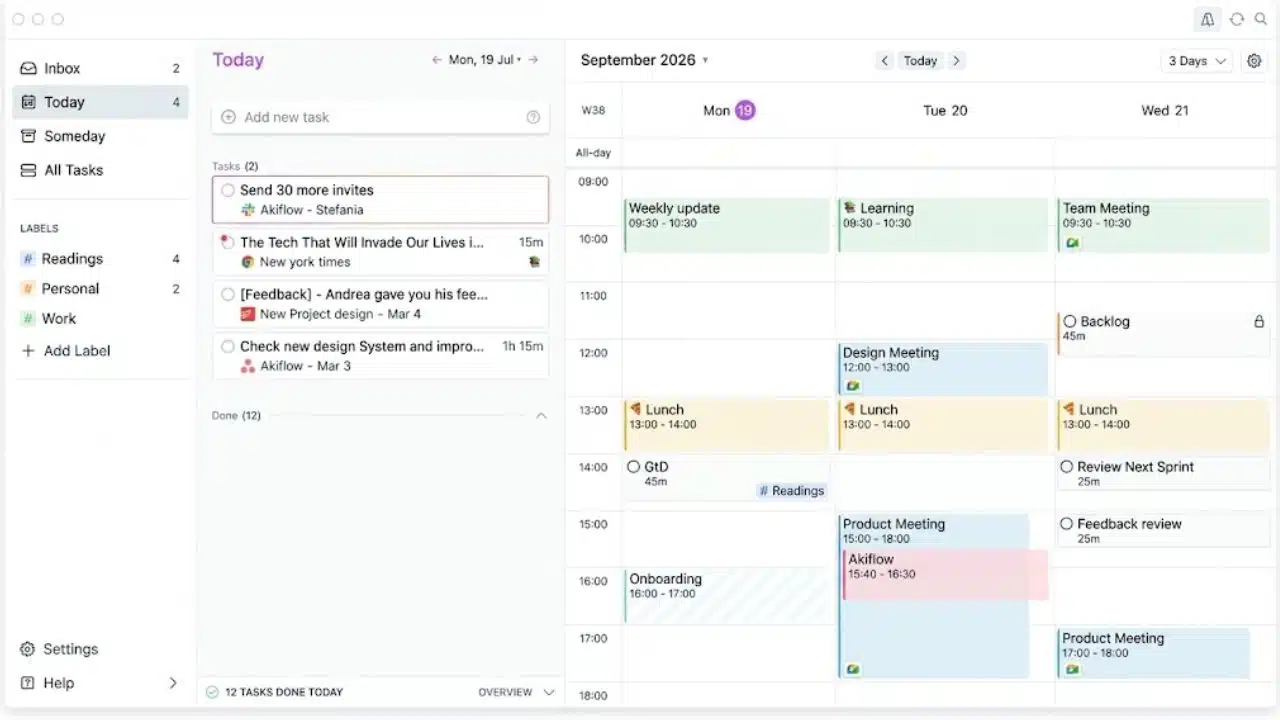
Akiflow is strongest when work enters through several channels. It can pull tasks from Gmail, Slack, Microsoft Teams, Notion, Todoist, Asana, Jira, Linear, Trello, and other supported services. Those items can then be processed from one inbox and placed on the calendar.
Keyboard controls, natural-language scheduling, availability sharing, and reusable Time Slots make it well suited to power users. Google Calendar and Outlook receive two-way event syncing, but people centered on iCloud should verify the current integration options before committing.
The Pro plan currently costs $34 monthly or $19 per month with annual billing, with a seven-day trial. That price makes sense only when Akiflow replaces meaningful daily capture and planning work.
7. Morgen: The Underrated Cross-Platform Choice
Morgen deserves attention from Windows and Linux users who are often treated as an afterthought by premium calendar developers. It runs on Linux, Windows, macOS, iOS, Android, and the web, connecting calendars and task services in one planning interface.
Its individual plan is currently $30 monthly or $15 per month billed annually. One practical limitation is that new users are directed to complete setup on desktop or the web before relying on mobile. Its documentation also notes that background syncing between Morgen apps may require a refresh for an immediate update.
8. Vimcal: Fast Scheduling for Meeting-Heavy Roles
Vimcal is a specialist recommendation for founders, executives, recruiters, sales professionals, and executive assistants who repeatedly coordinate calls across time zones.
It emphasizes keyboard speed, shareable availability, booking links, scheduling polls, and duplicate-event handling. The iOS version has a free tier, while the desktop-and-iOS plan costs $20 monthly or $200 annually. Mac, Windows, web, and iOS are covered; Android is not listed in the current plan breakdown.
For someone arranging two outside meetings a week, Vimcal is hard to justify. For someone arranging ten a day, small reductions in scheduling friction can matter.
Final Thoughts
Start with the failure in the current workflow. Choose Fantastical for a better everyday interface, Notion Calendar for a free upgrade, Reclaim for protected focus time, or Motion when tasks must move automatically.
Sunsama and Akiflow suit people willing to plan actively. Morgen solves a real cross-platform problem, while Vimcal is built for unusually heavy meeting coordination.
Trial only one app at a time and use it through a normal working week. The best calendar apps should reduce rescheduling, missed commitments, and tool switching. If maintaining the app becomes another task, the default calendar may still be the more sensible choice.
FAQs
Can these apps completely replace Google Calendar or Outlook?
Usually, they replace the interface rather than the underlying account. Meetings may still be stored in Google, Microsoft, or iCloud, which allows invitations and updates to continue working with people who use other calendar apps.
Are AI calendar apps useful when plans change frequently?
They can be. Reclaim and Motion are designed to move flexible work around fixed meetings. Their recommendations become less reliable when tasks have unrealistic duration estimates or every item is marked as urgent.
Should a freelancer pay for a calendar app?
Paying can make sense when the app replaces a separate booking service, prevents double bookings, or saves time coordinating across clients. A freelancer with a light meeting schedule should start with Notion Calendar or a free plan before adding another subscription.
What should teams check before connecting a work calendar?
Confirm that the organization permits third-party calendar access. Teams should also review requested permissions, event-title privacy, delegated-calendar behavior, and what happens when an employee leaves.