Finding the best productivity apps for Linux is less about adding software and more about cutting daily clutter. While terminal-based flexibility makes installing new software effortless, a truly productive desktop stays lean, responsive, and easy to maintain.
Top tools earn their place by replacing repetitive chores with seamless, automated workflows. Ranked from essential everyday powerhouses to targeted time-savers, these ten free, open-source Linux tools streamline your digital routine. Whether you need an offline knowledge hub, automated task management, or rapid screenshot annotations, these choices deliver maximum utility with minimal system overhead.
Before Installing Another Productivity App
Dull checks matter: distribution, desktop environment, package source, and whether the session uses X11 or Wayland. A distribution package may integrate cleanly but trail the latest release. Flatpak, Snap, and AppImage builds can make newer versions easier to obtain, although permissions and desktop integration may differ.
That distinction is especially important for tools that watch the clipboard, register global shortcuts, capture the screen, or run in the background. Read the project’s Linux installation notes rather than assuming every package behaves alike. Add one app, give it a defined job, and remove it if it merely duplicates something already installed.
10 Best Productivity Apps for Linux
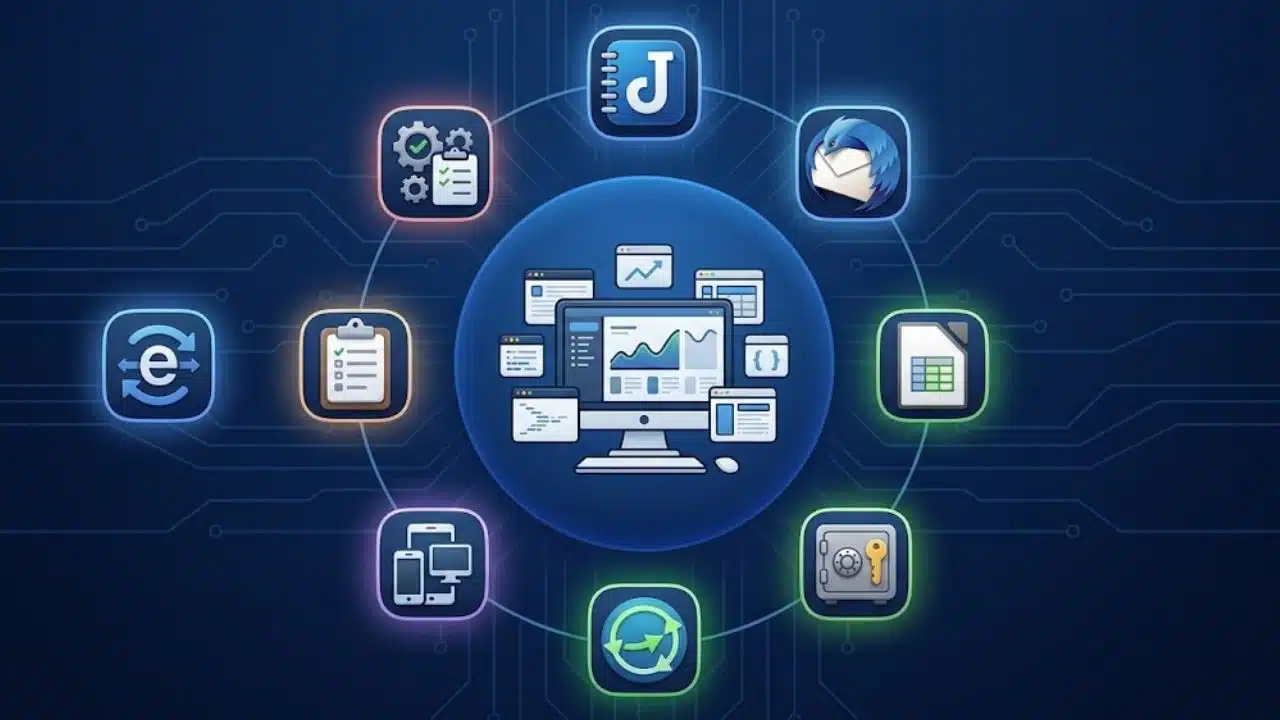
The best productivity apps for Linux should solve real workflow problems without adding unnecessary complexity. The tools below cover note-taking, task planning, email, office work, password management, file synchronization, device integration, clipboard history, text expansion, and screenshots. Each earns its place through practical value, local control, or meaningful time savings.
1. Joplin: The Strongest General-Purpose Notes App
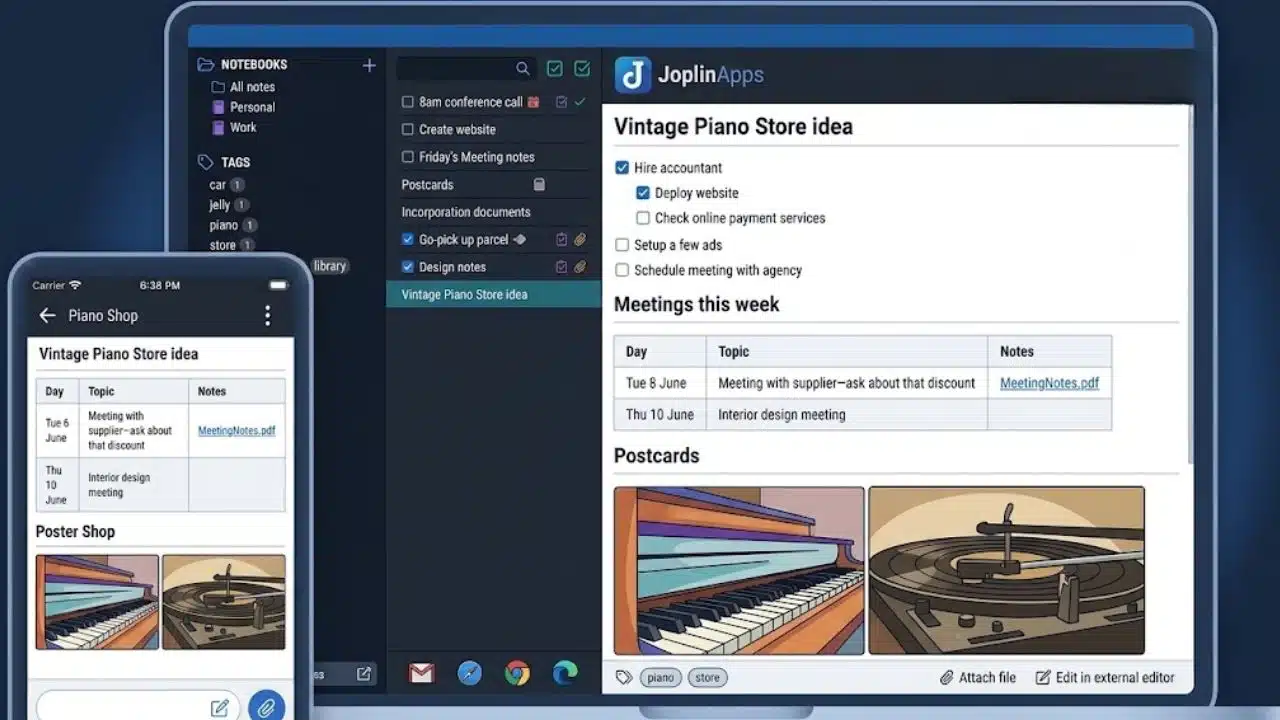
Joplin is the easiest broad recommendation because it can hold quick notes, long Markdown documents, to-do items, attachments, and clipped web research without becoming a web-only workspace. Notebooks, tags, full-text search, and plugins give it enough structure for technical documentation or content planning, but none is required for a basic notes setup.
It can synchronize through Joplin Cloud, Nextcloud, Dropbox, OneDrive, WebDAV, and other supported targets, with optional end-to-end encryption. That encryption protects synchronized data; it does not replace full-disk protection on the computer. Anyone who needs only a scratchpad and a few text files can reasonably skip Joplin.
2. Super Productivity: Task Planning Without a Compulsory Account
A task manager stops helping when maintaining it takes longer than completing the task. Super Productivity avoids the compulsory account and combines tasks, subtasks, timers, timeboxing, focus sessions, and work logs locally. GitHub, GitLab, and Jira integrations make it particularly relevant to developers who want issues beside their daily plan.
Start with the task list and timer. Its additional views are optional, not an onboarding project. This is a strong personal planner for developers and freelancers, but it is not a substitute for team assignments, approval workflows, or shared project reporting.
3. Thunderbird: A Calmer Home for Email and Calendars
Thunderbird becomes valuable when two or three webmail tabs have turned into a daily routine. It brings multiple accounts, a unified inbox, filters, tags, calendars, and contacts into one desktop client.
Microsoft 365 users need to look more closely. At the time of writing, Thunderbird supports Exchange email through EWS, while Graph email support is in the regular Release channel but not the current ESR. Exchange calendar and address-book support is not yet included with either route. Check the release channel and workplace authentication policy before moving an important account.
4. LibreOffice: Still the Practical Local Office Suite
LibreOffice is the only entry here that can replace an entire software category. Writer, Calc, Impress, Draw, Base, and Math cover documents, spreadsheets, presentations, diagrams, databases, and formulas. Its native OpenDocument Format is the safer choice for work kept inside LibreOffice.
Microsoft Office files can be opened and saved, but complicated layouts, missing fonts, VBA macros, and heavily formatted spreadsheets may not survive perfectly. Check the final file in Microsoft Office when exact compatibility matters. LibreOffice is excellent for local production; it is less convincing as a replacement for a cloud suite built around live co-editing.
5. KeePassXC: Faster Logins With Local Control
KeePassXC is technically a security tool, but it also removes the repeated work of finding, resetting, and manually entering credentials. It keeps passwords, URLs, notes, and attachments in an encrypted local database, while browser integration handles routine logins.
Local control also means owning the backup plan. Use a strong database password, keep more than one backup, and confirm that a restored copy opens before depending on synchronization. KeePassXC is a strong choice for people who do not want a hosted vault. Someone prioritizing effortless mobile synchronization may find a reputable hosted password manager easier to maintain.
6. Syncthing: Continuous File Sync Without Cloud Storage
Syncthing is useful when the same working folder belongs on a desktop, laptop, and home server without being stored in a provider’s cloud. It synchronizes selected folders between trusted devices, with device-to-device traffic protected by TLS.
The important warning is easy to miss: synchronization is not backup. A deletion or bad edit can travel to the other devices. Syncthing offers file versioning, but it is disabled by default and archives only changes received from another device. Use it for current working copies and maintain a separate backup for irreplaceable files.
7. KDE Connect: The Best Bridge Between Phone and Desktop
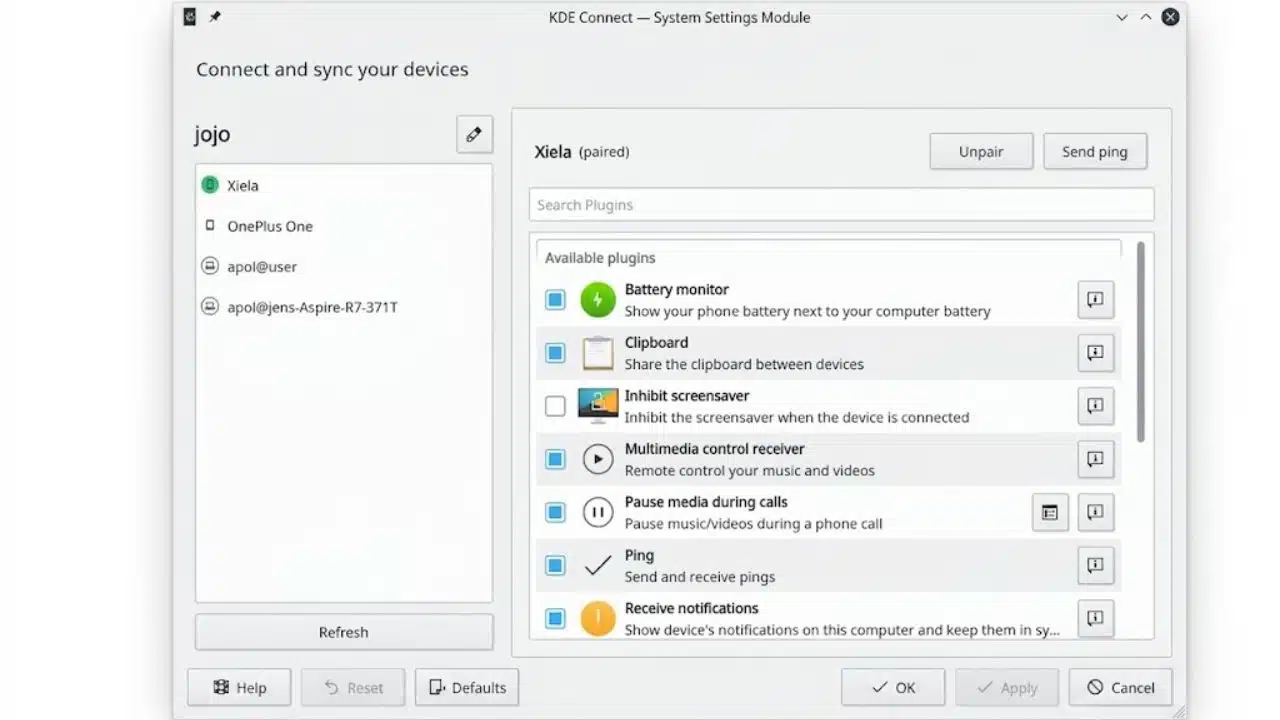
KDE Connect can send links and files between devices, surface phone notifications, control media, run approved remote commands, and turn a phone into a trackpad or presentation remote. Android provides the fullest experience. The iOS version lacks notification sync and SMS, and background connectivity is more limited.
Do not enable every plugin automatically. Mirroring an already noisy phone can make the desktop worse, and shared clipboards require care around passwords and confidential text.
8. CopyQ: Clipboard History for People Who Reuse Information
Copy a command, then a URL, then an image, and the command is normally gone. CopyQ keeps searchable clipboard history for text, HTML, images, and other formats. Tags, tabs, shortcuts, editing, and scripting make it especially helpful for code snippets, repeated links, research, and product information.
Review its privacy settings before leaving it running. CopyQ ignores supported secret markers, but saved tab data is unencrypted unless encryption is enabled. Wayland behavior also varies: compatible compositors can monitor the clipboard natively, GNOME needs CopyQ’s shell extension, and direct pasting into the active window is not natively supported under Wayland.
9. Espanso: An Underrated Fix for Repetitive Typing
Espanso is narrower than the apps above, but its return can be immediate. Short triggers can insert a support reply, address, command template, Markdown block, or standard disclaimer across applications. Its configuration is file-based, while Wayland support remains experimental and requires additional permissions. Test ordinary phrases first, and never place passwords or other secrets in expansion files.
10. Flameshot: Quicker Screenshots With Useful Markup
Flameshot earns its place for anyone who explains work visually. Region capture, arrows, highlights, text, shapes, counters, and blur or pixelation can turn a screenshot into a useful bug report or editorial note before it is saved. GNOME and Plasma Wayland support is described as experimental, so test the intended shortcut first. Crop confidential information out rather than trusting visual blur as secure removal.
Final Thoughts
The best productivity apps for Linux should reduce a specific kind of friction: lost notes, unclear tasks, repeated logins, scattered files, or unnecessary typing. Pick one problem, install the relevant app through its recommended channel, and give it a week with a limited role.
Keep it if the app reduces searching, switching, retyping, or missed work. Remove it if maintaining the tool becomes another task. A small Linux setup built around real habits will usually outperform a crowded collection of promising utilities.
Frequently Asked Questions
Which Linux productivity app should a beginner install first?
Do not install all ten. Choose the most frequent source of lost time: Joplin for scattered notes, Super Productivity for unclear daily priorities, or KeePassXC for password friction. Add CopyQ or Espanso only after repeated copying or typing has become an obvious nuisance.
Do these apps work on Ubuntu, Fedora, Arch, and Pop!_OS?
All ten offer Linux installation options, but package availability and version numbers differ. Check both the project’s instructions and the distribution repository. Pop!_OS users will often find Ubuntu-compatible packages, while Arch users should distinguish official repository packages from AUR builds.
Can these tools work without an internet connection?
Most of the best productivity apps for Linux on this list can perform their main local functions offline. Email retrieval, synchronization, live web clipping, and device transfers still require the relevant network connection.