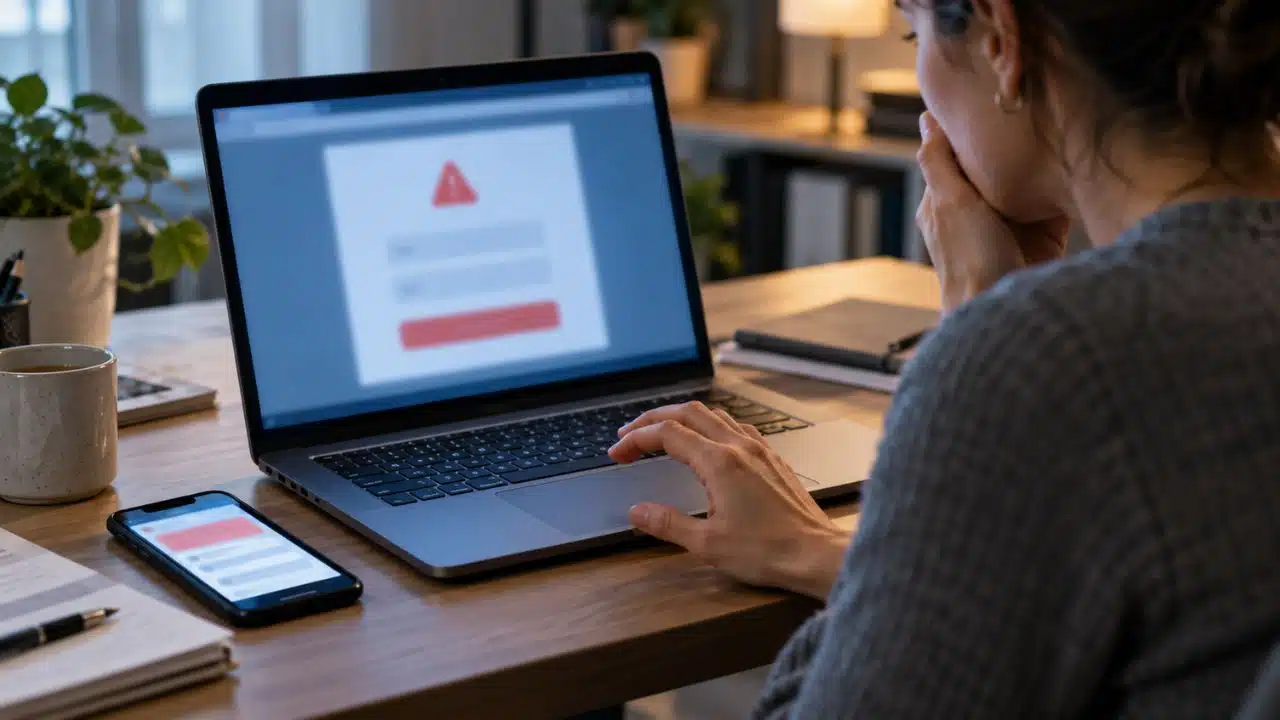
If you are wondering what to do after clicking a phishing link, take a breath and act methodically. One accidental click does not automatically mean your phone, computer, or accounts have been hacked. The real risk depends on what happened next: whether you entered a password, approved a sign-in, downloaded a file, installed something, or shared financial information.
My first rule is to identify the exposure before trying random fixes. A password change will not remove malware from a device. An antivirus scan will not sign an attacker out of an online account. Each risk needs its own response.
If the incident involves money, banking details, a work account, or a company device, contact the bank, payment provider, or IT team immediately. Do this while you continue the other recovery steps.
What to Do After Clicking a Phishing Link Depends on What Happened
The words “I clicked a phishing link” can describe several very different situations. This quick assessment helps determine what needs attention.
| What happened | Immediate priority |
| The page opened, but you entered nothing | Close it and check for unexpected downloads, installations, or permissions. |
| You entered a password, security code, or approved a sign-in | Secure the account and end unauthorized sessions. |
| A file downloaded, but you did not open it | Do not open it; check the device with trusted security tools. |
| You ran a file, installed an app or profile, pasted a command, or allowed remote access | Treat the device as potentially compromised. |
| You shared card, bank, mobile wallet, or identity information | Contact the relevant provider immediately and monitor for misuse. |
After identifying what occurred, follow the steps that apply to your situation.
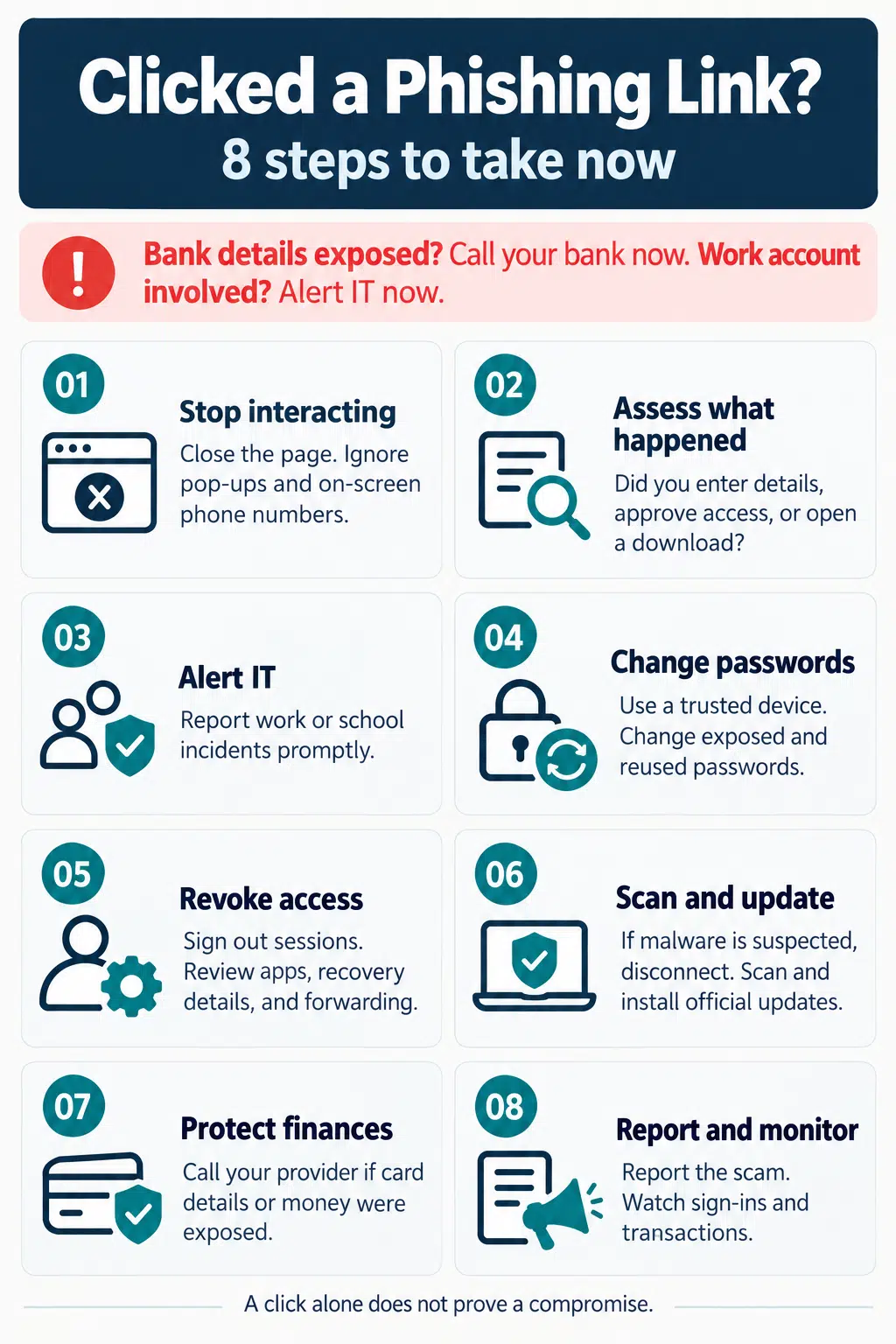
1. Stop Interacting With the Page
Close the browser tab or window. If the page refuses to close, use the device’s normal controls to close the browser or app.
Do not click buttons inside the page, even if they say “cancel,” “unsubscribe,” “remove virus,” or “secure account.” Do not call a phone number displayed in a pop-up. A phishing page may use fake warnings about infections, payments, or account closures to keep you engaged.
I would also ignore any instruction to install a security tool, add a browser extension, paste a command, or give someone remote access. Those actions can turn a fake login page into a much more serious device compromise.
Closing the page prevents further interaction. It cannot take back information that has already been submitted, so continue with the relevant steps below.
2. Check What Downloaded, Ran, or Changed
Think through every action you took after opening the link. Check the browser’s recent downloads and look for unfamiliar apps, extensions, configuration profiles, or permission requests. Never open a suspicious file just to see what it contains.
If a file ran, an unknown app was installed, a command was pasted, remote access was granted, or the device starts behaving strangely, disconnect it from the internet. Turn off Wi-Fi and mobile data, unplug a network cable if present, and disconnect attached storage where appropriate.
Disconnection is a containment step for suspected malware. A page merely opening does not prove that malicious software was installed. The decision should depend on what downloaded, executed, or changed.
Avoid signing in to email, banking, shopping, or other sensitive accounts from a device that may be infected. Some malware can capture passwords and other information as it is typed.
3. Notify Workplace IT and Preserve Useful Details
If the link involved a work or school account, device, document, or email, contact the organization’s IT or security team immediately through a channel you already trust.
Early reporting gives the team time to block the website, check account activity, remove similar messages from other inboxes, and protect colleagues. Accidental clicks happen. Delaying the report usually creates more risk than the click itself.
Record the essential details while they are still fresh:
- When the message arrived and when you opened the link
- The sender’s displayed name, address, or phone number
- The device and account involved
- What information you entered
- Whether you downloaded, opened, installed, or approved anything
- Any warnings or unusual device behavior that followed
Keep the original message and useful screenshots if it is safe to do so. Never write an actual password in your notes or send it to IT. On a managed device, follow the organization’s instructions before deleting files, removing profiles, or resetting the system.
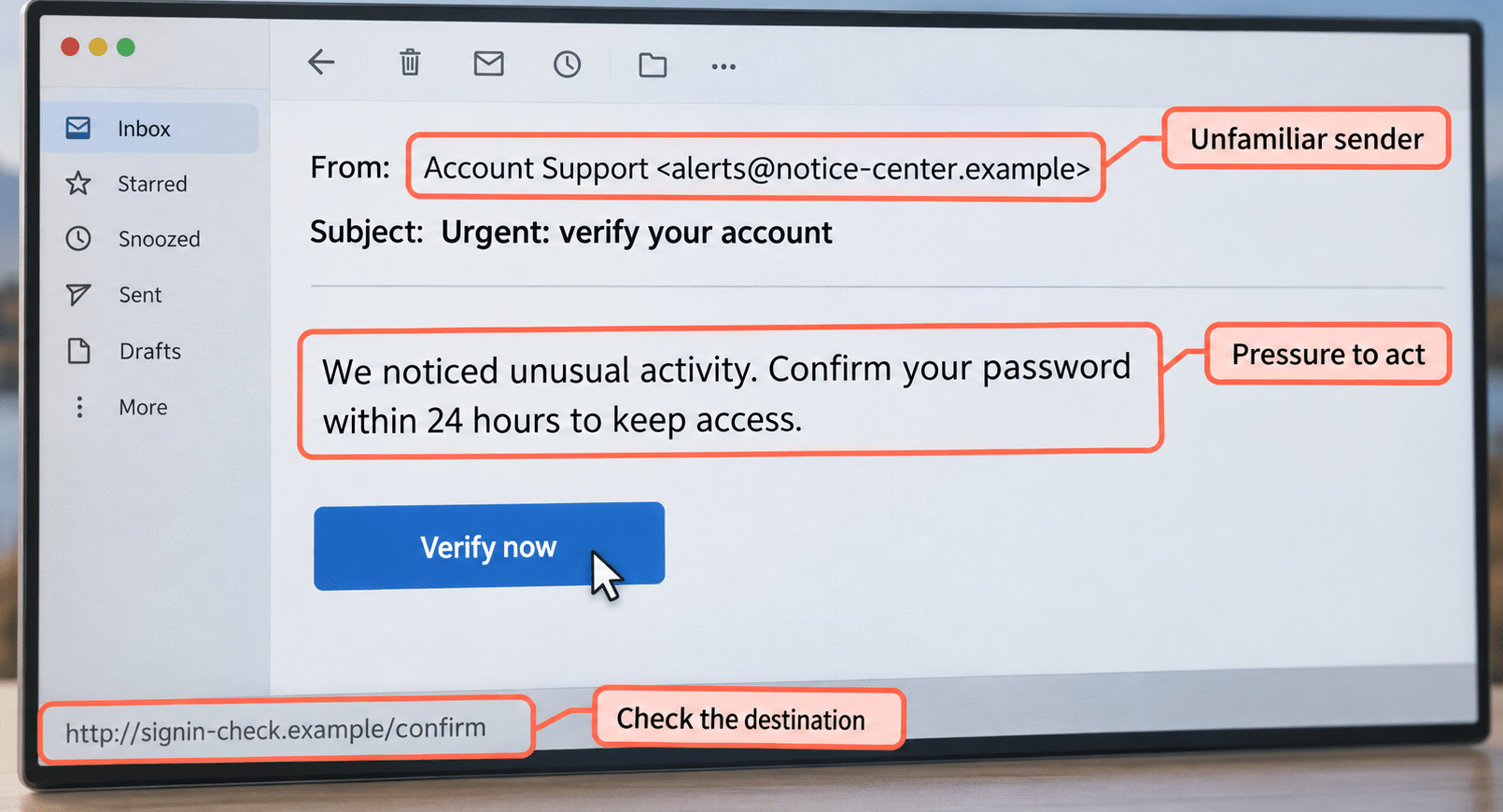
4. Change Exposed Passwords From a Trusted Device
If you typed a password into the page, treat it as exposed. Open the genuine service through its official app, a saved bookmark, or a web address you know is correct. Do not return through the link in the suspicious message.
Use another trusted device if the affected phone or computer may contain malware. Start with the account whose password was entered. I prioritize email because access to an inbox can help an attacker reset passwords for banking, cloud storage, shopping, social media, and other services.
Create a strong, unique replacement. If the old password was reused, change it anywhere else you used it. A password manager can generate and store separate passwords for each account.
If you are locked out, use the provider’s official account recovery process. Check whether anyone changed the recovery email address, phone number, or other security information.
5. End Active Sessions and Repair Account Settings
Changing the password may not remove every type of access. An attacker could still have an active session, connected application, added verification method, or email rule that remains after the password changes.
Open the account’s security settings and review:
- Recent sign-ins and security events
- Active devices and sessions
- Connected apps and granted permissions
- Recovery email addresses and phone numbers
- Passkeys, security keys, and authenticator methods
- Email forwarding, filters, delegation, and automatic replies
- Payment methods or ownership details
Remove anything you do not recognize. Use sign out everywhere, log out of other sessions, or revoke access where the provider offers it. Session termination may take time on some services, so continue watching for unfamiliar activity.
Enable multifactor authentication if it is available. I prefer passkeys or physical security keys when a service supports them because they are designed to resist fake sign-in pages. An authenticator app or another available second step still adds meaningful protection.
Complete this account review if you approved an unexpected login, entered a one-time code, scanned a sign-in QR code, connected an unfamiliar device, or authorized an app, even if you never shared a password.
6. Scan and Update the Affected Device
On a computer, update the trusted security software and run a full scan. Allow it to quarantine or remove anything it identifies. The exact process depends on the operating system.
Windows
Open Windows Security → Virus & threat protection. Check for protection updates, select Scan options, and run a Full scan. Microsoft Defender Offline is an additional option that restarts the computer and scans outside the normal Windows session.
Android
Confirm that Google Play Protect is enabled. Install legitimate Android and Google Play system updates. Review recently installed apps and remove anything unfamiliar or downloaded through the phishing page. Menu names may vary by manufacturer.
iPhone or iPad
Install current iOS or iPadOS updates and remove any unfamiliar app installed during the incident. If the page instructed you to install a configuration profile, check Settings → General → VPN & Device Management. Consult the administrator before removing a profile from a work or school device.
Mac
Install current macOS and browser updates. Review unfamiliar applications, login items, browser extensions, and device management profiles. If software was installed or the Mac shows signs of compromise, seek support from Apple, workplace IT, or another provider you already trust.
A clean scan is encouraging, but it cannot confirm whether credentials were captured or an online account was accessed. Complete the account recovery steps separately.
A factory reset is a serious recovery measure. Consider it when malware signs persist, compromise has been confirmed, or trusted technical support recommends it. A simple click by itself does not justify wiping a device.
7. Protect Financial Accounts and Identity Information
If you entered a card number, bank login, mobile wallet details, PIN, security code, or other financial information, contact the provider immediately. Use the official app, the number on the back of the card, a statement, or contact information you independently verify.
Explain what information was disclosed and whether a transaction occurred. Ask about securing the account, blocking or replacing the card, and recalling or disputing a payment. Fast reporting may improve the available options, although no provider can guarantee that money will be recovered.
Check for small unfamiliar charges as well as large ones. Criminals sometimes test payment information with a low-value purchase before attempting more.
If you shared a passport, national identification number, tax information, or another sensitive document, contact the issuing authority or identity theft service for your country. Credit monitoring, a fraud alert, or a credit freeze may be available in some places.
Expect possible follow-up scams. Someone who already has part of your information may pretend to be the bank, police, a government agency, or a fraud investigator. End the call and contact the organization through a verified number.
8. Report the Attempt and Monitor Your Accounts
Report the message through the email, messaging, social media, or workplace platform where it arrived. This can help the provider investigate the sender, block the website, and protect other users.
You can also report the website or incident through the appropriate cybersecurity, consumer protection, telecommunications, or law enforcement channel in your country. Reporting numbers and procedures vary by location and mobile provider.
After preserving the details you need, report the message, block the sender, and delete it. Keep security and transaction alerts enabled, and watch for:
- Sign-ins or password resets you do not recognize
- New devices, apps, or authentication methods
- Emails, messages, or posts you did not create
- Missing emails or unfamiliar forwarding rules
- Changes to recovery information
- Purchases, transfers, or subscription changes
- Friends or colleagues receiving suspicious messages from your account
If your account sent phishing messages, warn your contacts through another trusted channel. A brief warning may stop the same link from spreading.
There is no universal deadline after which all risk disappears. Continue reviewing normal account and transaction alerts, and act promptly whenever something looks unfamiliar.
Common Mistakes to Avoid After a Phishing Click
A rushed response can create new problems. I would avoid:
- Returning to the phishing page to investigate it
- Calling a number displayed in a fake security warning
- Paying someone who unexpectedly offers to recover stolen money
- Changing passwords on a device suspected of running malware
- Reusing one replacement password across several accounts
- Assuming multifactor authentication stops every type of phishing
- Treating a clean malware scan as proof that online accounts are secure
- Resetting a managed work device before speaking with IT
- Waiting for fraud to appear before reporting exposed financial details
The safest response addresses each part of the incident directly: check the device for malware, check the account for unauthorized access, and contact the financial provider when money or payment information is involved.
Acting Quickly and Calmly Makes the Difference
Clicking a phishing link can feel frightening, especially when the page looked genuine. The clearest response begins by establishing what happened after the click.
From there, the actions become manageable. Close the page, contain any device risk, secure exposed accounts, contact the bank or IT team when necessary, and keep watching for misuse. Speed matters, but the right sequence is what limits the damage.
Frequently Asked Questions on What to Do After Clicking a Phishing Link
1. What if I clicked a phishing link but entered nothing?
Close the page and check for unexpected downloads, installations, extensions, or permission requests. Run the appropriate security check, especially on a computer. A click alone does not confirm compromise, but it still deserves attention.
2. Should I disconnect my phone or computer from the internet?
Disconnect it if a suspicious file ran, an app or profile was installed, remote access was granted, or the device shows signs of malware. If the page only opened and nothing downloaded or changed, close it and assess the device before taking more disruptive action.
3. Is changing my password enough after phishing?
It is essential when a password was exposed, but it may not remove active sessions, connected apps, unfamiliar authentication methods, or malicious email forwarding. Review those settings and scan the device separately if malware is possible.
4. What should I do after clicking a phishing link on my phone?
Close the page and check for unfamiliar downloads, apps, profiles, permissions, and account alerts. Android users should check Play Protect and recently installed apps. iPhone users should update iOS and review unfamiliar apps or configuration profiles. Change exposed credentials from a trusted device.
5. How long should I monitor my accounts?
No fixed period guarantees that every risk has passed. Keep sign-in and transaction alerts enabled, review affected accounts regularly, and respond immediately to unfamiliar logins, password resets, forwarding rules, purchases, transfers, or messages.