
Your important pages are missing from Google, and Search Console shows a growing “Not indexed” count. It is tempting to treat every excluded URL as a page to rescue. That can waste hours: an old address that redirects and a product filter that duplicates a category page may be excluded for good reasons.
The Page Indexing report Google Search Console provides is useful when you bring one question to it: Which pages do we want in Search that Google has not indexed? The report helps you find patterns. URL Inspection helps you investigate a particular page.
Make a Short List of Pages That Should Appear in Search
Before opening the report, identify the preferred URLs for your homepage, core articles, service pages, and other content you expect people to find. Your sitemap can help you assemble that list, provided it contains current URLs you actually want indexed.
Do not count every address your site generates as a page that needs its own search listing. A store may create URLs for sorting products by price. An article may have an old address that redirects after an update. A page removed without a replacement may return a 404. Those URLs can appear as “Not indexed” without signaling a loss.
The useful target is the preferred version of each important page. Trying to push the report toward 100% indexing misses the point.
Check that you have selected the right Search Console property, too. If you are examining a property that does not cover the site section or URL version you intended, the apparent gap may begin there.
Read the Graph for Changes, Not a Perfect Score
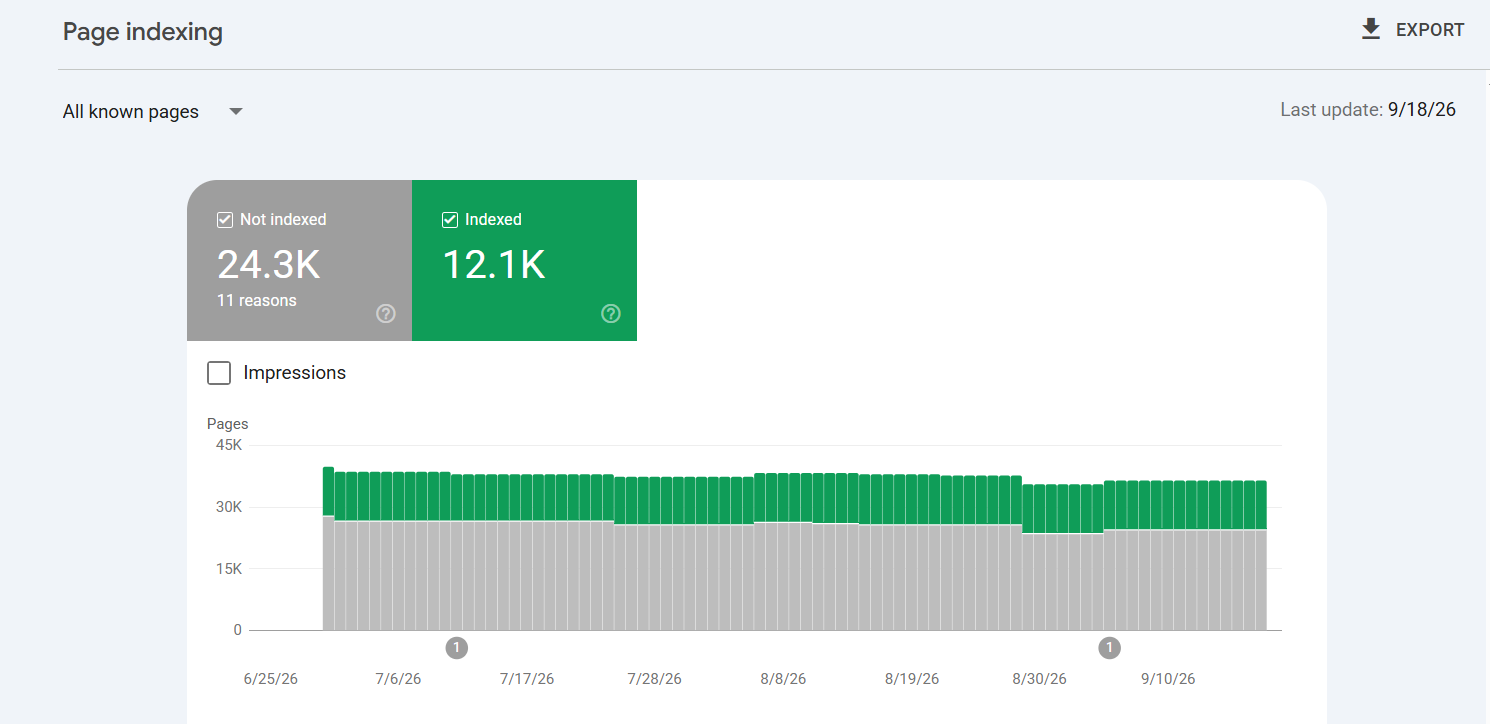
In Search Console, open Indexing → Pages. The summary graph shows indexed and non-indexed URL counts over time. Beneath it, Why pages aren’t indexed groups URLs by reason.
Start with the shape of the graph. Has the indexed count been fairly steady? Did it fall around a site migration, redesign, or template change? Did one exclusion reason rise at the same time?
A sudden change is a reason to investigate, not proof that the latest deployment caused it. Compare the dates with what happened on the site, then open the relevant reason. A new group of excluded redirects after a planned move may be expected. A rise in server errors across pages that were previously indexed needs attention.
The Source column can help you decide where to look. It indicates whether Search Console attributes the issue to the website or to Google. Website-sourced issues are often ones you can change, though a setting such as a deliberate noindex may already be correct.
Open a Reason, Then Inspect Real URLs
Click a row in Why pages aren’t indexed to see its history and example URLs. Before changing a setting, scan the examples for a shared pattern. Are they old addresses? Do they all use one page template? Are valuable pages mixed in with filter and search-result URLs?
The examples are a starting point, not a complete list. Search Console limits them to 1,000 URLs, and the list may contain fewer URLs than the reported total.
Pick an important example and open URL Inspection. Check how Google discovered it, whether Google could fetch it, when it last crawled it, and which canonical URL Google selected when that information is available. If a specific page is missing from Search, inspect its exact URL directly. There is no need to wait for it to appear in an example list.
This distinction keeps the Page Indexing report Google Search Console shows in its proper role: it identifies groups worth investigating; it does not diagnose every URL at once.
Leave Expected Exclusions Alone
Several “Not indexed” reasons describe a sensible result:
- Page with redirect: The old URL redirects and is not indexed separately. Inspect the destination if you need to know whether it is indexed.
- Alternate page with proper canonical tag: Another URL is treated as the preferred version. Check that it is the version you intended.
- Duplicate without user-selected canonical: Google chose a preferred URL among similar pages. Investigate if its choice surprises you.
- Not found (404): A 404 is appropriate for a page that is genuinely gone and has no suitable replacement.
- URL marked ‘noindex’: This is expected when you deliberately kept the page out of Search.
Suppose a category page is available at /shoes/, while sorting creates /shoes/?sort=price. Excluding the sorted URL may be fine. Excluding /shoes/ because a template accidentally added noindex is a problem. The status only becomes actionable when you know which URL has which job.
Canonical issues deserve a closer look when the chosen page is wrong. Inspect both addresses and compare their content. Then check whether your internal links, sitemap, redirects, and canonical tags point consistently to the preferred URL. A canonical tag signals your preference; it does not require Google to make the same choice.
Investigate Access Problems First
If important pages appear under one of the following reasons, find out whether the problem is still present and how widely it applies.
Server error (5xx)
Google received a server error while requesting the page. If many valuable URLs are affected, look for a common template, a deployment, or an intermittent hosting problem. Server and application logs may tell you more than a browser check.
The page loading for you now does not erase what happened on Google’s earlier crawl. Compare the last crawl date in URL Inspection with the timing of any repair.
Redirect error
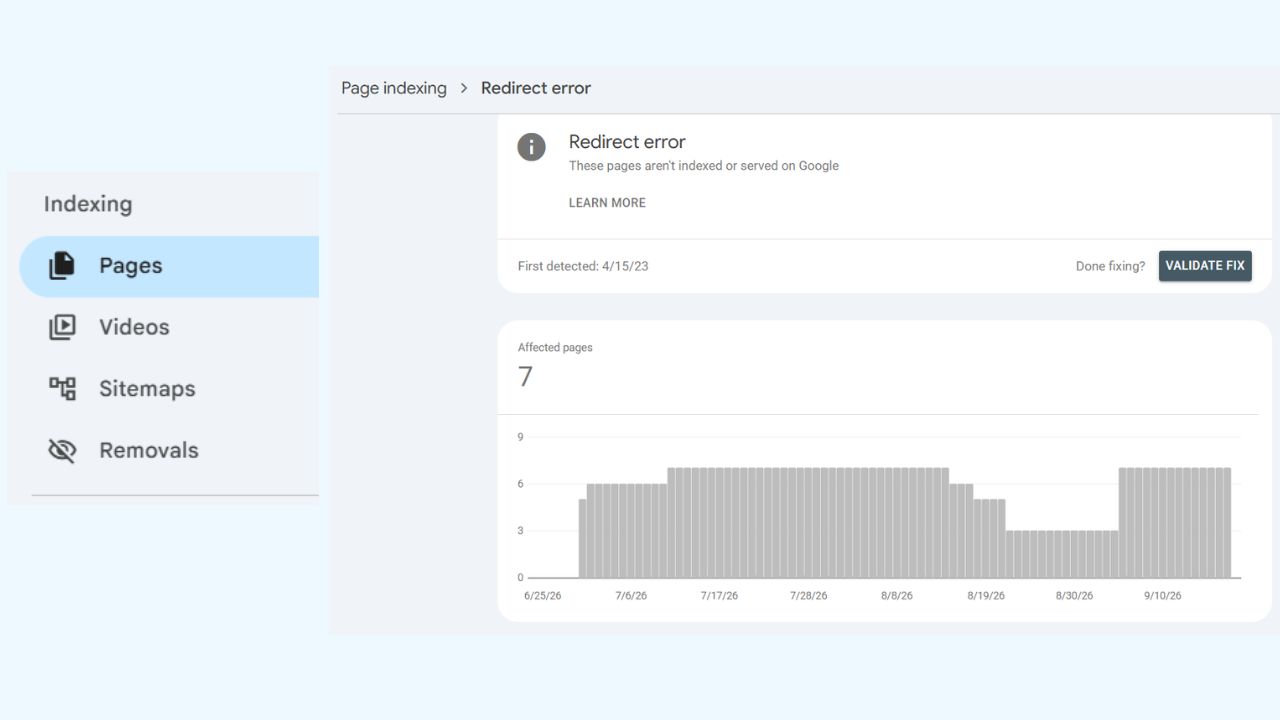
This is different from Page with redirect. A normal redirect sends the visitor onward; a redirect error means Google had trouble following the path. Test the original URL through to its final destination. Look for a loop, an invalid destination, or a chain that fails before reaching a working page.
Blocked by robots.txt
A robots.txt rule stopped Google from fetching the URL. If the block was accidental, identify the matching rule and correct it.
If your intention is to keep a page out of Search, robots.txt alone is a poor substitute for noindex. A URL can still be known through links, while the crawl block prevents Google from seeing a noindex directive on the page. Google needs access to read that directive.
Unexpected noindex
Check both the page HTML and its HTTP response headers. A content management setting or shared template can place noindex on an entire section. Remove it from pages you want indexed, then test several affected URLs rather than assuming the setting changed everywhere.
Soft 404
A soft 404 may return a successful HTTP status while showing what looks like a missing or nearly empty page. Check what Google can fetch and render. If the content has gone, return an appropriate missing-page response. If it should be there, make sure the intended content loads.
Access errors such as 401 or 403 also need investigation when they affect public pages. A login requirement or access rule may be blocking Google. Keep private pages protected; their absence from Search is not a reason to make them public.
“Discovered” and “Crawled” Are Different Investigations
Discovered – currently not indexed means Google knows the URL but has not crawled it yet. The label does not tell you exactly why. For a newly published page, give Google time. Check that visitors and crawlers can reach it through relevant internal links and that your sitemap lists the preferred URL. If a large number of important pages remain in this group, look for a pattern in the site’s navigation and the URLs it generates.
Crawled – currently not indexed means Google fetched the URL but has not added it to the index. There is no single switch for this status. Inspect a valuable example: Does it offer a distinct page, or does it closely repeat another URL? Could Google retrieve the content you expected? Are your canonical signals pointing elsewhere?
Do not treat either label as a verdict on content quality. Do not assume it will clear if you submit the URL repeatedly, either. Start with pages that matter to visitors and investigate what makes each one distinct and accessible.
A page can also be absent from the report altogether if Google does not know its URL. Inspect the exact address, then check its internal links and sitemap entry. An unknown page cannot yet appear under an exclusion reason.
Use the Live Test for the Question It Can Answer
URL Inspection’s recorded indexing information and Test live URL describe different moments. The recorded information comes from Google’s earlier crawl; the live test checks aspects of the page available now.
That explains a familiar mismatch. You remove an accidental noindex from an article and the live test no longer finds it, but the Page Indexing report still lists the article as excluded. The fix may be in place even though Google has not updated its recorded status. Check the last crawl date before editing the page again.
A successful live test is useful evidence that the current page is accessible under the conditions it checks. It does not mean Google has indexed the URL or chosen it as the canonical. The live test does not evaluate every condition involved in those decisions.
If it still finds a blocking or fetch problem, fix that first. If the current page tests successfully, allow time for a recrawl and watch the recorded result. For an important changed page, you can request indexing through URL Inspection, but a request does not guarantee inclusion.
Repair the Pattern and Verify a Sample
If twenty important articles share the same unexpected noindex status, editing twenty articles individually is probably the wrong first move. Find the template or setting they share. The same principle applies to redirect rules, server errors, and robots.txt blocks.
After making a change, test more than one URL, especially if the affected pages span different sections. Confirm that the pages you meant to fix now work and that pages meant to stay excluded still do.
For an applicable issue fixed across its affected URLs, Validate Fix lets you ask Google to check the repair and track progress. It is a monitoring step, not a way to force indexing. Search Console can also update its issue counts through normal crawling without a validation request. If validation fails, inspect the URL identified in its details before trying again.
Keep the sitemap focused on the preferred pages you want Google to discover. It helps Google find URLs, but submitting one does not guarantee a crawl or an indexed result. Repeating an indexing request for the same URL will not make Google crawl it faster.
Final Thoughts
When you next open the Page Indexing report Google Search Console provides, begin with a few important URLs, not the total gray count. Check whether those pages are indexed, inspect any unexpected exclusions, and look for a shared cause before changing sitewide settings. A redirect or duplicate excluded for the right reason can stay that way. Your time is better spent on the pages visitors need that Google cannot find, access, or index as intended.
Frequently Asked Questions
Why is an indexed page getting no search impressions?
Indexing makes a page eligible to appear in Google Search; it does not guarantee visibility for a particular query. Check the Performance report for the page before treating this as an indexing problem. If it has no impressions, review whether its content answers a search need and whether your title and internal links clearly describe it.
Why are the sitemap and Page Indexing report counts different?
A sitemap lists URLs submitted for discovery. The Page Indexing report’s default view covers URLs Google knows about, including ones it found elsewhere. Some sitemap URLs may also be excluded as redirects or duplicates. Use the report’s sitemap filter to compare the submitted URLs more directly; do not expect every sitemap entry to be indexed.
How often should I check the report?
A monthly check is reasonable for many established sites. Check sooner after a migration, a large content release, or a change to templates, redirects, or indexing settings. During those reviews, pay more attention to sudden changes affecting important pages than to small movements in the total count.