Spotting critical phishing red flags is the most effective way to prevent identity theft, credential harvesting, and financial loss. Cybercriminals routinely clone official logos, mimic trusted colleagues, and exploit high-pressure situations—like fake security alerts or urgent invoice updates—to bypass your natural skepticism.
Because modern social engineering attacks can easily bypass standard email spam filters, relying solely on polished visual design is no longer safe. You need to inspect structural indicators before taking action.
To help you protect your accounts, the essential red flags below are arranged by immediate risk—ranging from subtle domain mismatches and suspicious links to high-urgency demands and unexpected attachments.
What Polished Phishing Messages Get Right
Spelling mistakes and awkward formatting still appear in scams, but they are weak filters. A modern phishing email may be fluent, well designed, and closely matched to the organization it imitates.
Timing can make it more convincing. Attackers may build messages around tax deadlines, payroll periods, company announcements, travel bookings, deliveries, or major news events. Some campaigns also cross channels: an email directs you to a phone number, a caller refers to a text, or a QR code moves the interaction onto your personal phone.
Look beyond presentation. The more useful question is what the sender wants you to do—and what could happen if the request is false.
10 Phishing Red Flags Worth Memorizing
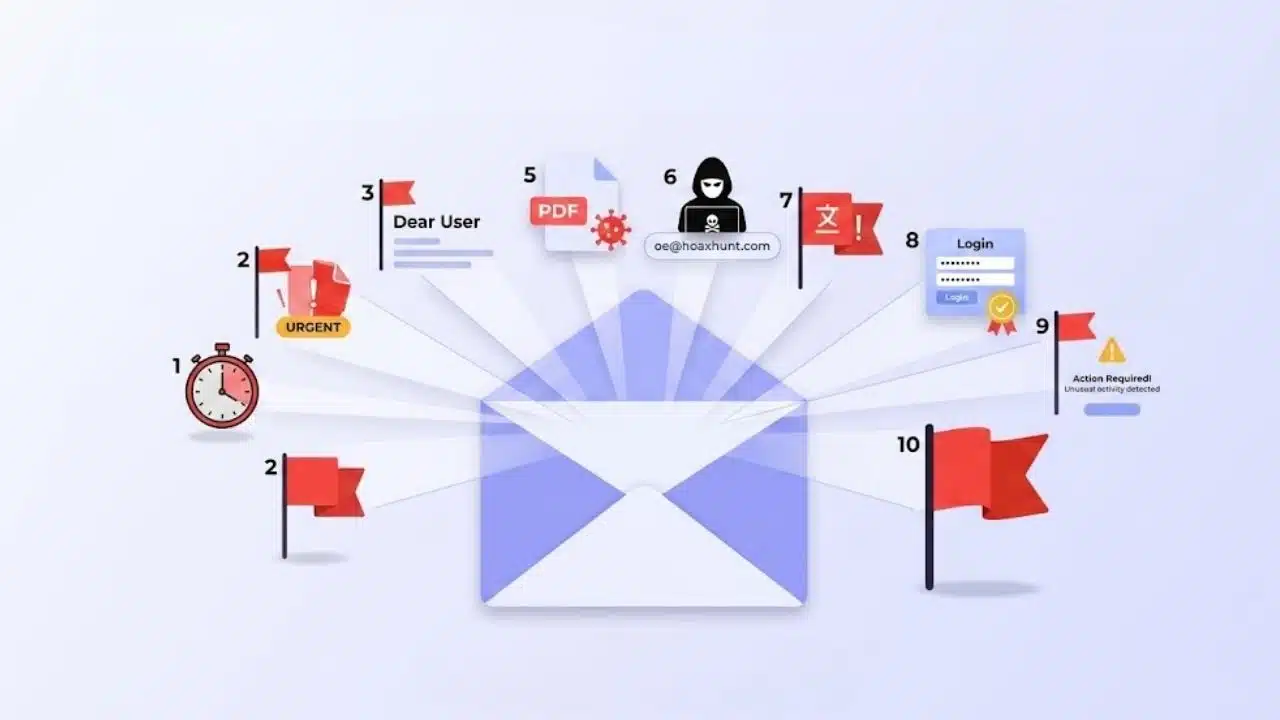
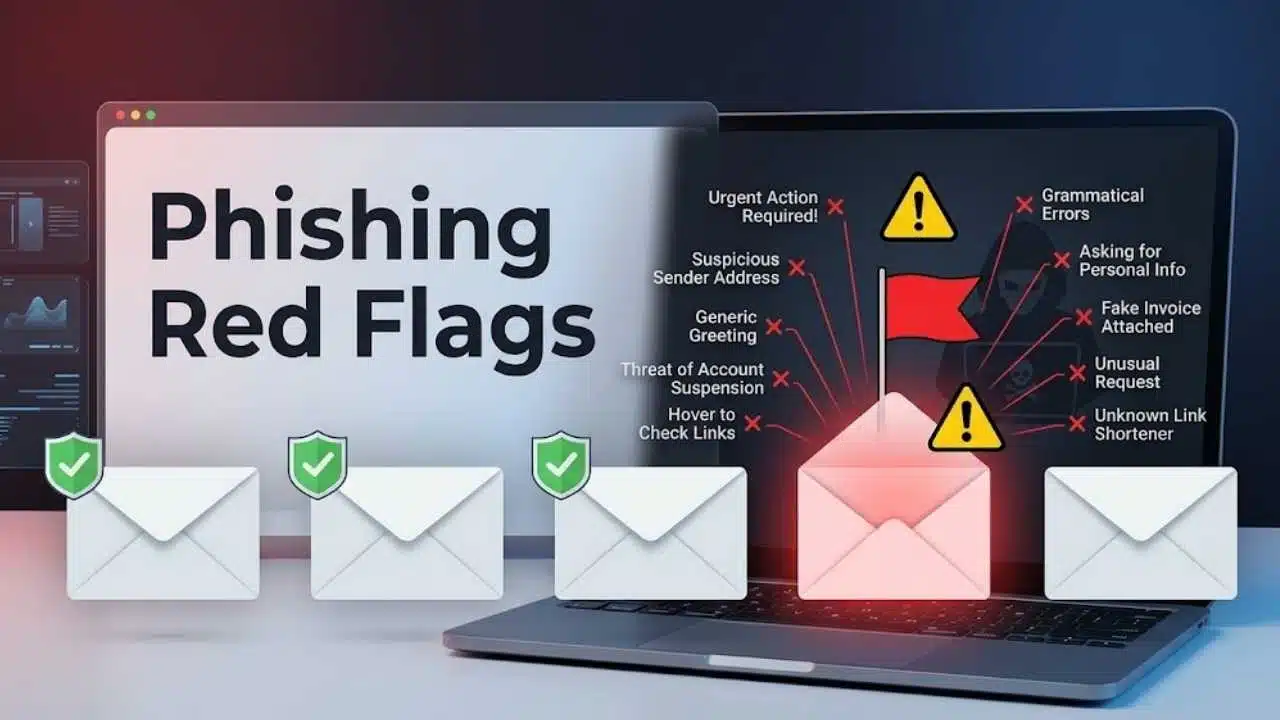
These phishing red flags are not ranked by frequency because tactics change across platforms and targets. Instead, they are ordered by how useful they are when deciding whether to trust a message. One warning may be harmless, but several appearing together should prompt immediate verification.
1. The Message Creates Urgency, Fear, or Pressure
“Your account will be suspended today.”
“Payment failed—update your card immediately.”
“Complete this before the meeting.”
“Your package cannot be delivered.”
Pressure is used to shorten the time available for reflection. The emotional trigger may be fear, authority, curiosity, scarcity, or embarrassment.
Urgency by itself does not prove fraud. Banks, employers, and online services sometimes send legitimate time-sensitive alerts. Concern should rise when the deadline comes with an unfamiliar link, a request for credentials, a financial demand, or an instruction to avoid normal approval procedures.
Do not let the message choose your route. Open the service through its official app or a known website. For a workplace request, contact the person through an established phone number or internal communication channel.
2. The Display Name Hides a Suspicious Address
Most inboxes emphasize the sender’s display name. That makes it easy to show “Microsoft Support,” “Finance Department,” or the name of a senior manager while using an unrelated address underneath.
Expand the sender details and inspect the full address. Watch for misspelled domains, extra characters, unusual subdomains, free email services, or a reply-to address that differs from the visible sender.
A change as small as one substituted letter can be difficult to notice on a phone. A normal-looking address is not a clean bill of health. If an employee, supplier, or customer account has been compromised, the message may come from the real mailbox. An unusual request still deserves a separate check, even when the address is correct.
3. The Request Does Not Fit the Relationship
A message can use real names and still make no sense in context. Consider whether you expected the document, invoice, meeting invitation, or account notice. Does this person normally make such requests? Is the action part of your role? Has an existing conversation abruptly moved toward passwords, payments, or confidential information?
Targeted phishing often succeeds because the surrounding details are accurate. The attacker may know the recipient’s employer, job title, supplier, or current project. Those details make a story believable; they do not validate the action being requested.
4. The Link Does Not Lead Where It Appears to Lead
A button labeled “Review Document” can point to almost any website. A visible address can also include a familiar brand name while its actual domain belongs to someone else.
On a computer, hovering over a link may reveal the destination. Read the domain carefully rather than trusting the first recognizable word. Shortened and tracking links are not automatically malicious, but they make the destination harder to judge.
Mobile devices create more friction because links are less visible and touching one can open it. For an account alert, the safer route is usually to leave the message and open the company’s official app, use a saved bookmark, or type the known address. Do not treat a polished login page as confirmation. Credential-stealing sites can closely imitate legitimate services.
5. The Message Sends You to a Login Page
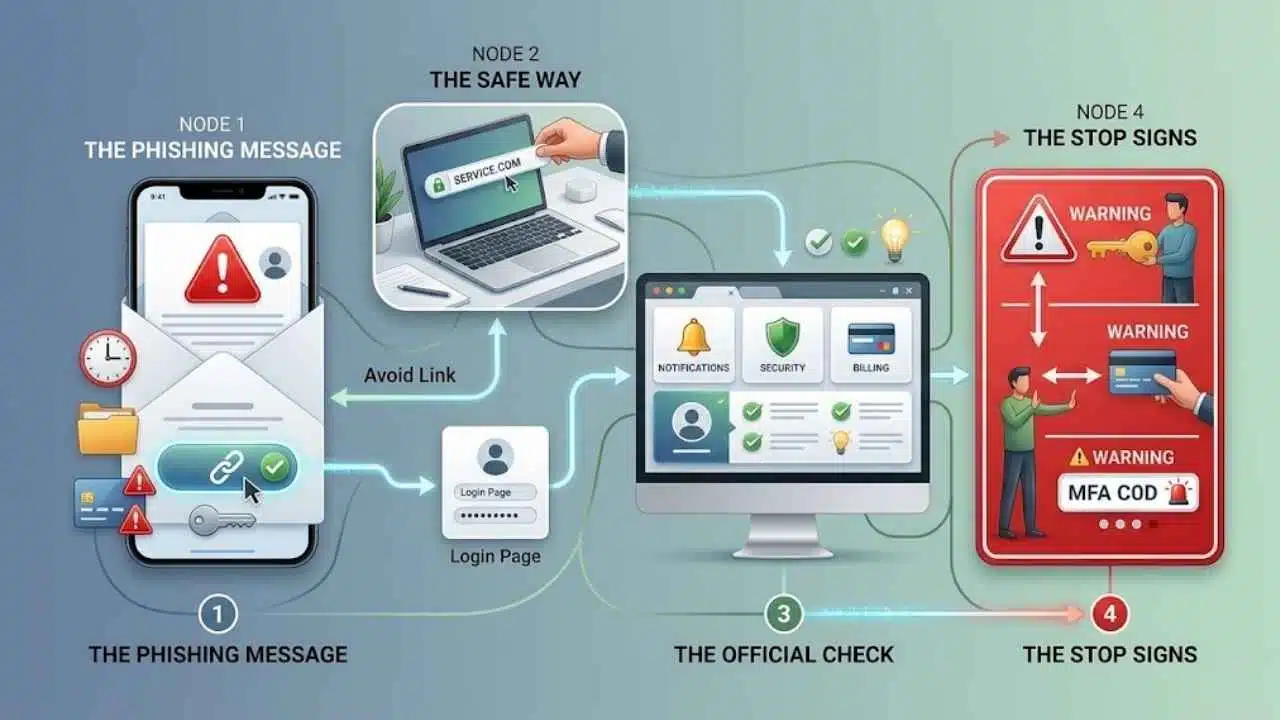
Password-expiration alerts, shared-file invitations, storage warnings, payment failures, and suspicious-login notices all provide convincing reasons to sign in.
The message may be genuine, but there is little reason to test that by using its link. Open the service independently and check for the same alert inside your account. If the issue is real, it will often appear in the official dashboard, security area, billing section, or notification center.
Stop if the page asks for information the service does not usually request, such as a recovery code, payment details unrelated to the alert, or an MFA code for a login you did not initiate.
6. An Unexpected Attachment Requires Extra Steps to Open
An attachment does not need to look like software to create risk. Documents, spreadsheets, compressed archives, cloud-file links, and installers can all be used to deliver malicious content.
Instructions to weaken security deserve particular suspicion. Do not enable macros, turn off antivirus protection, ignore a browser warning, or change security settings simply because a document tells you to.
Even a familiar sender may have a compromised account. Confirm unexpected files through another channel, especially when they involve payroll, contracts, financial records, legal notices, or login instructions.
Employees should report questionable attachments through the approved workplace process. Forwarding the file to several colleagues for an opinion may spread the same risk.
7. Payment Details or Financial Procedures Suddenly Change
Changed bank details require more than a routine email reply. Business email compromise often involves someone impersonating an executive, supplier, lawyer, property professional, or other trusted party. The request may involve a revised invoice, urgent wire transfer, confidential gift-card purchase, or new account number. It may even appear inside an existing conversation if a participant’s mailbox has been taken over.
Verify financial changes using contact information already held in your records. Do not call the number included in the suspicious message, and do not rely on replying within the same thread.
For businesses, new payees and amended banking instructions should pass through a second approval step. Claims that the sender is travelling, unavailable, or too busy for the normal procedure make verification more necessary.
8. A QR Code Replaces the Normal Link
A QR code conceals its destination until it is scanned. In an email-based attack, it can also move the user from a protected work computer to a personal phone with different security controls.
QR codes are common and usually harmless. The context determines the risk. Be cautious when an unexpected code is presented as the only way to restore an account, view a protected file, pay an invoice, prevent a penalty, or configure multifactor authentication.
If the request concerns an existing account, open its app or website directly. There is rarely a good reason to scan an unsolicited code merely to find out where it goes.
9. You Receive an MFA Prompt You Did Not Initiate
An unexplained authentication prompt may mean that someone is trying to sign in. Repeated requests can also be used to exhaust or confuse a user until one is approved.
Deny the prompt. Then open the account through its official app or website and review recent activity. If the requests continue or unfamiliar sessions appear, change the password and contact the relevant service provider or workplace security team.
An unexpected prompt does not prove that an account has already been breached. It is a warning that deserves investigation. Where supported, passkeys and hardware security keys provide stronger protection against phishing than methods that require users to type codes or approve generic push notifications.
10. The Sender Discourages Normal Verification
Some messages reveal themselves through the behavior they demand:
- “Do not call—I am in a meeting.”
- “Keep this confidential.”
- “Use this new phone number.”
- “Do not contact the supplier.”
- “Complete the payment before telling anyone.”
Confidentiality and urgency can be legitimate. The problem is the attempt to remove the checks that normally protect an account, payment, or workplace process.
Contact the person through a channel you already trust. A senior title should not override established approval rules. In fact, impersonation of authority is one reason those rules exist.
If You Already Clicked or Responded
Respond based on what actually happened. Opening a page, entering a password, approving a login, installing software, and sending money require different actions.
If you only opened a link, close the page and do not enter information or accept downloads. Check whether a file was downloaded and report the message through the relevant platform or workplace system.
You entered a password, visit the real service directly and change it. End unfamiliar sessions where that option is available, update any other account using the same password, and enable stronger authentication.
If you approved an MFA request you did not initiate, contact the provider or workplace security team promptly. Review recent activity, connected devices, recovery information, and forwarding rules through the official account settings.
If you downloaded or installed a file, stop using the device for sensitive tasks. Employees should contact IT or security. On a personal device, update the security software, run a full scan, and follow its removal instructions.
Bank or card information needs a different response. Contact the financial institution using a verified number. If money has already been sent, ask immediately whether the payment can be stopped or recalled. Quick action does not guarantee recovery, but waiting reduces the available options.
Reporting procedures vary by country. Use the reporting feature in the affected email or messaging service, inform your employer when work accounts or devices are involved, and contact the appropriate national fraud or cybercrime service where necessary.
A Simple Verification Habit
The most useful phishing red flags point to the same underlying problem: someone wants a sensitive action completed through a route they control.
Before acting, ask:
- Was I expecting this?
- Does the request fit the sender and situation?
- Where will this link, file, code, or phone number take me?
- Can I confirm it through a channel I already trust?
Opening the official app, using a saved bookmark, calling a known number, or contacting the person separately takes a little longer. That small delay is often enough to expose a message that looked convincing at first glance.
Final Thoughts
Phishing messages do not need to look careless to be dangerous. They may use polished writing, familiar branding, accurate workplace details, or even a legitimate account that has been compromised.
The most reliable response to phishing red flags is independent verification. Before sharing information, approving a login, opening a file, or sending money, leave the message and confirm the request through an official app, a known website, or a trusted contact method. That brief pause can prevent a convincing message from becoming a costly security incident.