AI keeps revolutionizing how we do things, and the video-making and production industry is one of the first to benefit from this. How?
There is now an influx of AI video editor tools on the web, and our job is to sift through them all and highlight the ones that will offer the most value for your time and effort. But how can a video editor online or for PC help you, and how do you make the most of the technology?
- A video editor can help you with automated editing, so it’ll cut, trim, and merge clips for you.
- The extra features (like inserting background music) add to the stock of tools you can use to make more creative videos.
- The speed of an AI video editor means you can produce high-quality content in the shortest possible time.
- AI eliminates the need to purchase expensive video-making software or hire professionals.
- You’re also guaranteed consistency in the quality and style of the videos because of the sheer efficiency of AI!
So now, do you see why so many content creators, brands, and AI enthusiasts use AI tools to create and edit videos? Let’s find out which of these tools maintains bragging rights as the best of the best!
Best AI Video Editor Online
With so many great options, we won’t blame you if you’re overwhelmed and can’t decide what AI video editor to use for your projects. So, we did you a favor and picked out the best AI video editor online that’s FREE!
Media.io Free Online Video Editor
The Media.io free video editor was designed with you in mind. It’s a light but powerful tool with features to cater to all your video-editing needs.
For many reasons, this AI video editor is a favorite of individuals and brands like Lifewire, Lifehacker, and Oberlo. For example, because of its clean and simplistic interface, there’s almost no learning curve here; both beginners and pros can easily open and use it.
But, more than being user-friendly, this free video editor’s large library of templateswas designed to meet the requirements of popular platforms like TikTok, Instagram, and Facebook.
Because it’s an online video editor, you can access it from pretty much any operating system and browser, be it Google on Windows, Safari on macOS, or Firefox on Ubuntu. Being onlinealso means you don’t need to install software that might be too demanding on some computers or incompatible with their operating systems.
Alright, let’s show you how Media.io works. See the steps below to learn how touse the video editor to edit your videos quickly!
Step 1 – Create a New Project
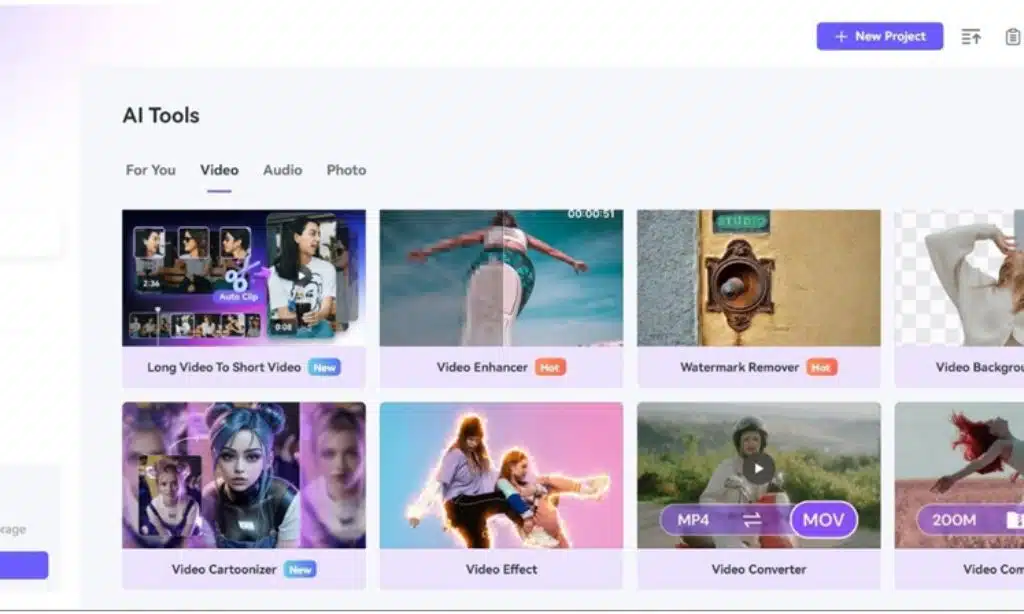
First, go to the Media.io AI video editor, and you’ll see many templates.We clicked on the “Video Effect” template for this example because that’s what we’ll be using.
However, you can also click “New Project” to upload a video and start editing from scratch. If you intend to follow this route, look to the left of the AI video editor on the new page that opens up to see multiple editing tools like Subtitles, Audio, Stickers, Transition, etc.
Step 2 –Upload Video
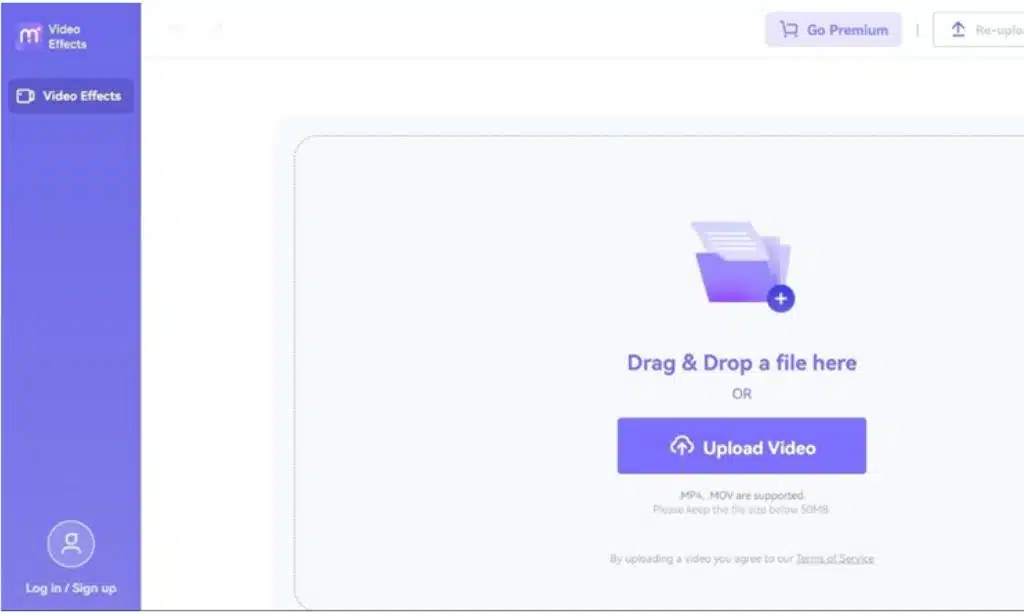
Once you click on the template, the video editor online will take you to a new page. Click “Upload Video” to open your File Explorer and locate the video, or just drag and drop it onto the software’s interface.
Step 3 – Edit and Add Effects
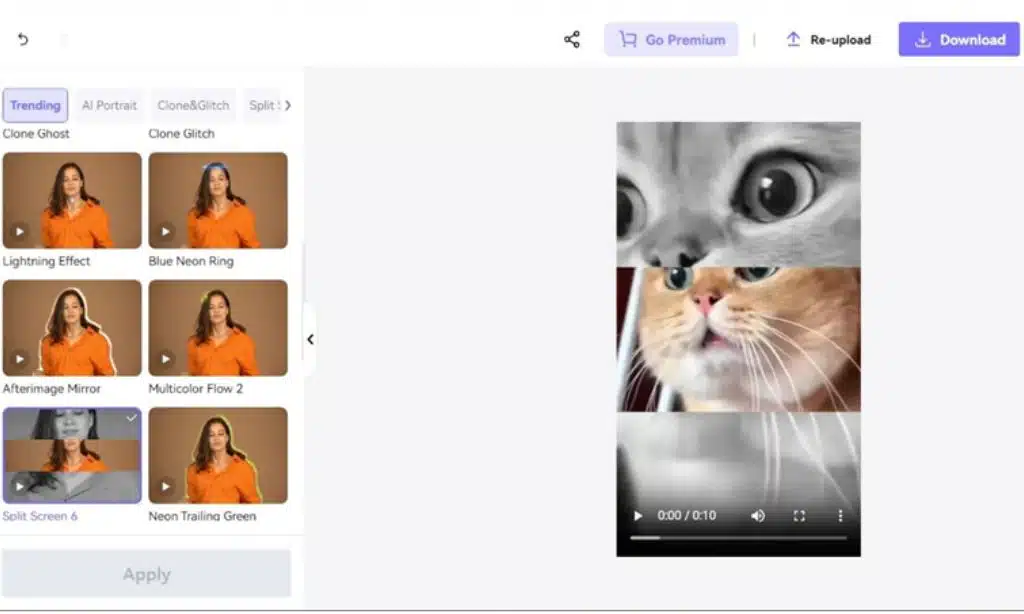
A new page will open up, and you’ll see several effects on the left. Select the one you want (we chose Split Screen 6 for this example) and click “Apply.” The AI video editor will take a few seconds to process the video as it adds the effect or filter.
For the last step, click “Download” to save it on your computer or “Edit More” if you want to make further edits to the AI-edited video.
You can save and export the video in multiple resolutions and formats like MP4 and MOV.
Best AI Video Editor for PC
Okay, you just saw a great video editor online, but we’re shifting gears to another powerful video editor at your disposal: Wondershare UniConverter!
If you’re looking for a video editor with robust editing features and tools, you can’t do better than UniConverter. It has a section called “AI Lab,” but this video editor for pc offers far more than just AI features.
You can use an impressive library of audio and video editing features to edit videos and make them compatible with any mobile device, computer, tablet, phablet, TV, and so much more.
For example, if you want to remove an annoying watermark from a video, the video watermark remover works wonders. Need subtitles? Use the Subtitle Maker to create custom subtitles and edit already-downloaded subtitles by changing their font, color, etc.
So, as you can see, this video editor software is an all-in-one tool that tends to every aspect and stage of editing a video. And now, let’s see it in action!
Step 1 – Launch UniConverter
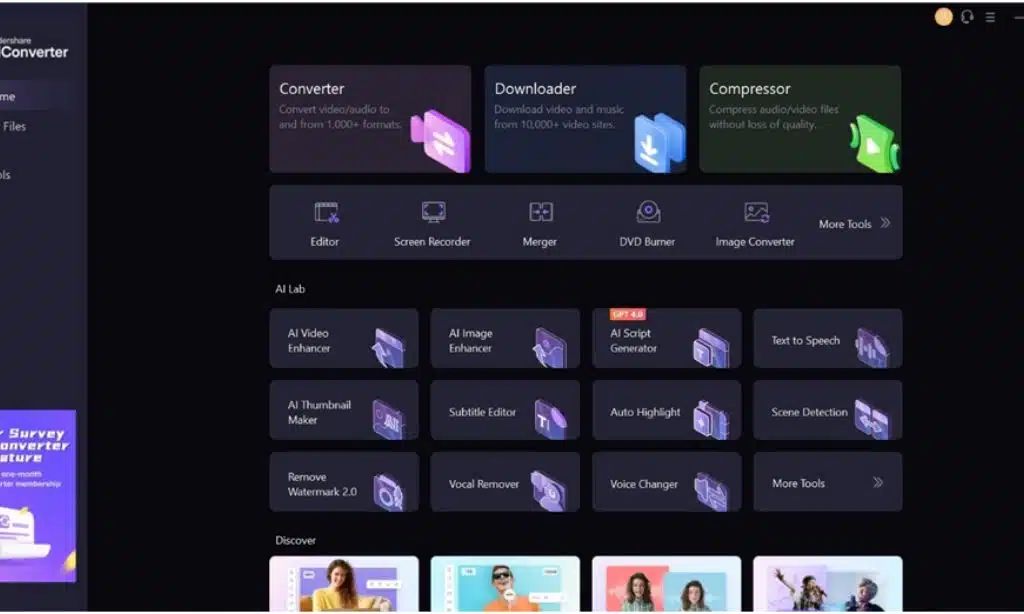
First, download, install, and launchWondershare UniConverter for Windows or macOS. Right on the video editor’s first interface, you’ll see several tools and categories. We’ll use “Editor” for this example, so we clicked on it.
Step 2 –Select Editing Tool
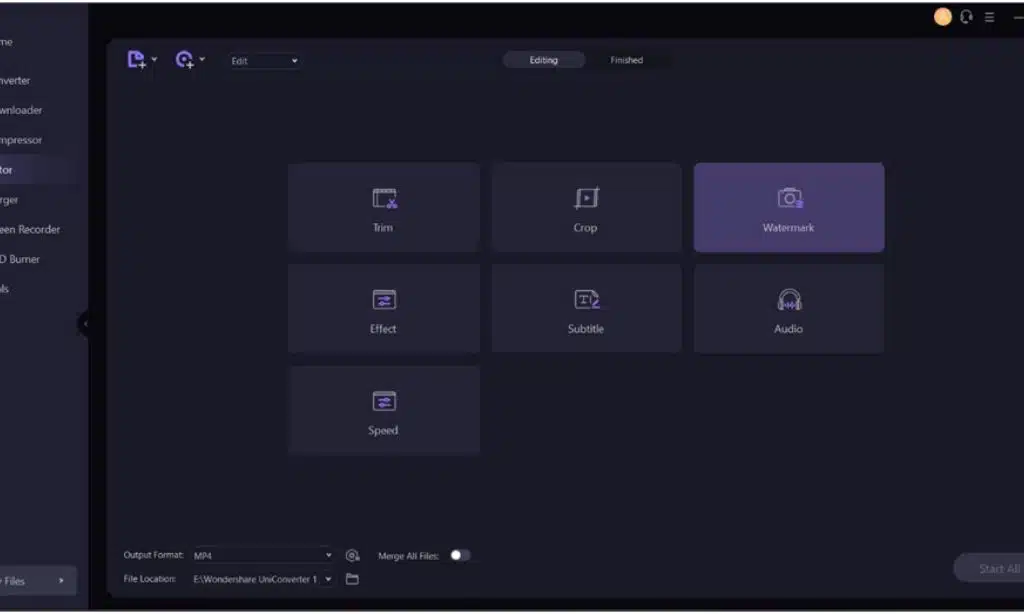
On the next page, you’ll see about seven editing features.We clicked “Effect,” and the video editor software opened our File Explorer (or Finder, if you’re using a Mac) to locate and load the video to be edited.
However, each tool you see there has a different function. You use “Trim” to cut out parts of a clip you don’t want and “Crop” to alter the dimension of a video. So, pick the one that suits your purpose.
Step 3 – Edit the Video
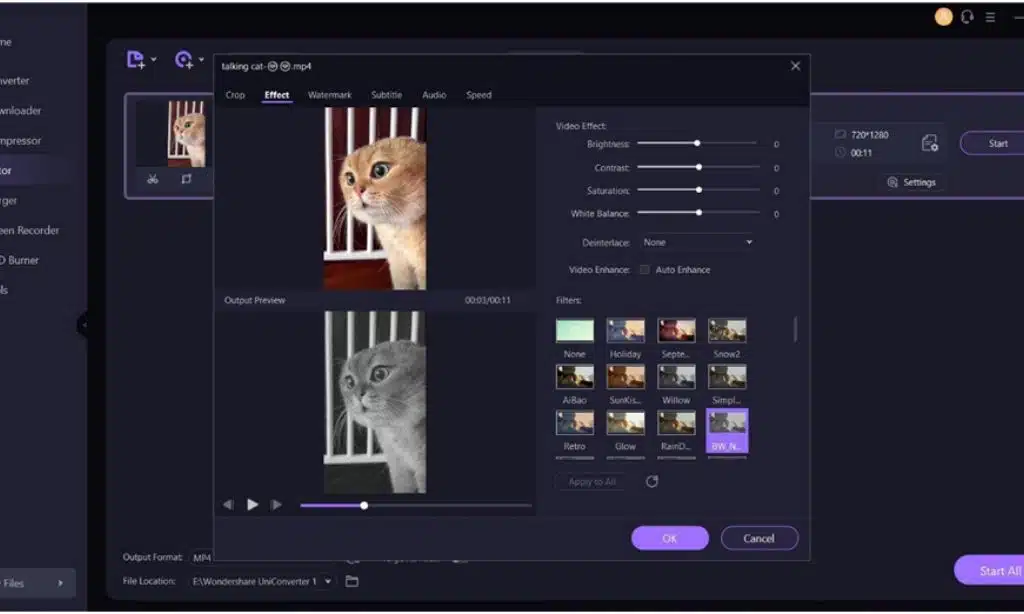
On the video editor’s next page, you’ll see even more detailed editing features and functions like increasing the video’s Brightness, Saturation, and White Balance. And below that are several filters like Holiday, AiBao, and Snow. We clicked on “BW Noise” and then on “OK.”
Step 4 – Convert Video
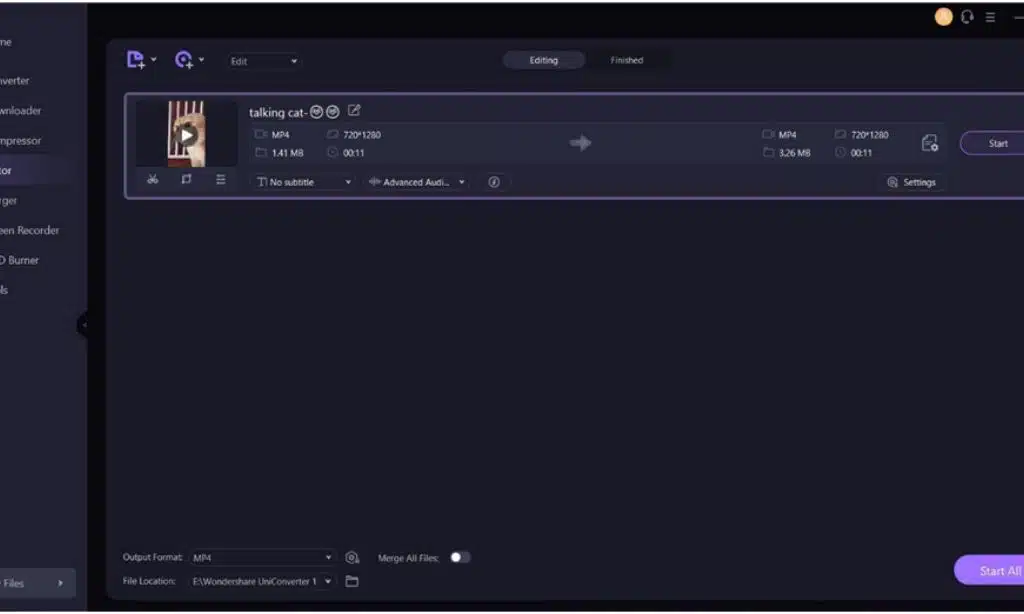
For the last step, click “Settings” to make a few final edits, like selecting the video resolution, format, and the specific device or platform you want it for (iPhone, TV, gaming consoles, etc.).
In our case, we left the default setting and clicked “Start.” You can also click “Start All” and the video editor for PC will convert your video.
Once done, you’ll see an interface where you can rename the file or click the folder icon [] to open the location where the video is saved.
The Power of AI
Now comes the hard part: how do you choose between these two video editor heavyweights? They’re both great software, but one has a distinct advantage: online features.
While Wondershare UniConverter is a powerful video editor for PC, it lacks the online capabilities that Media.ioboasts. That’s the most striking difference between them and why the latter has an edge.
- Online Features: These features mean you can access this AI video editor from anywhere because you only need a device with internet capability. There’s no need to download any software which can consume space on your device. So, it’s great for users who want conversions on the go!
- AI-powered Features:Another advantage of being online is that the video editor can utilize the power of AI to create and edit great videos that would have taken hours of editing to do manually.
These are just two of the many reasons we picked Media.io video editor online over UniConverter.
They can both change the entire look of your videos, but Media.io takes considerably less time and utilizes the limitless creativity of AI to do so!
Conclusion
So, you just saw two excellent video editors and why one is better; how you decide to use them is up to you, but AI gives you access to tools no standard video editor can.
If you want to inject more creativity and flair into your videos, you can’t do better than Media.io because it’s the best free video editor online!