A strong Windows Productivity Setup starts with a few practical changes: remove unnecessary startup apps, quiet distracting notifications, organize files, and arrange windows around the way you actually work.
Windows 11 already includes most of the tools required, including Focus, Snap layouts, virtual desktops, clipboard history, Storage Sense, and Windows Backup. You do not need to install a large collection of productivity apps or rebuild the system from scratch.
Begin with the settings that interrupt you every day, then add shortcuts or PowerToys only when they solve a recurring problem. The result should be a faster, calmer, and easier-to-maintain PC.
Build Around Daily Work
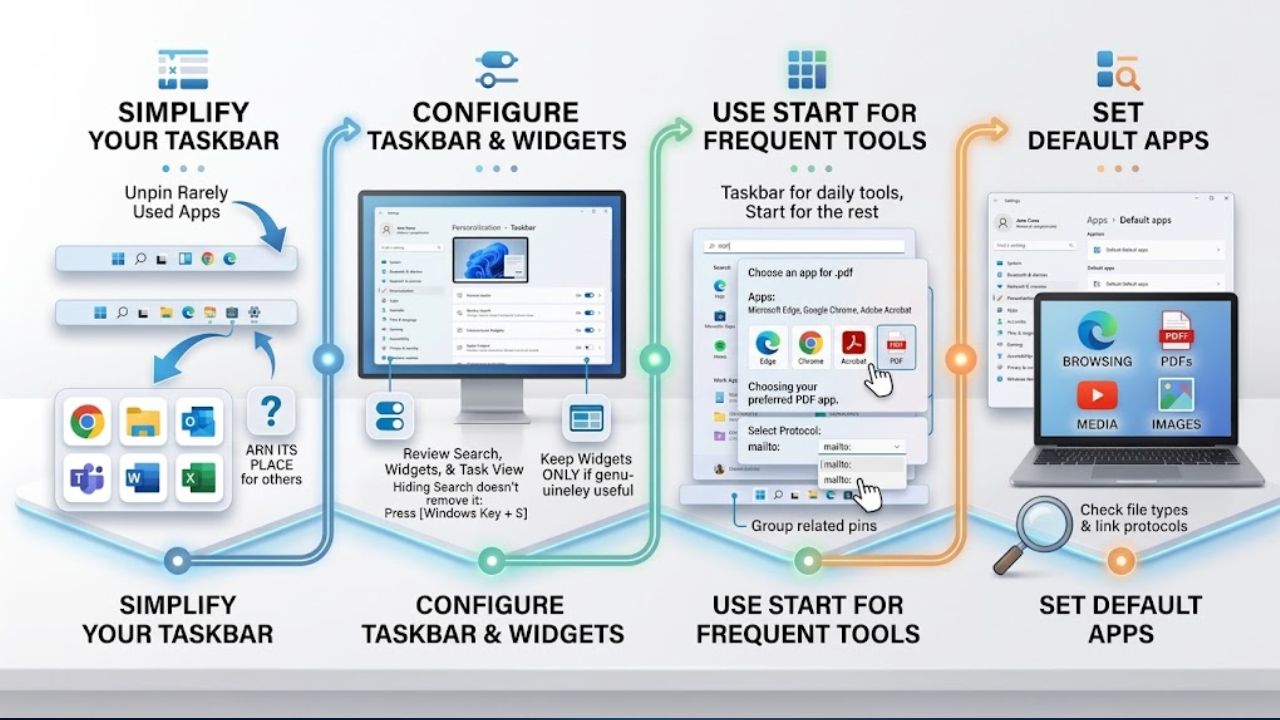
Start with the taskbar, Start menu, and desktop. Unpin rarely used apps. Keep a browser, File Explorer, email or calendar, communication software, and the main work app. Anything more should earn its place.
Open Settings > Personalization > Taskbar and review Search, Widgets, and Task View. Hiding the Search box does not remove search; Windows key + S still opens it. Keep Widgets only if the feed is genuinely useful.
Use Start for the next tier of tools. Group related pins and add shortcuts to Documents or Downloads. In a clean Windows productivity setup, the taskbar holds daily tools and Start handles the rest.
Under Settings > Apps > Default apps, choose preferred apps for browsing, PDFs, media, and images. Check the file types and link protocols that matter.
Control Notifications
Notification cleanup is one of the highest-value changes in a Windows productivity setup. In Settings > System > Notifications, switch off promotional noise. For lower-priority work apps, keep notification-center entries but disable banners and sound.
Reserve immediate alerts for calendar reminders, calls, security warnings, and messages that need a quick response. Do Not Disturb can run on a schedule or activate while duplicating a display, gaming, or using a full-screen app. Priority settings allow selected apps, calls, and reminders through.
Start Focus from Settings > System > Focus, the notification area, or the Clock app. It can enable Do Not Disturb and suppress taskbar badges and flashing. Check priorities first so critical reminders still appear.
Use Repeatable Layouts
Windows Snap is enough for most laptops. Drag a window to an edge, use Windows key + Left or Right Arrow, or press Windows key + Z for layouts.
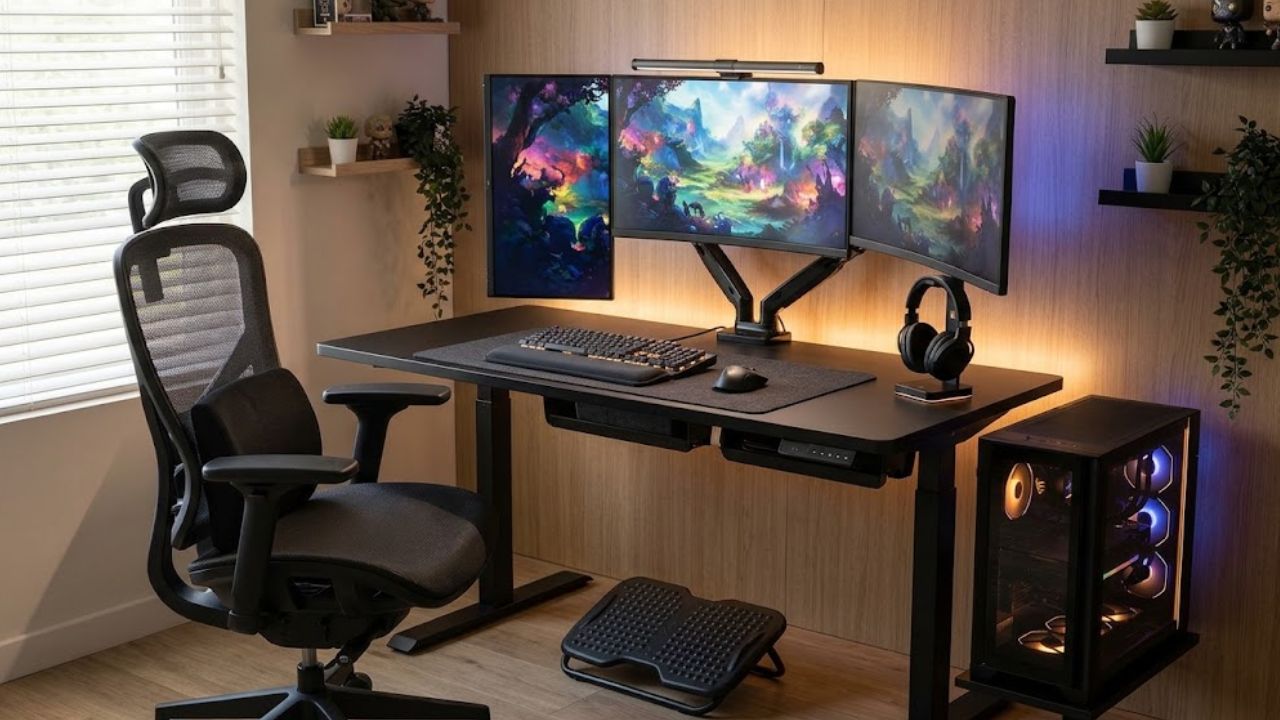
Two panes usually suit a laptop: a document beside research or notes. Four narrow panes create more scrolling; three zones become practical on a large display.
Press Windows key + Tab to create virtual desktops, then switch with Windows key + Ctrl + Left or Right Arrow. Desktops organize windows but do not stop alerts. Pair them with Do Not Disturb when the Windows productivity setup needs a firmer boundary.
Fix File Organization First
No utility can rescue a folder full of files called final, final-new, and final-revised. Choose one location for active projects. Use only necessary folders—perhaps Research, Working Files, Assets, and Deliverables—and archive finished work. Treat the desktop and Downloads as landing areas.
In File Explorer, pin current projects to Quick access and turn on View > Show > File name extensions. Extensions make similar names easier to distinguish.
Windows Search offers Classic and Enhanced indexing. Classic covers common locations and suits organized files. Enhanced searches more of the PC but can use more resources during initial indexing. Use it when work is genuinely scattered; better filing comes first in a durable Windows productivity setup.
Learn Six Useful Shortcuts
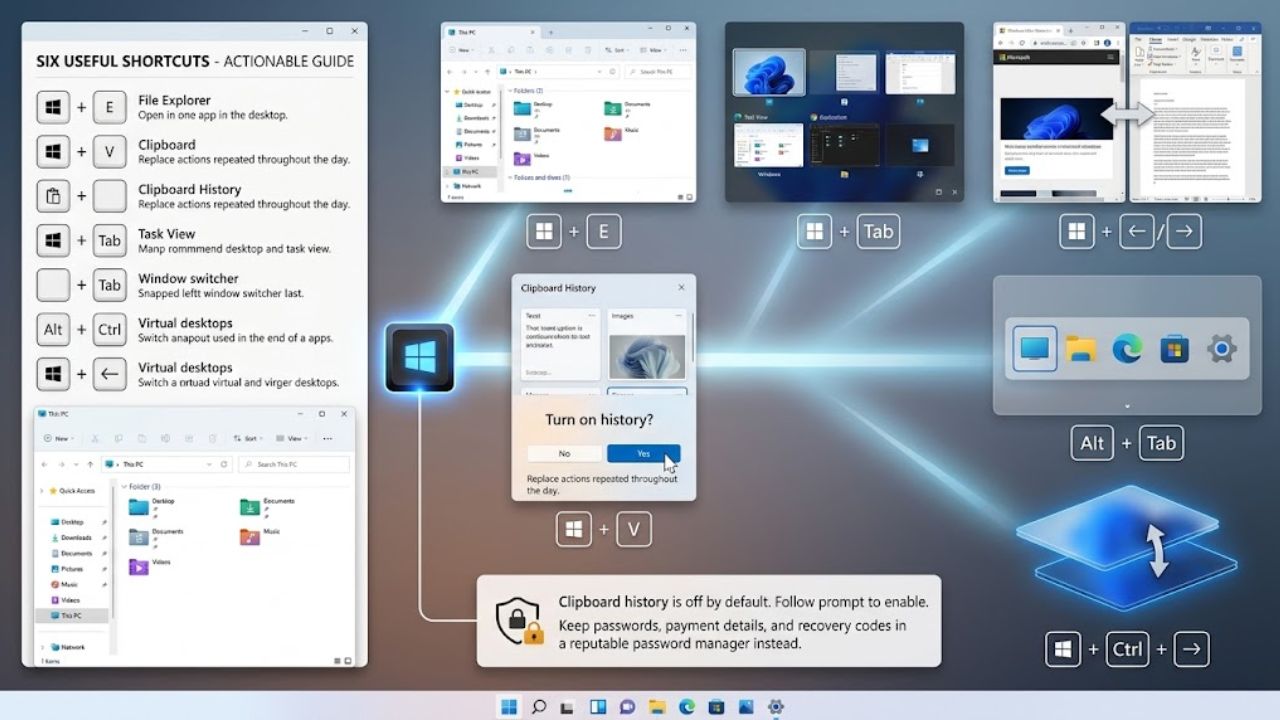
Start with shortcuts that replace actions repeated throughout the day:
- Windows key + E: Open File Explorer
- Windows key + V: Open clipboard history
- Windows key + Tab: Open Task View
- Windows key + Left or Right Arrow: Snap the active window
- Alt + Tab: Switch between open windows
- Windows key + Ctrl + Left or Right Arrow: Switch virtual desktops
Clipboard history is off by default. Press Windows key + V and follow the prompt. Keep passwords, payment details, and recovery codes in a reputable password manager instead.
Stop Unnecessary Startup Apps
Open Settings > Apps > Startup and disable software that does not need to run all day, such as occasional meeting tools, game launchers, or media utilities. This stops automatic launch; it does not uninstall the app.
Be cautious with security software, accessibility tools, sync clients, and hardware utilities. Task Manager’s Startup apps page shows estimated impact, but a High label alone does not make an entry expendable. Restart after changes and check essential features. A reliable Windows productivity setup matters more than a marginally faster sign-in.
Set Storage and Power Sensibly
Storage Sense removes temporary files and older Recycle Bin items from the system drive. Under Settings > System > Storage, review the rules before cleaning Downloads or cloud content; Downloads often hold unfiled work.
Cloud cleanup can make eligible files online-only rather than delete them. Files marked Always keep on this device are exempt; online-only files require a connection.
Under Settings > System > Power & battery, Balanced is the sensible default for office or study work. Best power efficiency helps away from a charger; Best performance suits sustained exports, builds, or media processing. It can shorten battery life, and a custom power plan may hide this control.
Add PowerToys Only When Needed
Once the built-in Windows productivity setup is settled, Microsoft PowerToys can fill specific gaps. FancyZones suits ultrawide or multi-monitor layouts, Workspaces reopens groups of apps in saved positions, and PowerRename handles batches of files. Command Palette and PowerToys Run provide keyboard-based launching.
PowerToys is optional. Built-in Snap is simpler for many laptop users, and another launcher adds little if opening Start and typing is already quick. Enable only utilities tied to a repeated annoyance.
Protect Your Work
Windows Backup can sync selected folders and preferences through a personal Microsoft account and OneDrive. The app targets consumer devices; work and school accounts are not supported. Protection also depends on available storage.
Open Windows Backup or Settings > Accounts > Windows backup, confirm the folders, and check their sync state. A OneDrive icon does not prove every file uploaded.
Synchronization should not be the only copy of critical work. Keep another copy on an external drive or separate service, and test a restoration. Backups complete the Windows productivity setup because lost work costs more than maintenance.
Windows Hello supports a device-specific PIN. Face sign-in needs a compatible infrared camera; fingerprint sign-in needs a reader. Configure them under Settings > Accounts > Sign-in options.
Follow a Practical Setup Order
Changing everything at once makes it hard to tell what helped. Use this order:
- Clean the taskbar, Start menu, and desktop.
- Set preferred default applications.
- Remove unnecessary notification permissions.
- Configure Do Not Disturb and Focus.
- Create one dependable file structure.
- Review startup apps and Storage Sense.
- Enable clipboard history.
- Set up Snap layouts or virtual desktops.
- Verify backup and synchronization.
- Add PowerToys only for an unresolved need.
Use the computer for several days before changing more. An efficient-looking setting can become irritating, and frequent tweaking is another distraction.
Final Thoughts
Start by trimming notifications, organizing active files, reviewing startup apps, and verifying backups. Wait several days before adding Enhanced indexing or PowerToys.
The best Windows productivity setup is the one you stop noticing because routine work takes fewer clicks, important alerts still arrive, and files are easy to find and recover.
Frequently Asked Questions (FAQs)
Will these changes make a slow PC faster?
Reducing startup apps may help sign-in, but these changes mainly remove friction. They will not fix inadequate memory, failing hardware, overheating, malware, or overly demanding software.
Will disabling a startup app uninstall it?
No. It prevents automatic launch at sign-in; the app remains available.
Should I use Enhanced search indexing?
Use it when files span several folders or drives. If work is organized, Classic is usually sufficient.
Why is the power-mode option missing?
A custom plan, device limitation, or organization policy may hide it.
Is OneDrive synchronization a complete backup?
It protects selected files, but changes can sync too. An independent copy adds protection against deletion, account trouble, or unnoticed errors.