

A calendar can look perfectly organized and still produce a terrible day. Give an AI assistant ten tasks, three meetings, and eight available hours, and it will often find a way to make everything fit. The problem is how it makes them fit. It may shorten work that is hard to estimate, ignore the time needed between meetings, squeeze lunch into an unrealistic gap, or treat every empty minute as productive.
The schedule looks efficient. Living through it is another matter. That is why learning how to use AI to plan your day is not mainly about finding a clever prompt. The more important question is what part of the planning you are willing to hand over.
AI can check capacity, arrange tasks around fixed commitments, expose clashes, and help repair a disrupted afternoon. What it cannot do is understand the full cost of your choices. It does not know when a family commitment matters more than an unfinished task, when you need recovery time, or which deadline carries the most serious consequence unless you explain it.
My boundary is straightforward: I decide what matters and what must be protected. AI helps me turn those decisions into a plan that can actually fit.
What AI Should Plan, and What Should Remain Yours
Planning has a logistical side: how much time is available, what must happen at a fixed hour, and which tasks depend on something else. AI can compare those constraints quickly.
The personal side is different. It includes deciding what deserves your energy, what may be postponed, and what you are unwilling to sacrifice. An assistant may see a free hour after a difficult meeting, but it cannot see that you will need time to recover. It may also treat “finish presentation” as a neat 60-minute task when the work is still too vague to estimate.
The division of responsibility should therefore stay clear.
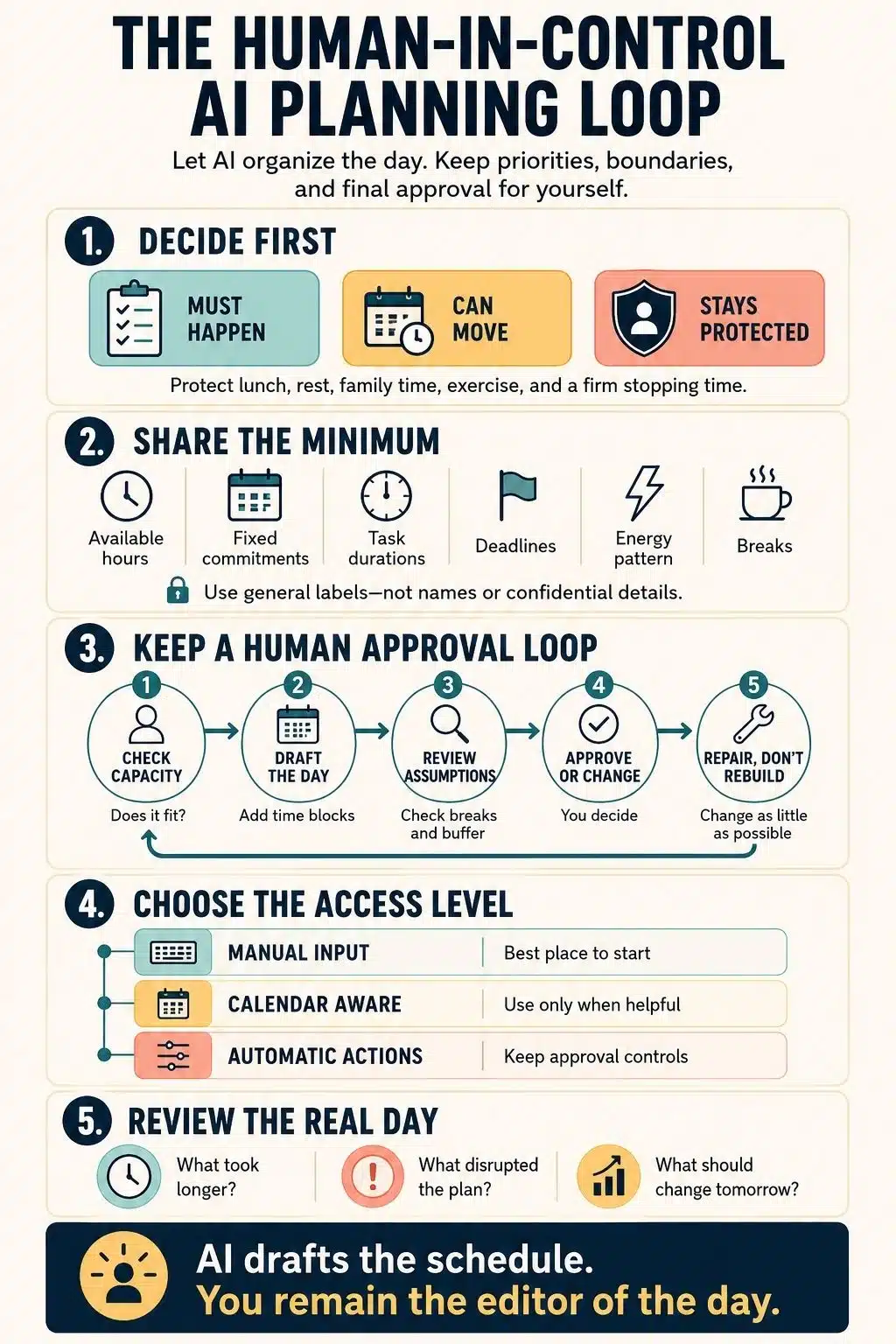
You decide:
- What genuinely needs to happen today
- Which commitments cannot move
- What can wait when the day is too full
- When health, rest, family, or personal time takes priority
- What information you are comfortable sharing
- Whether the finished plan is acceptable
AI can check whether the work fits, arrange approved tasks, find conflicts, and suggest a limited adjustment when circumstances change. I think of it as a capable planning assistant, not the owner of the day.
Choose How Much Access AI Actually Needs
You do not need to connect your calendar to start using AI for day planning. There are three practical levels of access.
Level 1: Manual, Minimum-Data Planning
You give a chatbot a simplified task list, available hours, fixed commitments, and boundaries. It drafts a schedule, which you review and add to your calendar yourself.
This is where I recommend starting. It requires little access, works with most capable chatbots, and creates a useful pause between suggestion and action.
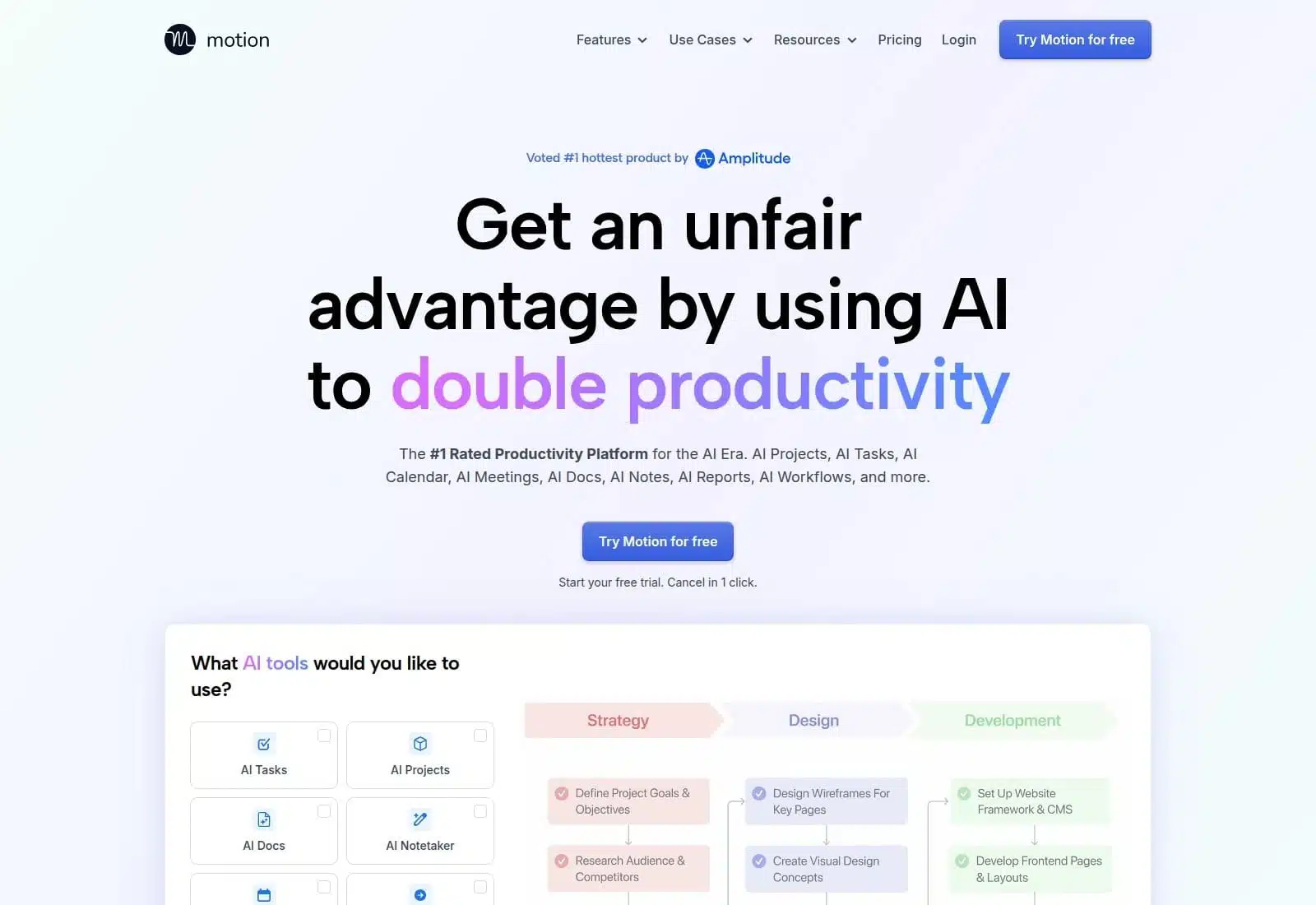
Level 2: Calendar-Aware Assistance
A connected assistant can read existing events and suggest how to use the gaps. That may save time, but it can also expose meeting titles, attendees, locations, and patterns in your life.
The trade-off should be practical. If copying a few appointments takes less than a minute, opening your whole calendar may solve a problem you barely have.
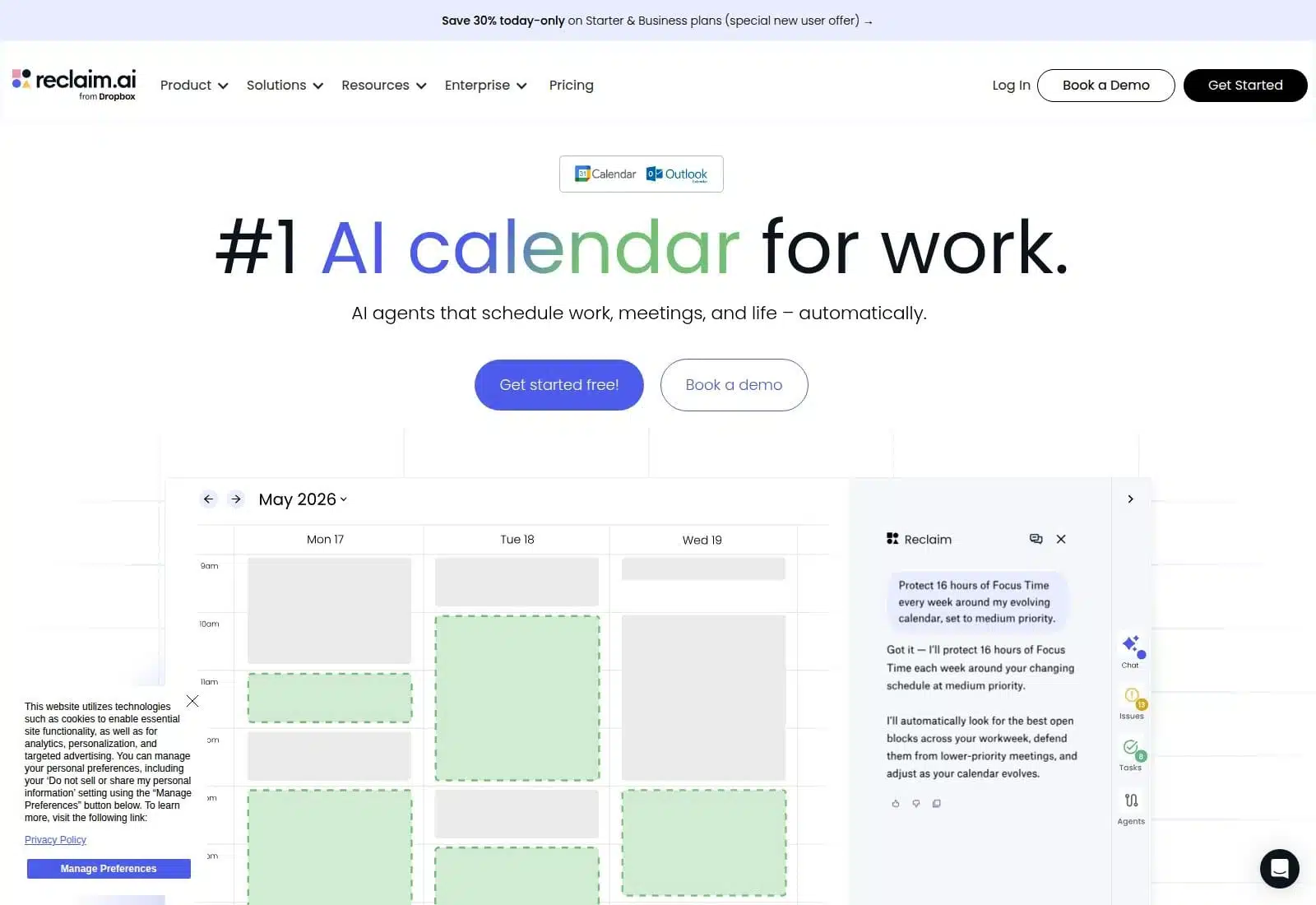
Level 3: Automatic Scheduling
Some tools can create blocks and move them as priorities change. This may help with a crowded calendar, but only after you define what is movable, what is protected, and which actions require approval.
I would not begin here. Automation works better once the rules already make sense to you.
How to Use AI to Plan Your Day Step by Step
A useful AI-generated plan starts with clear priorities, realistic time estimates, and firm personal boundaries. The following steps show how to turn your workload into a workable schedule while keeping control over what matters, what moves, and what ultimately enters your calendar.
Step 1: Prepare a Minimum-Data Brief
A useful plan needs context, but it does not need your entire life story. Give the assistant only the details that affect the schedule:
- Your available start and finish times
- Fixed meetings, appointments, or classes
- Must-do and optional tasks
- A realistic duration or duration range for each task
- Deadlines and genuine dependencies
- The hours when you usually focus best
- Breaks, travel, care duties, exercise, or recovery time
- A firm stopping time
- Some unscheduled buffer
Duration ranges are often more honest than exact estimates. “45 to 75 minutes” reflects uncertainty better than a falsely precise hour.
Keep task descriptions general where possible. “Prepare documents for Client A” is usually enough. The planner does not need a real name, contract value, private message, or attached document to reserve time for the work.
Step 2: Find Out Whether the Day Is Possible
Many planning prompts jump straight to a timetable. That encourages the assistant to make the list fit, even when it does not. Ask it to test capacity first:
Before creating a schedule, check whether these tasks realistically fit around my fixed commitments, breaks, transition time, and stopping time. If they do not fit, show me the conflict and identify what must move. Do not choose what to postpone for me.
This one instruction changes the nature of the answer. Instead of receiving ten hours of work compressed into a six-hour window, you see the shortfall before making a plan.
Step 3: Set Priorities Before AI Builds the Schedule
A raw to-do list does not reveal consequences. The assistant cannot tell whether a task is important, merely visible, or simply making you feel guilty.
Three labels are enough:
- Must: A real consequence follows if it is not completed today.
- Should: Finishing it today would help, but it can move.
- Could: It is optional if time and energy remain.
Be careful with “must.” An old task is not automatically essential, and urgency is not the same as importance. If the must-do work still exceeds the available time, AI can expose the conflict. You decide which consequence you are prepared to accept.
Step 4: Ask for One Realistic Plan
Once the workload is possible, ask for one main schedule. Five polished alternatives usually create another decision rather than removing one.
The day should have clear start and finish times, fixed events first, protected breaks, transition time, and visible buffer. Put demanding work in your stronger hours where possible. Group small, similar tasks only when doing so will not delay something urgent.
Use this prompt as a starting point:
Help me draft today’s schedule, but do not make final priority decisions or add anything to my calendar.
My available time is: [start time to finish time].
Fixed commitments: [times and general descriptions].
Must finish today: [tasks, deadlines, and estimated durations].
Should complete if possible: [tasks and estimated durations].
Optional work: [tasks].
My best focus period is: [time].
Protect these boundaries: [lunch, breaks, commute, care duties, exercise, and stopping time].
First, tell me whether everything fits. If it does not, show the conflict and ask what I want to postpone. Then create one realistic time-blocked plan with transition time and an unscheduled buffer. Do not invent deadlines or treat every open minute as available. Flag uncertain durations and assumptions before I accept the plan.
The wording is firm because an agreeable timetable is useless if the day behind it is impossible.
Step 5: Review the Plan Before Accepting It
Treat the first draft as a proposal. Before you use it, ask:
- Is the most important work genuinely protected?
- Are the duration estimates believable?
- Is demanding work placed at a time when I can realistically do it?
- Is there enough room for breaks, delays, and transitions?
- What has the plan postponed or quietly treated as unimportant?
- Does the day still end at a reasonable hour?
This is the human veto. A schedule may be logically tidy and personally wrong. If it only works when you skip food, rush out of every meeting, or borrow hours from the evening, reject it and reduce the load.
Step 6: Add Only the Approved Blocks to Your Calendar
For beginners, manual entry is a useful final checkpoint. It makes every block a conscious choice.
If an assistant can change your calendar, check its permissions. Reading events and editing them are different levels of access. Keep confirmation enabled for creating, moving, or cancelling events and for contacting other people whenever possible.
Be particularly careful when the assistant can read external content as well as take actions. An email, webpage, or shared document should never be able to trigger a calendar change without your approval.
How to Replan When the Day Goes Wrong
A delayed call, an urgent request, or a low-energy afternoon does not mean the whole plan has failed. Rebuilding every block can create more stress than the interruption itself.
Give the assistant the current time, what you have completed, what changed, the must-do work that remains, any fixed commitments, and your original stopping time. Then ask for the smallest useful correction:
It is now [time]. I have completed [items], and [interruption] changed the plan. These tasks still must be completed: [items]. Keep my fixed commitments and stopping time. Change as little as possible, preserve a short buffer, and show me what no longer fits. Do not move anything into tomorrow until I approve it.
“Change as little as possible” matters. Endless reshuffling makes the calendar difficult to trust. It can also become a very polished form of avoiding the work.
Use a Two-Minute Review to Improve Tomorrow
At the end of the day, note how long the main tasks took, what disrupted the plan, what was postponed again, and one adjustment for tomorrow. After several days, these notes reveal whether your focus blocks need more time, meetings regularly overrun, or certain work keeps losing to easier tasks.
AI can help you notice those patterns. It does not need a permanent memory of every private detail to do so; a short, general summary is often enough.
A scheduling assistant normally needs time windows, rough task labels, durations, and constraints. It rarely needs the material behind the task.
Do not paste confidential company information, private client messages, passwords, financial records, medical details, legal documents, family information, private addresses, or anything restricted by workplace policy. Replace names with neutral labels when the identity does not affect the plan.
Review the service’s current privacy settings. Check how it uses conversations, whether memory is enabled, how it handles connected-app information, and what the assistant can change. Remove integrations that no longer serve a clear purpose.
Private or temporary modes may reduce exposure, but they do not make unnecessary sharing a good idea.
When AI May Be the Wrong Planning Tool
Sometimes a paper list or ordinary calendar is enough. AI adds little when the day is unpredictable, the schedule is sensitive, or explaining the tasks takes longer than arranging them yourself.
It is also the wrong tool for making decisions during a crisis. When health, safety, legal risk, or an urgent personal situation is involved, human judgment and appropriate professional help come first.
Keep the official source of truth separate. Your workplace system, school portal, appointment record, or project tracker, not a personal AI schedule, should remain the authority for deadlines and commitments involving other people.
Final Thoughts
The safest way to learn how to use AI to plan your day is to begin with one week of manual, minimum-data planning. Share a simple brief, ask the assistant to check capacity, review one proposed schedule, and transfer only the blocks you approve.
After that, grant more access only when it solves a specific problem. Calendar awareness may save meaningful effort. Automatic rescheduling may remove a genuine burden. Neither is an upgrade simply because it involves more automation.
The point is not to create a day that AI can run for you. It is to see your time more clearly while keeping the decisions that shape your life in your own hands.
Frequently Asked Questions on How to Use AI to Plan Your Day
1. How can I use AI to plan my day?
Give the AI your available hours, fixed commitments, important tasks, estimated durations, breaks, and stopping time. Ask it to check whether everything fits before creating a time-blocked schedule. Review the result yourself before adding anything to your calendar.
2. Can ChatGPT create a daily schedule for me?
Yes. ChatGPT and similar tools can arrange tasks, identify scheduling conflicts, suggest time blocks, and revise a disrupted plan. However, the quality of the schedule depends on the information you provide. It cannot know which commitments matter most unless you explain their real consequences.
3. Does an AI planner need access to my calendar?
No. You can copy a simplified version of your schedule into a chatbot and transfer the approved plan manually. Calendar access may save time, but it also exposes more information. I recommend starting without an integration and granting access only when it solves a specific problem.
4. What information should I avoid sharing with an AI planner?
Avoid confidential work details, financial information, medical information, private family matters, passwords, and identifiable client data. Replace sensitive labels with general descriptions such as “client meeting” or “medical appointment.” The AI usually needs the timing and workload, not the private story behind them.
5. What should I do when my AI-generated schedule falls apart?
Do not ask the AI to rebuild the entire day. Tell it the current time, what you have completed, what changed, which tasks remain essential, and when the day must end. Then ask for the smallest possible adjustment. A useful plan should adapt without turning every interruption into a complete reset.