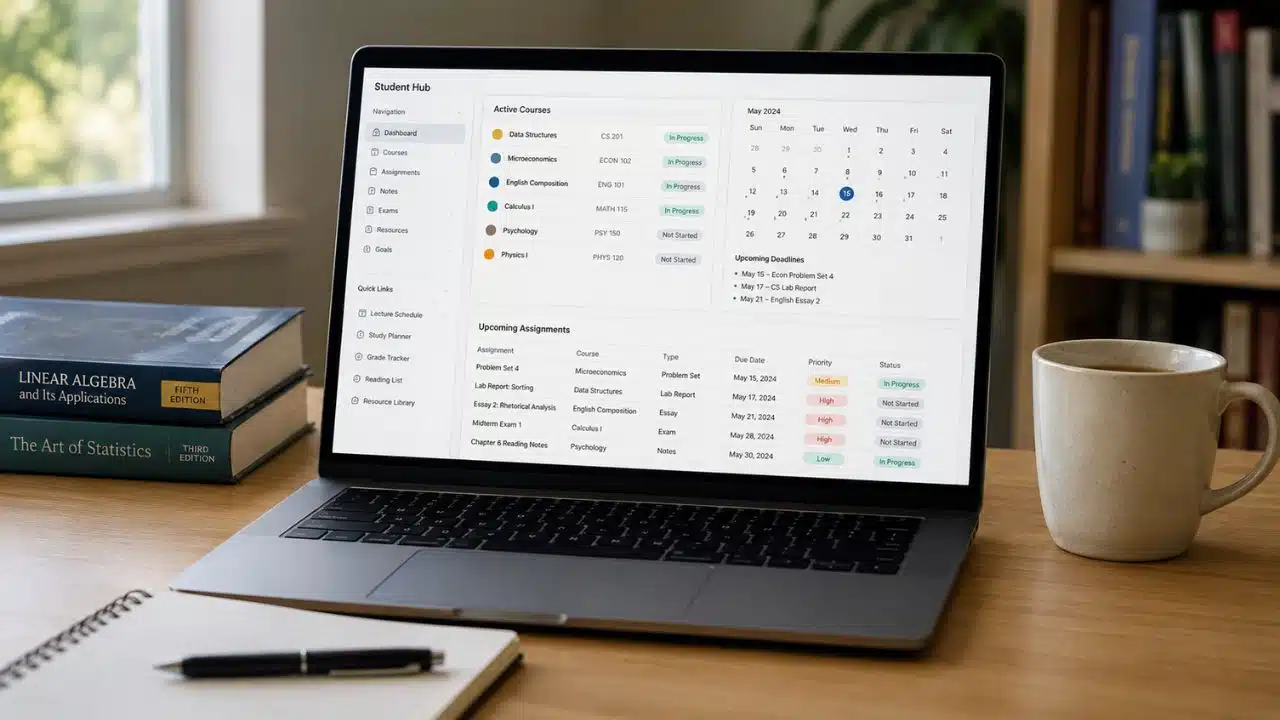
Learning how to set up Notion for students is fairly easy. The harder part is knowing when to stop. A student workspace should make deadlines and course material easier to manage, not become another project competing for attention.
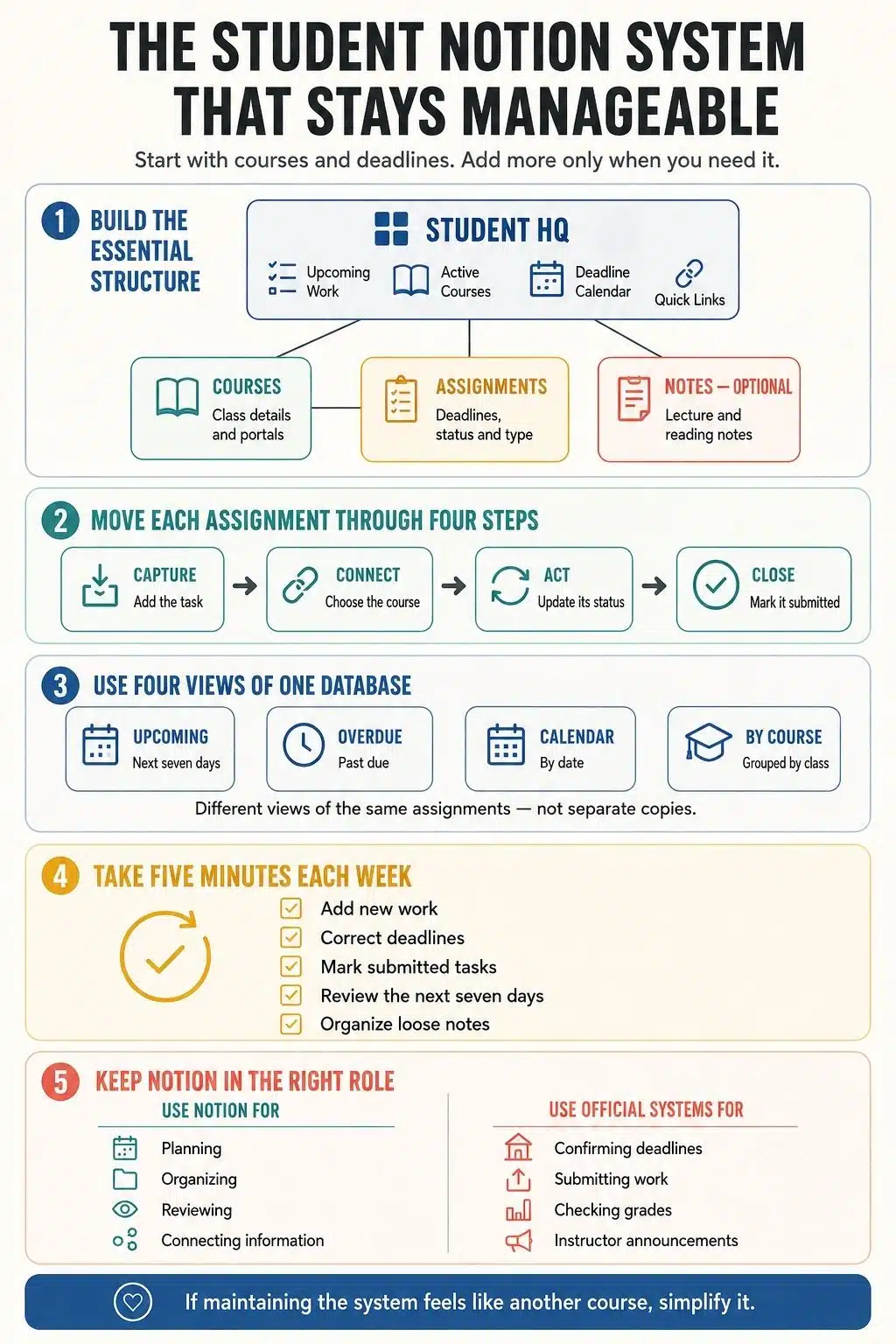
This walkthrough starts with an empty page and builds a practical system around one dashboard, a Courses database, an Assignments database, and an optional place for notes. There are no formulas, decorative widgets, or complicated templates to untangle later.
By the end, you will be able to see what is due, what is overdue, and which course each task belongs to from one clean page.
Before You Start, Decide What Not to Track
Notion can hold almost anything. That does not mean every piece of academic information belongs in it.
I would leave out grade calculators, progress formulas, elaborate priority systems, and decorative widgets at this stage. Use the basic setup for two weeks. If you repeatedly need something that is missing, add it then.
Your school learning management system, or LMS, should remain the official source for deadlines and submissions. Notion is a planning layer. If an instructor changes a date in the course portal, the date in your personal tracker will not normally update by itself.
Step 1: Create an Account and Check Education Plan Eligibility
If you attend an eligible college or university, register with your institutional email address. In the web or desktop version of Notion, open Settings, choose Upgrade plan, and look for Get free education plan.
Notion’s Education Plus offer has several conditions:
- Your institution must be accredited and recognized in the World Higher Education Database.
- You must use an email address issued by that institution.
- The workspace must have only one member.
- You must complete the upgrade through Notion on the web or desktop.
K–12 students are not eligible for the Education Plus offer, but they can still build this workspace with Notion’s regular Free Plan.
Keep an individual education workspace to one member. When working with classmates, invite them as guests to the relevant project page rather than adding them as workspace members. Adding another member can affect education-plan eligibility.
Step 2: Create the Student HQ Page
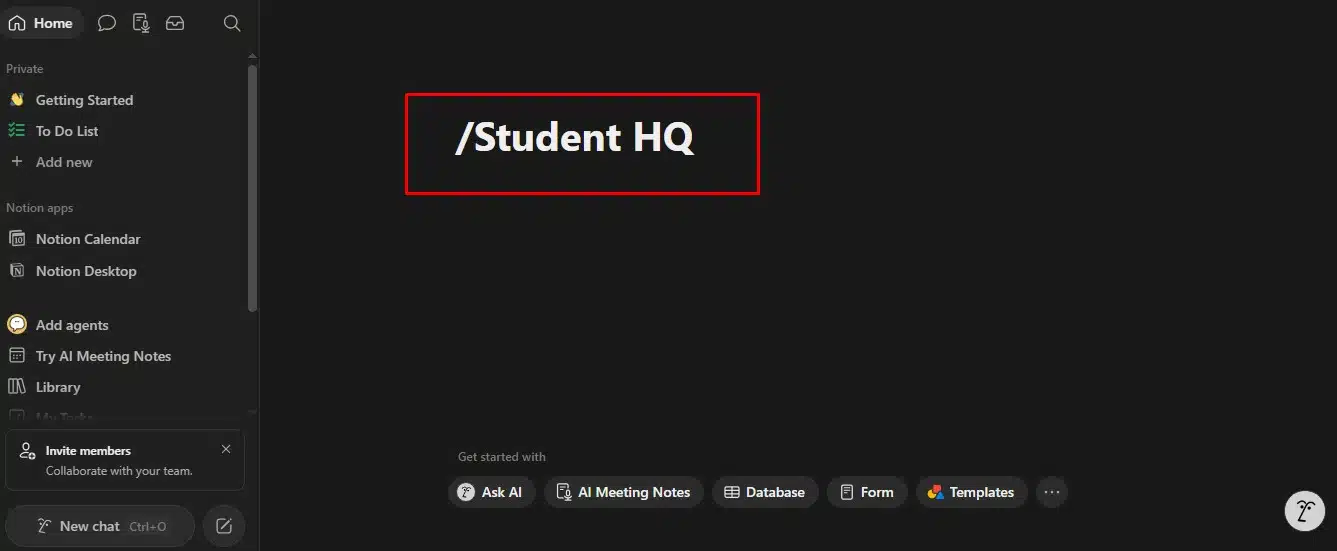
Create a new page in the sidebar and name it Student HQ. This will become the dashboard, but it should remain mostly empty until the databases are ready.
Add three headings:
- Upcoming Assignments
- Courses
- Quick Links
Under Quick Links, include only resources you open regularly, such as the school LMS, library search, academic calendar, or student email. An icon or cover is optional; neither makes the system work better.
Step 3: Build the Courses Database
Create a subpage beneath Student HQ and add a Table database. Name it Courses. Depending on the version of Notion you are using, you may also be able to type /database on a blank page and select a table.
The first column is the title property. Rename it Course, then add these properties:
| Property | Type | What it stores |
| Course | Title | Course name or code |
| Instructor | Text | Instructor’s name |
| Semester | Select | Current term |
| Class Information | Text | Meeting time, room, or online details |
| Course Portal | URL | Official LMS or course-page link |
| Status | Select | Active or Archived |
Do not add fields simply because they appeared in somebody else’s template. Information you rarely check can stay in the syllabus.
Add three or four current courses. Each database row is also a page, so it can hold a syllabus, useful links, and course-specific notes.
Step 4: Create the Assignments Database
Create another table database beneath Student HQ and name it Assignments. Rename its title property Assignment, then add the following fields:
| Property | Type | Purpose |
| Assignment | Title | Name of the task |
| Course | Relation | Connects the task to Courses |
| Due | Date | Official due date and time |
| Status | Select | Not Started, In Progress, or Submitted |
| Type | Select | Reading, Homework, Essay, Project, or Exam |
| Submission Link | URL | Optional link to the submission page |
If relations are new to you, leave the Course property for the next step and add the others first.
I prefer a short status list. Stages such as Researching, Outlining, and Revising are useful for a major paper, but they belong in a checklist inside that assignment’s page. They make the main tracker harder to scan.
Step 5: Connect Assignments to Courses
In Assignments, add a new property and choose Relation. Select the Courses database and name the property Course. If Notion offers to display the relation inside Courses, enable it and call the reverse property Assignments.
When adding a task, select its course from the relation instead of typing the course name again. This prevents small variations such as “World History” and “History” from splitting the same course into different labels.
If the relation settings allow you to limit the property to one page, use that option. A normal assignment belongs to one course.
Now add an essay, a reading, a project, and an exam with different due dates and statuses. Opening any assignment will reveal a full page where you can keep the brief, files, research links, and working notes.
Step 6: Create Upcoming and Overdue Views
The master table is useful for editing, but it is too broad for a daily check. Create focused views from the view menu at the top of the database.
Create the Upcoming View
Add a table view named Upcoming and apply these filters:
- Status is not Submitted
- Due is on or after Today
- Due is on or before one week from now
Sort by Due in ascending order. Some versions of Notion offer a relative-date filter for the next seven days. Check its result before relying on it. A label such as “next week” may mean the next calendar week rather than the next seven days.
Keep only Assignment, Course, Due, Status, and Type visible in this view.
Create the Overdue View
Duplicate Upcoming, rename the copy Overdue, and replace the date conditions with Due is before Today. Keep Status is not Submitted and the ascending date sort.
Do not remove the unfiltered All Assignments view. It is the easiest place to catch tasks with missing dates or incorrect statuses that a filtered view could hide.
Step 7: Add a Deadline Calendar
Create another Assignments view, choose Calendar, and name it Deadline Calendar. Tell Notion to place items on the calendar using the Due property.
Dragging an assignment to another day changes its actual Due value. Move it only when the official deadline has changed.
Calendar view is especially useful for spotting crowded weeks. It can still hide assignments without dates, which is another reason to keep All Assignments.
Step 8: Assemble the Student HQ Dashboard
Return to Student HQ. Under Upcoming Assignments, type /linked and choose the option for a linked view of an existing database. Select Assignments, then switch the linked view to Upcoming.
This is a window into the original tracker, not a duplicate. If you mark an assignment Submitted from Student HQ, its status changes in the master database too.
Under Courses, add a linked view of the Courses database. A gallery can look attractive, but a compact table is easier to scan. Show Course, Instructor, and Course Portal, then filter the view to Status is Active.
You can add a link to Overdue or Deadline Calendar. I would not place every possible view on the home page. A dashboard stops being useful when the important items have to compete with everything else.
Step 9: Create a Reusable Assignment Template
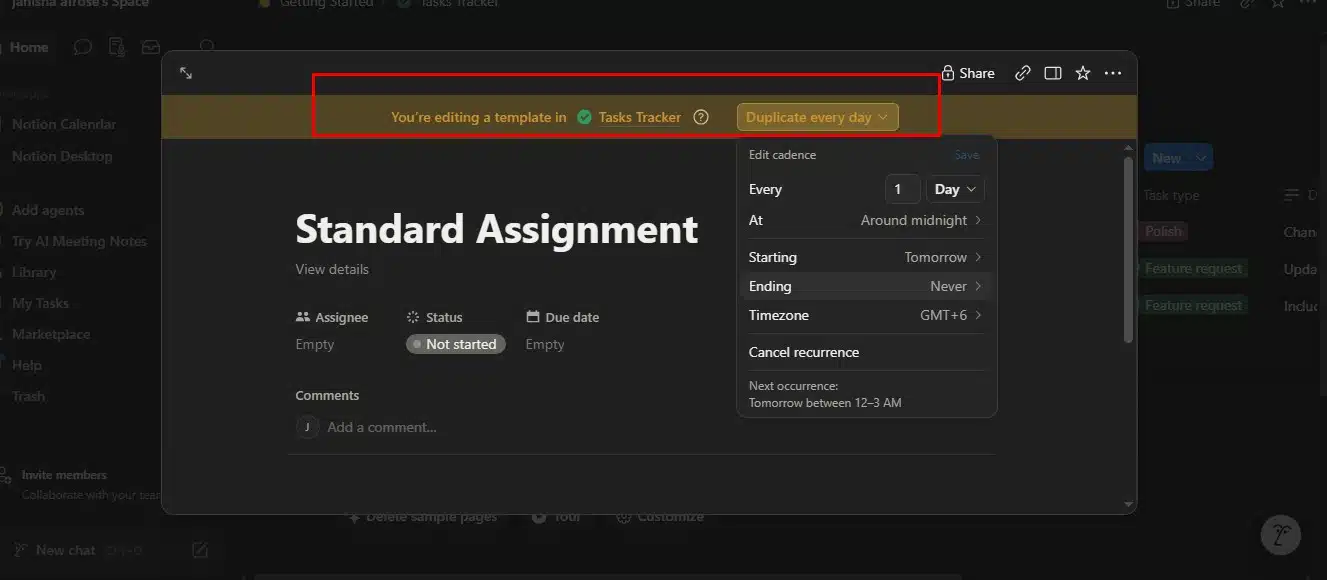
Open the dropdown beside New in the Assignments database and select New template. Name it Standard Assignment.
Use a simple page structure:
Instructions
Paste or summarize the brief, then link to the official version.
Deliverables
List everything that must be submitted.
Sources and Resources
Keep readings, research links, and working files together.
Working Notes
Use this area for questions, an outline, or a draft.
Submission Check
- Confirm the required file format.
- Check the filename.
- Review citations or references.
- Upload the correct version.
- Confirm that the submission was received.
Set Status to Not Started by default. Leave Course and Due blank so old values are not carried into a new assignment.
Step 10: Choose One Note System
There are two sensible ways to organize notes. Pick one at first; maintaining both usually creates confusion.
Option 1: Keep Notes Inside Each Course
Create subpages within a course for lectures, readings, or weekly topics. A title such as 2026-08-12 — Memory and Attention keeps pages in date order and makes search results easier to understand.
This is the better starting point for most students because it requires no new database.
Option 2: Create a Notes Database
If you want to search and sort all notes in one place, create a Notes database with these properties:
- Note — Title
- Course — Relation to Courses
- Date — Date
- Note Type — Lecture, Reading, Seminar, or Revision
- Reviewed — Checkbox
I would add this only after the Courses and Assignments system has become routine. A separate notes database is useful, but it is not necessary for the rest of the setup to work.
Step 11: Add Reminders and, If Useful, Notion Calendar
Open the Due field for an important assignment and add a reminder. Include a time when the deadline is time-specific.
Set the reminder for the point when work needs to begin, not five minutes before a major project is due. Too many notifications quickly become background noise.
Notion Calendar is optional. Because Assignments has a Date property, its deadlines can appear beside classes, shifts, and appointments. Finish the core system first; it should not depend on another app to be useful.
Step 12: Prepare Important Pages for Offline Use
Notion supports offline pages in its desktop and mobile apps, but it does not simply download an entire workspace on every plan. Open the menu for Student HQ and enable Available offline. Repeat this for active course pages and other material you may need without a reliable connection.
The limitations matter:
- Offline pages are not available in a web browser.
- Subpages are not automatically downloaded with a parent page.
- A downloaded database includes only the first 50 rows of its first view.
- Forms, buttons, AI blocks, and embeds may not work offline.
- Offline availability must be configured separately on each device.
Download essential files, readings, and subpages directly. Making Student HQ available offline does not automatically include everything linked from it.
Step 13: Back Up and Reset the Workspace Each Semester
At the end of the term, change completed courses from Active to Archived and add the new semester. Existing dashboard filters will keep archived courses and submitted work out of the active views.
Export important content before a major cleanup. You can export an individual page from its menu or export the workspace from Settings.
Treat the export as a backup copy, not a perfect one-click restore. Relations, permissions, and some database behavior may not return exactly after re-importing. Keep submitted work and original files in institution-approved storage as well.
Final Thoughts
The most reliable way to set up Notion for students is to solve the main planning problem first. Create Courses and Assignments, connect them, build the Upcoming view, and place that view on Student HQ.
Then use the system for two weeks. Add a Notes database, grade tracker, reading list, budget, or habit section only when a real need appears. Notion is flexible enough to grow later; it does not need to begin fully built.
The finished workspace should make the next piece of work easier to see. If maintaining it starts to feel like another course, remove something.
Frequently Asked Questions on How to Set Up Notion for Students
1. Is Notion free for students?
Anyone can use Notion’s regular Free Plan. Eligible college and university students can also receive the Education Plus Plan at no cost by signing in with an institutional email address and keeping the workspace to one member. The institution must be recognized in the World Higher Education Database. K–12 students are not eligible for Education Plus, but they can still use the Free Plan.
2. What should a student put on a Notion dashboard?
A useful student dashboard needs only the information that affects the next action: upcoming assignments, overdue work, active courses, and links to the official LMS or course pages. Notes, grade tracking, reading lists, and habit trackers can be added later if they solve a recurring need.
3. Can Notion automatically import assignments from Canvas or Google Classroom?
Notion does not provide a universal built-in import that keeps assignments synchronized with every school LMS. Third-party automations may be possible for some platforms, but they add setup and can fail when permissions or course systems change. For most students, the safer approach is to enter important assignments manually and keep the LMS as the official source for deadlines and submissions.
4. Does Notion work offline for students?
Yes, but offline access must be prepared in advance. Pages can be made available offline in Notion’s desktop and mobile apps, not in a web browser. Important subpages and files should be downloaded separately, and offline databases include only the first 50 rows of the first view. Test the pages you need before relying on them without internet access.
5. Can Notion assignments appear with Google Calendar events?
Yes. Connect the Assignments database to Notion Calendar and make sure it has a Date property. You can then view those deadlines beside events from a connected Google Calendar account. The assignments remain Notion database items; they are not automatically copied into Google Calendar as ordinary events.