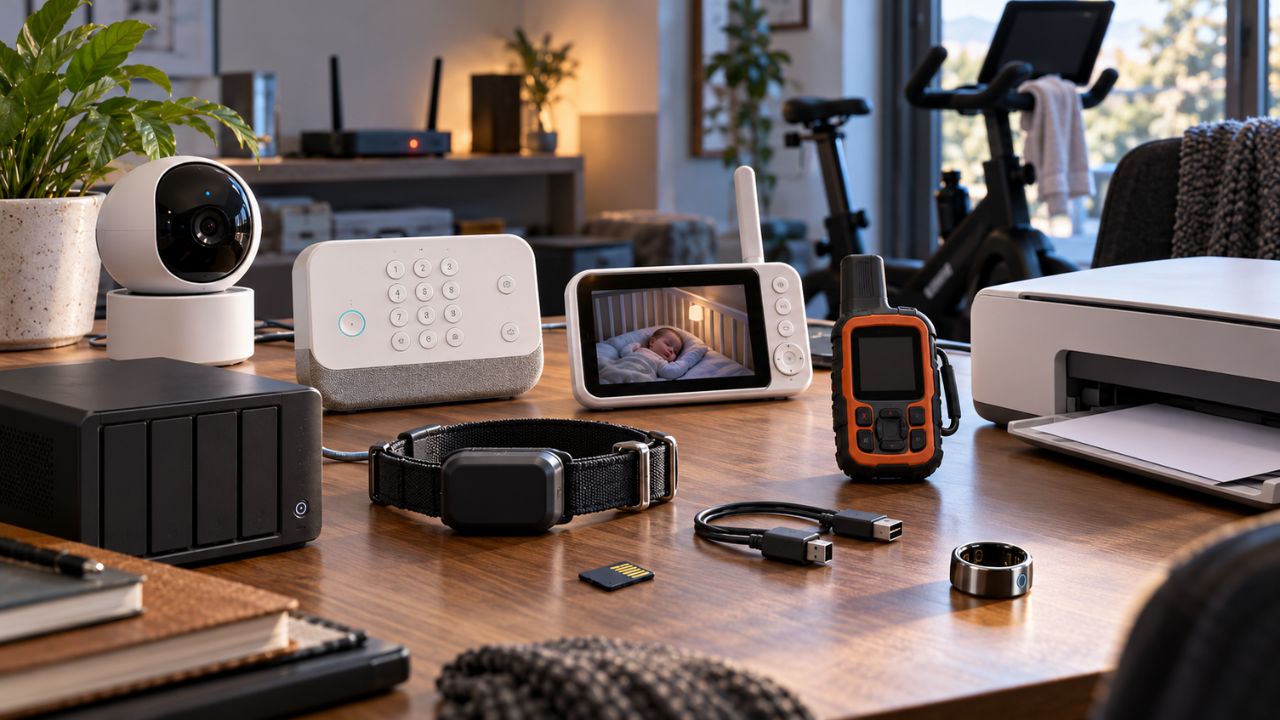

Your private information is probably spread across more places than you can easily name. Email contains password-reset links and receipts. A phone holds photos, messages, location data, and saved logins. Cloud accounts connect laptops, tablets, browsers, and apps that may not have been opened for years.
That is why securing one device is not enough. An old tablet can remain signed in after a phone upgrade. A photo app can keep broad access to the entire library. A reused email password can undermine every careful privacy setting elsewhere.
Learning how to protect personal data starts with identifying what connects your digital life. Secure the accounts that control recovery, reduce unnecessary access, protect the devices themselves, and make sure important files can be recovered without exposing more information than necessary.
Secure the Account That Can Reset Everything Else
For most people, the primary email account deserves attention first. It receives password-reset messages, account alerts, financial correspondence, travel bookings, private attachments, and verification links. If someone takes over that inbox, they may be able to reset several other accounts. Adjusting advertising preferences or disabling an app’s microphone access will not compensate for a poorly protected email account.
Use a password that is not shared with any other service. A reputable password manager is usually the most practical way to create and store unique passwords without relying on small variations such as changing a number or adding a symbol.
Then review the less visible parts of the account:
- Recovery email address
- Recovery phone number
- Active browser sessions
- Recently used devices
- Saved recovery codes
- Recent security alerts
- Third-party services connected to the account
Remove devices you no longer own and sessions you cannot explain. If an unfamiliar device appears, signing it out is only part of the response. Change the password, check recovery details, and review whether any forwarding rules or connected apps were added. The mobile-carrier account matters too. When available, add an account PIN or number-transfer protection. Text-message verification is weaker when someone can persuade a carrier to move the number to another SIM.
How to Protect Personal Data With Stronger Sign-In Methods
Multifactor authentication adds a second requirement after the password, but some methods resist attacks better than others. For important accounts, passkeys and hardware security keys are usually the strongest options to consider first. They are designed around the legitimate website or service, which makes them much harder to hand over to a convincing imitation login page.
Authenticator apps are also a strong practical choice. They do not depend on the mobile network and are less exposed to phone-number takeover than SMS codes. However, the six-digit codes they generate can still be entered into a phishing page if the user is deceived.
Text-message codes are not useless. They are generally better than protecting an important account with only a password. They should not be treated as the strongest option when passkeys, security keys, or authenticator apps are available.
Prioritize stronger authentication for:
- Primary email
- Password manager
- Banking and payment accounts
- Cloud storage
- Social media accounts
- Mobile-carrier account
- Work or school accounts containing sensitive files
Do not approve an unexpected sign-in prompt simply because it appears on a trusted phone. Repeated approval requests can mean someone already has the password and is hoping the account owner will eventually tap the wrong button.
Before replacing a phone, check how passkeys and authenticator records are stored. Some synchronize through an Apple, Google, Microsoft, or password manager account. Others remain tied to a particular device or physical security key. A strong login method becomes a problem if the recovery plan exists only on the phone that was lost.
Review App Permissions by Data Type

Opening every installed app and inspecting its settings is slow and easy to abandon. It is usually more useful to review permissions by category: location, camera, microphone, contacts, photos, calendar, Bluetooth, and notifications. Android’s Privacy Dashboard shows recent access to sensitive permissions. On iPhone and iPad, the Privacy & Security settings group apps by the information they can use. App Privacy Report can provide additional visibility into certain sensor access and network activity after it has been enabled.
On macOS, pay particular attention to Accessibility, Screen & System Audio Recording, and Full Disk Access. These permissions can give an app far more control than access to a single folder.
Windows privacy controls cover location, camera, microphone, contacts, and other capabilities, but there is an important limitation. Traditional desktop software does not always behave like an app installed through the Microsoft Store. Some programs may access hardware or data without appearing under every per-app privacy control. An empty permission list does not always prove that no desktop program can use the feature.
Use the narrowest permission that still supports the task:
- Give a weather app an approximate location rather than a precise location.
- Let a photo editor use selected images instead of the entire library.
- Keep location access limited to “while using the app” unless background tracking is genuinely useful.
- Deny contact access when an app does not need to find friends or send invitations.
- Remove microphone and camera access from apps whose calling or recording features are no longer used.
- Hide message previews and authentication codes from the lock screen.
Expect some friction. A map may stop showing nearby results. A messaging app may no longer suggest contacts. A photo editor may ask for access each time a new image is selected. That inconvenience is not proof that the permission should remain permanent. Restore only the specific access needed for a feature you actually use.
Privacy Labels Help, but They Do Not Settle the Question
Apple’s App Privacy section and Google Play’s Data Safety section can reveal what developers say they collect, whether data may be linked to a person, and whether it may be shared. They are useful for screening apps before installation. They are not the same as an independent audit of every data flow inside the software.
Look for a mismatch between the app’s purpose and its declared collection. A navigation app requesting location makes sense. A simple scanning or flashlight utility requesting continuous location, contacts, and browsing activity deserves closer scrutiny.
Before installing an unfamiliar app, check:
- Whether it works without an account
- Whether it offers account and data deletion
- Whether advertising or third-party analytics are involved
- Whether the developer is clearly identified
- Whether the privacy policy explains retention and sharing
- Whether the requested permissions match the feature being offered
Do not assume a paid app is private or that a well-known brand collects less. An app that needs less information creates less exposure, regardless of its price or popularity.
Remove Old Connections and Browser Extensions
Signing in with Google, Apple, Microsoft, or another identity provider can reduce password reuse. It can also leave behind years of connected services. Review these connections from the main account’s security or privacy page. Remove tools you no longer recognize or use, especially those that can read email, manage cloud files, view contacts, publish to social accounts, or continue working while you are offline.
Revoking access normally blocks future use. It does not necessarily delete information already copied by the third party. When the data matters, close the service account or use its deletion process as well. Browser extensions deserve the same scrutiny. An extension that can “read and change all your data on all websites” may see form entries, page contents, and account activity across much of the browser.
Keep extensions that perform a clear job and come from a developer you trust. Remove abandoned coupon tools, download helpers, theme add-ons, and productivity extensions that have not been used recently. An extension does not need to be obviously malicious to create unnecessary risk.
Protect the Device, Not Only the Account
A strong password cannot protect a laptop left unlocked in a shared workspace. Every phone, tablet, and computer holding private information should have a screen lock, automatic locking, and storage encryption. Use a device passcode or password that is difficult to guess. Biometrics make unlocking more convenient, but the underlying code still matters because it may be required after a restart, software update, or failed biometric attempts.
Encryption varies by platform. On supported Windows systems, Device Encryption may turn on automatically, while BitLocker controls and availability depend on the hardware, Windows edition, account configuration, and administrative settings.
Macs with Apple silicon or Apple’s T2 Security Chip encrypt stored data at the hardware level. FileVault adds another layer by requiring valid login credentials before the startup volume can be unlocked. Modern phones and tablets include built-in storage protection, but that protection still depends on a proper screen lock, current software, and the device remaining within its supported life.
Store recovery keys somewhere other than the encrypted device. A Windows computer can request a BitLocker recovery key after certain firmware, hardware, or security changes. Keeping the only copy in a file stored on that same computer defeats the point. Enable the platform’s lost-device service before the device disappears. Confirm that remote locating, locking, or erasing is available and that the account controlling it has strong authentication.
Do not keep using unsupported hardware for sensitive work simply because it still turns on. A device that no longer receives security updates is a poor place for primary email, banking, password storage, or confidential documents.
Cloud Sync Is Useful, but It Is Not a Backup Plan
Sync services keep the same files available across devices. They may also copy an accidental deletion, damaged file, or unwanted change everywhere. Important files should exist in more than one location. A practical arrangement for many households is an established cloud service plus an encrypted external drive that is disconnected between backups. Keeping the drive permanently attached leaves it more exposed to malware and accidental deletion.
Test a restore occasionally. A green checkmark or “backup complete” message does not prove that the right folders were included or that the files can be opened.
Automatic phone uploads deserve a separate review. Screenshot, download, and messaging-media folders can contain boarding passes, identity documents, private conversations, medical details, invoices, addresses, and authentication QR codes. Saving every image forever is not a neutral decision. It increases the amount of information exposed if the cloud account is compromised.
Phishing Often Bypasses Good Security Settings
Many account breaches begin with a message that creates urgency rather than with sophisticated malware. Common examples include a delivery failure, unpaid invoice, shared document, password warning, refund notice, job offer, or urgent request from a manager or relative.
Do not sign in through an unexpected link. Open the company’s known app or type the familiar web address yourself. Check the full sender address, not only the display name. Treat QR codes as links because they can lead to the same fraudulent login pages. Password managers provide a useful warning here. They normally offer saved credentials only on the correct domain. If autofill does not appear where expected, inspect the address instead of manually pasting the password.
Never share a verification code with a caller or message sender. Someone requesting the code may already know the password and need only the second factor. Public Wi-Fi requires caution, but some common warnings are overstated. Most major websites now encrypt traffic, so using a café or airport network does not automatically expose everything on the screen.
The more realistic risks are fake network names, fraudulent login pages, ignored certificate warnings, outdated devices, and software offered by an unfamiliar network. Verify the network name, keep the device updated, and do not install certificates or applications simply because a Wi-Fi page tells you to. A VPN can reduce what the local network operator sees. It cannot make a fake banking page legitimate or protect someone who gives a password to a scammer.
Clean Up Sharing and Old Devices
Not every privacy problem comes from hacking. Location sharing, cloud folders, photo albums, family groups, calendars, and smart-home access can remain active long after they are useful.
Review who can see:
- Your live location
- Shared photos and files
- Family calendars
- Password-sharing groups
- Smart-home devices
- Collaborative work folders
Apple’s Safety Check can help users of supported iPhones review access granted to people and apps. It is especially relevant when unwanted monitoring or personal safety is a concern. Before selling, donating, or recycling a phone or computer, back up the required data and use the platform’s official erase or reset process. Remove SIM cards and external storage, then confirm that the old device no longer appears as a trusted device where appropriate.
Be careful with stolen devices. Removing a missing Apple device from Find My tool early can also remove the activation lock, making it easier for someone else to reuse or resell. Mark it as lost and follow the official recovery process first.
A 30-Minute Privacy Review That Covers the Biggest Risks
Trying to inspect every privacy setting at once usually produces a lot of clicking and few meaningful changes. Work in this order instead.
First 10 minutes: Protect recovery
Secure the primary email account. Check its password, MFA method, recovery details, active sessions, and signed-in devices.
Next 10 minutes: Reduce access
Review location, camera, microphone, contacts, and photo permissions. Delete unused apps and remove browser extensions that no longer have a clear purpose.
Final 10 minutes: Prepare for a lost device
Confirm encryption, automatic updates, device-finding controls, recovery keys, and backups. Make sure the information needed to recover an account or encrypted drive is not stored only on that same device.
Repeat the review after replacing a phone, losing a device, leaving a job, ending a shared household arrangement, or receiving an unexplained security alert.
Final Thoughts
The most effective way to learn how to protect personal data is to stop treating every setting as equally urgent. Start with the account that can reset the others. Then strengthen authentication, remove unnecessary app access, encrypt the devices that hold private files, and confirm that your backups can actually be restored.
Do not spend an afternoon adjusting minor tracking preferences while leaving an old laptop signed in to email or using the same password across several accounts. Fix the weaknesses that can expose everything else first.
Privacy maintenance does not need to become a hobby. A focused review every few months is enough for most people to catch forgotten devices, expanding app permissions, outdated recovery details, and sharing arrangements that no longer make sense.
Frequently Asked Questions (FAQs) About How to Protect Personal Data
Is a password manager safe for storing all passwords?
A reputable password manager is usually safer than reusing passwords or storing them in notes, spreadsheets, or browsers without proper protection. Choose one that supports strong encryption, multifactor authentication, secure recovery, and regular security updates. The master password must be unique and difficult to guess.
Does deleting an app also delete the personal data it collected?
Not always. Removing an app from a phone or computer stops local use, but the company may still retain account information, uploaded files, purchase history, or analytics data. Check the app’s account settings or privacy page for a separate data-deletion option, then remove its access from connected Google, Apple, Microsoft, or social accounts.
Do I need a VPN to protect personal data on public Wi-Fi?
A VPN can reduce what the local network operator can observe, but it is not a complete security solution. It cannot protect someone who enters a password on a fake website, approves a fraudulent login request, or installs malicious software. Updated devices, encrypted websites, strong authentication, and careful link checking matter more.
What should I do with a device that no longer receives security updates?
Avoid using it for banking, password management, primary email, confidential work, or long-term storage of sensitive files. Back up anything important, sign out of accounts, and replace or repurpose the device for low-risk offline tasks. Before selling or recycling it, use the platform’s official erase process.
How often should I review app permissions and signed-in devices?
A review every three to six months is reasonable for most people. Check sooner after losing a device, changing jobs, ending a shared household arrangement, receiving a security alert, or installing an app that requests unusually broad access.