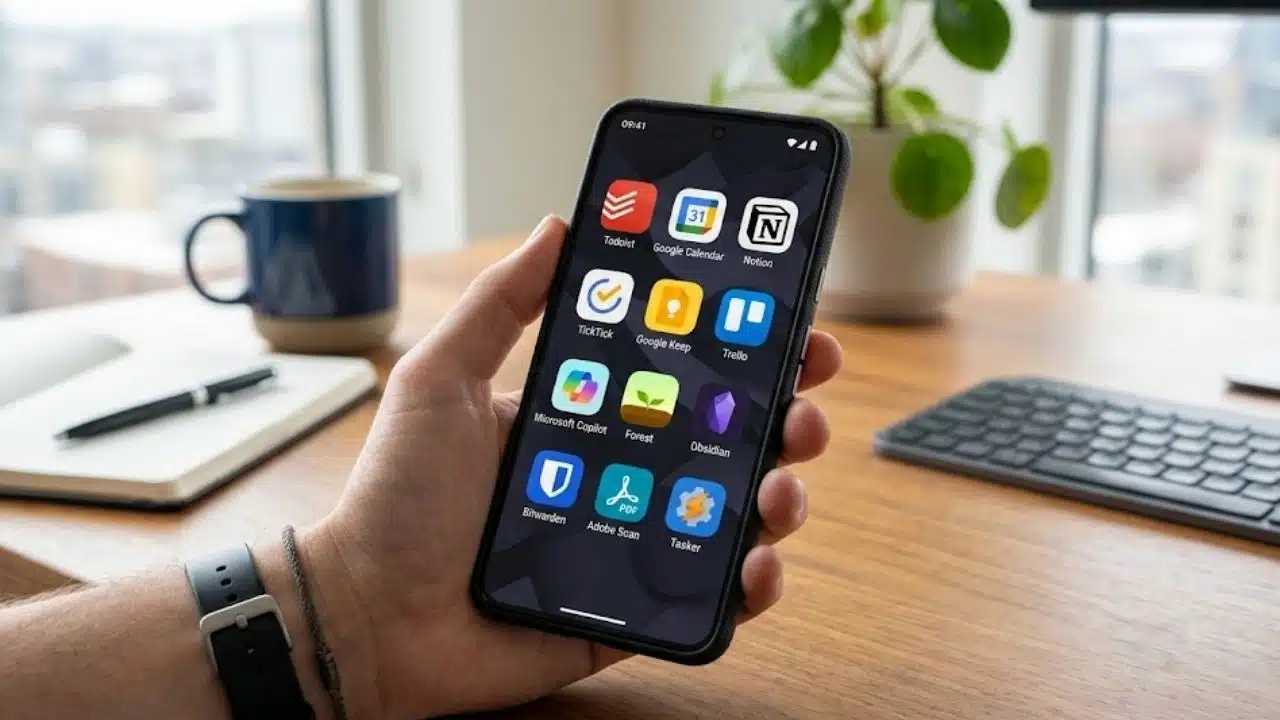
Finding the best productivity apps for Android isn’t about downloading more tools—it’s about eliminating daily friction. The right setup acts as a mobile command center: task managers like Todoist and TickTick capture to-dos, Google Calendar protects your time, and Notion or Obsidian structures your knowledge. Meanwhile, specialized tools like Forest, Bitwarden, and Tasker eliminate distractions and automate routine workflows.
Whether you need all-in-one organization or targeted focus, the best Android apps streamline execution without clutter. Here are the top 12 apps to move your work from intention to completion, ranked from broad daily essentials to specialized power tools.
How These Apps Were Selected
The ranking considers:
- The usefulness of the Android app, not just the desktop product
- Current support and Google Play availability
- Free-plan value and paid limitations
- Cross-device access where it matters
- Setup and maintenance demands
- Offline behavior and compatibility
- The practical size of the problem each app solves
The list also avoids filling twelve positions with slightly different to-do lists.
Best Android Productivity Apps at a Glance
| App | Most Useful For | Free Access |
| Todoist | Everyday task management | Yes, with project limits |
| Google Calendar | Scheduling and time blocking | Yes |
| Notion | Connected notes and project systems | Yes |
| TickTick | Tasks, calendar, and focus sessions | Yes, with Premium features |
| Google Keep | Fast notes and reminders | Yes |
| Trello | Visual project tracking | Yes, with Workspace limits |
| Microsoft Copilot | AI assistance for Microsoft users | Varies by account and subscription |
| Forest | Reducing phone distraction | Yes |
| Obsidian | Personal knowledge management | Yes |
| Bitwarden | Faster, safer account access | Yes |
| Adobe Scan | Paper-to-PDF workflows | Yes |
| Tasker | Advanced Android automation | Paid or available through Play Pass in supported regions |
The first five options can handle much of an ordinary personal workflow. The remaining apps are more useful when a specific problem, such as distraction, paperwork, password management, or repetitive phone actions, keeps slowing things down.
12 Best Productivity Apps for Android in 2026
1. Todoist: Best for Everyday Task Management
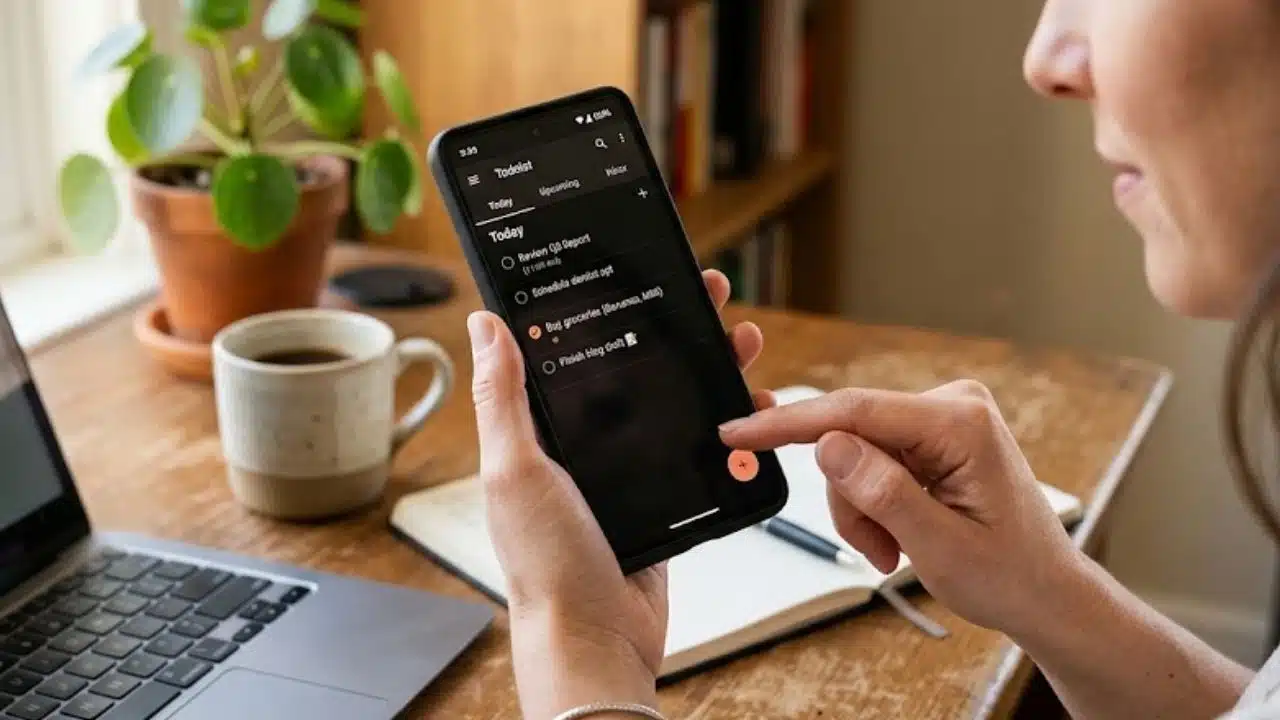
Todoist takes the first position because it adds structure without demanding a complicated workspace. Users can create recurring tasks, apply priorities and labels, divide work into projects, and switch between list and board layouts.
Quick Add is especially helpful on Android. Entering “send invoice Friday at 10” can create and schedule a task in one step. Smart date recognition occasionally mistakes ordinary words for dates, but detected text can be changed back when that happens.
The free Beginner plan currently allows five active personal projects. Todoist lists Pro at $7 per month or $60 per year in USD, although local pricing and taxes may differ. Pro adds calendar layouts, task duration, time blocking, deadlines, expanded project limits, and custom reminders.
The free version suits a compact personal system. Freelancers or professionals separating work by client, campaign, or department may reach the five-project limit fairly quickly.
2. Google Calendar: Best for Protecting Actual Time
A task list can hold 30 priorities without questioning them. A calendar forces a more useful decision: when will the work happen? Google Calendar for Android supports events, tasks, multiple calendars, shared schedules, different views, and widgets. Dated Google Tasks can appear beside meetings, making it easier to see planned work and fixed commitments together.
Flight, hotel, restaurant, and ticket confirmations can also be added from Gmail when supported smart features are enabled. This does not work with every account or email type.
Avoid turning every empty hour into a work block. Travel, preparation, delays, and unexpected requests need space too. A realistic calendar is more useful than an impressive one.
3. Notion: Best for Connected Notes and Projects
Notion can combine project plans, meeting notes, databases, task boards, documents, forms, and shared information. It makes sense for students, freelancers, content teams, and small organizations that need related material in one searchable workspace.
All plans now allow individual pages to be downloaded for offline use. Paid plans can automatically download recent and favorited pages. The offline system has boundaries: subpages require separate downloads, and an offline database initially includes only the first 50 rows of its first view. Embeds, AI blocks, forms, sharing, and permission changes still require a connection.
Notion is often made harder than necessary. Starting with a few pages and one useful database is usually better than importing a large dashboard with ten views that no one maintains.
4. TickTick: Best All-in-One Personal Planner
TickTick is the stronger choice for people who want tasks, calendar planning, focus sessions, habits, and prioritization in one app. Voice input can extract details such as dates, lists, tags, and priorities. Focus records and habits can also appear in the calendar, which reduces the need for a separate Pomodoro or habit-tracking app.
The interface naturally feels busier than Todoist, and several features require TickTick Premium. Pricing varies by region and billing platform, so check the current Google Play offer before paying.
5. Google Keep: Best for Capturing Something Quickly
Google Keep does not try to become a complete project platform. That restraint is useful. It supports text notes, lists, drawings, images, voice capture, reminders, labels, colors, pinned notes, collaboration, and Android widgets. A student can capture an assignment before leaving class, while a professional can pin a call checklist or temporary project note to the home screen.
Keep is less convincing as a permanent knowledge archive. Its organization system allows up to 50 labels, and a large collection can become difficult to browse. Use it for capture and short reference, not as a replacement for Notion or Obsidian.
6. Trello: Best for Visual Project Tracking
Trello is easier to understand than many full project-management platforms because the workflow stays visible. Cards move between lists such as “Brief,” “Draft,” “Review,” and “Complete,” while due dates, comments, files, and checklists stay attached to the work.
Its free plan currently supports up to 10 boards and 10 collaborators per Workspace, unlimited cards, and 250 Workspace automation runs each month. Trello is valuable for stages, deliverables, and handoffs. Turning every five-minute action into a separate card only creates more administration.
7. Microsoft Copilot: Best for AI-Assisted Microsoft Work
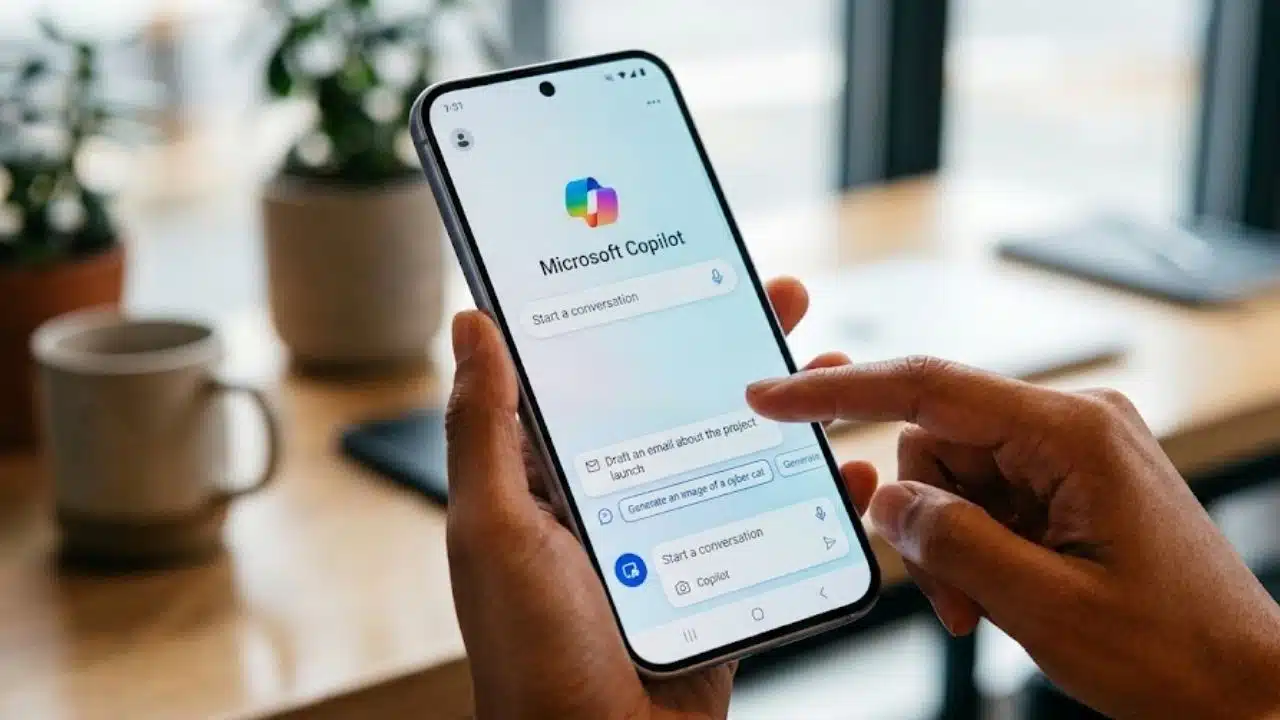
Microsoft Copilot can summarize material, draft content, answer questions, and work with Microsoft files and services. What it can access depends on the account, subscription, license, and organizational settings.
Its mobile role changed during 2026. Microsoft is moving full file browsing and direct Word, Excel, and PowerPoint editing away from the Copilot app. Users may be redirected to the dedicated Word, Excel, PowerPoint, or OneDrive apps.
Copilot is therefore better treated as an AI and work-information hub, not a complete replacement for Microsoft’s mobile Office apps. Install the dedicated app if dependable document editing is the main requirement. Generated summaries, claims, calculations, and client-facing drafts still need review.
8. Forest: Best for Reducing Phone Distraction
Forest tackles the problem that planners cannot: the phone may be interrupting the work. A focus session grows a virtual tree, while leaving the session or opening a restricted app can interrupt that progress. The free tier includes the timer, Deep Focus blocking, tracking, and the core tree mechanic. Basic sessions also work offline.
Forest Plus adds deeper analytics and expanded controls. Prices vary by region. The former one-time Pro purchase is no longer offered to new users, although existing Pro accounts remain active.
9. Obsidian: Best for Long-Term Personal Knowledge
Obsidian stores notes as local Markdown files. That makes it useful for research, study material, documentation, interconnected ideas, and reference libraries that should remain accessible outside one proprietary platform.
The core app is free and does not require an account for local use. Obsidian Sync costs $4 per user per month when billed annually or $5 monthly. It adds encrypted cross-device synchronization, version history, and shared vaults. Plugins and elaborate knowledge systems are optional. Folders, links, and search are enough for a sensible beginning.
10. Bitwarden: Best for Removing Login Friction
Password resets, reused credentials, and constant copying between apps waste time while creating security risks. Bitwarden’s free individual plan supports unlimited passwords, unlimited devices, and passkey management. On Android, it can be selected as the preferred password, passkey, and autofill service.
Some phones restrict background or accessibility services aggressively. If autofill stops appearing, check Android’s autofill selection and battery settings before moving to another service.
11. Adobe Scan: Best for Mobile Paperwork
Adobe Scan detects page boundaries, corrects perspective, improves text clarity, and converts photographed documents into PDFs. OCR makes printed content searchable and easier to reuse.
The app is free to download and currently supports Android 8.0 or later. Some advanced editing, conversion, file-combining, and password-protection tools require Acrobat.
It is useful for receipts, forms, whiteboards, and classroom notes. Check OCR output carefully when a scan contains names, totals, dates, legal wording, or faint handwriting.
12. Tasker: Best for Serious Android Automation
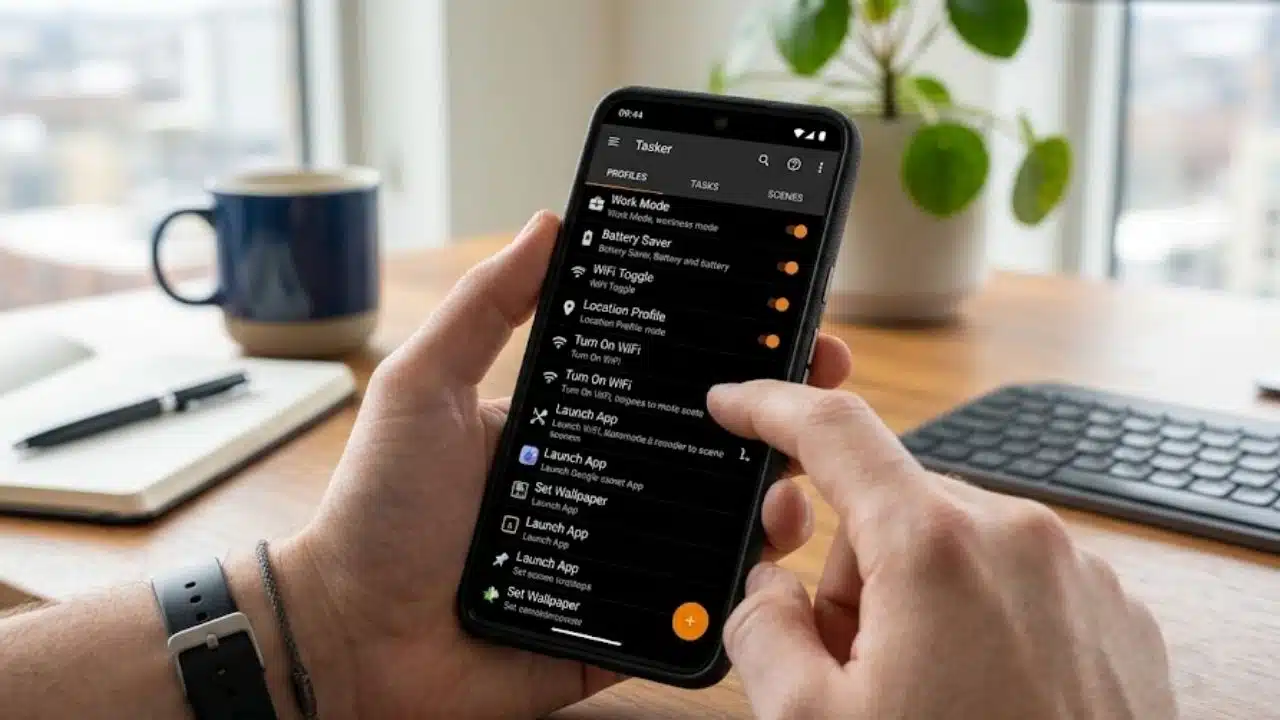
Tasker can react to conditions such as time, location, an opened app, a device event, a connected accessory, or a home-screen shortcut. It can open a work dashboard at a set time, change display settings for a reading app, or adjust audio when a particular device connects. Its value comes from automating an action that happens repeatedly, not from creating clever routines that save almost no time.
Tasker has the steepest learning curve here. Some actions require special permissions, plugins, or workarounds for Android and manufacturer restrictions. It is a niche recommendation, but a strong one for Android power users.
What Most Productivity App Lists Miss
Installing overlapping tools often creates another management problem. Tasks become divided between two planners, notes disappear into several archives, and three apps send reminders for the same deadline.
A practical Android setup usually needs:
- One task manager
- One main calendar
- One place for notes or reference material
- One specialist app addressing a recurring problem
An app should remain installed because it reduces friction. Popularity is not enough.
Final Thoughts
The best productivity apps for Android should reduce the number of decisions required to start working. Choose Todoist or TickTick for tasks, use Google Calendar for committed time, and add one specialist tool for the most persistent problem. That might be Forest for distraction, Obsidian for research, Adobe Scan for paperwork, or Tasker for repeated phone actions.
Use that small setup for a few weeks before adding anything else. A simple system that survives an ordinary busy day is more valuable than an elaborate one that constantly needs attention.
Frequently Asked Questions (FAQs)
What is the best free productivity setup for Android?
Google Calendar and Google Keep cover scheduling and quick capture without a subscription. Todoist can handle structured tasks within its free project limit, while Bitwarden reduces the time and frustration associated with account access.
Can these productivity apps work offline?
Some can. Obsidian stores its main files locally, Forest’s basic focus sessions work offline, and Notion allows selected pages to be downloaded. Synchronization, collaboration, AI tools, embeds, and other cloud-based functions usually need a connection.
Is Todoist better than TickTick?
Todoist is cleaner for conventional task and project management. TickTick offers more personal-planning tools, including habits, calendar views, and focus features. Installing both usually divides tasks without adding much value.
Is it safe to upload confidential work to an AI productivity app?
Only when the organization permits it and the relevant data controls have been reviewed. Personal and business plans may handle work data differently. Sensitive client, employee, financial, or unpublished information should not be uploaded simply because the feature is convenient.