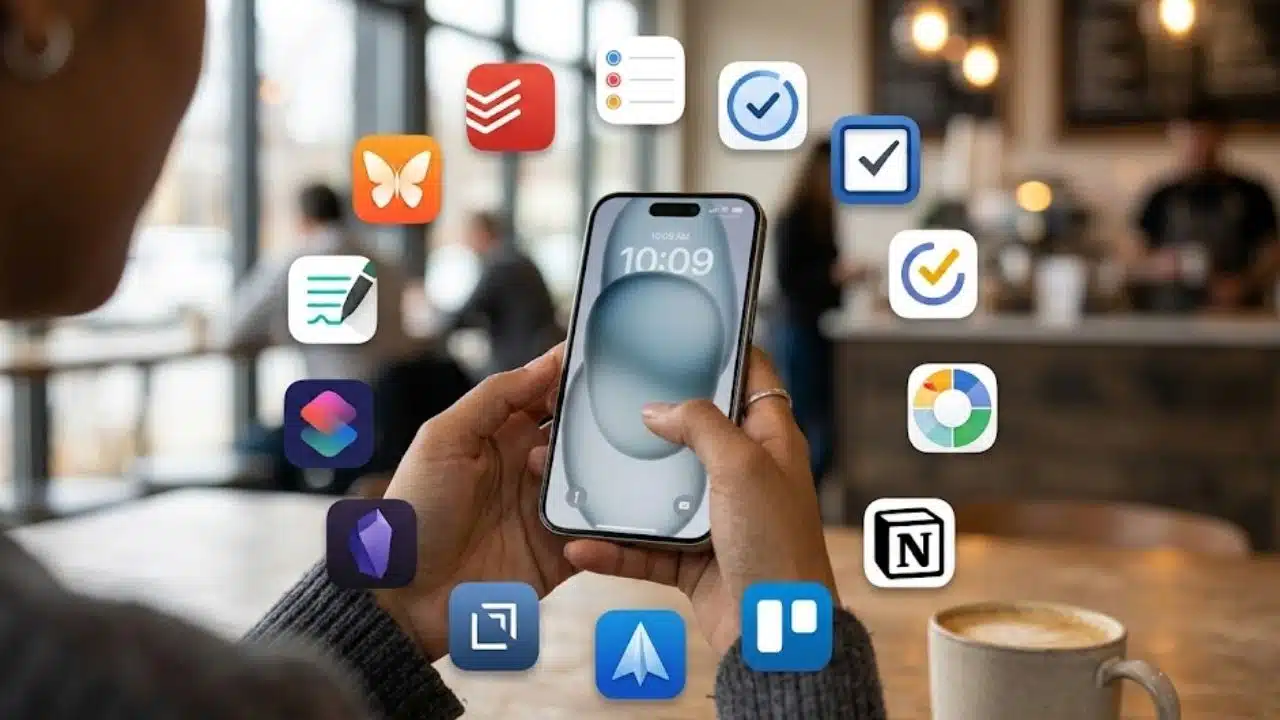
Tasks in one app, meeting notes in another, and reminders buried under notifications can make an iPhone feel more distracting than useful. The best productivity apps for iPhone reduce that mess. They help you capture work quickly, understand your schedule, retrieve information, or protect time for the task in front of you.
This list puts broadly useful apps first, followed by tools for more specific problems. Mobile usability, iOS integration, cross-platform access, setup effort, and free-plan restrictions all influenced the order. Plan features and App Store prices can change by country, so check the latest terms before paying.
Our Selection Criteria
Each app had to answer a practical question: does its iPhone version make real work easier?
The selection also considered:
- Speed of capturing and finding information
- Support for Siri, widgets, Shortcuts, Apple Watch, or the Share Sheet
- Usefulness without an immediate subscription
- Compatibility with other devices and services
- Setup and maintenance required after installation
What Most Productivity App Lists Get Wrong
Installing four task managers does not create a better system. It scatters commitments, duplicates alerts, and leaves users wondering which list is current.
Most people need one task manager and, if Apple Calendar is not enough, one calendar app. Notes, focus blockers, automation, and email tools should be added only when they fix a recurring problem. That is the more useful way to judge the best productivity apps for iPhone.
14 Best Productivity Apps for iPhone
The best productivity apps for iPhone help you manage tasks, plan schedules, capture notes, reduce distractions, and handle work away from your desk. The 14 options below cover different needs, from simple reminders and visual calendars to project tracking, automation, email management, and long-term knowledge organization in practical mobile workflows.
1. Todoist: The Best Choice for Most People
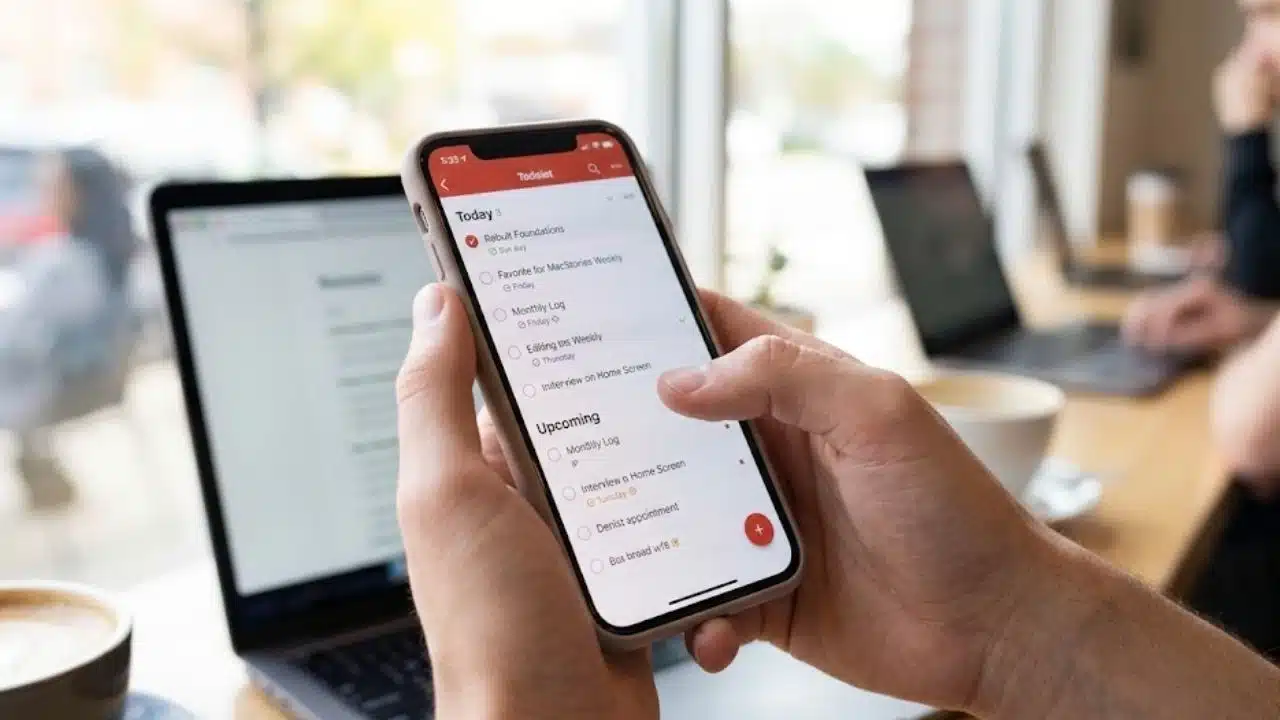
Todoist is the strongest default recommendation for anyone moving between an iPhone, computer, and browser. Smart Quick Add captures dates and task details quickly, while projects, labels, filters, lists, and boards can handle personal planning or shared work.
Its iOS support includes widgets, Siri, Shortcuts, Apple Watch, files, links, and configurable swipe actions. At the time of review, the free Beginner plan allows five personal projects and three filter views. Pro becomes worthwhile when task durations, calendar layouts, custom reminders, or a larger project allowance are genuinely needed.
2. Apple Reminders: Start Here Before Paying
Reminders is no longer just a basic checklist. It supports tags, sections, subtasks, attachments, templates, shared lists, assigned tasks, and Smart Lists filtered by dates, locations, flags, priorities, or tags. Grocery lists can also group familiar items into categories.
Its close connection with Siri and other Apple devices makes capture unusually easy. Some advanced features require updated Reminders stored in iCloud, and cross-platform access remains its main weakness. For an Apple-only household or a simple personal system, it may be all that is necessary.
3. Things 3: Excellent, but Strictly Apple-Only
Things 3 keeps daily planning calmer than many feature-heavy task managers. Today and Upcoming provide the main working views, while areas, projects, headings, deadlines, tags, and recurring tasks offer deeper organization when needed.
There is no subscription, but the iPhone, iPad, Mac, and Vision versions are sold separately. Things has no browser, Windows, Android, or real-time collaboration support. It can show Apple Calendar events beside tasks, but it cannot place Things tasks on the calendar. That narrow ecosystem is either its strength or the reason to skip it.
4. TickTick: The All-in-One Alternative
TickTick combines task management, calendar planning, habits, Pomodoro sessions, countdowns, and an Eisenhower Matrix. Students and professionals who want these functions in one app may prefer it to assembling several separate tools.
The free version supports everyday task management and basic versions of several advanced views. Premium expands calendar views, task duration, usage limits, and customization. TickTick can feel crowded at first, so enabling every feature on day one is a common mistake. Begin with tasks and scheduling, then add habits or focus tracking only if they serve a clear purpose.
5. Structured: Best for Seeing the Day as a Timeline
A conventional to-do list says what needs doing. Structured adds when it should happen. Tasks and events appear on a chronological timeline, making gaps, overlaps, and unrealistic schedules easier to spot.
Basic planning, subtasks, notes, alerts, widgets, and schedule syncing are free. Calendar and Reminders imports require Structured Pro. Calendar imports are one-way, so tasks created in Structured do not appear in an external calendar. Imported Apple Reminders can sync edits back, but new Structured tasks cannot be exported to a Reminders list. It is also a personal planner, not a collaboration tool.
6. Fantastical: Worth It for Demanding Calendars
Fantastical makes sense when work, personal, family, and study calendars have become difficult to separate. Natural-language entry speeds up event creation, while Calendar Sets can show only the calendars and task lists relevant to the current context.
It connects with iCloud, Google, Microsoft 365, Exchange, CalDAV, and Todoist. Basic calendar use is available free, but many distinguishing features require Flexibits Premium. Someone managing one simple calendar will probably gain little from the added subscription.
7. Notion: Powerful Workspace, Less Comfortable Setup
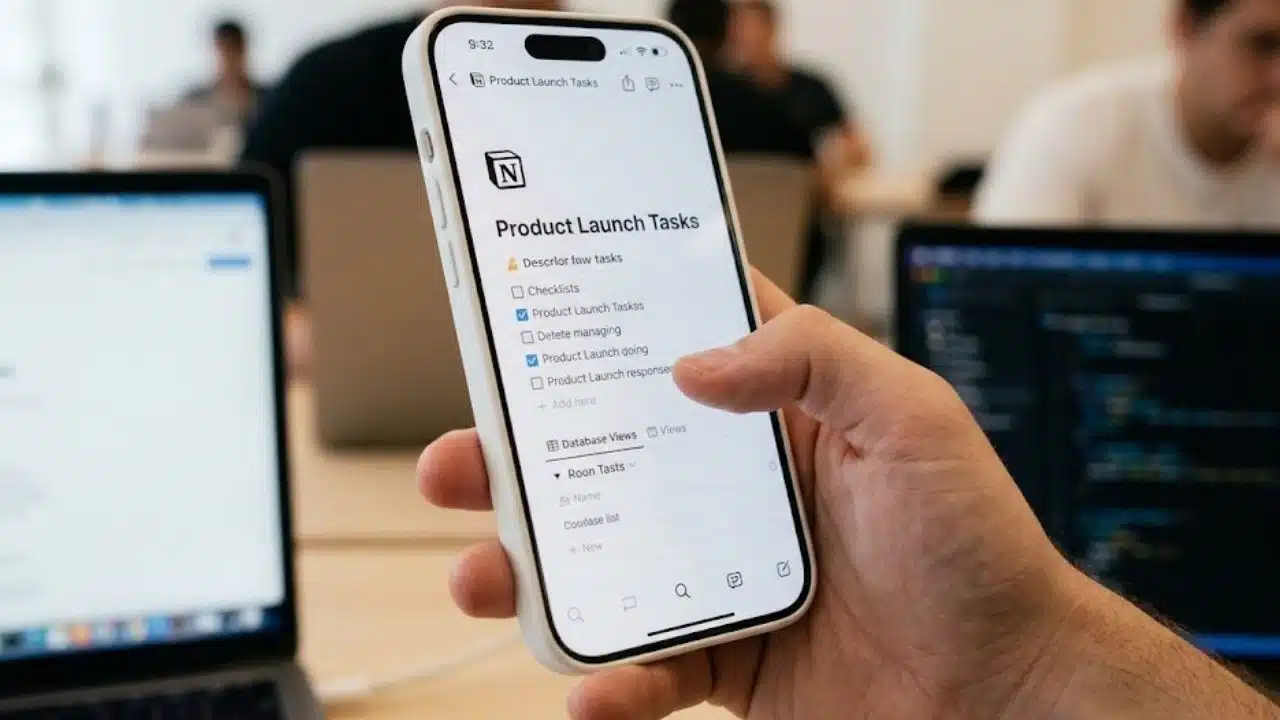
Notion can hold project plans, databases, meeting notes, content calendars, reading lists, and team documentation. The iPhone app is good for checking information, making quick edits, and saving web pages through the Share Sheet. Building an elaborate workspace is still much easier on a computer or iPad.
Offline use requires preparation. Pages must be downloaded on each device, subpages are not included automatically, and a downloaded database initially includes only the first 50 rows of its first view. Paid plans can automatically download recent and favorite pages.
8. Trello: Clear Visual Tracking for Small Projects
Trello works when progress is easier to understand as cards moving through stages such as Backlog, In Progress, Review, and Complete. Cards can contain due dates, checklists, attachments, comments, and assignees, making Trello practical for editorial calendars, coursework, hiring, or small team projects.
The iPhone app is better for capture and updates than for designing a large board. It can retain unsent offline changes, but reconnect and confirm they have synced before logging out, clearing app data, or reinstalling Trello.
9. Drafts: An Underrated Capture Tool
Drafts opens directly into an editor. There is no need to name a file, choose a folder, or decide where the text belongs before writing it down. Notes enter an inbox and can later be tagged, archived, shared, or sent elsewhere.
Widgets, dictation, the Share Sheet, and Apple Watch provide several capture routes. The free version includes unlimited creation, editing, syncing, and installed actions. Pro is aimed at users who want custom actions, workspaces, enhanced widgets, and deeper automation.
10. Obsidian: Built for Notes That Need to Last
Obsidian stores notes as local Markdown files, which gives users more control over long-term access and export. Links, daily notes, templates, search, plugins, and Bases can support research, study, writing, or a detailed personal knowledge system.
Syncing needs a deliberate choice. iCloud is recommended between Apple devices, but iCloud Drive on Windows can cause duplication or corruption. Dropbox, Google Drive, OneDrive, and Syncthing are not officially supported for Obsidian vaults on iOS. People mixing Windows and Apple hardware may find paid Obsidian Sync easier to maintain.
11. Apple Shortcuts: Powerful When Kept Manageable
Shortcuts can combine several actions into one command or respond to triggers involving time, location, communication, or device settings. A work shortcut could open project material, activate a Focus mode, and start a timer.
The app is free, but complicated automations are easy to overbuild. They may also break when connected apps change their available actions. Start with one repetitive task or adapt a shortcut from Apple’s Gallery before constructing a large workflow.
12. Goodnotes: Better as an iPhone Companion
Goodnotes belongs here mainly for students and professionals who already use it on an iPad. The iPhone app can retrieve notebooks, search handwriting, annotate PDFs, convert handwriting to text, and replay audio alongside notes taken during a recording.
Writing extensively on the smaller screen is awkward, so the iPhone app alone is not a strong reason to subscribe. The free plan also restricts notebooks, storage, import size, recording length, exports, and some sharing functions.
13. Freedom: Strong Focus Blocking With One Caveat
Freedom can block selected apps through iOS Screen Time controls and use its local Freedom Profile to block websites across browsers and many apps. It is most useful for people who simply move from a blocked computer site to the same distraction on their phone.
The Freedom Profile uses a VPN configuration. Since iOS permits only one active VPN at a time, it can conflict with a company or privacy VPN. Screen Time-based app blocking remains available without the Freedom Profile.
14. Spark Mail: Useful When Email Drives the Workday
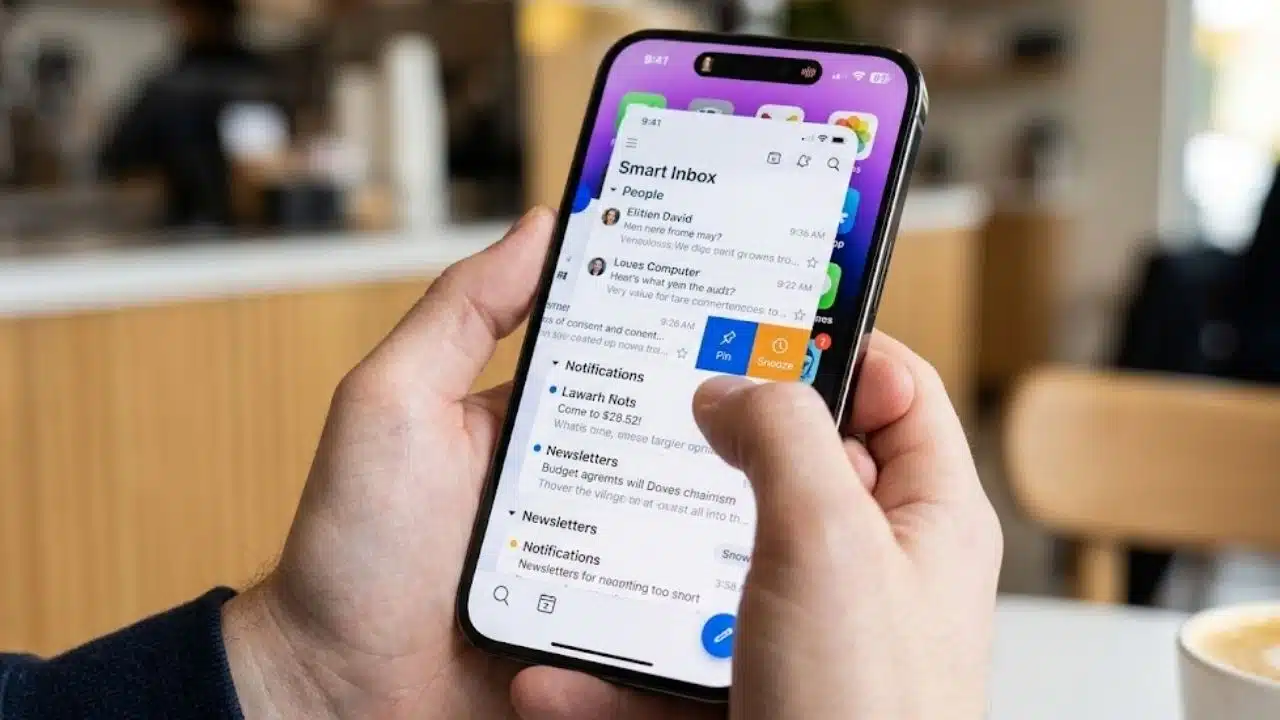
Spark’s free plan includes Smart Inbox, multiple email accounts, scheduled sending, snooze, reminders, and a Done marker. These tools help distinguish messages requiring action from newsletters and routine notifications.
Paid plans add Gatekeeper, which lets users accept or block unfamiliar senders before their messages enter the main inbox, along with other advanced functions. Spark is harder to justify for one quiet account. Employees should also check whether their organization permits third-party email clients before connecting a company mailbox.
Final Thoughts
The best productivity apps for iPhone should make the system smaller and easier to trust. Start with Apple Reminders if the need is simple task capture. Choose Todoist for cross-platform work, Things for a personal Apple-only setup, or TickTick when tasks, habits, calendar planning, and focus sessions need to share one home.
Use the chosen app for a week before adding anything else. If a recurring problem remains, add one specialist tool for it. That slower approach prevents a productivity setup from becoming another unfinished project.